Showing Posts From
Youtube shorts
 CreatorPlaybook Team
- 14 Nov, 2026
Your Vertical Video Uploaded as a Short (or Won't Upload as a Short) — the 3-Minute Rule
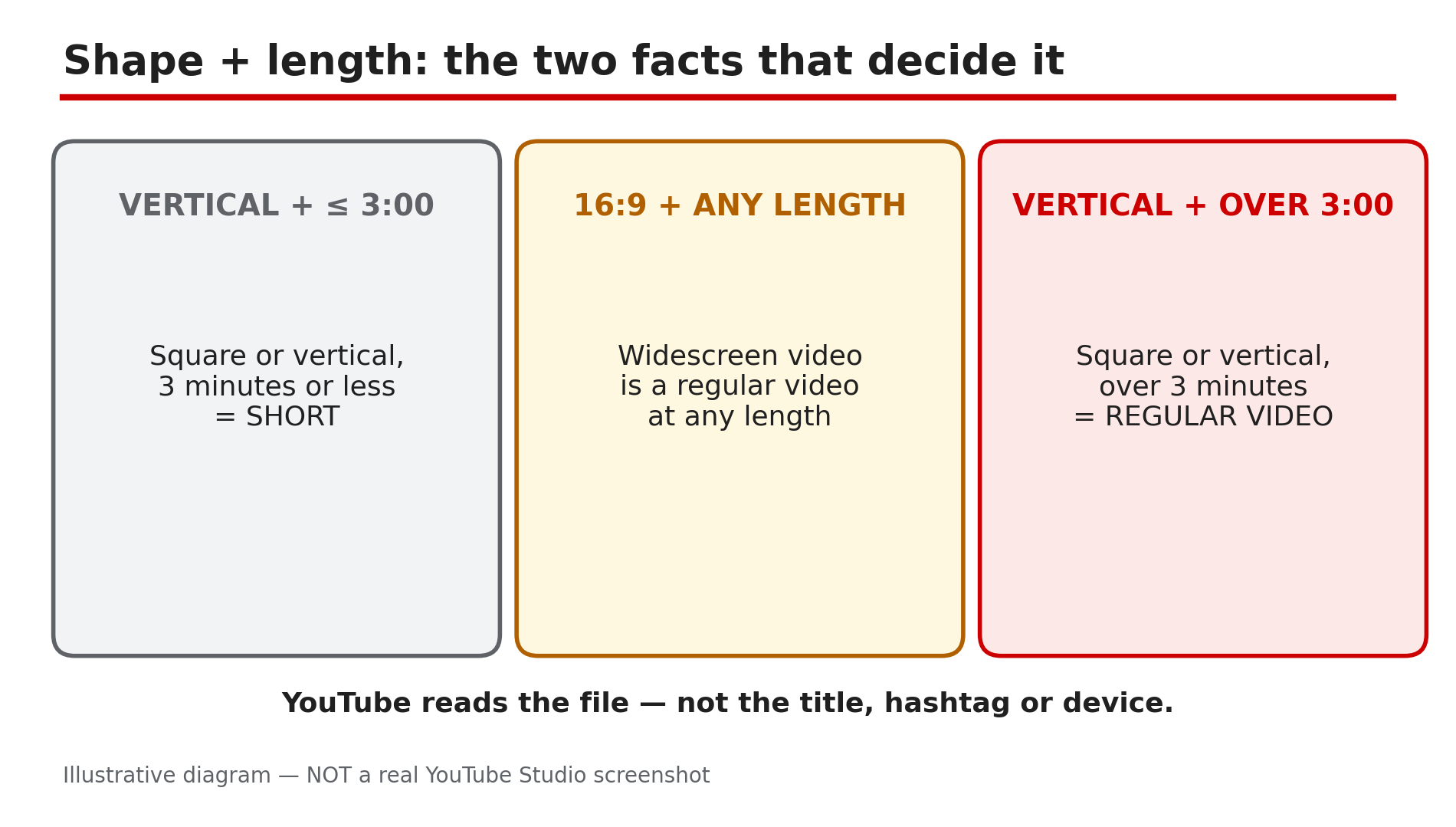
You filmed a two-minute vertical tutorial, expecting a regular video — and YouTube filed it as a Short. Or the opposite: you cut a vertical clip for the Shorts feed, and it shows up as a long-form video. The upload page never asked. YouTube never asks whether an upload is a Short. It decides from the file alone — its shape and its length — as reported on YouTube's Help pages. A square or vertical video of three minutes or less, uploaded on or after 15 October 2024, is a Short. Everything else is a regular video. No hashtag or Studio toggle changes that. What You Will LearnThe exact rule that decides whether an upload is a Short Why a PC upload still becomes a Short How to keep a short vertical video long-form: the 16:9 frame When making it longer than three minutes is the right fix Why a video that should be a Short stays long-form Why older vertical videos stay long-form, and the claim trap over 1 minuteStep 1 — Check the file's shape and length: the two facts that decide everything What to do: Check two facts about your exported file: its aspect ratio and its exact duration. How: YouTube's Help page on three-minute Shorts states the rule, as reported: videos uploaded on or after 15 October 2024 "with a square or vertical aspect ratio up to three minutes in length will be categorized as Shorts on YouTube." Shape: square or vertical counts; 16:9 does not. Length: three minutes or less counts; over does not. Check the file's properties, not the editor preview. Example: A creator exports a 2:45 vertical explainer at 1080x1920 and uploads it. It lands in the Shorts feed — the file matched both conditions. Common mistake: Assuming the upload device matters. The classification runs on the file, not the device, as reported.Illustrative diagram: the two facts — shape and length — that decide whether an upload is a Short. Step 2 — If you wanted long-form, put the vertical clip in a 16:9 frame What to do: To keep a short vertical video out of Shorts, export it inside a 16:9 frame. How: YouTube's own advice is direct, as reported: "If you don't want your content to be classified as Shorts, use a wider aspect ratio such as 16:9 for long-form videos." Create a 1920x1080 project, drop the vertical clip in, and fill the sides — black bars work, or a blurred copy of the clip behind it. Export the 16:9 file and upload that. Check on-screen text is still readable: your subject now fills only the middle third of a TV. Example: A creator's 2:20 vertical cooking tutorial keeps landing in the Shorts feed. She re-exports it in a 1920x1080 sequence with a blurred background — it appears as a regular video. Common mistake: Adding or removing "#Shorts" and expecting a change. The hashtag decides nothing, as reported.Illustrative diagram: the same clip as a vertical file becomes a Short, but inside a 16:9 frame it stays a regular video. Step 3 — If you wanted long-form, make the video longer than three minutes — only if there is real content to add What to do: If the content genuinely runs longer, extend it past three minutes. How: A vertical or square video over three minutes is a regular video under the rule, whatever its shape. If your tutorial has a cut step or section, add it back and let the video run to 3:15 or 3:30. Only do this with real content: padding a 2:50 clip with ten seconds of nothing gives viewers a reason to leave. The 16:9 frame from Step 2 is usually better for a searchable tutorial. Confirm in Studio that the upload appears as a regular video. Example: A creator's vertical repair guide runs 2:55 and lands as a Short. He restores the section he cut, the video becomes 3:25, and the re-upload is a regular video. Common mistake: Looping the ending to push past three minutes. Add real content, or use the 16:9 frame.Illustrative diagram: a 2:50 vertical video is a Short, while a 3:25 vertical video is a regular video — the 3:00 line decides it. Step 4 — Your vertical video won't become a Short: check the length, the export dimensions, and the black bars What to do: If you wanted a Short and YouTube treated it as a regular video, check the same three conditions — length, shape, and the real export dimensions. How: First, length: three minutes or under — editors often add a fraction of a second, so a 3:04 export is over the line. Aim for 2:55 or under. Second, shape: it must be square or vertical. Third, check the export dimensions, not the preview: a vertical clip exported from a 16:9 project with black bars is a 16:9 file to YouTube. Confirm the width is smaller than the height: 1080x1920, not 1920x1080. Example: A creator cuts a vertical clip in a 16:9 project and uploads it — it appears as a regular video. The file is 1920x1080. Re-exporting from a 9:16 sequence fixes it. Common mistake: Judging the shape from the editor preview. YouTube reads the file, not the picture.Illustrative diagram: three checks when a vertical video won't become a Short — length, export dimensions, and black bars. Step 5 — Check the upload date: videos uploaded before 15 October 2024 stay long-form What to do: If an older vertical video never became a Short, check its upload date — the rule is not retroactive. How: YouTube's Help page says videos uploaded before 15 October 2024 "will remain the same, as a long-form video on YouTube," as reported. A vertical video posted in 2023 is still a regular video; the same file uploaded today becomes a Short. For Official Artist Channels the switch came later: uploads on or after 8 December 2025 are Shorts, earlier ones stay long-form, as reported. No detail edit can reclassify an old upload. To put that content in the Shorts feed, upload it again — but a re-upload starts with zero views. Example: A vertical 2:10 video from 2023 sits in a creator's long-form list. It was uploaded before 15 October 2024, so it stays long-form, as reported. Common mistake: Editing the title or tags of an old video and expecting it to flip into a Short.Illustrative diagram: timeline of the 3-minute rule — before 15 Oct 2024, 15 Oct 2024, and 8 Dec 2025 for Official Artist Channels. Step 6 — Watch the claim trap: a Short over one minute with an active claim is blocked worldwide, as reported What to do: Before building a Short over one minute on claimed music, check the claim rules — and the Copyright tab in Studio after uploading. How: YouTube's Help page states, as reported, that any Short over one minute with an active copyright claim of any type, "will be blocked globally on YouTube. The video will not be playable or recommended on YouTube, and will not be eligible for monetization." There are no penalties to your channel, as reported, and once the claim is resolved the Short becomes viewable again. Remove the claimed content or dispute the claim — confirm the options in Studio. A third-party guide reports a possible September 2026 change; it could not be confirmed on the official Help page in this run, so treat the block as the rule. This trap only bites over one minute: as reported, Shorts under one minute are unaffected, so keeping a Short built on claimed music to 60 seconds or under avoids the block. Example: A creator posts a 2:30 Short using a popular song, and it shows zero views. The Copyright tab shows an active claim — the Short is blocked worldwide, as reported. Common mistake: Assuming a claim only takes the revenue. Over one minute, it can block the video entirely.Illustrative diagram: a Short with an active copyright claim — under 1 minute it stays up, over 1 minute it is blocked worldwide. Checklist — Fix a vertical video that uploaded as a Short (or won't upload as one)☐ Checked the file's dimensions and duration, not the editor preview ☐ Confirmed the rule: square/vertical, 3:00 or under, on/after 15 Oct 2024 = Short ☐ To stay long-form: re-exported in a 1920x1080 frame, sides filled ☐ Or extended it past 3:00 with real content ☐ Checked the upload date — pre-15 Oct 2024 stays long-form ☐ Checked the Copyright tab if a Short over 1 minute has no views ☐ Confirmed in Studio the re-upload is in the right placeFAQs 1. Is there a setting in YouTube Studio to upload a vertical video as a regular video? No, as reported: YouTube Help lists only the aspect ratio and the length, and the upload page has no toggle. 2. Why did my video upload as a Short when I uploaded it from my PC? Because YouTube classifies the file, not the device, as reported. Any square or vertical video up to three minutes long becomes a Short. 3. Why is my vertical video not being treated as a Short? Check that the exported file is three minutes or under and its dimensions are actually square or vertical, as reported. A vertical picture exported with black bars is a 16:9 file. Shorts upload at a maximum of 1080p, as reported. 4. Will my older vertical videos turn into Shorts now? No, as reported. Videos uploaded before 15 October 2024 remain long-form; for Official Artist Channels the cut-off is 8 December 2025. 5. Can a copyright claim block my Short completely? Yes, as reported: a Short over one minute with an active copyright claim is blocked globally — not playable, not recommended, not eligible for monetization. Shorts under one minute are not affected. Remove the claimed content or dispute it, and confirm the wording in Studio. SourcesYouTube Help — "Understand three-minute YouTube Shorts" (official source, opened live 14 Nov 2026): https://support.google.com/youtube/answer/15424877 CreatorPlaybook — "YouTube Shorts Music Disappeared or Muted? Why It Happens and How to Fix It" (internal link, URL supplied in the task brief): </blog/youtube-shorts-music-disappeared-or> CreatorPlaybook — "YouTube Shorts Custom Thumbnail Not Showing? How to Fix It" (internal link, URL supplied in the task brief): </blog/youtube-shorts-custom-thumbnail-not>
- CreatorPlaybook Team
- 08 Nov, 2026
YouTube Video or Shorts Not Showing in Your Subscriptions Feed? How to Fix It
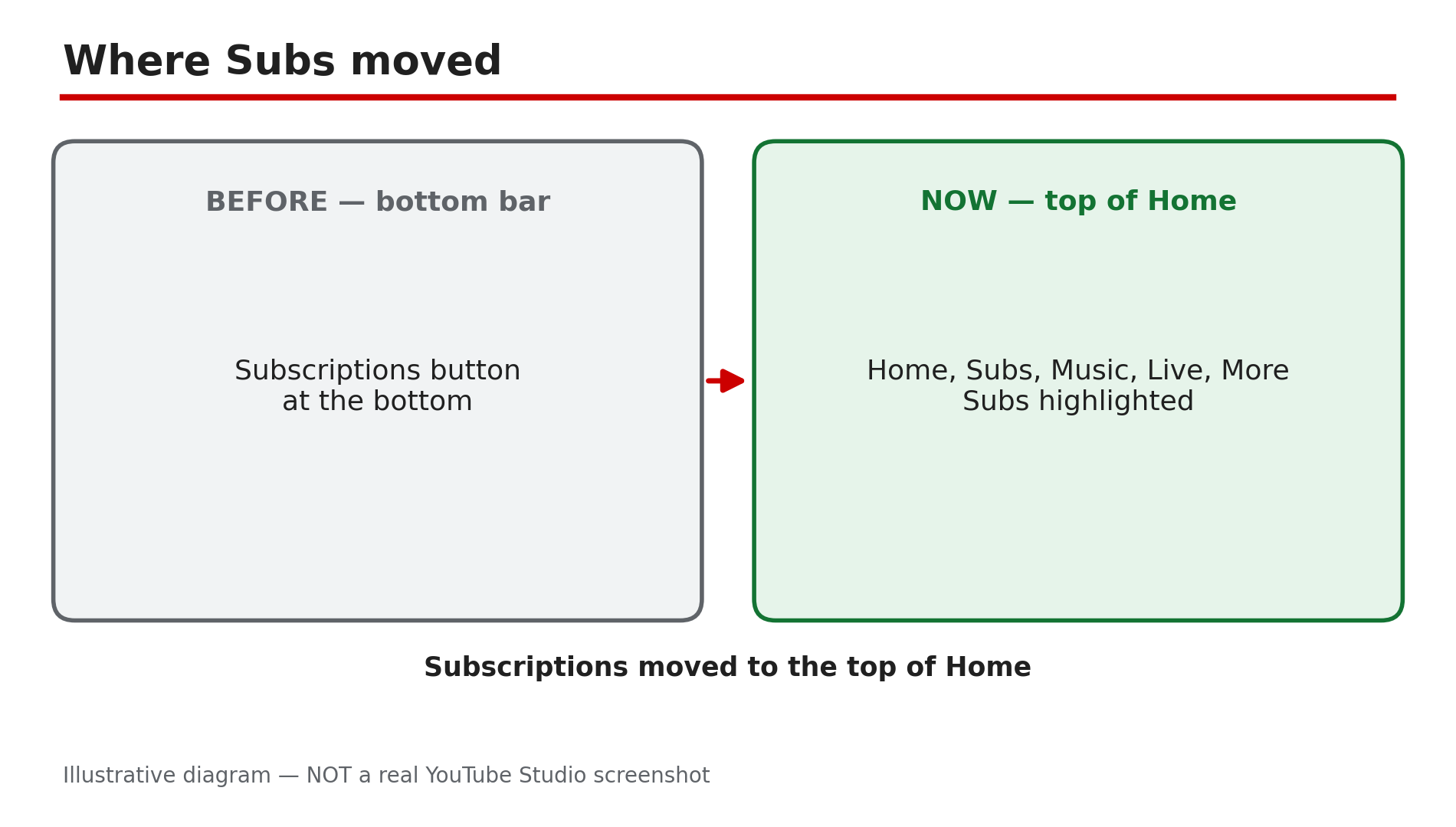
You know a channel uploaded a new video, but your Subscriptions feed hides it. Or the feed shows a video from three days ago at the top while today's upload is nowhere. Shorts seem to vanish, appearing hours later, if at all. This problem usually has more than one cause: your feed may be sorted by what YouTube thinks you want to watch rather than by upload time, the Subscriptions button has moved, and Shorts can take time to appear. Add a wrong account, and a video can be invisible even though nothing is broken. Work through the steps in order. What You Will LearnWhere the Subscriptions feed moved in the new app layout Why the feed is not in upload order, and how the Latest filter fixes it How to confirm the right account and subscription Why Shorts can be delayed How the feed differs from notificationsStep 1 — Find where Subs moved in the new app layout What to do: In the mobile app, open Home and tap "Subs" in the top bar — the button no longer sits at the bottom. How: As reported in October 2026, YouTube moved Subscriptions from the bottom bar to the top of the Home tab. Tap Home at the bottom left, then Subs in the row at the top — second after Home. If the top row is hidden, scroll back to the top or pull down. On a computer, click Subscriptions in the left-hand guide. Example: A viewer updates the app and panics because the Subscriptions tab has vanished. She taps Home, then Subs, and all her channels are still there — only the button moved. Common mistake: Reinstalling the app, or assuming you were unsubscribed, when the feed simply moved.Illustrative mock-up: Subscriptions moved from the bottom bar to the top of the Home tab as Subs. Step 2 — Confirm the right account and that you are still subscribed What to do: Check you are signed in to the account holding the subscriptions, and that the channel is still subscribed. How: Tap your profile picture and read the account name — many people have a personal and a brand account, and subscriptions live on one of them only. Then open the Subs feed and tap All. If the channel is missing, open its page: if the button says Subscribe, you were unsubscribed at some point — tap it again. YouTube's Help page confirms new videos from a subscribed channel show up in your Subscriptions feed. Example: A viewer cannot find any video from a small creator he follows — in the channel list the creator is gone, unsubscribed by accident. One tap brings the videos back. Common mistake: Checking the feed on a second account, or assuming the channel stopped uploading, without checking the list.Illustrative diagram: the same feed in ranked order and in Latest order, showing how a new video can be buried. Step 3 — Switch to the Latest filter and train the feed What to do: Use the Latest filter so the newest uploads appear first, and engage with the channels you want. How: Your Subscriptions feed is not chronological by default. YouTube ranks it by predicted interest — watch history and engagement — so a newer upload from a channel you rarely watch can surface days late, while an older video sits at the top. Use the Latest filter to sort by upload time instead, and engage with the channel — watch its videos to the end, like and comment. As reported, older filters may be missing in the new layout. Example: A creator uploads every morning at 8, but a viewer only sees the videos two days later. Switching to Latest shows today's video at the top — never missing, only ranked low. Common mistake: Treating the default feed order as upload order, and concluding a video was never delivered when it is ranked low.Illustrative mock-up: checking the signed-in account and the full subscription list before any other fix. Step 4 — Give Shorts time, and check the Shorts requirements What to do: If a Short is missing, wait before assuming a fault, and check the upload qualifies as a Short. How: As reported in YouTube's Help Community in October 2026, Shorts can take time to appear in search and in the feed after upload — check again after an hour or two. Also check the basics: a Short must be vertical and under 3 minutes — a horizontal video, or one longer than 3 minutes, is a regular video and will not appear in the Shorts shelf. Confirm in Studio that it is processed and Public. Example: A viewer checks the Subs feed five minutes after a creator posts a Short and finds nothing. An hour later it is at the top — a processing delay. Common mistake: Re-uploading the Short, which duplicates it and splits the views, instead of waiting.Illustrative diagram: the delay between a Short being uploaded and appearing in the Subscriptions feed. Step 5 — Remember the feed is not notifications, and check the bell What to do: Do not confuse a quiet feed with missing notifications — two different systems. Set the bell to All for an alert on every upload. How: YouTube's Help page explains the difference: the feed shows recent uploads, while notifications are alerts about new videos, which by default only cover highlights. For an alert on every upload, tap the bell on the channel page and choose All. No notifications come from channels set as made for kids. If the bell is the problem, read our separate guide on subscribers not getting notifications, linked below. Example: A viewer expects an alert for every upload and thinks the feed is broken. The feed is fine — the bell was set to Personalised, so only highlights arrived, and the video was in the feed all along. Common mistake: Toggling the bell, or unsubscribing and re-subscribing, when only the notification setting was wrong — and re-subscribing resets your notification settings, as YouTube's Help page confirms.Illustrative diagram: how the Subscriptions feed and notifications differ, and why the bell setting matters. Step 6 — Update the app, and check for a reported bug before blaming your account What to do: Update the app, restart it, and check whether other viewers report the same problem. How: Install any pending YouTube update, then close the app and reopen it — an outdated app can show the old layout or a stale feed. Custom feeds are also rolling out — as reported, up to 3 free or 8 with Premium — but YouTube's Help page confirms they are English-only in the US. One more check, as reported by third-party outlets and not officially confirmed: some iOS users reported a feed-scroll bug in app versions 20.50.6 to 20.50.9 on iOS 26.2 and 26.3 beta. If that matches your app, update it or wait for a fix. If a video is still missing, open the channel's Videos tab — if it is there, your account is fine and the feed has not surfaced it yet. Example: A viewer on iOS finds the feed freezing halfway down. After updating, it scrolls normally — the subscriptions were never the problem. Common mistake: Deleting the app, or unsubscribing from dozens of channels, when a simple update would have fixed the feed.Illustrative diagram: the six steps in order for a video or Short missing from the Subscriptions feed. Checklist — Fix videos or Shorts missing from your Subscriptions feed☐ Found Subs at the top of Home ☐ Right account signed in ☐ Channel still subscribed ☐ Latest filter used ☐ Engaged with the channel ☐ Shorts given time; vertical, under 3 min ☐ Upload Public in Studio ☐ Bell set to All ☐ App updated and restarted ☐ Channel Videos tab checkedFAQs 1. Why is my feed not in order of upload time? Because YouTube ranks the feed by predicted interest — watch history and engagement — not upload time. A newer video from a channel you rarely watch can sit below older videos. Use Latest to see uploads in time order. 2. Where did the Subscriptions tab go in the YouTube app? As reported in October 2026, it moved: Subscriptions is now called Subs at the top of the Home tab, not the bottom bar. Tap Home, then Subs — nothing was deleted. 3. Why does a Short take so long to appear in my feed? As reported in YouTube's Help Community, Shorts can take time to appear in search and in the feed while processing finishes. Wait an hour or two, and confirm in Studio it is vertical, under 3 minutes, and Public. 4. Is a missing video in my feed the same as not getting notifications? No. The feed shows recent uploads; notifications are separate alerts, and by default you only get highlights. If the bell is your problem, see our notifications guide, linked below. 5. A channel's videos never appear in my feed, even after waiting. What now? Check you are subscribed, on the right account, and using Latest. Then open the channel's Videos tab — if the video is there, your account is fine. If the channel is missing from your list, subscribe again. SourcesYouTube Help — "Subscribe to YouTube channels" (official page, opened live 8 Nov 2026): https://support.google.com/youtube/answer/4489286?hl=en CreatorPlaybook — "Video Not in Suggested or Recommended? How to Fix It" (internal link, live-verified): </blog/video-not-in-suggested-or-recommended> CreatorPlaybook — "Subscribers Not Getting Notifications? How to Fix It" (internal link, live-verified): </blog/subscribers-not-getting-notifications>
- CreatorPlaybook Team
- 08 Nov, 2026
YouTube Shorts Custom Thumbnail Not Showing? How to Fix It
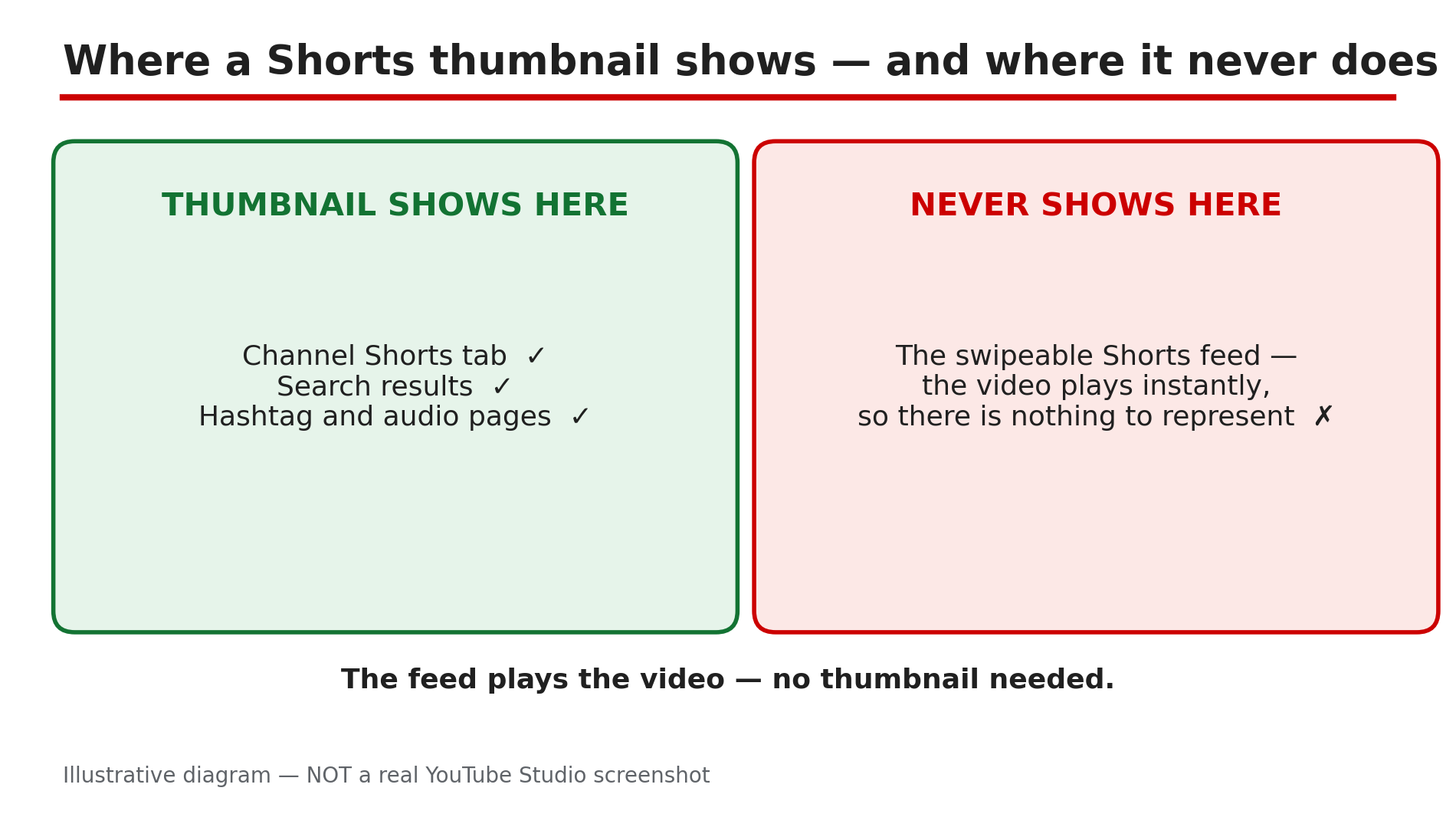
You uploaded a custom thumbnail for your Short and saved it — but the Short still shows an auto-picked frame. Or there is no upload button at all, only a message saying you cannot change the thumbnail for now. In most cases it is not a bug: wrong place, wrong eligibility, wrong device, or a file that breaks the rules. Custom Shorts thumbnails are new. As reported, YouTube began rolling them out on 25 July 2026 to Partner Program members, in Studio on a computer only. Before that, a Short's thumbnail was always a frame from the video — and for many creators it still is. Work through the steps in order and confirm each one in Studio — in minutes you will know if the thumbnail is missing, delayed, or never uploaded. What You Will LearnWhere a Shorts thumbnail appears — and where it never will Whether your channel is eligible Why the upload option is desktop Studio only The file size, format, and ratio rules How to upload, save, and check the thumbnail The frame workaround while you waitStep 1 — Check where you are looking first What to do: Check the right surface before changing anything. A Shorts thumbnail never appears in the swipeable Shorts feed, because the video starts playing the moment it appears. Check your Shorts tab, search results, or a hashtag page instead. How: Open your channel in an incognito window and open the Shorts tab, so you see what a visitor sees. Then search for the Short's title. YouTube's Help page says the thumbnail appears in search results, hashtag and audio pivot pages, and your channel page. If the custom image shows there, it worked. Example: A creator uploads a custom thumbnail, checks the Shorts feed, and sees the old frame. She checks her Shorts tab in an incognito window instead — the new thumbnail is there. Common mistake: Judging the thumbnail from the Shorts feed alone, and re-uploading when the first upload worked.Illustrative diagram: the surfaces where a Shorts thumbnail appears, and the one surface where it never will. Step 2 — Confirm your channel is eligible — YPP and the rollout What to do: Check whether your channel can use custom Shorts thumbnails. As reported, the rollout began on 25 July 2026 for Partner Program members only. If you are not in YPP, or it has not reached you, there is no setting to switch on. How: Open the Earn tab in Studio to check Partner Program membership. Then read the message Studio shows: if it says "For now, you can't change the thumbnail on your Short", the feature has not reached your account yet. There is no toggle to turn it on — check again after a few days. Example: A creator outside YPP hunts through Studio for a thumbnail switch. The Earn tab shows she is not in the Partner Program — so she waits and uses the Step 6 workaround. Common mistake: Paying for a tool that promises to unlock it. No tool can add a feature YouTube has not rolled out to your channel.Illustrative diagram: the two eligibility gates for custom Shorts thumbnails — Partner Program membership and the gradual rollout. Step 3 — Switch to YouTube Studio on a computer What to do: Do this step on a computer, in a desktop browser. Custom Shorts thumbnails can only be added in YouTube Studio on a computer — not from the mobile app, and not through a scheduler. On a phone, you can only pick a frame. How: On your computer, sign in to Studio, open Content, and select Shorts. Open the Short, click Upload file below "Thumbnail", choose the image, and click SAVE. As reported, schedulers do not support custom Shorts thumbnails — upload in Studio itself. On mobile, the YouTube app offers only a frame picker. Example: A creator tries for a week to add a custom thumbnail from the Studio app and finds only frame choices. On her laptop, the Upload file button is right there. Common mistake: Re-installing the mobile app when the feature is desktop-only by design.Illustrative mock-up: the desktop Studio path to upload a custom Shorts thumbnail, and the routes that do not offer it. Step 4 — Verify your account and check the file against the rules What to do: Confirm your account is verified, then check the file against YouTube's rules. A file that breaks them can fail silently. How: In Studio, go to Settings, then Channel, then Feature eligibility, and confirm phone verification is done — YouTube's Help page states verification is required. Then check the file: 2160 by 3840 pixels, 9:16, minimum 640 pixels tall, JPG or PNG, under 50 MB on desktop. Check the image against the Community Guidelines too: misleading, sexual, hateful, violent, or harmful content can get a thumbnail rejected, and a strike can follow. A daily limit also applies — "Daily custom thumbnail limit reached" means wait 24 hours. Example: A creator exports a 16:9 image for a vertical Short. Nothing changes. She exports a 2160 by 3840, 9:16 JPG under 50 MB, and the upload works first try. Common mistake: Using a long-form 16:9 file for a Short, or assuming an upload worked with no error shown.Illustrative diagram: the four file rules a Shorts thumbnail must meet before upload. Step 5 — Upload, save, and wait for the change to appear What to do: Upload in desktop Studio, click SAVE, and give the change time to appear. YouTube's Help page notes thumbnail changes may take time, so a missing thumbnail minutes after saving is often just processing. How: Open Content, then Shorts, open the Short, click Upload file below Thumbnail, choose the file, and click SAVE. Then wait and check in an incognito window: the Shorts tab and a search result, not the feed. If the old frame still shows, reopen the Short and check the custom image is still selected; if not, upload again. One quirk: a 16:9 thumbnail on a vertical video becomes an auto 4:5 image on Home, Explore, and Subscriptions instead. Example: A creator saves a new thumbnail and checks the feed five minutes later — old frame. She waits, checks her Shorts tab in incognito, and it is showing. Common mistake: Re-uploading the same image five times, or deleting the Short — a new upload loses views and comments.Illustrative diagram: the upload, save, wait and check sequence for a new Shorts thumbnail. Step 6 — Use the frame workaround, and know what does NOT work for Shorts What to do: If the upload option has not reached your channel, use the frame method that works for everyone today. Test and Compare does not work on Shorts. How: Make the first second of the Short a clean, bold frame — big readable text, one clear subject — because the frame you pick becomes the thumbnail on your channel page, in search, and on hashtag pages. On mobile, open the YouTube app and pick the best frame; that is the only choice on mobile, and it works on every channel. Keep one style across your Shorts so viewers recognise them. Example: A creator not yet in YPP opens every Short with a one-second title card: three big words on a plain background. She picks that frame, and her Shorts tab looks consistent while she waits. Common mistake: Waiting for a Test and Compare result on a Short, or re-uploading the video just to change the frame.Illustrative diagram: what works for long-form thumbnails but not for Shorts, and the frame workaround that works for everyone. Checklist — Fix a Shorts custom thumbnail not showing☐ Checked the Shorts tab and search, not the Shorts feed ☐ YPP status confirmed in the Earn tab ☐ "Can't change the thumbnail" read as a rollout wait ☐ Studio on a computer, not the mobile app or a scheduler ☐ Account verified (phone), checked in Feature eligibility ☐ File is 2160x3840, 9:16, JPG or PNG, under 50 MB ☐ Image follows the Community Guidelines ☐ Uploaded via Upload file, then SAVE clicked ☐ Waited, then checked in an incognito window ☐ Frame workaround in place while waitingFAQs 1. Why can't I change my Shorts thumbnail at all? As reported, the rollout began on 25 July 2026 for Partner Program members, in Studio on a computer only. If you are not in YPP, or it has not reached you, Studio says the thumbnail cannot be changed for now. Check the Earn tab and use the Step 6 workaround. 2. Where does a Shorts thumbnail actually show? On your Shorts tab, in search results, and on hashtag and audio pages. Never in the swipeable Shorts feed — check the Shorts tab in incognito. 3. Can I upload a custom Shorts thumbnail from my phone? No. YouTube's Help page states they can only be added in Studio on a computer, with a verified account. On a phone, you can only pick a frame. 4. What size should a Shorts thumbnail be? 2160 by 3840 pixels at 9:16, minimum 640 pixels tall, JPG or PNG, under 50 MB on desktop. A 16:9 thumbnail on a vertical video becomes an auto 4:5 image on Home, Explore, and Subscriptions. 5. Can I A/B test Shorts thumbnails? No — Test and Compare is long-form only. Pick the strongest frame, keep one style, and compare click-through in Analytics. SourcesYouTube Help — "Add custom thumbnails on YouTube" (official page, opened live 8 Nov 2026): https://support.google.com/youtube/answer/72431?hl=en-GB&co=GENIE.Platform%3DDesktop CreatorPlaybook — "YouTube Custom Thumbnail Rejected or Not Showing? How to Fix It" (internal link, opened live 8 Nov 2026): </blog/youtube-custom-thumbnail-rejected-or> CreatorPlaybook — "YouTube Studio Not Loading, Blank, or "Something Went Wrong"? How to Fix It" (internal link, opened live 8 Nov 2026): </blog/youtube-studio-not-loading-blank-or>