YouTube Shorts Not Monetized? 7 Reasons and How to Fix Each One
 CreatorPlaybook Team
- 29 Oct, 2026
Your Short is getting views, but the earnings stay at zero. That gap is frustrating, and it is also common, because views and earnings are not the same thing. For Shorts, YouTube pays on engaged views , not on every public view. A Short can collect thousands of public views and still earn nothing if the views are not eligible, if your account is not set up to earn, or if that Short itself is ineligible. This guide sorts the cause into three buckets, checks the Earn tab in order, and fixes each reason one at a time.
The key fact first: Shorts revenue uses engaged views, and a Short can have public views without earning. Engaged views exclude views YouTube counts as ineligible, such as views on non-original Shorts and artificial or fake views. So a rising view count never proves a Short is monetized. The checks below start with your account, then the Short, then the settings, so you fix the cause instead of guessing.
Related reading: YouTube Shorts Monetization and RPM Explained.
What You Will Learn
- How to sort a non-earning Short into one of three buckets in two minutes.
- How to check your Partner Program status, the Shorts Monetization Module, and AdSense in the Earn tab.
- Why reused content, inauthentic or template content, and music claims stop a Short from earning.
- How age restriction and Made for Kids settings change whether a Short can earn.
- What engaged views are, and why public views alone never prove earnings.
- A 14-day fix-and-recheck plan that starts with the Earn tab.
Step 1: Sort the Cause into Three Buckets
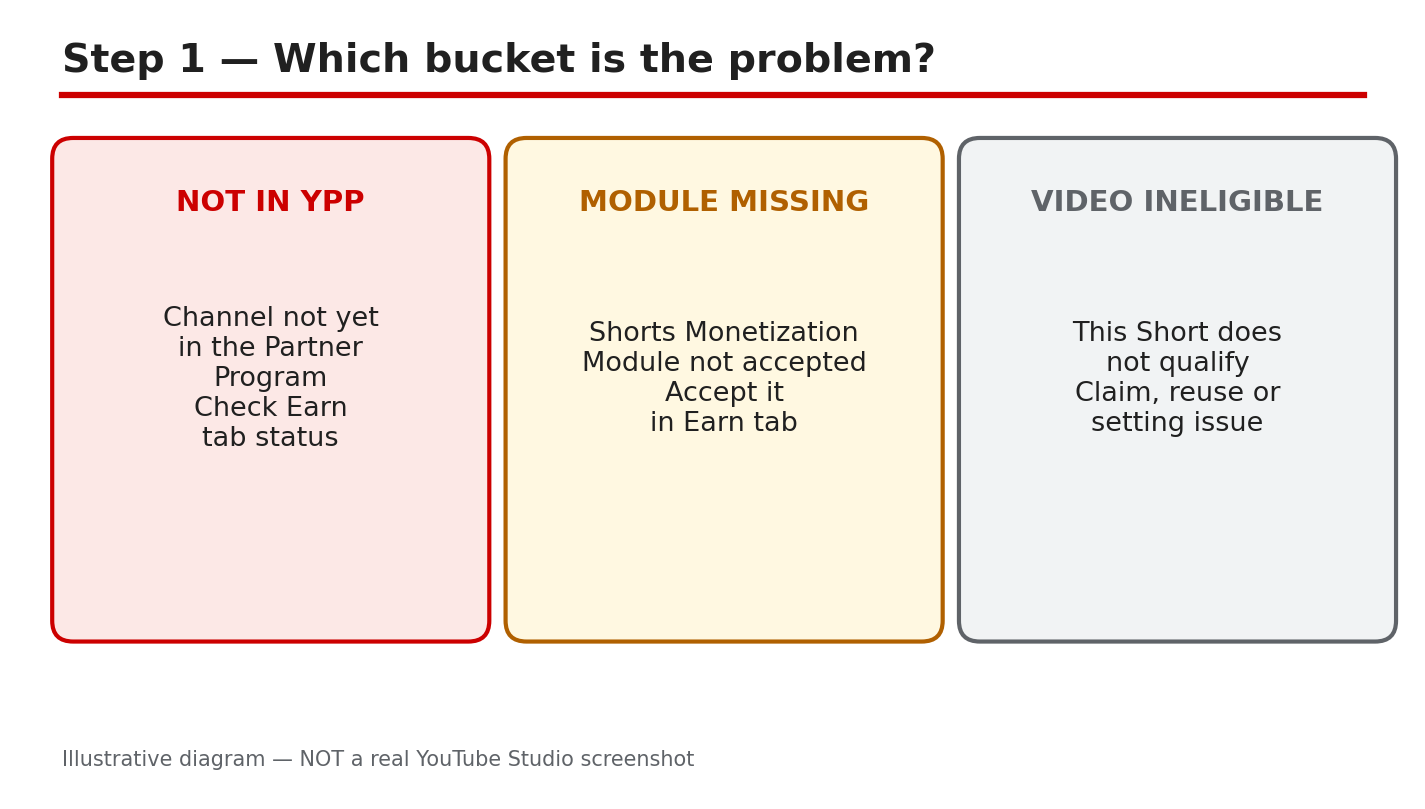
What to do: Before you change anything, name the bucket. Bucket A is account setup: you are not in the YouTube Partner Program, the Shorts Monetization Module is not accepted, or AdSense is not linked. Bucket B is the Short itself: reused content, inauthentic or template content, or a music claim. Bucket C is settings and eligibility: an age restriction, a Made for Kids setting, or views that are public but not engaged. The seven reasons in this guide sit inside these buckets: (1) not in the Partner Program, (2) the Shorts module not accepted, (3) an AdSense or payment problem, (4) reused content, (5) inauthentic content, (6) music or claimed content, and (7) a setting or ineligible views. Write down which bucket your case fits before you move on.
Studio path: YouTube Studio > Earn. Read the status at the top of the tab first, then open one Short in YouTube Studio > Content and check its restrictions and details.
Example: A creator sees 40,000 views and zero earnings on a Short made from a viral clip. The Earn tab shows the channel is in the Partner Program with the Shorts module accepted, so the cause is Bucket B, not setup. The fix is content, not settings.
Common mistake: Re-uploading the same Short, changing the title, or deleting and reposting it. None of these fix an account or eligibility problem, and re-uploads can create a reused-content problem of their own.
Illustrative diagram/mock-up of the three problem buckets: not in the Partner Program, the Shorts module missing, and the Short itself ineligible. This is NOT a real YouTube Studio screenshot.
Step 2: Run the Earn Tab Check
What to do: Open the Earn tab and answer three questions in order. First, does the tab show you are in the YouTube Partner Program? Second, does it show the Shorts Monetization Module as accepted? Only partners who have accepted that module can earn Shorts ad revenue from the Creator Pool. Third, is an AdSense account linked and showing as active? If any answer is no, stop here: no fix to a single Short can make it earn until the account side is right. Note the exact status wording for each item, because the wording tells you what to fix next.
Studio path: YouTube Studio > Earn. Read the Partner Program status, the Shorts Monetization Module status, and the AdSense and payment section on the same tab.
Example: A new partner sees Shorts views growing but no revenue. The Earn tab shows the Watch Page module accepted and the Shorts module still awaiting acceptance. Accepting the Shorts module, then reloading the tab to confirm it shows as accepted, is the whole fix.
Common mistake: Assuming that joining the Partner Program turns on every kind of earning at once. Each module is separate, so Shorts earnings need the Shorts module accepted on its own.
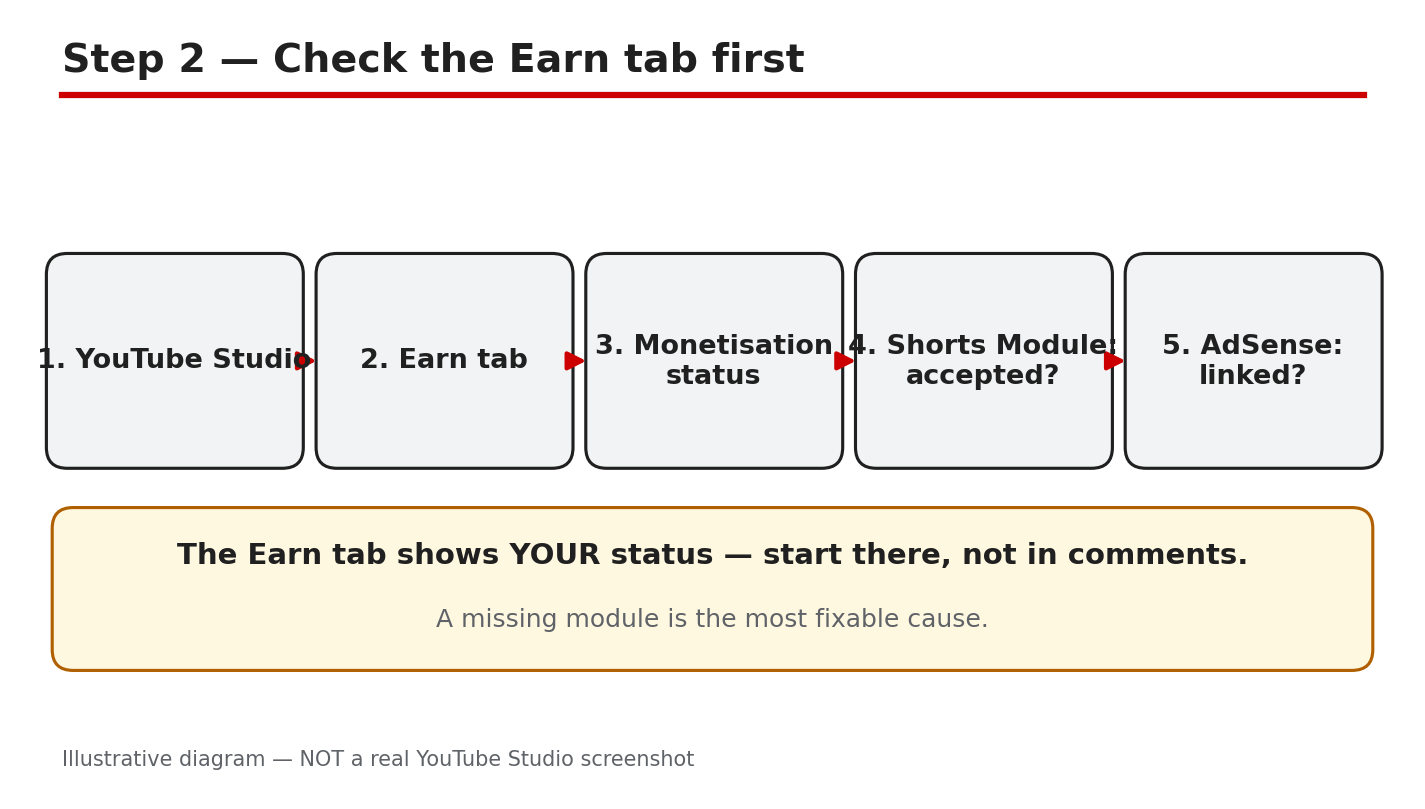
Illustrative diagram/mock-up of the five-step Earn tab check: Studio, Earn tab, status, Shorts module, and AdSense. This is NOT a real YouTube Studio screenshot.
Step 3: Fix the Content Reasons
What to do: If the Earn tab is in order, the Short itself is the next suspect. YouTube’s Shorts monetization policies list non-original Shorts as ineligible for payments, including unedited clips from other people’s movies or TV shows and re-uploads of other creators’ content without original content added. Separately, the channel monetization policies treat repetitive or mass-produced content as “inauthentic content,” renamed from “repetitious content” in a July 2025 update, and say it has always been ineligible for monetization. The third content reason is music: a Short that uses claimed music can have its revenue shared with or taken by rights holders, and Shorts over one minute that contain claimed content can be blocked from monetization. Check each Short against all three, and be honest about how much of it is truly yours.
Studio path: YouTube Studio > Content > click the Short > Restrictions. Then open YouTube Studio > Content > click the Short > Details and review what the Short contains and which audio it uses.
Example: A creator posts daily clips from a TV show with a caption added. The Shorts earn views but nothing else. The clips are non-original, so the views are ineligible. The fix is to publish Shorts built around the creator’s own footage, commentary, or editing, and to leave the re-uploads behind.
Common mistake: Adding a filter, a caption, or a few seconds of reaction to someone else’s clip and calling it original. Small changes to another creator’s work do not make a Short original, and templates used with no added value fall under the inauthentic-content policy.
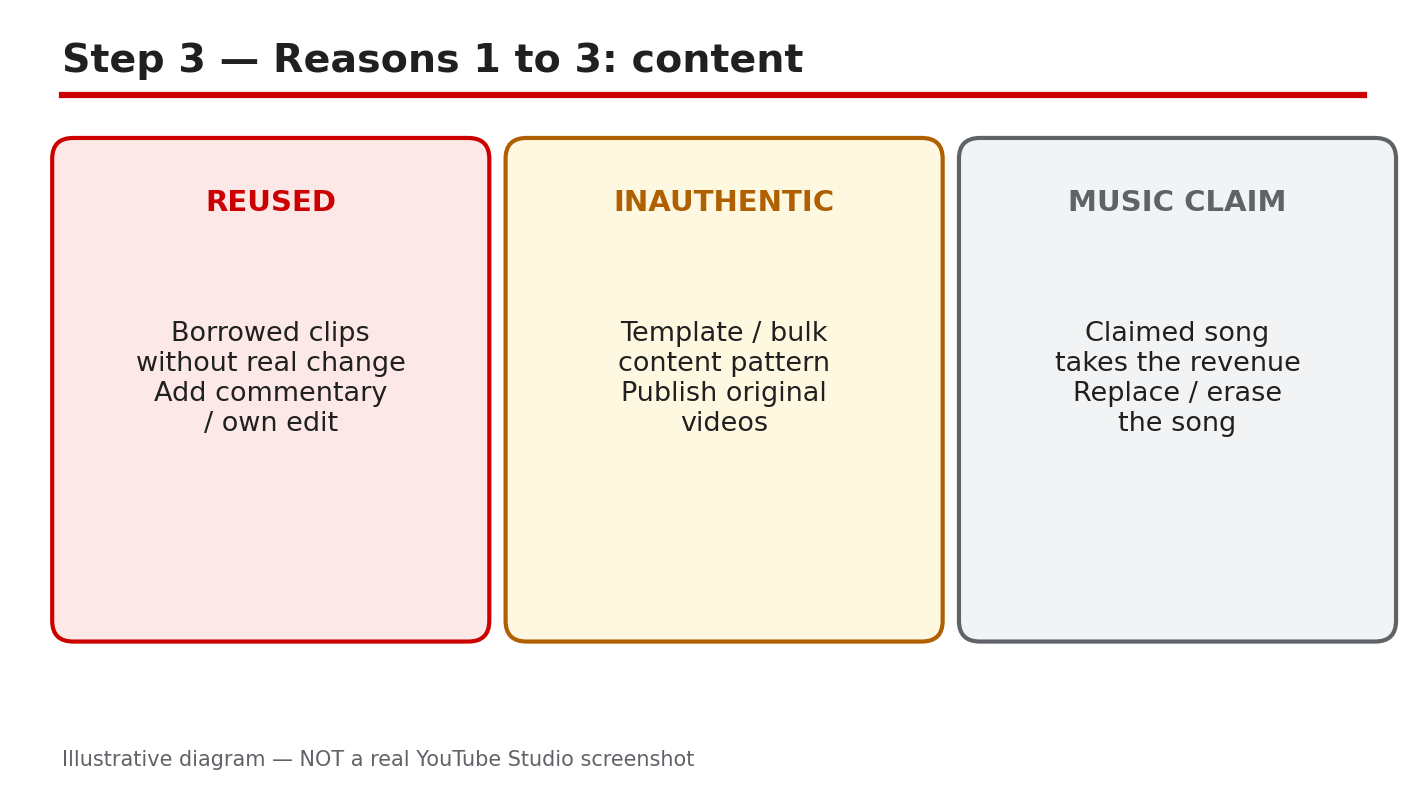
Illustrative diagram/mock-up of the three content reasons: reused content, inauthentic or template content, and a music claim. This is NOT a real YouTube Studio screenshot.
Step 4: Re-check Membership, Module, AdSense, and Strikes
What to do: Go back to the Earn tab and re-check four things as a set: Partner Program membership is active, the Shorts Monetization Module shows as accepted, AdSense is linked and in good standing, and no active strike or enforcement action is blocking monetization. A strike or a monetization suspension can stop earnings even when the module shows as accepted, so do not skip this check. If the Earn tab shows a message or a warning, read it in full and follow the action it names, whether that is an AdSense step, a review, or an appeal. Record the date you checked, so the 14-day re-check in Step 6 has a clear starting point.
Studio path: YouTube Studio > Earn for membership, module, and AdSense status. Then YouTube Studio > Content > Restrictions, and the channel status shown in YouTube Studio > Settings > Channel, for strikes and standing.
Example: A creator accepts the Shorts module but earnings stay at zero. The Earn tab shows AdSense as needing action because the payment account was never fully set up. Completing the AdSense setup, then confirming the tab shows it as active, restarts the chain.
Common mistake: Checking only the module and ignoring AdSense. Earnings cannot be paid without a linked AdSense account in good standing, so a green module with a broken payment link still earns nothing.
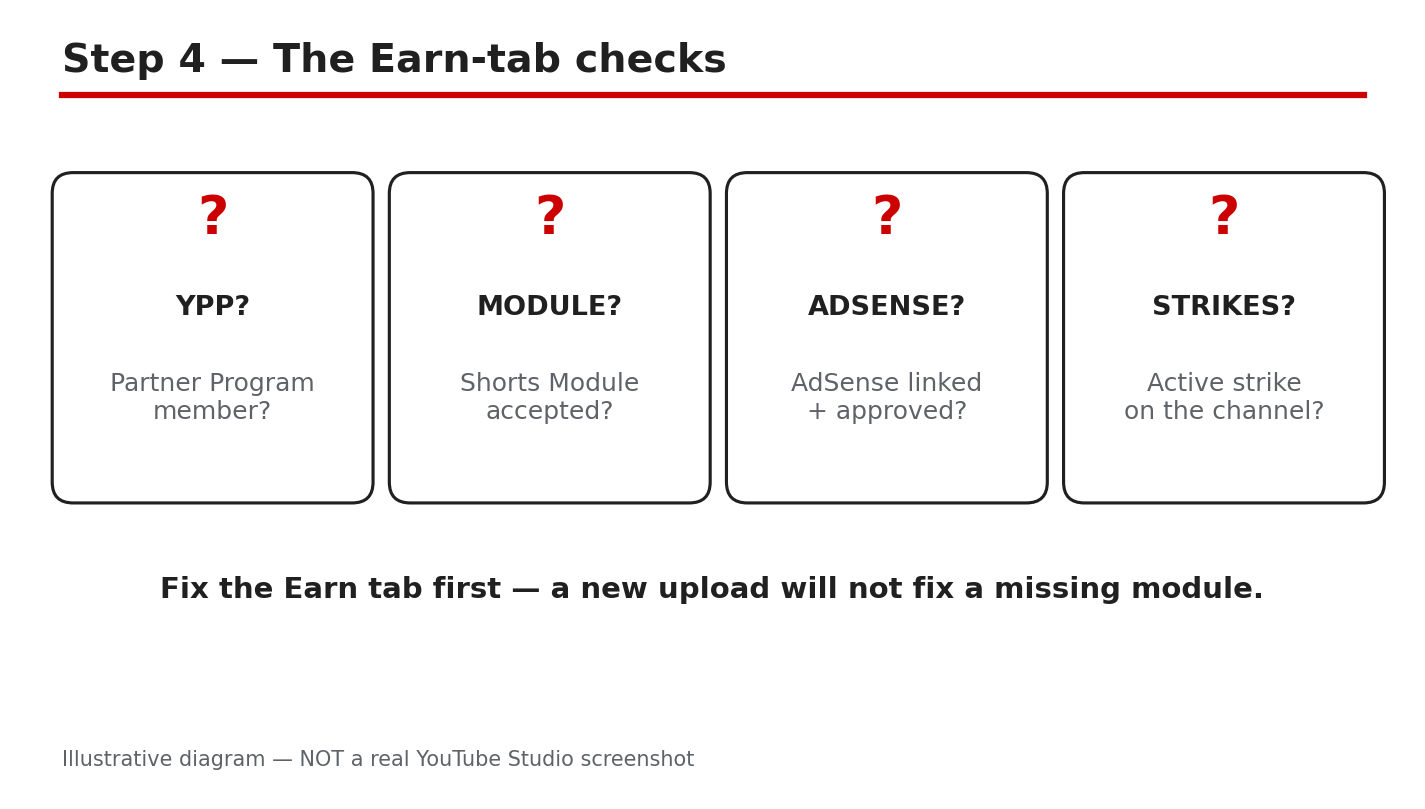
Illustrative diagram/mock-up of the four Earn-tab checks: membership, module, AdSense, and strikes. This is NOT a real YouTube Studio screenshot.
Step 5: Check the Settings Reasons
What to do: Two settings can quietly stop a Short from earning. An age restriction limits who can watch and can remove a Short from ad eligibility, and a Made for Kids setting changes the features and ads available on a Short. Check both on the Short itself, and set them correctly for what the Short actually is: do not mark adult content as Made for Kids, and do not leave an age restriction on a Short that does not need one. Then remember the views rule: only eligible engaged views count toward Shorts payments. Views that are fake, automated, or on ineligible content do not count, even if the public counter keeps rising. A Short with 100,000 public views and almost no engaged views will show little or no revenue, and that is the system working as designed, not a bug.
Studio path: YouTube Studio > Content > click the Short > Details > Audience, for the Made for Kids setting; and the same Details page and the Restrictions column, for the age restriction. For views, open YouTube Studio > Analytics > the Short, and compare the public view count with the revenue shown in YouTube Studio > Analytics > Revenue.
Example: A creator’s Short shows 80,000 views and no earnings. Its details show it was wrongly marked Made for Kids, which limited its ads. Correcting the audience setting on future Shorts, and checking the current one, explains the gap without any change to the video itself.
Common mistake: Judging monetization from the public view count alone. Public views include views that never count as engaged views, so the counter can climb while revenue stays at zero.
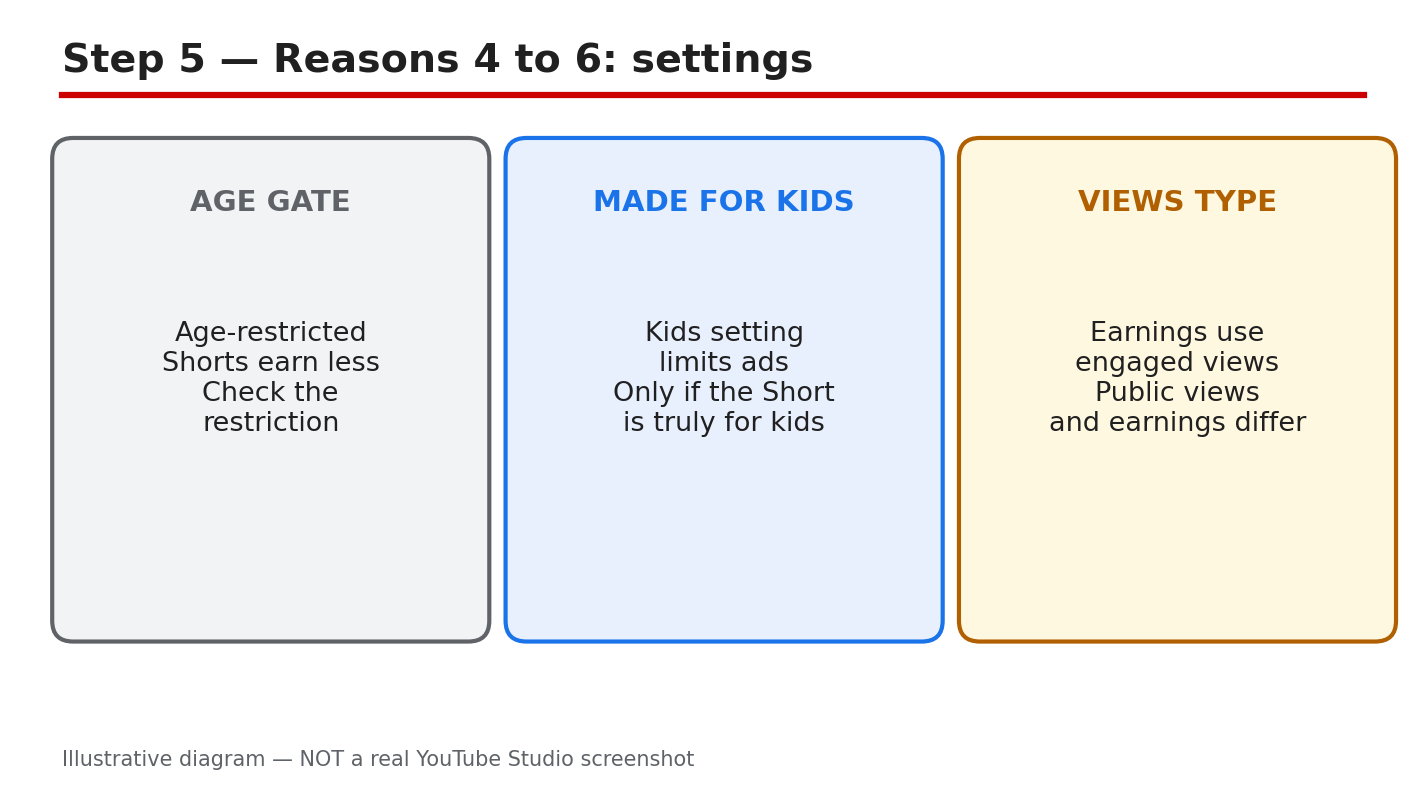
Illustrative diagram/mock-up of the settings reasons: age restriction, Made for Kids, and public versus engaged views. This is NOT a real YouTube Studio screenshot.
Step 6: Follow the 14-Day Fix-and-Recheck Plan
What to do: Fix in order, then wait and re-check. Days 1 to 2: fix the Earn tab first — membership, Shorts module, AdSense, and any strike message. Days 3 to 7: publish only original Shorts, with your own footage, voice, or editing, and with music you have the right to use. Days 8 to 14: leave the new Shorts alone and let the data arrive. On day 14, open the Earn tab and the Revenue report in Analytics, and compare the new Shorts with the old ones. If new original Shorts show revenue and old ones do not, the cause was the content. If nothing shows revenue, repeat Steps 2 and 4 and read every message on the Earn tab before changing anything else.
Studio path: YouTube Studio > Earn on day 1 and day 14; YouTube Studio > Content to publish; YouTube Studio > Analytics > Revenue on day 14 to compare Shorts.
Example: A creator fixes an unlinked AdSense account on day 1, publishes four original Shorts in the next week, and on day 14 sees the new Shorts earning while the old re-uploads still show zero. The plan proved the cause and the fix in one cycle.
Common mistake: Changing five things at once and checking after one day. Revenue data lags, and changing everything together hides which fix worked. One ordered cycle of 14 days gives a clean answer.
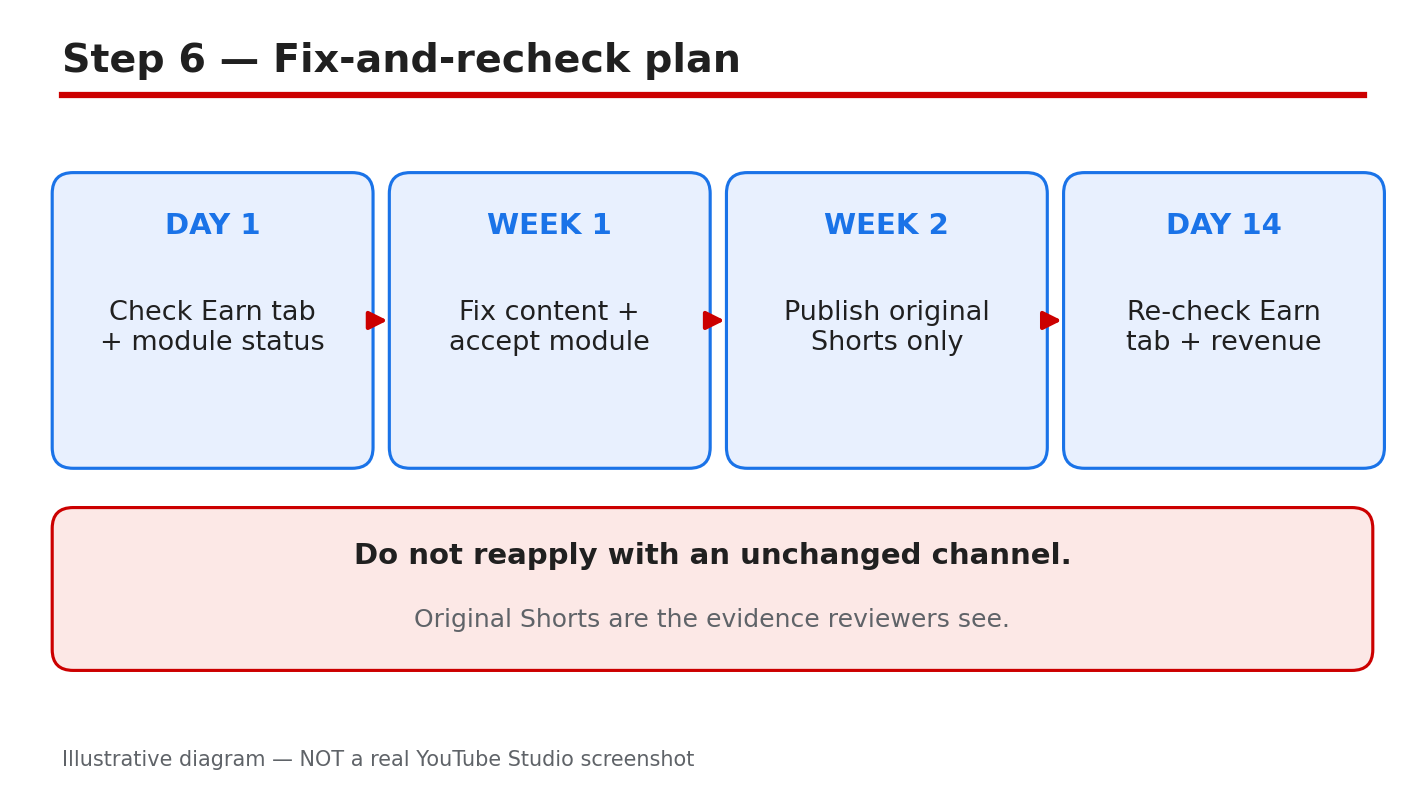
Illustrative diagram/mock-up of the 14-day fix-and-recheck plan: fix the Earn tab, publish original Shorts, and re-check on day 14. This is NOT a real YouTube Studio screenshot.
Checklist: Before You Recheck
- Partner Program membership shows as active in the Earn tab.
- Shorts Monetization Module shows as accepted.
- AdSense is linked and showing as active.
- No active strike or monetization message is waiting in the Earn tab.
- The Short is original, not a re-upload or a bare template.
- Audience and age-restriction settings are correct for the Short.
- 14 days have passed since the fix, and the Revenue report has been checked.
Frequently Asked Questions
Why does my Short have views but no revenue? Because Shorts pay on engaged views, not public views. Views on ineligible, non-original, or artificially boosted Shorts do not count, and earnings also need Partner Program membership, the accepted Shorts module, and linked AdSense.
I am in the Partner Program. Why are my Shorts still not earning? Check the Shorts Monetization Module separately in the Earn tab. Joining the program does not accept every module, and Shorts revenue needs that module accepted, plus AdSense linked and no blocking strike or message.
Can a music claim take all of a Short’s revenue? A Short with claimed music can have its associated revenue shared with rights holders, and longer Shorts with claimed content can be blocked from monetization. Check the Restrictions column on the Short, and use music you have the right to use.
Does marking a Short Made for Kids stop it earning? It changes the ads and features available, which can reduce or remove earnings on that Short. Mark the audience setting honestly for each Short, and check it in the Details page if revenue looks wrong.
How long should I wait after a fix before judging it? Give it 14 days, then check the Earn tab and the Revenue report in Analytics. Revenue data lags, and one day is too soon to tell whether an account fix or a content change worked.
Sources — Check It Yourself
These official YouTube Help pages were opened and verified live while this guide was prepared. The Shorts page explains engaged views, ineligible Shorts views, and the Shorts Monetization Module. The monetization policies page covers reused and inauthentic content and the July 2025 rename of the repetitious-content policy to inauthentic content. Check the current wording before you act.
- YouTube Shorts monetization policies — YouTube Help
- YouTube channel monetization policies — YouTube Help
No official YouTube video is embedded in this post. No exact official video URL was verified live during preparation, so none was embedded rather than guessing one.