Showing Posts From
Shorts
 CreatorPlaybook Team
- 02 Nov, 2026
YouTube Description Links Not Working? Why Links Are Not Clickable and How to Fix Them
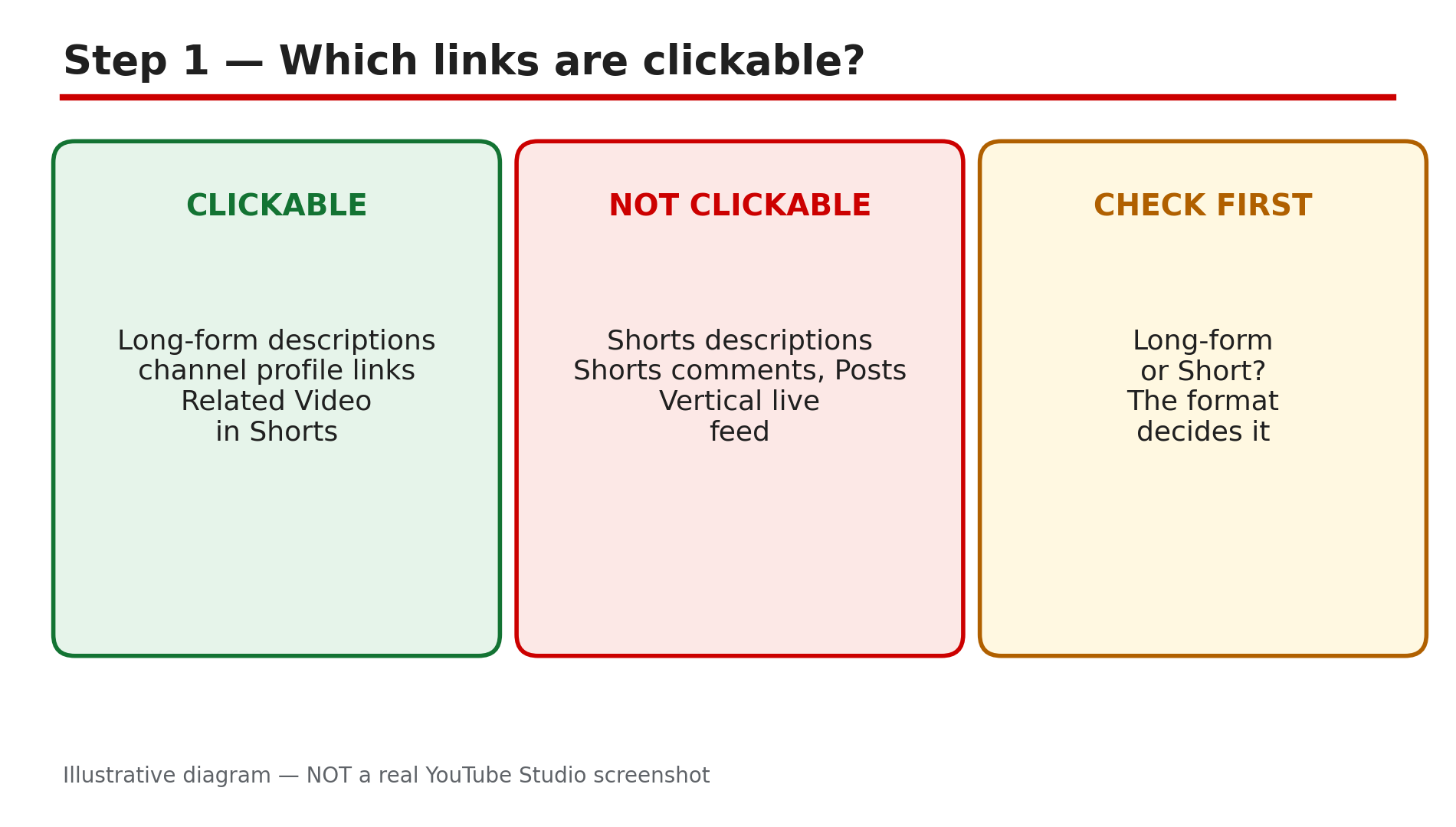
You paste a link into your video description, publish, and click it — nothing happens. Or a viewer tells you the link in your Shorts description cannot be tapped at all. The two problems look identical, but they have opposite fixes: one is a setting you can enable, and the other is a design decision YouTube made in 2023 that no setting can change. YouTube's Help page, "Sharing links with your audiences", opened live for this post, lists exactly which links are clickable and which are not. This guide walks through that list, the Advanced features fix, the Shorts dead end, and why a link can be removed. What You Will LearnWhich YouTube links are clickable and which are not Why long-form description links need Advanced features Why Shorts description links are non-clickable by design How to unlock Advanced features The other causes: Made for Kids, strikes, missing https, link policy The working alternatives when a link can never be clickableStep 1 — Learn which links are clickable What to do: Check YouTube's own clickable-links list before you change any setting, so you fix the right problem. How: YouTube's Help page "Sharing links with your audiences" gives a clear table. Clickable links include channel profile links, brand deal links, URLs in long-form video descriptions, the Related Videos link in Shorts, live-chat and channel-description links for horizontal live streams, Shopping affiliate links, and Shorts Green screen and Remix attribution links. Non-clickable links include URLs in Shorts comments and Shorts descriptions, URLs in live chat and channel descriptions in the mobile app's vertical live feed, and links in Posts. Example: A creator's website link works in a ten-minute tutorial but does nothing in a Short. The difference is the format, not the link. Common mistake: Treating every dead link as the same fault. A link on a Short is not broken — it is non-clickable by design. Check the format first.Illustrative diagram of YouTube's clickable and non-clickable links. Step 2 — Unlock Advanced features for long-form links What to do: Enable Advanced features, because clickable external links in long-form descriptions require them. How: The Help page's table carries a footnote: to add clickable external links, you must enable your channel's access to Advanced features. YouTube's Help page "Get access to intermediate and advanced features", also opened live for this post, explains the route. First, complete phone verification: in Studio on a computer, go to Settings, then Channel, then Feature eligibility, then Intermediate features, then Verify Phone Number. Second, build sufficient channel history, or verify your identity using a valid ID or video. Example: A new channel pastes a website link in a description and it stays plain text. After phone verification and a few weeks of uploads, the same link becomes clickable. Common mistake: Verifying the phone number and stopping there. Phone verification unlocks intermediate features; Advanced features need the second step as well.Illustrative diagram of the two steps to unlock Advanced features. Step 3 — Accept that Shorts links are non-clickable by design What to do: Stop trying to fix Shorts description links — there is no setting for them — and use the alternatives YouTube built instead. How: On 31 August 2023, YouTube made links in Shorts comments, Shorts descriptions and the vertical live feed non-clickable, to reduce spam and scam attempts. No setting, no formatting trick and no verification level changes it. Pinned-comment links on Shorts are also non-clickable. What does work on Shorts: the Related Videos link to a long-form video with a clickable description; YouTube Shopping affiliate links, the clickable exception for products; channel profile links, up to 14 of them; and brand-deal links on Shorts. Example: A creator selling a product through Shorts tags it with a YouTube Shopping affiliate link and adds a Related Video link to a long-form review with the store link. Common mistake: Pasting the link in the Shorts description, then in a pinned comment, then in the title. All three are non-clickable by design — use a Related Video link or a Shopping tag.Illustrative diagram of the 31 August 2023 change that made Shorts links non-clickable. Step 4 — Check the other causes on long-form videos What to do: If the video is long-form and Advanced features are on, work through the remaining causes one by one. How: First, check the URL format: the link needs the full https:// prefix — a bare "www.example.com" without it may not turn into a link. Second, check the audience setting: links are stripped on videos set as Made for Kids. Third, check for a Community Guidelines strike: YouTube's Help page says a strike can delay or restrict feature access. Fourth, check the destination against the External links policy: links to malware, phishing, porn, piracy or regulated goods can be removed, and the video or channel can be struck. Example: A creator's link worked for months, then stopped being clickable the week a Community Guidelines strike arrived. The link was fine — the channel's standing was the cause. Common mistake: Re-pasting the same link ten times, or changing the URL shortener, when the cause is the audience setting or a strike. Check Studio first.Illustrative diagram of the four checks when a working link stops being clickable. Step 5 — Use the alternatives that actually work What to do: Put your important links where viewers can actually click them, instead of where you wish they could. How: Channel profile links are the most reliable home for your important URLs: YouTube lets you showcase up to 14 links on your channel page, and they are clickable on desktop and mobile. Add them in Studio under Customization, in the Basic info or Links section, and put the most important ones first. End screens are clickable and sit on the video itself. Cards can link to a video, playlist, channel or, for Partner Program members, an external website — up to five per video. For Shorts, use the Related Videos link or a Shopping affiliate tag for products. Example: A creator puts the store, the newsletter and the main social profiles in the 14 channel profile links, and uses an end screen to send viewers to the full tutorial. Common mistake: Hiding your only store link in a Shorts description and telling viewers to "check the link below". They cannot click it — put the link where a tap works.Illustrative diagram of the working alternatives to Shorts description links. Step 6 — Keep your links safe so they stay clickable What to do: Protect the links you have, because a policy violation can remove them — or the channel. How: Only link to destinations that follow YouTube's rules. The External links policy covers the destination, not just the video: a link to malware, phishing, porn, piracy or regulated goods can get the link removed, the video struck, or the channel terminated. Check your old descriptions when a sponsor or a tool changes its landing page — a link you added a year ago can point somewhere new today. If a link disappears from a video, check Studio for a strike or a restriction notice before you re-add it. And remember the disclosure rule for affiliate and brand links: a Shopping tag or a paid-promotion label alone does not satisfy the FTC disclosure requirement. Example: A creator's old video links to a tool whose site was later flagged for malware. YouTube removes the link. The creator replaces it with the tool's new official page. Common mistake: Assuming a link is safe forever because it worked when you added it. Destinations change, and a link is only as safe as the page it points to today.Illustrative diagram of the habits that keep YouTube links clickable. Checklist — Before You Publish☐ I know whether the link is on a long-form video or a Short ☐ Advanced features are enabled for clickable long-form links ☐ The link starts with https:// ☐ The video is not set as Made for Kids ☐ I checked Studio for strikes and restrictions ☐ The destination follows the External links policy ☐ My important links are also on my channel profile ☐ On Shorts, I used a Related Video link or a Shopping tag insteadFAQs 1. Why is the link in my YouTube description not clickable? On a long-form video, Advanced features are usually not enabled — clickable external links require them. On a Short, the link is non-clickable by design since 31 August 2023. 2. Can I make a link clickable in a Shorts description? No. YouTube made URLs in Shorts comments and Shorts descriptions non-clickable to reduce spam and scams. Use a Related Videos link, a Shopping affiliate tag, or a channel profile link instead. 3. How do I enable clickable links in descriptions? Enable Advanced features: complete phone verification, then build sufficient channel history or verify your identity with a valid ID or video. The route is Studio, then Settings, then Channel, then Feature eligibility. Only the primary channel owner can do this. 4. Why did my link stop working after it worked for months? Check three things: a Community Guidelines strike, which can restrict feature access; the audience setting, if the video was changed to Made for Kids; and the destination itself, if the linked site now violates the External links policy. 5. Where should I put links if Shorts descriptions do not work? Use channel profile links — up to 14 on your channel page — and on Shorts use the Related Videos link to a long-form video with a clickable description, or a YouTube Shopping affiliate tag for products. End screens and cards can also carry clickable links on long-form videos. SourcesYouTube Help — "Sharing links with your audiences" (official page, opened live 2 Nov 2026): https://support.google.com/youtube/answer/13748639?hl=en YouTube Help — "Get access to intermediate and advanced features" (official page, opened live 2 Nov 2026): https://support.google.com/youtube/answer/9891124?hl=en CreatorPlaybook — "Fan Funding on YouTube: How to Set Up Super Chat, Super Thanks and Memberships": </blog/fan-funding-on-youtube-how-to-set-up>
- CreatorPlaybook Team
- 01 Nov, 2026
Shorts vs Long-Form Earning: How Many Shorts Views Equal 1,000 Long-Form Views? (2026 Data)
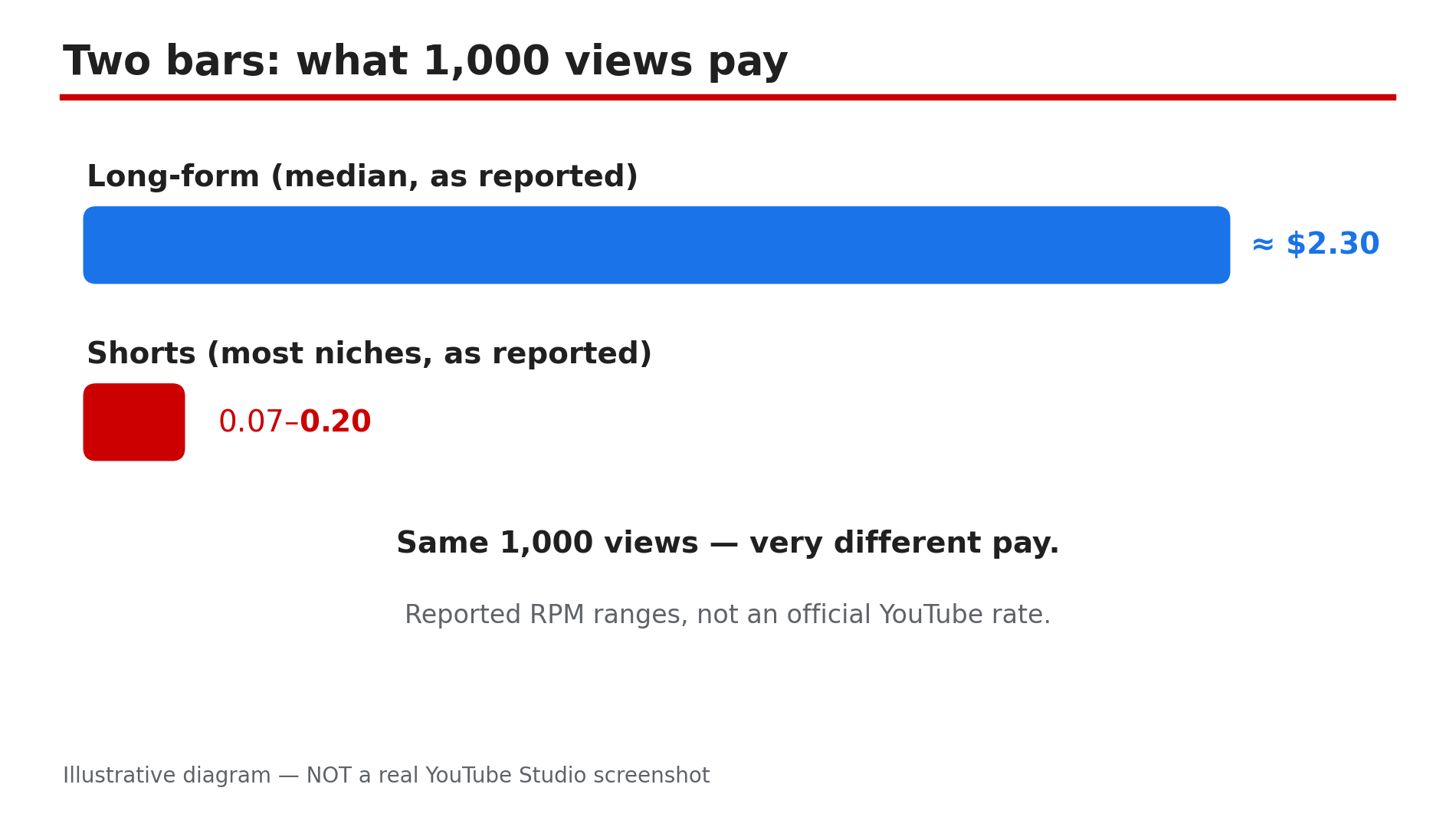
A Short with 100,000 views can earn less than a long video with 1,000 views — because on YouTube a view is not a view: the two formats are paid through completely different systems. As reported in a 2026 study of 274 channels, Shorts typically earn only 3–14% of long-form earnings per 1,000 views in the same niche. Shorts reach new people fast; long-form is where the ad money lives. YouTube publishes no fixed RPM — the figures are ranges that move with your niche and your audience's country. Below: both pay systems, the reported 2026 numbers, your channel's maths, and the February 2027 changes. Every third-party figure is labelled as reported; confirm your own numbers in Studio. What You Will Learn55% long-form, 45% of a pool on Shorts Reported 2026 RPM ranges by niche How many Shorts views equal 1,000 long-form views Where to find your real RPM in Studio What changes on 1 February 2027: the 10-million and 20-million figures How to mix Shorts and long-formStep 1 — Understand the Two Different Pay Systems What to do: Learn how each format is paid. How: On long-form, ads play on the video itself, and YouTube's Help pages confirm the creator keeps 55% of that ad revenue. Shorts carry no ads on the individual Short: ads run between Shorts in the feed, YouTube pools that revenue monthly and splits the Creator Pool by each creator's share of engaged views. Creators keep 45% of their allocation. Music changes the pool, not the rate. Example: YouTube's own example: a $90,000 pool and 100 million engaged views — a Short with 1 million engaged views gets 1% ($900), so $405 after the 45% share. Common mistake: Assuming a Short pays like a long video with the same view count — one is a share of a pool, the other a direct cut of ads.Illustrative diagram — reported RPM ranges, not an official YouTube rate. Step 2 — Read the RPM Ranges, Never a Fixed Rate What to do: Treat every RPM figure as a range — check its niche and country. How: RPM is revenue per 1,000 views: what a creator actually receives after YouTube's cut. YouTube publishes no official RPM, so the figures come from third-party studies of real Studio data, the largest recent one by AIR Media-Tech and MilX, covering 274 monetised channels. As reported, median long-form RPM was about $2.30 per 1,000 views, while most Shorts RPMs clustered at $0.07–$0.20 per 1,000 engaged views. Niche matters most: as reported, music is the exception at 41–60% of long-form ($0.97–$1.48). Gaming sat near $0.17, most others in the $0.07–$0.20 band. Country matters too: as reported, a mostly US audience paid around $0.328 per 1,000 Shorts views, an Indian audience far less. Example: Two channels with 100,000 Shorts views each: the music channel might earn roughly $97–$148, as reported; a general channel roughly $7–$20. Common mistake: Quoting one fixed number as if it were YouTube's rate — without a niche and a country, it probably is not your channel's rate.Illustrative diagram of the four-step Creator Pool process described in YouTube Help. Step 3 — Do the Maths: How Many Shorts Views Equal 1,000 Long-Form Views? What to do: Turn the ranges into a view count you can picture. How: In the 274-channel study, as reported, Shorts RPM was 3–14% of long-form RPM in most niches, so most channels need roughly 11,000–34,000 Shorts views to earn what 1,000 long-form views earn. Most niches sit at 11,000–26,000, gaming near 18,600, music about 1,100. Divide your long-form RPM by your Shorts RPM: at $2.30 and $0.10, the answer is 23, so 23,000 Shorts views match 1,000 long-form views. The study measures Shorts RPM per 1,000 engaged views, not raw plays. Example: A small education channel earns $2.50 per 1,000 long-form views and $0.08 per 1,000 Shorts views — $2.50 ÷ $0.08 is about 31, so about 31,000 Shorts views match 1,000 long-form views. Common mistake: Comparing view counts across formats — compare revenue, not views.Illustrative diagram — reported ranges from the 274-channel study, not a fixed rate. Step 4 — Check Your Own Numbers in YouTube Studio What to do: Read the two RPMs for your channel. How: In YouTube Studio on a computer, open Analytics, then the Revenue tab, for RPM and estimated revenue. Compare both RPMs over the same 28-day period, looking at the revenue column, not the views column. The Earn tab shows which modules you have accepted, including the Shorts Monetization Module, required before any Shorts views count toward revenue sharing — views earned before you accept it are not eligible, as YouTube's Help page states. Also check Shorts for Content ID claims in Studio > Content — a claimed Short over one minute long can be blocked and earn nothing. Example: One creator with 2 million Shorts views a month and 50,000 long-form views found the long videos earned over three times as much as the Shorts combined. Common mistake: Never opening the Revenue tab — views are a reach metric, revenue is a money metric.Illustrative diagram — niche and audience country move RPM more than view count does. Step 5 — Plan for the February 2027 Rule Changes What to do: Learn the two February 2027 figures. How: Announced 10 August 2026, effective 1 February 2027. First, the entry bar for new applicants: a new channel needs 1,000 subscribers plus either 8,000 qualified watch hours in 12 months or 20 million qualified Shorts views in 90 days — double today's 4,000 hours or 10 million views, for new applicants only, as reported. Second, the ongoing Shorts threshold for everyone already in the programme: a channel needs at least 10 million qualified Shorts views in the last 90 days to earn Shorts revenue that month, per YouTube's Help page. Below 10 million, Shorts revenue pauses while long-form keeps earning. Example: With 12 million Shorts views in the last 90 days, a channel keeps its Shorts revenue in February 2027; at 8 million it loses Shorts revenue that month but keeps all long-form earnings. Common mistake: Saying '20 million views or you lose monetisation' — twenty million is the new entry bar, ten million the rolling monthly bar.Illustrative diagram — 20 million is the new entry bar, 10 million is the rolling monthly bar. Step 6 — Build a Mix Where Each Format Does Its Best Job What to do: Give each format its best job instead of choosing between them. How: Use Shorts for discovery: a Short reaches new people, and a good one can send some to a related long video through the Related Video link or a pinned comment. Use long-form for depth and money: tutorials where viewers stay for minutes, watch mid-roll ads, build watch time. As reported, in the 274-channel study Shorts brought in under 2% of total revenue for most channels — a Shorts-only channel builds reach without building income. Example: A cooking creator posts two Shorts a week — quick tips and teasers — and one long video teaching the full recipe: the Shorts bring subscribers, the long video earns the revenue. Common mistake: Going all-in on Shorts because the views feel exciting — views are not income.Illustrative diagram — a suggested upload mix, not a guaranteed result. Checklist☐ My long-form and Shorts RPM from Studio > Analytics > Revenue ☐ My views-equivalent number (long-form RPM ÷ Shorts RPM) ☐ Shorts Monetization Module accepted in Studio > Earn ☐ Whether my audience is mostly in a high- or low-paying country ☐ My Shorts checked for Content ID claims in Studio > Content ☐ February 2027: 20 million is the new entry bar; 10 million is the rolling bar ☐ Updated terms accepted before 31 January 2027 (if already in YPP) ☐ Upload mix gives long-form a real shareFAQs 1. How much does YouTube pay per 1,000 Shorts views? No official fixed rate exists. As reported in the 2026 AIR Media-Tech study of 274 channels, most niches earned $0.07–$0.20 per 1,000 engaged Shorts views, music far higher at $0.97–$1.48 — confirm your own figure in Studio. 2. How many Shorts views equal 1,000 long-form views? As reported, most channels need about 11,000–34,000 Shorts views, because Shorts RPM is roughly 3–14% of long-form RPM; music needs far fewer, around 1,100. 3. Why do Shorts pay so much less than long-form? The systems differ: long-form pays a 55% share of ads on your own video; Shorts pay a 45% share of a monthly pool divided by each creator's share of engaged views. 4. Do I need 10 million or 20 million Shorts views from February 2027? Both are real, for different things, as reported. From 1 February 2027, new applicants need 20 million qualified Shorts views in 90 days (or 8,000 watch hours) to join; existing partners need 10 million in the last 90 days to earn Shorts revenue that month. 5. Should I stop making Shorts and only make long videos? Usually not: Shorts are still the fastest way to reach new viewers. Use a mix — Shorts for discovery, long-form for depth and income. SourcesYouTube Help — "YouTube Shorts monetization policies": Creator Pool process, 45% share, music splits, engaged views, and the 10-million rule from 1 February 2027. Opened live 1 Nov 2026. https://support.google.com/youtube/answer/12504220?hl=en YouTube Premium revenue, explained — CreatorPlaybook (internal): Premium viewers as a second income stream. /blog/youtube-premium-revenue-explained-how YouTube CTR suddenly dropped after 24 August 2026 — CreatorPlaybook (internal): engaged views, not raw plays, now count. /blog/youtube-ctr-suddenly-dropped-after-24All third-party study figures (AIR Media-Tech / MilX, 274 channels, Sept 2026) are presented as reported, not as official YouTube figures. Confirm your earnings in Studio.
- CreatorPlaybook Team
- 29 Oct, 2026
YouTube Shorts Bonus Program Explained: Invitation Only, No Application
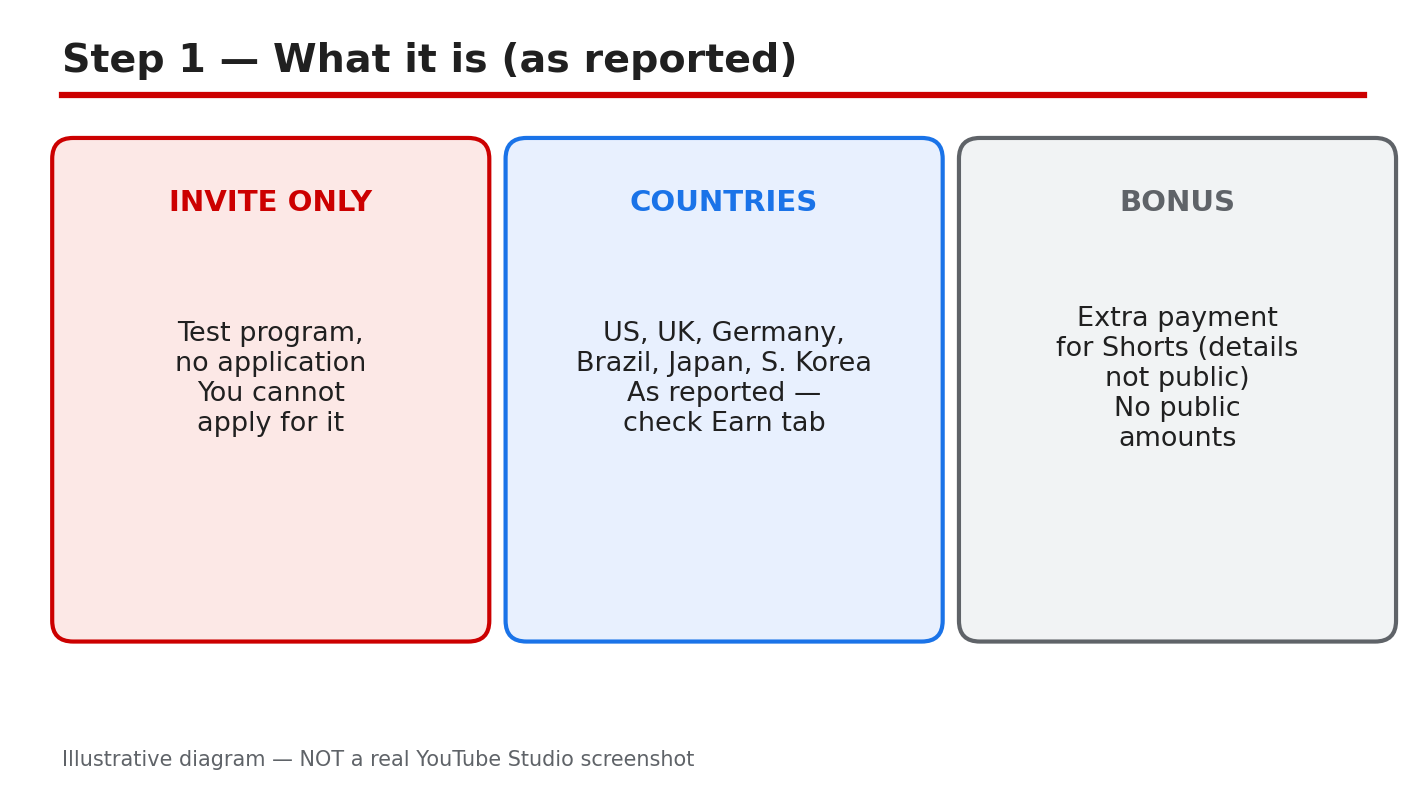
A bonus for Shorts sounds like free money, and that is exactly why it attracts rumours. Screenshots of large payments, paid courses, and forms that promise entry all circulate online. Most of them have nothing to do with YouTube. This guide separates what was reported about the Shorts bonus program from what is not known, and shows you the one safe way to check whether you have an invite. The short version is this: as reported, the program is invitation only, there is no application, and the details are not public. If you cannot find an invite inside your own YouTube Studio account, you are not in the test. The rest of this guide follows from that. What You Will LearnWhat the bonus program is, as reported, and what is not public. Where an invite would appear in your own Studio account. What to check before you accept any invite. What to do if no invite appears, without paying anyone. A monthly check you can run in a few minutes.Related reading: YouTube Shorts Not Monetized? 7 Reasons and How to Fix Each OneDiagram: the invite-only test as reported, with no application and no public details. This is an illustrative diagram and mock-up, not a real YouTube Studio screenshot. Step 1: Understand What the Program Is, as Reported As reported, the Shorts bonus program is a limited, invitation-only test. Creators in the United States, the United Kingdom, Germany, Brazil, Japan, and South Korea were reported to be included, and there is no application form and no way to ask to join. The amounts, the entry criteria, and the end date were not made public. Treat all of that as reported, not as a promise. Example: a creator sees a post claiming a fixed bonus for every 1,000 Shorts views. No such amount was verified, so the claim should be treated as a rumour, not as a rate to plan around. Common mistake: repeating a bonus amount seen in a video or a comment as if YouTube had stated it. A repeated rumour does not become an official figure.Diagram: where an invite would show, in the Earn tab, bonuses, and notifications. This is an illustrative diagram and mock-up, not a real YouTube Studio screenshot. Step 2: Check Where an Invite Would Show An invite would appear inside the creator's own account, so that is the only place to look. Open YouTube Studio, check the Earn tab, look for a bonuses section, and read your notifications, including the Studio inbox. The official Help page states that creators are told by email and by a notification in the YouTube Studio dashboard and inbox, and that acceptance takes place in YouTube Studio. If nothing appears in any of those places, you have no invite. Do not trust someone else's screenshot, and never pay for entry. Exact path: YouTube Studio > Earn tab > bonuses / notifications > Studio inbox. Example: the Earn tab shows only the usual revenue sections, and no bonus offer appears in notifications or the inbox. That means no invite, and no further action is needed. Common mistake: clicking a link in an email or a message that claims to be the invite. Open Studio directly instead, and look for the offer inside your own account.Diagram: what is not public, including amounts, entry criteria, and the end date. This is an illustrative diagram and mock-up, not a real YouTube Studio screenshot. Step 3: Know What Is Not Public Three things about the program are not public, as far as could be verified here: how much a bonus pays, how creators are chosen, and when the test ends or expands. Invented figures circulate freely, and a post, a video, or a comment that states a payment per view, an entry threshold, or a country list beyond the reported one is guessing, unless it shows the same terms inside a Studio account. Example: two videos quote different bonus rates for the same country. Neither rate was verified, so neither one can be used to plan earnings. The only figure that matters is the one inside your own account. Common mistake: treating a blog's bonus-rate table as a price list. A table built from rumours is still a rumour, even when it looks tidy.Diagram: if you get an invite, read the terms shown in your own account first. This is an illustrative diagram and mock-up, not a real YouTube Studio screenshot. Step 4: If You Get an Invite, Read It First Before you accept anything, read every line of the invite shown inside Studio. Note the country it applies to, the exact terms, the date by which you must accept, and the payment details. The official Help page states that acceptance by the 15th of the month is needed for that month's activity to count, and that the deadline shown in Studio applies. Accept only the invite shown inside your own account and Studio. Never accept through a link or a shared login. Example: an invite shows an accept-by date of the 15th and a country that matches your channel. You accept inside Studio before that date, and you keep a note of the terms you agreed to. Common mistake: accepting first and reading later. Once you accept, the terms you skipped are the terms that apply to you.Diagram: if you do not get an invite, Shorts revenue through the Partner Program continues. This is an illustrative diagram and mock-up, not a real YouTube Studio screenshot. Step 5: If You Do Not Get an Invite If no invite appears, nothing is broken, and no form will fix it. Shorts revenue through the YouTube Partner Program continues as before, because the bonus is separate from Partner Program earnings. There is no application, no waiting list, and no paid route into the test. Anyone who offers to add you for a fee, sells an account that claims to be included, or asks for your login is offering a way to lose money, or the channel itself. Example: a channel with no invite keeps earning through the Partner Program, while its owner keeps waiting for a bonus that never arrives. The Partner Program income was the real income all along, and the waiting changed nothing. Common mistake: paying for a course, a form, or an account that promises bonus entry. None of those can add you to an invitation-only test, and the payment is gone either way.Diagram: the monthly check routine, run on the same day each month. This is an illustrative diagram and mock-up, not a real YouTube Studio screenshot. Step 6: Run a Monthly Check Once a month, on the same day, open Studio and run the same short check. Look at the Earn tab, the bonuses section, and your notifications, and note whether anything new appeared. Read any new item in full before you act on it, and ignore offers that arrive outside your account. If nothing new appears, close Studio and carry on; the check took a few minutes, and no further action is needed until next month. Example: on the first of each month, you check the Earn tab and the Studio inbox. In March nothing appears, so you close Studio and keep posting. In April an invite appears, and you read it before accepting. Common mistake: checking every day and treating every rumour as news. A monthly check is enough, because an invite would wait for you inside your account, not in a stranger's post. Quick ChecklistInvite checked inside your own Studio account only. Earn tab, bonuses, and notifications all checked. No amount, criterion, or date quoted without Studio terms. No payment made for entry, an account, or a screenshot. Accept-by date and country read before any acceptance. Partner Program Shorts revenue kept separate from any bonus. Monthly check noted, same day each month. Rumours ignored unless the same terms appear in Studio.Frequently Asked Questions Can I apply for the YouTube Shorts bonus program? No. As reported, there is no application and no way to ask to join. The program is invitation only, and an invite would appear inside your own Studio account. Which countries are included in the test? As reported, the United States, the United Kingdom, Germany, Brazil, Japan, and South Korea were included. Treat that list as reported, and check the terms shown in your own account for the country that applies to you. How much does the bonus pay? That was not made public, as far as could be verified here. Do not use a figure from a blog, a video, or a comment. Use only the terms in your own Studio account. I saw a form that promises bonus entry. Should I fill it in? No. There is no application form, and no form can add you to the test. Do not enter your login, payment details, or personal information into a page that promises entry, and check only inside your own Studio account. Sources — Check It Yourself Check the official pages below for the current monetization rules. The bonus program page was verified live in this run, and its text states the program is invite-only with no application process. No official YouTube video was embedded in this post: no exact official video was verified live in this run, so none is shown here. YouTube Help: Learn about the Shorts bonus program YouTube Help: YouTube Shorts monetization policies
- CreatorPlaybook Team
- 29 Oct, 2026
How YouTube Counts Views in 2026: Public Views vs Engaged Views Explained
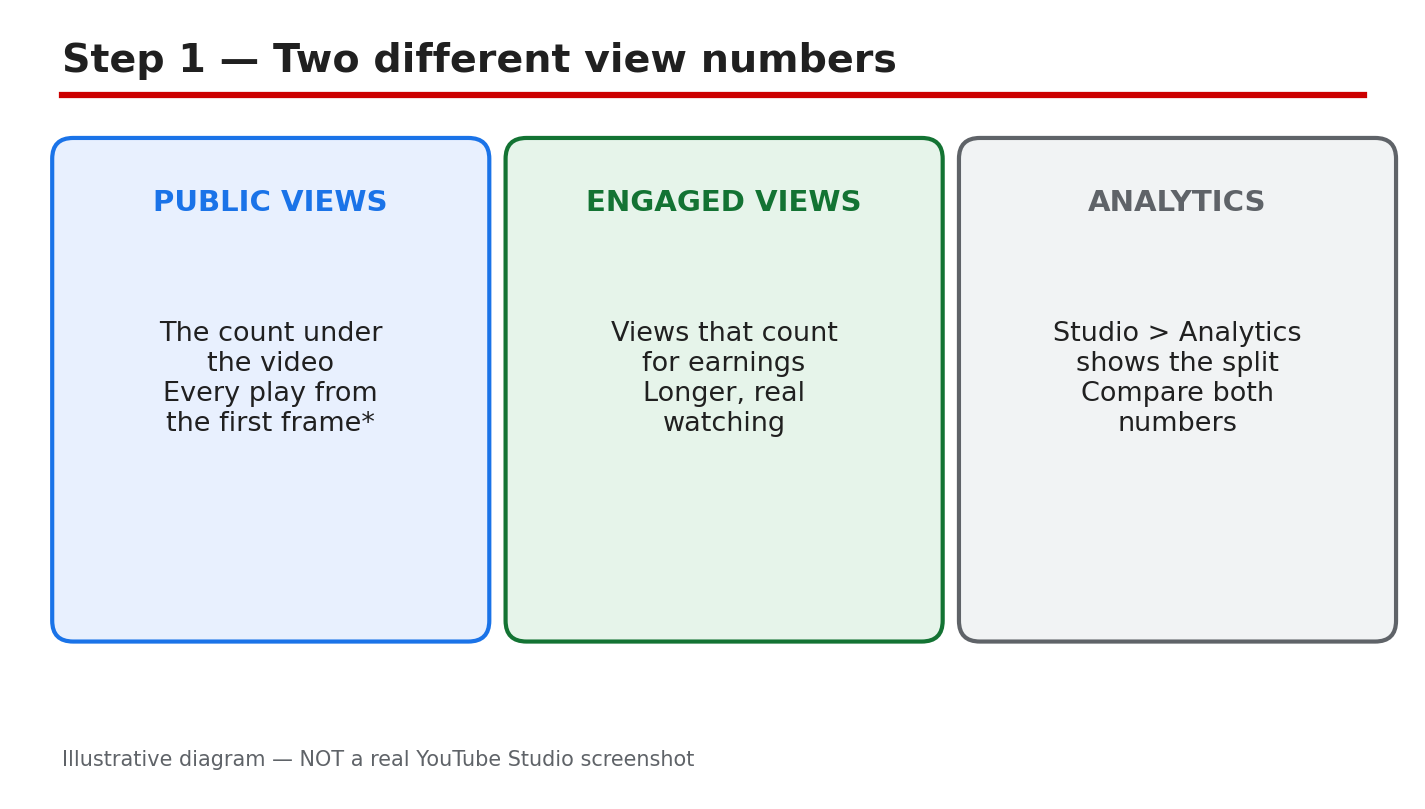
Two videos can show the same view count and earn very different amounts. That gap confuses many creators, because YouTube shows more than one kind of view. The number under a video and the number that counts for earnings are not always the same, and treating them as one number leads to wrong conclusions. This guide separates the two numbers, shows where to find each one in YouTube Studio, and explains the reported change to how views are counted. It also gives you a short weekly check, so you can read your numbers without guessing. Where a date or a change is reported, this guide says so, and points you to the official Help page for the current definition. What You Will LearnThe difference between public views and engaged views. Where to see the split in YouTube Studio Analytics. The reported view-counting change, and what to check officially. How to read traffic source, retention, and date ranges correctly. Why views and earnings differ, and what a 7-day check looks like.Related reading: Understanding YouTube AnalyticsDiagram: public views, the count under a video, compared with engaged views, the count used for earnings. This is an illustrative diagram and mock-up, not a real YouTube Studio screenshot. Step 1: Learn the Two View Numbers Public views are the count shown under a video, on its watch page and in search results. Engaged views are the views that count for earnings, after YouTube applies its checks. A play can add to the public count without adding to the engaged count, for example when it is very short or when it is filtered out as invalid. That is why a video can look popular and still earn little. Example: a Short shows 10,000 public views, but only 6,000 engaged views. The gap does not mean views were deleted; it means the two counts measure different things. Common mistake: judging a video only by the public count. A high public count with low engagement can look like success while earnings stay low.Diagram: the Studio path to the view split, from Analytics to a single video. This is an illustrative diagram and mock-up, not a real YouTube Studio screenshot. Step 2: Find the Split in YouTube Studio Open YouTube Studio and go to Analytics in the left menu. Open the Content tab, then open a single video. Look at the Reach tab for how viewers found the video, and the Engagement tab for how long they stayed. Compare the public view count on the video page with the figures shown in Analytics, and note the date range at the top, because different ranges give different totals. Exact path: YouTube Studio > Analytics > Content > video > Reach / Engagement. Example: for one Short, Reach shows most viewers came from the Shorts feed, while Engagement shows many swiped away quickly. The two tabs together explain why public views are high and watch time is low. Common mistake: comparing a 28-day Analytics total with a lifetime public count. Always set the same date range before you compare two numbers.Diagram: the reported change, with views counted from the first frame. This is an illustrative diagram and mock-up, not a real YouTube Studio screenshot. Step 3: Understand the Reported Counting Change As reported, YouTube changed how views are counted. From 24 August 2026, a view is counted the moment a video starts to play, across all formats. For Shorts, the same first-frame approach was reported from 31 March 2025. Treat both dates as reported: this guide does not invent a threshold, such as a number of seconds, and you should check the official Help page for the current definition before you quote it. The reported change affects the public count. As reported, it does not change how earnings are worked out, and it does not change Partner Program eligibility. That is the point most summaries miss: a higher public count does not by itself mean higher earnings. Example: after the reported change, a long video shows more public views in its first week, but its earnings stay in line with engaged views. You would misread the video if you only watched the public count rise. Common mistake: quoting a seconds threshold you read in a comment or a blog post. No threshold is stated in this guide, because none was verified here. Check the official page instead.Diagram: reading numbers correctly, with traffic source, viewed versus swiped away, and retention. This is an illustrative diagram and mock-up, not a real YouTube Studio screenshot. Step 4: Read the Numbers Correctly Read four things together, not one number alone. First, traffic source: where did viewers come from, and did that source bring engaged viewers? Second, viewed versus swiped away: for Shorts, how many viewers stayed and how many swiped past? Third, retention: how long did viewers stay, on average, and where did they leave? Fourth, date range: are all the numbers from the same period? Example: two Shorts each show 5,000 public views. One keeps viewers for most of its length; the other loses most viewers in the first second. The first Short is the stronger video, even though the public counts match. Common mistake: comparing retention across videos of very different lengths. A 15-second Short and a 10-minute video will not hold viewers in the same way, so compare like with like.Diagram: why views and earnings differ, including short plays, replays, and filtered plays. This is an illustrative diagram and mock-up, not a real YouTube Studio screenshot. Step 5: Why Views and Earnings Differ Earnings follow engaged views, not every public view. Very short plays may count publicly but add little or nothing for earnings. Replays can add to the public count in ways that do not match earnings. Invalid or spam plays are filtered out, so they do not count for earnings even if a public total moved first. None of this means views were stolen; it means the two counts were never the same measure. Example: a video gets shared in a group chat and many people open it for a second and leave. Public views rise, but engaged views and earnings barely move, because those plays were too short to count as engaged. Common mistake: assuming every public view should pay the same. Earnings depend on engaged views, ad demand, and other factors, so the same view count can pay differently on different videos.Diagram: the 7-day view check, run once a week on the same day. This is an illustrative diagram and mock-up, not a real YouTube Studio screenshot. Step 6: Run a 7-Day View Check Once a week, on the same day, open Analytics and set the date range to the last 7 days. Write down four numbers for your newest video: public views, the Reach figure, the Engagement figure, and the traffic source that brought the most viewers. Compare them with the previous week, using the same date range and the same video. A single week will not tell you everything, but a repeated check shows whether a change is a trend or a one-off. Example: every Monday, you check last week's Short. Public views fell, but viewed-versus-swiped-away improved. The video is not failing; fewer people found it, but more of those who did stayed. Common mistake: changing the date range each week and then comparing the totals. Keep the range, the video, and the day the same, or the comparison means nothing. Quick ChecklistPublic views and engaged views kept separate. Studio split checked: Analytics > Content > video. Same date range used for every comparison. Traffic source, viewed versus swiped away, and retention read together. No seconds threshold quoted without an official source. Reported dates treated as reported, and checked officially. Short plays, replays, and filtered plays allowed for in the gap. 7-day check written down, same day each week.Frequently Asked Questions What is the difference between public views and engaged views? Public views are the count shown under a video. Engaged views are the views that count for earnings, after YouTube's checks. A play can add to one count without adding to the other. Did YouTube change how views are counted in 2026? As reported, from 24 August 2026 a view is counted the moment a video starts to play, across all formats, and Shorts were reported to use the same approach from 31 March 2025. Check the official Help page for the current definition, because this guide reports the change and does not set a threshold. Why do my views rise but my earnings stay flat? Earnings follow engaged views, not public views. Short plays, replays, and filtered plays can move the public count without moving earnings. Read the Studio split before you judge a video. How often should I check my view numbers? Once a week is enough for most creators. Use the 7-day check in Step 6, keep the date range and the day the same, and look for a trend over several weeks rather than reacting to one day. Sources — Check It Yourself Check the official pages below for the current definition, and re-check them before you quote a date or a rule. No official YouTube video was embedded in this post: no exact official video was verified live in this run, so none is shown here. YouTube Help: How engagement metrics are counted YouTube Help: Get started with YouTube Analytics
- CreatorPlaybook Team
- 29 Oct, 2026
Can You Use Trending Audio on YouTube? How to Use Popular Sounds Legally
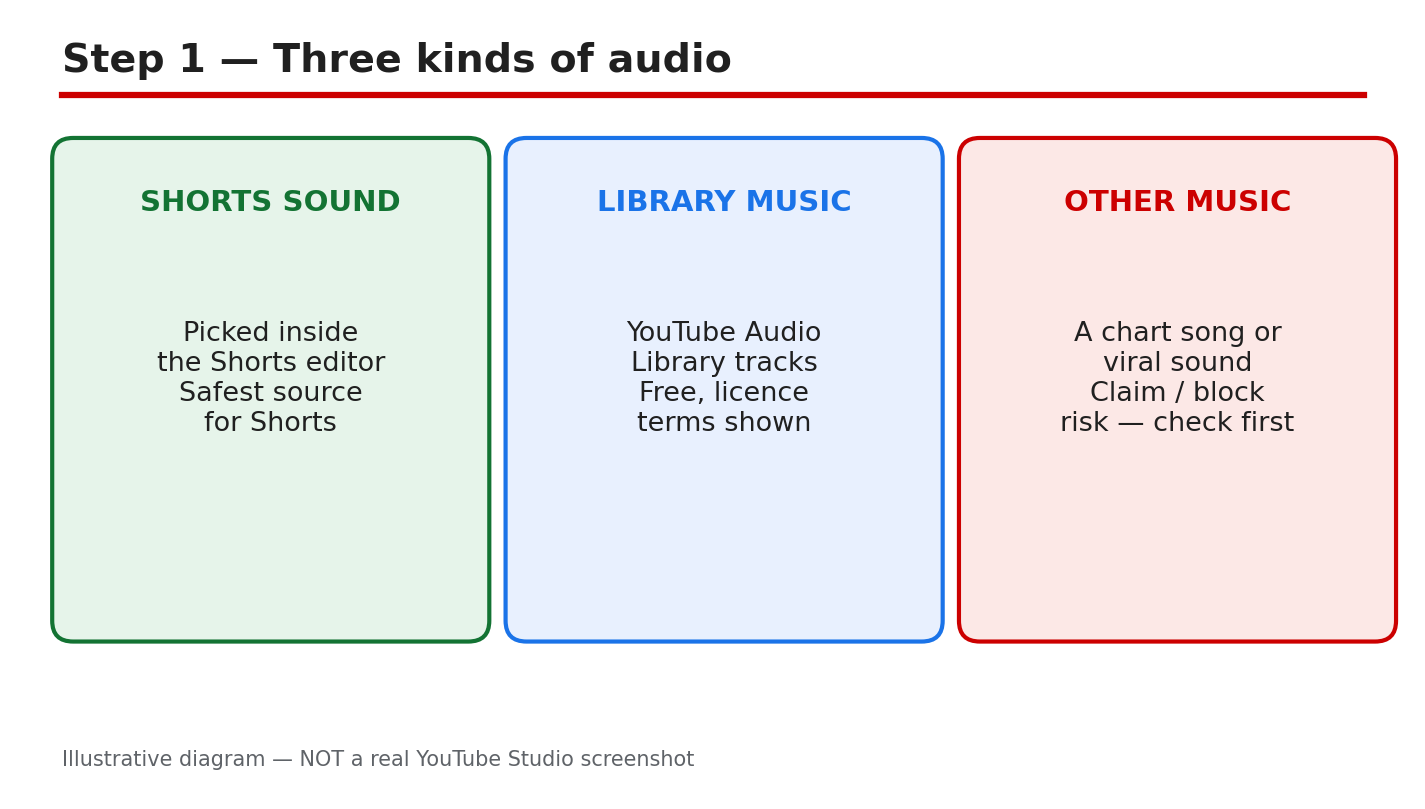
A trending sound can make a Short take off, but the wrong audio can also bring a copyright claim, a muted video, or lost earnings. The sound itself is rarely the problem. The problem is where it came from, and whether you had a right to use that exact recording. This guide keeps the choice simple. Use audio from a source you can check, check it before you publish, and know what to do if a claim still arrives. Do not trust a comment that says a few seconds is always safe. What You Will LearnThe three audio sources on YouTube, and which one is safest for a Short. How to check a video in YouTube Studio before you publish it. What Content ID actually matches, and why short clips are not safe. Four checks to run on any sound you did not pick inside Shorts. What to do if a claim arrives, including when not to dispute it.Related reading: YouTube Copyright and Music: Safe Guide for CreatorsDiagram: three kinds of audio — a Shorts sound, an Audio Library track, and other music. This is an illustrative diagram and mock-up, not a real YouTube Studio screenshot. Step 1: Know the Three Audio Sources Start by naming where your sound came from. There are three common sources. First, a sound picked inside the Shorts editor, using the sound picker for Shorts. Second, a track from the YouTube Audio Library, where the licence terms are shown for each track. Third, any other music: a chart song, a viral sound, or a track from another app or website. The source decides how much checking you must do. Example: You add a dance sound from the Shorts sound picker to a 20-second Short. That is the lowest-risk route in this guide, because the sound was offered inside Shorts for Shorts. Common mistake: Downloading a chart song from another site and adding it to a Short, then assuming it is safe because it is popular. Popularity is not permission, and a claim can still follow.Diagram: the check-before-you-publish path in Studio, ending with the Audio Library licence terms. This is an illustrative diagram and mock-up, not a real YouTube Studio screenshot. Step 2: Check Before You Publish Do this check while the video is still a draft, not after it is public. Open YouTube Studio, then go to Content in the left menu, then look at the Restrictions column for your video. If a copyright claim is shown there, read what it says before you publish. Then, for any Audio Library track, open the track and read its licence terms, including whether attribution is required. Exact path: YouTube Studio > Content > Restrictions column > Audio Library licence terms. Example: A draft Short shows "Copyright claim" in Restrictions. You replace the song before publishing, instead of learning about the claim from a viewer comment a week later. Common mistake: Publishing first and checking later. Once a video is public, a claim can affect it while you are still deciding what to do.Diagram: Content ID matches the exact recording, not the melody, and credit does not remove a claim. This is an illustrative diagram and mock-up, not a real YouTube Studio screenshot. Step 3: Understand What Content ID Matches Content ID compares your video against reference recordings supplied by rights owners. It matches the exact recording, not just a melody, a cover, or a similar beat. There is no safe number of seconds. A very short clip can still match, and a longer clip does not become safe by being edited, sped up, or quieter. Adding credit in the description does not remove a claim. Credit can be polite, and it can be required by a licence, but it is not permission by itself. If the rights owner did not allow the use, a credit line will not change the match. Example: You use four seconds of a chart song as an intro and add the artist's name in the description. The clip can still be matched, because the recording, not the length or the credit, is what is checked. Common mistake: Believing that "a few seconds is safe." That idea is wrong, and it is the most expensive shortcut in this guide. Treat every second of someone else's recording as a possible match.Diagram: four safe-audio checks — source, licence, Restrictions, and territory. This is an illustrative diagram and mock-up, not a real YouTube Studio screenshot. Step 4: Run the Four Safe-Audio Checks Run these four checks on any sound you did not pick inside Shorts. First, source: can you name where the track came from, and does that source allow YouTube use? Second, licence and attribution: read the licence terms and add any required credit exactly as asked. Third, Restrictions: is the Restrictions column clear in Studio? Fourth, territory: is the video blocked in any country, and does that matter for your audience? Example: An Audio Library track requires the artist's name in the description. You paste the credit before publishing, and you keep a screenshot of the licence terms for your records. Common mistake: Checking only the first item, the source, and skipping the licence terms. A free track can still need attribution, and a missing credit can still cause trouble.Diagram: if a claim arrives, replace or erase the song, and dispute only with evidence. This is an illustrative diagram and mock-up, not a real YouTube Studio screenshot. Step 5: If a Claim Arrives, Fix It in Studio Open the claim in YouTube Studio and read it first. Note who claimed the audio, what was matched, and what the claim affects. In Studio, you can use Replace song to swap the audio for a track from the Audio Library, or Erase song to remove the claimed audio. Dispute a claim only if you own the rights or have clear permission, and you can show evidence. A dispute is a formal statement, not a message asking for a favour. If you do not have evidence, fix the audio instead and move on. Example: A claim names a song in the last ten seconds of a vlog. You use Replace song, check Restrictions again, and publish the fix without changing the rest of the video. Common mistake: Disputing every claim at once, including claims on music you know you do not own. A weak dispute wastes time and can damage your standing.Diagram: the safe-audio habit — pick, check, publish, and re-check. This is an illustrative diagram and mock-up, not a real YouTube Studio screenshot. Step 6: Build the Safe-Audio Habit Make the safe route the easy route. Keep a short list of sounds you have already checked, and reuse them. When you try a new sound, run the four checks before you edit around it. Check Restrictions before every publish, even for a Short you made in a hurry. The habit takes minutes, and it is what keeps a channel free of repeat claims. Example: Before a weekly Short, you open your checked-sounds list, pick one sound, and publish without a last-minute search for a trending song. Common mistake: Treating this guide as a one-time fix. Audio rules and claims change, and a sound that was fine last year may not be fine now. Re-check each time. Quick ChecklistSource named: Shorts picker, Audio Library, or other music. Restrictions column checked in Studio before publishing. Audio Library licence terms read, including attribution. No "few seconds is safe" assumption used. Territory blocks checked, if they matter for your audience. Claim read in full before any action is taken. Replace song or Erase song used before disputing. Checked-sounds list updated for the next video.Frequently Asked Questions Can I use a trending sound on YouTube? Yes, if the sound comes from a source that allows it, such as the Shorts sound picker or the Audio Library under its licence terms. A trending chart song from another site is the risky case: check it in Studio first, and expect a possible claim. Is five seconds of a song safe? No. There is no safe number of seconds, and Content ID can match a very short clip. Do not rely on a seconds rule; check the source and the Restrictions column instead. Does adding credit in the description remove a claim? No. Credit does not remove a claim, and it is not permission by itself. Add credit when a licence asks for it, but still check the source and Restrictions first. What should I do if a claim arrives? Read the claim in Studio, then use Replace song or Erase song to fix the audio. Dispute only if you own the rights or have clear permission and can show evidence. Sources — Check It Yourself Check the official pages below for the current rules, and re-check them before you rely on them, because YouTube's help pages change. No official YouTube video was embedded in this post: no exact official video was verified live in this run, so none is shown here. YouTube Help: Use music and sound effects from the Audio Library YouTube Help: How Content ID works
- CreatorPlaybook Team
- 29 Oct, 2026
YouTube Shorts Not Monetized? 7 Reasons and How to Fix Each One
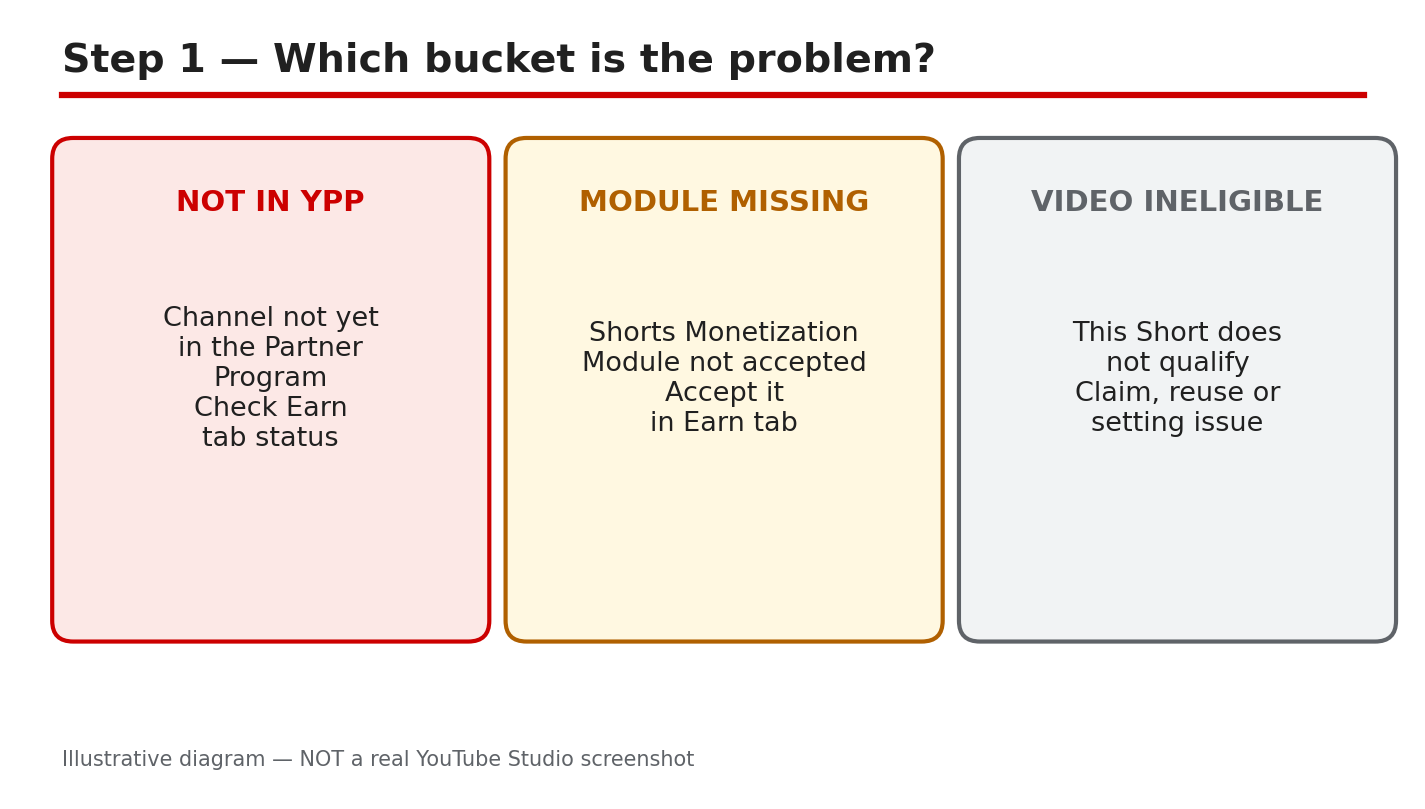
Your Short is getting views, but the earnings stay at zero. That gap is frustrating, and it is also common, because views and earnings are not the same thing. For Shorts, YouTube pays on engaged views , not on every public view. A Short can collect thousands of public views and still earn nothing if the views are not eligible, if your account is not set up to earn, or if that Short itself is ineligible. This guide sorts the cause into three buckets, checks the Earn tab in order, and fixes each reason one at a time. The key fact first: Shorts revenue uses engaged views, and a Short can have public views without earning. Engaged views exclude views YouTube counts as ineligible, such as views on non-original Shorts and artificial or fake views. So a rising view count never proves a Short is monetized. The checks below start with your account, then the Short, then the settings, so you fix the cause instead of guessing. Related reading: YouTube Shorts Monetization and RPM Explained. What You Will LearnHow to sort a non-earning Short into one of three buckets in two minutes. How to check your Partner Program status, the Shorts Monetization Module, and AdSense in the Earn tab. Why reused content, inauthentic or template content, and music claims stop a Short from earning. How age restriction and Made for Kids settings change whether a Short can earn. What engaged views are, and why public views alone never prove earnings. A 14-day fix-and-recheck plan that starts with the Earn tab.Step 1: Sort the Cause into Three Buckets What to do: Before you change anything, name the bucket. Bucket A is account setup: you are not in the YouTube Partner Program, the Shorts Monetization Module is not accepted, or AdSense is not linked. Bucket B is the Short itself: reused content, inauthentic or template content, or a music claim. Bucket C is settings and eligibility: an age restriction, a Made for Kids setting, or views that are public but not engaged. The seven reasons in this guide sit inside these buckets: (1) not in the Partner Program, (2) the Shorts module not accepted, (3) an AdSense or payment problem, (4) reused content, (5) inauthentic content, (6) music or claimed content, and (7) a setting or ineligible views. Write down which bucket your case fits before you move on. Studio path: YouTube Studio > Earn. Read the status at the top of the tab first, then open one Short in YouTube Studio > Content and check its restrictions and details. Example: A creator sees 40,000 views and zero earnings on a Short made from a viral clip. The Earn tab shows the channel is in the Partner Program with the Shorts module accepted, so the cause is Bucket B, not setup. The fix is content, not settings. Common mistake: Re-uploading the same Short, changing the title, or deleting and reposting it. None of these fix an account or eligibility problem, and re-uploads can create a reused-content problem of their own.Illustrative diagram/mock-up of the three problem buckets: not in the Partner Program, the Shorts module missing, and the Short itself ineligible. This is NOT a real YouTube Studio screenshot. Step 2: Run the Earn Tab Check What to do: Open the Earn tab and answer three questions in order. First, does the tab show you are in the YouTube Partner Program? Second, does it show the Shorts Monetization Module as accepted? Only partners who have accepted that module can earn Shorts ad revenue from the Creator Pool. Third, is an AdSense account linked and showing as active? If any answer is no, stop here: no fix to a single Short can make it earn until the account side is right. Note the exact status wording for each item, because the wording tells you what to fix next. Studio path: YouTube Studio > Earn. Read the Partner Program status, the Shorts Monetization Module status, and the AdSense and payment section on the same tab. Example: A new partner sees Shorts views growing but no revenue. The Earn tab shows the Watch Page module accepted and the Shorts module still awaiting acceptance. Accepting the Shorts module, then reloading the tab to confirm it shows as accepted, is the whole fix. Common mistake: Assuming that joining the Partner Program turns on every kind of earning at once. Each module is separate, so Shorts earnings need the Shorts module accepted on its own.Illustrative diagram/mock-up of the five-step Earn tab check: Studio, Earn tab, status, Shorts module, and AdSense. This is NOT a real YouTube Studio screenshot. Step 3: Fix the Content Reasons What to do: If the Earn tab is in order, the Short itself is the next suspect. YouTube's Shorts monetization policies list non-original Shorts as ineligible for payments, including unedited clips from other people's movies or TV shows and re-uploads of other creators' content without original content added. Separately, the channel monetization policies treat repetitive or mass-produced content as "inauthentic content," renamed from "repetitious content" in a July 2025 update, and say it has always been ineligible for monetization. The third content reason is music: a Short that uses claimed music can have its revenue shared with or taken by rights holders, and Shorts over one minute that contain claimed content can be blocked from monetization. Check each Short against all three, and be honest about how much of it is truly yours. Studio path: YouTube Studio > Content > click the Short > Restrictions. Then open YouTube Studio > Content > click the Short > Details and review what the Short contains and which audio it uses. Example: A creator posts daily clips from a TV show with a caption added. The Shorts earn views but nothing else. The clips are non-original, so the views are ineligible. The fix is to publish Shorts built around the creator's own footage, commentary, or editing, and to leave the re-uploads behind. Common mistake: Adding a filter, a caption, or a few seconds of reaction to someone else's clip and calling it original. Small changes to another creator's work do not make a Short original, and templates used with no added value fall under the inauthentic-content policy.Illustrative diagram/mock-up of the three content reasons: reused content, inauthentic or template content, and a music claim. This is NOT a real YouTube Studio screenshot. Step 4: Re-check Membership, Module, AdSense, and Strikes What to do: Go back to the Earn tab and re-check four things as a set: Partner Program membership is active, the Shorts Monetization Module shows as accepted, AdSense is linked and in good standing, and no active strike or enforcement action is blocking monetization. A strike or a monetization suspension can stop earnings even when the module shows as accepted, so do not skip this check. If the Earn tab shows a message or a warning, read it in full and follow the action it names, whether that is an AdSense step, a review, or an appeal. Record the date you checked, so the 14-day re-check in Step 6 has a clear starting point. Studio path: YouTube Studio > Earn for membership, module, and AdSense status. Then YouTube Studio > Content > Restrictions, and the channel status shown in YouTube Studio > Settings > Channel, for strikes and standing. Example: A creator accepts the Shorts module but earnings stay at zero. The Earn tab shows AdSense as needing action because the payment account was never fully set up. Completing the AdSense setup, then confirming the tab shows it as active, restarts the chain. Common mistake: Checking only the module and ignoring AdSense. Earnings cannot be paid without a linked AdSense account in good standing, so a green module with a broken payment link still earns nothing.Illustrative diagram/mock-up of the four Earn-tab checks: membership, module, AdSense, and strikes. This is NOT a real YouTube Studio screenshot. Step 5: Check the Settings Reasons What to do: Two settings can quietly stop a Short from earning. An age restriction limits who can watch and can remove a Short from ad eligibility, and a Made for Kids setting changes the features and ads available on a Short. Check both on the Short itself, and set them correctly for what the Short actually is: do not mark adult content as Made for Kids, and do not leave an age restriction on a Short that does not need one. Then remember the views rule: only eligible engaged views count toward Shorts payments. Views that are fake, automated, or on ineligible content do not count, even if the public counter keeps rising. A Short with 100,000 public views and almost no engaged views will show little or no revenue, and that is the system working as designed, not a bug. Studio path: YouTube Studio > Content > click the Short > Details > Audience, for the Made for Kids setting; and the same Details page and the Restrictions column, for the age restriction. For views, open YouTube Studio > Analytics > the Short, and compare the public view count with the revenue shown in YouTube Studio > Analytics > Revenue. Example: A creator's Short shows 80,000 views and no earnings. Its details show it was wrongly marked Made for Kids, which limited its ads. Correcting the audience setting on future Shorts, and checking the current one, explains the gap without any change to the video itself. Common mistake: Judging monetization from the public view count alone. Public views include views that never count as engaged views, so the counter can climb while revenue stays at zero.Illustrative diagram/mock-up of the settings reasons: age restriction, Made for Kids, and public versus engaged views. This is NOT a real YouTube Studio screenshot. Step 6: Follow the 14-Day Fix-and-Recheck Plan What to do: Fix in order, then wait and re-check. Days 1 to 2: fix the Earn tab first — membership, Shorts module, AdSense, and any strike message. Days 3 to 7: publish only original Shorts, with your own footage, voice, or editing, and with music you have the right to use. Days 8 to 14: leave the new Shorts alone and let the data arrive. On day 14, open the Earn tab and the Revenue report in Analytics, and compare the new Shorts with the old ones. If new original Shorts show revenue and old ones do not, the cause was the content. If nothing shows revenue, repeat Steps 2 and 4 and read every message on the Earn tab before changing anything else. Studio path: YouTube Studio > Earn on day 1 and day 14; YouTube Studio > Content to publish; YouTube Studio > Analytics > Revenue on day 14 to compare Shorts. Example: A creator fixes an unlinked AdSense account on day 1, publishes four original Shorts in the next week, and on day 14 sees the new Shorts earning while the old re-uploads still show zero. The plan proved the cause and the fix in one cycle. Common mistake: Changing five things at once and checking after one day. Revenue data lags, and changing everything together hides which fix worked. One ordered cycle of 14 days gives a clean answer.Illustrative diagram/mock-up of the 14-day fix-and-recheck plan: fix the Earn tab, publish original Shorts, and re-check on day 14. This is NOT a real YouTube Studio screenshot. Checklist: Before You RecheckPartner Program membership shows as active in the Earn tab. Shorts Monetization Module shows as accepted. AdSense is linked and showing as active. No active strike or monetization message is waiting in the Earn tab. The Short is original, not a re-upload or a bare template. Audience and age-restriction settings are correct for the Short. 14 days have passed since the fix, and the Revenue report has been checked.Frequently Asked Questions Why does my Short have views but no revenue? Because Shorts pay on engaged views, not public views. Views on ineligible, non-original, or artificially boosted Shorts do not count, and earnings also need Partner Program membership, the accepted Shorts module, and linked AdSense. I am in the Partner Program. Why are my Shorts still not earning? Check the Shorts Monetization Module separately in the Earn tab. Joining the program does not accept every module, and Shorts revenue needs that module accepted, plus AdSense linked and no blocking strike or message. Can a music claim take all of a Short's revenue? A Short with claimed music can have its associated revenue shared with rights holders, and longer Shorts with claimed content can be blocked from monetization. Check the Restrictions column on the Short, and use music you have the right to use. Does marking a Short Made for Kids stop it earning? It changes the ads and features available, which can reduce or remove earnings on that Short. Mark the audience setting honestly for each Short, and check it in the Details page if revenue looks wrong. How long should I wait after a fix before judging it? Give it 14 days, then check the Earn tab and the Revenue report in Analytics. Revenue data lags, and one day is too soon to tell whether an account fix or a content change worked. Sources — Check It Yourself These official YouTube Help pages were opened and verified live while this guide was prepared. The Shorts page explains engaged views, ineligible Shorts views, and the Shorts Monetization Module. The monetization policies page covers reused and inauthentic content and the July 2025 rename of the repetitious-content policy to inauthentic content. Check the current wording before you act.YouTube Shorts monetization policies — YouTube Help YouTube channel monetization policies — YouTube HelpNo official YouTube video is embedded in this post. No exact official video URL was verified live during preparation, so none was embedded rather than guessing one.