Showing Posts From
Adsense
 CreatorPlaybook Team
- 29 Oct, 2026
AdSense for YouTube Linking Errors: Disapproved or Suspended Account? How to Fix It
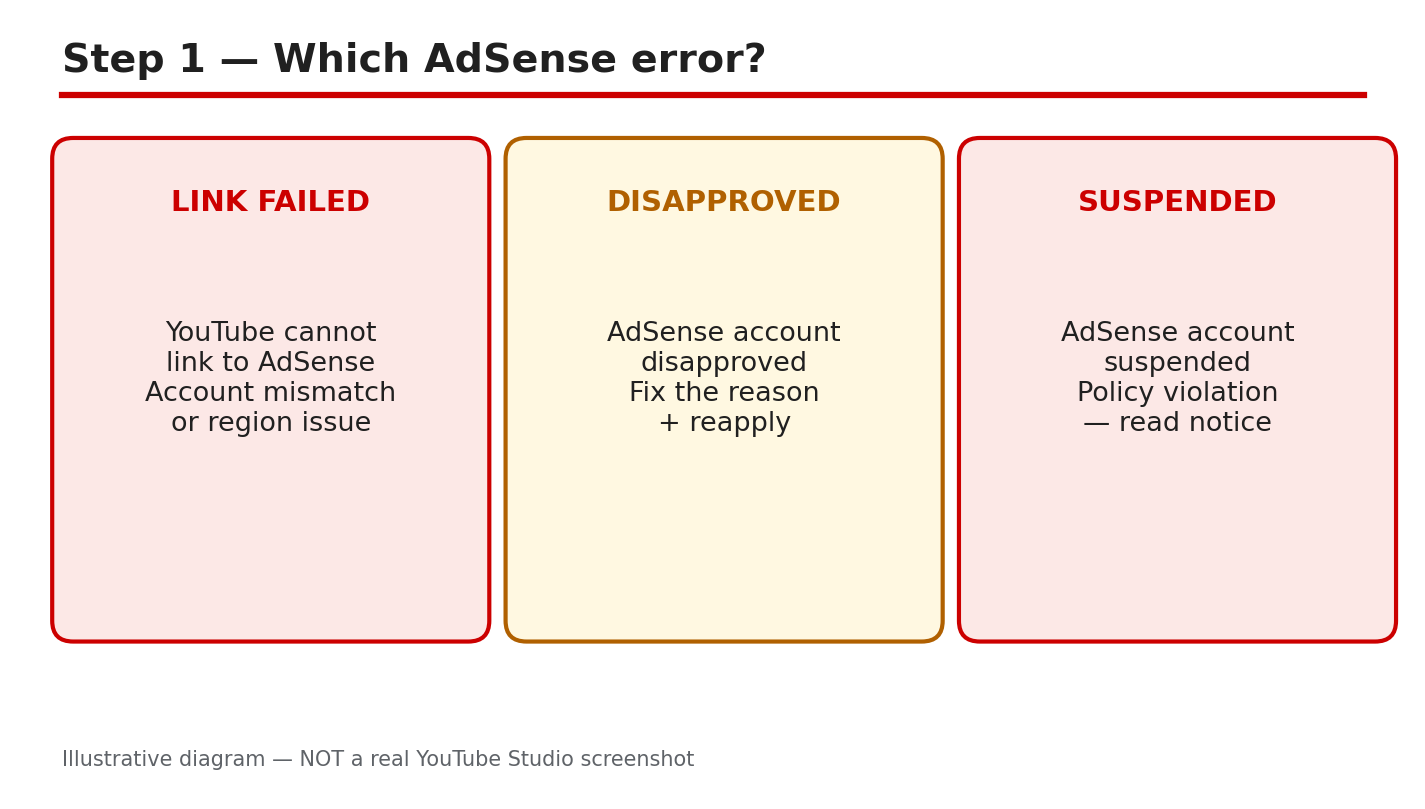
A linking error can stop your YouTube earnings before they start. You open the Earn tab, try to link AdSense, and YouTube shows a failure, a disapproval, or a suspension notice instead of a linked account. Each message needs a different fix, and guessing can waste days or make the problem worse. This guide helps you read the exact message, check the account and details behind it, and retry in the right order. You will not need any account number, PIN, or payment detail, and you should never share those details in a comment, message, or form outside the official account pages. Work slowly, keep the exact error text in front of you, and stop if a message asks for a second account. One careful pass through the steps below is faster than repeated retries with the same mistake. What You Will Learn By the end, you will be able to:Tell a link failure, a disapproval, and a suspension apart. Find the linking card in YouTube Studio and check the account used. Spot the common causes of a failed link before you retry. Check that names, addresses, and logins match before retrying. Choose the right fix for disapproved and suspended accounts. Follow a calm fix plan and know when to wait.Step 1: Tell link failed, disapproved, and suspended apart What to do: Read the full message first and name the problem before you act. A link failure means the connection did not complete. A disapproval means the new account was not approved, often because another account already exists under the same payee name. A suspension or closure is a policy action, and it needs the policy notice, not a new link attempt. Studio path: No Studio path is needed yet. Start from the message itself, then open YouTube Studio only to confirm what the Earn tab shows. Example: Maya sees “already have an existing AdSense account.” She treats it as a duplicate-account disapproval, not a password problem. Common mistake: Creating a second account to get around the first message. That can lead to duplicate-account disapproval and loss of monetization.Illustrative diagram, not a real screenshot: link failed, disapproved, and suspended compared. Step 2: Where linking happens in YouTube Studio What to do: Use only the Studio route to create or link an AdSense for YouTube account. Google’s Help page says to create the account through YouTube Studio, not through the AdSense homepage, and warns that creating it elsewhere can lead to disapproval. Studio path: YouTube Studio > Earn > Sign-up for AdSense for YouTube card > START. Check the email shown at the top, and use “Use a different account” only if that email is wrong. Example: Arjun opens the Earn tab, clicks START, and checks that the email at the top is the one he wants for AdSense before he continues. Common mistake: Starting the sign-up on the AdSense homepage and entering a website address. Use the Studio card instead, and do not add a website for a YouTube link.Illustrative diagram, not a real screenshot: Studio Earn tab, AdSense card. Step 3: Common link failures and what they mean What to do: Match the failure to its likely cause before you change anything. The Help page lists a duplicate account, a wrong Google account, and an unrecognised email as common problems. The page also notes that you can change the linked account only once every 32 days, so a rushed change can lock in the wrong choice. Studio path: YouTube Studio > Earn. Read the card message, then check which Google account is signed in, using the account menu at the top right. Example: Priya is signed in with a family account in one tab and her channel account in another. The link fails because the wrong account is being used for AdSense. Common mistake: Retrying in a normal browser window with several Google accounts signed in. Close other tabs, or use a private window with only the right account signed in.Illustrative diagram, not a real screenshot: wrong account, duplicate account, unrecognised email. Step 4: Before retrying, check these details What to do: Confirm four things in one pass: the same login is used for Studio and the AdSense step, only one AdSense account exists under the payee name, the name and address match exactly, and you have read the full error text. Studio path: YouTube Studio > Earn. Verify the email, then open the AdSense step and verify the same email again before you submit any detail. Example: Sam’s address has a flat number in Studio but not in his form. He fixes the address to match exactly, then retries, instead of submitting the same mismatch again. Common mistake: Changing the linked account again immediately after a failed attempt. Remember the 32-day limit, and check the Help page before you change the association.Illustrative diagram, not a real screenshot: matching login, account, name, and address. Step 5: Disapproved or suspended — choose the right fix What to do: For a disapproval, find the stated reason, fix the underlying issue, and use the existing older account if the problem is a duplicate. For a closed or suspended account, read the policy notice, fix the policy problem if you can, and appeal only with real changes and full detail. Studio path: YouTube Studio > Earn for the account status, then the official Help and appeal pages linked in Sources. Do not start a new account from the AdSense homepage. Example: Noor’s new account is disapproved as a duplicate. She searches her email for the existing-account message, then uses Change Association to link the older account instead. Common mistake: Opening a new account after a policy closure or a denied appeal. Google’s Help page says publishers closed for policy reasons may not rejoin by opening a new account.Illustrative diagram, not a real screenshot: disapproved duplicate, suspended policy closure. Step 6: A calm linking fix plan What to do: Work the plan once, in order, and wait for the result. Day one is for reading and checking. Day two is for one clean retry with the right account and matching details. After that, wait for approval, and check the Earn tab and your email instead of retrying daily. Studio path: YouTube Studio > Earn each time you check. Note the date, the message, and the account used, so you do not repeat a step or change the link too soon. Example: Leo writes down the error, the date, and the email used. When the older-account message appears, he knows the next step is Change Association, not another new sign-up. Common mistake: Retrying every hour and changing accounts in between. Each change can add confusion, and the 32-day rule can keep the wrong link in place.Illustrative diagram, not a real screenshot: read, check, retry once, then wait. Checklist: Before you retry Tick each item before your next attempt.I have read the full error message. I know whether it is a failure, disapproval, or suspension. I am using the right Google account in Studio. Only one AdSense account exists under my payee name. Name and address match exactly on both sides. I have not created a second account to dodge the message.Frequently Asked Questions Can I have two AdSense accounts for one channel? No. Google’s Help page says you can have only one AdSense or AdSense for YouTube account under the same payee name. Duplicate accounts will not be approved, and monetization can be turned off. Why was my new account disapproved as a duplicate? An older account already exists under the same payee name. Search your email for the existing-account message, then use the older account through Change Association, or close the older account first if you plan to use the new one. Can I change the linked AdSense account again right away? No, not freely. The Help page says you can change the linked AdSense for YouTube account only once every 32 days, so check the account and the message carefully before you change it. What should I do if my account was closed for policy reasons? Read the closure notice, fix the policy issue if you can, and appeal through the official appeal form with full detail. Do not open a new account to rejoin after a denied appeal. Do I need to share my PIN or account number here? No. Never share a PIN, account number, or payment detail in a comment or message. Use only the official Studio and AdSense account pages, and keep the exact error text for your own check. Sources — Check It Yourself Check the official pages below, and re-read your own message before you act. No official YouTube video is embedded in this guide, because no exact official video was verified live in this run.AdSense PIN guide: AdSense PIN Not Arrived? How to Verify Your Address and Release Held Payments Set up an AdSense for YouTube account to get paid on YouTube AdSense account closed by Google for policy reasons
- CreatorPlaybook Team
- 29 Oct, 2026
AdSense PIN Not Arrived? How to Verify Your Address and Release Held Payments
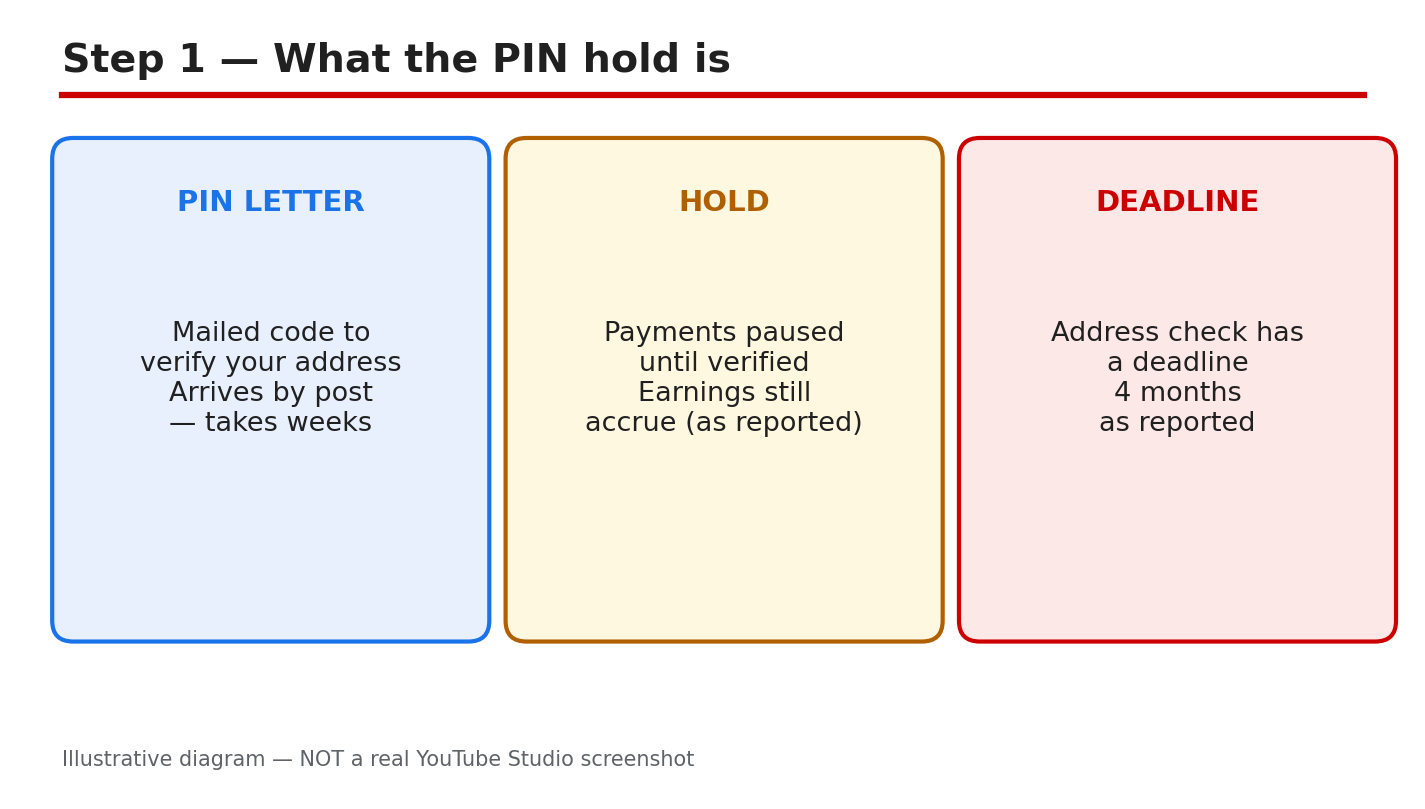
A letter that never arrives can hold up your YouTube earnings. AdSense mails a six-digit Personal Identification Number, called a PIN, to the payment address on your account. Until you enter that PIN, AdSense holds your payments. The money is not lost, but it will not reach your bank until the address is verified. This guide explains what the hold means, where the PIN goes, and what to do when the letter is late or the code does not work. Related reading: How to Earn Money on YouTube. That guide explains how YouTube earnings reach AdSense, so open it if the payment flow is new to you. Below, each step gives what to do, the exact AdSense path, a short example, and a common mistake. Work in order, and never share your PIN. It belongs only in your own AdSense account. What You Will LearnWhat the PIN hold means. Where to enter the PIN. What to do when the letter is late. How to enter the PIN carefully. What to do if the PIN fails. A plan to release held payments.Step 1: What the PIN Hold Is What to do: Understand the hold before you chase the letter. AdSense mails a six-digit PIN to the payment address on your account to prove that the address is real. Until the PIN is entered, AdSense pauses payments. Earnings are reported to keep accruing while payments are held. The verification deadline is reported as four months, so check your own AdSense account for the exact deadline and wording. AdSense path: AdSense home > Payments > Verification. Look for the address verification task and its deadline. The task shows whether a PIN has been mailed, whether it has been entered, and how much time remains. Read that page first. Example: A creator sees a payment hold notice and assumes the channel is demonetized. The AdSense verification page shows only an address check is pending, and earnings are still being recorded. The hold is about the address, not the channel. Common mistake: Asking for a replacement PIN before checking the verification page. A PIN may already be on its way, and a replacement can add confusion. Check the task and the deadline first.Illustrative diagram/mock-up — NOT a real AdSense screenshot: what the PIN hold is. Step 2: Where to Enter the PIN What to do: Enter the PIN only in your own AdSense account, on the verification page. Never type it into an email reply, a chat message, or a site that claims to speed up verification. AdSense will never ask you to share the PIN by email or message. If someone asks for it, stop: it is a scam warning sign. AdSense path: AdSense > Payments > Verification > enter the six-digit PIN from the letter. Type the code exactly as printed, then submit once. Stay on the page until you see the result, and do not press submit twice. Example: A creator finds the letter and enters the code from a phone photo. Two digits are unclear, so the creator checks the paper letter under good light before typing anything. The paper letter is the source of truth. Common mistake: Entering the PIN on a lookalike site reached from a search ad or a message link. Always open AdSense yourself and navigate to Payments, rather than following a link someone sent you.Illustrative diagram/mock-up — NOT a real AdSense screenshot: where to enter the PIN. Step 3: The PIN Never Arrived What to do: Wait out the reported mail period before requesting a replacement. Mail is reported to take two to four weeks, and the official overview says it usually takes three weeks, so one week late is not yet lost. Fix the payment address first, so a replacement goes to the right place. Then request a replacement only after the waiting period has passed. AdSense path: AdSense > Payments > Verification > check the address on file, then use the replacement option shown there. If the address is wrong, update it in the payment settings and confirm the change before requesting the new letter. Example: A creator moved house and the PIN went to the old address. The creator updates the payment address, waits for the confirmation, and then requests a replacement. The second letter arrives at the new address. Common mistake: Requesting replacement after replacement while the address is still wrong. Each new letter goes to the same wrong address. Fix the address once, then request one replacement and wait.Illustrative diagram/mock-up — NOT a real AdSense screenshot: PIN never arrived. Step 4: Before You Enter the PIN What to do: Run four checks before you type anything. First, the address on the letter must match the address in your AdSense account. Second, be signed in to the right AdSense account, the one linked to the channel. Third, read all six digits correctly, and check lookalike digits twice. Fourth, know how many tries remain. Three wrong entries are reported to risk demonetizing the channel; the official overview says they stop the account showing ads. Treat every try as valuable, and check your own account wording. AdSense path: AdSense > Payments > Verification. Read the letter, the account name, and the tries remaining before you enter anything. If any detail does not match, stop and fix it first. Example: A creator is about to type the code when the account name looks unfamiliar. The creator stops, signs in to the correct account, and the verification task appears. The letter belonged to the other account. Common mistake: Guessing a digit you cannot read. A guess uses up a try, and repeated guesses can lock the process. Re-read the letter under good light, or request a fresh PIN instead of guessing.Illustrative diagram/mock-up — NOT a real AdSense screenshot: before entering the PIN. Step 5: If the PIN Fails What to do: Re-read the letter once, slowly, and try one more careful entry. If it fails again, do not keep guessing. Request a fresh PIN from the verification page, and wait for the new letter. If the fresh PIN also fails, contact AdSense support with the letter and your account details ready, and describe what the verification page shows. AdSense path: AdSense > Payments > Verification > request a replacement PIN, then Help or Contact for support. Note the exact message on the verification page before contacting support. Example: A creator enters the code twice and sees the same error. Instead of a third guess, the creator requests a fresh PIN, and the new letter works first time. The old letter had a misprinted digit. Common mistake: Trying the same code again and again in frustration. Repeated failures can use up your tries and delay the fix. One careful retry, then a fresh PIN, is the safer order.Illustrative diagram/mock-up — NOT a real AdSense screenshot: if the PIN fails. Step 6: Follow the Payment-Hold Plan What to do: Work the plan in order. Week one: check the verification page, confirm the address, and wait for the mail. Week two: enter the PIN carefully, or request a replacement if the letter never arrived. After verification: confirm the hold is lifted in Payments, and keep the letter for your records. AdSense path: AdSense > Payments for the hold status, and Verification for the PIN task. Check both pages after entering the PIN; the hold lifts when verification is confirmed. Example: A creator enters the PIN on a Monday and checks Payments on Tuesday. The hold is gone, and the next payment cycle includes the held earnings. The creator keeps the letter filed. Common mistake: Throwing the letter away once the PIN is entered. If verification is questioned later, the letter is your proof. Keep it until the hold has cleared and a payment has gone through.Illustrative diagram/mock-up — NOT a real AdSense screenshot: payment-hold plan. ChecklistVerification page checked: task, address, deadline. Payment address matches the letter. Waiting period respected before a replacement. Right AdSense account signed in. All six digits read and checked twice. PIN entered only in your own AdSense account. Hold confirmed lifted in Payments.Frequently Asked Questions Why are my payments held? AdSense is waiting for address verification. Until the PIN is entered, payments pause, while earnings are reported to keep accruing. Check your own AdSense account for the exact deadline. How long does the PIN letter take? Mail is reported to take two to four weeks, and the official overview says three weeks is usual. Wait out that period, with the right address on file, before requesting a replacement. Can I share my PIN with support? No. Never share the PIN with anyone claiming to be support. Enter it only in your own AdSense account, on the verification page. What if I enter the wrong PIN? Stop guessing. Re-read the letter once, try one careful entry, then request a fresh PIN if it fails. Three wrong entries are reported to risk demonetization; the official wording says ads stop showing. Check your own account. Do I lose earnings while payments are held? Earnings are reported to keep accruing during the hold; check your own AdSense account for the exact position. Once the hold lifts, held earnings join the normal payment cycle. Sources — Check It Yourself Official pages opened and verified live on 29 October 2026. Check current wording before acting.Address verification (PIN) overview — Google AdSense Help Enter your PIN to verify your payments address — Google AdSense HelpNo official YouTube video is embedded here. No exact official video URL was verified live.