YouTube Short Stuck at 0 Views? 6 Checks for Format, Restrictions, and Upload Spacing
 CreatorPlaybook Team
- 28 Oct, 2026
A Short stuck at 0 views feels different from a long video with low views. A Short lives or dies in the vertical feed, and the first checks are not about the idea — they are about whether the file is a Short at all, whether anything is restricting it, and whether it was given a fair chance. This guide works through six checks in order, from format to restrictions to upload spacing, so you fix the real cause instead of deleting and re-uploading the same file and hoping.
One thing to say plainly first: there is no Studio page that confirms a Short is being suppressed because of the October 1 original-content change. YouTube announced a recommendation change that gives more reach to original content in Shorts, but it provided no Studio indicator, threshold, or status that labels a single Short as suppressed. So do not spend your time hunting for a suppression badge that does not exist. Check what Studio actually shows — the format, the Restrictions column, the visibility — and fix what you can see.
What You Will Learn
- How to confirm a video is really a Short: vertical format, under 180 seconds, listed under the Shorts tab.
- Where to check restrictions, claims, strikes, and visibility in YouTube Studio.
- Why new channels should space Shorts out and judge a Short only after 24–48 hours.
- The four 0-view checks: format, claimed audio, duplicate clip, and age restriction or Made for Kids.
- Why deleting and re-uploading the identical file blindly does not help — and what to do instead.
Step 1 — Confirm It Is Really a Short
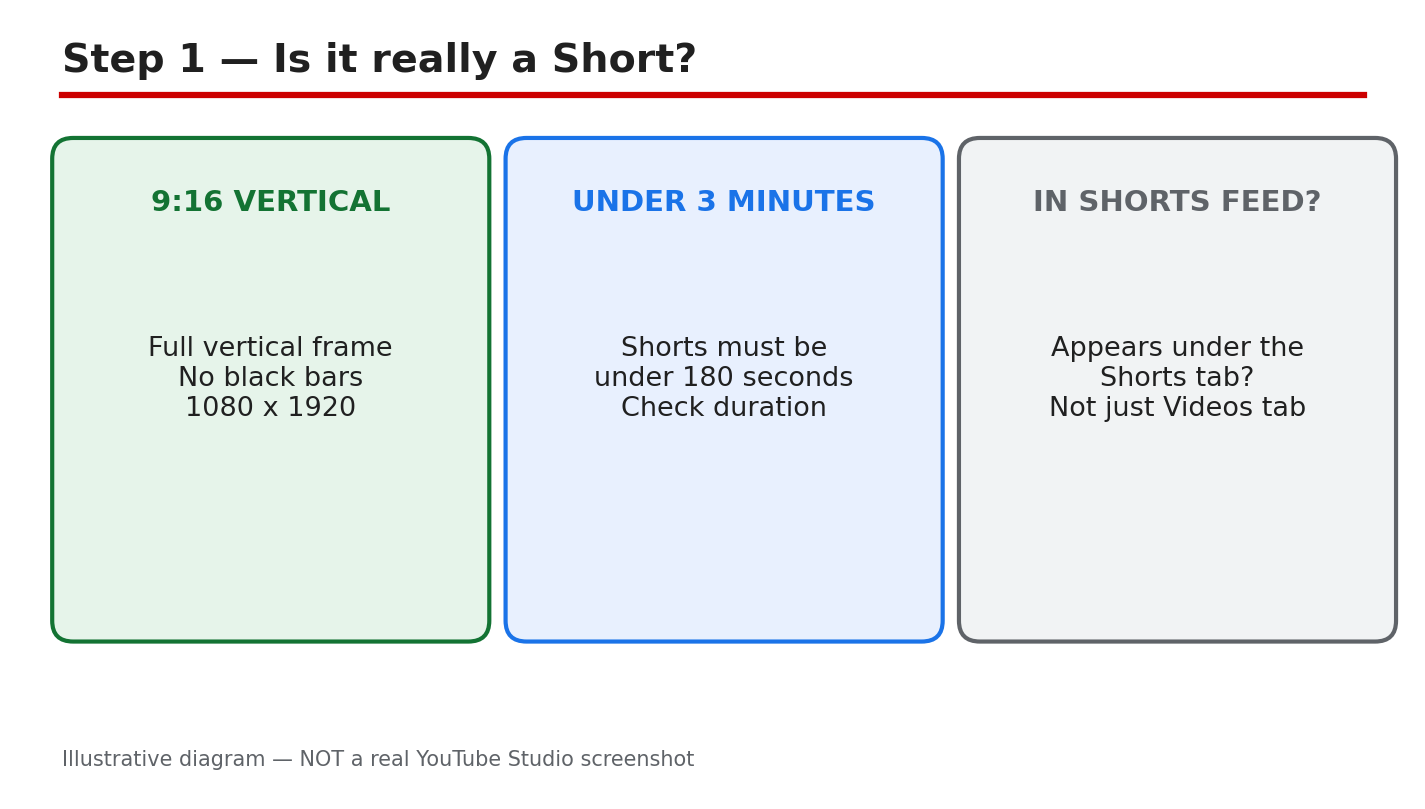
What to do. Open the video in YouTube Studio and check three things: the shape, the length, and where it appears. A Short must be vertical or square, up to three minutes long, and it should appear under the Shorts tab in Studio. If any of the three fails, the video is treated as a regular video, not a Short, and it will not enter the Shorts feed.
Studio menu path. YouTube Studio > Content > click the video > check the format and duration shown, then Content > Shorts tab to confirm it is listed there.
Example. A 45-second clip exported at 1080 x 1920 (9:16) appears under the Shorts tab. The same clip exported at 1920 x 1080 (16:9) with black bars does not — it is a regular video, however short it is.
Common mistake. Uploading a landscape video with black bars top and bottom and calling it a Short. The frame must actually be vertical or square; bars do not count. Re-export the clip in 9:16 and upload it again as a new file only after the other checks below are done.
Diagram 1: The three Shorts format checks — 9:16 vertical, under 180 seconds, and listed under the Shorts tab. Illustrative diagram/mock-up, NOT a real YouTube Studio screenshot.
Step 2 — Check the Restrictions Column
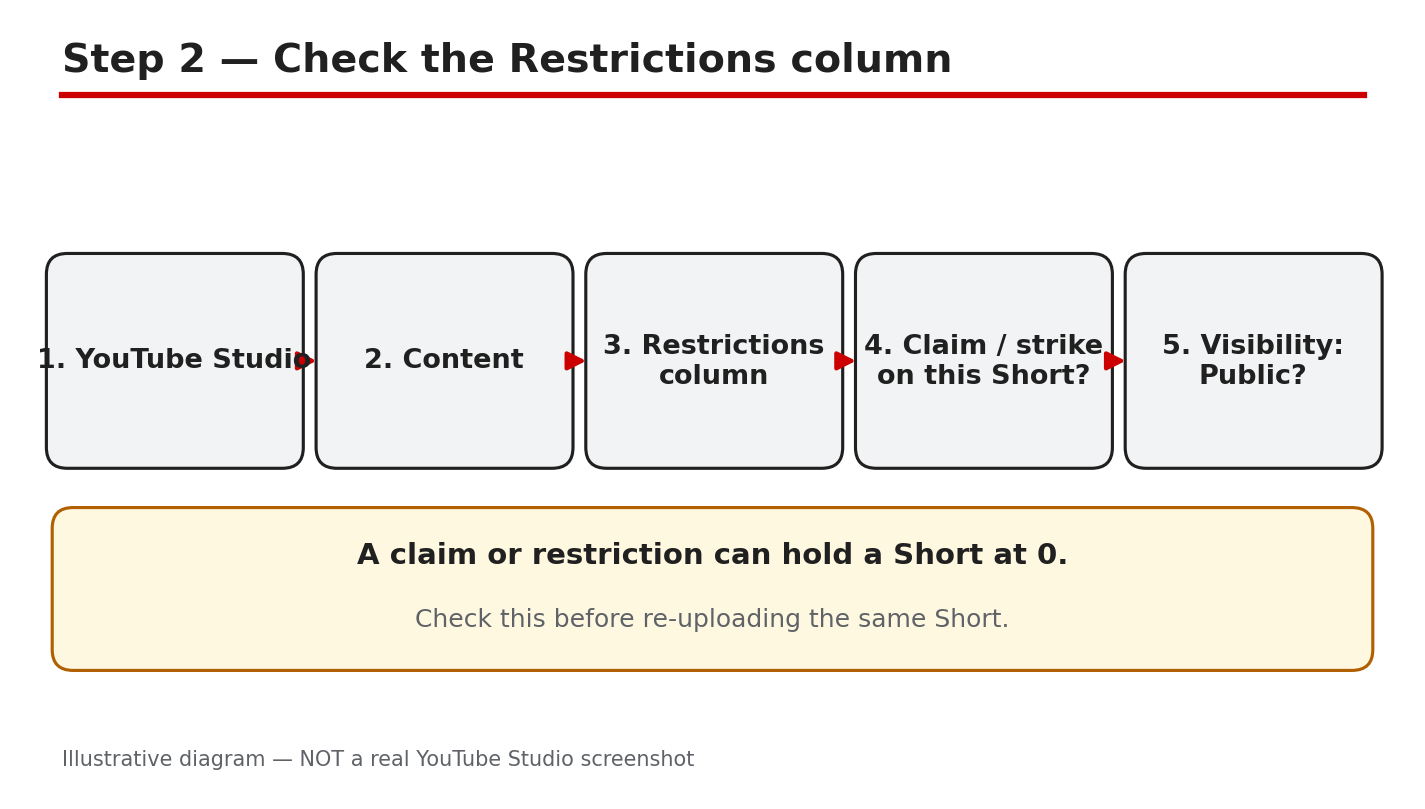
What to do. In Studio, open the Content list and look at the Restrictions column for the Short. That column flags copyright issues, and it is also where you spot whether a video has a claim or a strike. Then open the video’s details and confirm the Visibility is set to Public. A Short set to Private or Unlisted cannot gather views in the feed, and a restriction can hold it at 0.
Studio menu path. YouTube Studio > Content > find the Short > read the Restrictions column > click the video > Visibility: Public.
Example. A Short using a popular song shows a copyright claim in the Restrictions column. The claim does not always block the video, but a claim that blocks or mutes the audio in some regions can leave the Short with no reach. Checking the column first tells you whether audio is the problem before you change anything else.
Common mistake. Assuming the Short is Public because it was uploaded that way. Check it again — scheduled, unlisted, and private uploads are easy to confuse, and a Short left Unlisted after a scheduled publish will sit at 0 views with no error message.
Diagram 2: The Restrictions column check — Studio, Content, Restrictions column, claim or strike, and Visibility Public. Illustrative diagram/mock-up, NOT a real YouTube Studio screenshot.
Step 3 — Space Your Uploads on a New Channel
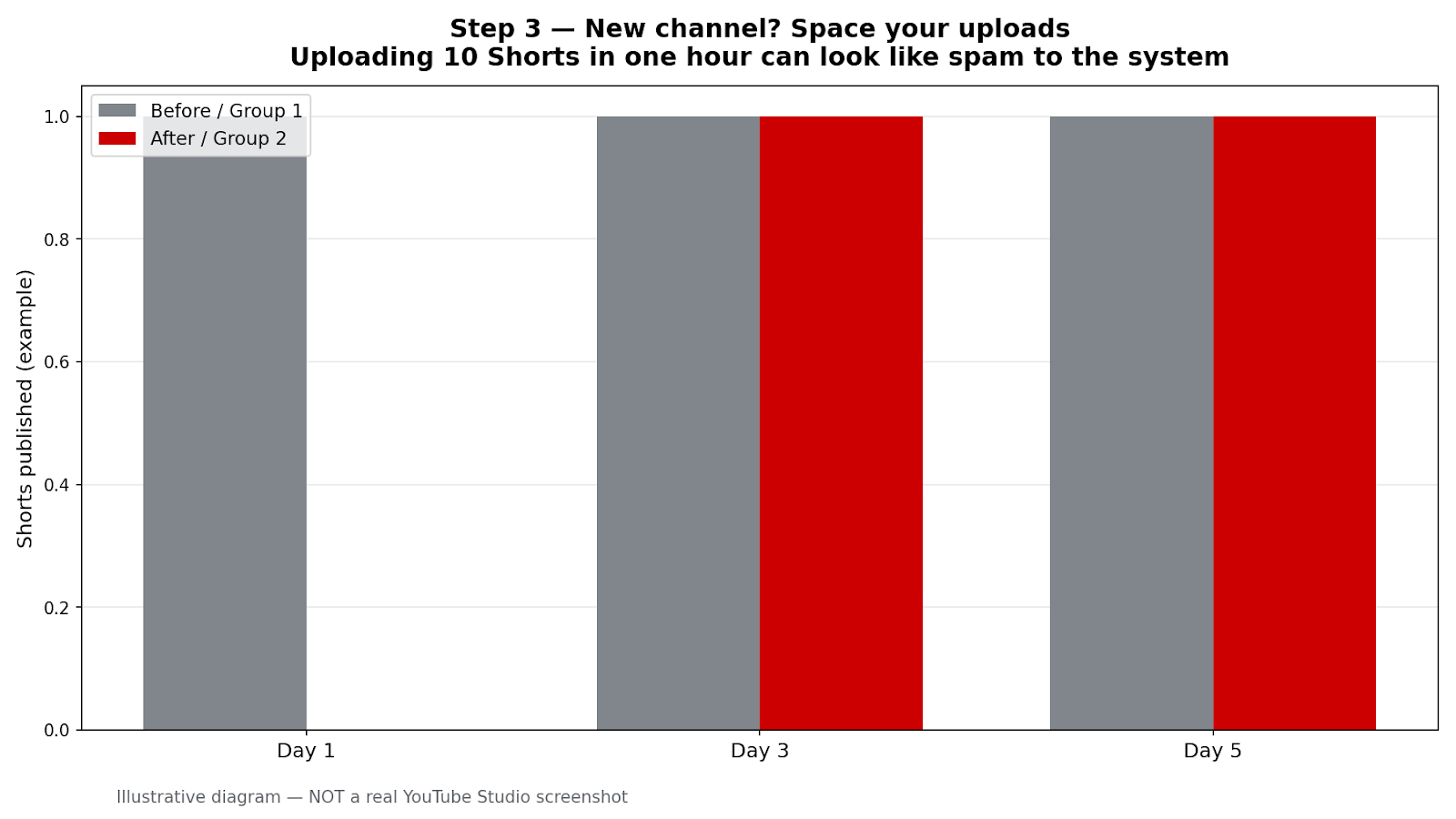
What to do. If your channel is new, publish Shorts one at a time with hours between them, and judge each Short only after 24–48 hours. A brand-new channel has no watch history for YouTube to learn from, so early Shorts often start slowly. Spacing uploads gives each Short its own first day in the feed instead of making them compete with each other.
Studio menu path. YouTube Studio > Content > check the publish dates and times of your recent Shorts; plan the next upload at least several hours after the last one, or the next day.
Example. A new channel publishes one Short on Monday morning and one on Tuesday morning. Both get their first 24 hours alone. The same channel publishing ten Shorts in one hour on Monday sees most of them stall, because no single Short gets a clean test.
Common mistake. Uploading a backlog of ten Shorts in one sitting to “catch up,” then concluding the channel is broken when none of them move. The burst, not the content, is the likely cause — spread the same videos out instead.
Diagram 3: A spaced upload example — one Short per day across a week, compared with many Shorts published in one hour. Illustrative diagram/mock-up, NOT a real YouTube Studio screenshot.
Step 4 — Run the four 0-view checks
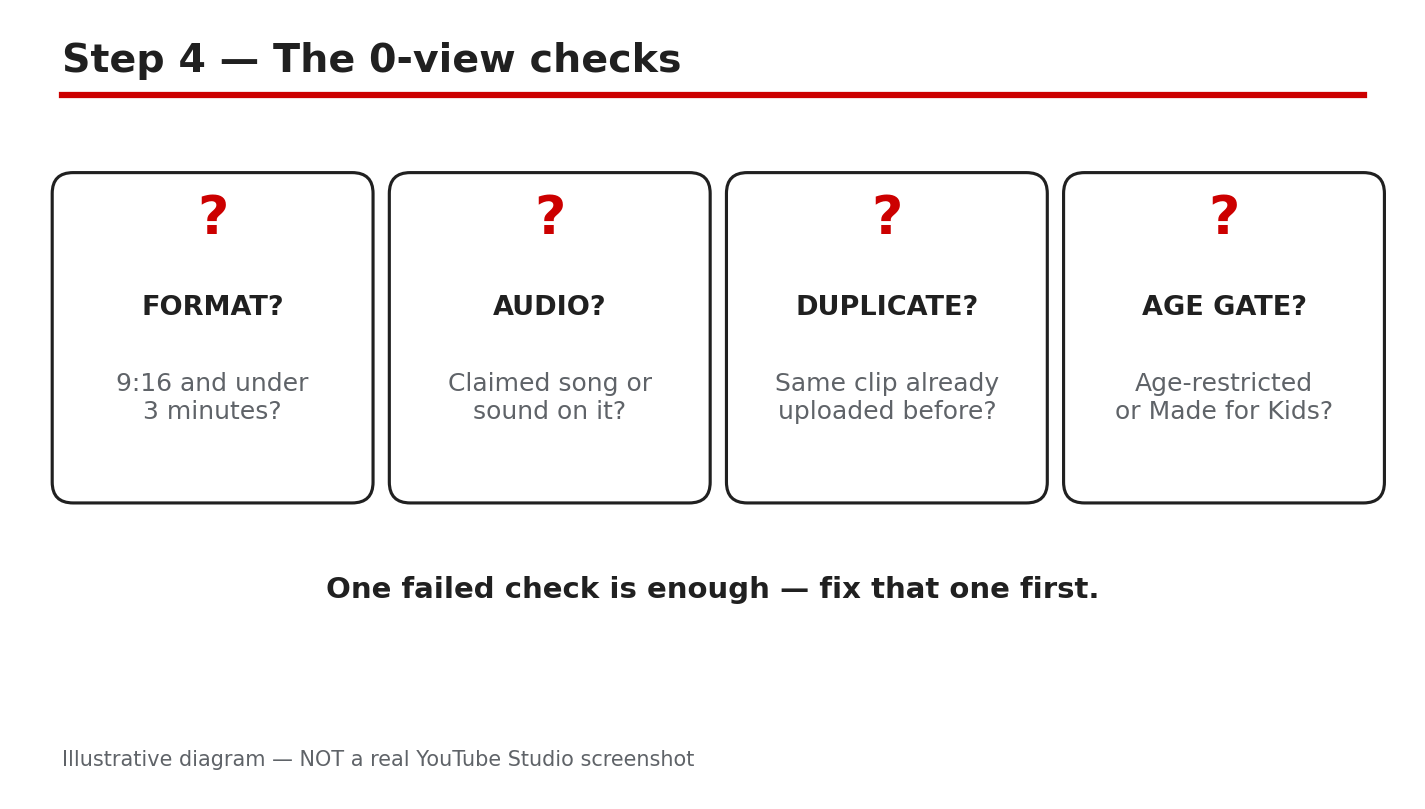
What to do: Work through four checks in order: (1) format — confirm Step 1 again on the uploaded file, not on the project file in your editor; (2) claimed audio — check whether the music in the Short is claimed by someone else; (3) duplicate clip — ask whether this exact clip is already posted elsewhere unchanged; (4) audience settings — check age restriction and the Made for Kids setting.
Studio menu path: YouTube Studio > Content > Restrictions column, then click the video and open Details > Show more to check the Audience setting. The Restrictions column is where a copyright claim, an age restriction, or a Made for Kids setting shows up for that video.
Example: A creator uploads a Short with a trending song. The Restrictions column shows a copyright claim on the audio. The fix is not to delete and re-upload the same file. It is to replace the claimed audio with original audio in a new test upload, as described in Step 5.
Common mistake: Re-uploading the identical clip because “everyone posts this clip.” A clip that duplicates content already on YouTube, with nothing original added, can sit at 0 views and can also cause reused-content trouble later. Add your own recording, commentary, or edit before you test again.
Diagram 4 — Illustrative diagram: the four 0-view checks. This is an illustrative diagram/mock-up, NOT a real YouTube Studio screenshot.
Step 5 — Do not delete and re-upload the identical file blindly
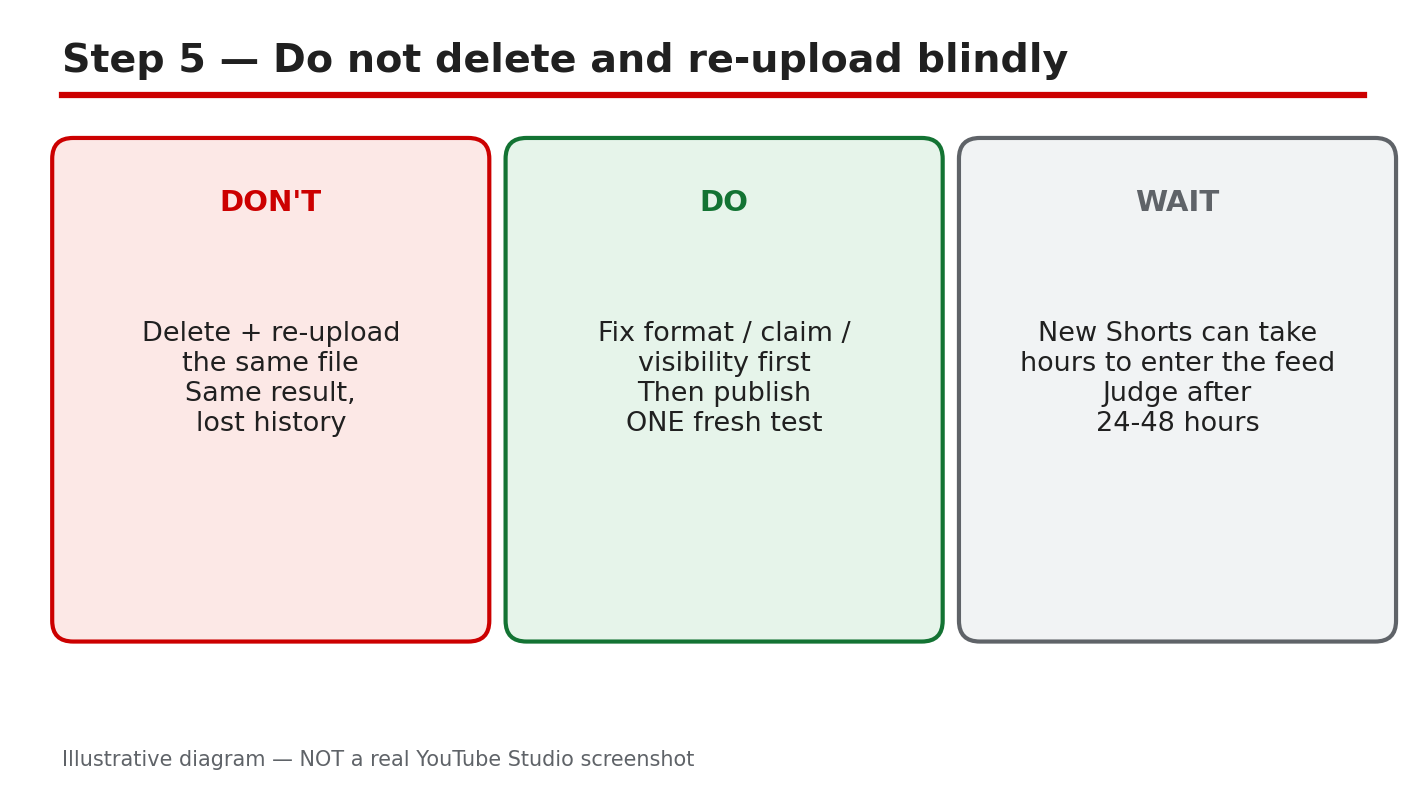
What to do: Fix the problem you found in Steps 1–4 first, then run ONE fresh test. Change the file itself: re-export in vertical format, replace claimed audio with original audio, add your own recording or commentary to a borrowed clip, or correct the audience setting. Then upload that fixed version as a new Short, spaced out as described in Step 3.
Studio menu path: YouTube Studio > Content > Restrictions column on the new upload, and check Visibility: Public. Compare the new upload’s Restrictions and Visibility entries with the old one, and write down the view count after 24–48 hours for each.
Example: A Short with claimed audio is fixed by swapping in original audio. The creator uploads the fixed version once, the next morning, and waits 48 hours before judging it — instead of deleting and re-uploading the same claimed-audio file three times in one evening.
Common mistake: Deleting a 0-view Short and re-uploading the identical file, again and again, hoping for a different result. The file has not changed, so the checks in Steps 1–4 give the same answer — and a burst of identical uploads looks like spam. Fix first, test once, then judge.
Diagram 5 — Illustrative diagram: fix first, then one fresh test. This is an illustrative diagram/mock-up, NOT a real YouTube Studio screenshot.
Step 6 — Follow a spaced retest plan
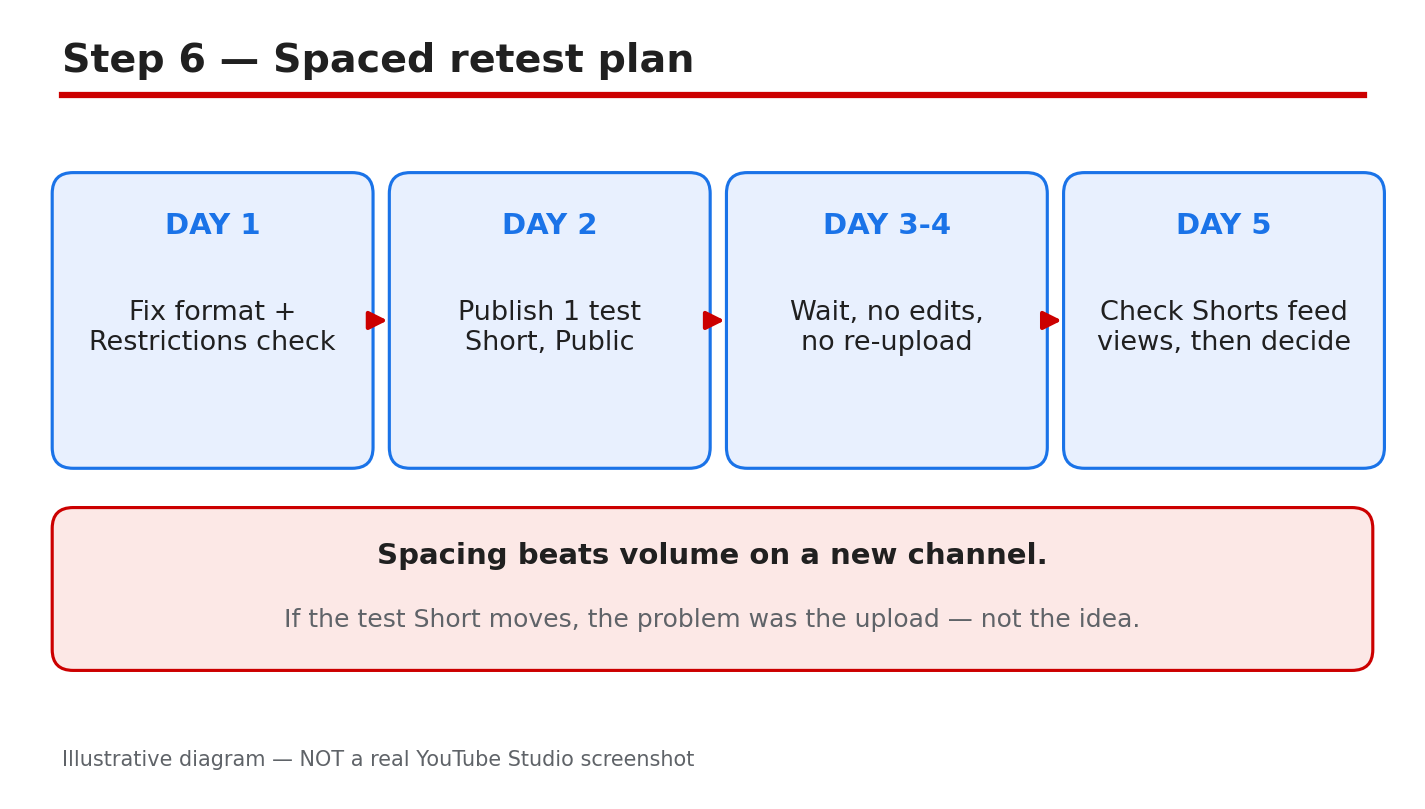
What to do: Run one spaced test over seven days. Day 1: upload ONE fixed Short, using the fix from Step 5. Days 2–3: upload nothing new; let the first test run. Day 4: check the view count after 24–48 hours and write it down. Day 5: if the first test is still at 0, upload ONE more fixed Short with a different fix from Step 4. Day 7: compare the two tests and keep the version that moved.
Studio menu path: YouTube Studio > Content, filter to Shorts and sort by date to see each test upload; then open Studio > Analytics > Content to check Shorts views for each video. Record the numbers in a notebook or a simple sheet so you compare facts, not feelings.
Example: A creator uploads a fixed Short on Monday morning. On Wednesday it shows 12 views. The next Monday, a second fixed Short with original audio is uploaded the same spaced way, and by Wednesday it shows 40 views. The spaced plan made the comparison possible.
Common mistake: Judging a Short after two hours and uploading five more the same day. New Shorts can take time to enter the feed, and a same-day burst hides which fix, if any, worked. Wait the full 24–48 hours before you judge each test.
Diagram 6 — Illustrative diagram: the spaced retest plan. This is an illustrative diagram/mock-up, NOT a real YouTube Studio screenshot.
Quick checklist
- Confirmed the file is vertical or square, under 180 seconds, and appears under the Shorts tab.
- Checked Studio > Content > Restrictions column: no claim, strike, or age restriction, and Visibility is Public.
- Spaced uploads: one at a time, hours apart, and judged only after 24–48 hours.
- Ran the four 0-view checks: format, claimed audio, duplicate clip, and Made for Kids / age restriction.
- Fixed the problem first, then ran one fresh test — did not delete and re-upload the identical file.
- Followed the 7-day spaced retest plan and wrote down the numbers.
Frequently asked questions
Why is my Short still at 0 views after a few hours? New Shorts can take time to enter the feed, so judge only after 24–48 hours. If it is still at 0 after that, work through the format and Restrictions checks in Steps 1, 2, and 4.
Did the October 1 original-content change suppress my Short? There is no Studio page that confirms suppression by the October 1 original-content change for a specific video. Check the concrete items in this guide — format, restrictions, claims, and spacing — instead of assuming a penalty.
Should I delete my Short and upload it again? Not the identical file. Fix the problem first — format, audio, duplicate clip, or audience setting — and then upload one fresh test, spaced out as described in Step 5.
How long should I wait before I judge a test? Wait 24–48 hours for each test upload, and run the spaced plan in Step 6 over seven days so each fix gets a fair comparison.
Sources — Check It Yourself
Only official YouTube Help pages, opened and checked for this post:
- Create YouTube Shorts — YouTube Help
- Understand three-minute YouTube Shorts — YouTube Help
- Manage restrictions on your content — YouTube Studio Help
- Change video privacy settings — YouTube Help
- Get started with YouTube Analytics — YouTube Help
Related reading, specific to Shorts views dropping after upload: YouTube Shorts Views Dropped? How to Check What Changed.
No video is embedded in this post. No official YouTube Creators or Creator Insider video matching this exact topic was verified, so none was embedded rather than guessing at a link.