Showing Posts From
Youtube audio
 CreatorPlaybook Team
- 14 Nov, 2026
YouTube Audio Out of Sync — Lips Don't Match the Sound (Viewer + Creator Fix)
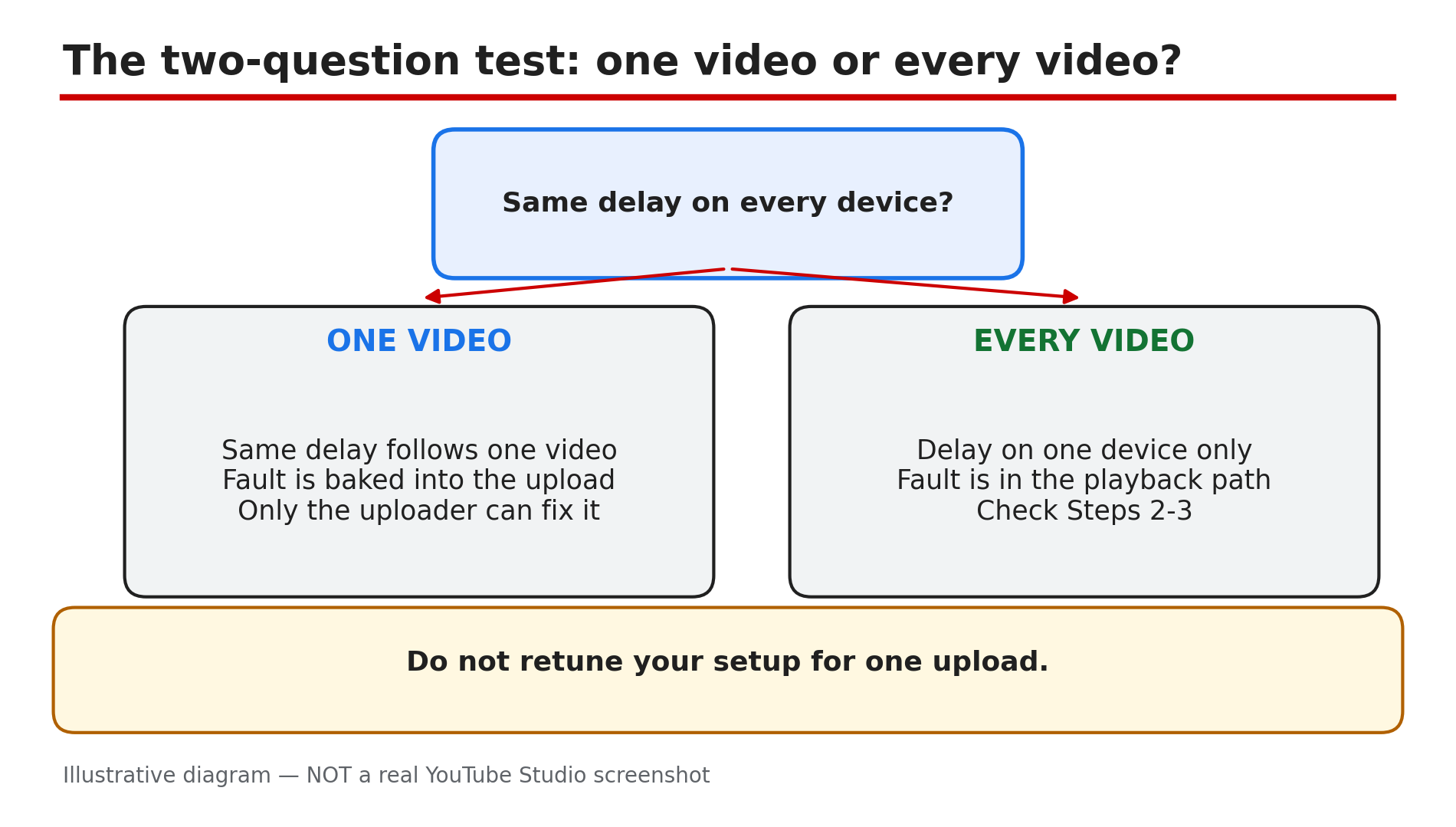
The speaker's lips move, and the words arrive a beat later — or a beat earlier. The sound is there, so this is not a video with no sound at all: the timing is wrong. One quick test tells you whether the fault is baked into the video or sitting in your own playback path, and each answer has a different fix. This guide works through both sides — what viewers can try, and what creators must fix in the file itself. What You Will LearnThe two-question test that splits a video fault from a device fault The viewer fixes to try first: reload, restart, device speakers Why Bluetooth and 5.1 surround delay the sound What YouTube Help says creators must fix How variable frame rate drifts the sound — and the re-encode fix How to fix a fixed offset in a live stream with OBSStep 1 — The two-question test: one video or every video? What to do: Play the same video on another device, and play a different video on the same device. How: If the same delay follows one video across every device — phone, laptop, TV — the fault is baked into that upload, and only the uploader can fix it, as reported. Leave a polite comment saying what is wrong and when it starts. If every video is out of sync on one device while others play fine, the fault is in the playback path — Bluetooth, 5.1 surround, or a soundbar — see Steps 2 and 3. Do not retune your whole setup for one upload. If a video has no sound at all, the checks are different — see our guide to a video with no sound. Example: A lagging tutorial shows the same lag on the viewer's phone. The upload is at fault, not his laptop. Common mistake: Changing TV settings or buying new headphones over one video.Illustrative diagram: the two-question test that splits a sync problem into one video or every video. Step 2 — Viewer fixes first: reload, restart, switch speakers What to do: Reload the video, restart the app or browser, and test with the device's own speakers. How: Reload the page first — as reported, this forces the player to re-sync the streams. On a phone, close YouTube, reopen it, update the app, and restart the phone. Try the same video in another browser: in sync there means the first browser is the suspect — check extensions and clear cached files, as reported. The decisive test is the speakers: switch from Bluetooth to the device's built-in speakers or wired headphones. Bluetooth adds a delay that looks like a sync fault and follows you from video to video, as reported. If playback also stalls, lower the quality — see our guide to a video stuck at low quality. Example: Bluetooth earbuds lag every video slightly; the phone's own speaker lines the lips and words up again. Common mistake: Applying a permanent audio delay to the whole device before checking other videos.Illustrative diagram: the five viewer fixes to try first. Step 3 — On a TV or soundbar: turn off 5.1 surround What to do: Compare the TV's own speakers with your soundbar or receiver, and test with 5.1 surround off. How: Restart the YouTube app first, then play the same video through the TV's own speakers: if only the external audio is delayed, check that device's lip-sync controls — TV sets are slower with the picture than the sound, as reported. In the regular YouTube app, turn off 5.1 surround in the player controls as a test — YouTube says it appears only for supported videos and devices, as reported. On YouTube TV: account avatar, then Settings, then 5.1 audio, and switch it off — Google's documented test for a 5.1 setup, as reported. Example: Through a soundbar, every voice lags; the TV speakers fix it, and a small lip-sync delay on the soundbar finishes the job. Common mistake: Retuning every device to suit one out-of-sync broadcast — report that broadcast instead.Illustrative diagram: comparing TV speakers with a soundbar, and testing 5.1 surround off. Step 4 — Creators: match the track lengths What to do: Open your raw video in your editor and check the tracks are the same length. How: YouTube Help treats this as an upload-side fault: "Make sure that the durations of your audio and video tracks are the same. If your audio track is shorter or longer than your video, your audio and video may not sync correctly." Open the original recording in your editor — not a YouTube download — and compare the track lengths. If one is shorter, stretch or trim it so both end together. Check from start to finish: in sync at the start but not the end means one track is a different length, as reported. No re-timing is possible on a published video, as reported — the fix is a new upload. Example: A 20-minute tutorial drifts near the end — its audio track is three seconds short. Matching the lengths and re-uploading fixes it. Common mistake: Editing the published video in Studio and expecting the drift to go away — Studio cannot re-time baked-in audio.Illustrative diagram: audio and video tracks of the same length stay in sync; a shorter audio track drifts apart. Step 5 — Creators: re-encode to a constant frame rate What to do: Re-encode the file to a constant frame rate, then upload it again. How: Phones and screen recorders write a variable frame rate to save space, as reported, and drift follows when it changes between camera and upload. In your editor, set a constant frame rate — YouTube prefers 24, 25, 30, 48, 50 or 60 frames per second — and export again. Match the audio settings too: AAC-LC, 128–256 kbps, 44100 or 48000. Watch the exported file from the start, jump to the middle, then watch the last minute — drift often shows only late. Upload the new file as a new video, and point viewers to it from the old description. Example: A creator records on a phone and every upload drifts worse toward the end; re-encoding to a constant 30 frames per second ends the drift. Common mistake: Re-uploading the same variable-frame-rate file and hoping the transcode fixes it — it cannot invent timing that was never in the upload.Illustrative diagram: variable frame rate drifts apart, constant frame rate stays in sync. Step 6 — Live streams: clap test, then fix the offset in OBS What to do: Make a short clap-test recording, then correct the offset in your encoder. How: Clap in front of the camera, speak a sentence, and watch it through wired headphones, so Bluetooth does not confuse the test, as reported. If the recording is already out of sync, fix the source timing first. If it looks right, test an unlisted stream. In OBS, open the Audio Mixer, right-click the audio source, choose Advanced Audio Properties, and find Sync Offset: if the clap is heard before the hands meet, the audio is early, and a positive Sync Offset delays it — 100 milliseconds early needs roughly 100 milliseconds of delay, as reported. If the sound comes after the hands meet, the audio is late — check for an existing offset first, and delay the video with a Render Delay filter, as reported. A delay setting only fixes a fixed offset: a growing gap means a source or clock problem — check encoder overload and driver updates, as reported. Latency is different: a stream can run seconds behind real life with correct lip sync, as reported. Example: A streamer hears her clap 150 milliseconds before her hands meet; that Sync Offset lines the stream up. Common mistake: Adding more audio delay when the sound is already late — that makes the problem worse.Illustrative diagram: the clap-test flow — find the offset, set it in OBS, then re-test. Checklist — Fix YouTube audio out of sync☐ Same video on another device; a different video on this device ☐ Reloaded the video and restarted the app or browser ☐ Tested the device's built-in speakers, not Bluetooth ☐ On a TV, compared TV speakers with the soundbar; tested 5.1 off ☐ Creators: audio and video track lengths match in the editor ☐ Creators: re-encoded to a constant frame rate ☐ Creators: uploaded the fixed file as a new video ☐ Streamers: clap test done; OBS Sync Offset setFAQs 1. Why is YouTube audio out of sync only on my TV? TV sets take longer over the picture than the sound, as reported, and Bluetooth or 5.1 surround adds delay. Test the TV's own speakers first, then turn 5.1 off where the option appears. 2. Can I fix out-of-sync audio on a video someone else uploaded? No. If the delay follows one video across every device, it is baked into the upload and only the uploader can fix it, as reported. Leave a comment saying what is wrong and when. 3. My video drifts more toward the end. Why? A variable frame rate, or audio and video tracks of different lengths, as reported. Re-encode to a constant frame rate, match the lengths, and upload the new file. 4. Why does the sound lag only on Bluetooth headphones? Bluetooth adds a delay that looks like a sync fault and follows you from video to video, as reported. Test with built-in speakers or wired headphones to confirm. 5. My live stream starts in sync, then drifts. Will a delay fix it? No. A fixed offset is fixed with an OBS Sync Offset; a growing gap means a source or clock problem, as reported. SourcesYouTube Help — "Troubleshoot audio or video issues with uploads on YouTube" (official source, opened live 14 Nov 2026): http://support.google.com/youtube/answer/58134?hl=en-GB CreatorPlaybook — "YouTube Video Has No Sound? Fix Audio That Disappears (Viewer + Creator Guide)" (topic 108): </blog/youtube-video-no-sound-audio-disappears> CreatorPlaybook — "YouTube Video Stuck at Low Quality? Why 1080p or 4K Is Missing and How to Fix It" (topic 72): </blog/youtube-video-stuck-at-low-quality-why>
- CreatorPlaybook Team
- 13 Nov, 2026
YouTube Video Has No Sound? Fix Audio That Disappears (Viewer + Creator Guide)
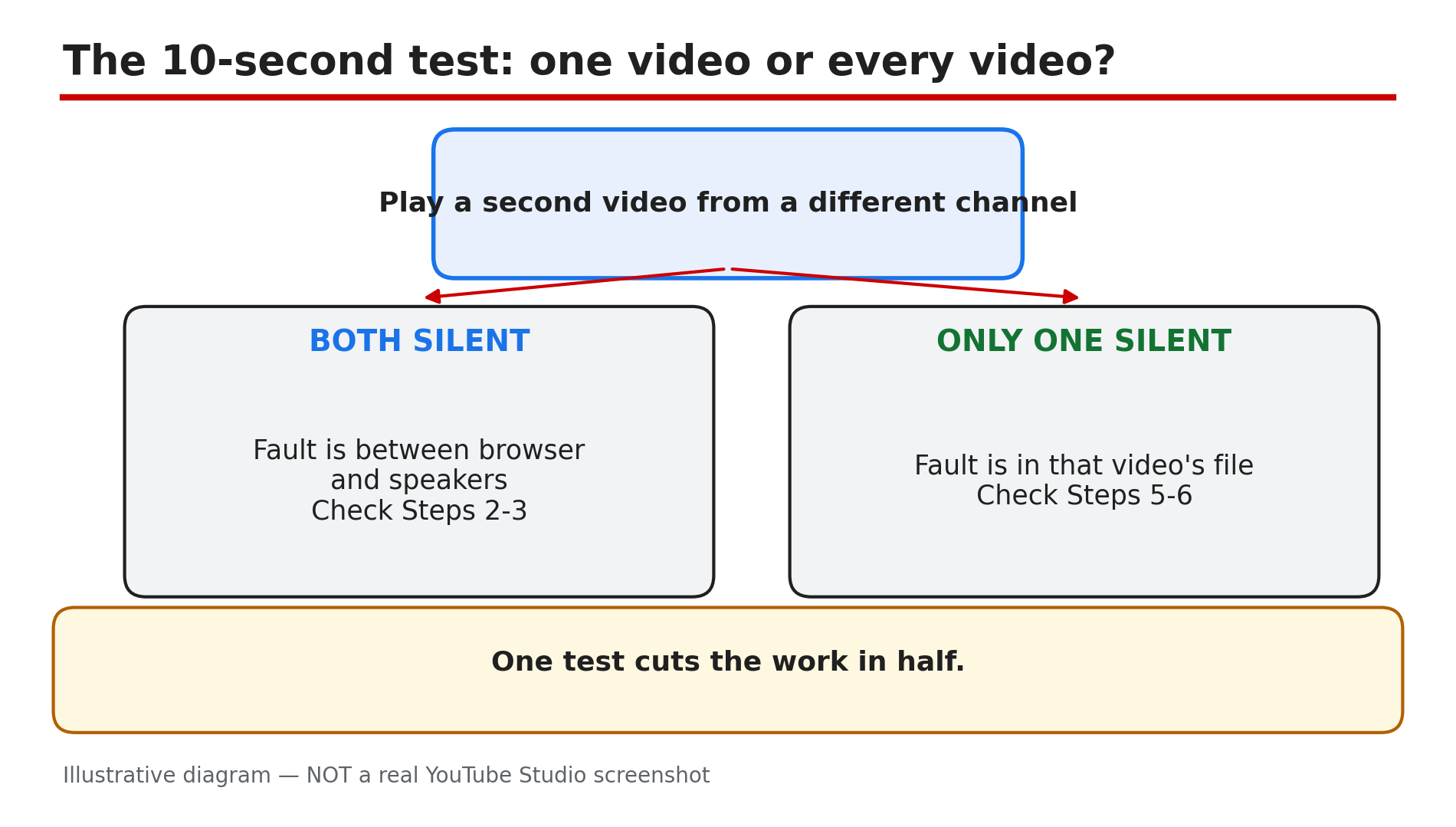
You press play, the picture moves, the lips move — and there is no sound. The cause can sit anywhere between the video file and your speakers: a muted player, a muted tab, an extension, a bad export, a copyright claim, or — since October 2026 — a reported app bug that kills the audio when the player drops out of full-screen. This guide works through them in order. What You Will LearnThe 10-second test that splits the problem in half The five device settings that silence every video How to test whether an extension is in the audio path The reported October 2026 mini-player bug — and the app fixes to try first Why an upload can arrive with picture and no sound What to do when a copyright claim muted the trackStep 1 — Play a second video from a different channel: the test that splits the problem in half What to do: Before you change a single setting, open a second video from a different channel and play it. How: If both are silent, neither file is at fault — the problem sits between the browser and your speakers, so work through Steps 2 and 3. If the second video plays with sound, the first file is the suspect — see Steps 5 and 6. Ask someone else to open the same link too: silent for them as well means the fault is in the video. One test cuts the work in half — people reinstall drivers for an hour over a video silent for every viewer on earth, as the Tribute guide puts it. Example: A viewer restarts his laptop over a silent tutorial, then opens a music video from another channel — it plays fine. The tutorial's track was the problem. Common mistake: Reinstalling drivers or resetting the browser before testing a second video.Illustrative diagram: the 10-second test that splits a no-sound problem in half. Step 2 — Check the five device settings: player, tab, output, app mixer, extension What to do: Work through the five settings on your own device, in order. How: 1. Player volume — hover the speaker icon in the player; it remembers a muted state between sessions. 2. Browser tab — each browser mutes one tab at a time, and the tab keeps that state after a reload. 3. Output device — a laptop paired with a speaker in another room plays the sound where you cannot hear it. 4. App mixer — Windows holds a level per application, so the browser can sit at zero. 5. Extension — ad blockers and volume boosters sit in the audio path; Step 3. Example: A viewer hears nothing on YouTube but Spotify plays loudly — in the Volume Mixer her browser is at zero. One slider fixes it. Common mistake: Turning the system volume up and assuming the player is fine — the player, the tab and the app each have their own volume.Illustrative diagram: the five device settings that can silence every YouTube video. Step 3 — Test in a private window with extensions off: the extension in the audio path What to do: Open the same video in a private (incognito) window with extensions off. How: Ad blockers and volume boosters sit in the audio path and can silence a video. A private window usually runs with extensions disabled, so if the sound returns there, an extension is the cause. Re-enable them one at a time to find the culprit. Still silent? Try another browser: sound in Safari but silence in Chrome points at the browser. Example: A viewer has no sound on any YouTube video in Chrome, but in a private window the sound is back. Disabling his volume-booster extension brings it back. Common mistake: Clearing all cookies and cache first — that wipes your sign-ins. The private-window test is faster.Illustrative diagram: testing a silent video in a private window with extensions off. Step 4 — If the app kicks you out of full-screen and the sound dies: the reported October 2026 bug What to do: If you are on the YouTube app and the video kicks you out of full-screen into the floating mini player — and the sound dies with it — try the app fixes first. How: Android Headlines reported on 2 Nov 2026 that this bug has been around since early October 2026 and affects the app on both Android and iPhone. Viewers report being thrown out of full-screen into the mini player, with the audio killed — and expanding the mini player back does not bring the sound back. First, close the video and play it again — that restores sound for some, not all. If that fails, force-stop and restart the app — that has worked for others. Google had still not responded publicly as of 1 Nov 2026, and no fix had been reported as of 13 Nov 2026 — there is no official Help page for this bug. Example: A viewer on Android sees the player drop to the mini player and the sound stop — she closes the video, reopens it, and the sound is back. Common mistake: Assuming your phone's speakers or headphones broke. If the sound died the moment the player dropped out of full-screen, it is the reported bug, not your hardware.Illustrative diagram: timeline of the reported October 2026 mini-player bug that kills audio. Step 5 — Creators: check the file before you blame the player What to do: If the video is silent for everyone, the fault is in the file — check the export before you blame YouTube. How: YouTube publishes AAC-LC audio at 48 kHz, stereo 384 kbps, as reported — a file with an unusual audio codec can arrive with picture and nothing else. Re-export from your editor, and confirm the file plays with sound on your own machine. Second, check your screen recorder: it offers microphone and system sound, and switches one of them on — a recording that caught the microphone only has no video audio. Third, check mono compatibility: a single lapel mic into a two-channel recorder puts everything on the left channel, and on a phone speaker that reads as silence. Export a centred stereo mix and test it on a phone before uploading. Example: A creator uploads a tutorial and every viewer reports silence, though it sounds fine on her computer — her recorder had captured the microphone only. Common mistake: Re-uploading the same file and hoping YouTube fixes it — the transcode cannot invent audio that was never in the upload.Illustrative diagram: three upload faults that leave a video with picture and no sound. Step 6 — Check the Copyright tab: a claim can mute the whole track What to do: Open YouTube Studio and check the Copyright tab before you blame the export. How: When a claim lands, YouTube offers Erase song, Trim out segment and Replace song — and Erase song mutes either the claimed track or every sound in the video, as reported. If your video went silent after a claim, check the Copyright tab in Studio: the claim appears there with the claimed stretch and the options. Dispute it, replace the song, or trim the segment — and if you use Erase song, confirm in Studio it removed only the claimed audio. Audio is baked into the uploaded file, so a repaired version has to go up as a new upload. The one thing you can add after publishing is an Audio Library track in the Studio editor (Content > video > Editor > Audio) — but the video must be shorter than six hours, as reported. Example: A creator's vlog goes silent overnight — the Copyright tab shows a claim on the background song, and Erase song had muted the entire audio, dialogue included. Common mistake: Using Erase song without checking what it muted — confirm the result in Studio first.Illustrative diagram: the three claim options in YouTube Studio and what Erase song can mute. Checklist — Fix a YouTube video with no sound☐ Played a second video from a different channel first ☐ Checked the player's volume — it remembers a muted state ☐ Checked the browser tab is not muted ☐ Checked the output device and the app volume mixer ☐ Tested in a private window with extensions off ☐ If the app dropped out of full-screen, reopened the video, then restarted it ☐ Creators: confirmed the file plays with sound on your own machine ☐ Checked the Copyright tab in Studio before re-uploadingFAQs 1. Why do YouTube videos have no sound in Chrome but sound fine in Safari? A muted tab or an extension in the audio path explains almost every case, as reported. Open the same link in a private window with extensions off — if the sound returns, the browser was the problem. 2. My uploaded video is silent. Can I fix it without losing the views? No. Audio is baked into the uploaded file, so a repaired version has to go up as a new upload, as reported. The only change after publishing is an Audio Library track in the Studio editor. 3. How do I tell whether a claim muted my video? Open YouTube Studio, then the Copyright tab. A claim appears there with the claimed stretch and the options — dispute it, replace the song, or trim the segment. 4. Why is the sound gone only on my phone, but fine on my computer? Check mono compatibility first: audio on one channel only can read as silence on a phone speaker while playing on a computer, as reported. Also check Bluetooth — a paired speaker in another room can look like a video fault. 5. Is the October 2026 mini-player bug fixed yet? As reported, no. Reports as of 1 Nov 2026 said the bug was still affecting users on Android and iPhone, and Google had still not responded publicly. Reopening the video or restarting the app works for some, not all. SourcesAndroid Headlines — "YouTube's Latest Bug Silences Videos and Dumps You Into the Mini Player" (primary source for the bug report, opened live 13 Nov 2026): https://www.androidheadlines.com/2026/11/youtubes-latest-bug-silences-videos-and-dumps-you-into-the-mini-player.html CreatorPlaybook — "YouTube Shorts Music Disappeared or Muted? Why It Happens and How to Fix It" (internal link, URL copied from the plan file): </blog/youtube-shorts-music-disappeared-or> CreatorPlaybook — "YouTube Video Unavailable? What Each Playback Error Means and How to Fix It" (internal link, URL copied from the plan file): </blog/youtube-video-unavailable-what-each>