YouTube Audio Out of Sync — Lips Don't Match the Sound (Viewer + Creator Fix)
 CreatorPlaybook Team
- 14 Nov, 2026
The speaker’s lips move, and the words arrive a beat later — or a beat earlier. The sound is there, so this is not a video with no sound at all: the timing is wrong. One quick test tells you whether the fault is baked into the video or sitting in your own playback path, and each answer has a different fix. This guide works through both sides — what viewers can try, and what creators must fix in the file itself.
What You Will Learn
- The two-question test that splits a video fault from a device fault
- The viewer fixes to try first: reload, restart, device speakers
- Why Bluetooth and 5.1 surround delay the sound
- What YouTube Help says creators must fix
- How variable frame rate drifts the sound — and the re-encode fix
- How to fix a fixed offset in a live stream with OBS
Step 1 — The two-question test: one video or every video?
What to do: Play the same video on another device, and play a different video on the same device.
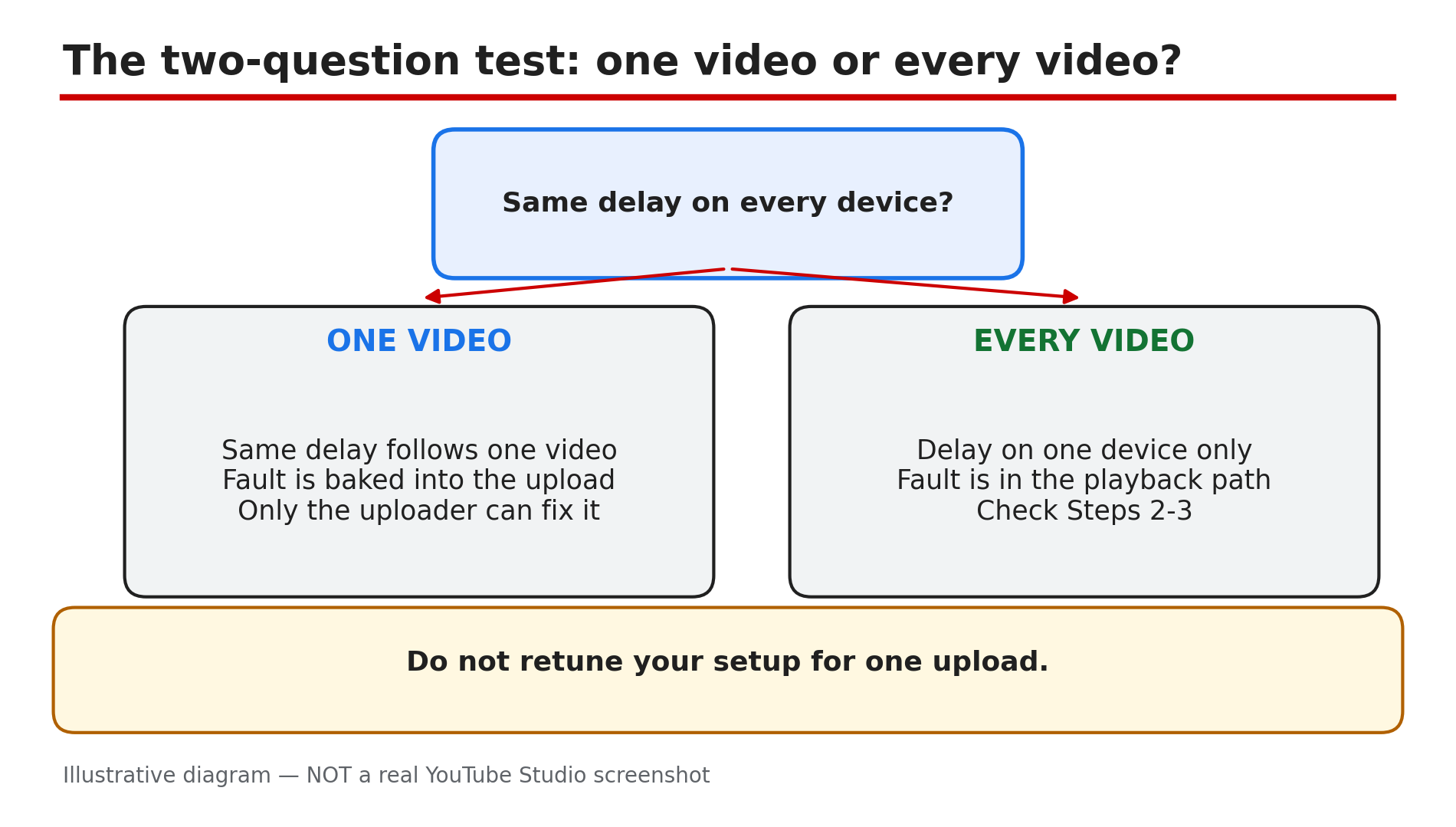
How: If the same delay follows one video across every device — phone, laptop, TV — the fault is baked into that upload, and only the uploader can fix it, as reported. Leave a polite comment saying what is wrong and when it starts. If every video is out of sync on one device while others play fine, the fault is in the playback path — Bluetooth, 5.1 surround, or a soundbar — see Steps 2 and 3. Do not retune your whole setup for one upload. If a video has no sound at all, the checks are different — see our guide to a video with no sound.
Example: A lagging tutorial shows the same lag on the viewer’s phone. The upload is at fault, not his laptop.
Common mistake: Changing TV settings or buying new headphones over one video.
Illustrative diagram: the two-question test that splits a sync problem into one video or every video.
Step 2 — Viewer fixes first: reload, restart, switch speakers
What to do: Reload the video, restart the app or browser, and test with the device’s own speakers.
How: Reload the page first — as reported, this forces the player to re-sync the streams. On a phone, close YouTube, reopen it, update the app, and restart the phone. Try the same video in another browser: in sync there means the first browser is the suspect — check extensions and clear cached files, as reported. The decisive test is the speakers: switch from Bluetooth to the device’s built-in speakers or wired headphones. Bluetooth adds a delay that looks like a sync fault and follows you from video to video, as reported. If playback also stalls, lower the quality — see our guide to a video stuck at low quality.
Example: Bluetooth earbuds lag every video slightly; the phone’s own speaker lines the lips and words up again.
Common mistake: Applying a permanent audio delay to the whole device before checking other videos.
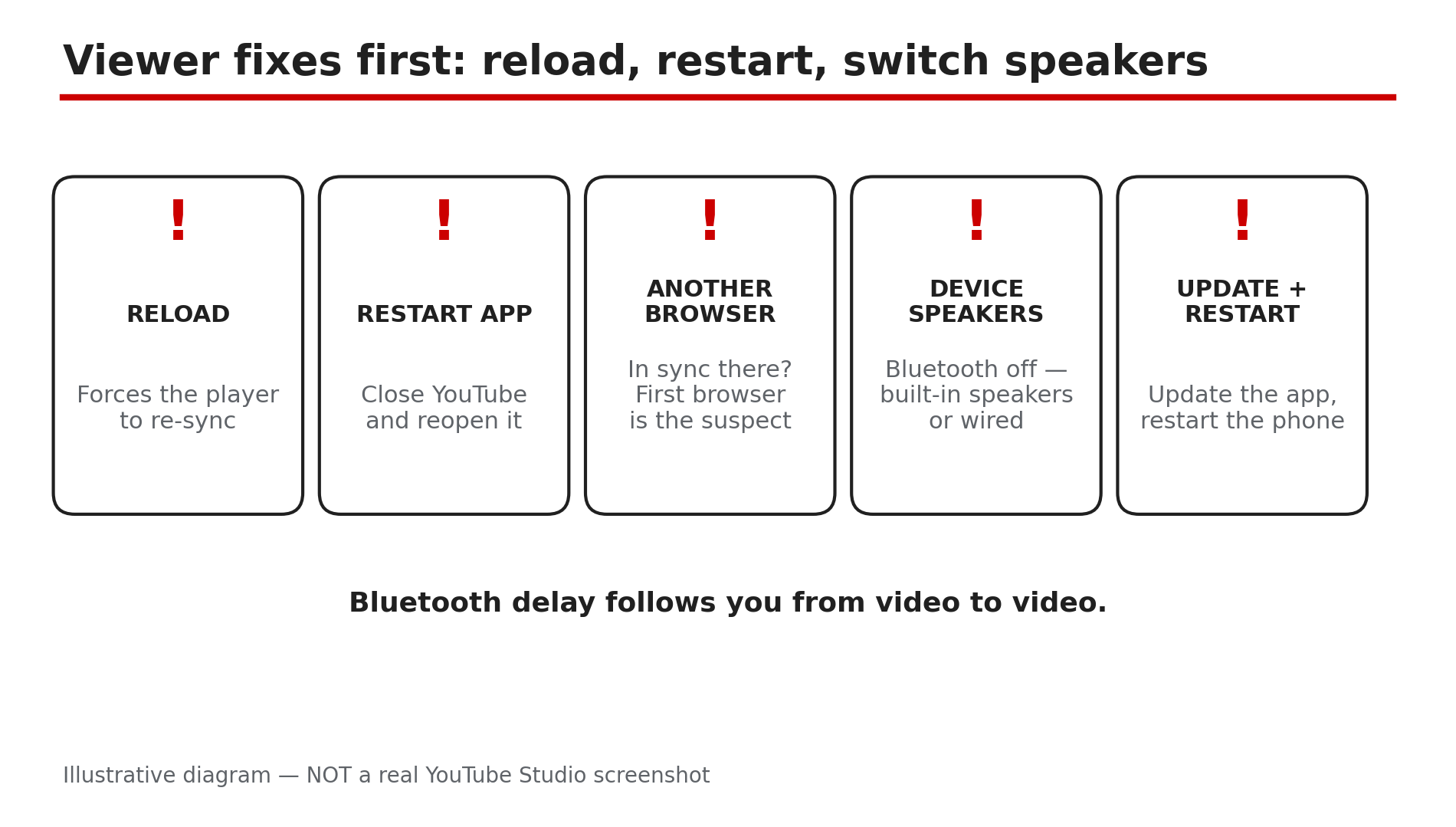
Illustrative diagram: the five viewer fixes to try first.
Step 3 — On a TV or soundbar: turn off 5.1 surround
What to do: Compare the TV’s own speakers with your soundbar or receiver, and test with 5.1 surround off.
How: Restart the YouTube app first, then play the same video through the TV’s own speakers: if only the external audio is delayed, check that device’s lip-sync controls — TV sets are slower with the picture than the sound, as reported. In the regular YouTube app, turn off 5.1 surround in the player controls as a test — YouTube says it appears only for supported videos and devices, as reported. On YouTube TV: account avatar, then Settings, then 5.1 audio, and switch it off — Google’s documented test for a 5.1 setup, as reported.
Example: Through a soundbar, every voice lags; the TV speakers fix it, and a small lip-sync delay on the soundbar finishes the job.
Common mistake: Retuning every device to suit one out-of-sync broadcast — report that broadcast instead.
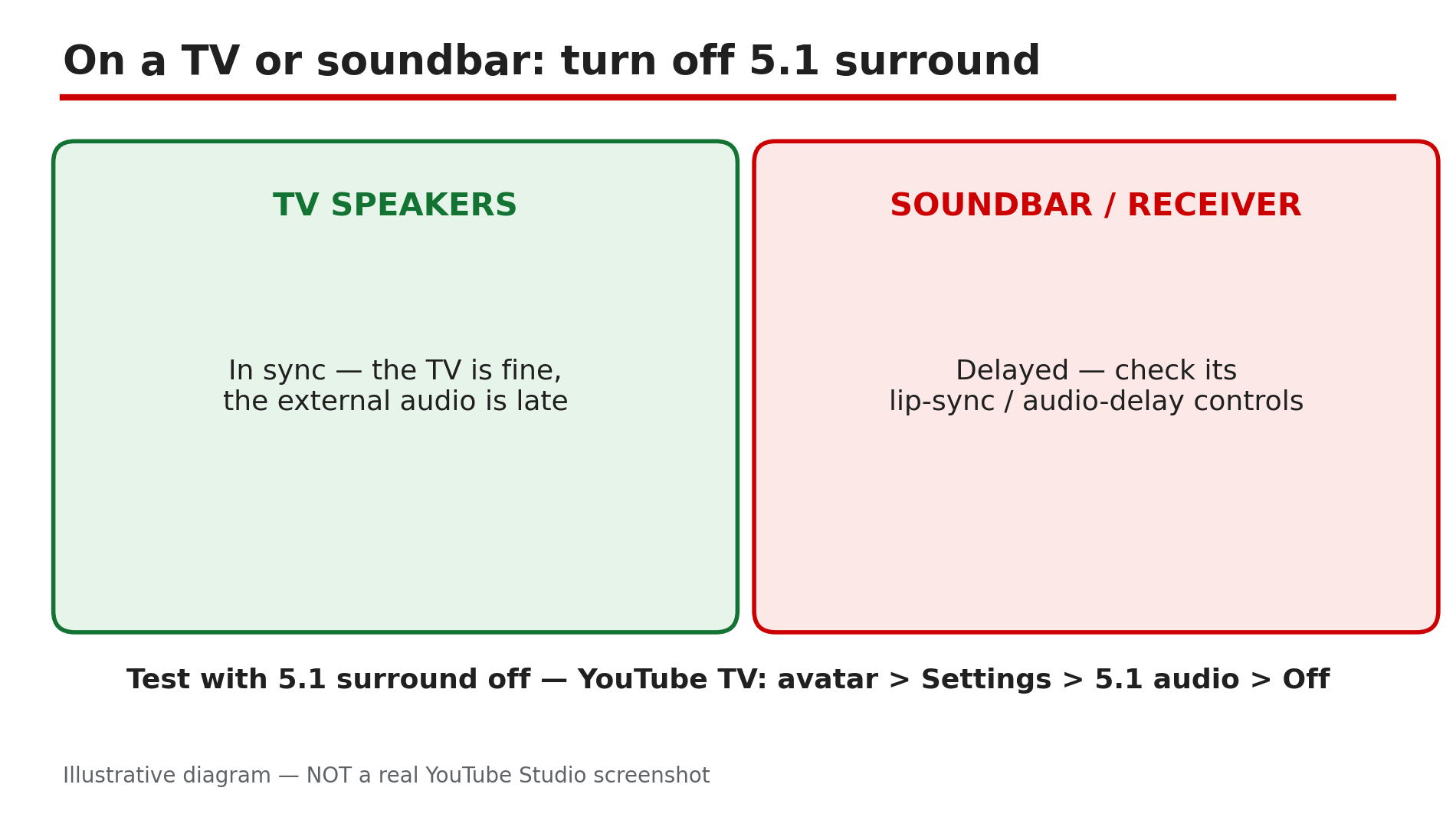
Illustrative diagram: comparing TV speakers with a soundbar, and testing 5.1 surround off.
Step 4 — Creators: match the track lengths
What to do: Open your raw video in your editor and check the tracks are the same length.
How: YouTube Help treats this as an upload-side fault: “Make sure that the durations of your audio and video tracks are the same. If your audio track is shorter or longer than your video, your audio and video may not sync correctly.” Open the original recording in your editor — not a YouTube download — and compare the track lengths. If one is shorter, stretch or trim it so both end together. Check from start to finish: in sync at the start but not the end means one track is a different length, as reported. No re-timing is possible on a published video, as reported — the fix is a new upload.
Example: A 20-minute tutorial drifts near the end — its audio track is three seconds short. Matching the lengths and re-uploading fixes it.
Common mistake: Editing the published video in Studio and expecting the drift to go away — Studio cannot re-time baked-in audio.
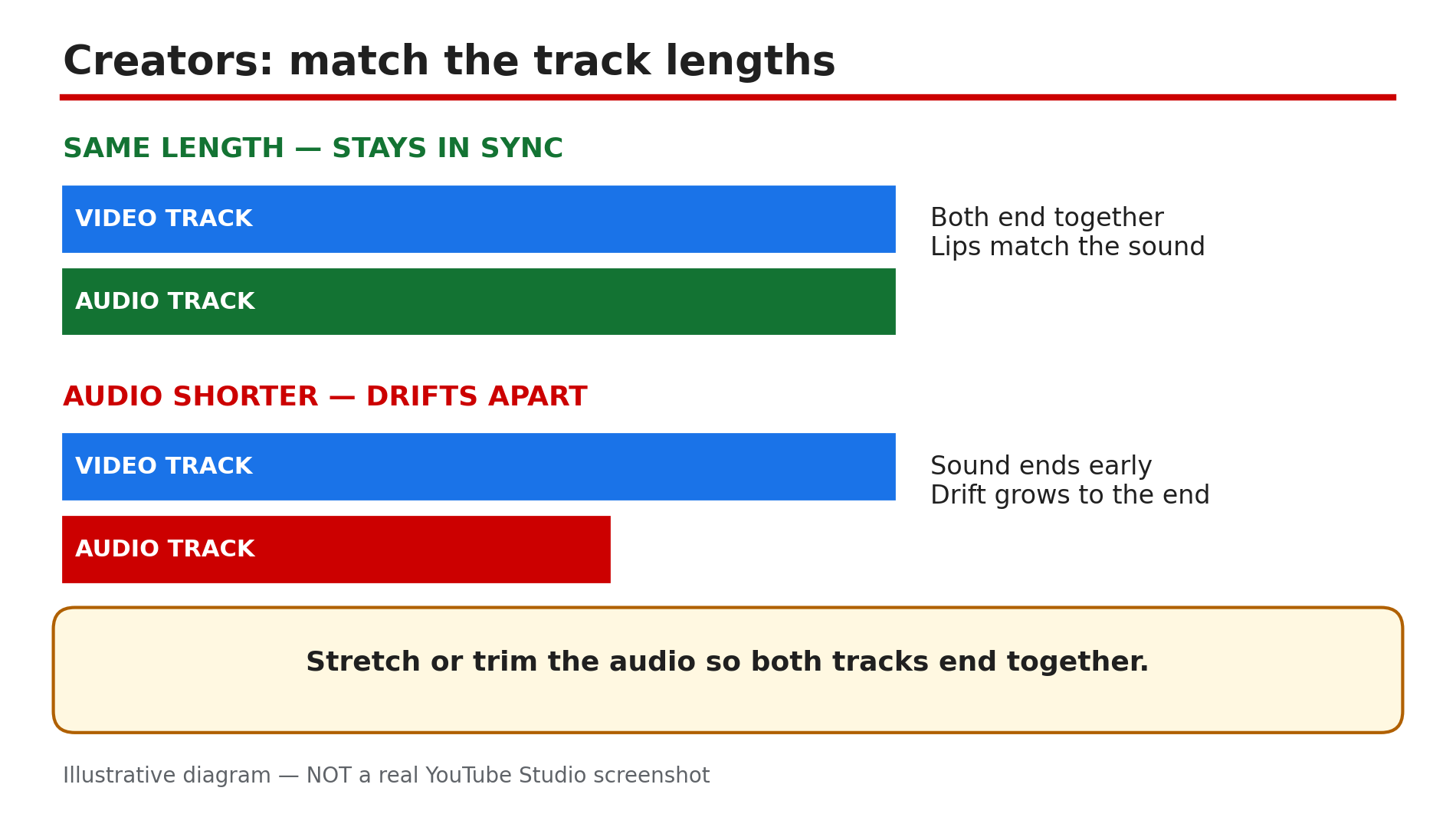
Illustrative diagram: audio and video tracks of the same length stay in sync; a shorter audio track drifts apart.
Step 5 — Creators: re-encode to a constant frame rate
What to do: Re-encode the file to a constant frame rate, then upload it again.
How: Phones and screen recorders write a variable frame rate to save space, as reported, and drift follows when it changes between camera and upload. In your editor, set a constant frame rate — YouTube prefers 24, 25, 30, 48, 50 or 60 frames per second — and export again. Match the audio settings too: AAC-LC, 128–256 kbps, 44100 or 48000. Watch the exported file from the start, jump to the middle, then watch the last minute — drift often shows only late. Upload the new file as a new video, and point viewers to it from the old description.
Example: A creator records on a phone and every upload drifts worse toward the end; re-encoding to a constant 30 frames per second ends the drift.
Common mistake: Re-uploading the same variable-frame-rate file and hoping the transcode fixes it — it cannot invent timing that was never in the upload.
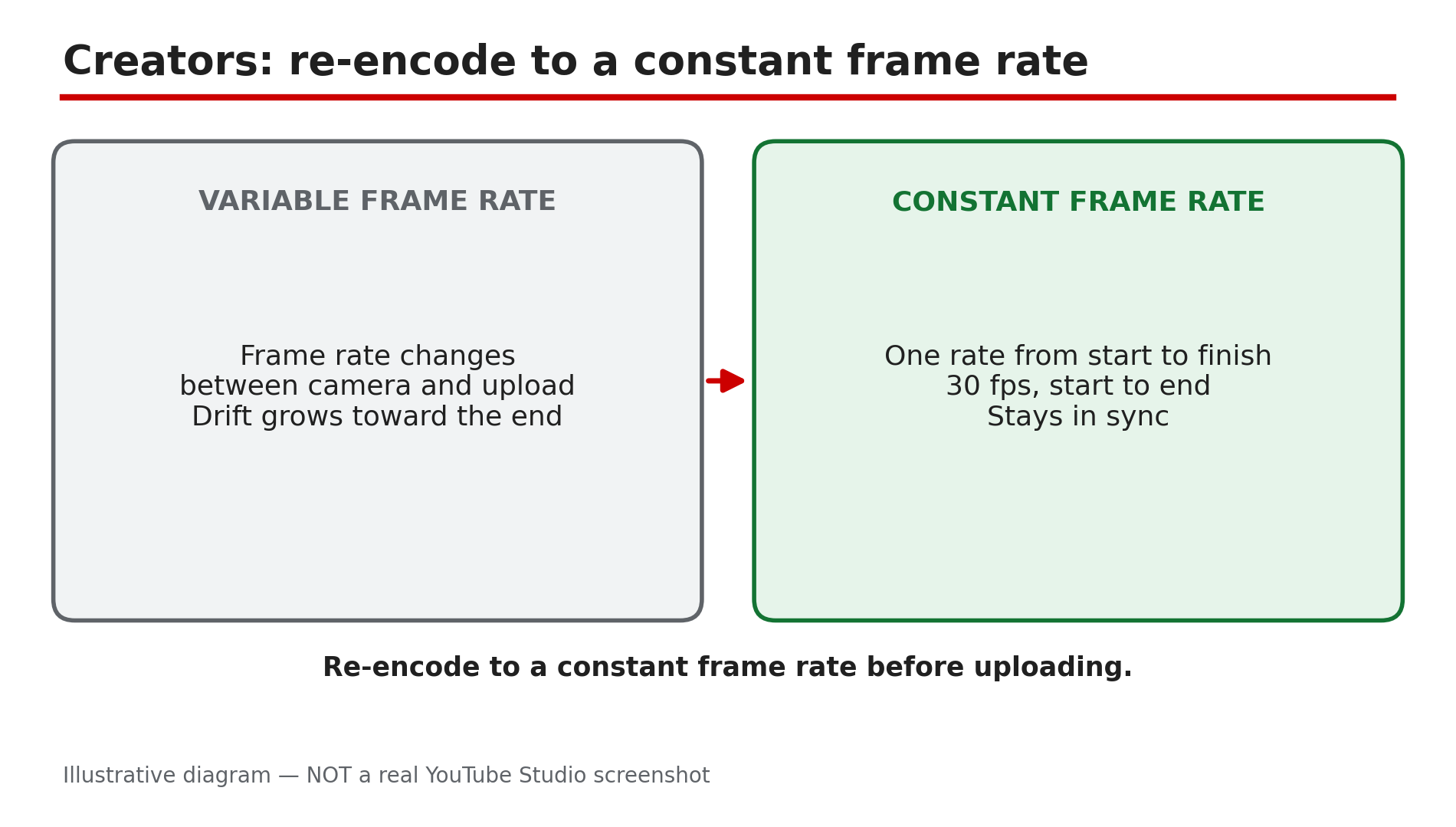
Illustrative diagram: variable frame rate drifts apart, constant frame rate stays in sync.
Step 6 — Live streams: clap test, then fix the offset in OBS
What to do: Make a short clap-test recording, then correct the offset in your encoder.
How: Clap in front of the camera, speak a sentence, and watch it through wired headphones, so Bluetooth does not confuse the test, as reported. If the recording is already out of sync, fix the source timing first. If it looks right, test an unlisted stream. In OBS, open the Audio Mixer, right-click the audio source, choose Advanced Audio Properties, and find Sync Offset: if the clap is heard before the hands meet, the audio is early, and a positive Sync Offset delays it — 100 milliseconds early needs roughly 100 milliseconds of delay, as reported. If the sound comes after the hands meet, the audio is late — check for an existing offset first, and delay the video with a Render Delay filter, as reported. A delay setting only fixes a fixed offset: a growing gap means a source or clock problem — check encoder overload and driver updates, as reported. Latency is different: a stream can run seconds behind real life with correct lip sync, as reported.
Example: A streamer hears her clap 150 milliseconds before her hands meet; that Sync Offset lines the stream up.
Common mistake: Adding more audio delay when the sound is already late — that makes the problem worse.
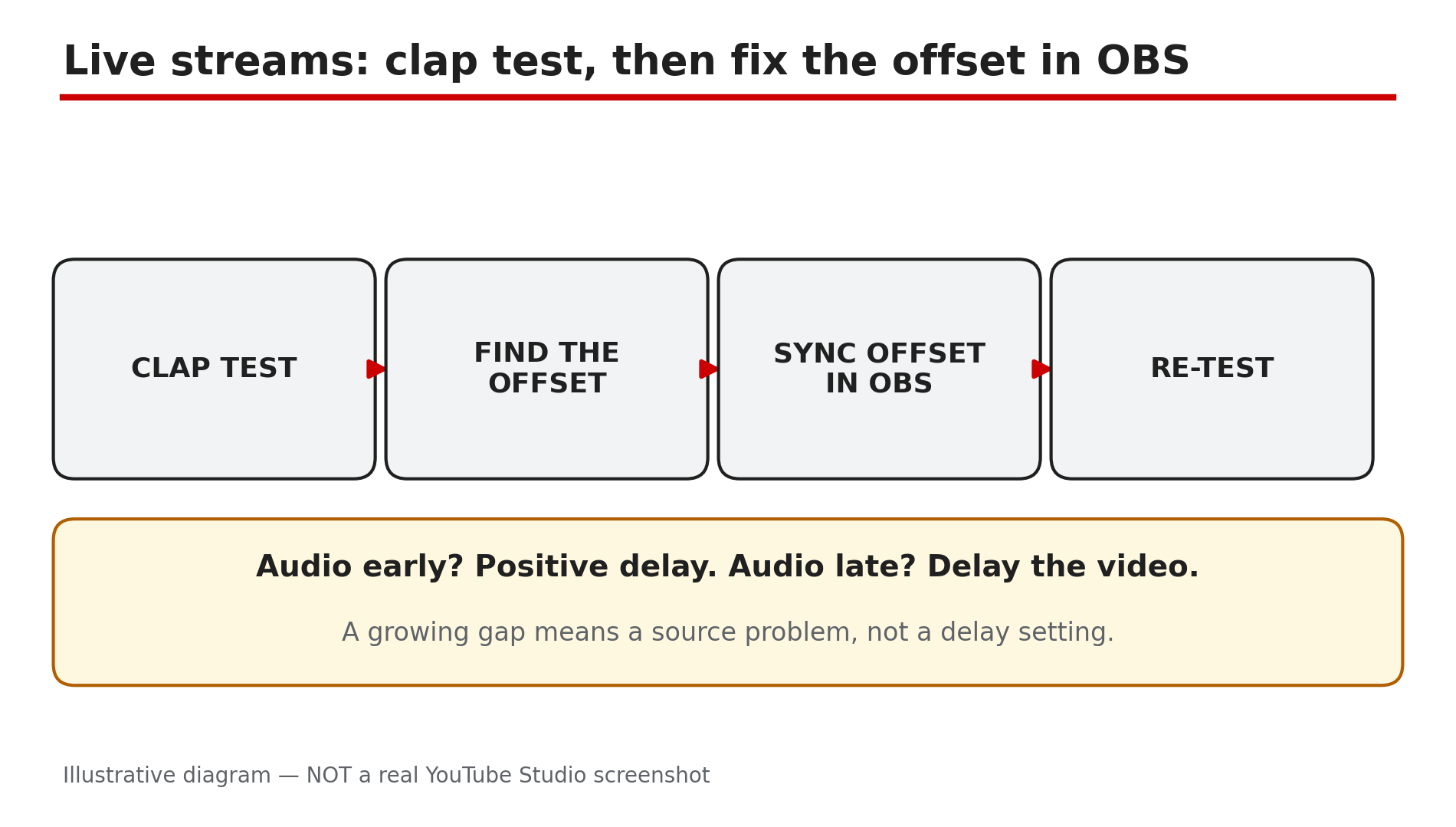
Illustrative diagram: the clap-test flow — find the offset, set it in OBS, then re-test.
Checklist — Fix YouTube audio out of sync
- ☐ Same video on another device; a different video on this device
- ☐ Reloaded the video and restarted the app or browser
- ☐ Tested the device’s built-in speakers, not Bluetooth
- ☐ On a TV, compared TV speakers with the soundbar; tested 5.1 off
- ☐ Creators: audio and video track lengths match in the editor
- ☐ Creators: re-encoded to a constant frame rate
- ☐ Creators: uploaded the fixed file as a new video
- ☐ Streamers: clap test done; OBS Sync Offset set
FAQs
1. Why is YouTube audio out of sync only on my TV?
TV sets take longer over the picture than the sound, as reported, and Bluetooth or 5.1 surround adds delay. Test the TV’s own speakers first, then turn 5.1 off where the option appears.
2. Can I fix out-of-sync audio on a video someone else uploaded?
No. If the delay follows one video across every device, it is baked into the upload and only the uploader can fix it, as reported. Leave a comment saying what is wrong and when.
3. My video drifts more toward the end. Why?
A variable frame rate, or audio and video tracks of different lengths, as reported. Re-encode to a constant frame rate, match the lengths, and upload the new file.
4. Why does the sound lag only on Bluetooth headphones?
Bluetooth adds a delay that looks like a sync fault and follows you from video to video, as reported. Test with built-in speakers or wired headphones to confirm.
5. My live stream starts in sync, then drifts. Will a delay fix it?
No. A fixed offset is fixed with an OBS Sync Offset; a growing gap means a source or clock problem, as reported.
Sources
- YouTube Help — “Troubleshoot audio or video issues with uploads on YouTube” (official source, opened live 14 Nov 2026): http://support.google.com/youtube/answer/58134?hl=en-GB
- CreatorPlaybook — “YouTube Video Has No Sound? Fix Audio That Disappears (Viewer + Creator Guide)” (topic 108): </blog/youtube-video-no-sound-audio-disappears>
- CreatorPlaybook — “YouTube Video Stuck at Low Quality? Why 1080p or 4K Is Missing and How to Fix It” (topic 72): </blog/youtube-video-stuck-at-low-quality-why>