AI Content on YouTube: EU Labelling Rules and How to Disclose It Correctly
 CreatorPlaybook Team
- 29 Oct, 2026
If you use AI to make a video that looks real, viewers need to know. A realistic face, voice, place, or event made or changed with AI can mislead people, even when you meant it as a creative edit. YouTube therefore asks creators to disclose realistic AI-generated or altered content, and viewers in the European Union must be able to see that label. This guide explains the rule in plain words, shows the exact place to set the label in YouTube Studio, and gives you a short habit you can repeat for every upload.
The EU details below are presented only as reported. Rules and wording can change, so check the official YouTube Help page and the official EU source linked in Sources before you rely on a detail for a particular video. Do not guess a fine, a threshold, or a date that is not stated there.
What You Will Learn
- What counts as realistic AI content, and what does not need a label.
- Where to set the disclosure in Studio, before you publish.
- The EU transparency and provenance points, as reported.
- Four quick checks to run before every upload.
- What happens if YouTube adds a label, or disclosure is missed.
Step 1: What Counts as AI Content
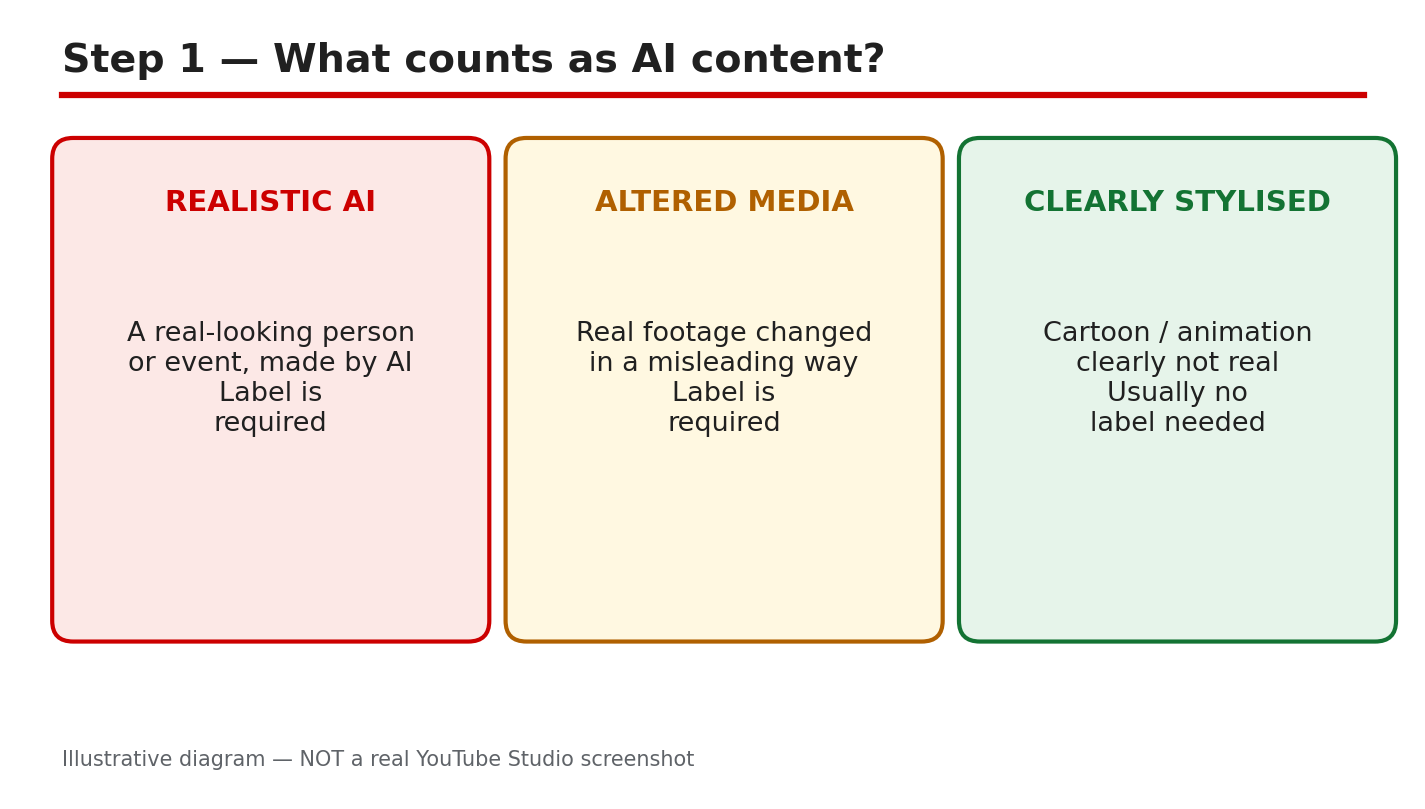
What to do: Decide, before editing, whether the finished video could look real to a viewer. Disclosure is for AI-generated or meaningfully altered content that seems realistic, including a real person appearing to say or do something they did not do, altered footage of a real event or place, a realistic scene that did not occur, and music that is the main focus and was made with AI.
Studio path: No button yet. Make this decision in your planning notes, then use the upload step in Step 2 to record it.
Example: You use AI to place a real presenter in a street scene that was never filmed. That looks real, so it needs disclosure.
Common mistake: Assuming a small AI change does not count. If a viewer could believe the result is real, treat it as disclosable.
Illustrative diagram/mock-up, NOT a real Studio screenshot: what counts as AI content.
Step 2: Where to Disclose It in Studio
What to do: During upload, answer the altered-content question honestly and set it before publishing. The label follows the viewer, not only the uploader, so EU viewers count even if you live elsewhere. Do not publish first and fix it later.
Studio path: YouTube Studio > Create > Upload videos > Details > altered-content question, under Attributes / AI use. Select Yes if the content meets the disclosure rule, or No if it does not, then continue through the upload screens.
Example: Your upload includes an AI-generated realistic interview. On the Details screen, you select Yes under AI use before you click Publish.
Common mistake: Leaving the question on its default answer without reading it. A rushed upload is how a realistic AI video goes out with no label.
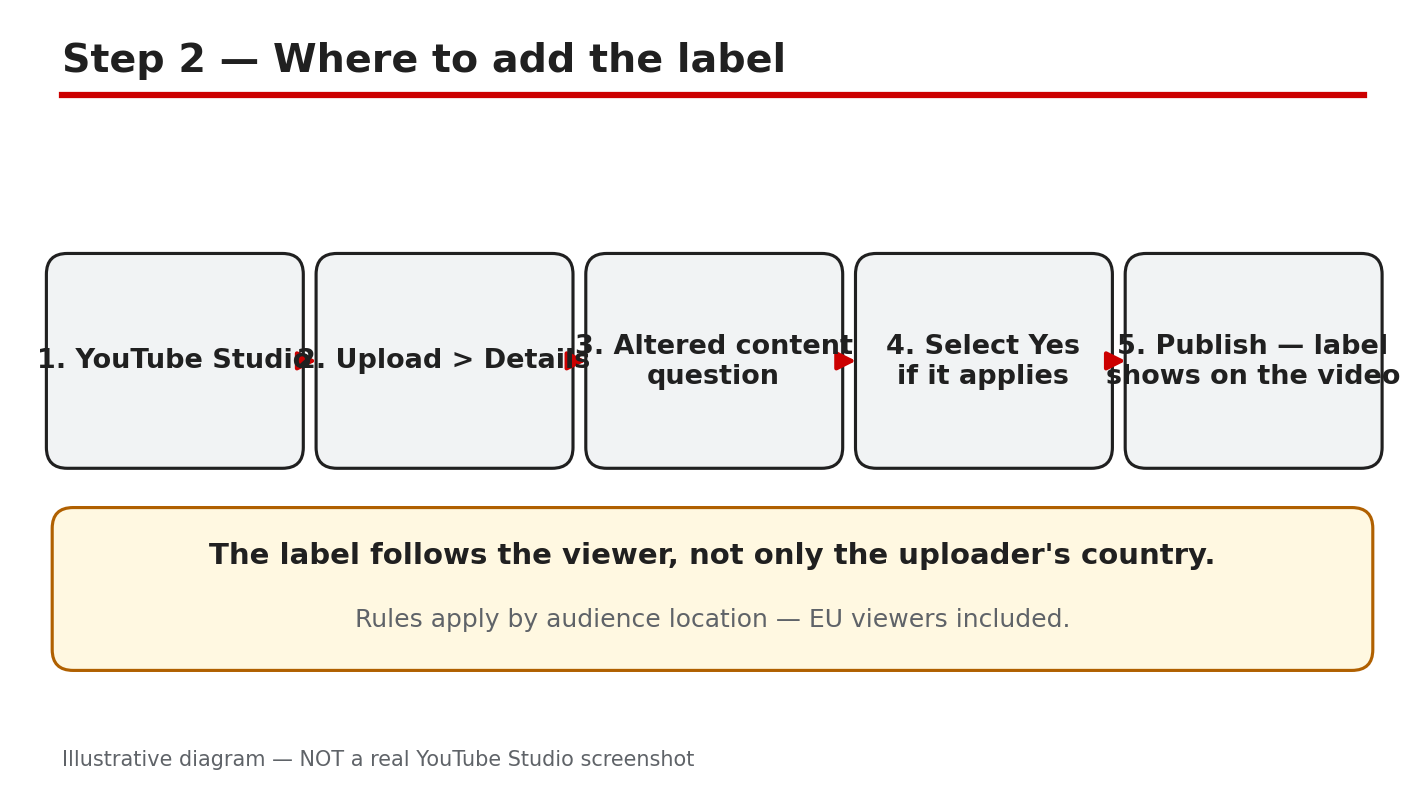
Illustrative diagram/mock-up, NOT a real Studio screenshot: where to add the label.
Step 3: EU Rules in Plain Words
What to do: Understand the reported EU points, then check the official source for the current wording. As reported, viewers must be told when content is AI-generated or altered in a realistic way, provenance or AI markers should travel with the file so the information is not lost when it is shared, and there is a transitional period to 2 December 2026. Present no other date, fine, or threshold as a rule.
Studio path: No EU switch in Studio is described here. Use the Step 2 disclosure setting for every video, and keep a note of the source you checked.
Example: A clip is shared outside YouTube. If its AI marker travels with the file, a later viewer can still see that it was AI-made.
Common mistake: Quoting a fine or deadline you saw in a social post. Check the official Help and EU source first, and do not invent a number.
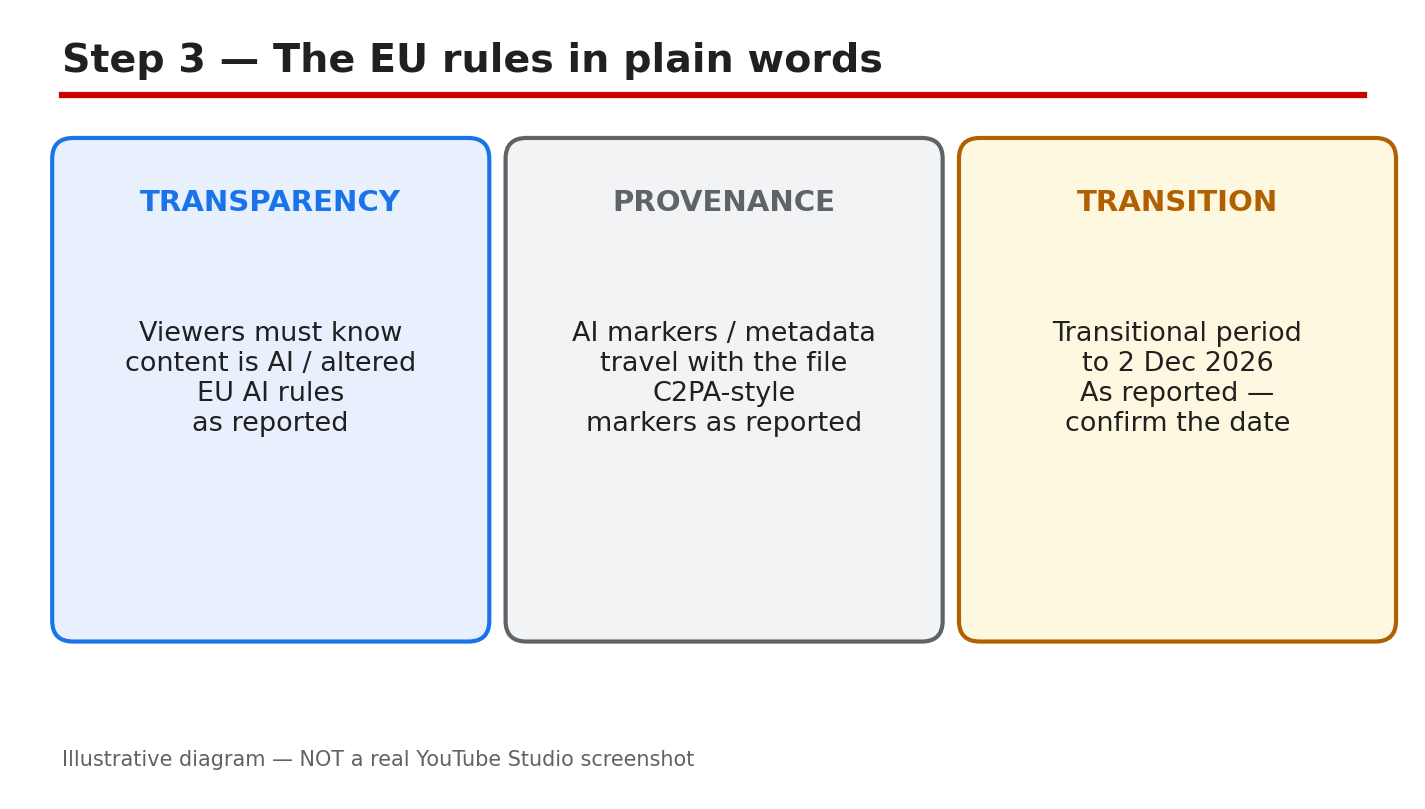
Illustrative diagram/mock-up, NOT a real Studio screenshot: EU rules in plain words.
Step 4: Run the Labelling Checks
What to do: Ask four questions before you publish: does it show a real person, does it show a real event or place, could a viewer believe it is real, and is disclosure set? If any answer points to realistic AI content, disclose it. When in doubt, label it.
Studio path: YouTube Studio > Content > select the video > Details > check the altered-content / AI use answer, and correct it before publishing.
Example: A cartoon avatar explains a topic, with no real person or place. It fails the realistic test, so no AI label is needed for that style.
Common mistake: Checking only the first question. A realistic place or event can mislead even when no real person appears.
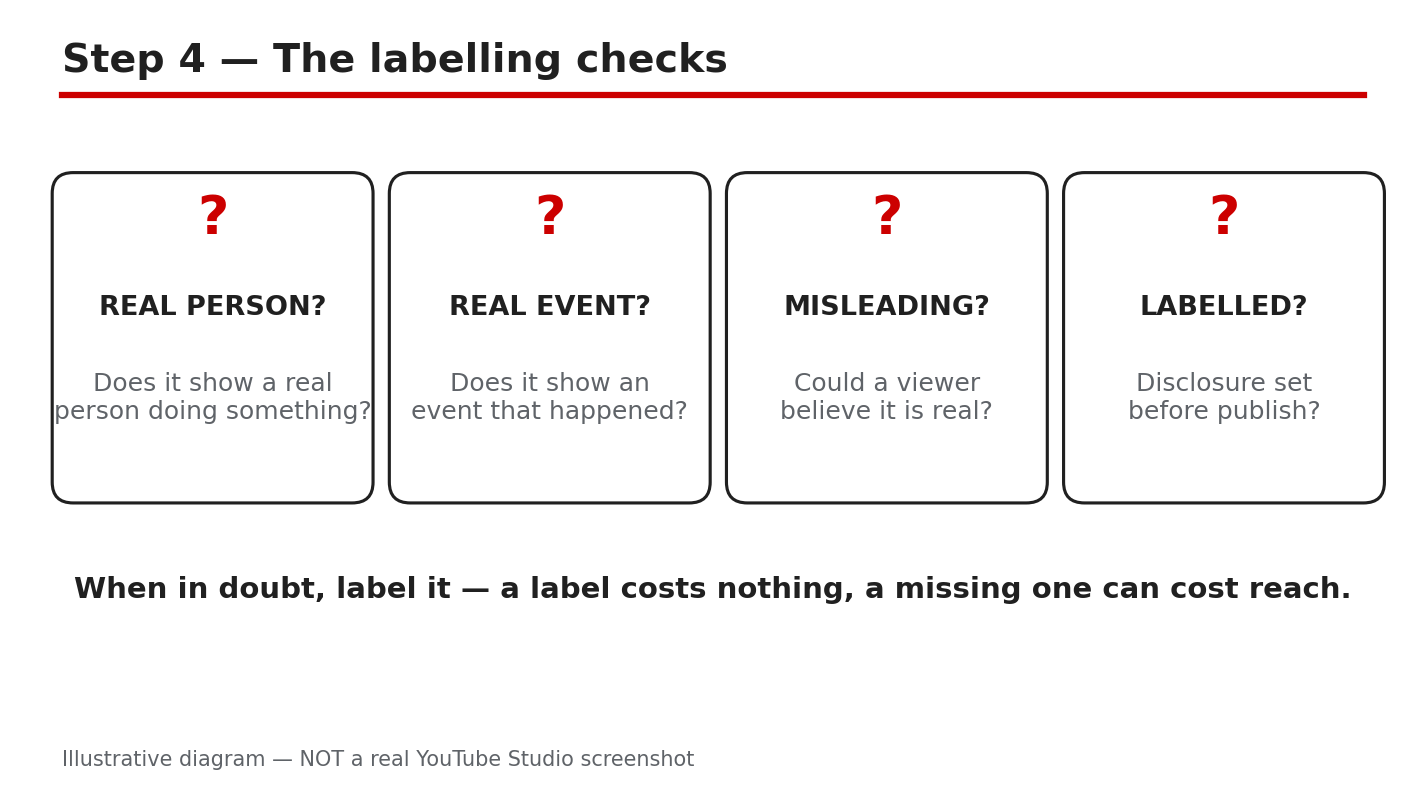
Illustrative diagram/mock-up, NOT a real Studio screenshot: labelling checks before publishing.
Step 5: If YouTube Labels It for You
What to do: If YouTube applies a label automatically, read the Studio notification, check whether the label is correct, and correct the disclosure where Studio allows it. Do not ignore a label, and do not remove a correct label to make a video look more real.
Studio path: YouTube Studio > Content > Restrictions / video details > read the AI label notification, then open Details and review the AI use answer.
Example: Studio adds a label to a video made with a YouTube AI tool. You leave the correct label in place and note why it appeared.
Common mistake: Treating a single missing disclosure as harmless. As reported, repeated missing disclosure risks removal or a review of Partner Program eligibility.
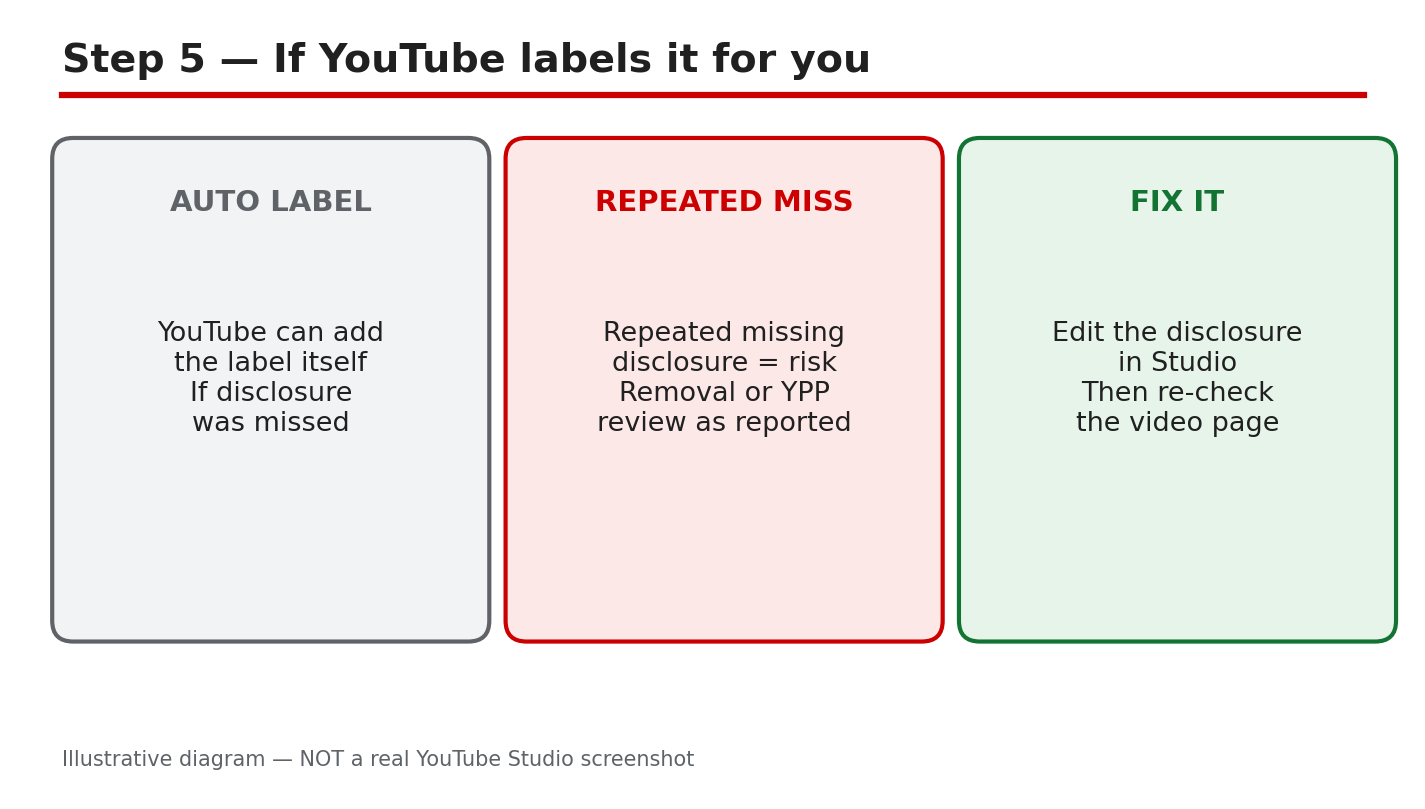
Illustrative diagram/mock-up, NOT a real Studio screenshot: if YouTube labels it for you.
Step 6: Build the Labelling Habit
What to do: Make disclosure part of every upload checklist. Note the AI tools used, the realistic elements, and the answer you selected, and keep that note with the video file. Repeat the same checks for Shorts, livestream clips, and re-uploads.
Studio path: YouTube Studio > Content > Details for each upload. Confirm the AI use answer, then publish, and re-check it after any re-upload.
Example: Before a weekly upload, you write “AI voice, real street photo, Yes” in your notes, set Yes in Studio, and publish with the label showing.
Common mistake: Disclosing once for a series and assuming later episodes are covered. Check every video separately.
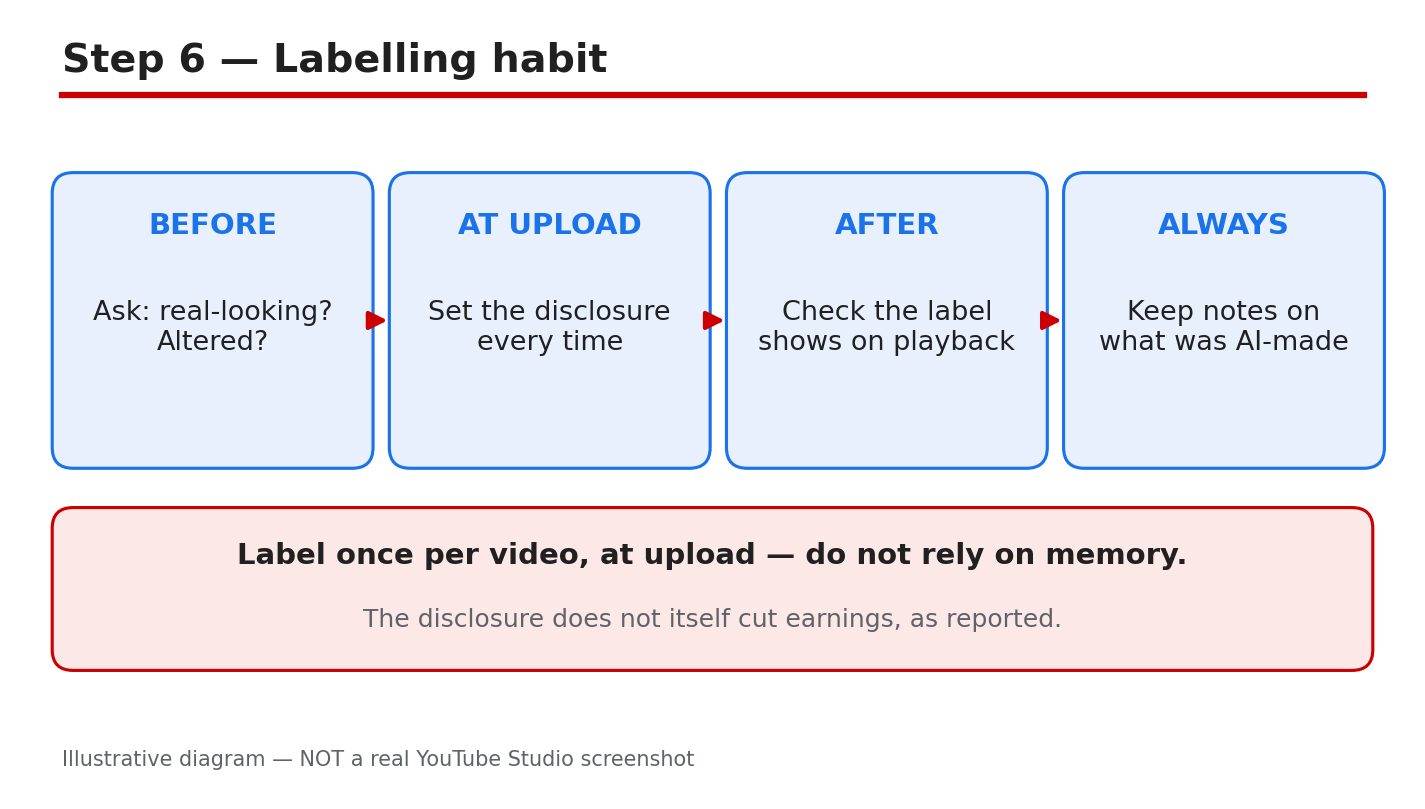
Illustrative diagram/mock-up, NOT a real Studio screenshot: the labelling habit.
Checklist: Before You Publish
- Real person, event, or place? Note the answer.
- Could a viewer believe it is real? If yes, disclose.
- AI use answer set in Studio before publishing?
- Label checked in the video details after upload?
- Official source checked for the current wording?
Frequently Asked Questions
Do I need to disclose clearly cartoon or stylised AI content? No, disclosure is for content that seems realistic. Clearly stylised or cartoon content that no viewer would mistake for real does not need the same label, but check the official examples if you are unsure.
Does the EU rule apply if I do not live in the EU? As reported, the rules apply by audience location. If EU viewers watch the video, the label matters for them, even if the creator lives elsewhere.
What if YouTube labels my video automatically? Read the Studio notification, check the label, and correct the disclosure where Studio allows it. Do not remove a correct label.
Does disclosing AI content limit my audience or earnings? YouTube Help states that disclosing AI content alone will not limit a video’s audience or affect its eligibility to earn money. Other policies still apply.
Where can I check the current official wording? Use the official YouTube Help page linked in Sources, and check the official EU source for the current wording before you publish.
A Simple Rule to Remember
If a viewer could mistake your video for a real recording, disclose it. If the content is clearly invented, cartoon, or stylised, and no viewer would take it as real, disclosure is less likely to be needed, but still pause and run the four checks in Step 4. A label costs little time, while a missing label can cost trust, a removal, or a review. Keep your notes short, keep the Studio answer honest, and check the official source when a rule changes.
Label early, label honestly, and keep the check in your upload routine. A clear label protects viewers, and it protects your channel too.
Sources — Check It Yourself
Check these sources yourself. The EU points in this guide are reported, not legal advice.
- YouTube Help: Disclosing use of GenAI content
- YouTube Help: YouTube channel monetization policies
- CreatorPlaybook: How to Use AI for YouTube Videos Without Breaking Monetization Policy