Can You Use Trending Audio on YouTube? How to Use Popular Sounds Legally
 CreatorPlaybook Team
- 29 Oct, 2026
A trending sound can make a Short take off, but the wrong audio can also bring a copyright claim, a muted video, or lost earnings. The sound itself is rarely the problem. The problem is where it came from, and whether you had a right to use that exact recording.
This guide keeps the choice simple. Use audio from a source you can check, check it before you publish, and know what to do if a claim still arrives. Do not trust a comment that says a few seconds is always safe.
What You Will Learn
- The three audio sources on YouTube, and which one is safest for a Short.
- How to check a video in YouTube Studio before you publish it.
- What Content ID actually matches, and why short clips are not safe.
- Four checks to run on any sound you did not pick inside Shorts.
- What to do if a claim arrives, including when not to dispute it.
Related reading: YouTube Copyright and Music: Safe Guide for Creators
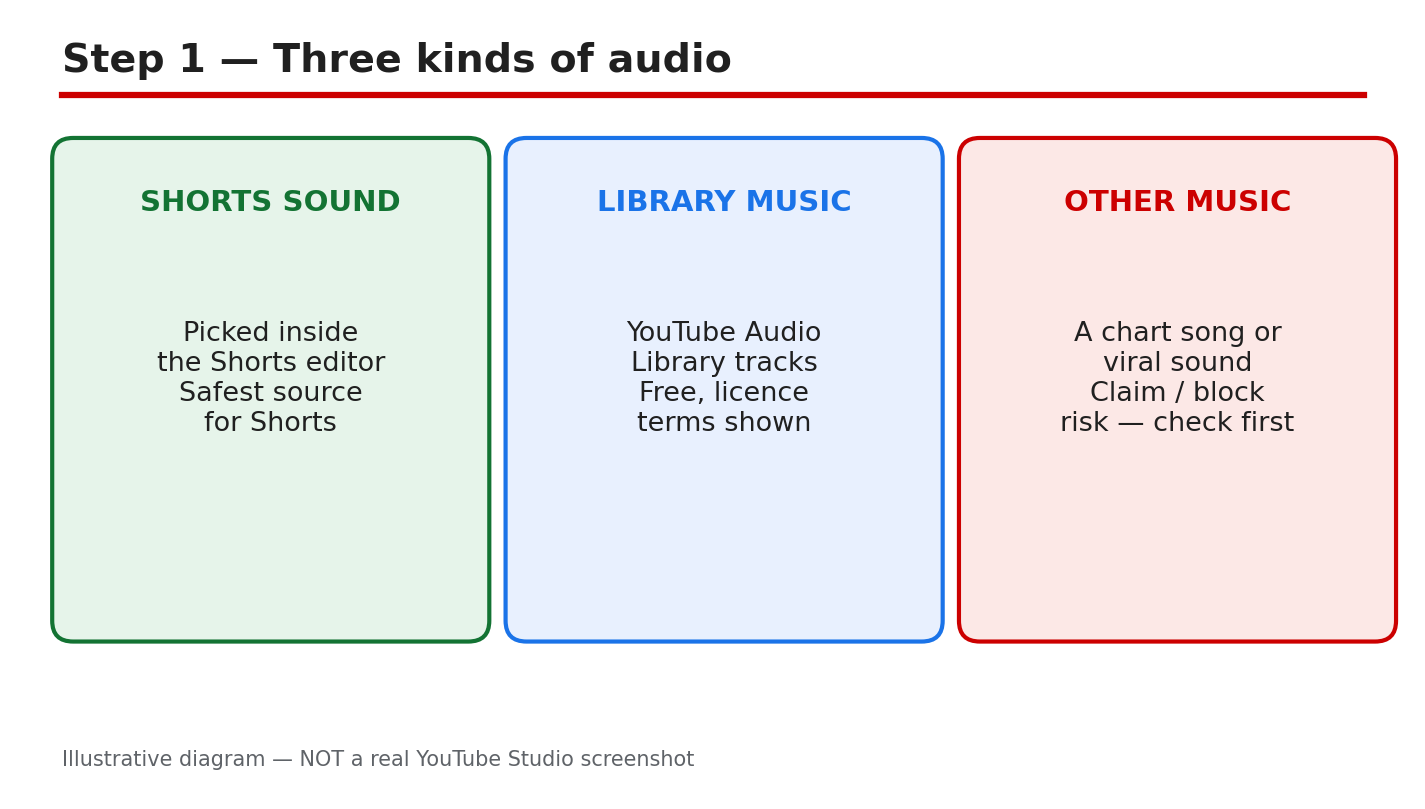
Diagram: three kinds of audio — a Shorts sound, an Audio Library track, and other music. This is an illustrative diagram and mock-up, not a real YouTube Studio screenshot.
Step 1: Know the Three Audio Sources
Start by naming where your sound came from. There are three common sources. First, a sound picked inside the Shorts editor, using the sound picker for Shorts. Second, a track from the YouTube Audio Library, where the licence terms are shown for each track. Third, any other music: a chart song, a viral sound, or a track from another app or website. The source decides how much checking you must do.
Example: You add a dance sound from the Shorts sound picker to a 20-second Short. That is the lowest-risk route in this guide, because the sound was offered inside Shorts for Shorts.
Common mistake: Downloading a chart song from another site and adding it to a Short, then assuming it is safe because it is popular. Popularity is not permission, and a claim can still follow.
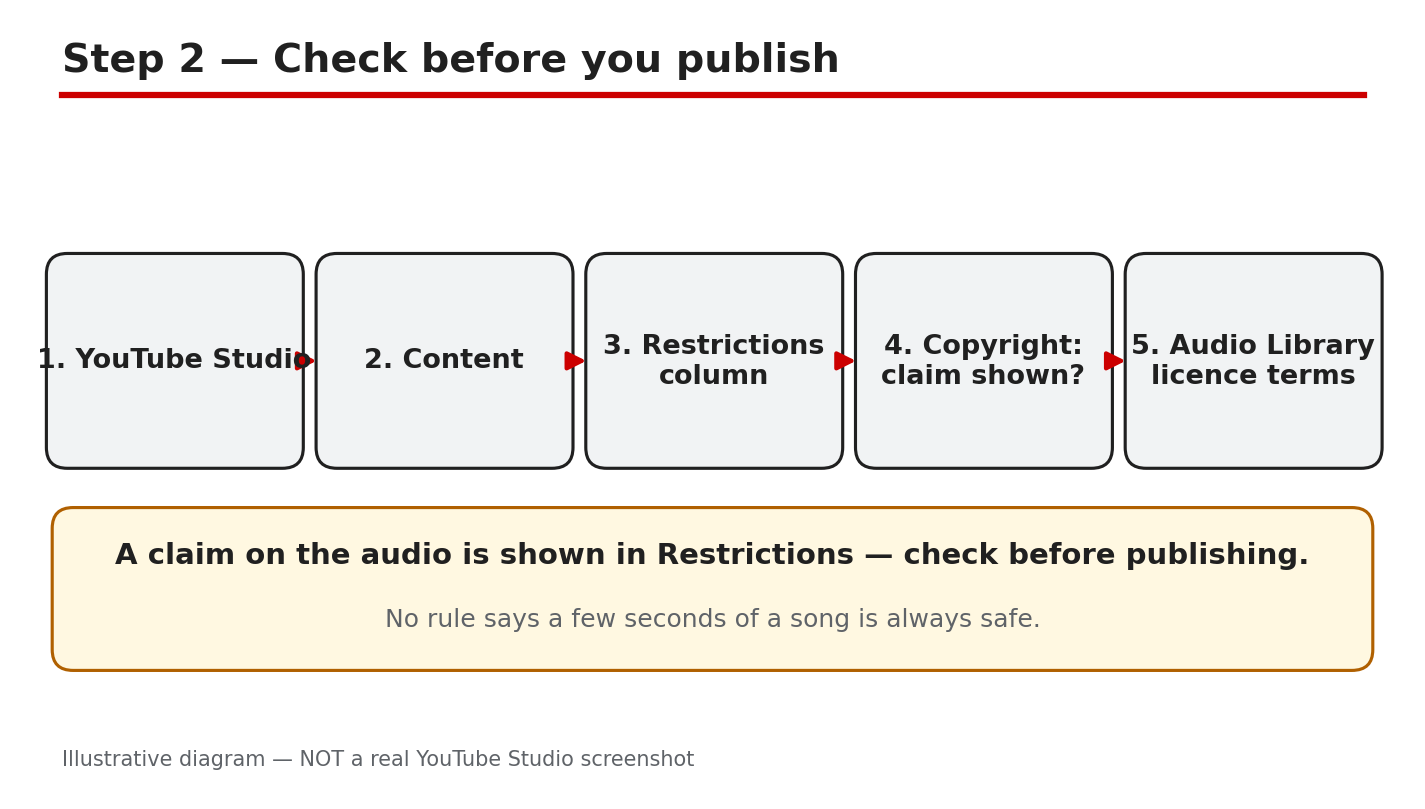
Diagram: the check-before-you-publish path in Studio, ending with the Audio Library licence terms. This is an illustrative diagram and mock-up, not a real YouTube Studio screenshot.
Step 2: Check Before You Publish
Do this check while the video is still a draft, not after it is public. Open YouTube Studio, then go to Content in the left menu, then look at the Restrictions column for your video. If a copyright claim is shown there, read what it says before you publish. Then, for any Audio Library track, open the track and read its licence terms, including whether attribution is required.
Exact path: YouTube Studio > Content > Restrictions column > Audio Library licence terms.
Example: A draft Short shows “Copyright claim” in Restrictions. You replace the song before publishing, instead of learning about the claim from a viewer comment a week later.
Common mistake: Publishing first and checking later. Once a video is public, a claim can affect it while you are still deciding what to do.
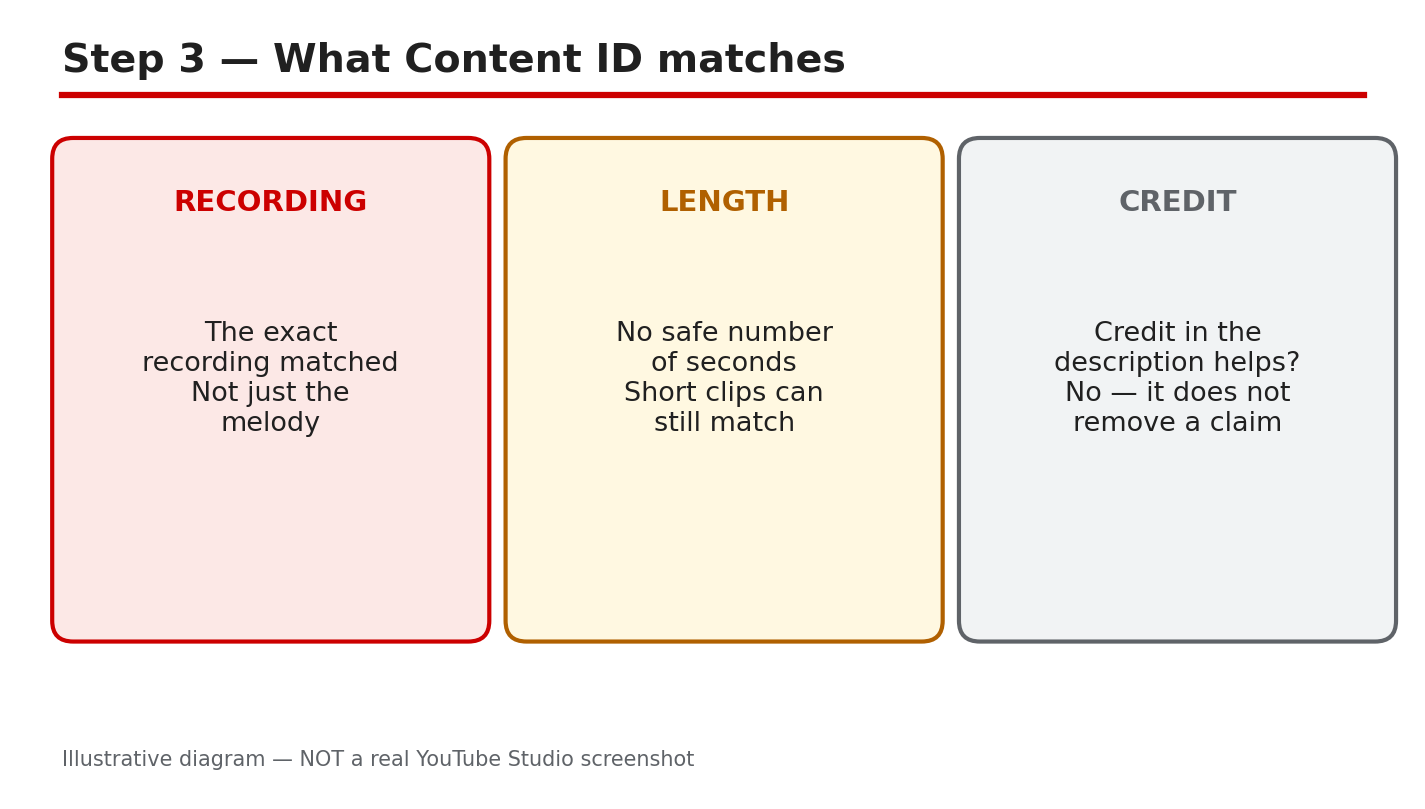
Diagram: Content ID matches the exact recording, not the melody, and credit does not remove a claim. This is an illustrative diagram and mock-up, not a real YouTube Studio screenshot.
Step 3: Understand What Content ID Matches
Content ID compares your video against reference recordings supplied by rights owners. It matches the exact recording, not just a melody, a cover, or a similar beat. There is no safe number of seconds. A very short clip can still match, and a longer clip does not become safe by being edited, sped up, or quieter.
Adding credit in the description does not remove a claim. Credit can be polite, and it can be required by a licence, but it is not permission by itself. If the rights owner did not allow the use, a credit line will not change the match.
Example: You use four seconds of a chart song as an intro and add the artist’s name in the description. The clip can still be matched, because the recording, not the length or the credit, is what is checked.
Common mistake: Believing that “a few seconds is safe.” That idea is wrong, and it is the most expensive shortcut in this guide. Treat every second of someone else’s recording as a possible match.
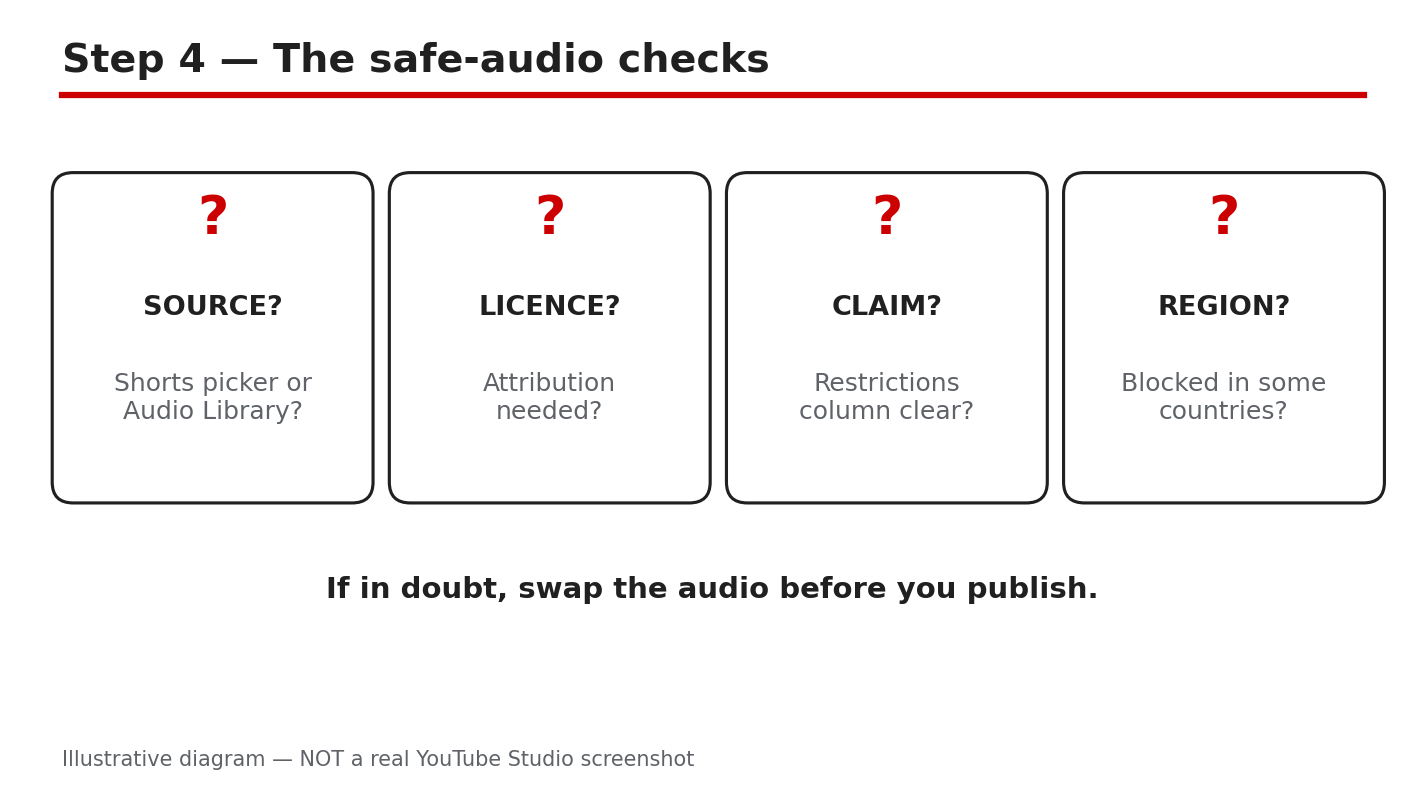
Diagram: four safe-audio checks — source, licence, Restrictions, and territory. This is an illustrative diagram and mock-up, not a real YouTube Studio screenshot.
Step 4: Run the Four Safe-Audio Checks
Run these four checks on any sound you did not pick inside Shorts. First, source: can you name where the track came from, and does that source allow YouTube use? Second, licence and attribution: read the licence terms and add any required credit exactly as asked. Third, Restrictions: is the Restrictions column clear in Studio? Fourth, territory: is the video blocked in any country, and does that matter for your audience?
Example: An Audio Library track requires the artist’s name in the description. You paste the credit before publishing, and you keep a screenshot of the licence terms for your records.
Common mistake: Checking only the first item, the source, and skipping the licence terms. A free track can still need attribution, and a missing credit can still cause trouble.
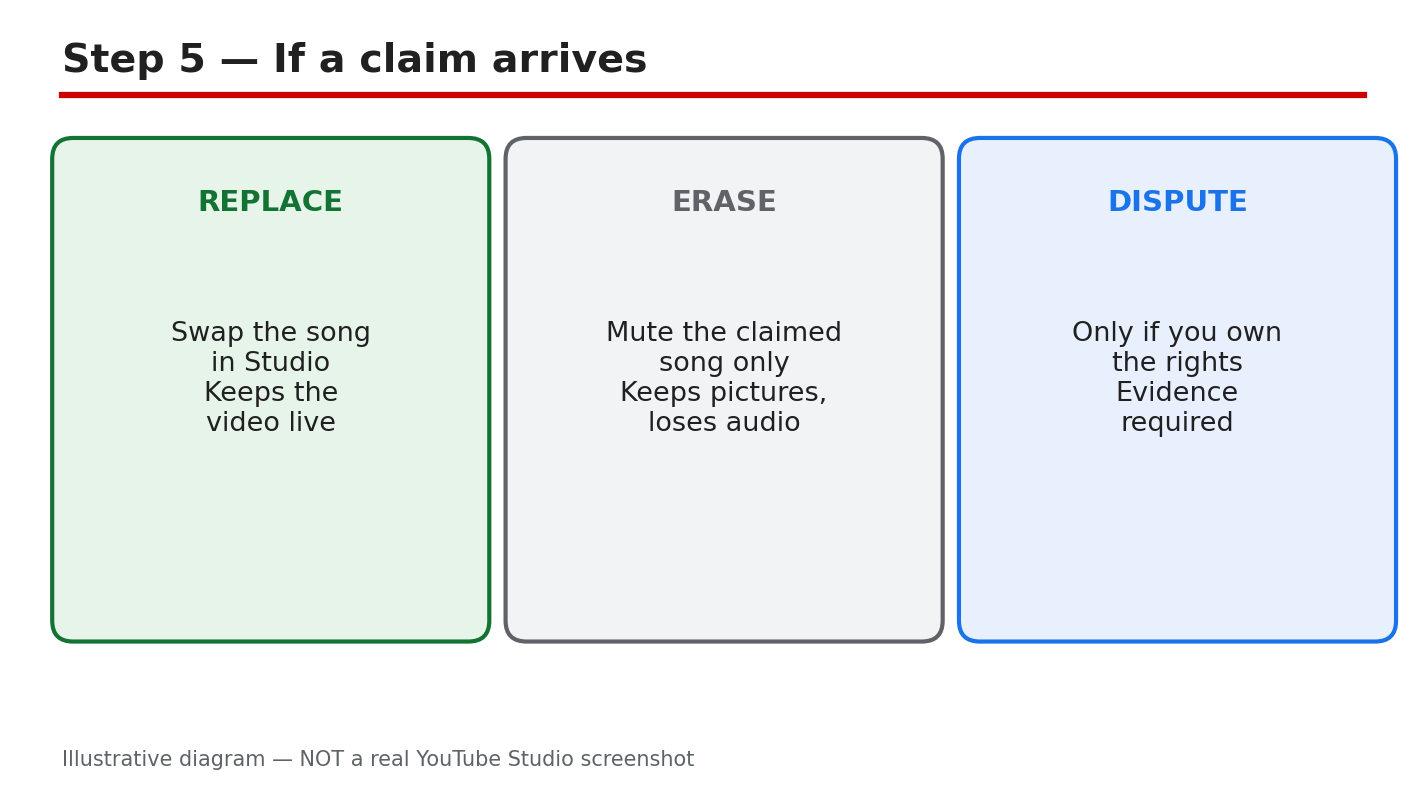
Diagram: if a claim arrives, replace or erase the song, and dispute only with evidence. This is an illustrative diagram and mock-up, not a real YouTube Studio screenshot.
Step 5: If a Claim Arrives, Fix It in Studio
Open the claim in YouTube Studio and read it first. Note who claimed the audio, what was matched, and what the claim affects. In Studio, you can use Replace song to swap the audio for a track from the Audio Library, or Erase song to remove the claimed audio.
Dispute a claim only if you own the rights or have clear permission, and you can show evidence. A dispute is a formal statement, not a message asking for a favour. If you do not have evidence, fix the audio instead and move on.
Example: A claim names a song in the last ten seconds of a vlog. You use Replace song, check Restrictions again, and publish the fix without changing the rest of the video.
Common mistake: Disputing every claim at once, including claims on music you know you do not own. A weak dispute wastes time and can damage your standing.
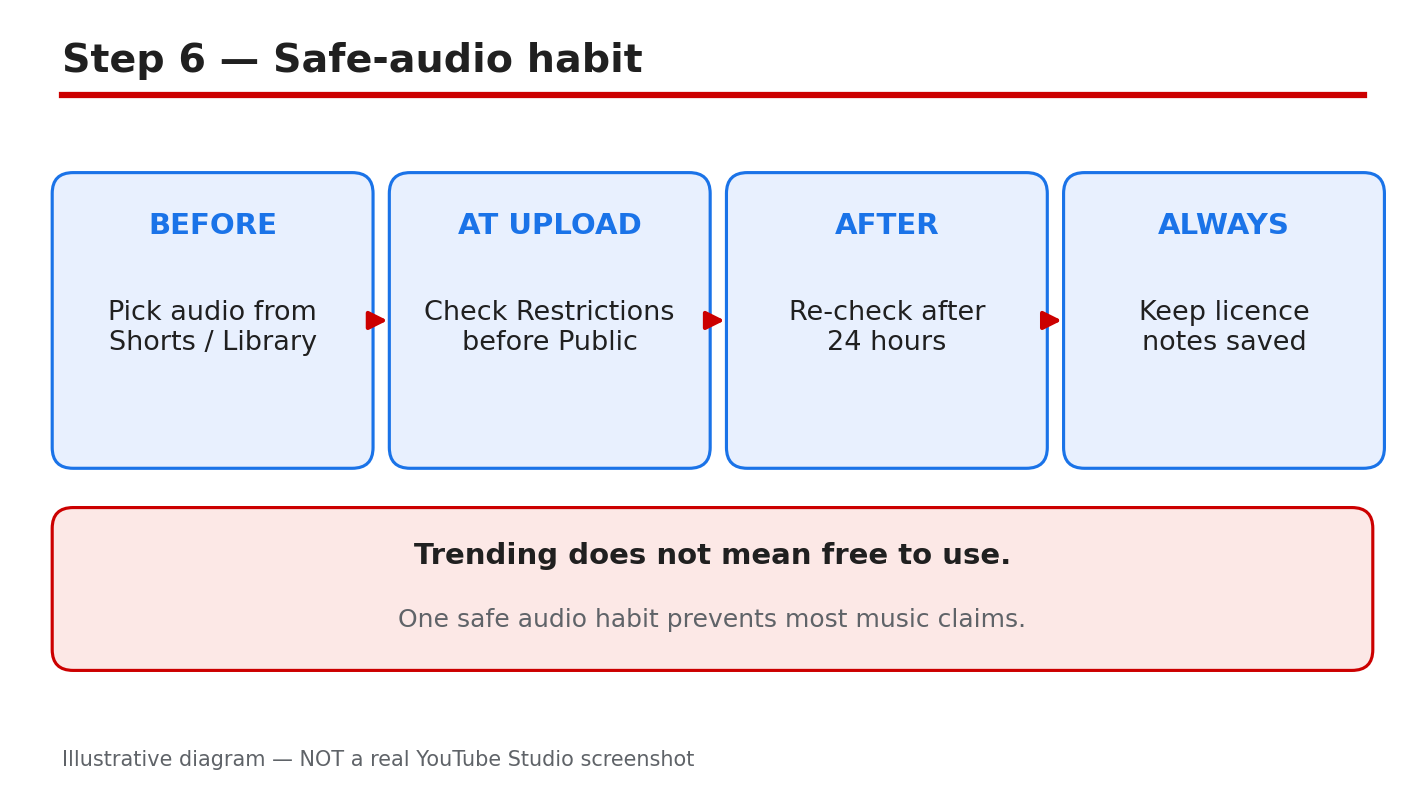
Diagram: the safe-audio habit — pick, check, publish, and re-check. This is an illustrative diagram and mock-up, not a real YouTube Studio screenshot.
Step 6: Build the Safe-Audio Habit
Make the safe route the easy route. Keep a short list of sounds you have already checked, and reuse them. When you try a new sound, run the four checks before you edit around it. Check Restrictions before every publish, even for a Short you made in a hurry. The habit takes minutes, and it is what keeps a channel free of repeat claims.
Example: Before a weekly Short, you open your checked-sounds list, pick one sound, and publish without a last-minute search for a trending song.
Common mistake: Treating this guide as a one-time fix. Audio rules and claims change, and a sound that was fine last year may not be fine now. Re-check each time.
Quick Checklist
- Source named: Shorts picker, Audio Library, or other music.
- Restrictions column checked in Studio before publishing.
- Audio Library licence terms read, including attribution.
- No “few seconds is safe” assumption used.
- Territory blocks checked, if they matter for your audience.
- Claim read in full before any action is taken.
- Replace song or Erase song used before disputing.
- Checked-sounds list updated for the next video.
Frequently Asked Questions
Can I use a trending sound on YouTube?
Yes, if the sound comes from a source that allows it, such as the Shorts sound picker or the Audio Library under its licence terms. A trending chart song from another site is the risky case: check it in Studio first, and expect a possible claim.
Is five seconds of a song safe?
No. There is no safe number of seconds, and Content ID can match a very short clip. Do not rely on a seconds rule; check the source and the Restrictions column instead.
Does adding credit in the description remove a claim?
No. Credit does not remove a claim, and it is not permission by itself. Add credit when a licence asks for it, but still check the source and Restrictions first.
What should I do if a claim arrives?
Read the claim in Studio, then use Replace song or Erase song to fix the audio. Dispute only if you own the rights or have clear permission and can show evidence.
Sources — Check It Yourself
Check the official pages below for the current rules, and re-check them before you rely on them, because YouTube’s help pages change. No official YouTube video was embedded in this post: no exact official video was verified live in this run, so none is shown here.
YouTube Help: Use music and sound effects from the Audio Library