Your Vertical Video Uploaded as a Short (or Won't Upload as a Short) — the 3-Minute Rule
 CreatorPlaybook Team
- 14 Nov, 2026
You filmed a two-minute vertical tutorial, expecting a regular video — and YouTube filed it as a Short. Or the opposite: you cut a vertical clip for the Shorts feed, and it shows up as a long-form video. The upload page never asked.
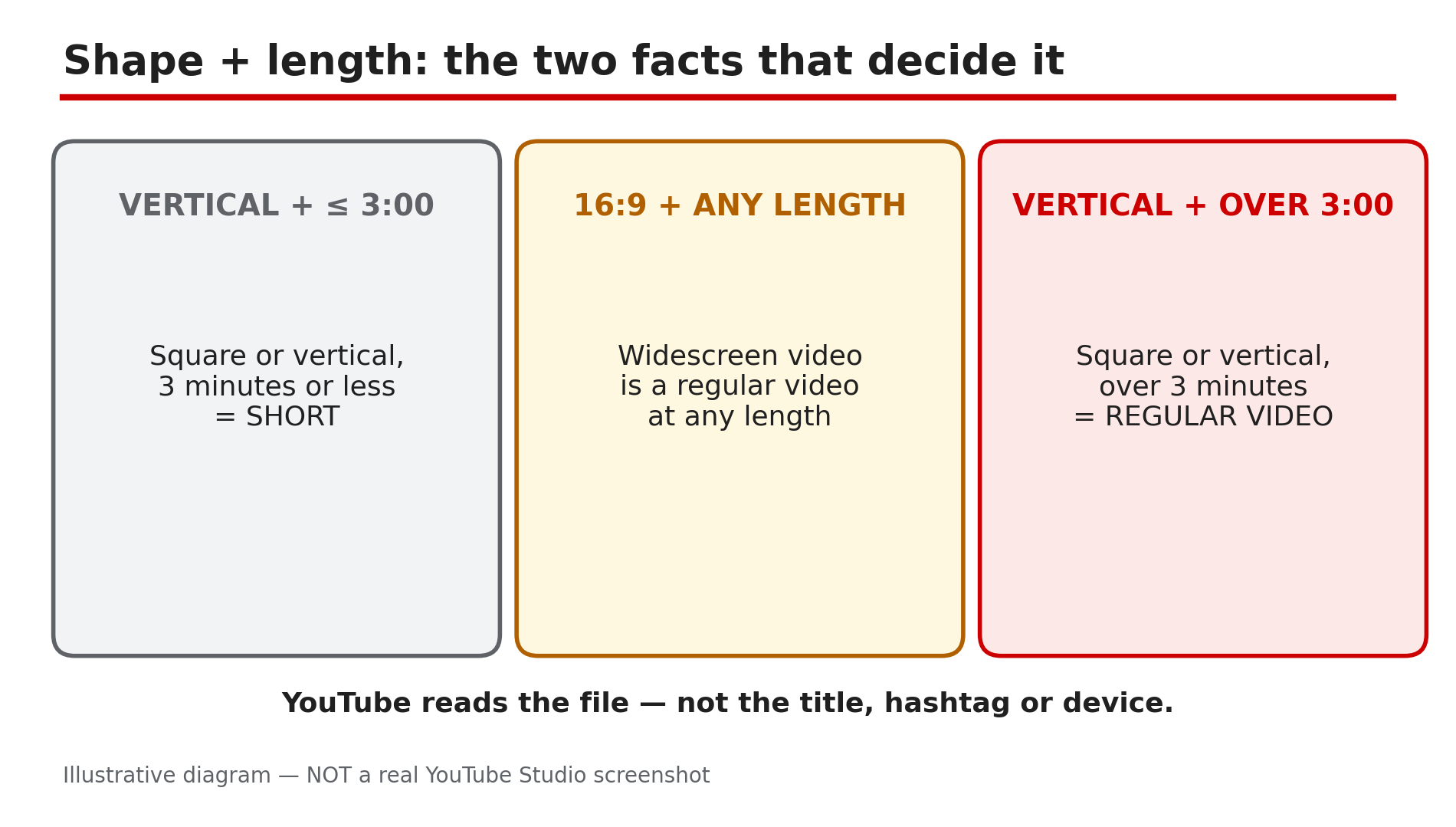
YouTube never asks whether an upload is a Short. It decides from the file alone — its shape and its length — as reported on YouTube’s Help pages. A square or vertical video of three minutes or less, uploaded on or after 15 October 2024, is a Short. Everything else is a regular video. No hashtag or Studio toggle changes that.
What You Will Learn
- The exact rule that decides whether an upload is a Short
- Why a PC upload still becomes a Short
- How to keep a short vertical video long-form: the 16:9 frame
- When making it longer than three minutes is the right fix
- Why a video that should be a Short stays long-form
- Why older vertical videos stay long-form, and the claim trap over 1 minute
Step 1 — Check the file’s shape and length: the two facts that decide everything
What to do: Check two facts about your exported file: its aspect ratio and its exact duration.
How: YouTube’s Help page on three-minute Shorts states the rule, as reported: videos uploaded on or after 15 October 2024 “with a square or vertical aspect ratio up to three minutes in length will be categorized as Shorts on YouTube.” Shape: square or vertical counts; 16:9 does not. Length: three minutes or less counts; over does not. Check the file’s properties, not the editor preview.
Example: A creator exports a 2:45 vertical explainer at 1080x1920 and uploads it. It lands in the Shorts feed — the file matched both conditions.
Common mistake: Assuming the upload device matters. The classification runs on the file, not the device, as reported.
Illustrative diagram: the two facts — shape and length — that decide whether an upload is a Short.
Step 2 — If you wanted long-form, put the vertical clip in a 16:9 frame
What to do: To keep a short vertical video out of Shorts, export it inside a 16:9 frame.
How: YouTube’s own advice is direct, as reported: “If you don’t want your content to be classified as Shorts, use a wider aspect ratio such as 16:9 for long-form videos.” Create a 1920x1080 project, drop the vertical clip in, and fill the sides — black bars work, or a blurred copy of the clip behind it. Export the 16:9 file and upload that. Check on-screen text is still readable: your subject now fills only the middle third of a TV.
Example: A creator’s 2:20 vertical cooking tutorial keeps landing in the Shorts feed. She re-exports it in a 1920x1080 sequence with a blurred background — it appears as a regular video.
Common mistake: Adding or removing “#Shorts” and expecting a change. The hashtag decides nothing, as reported.
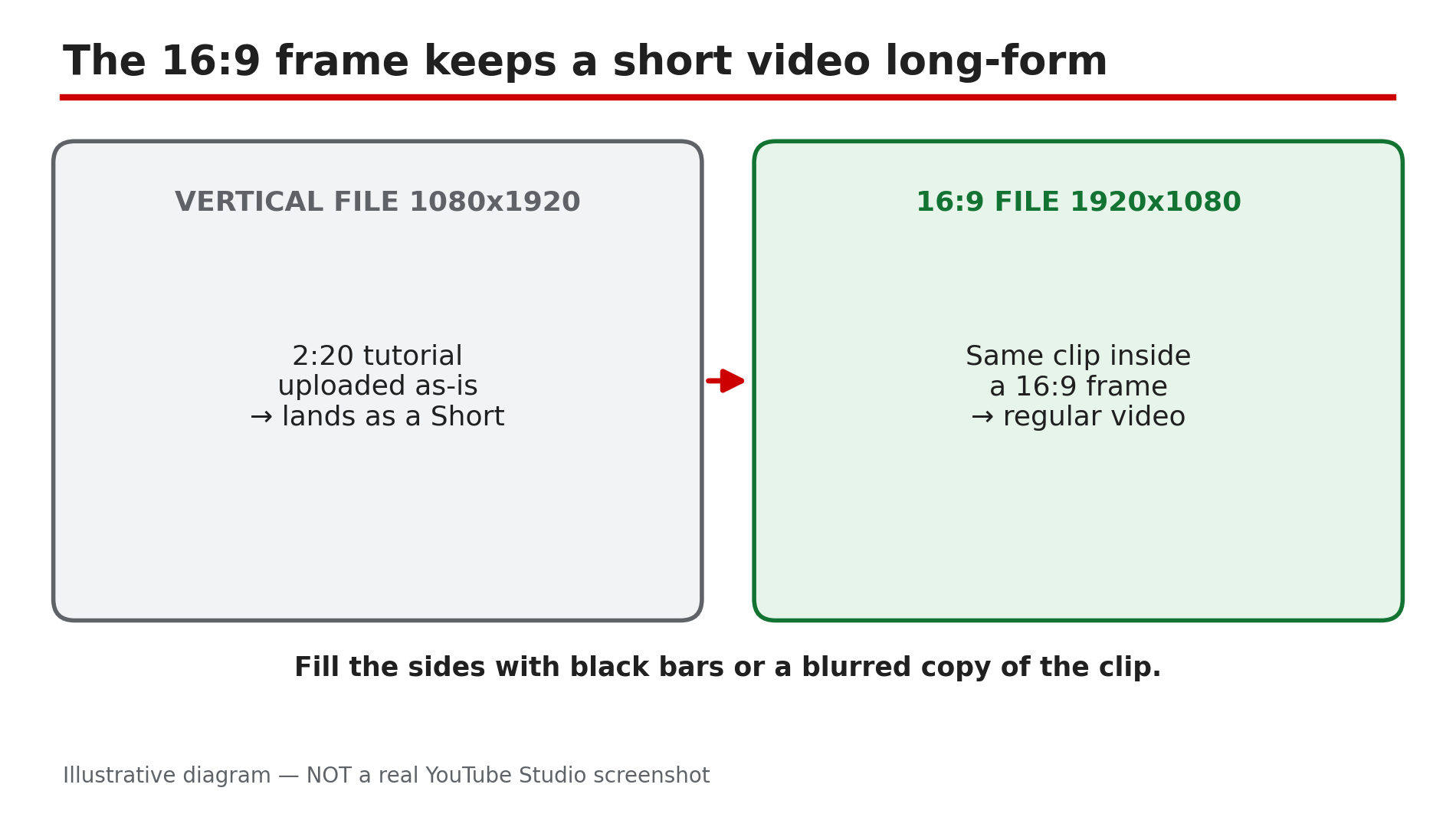
Illustrative diagram: the same clip as a vertical file becomes a Short, but inside a 16:9 frame it stays a regular video.
Step 3 — If you wanted long-form, make the video longer than three minutes — only if there is real content to add
What to do: If the content genuinely runs longer, extend it past three minutes.
How: A vertical or square video over three minutes is a regular video under the rule, whatever its shape. If your tutorial has a cut step or section, add it back and let the video run to 3:15 or 3:30. Only do this with real content: padding a 2:50 clip with ten seconds of nothing gives viewers a reason to leave. The 16:9 frame from Step 2 is usually better for a searchable tutorial. Confirm in Studio that the upload appears as a regular video.
Example: A creator’s vertical repair guide runs 2:55 and lands as a Short. He restores the section he cut, the video becomes 3:25, and the re-upload is a regular video.
Common mistake: Looping the ending to push past three minutes. Add real content, or use the 16:9 frame.
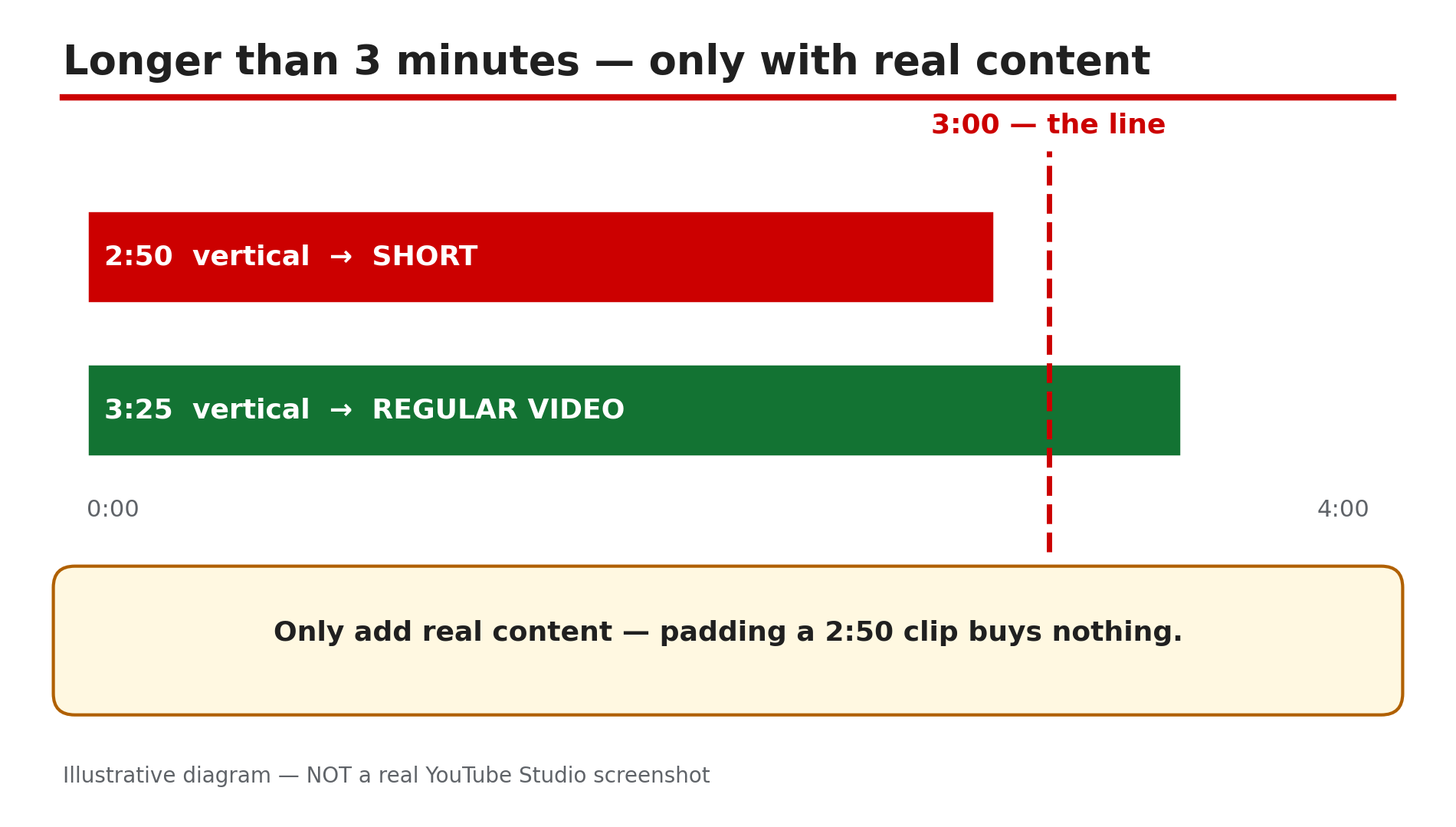
Illustrative diagram: a 2:50 vertical video is a Short, while a 3:25 vertical video is a regular video — the 3:00 line decides it.
Step 4 — Your vertical video won’t become a Short: check the length, the export dimensions, and the black bars
What to do: If you wanted a Short and YouTube treated it as a regular video, check the same three conditions — length, shape, and the real export dimensions.
How: First, length: three minutes or under — editors often add a fraction of a second, so a 3:04 export is over the line. Aim for 2:55 or under. Second, shape: it must be square or vertical. Third, check the export dimensions, not the preview: a vertical clip exported from a 16:9 project with black bars is a 16:9 file to YouTube. Confirm the width is smaller than the height: 1080x1920, not 1920x1080.
Example: A creator cuts a vertical clip in a 16:9 project and uploads it — it appears as a regular video. The file is 1920x1080. Re-exporting from a 9:16 sequence fixes it.
Common mistake: Judging the shape from the editor preview. YouTube reads the file, not the picture.
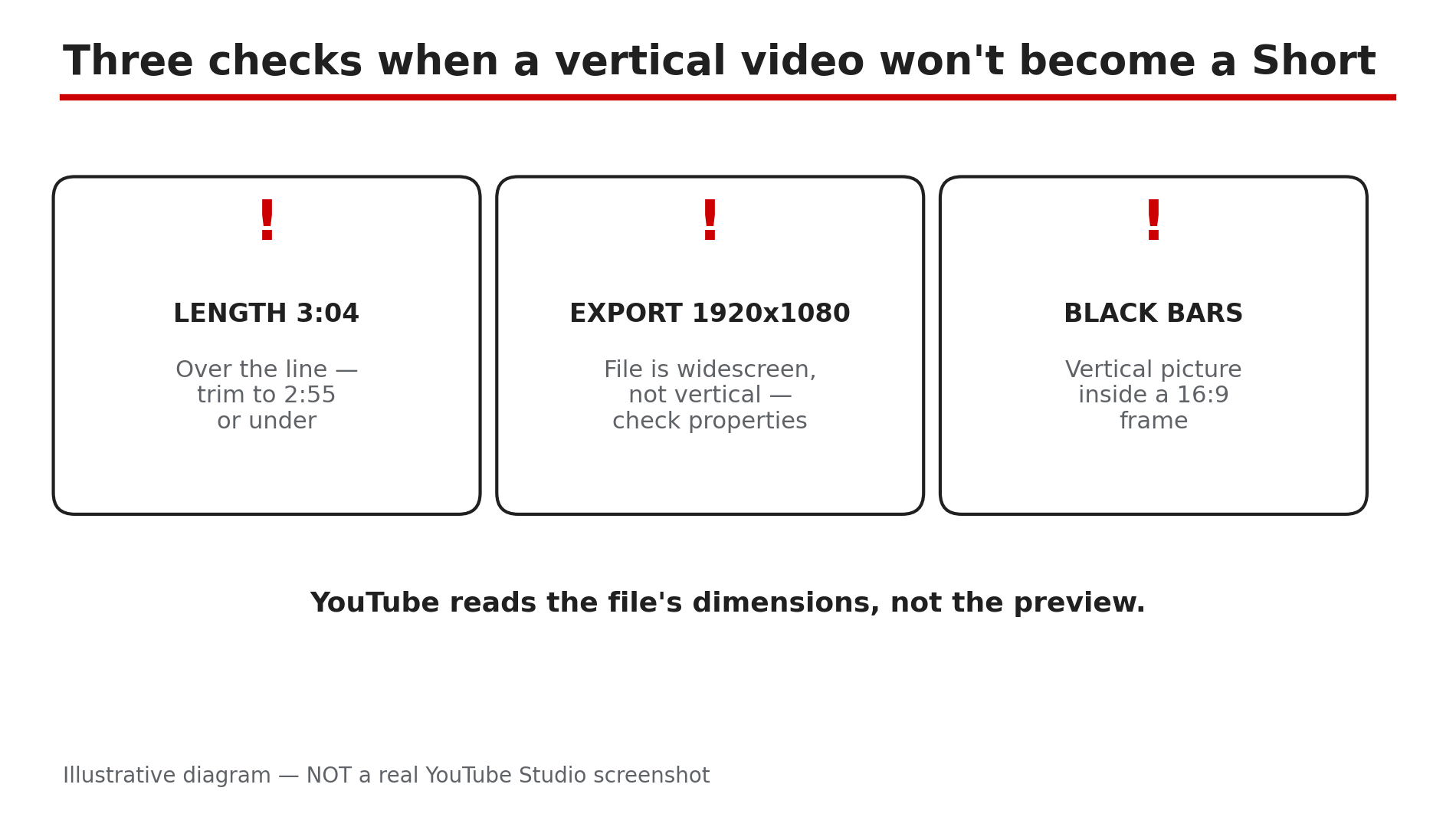
Illustrative diagram: three checks when a vertical video won’t become a Short — length, export dimensions, and black bars.
Step 5 — Check the upload date: videos uploaded before 15 October 2024 stay long-form
What to do: If an older vertical video never became a Short, check its upload date — the rule is not retroactive.
How: YouTube’s Help page says videos uploaded before 15 October 2024 “will remain the same, as a long-form video on YouTube,” as reported. A vertical video posted in 2023 is still a regular video; the same file uploaded today becomes a Short. For Official Artist Channels the switch came later: uploads on or after 8 December 2025 are Shorts, earlier ones stay long-form, as reported. No detail edit can reclassify an old upload. To put that content in the Shorts feed, upload it again — but a re-upload starts with zero views.
Example: A vertical 2:10 video from 2023 sits in a creator’s long-form list. It was uploaded before 15 October 2024, so it stays long-form, as reported.
Common mistake: Editing the title or tags of an old video and expecting it to flip into a Short.
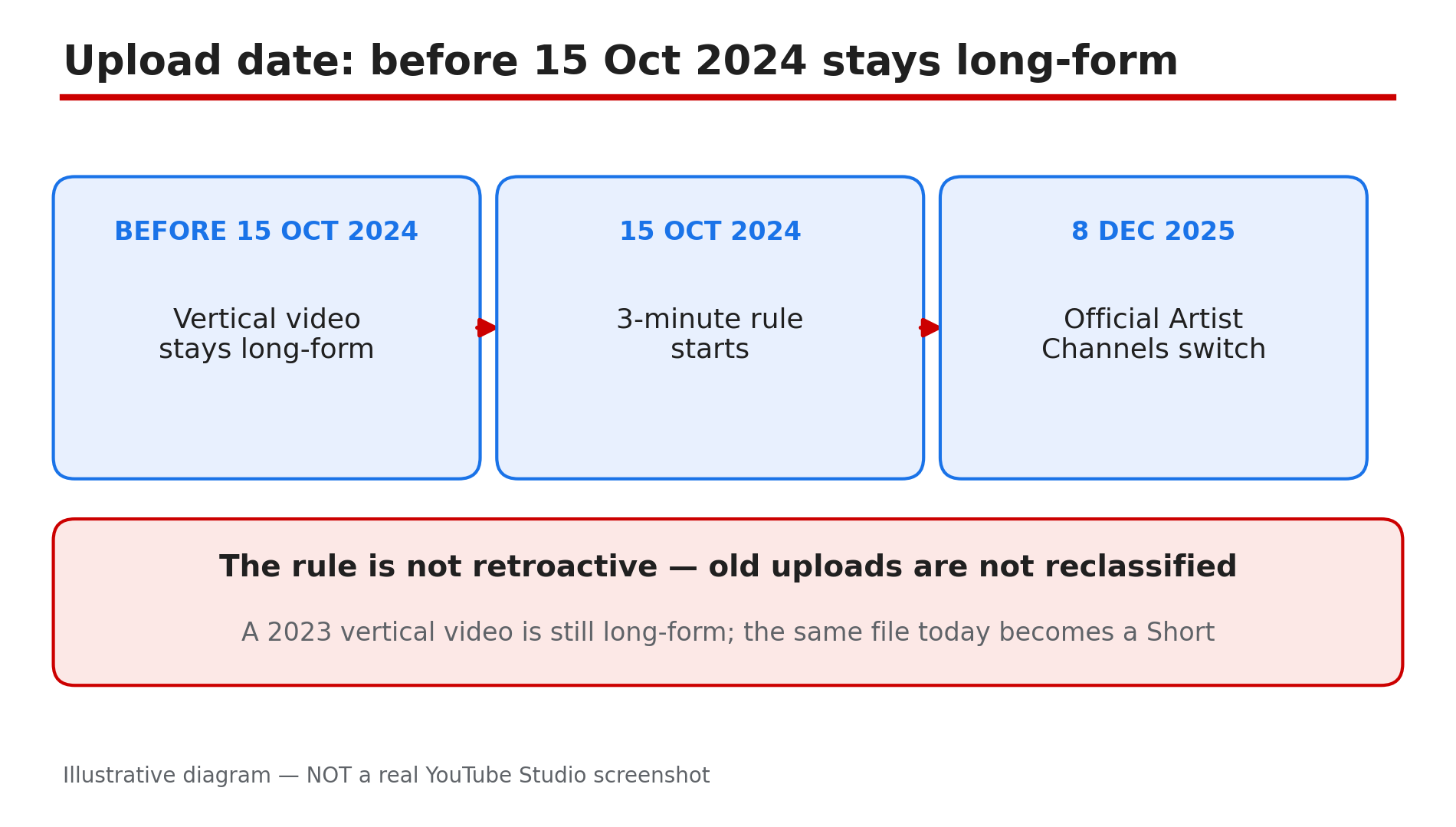
Illustrative diagram: timeline of the 3-minute rule — before 15 Oct 2024, 15 Oct 2024, and 8 Dec 2025 for Official Artist Channels.
Step 6 — Watch the claim trap: a Short over one minute with an active claim is blocked worldwide, as reported
What to do: Before building a Short over one minute on claimed music, check the claim rules — and the Copyright tab in Studio after uploading.
How: YouTube’s Help page states, as reported, that any Short over one minute with an active copyright claim of any type, “will be blocked globally on YouTube. The video will not be playable or recommended on YouTube, and will not be eligible for monetization.” There are no penalties to your channel, as reported, and once the claim is resolved the Short becomes viewable again. Remove the claimed content or dispute the claim — confirm the options in Studio. A third-party guide reports a possible September 2026 change; it could not be confirmed on the official Help page in this run, so treat the block as the rule. This trap only bites over one minute: as reported, Shorts under one minute are unaffected, so keeping a Short built on claimed music to 60 seconds or under avoids the block.
Example: A creator posts a 2:30 Short using a popular song, and it shows zero views. The Copyright tab shows an active claim — the Short is blocked worldwide, as reported.
Common mistake: Assuming a claim only takes the revenue. Over one minute, it can block the video entirely.
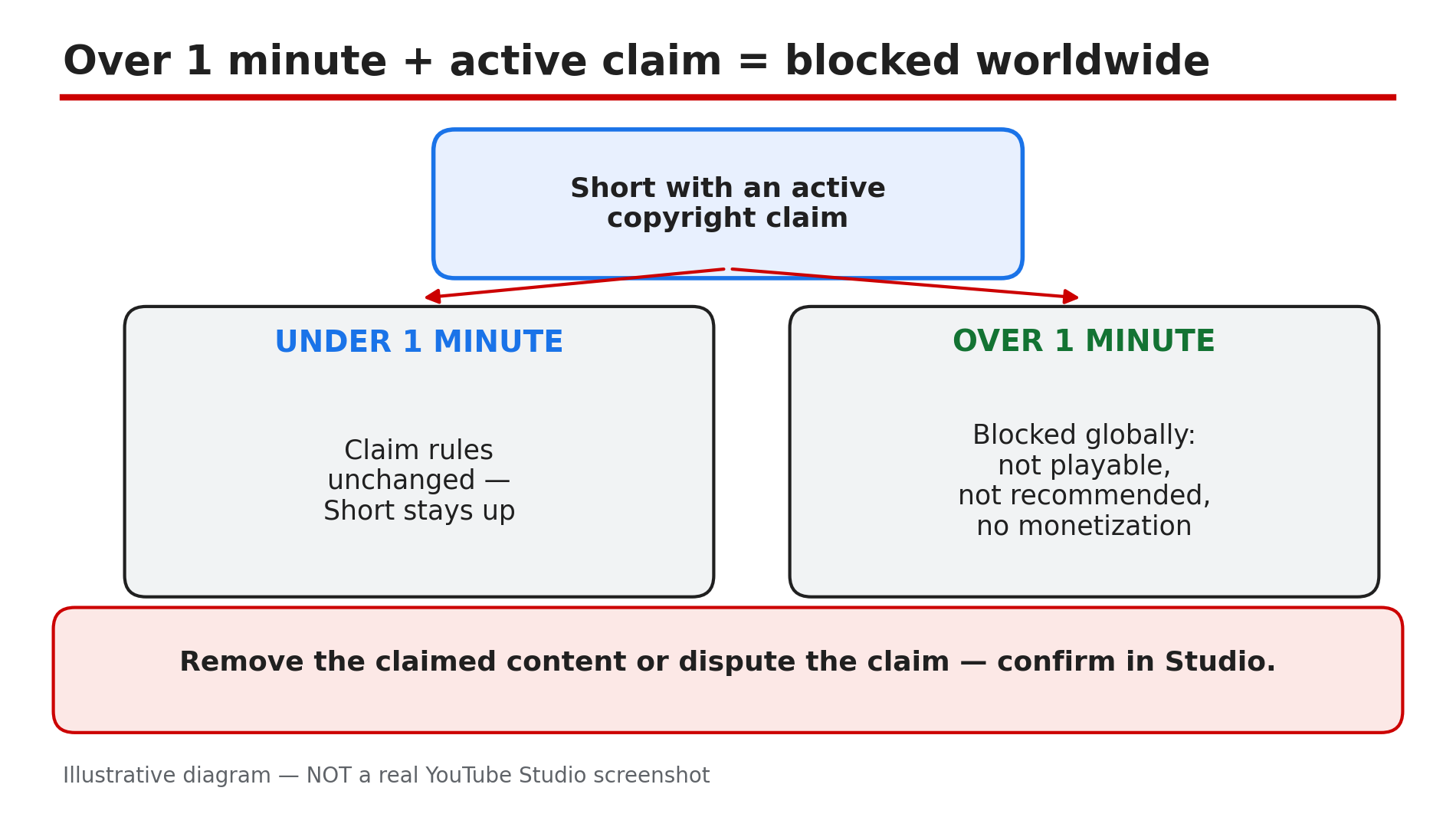
Illustrative diagram: a Short with an active copyright claim — under 1 minute it stays up, over 1 minute it is blocked worldwide.
Checklist — Fix a vertical video that uploaded as a Short (or won’t upload as one)
- ☐ Checked the file’s dimensions and duration, not the editor preview
- ☐ Confirmed the rule: square/vertical, 3:00 or under, on/after 15 Oct 2024 = Short
- ☐ To stay long-form: re-exported in a 1920x1080 frame, sides filled
- ☐ Or extended it past 3:00 with real content
- ☐ Checked the upload date — pre-15 Oct 2024 stays long-form
- ☐ Checked the Copyright tab if a Short over 1 minute has no views
- ☐ Confirmed in Studio the re-upload is in the right place
FAQs
1. Is there a setting in YouTube Studio to upload a vertical video as a regular video?
No, as reported: YouTube Help lists only the aspect ratio and the length, and the upload page has no toggle.
2. Why did my video upload as a Short when I uploaded it from my PC?
Because YouTube classifies the file, not the device, as reported. Any square or vertical video up to three minutes long becomes a Short.
3. Why is my vertical video not being treated as a Short?
Check that the exported file is three minutes or under and its dimensions are actually square or vertical, as reported. A vertical picture exported with black bars is a 16:9 file. Shorts upload at a maximum of 1080p, as reported.
4. Will my older vertical videos turn into Shorts now?
No, as reported. Videos uploaded before 15 October 2024 remain long-form; for Official Artist Channels the cut-off is 8 December 2025.
5. Can a copyright claim block my Short completely?
Yes, as reported: a Short over one minute with an active copyright claim is blocked globally — not playable, not recommended, not eligible for monetization. Shorts under one minute are not affected. Remove the claimed content or dispute it, and confirm the wording in Studio.
Sources
- YouTube Help — “Understand three-minute YouTube Shorts” (official source, opened live 14 Nov 2026): https://support.google.com/youtube/answer/15424877
- CreatorPlaybook — “YouTube Shorts Music Disappeared or Muted? Why It Happens and How to Fix It” (internal link, URL supplied in the task brief): </blog/youtube-shorts-music-disappeared-or>
- CreatorPlaybook — “YouTube Shorts Custom Thumbnail Not Showing? How to Fix It” (internal link, URL supplied in the task brief): </blog/youtube-shorts-custom-thumbnail-not>