YouTube Channel Not Showing in Search? Why Your Videos Don't Rank and How to Fix It
 CreatorPlaybook Team
- 30 Oct, 2026
You upload a video, wait a day, then search its exact title on YouTube. Nothing appears. Not on page one, not on page ten, and not even when you add your channel name.
Before you assume the worst, know this: most ‘invisible’ videos are not banned or hidden. They are new, mismatched to what people type, set to the wrong visibility, or weak on the signals YouTube uses to rank search results.
This guide walks you through six steps. You will tell the three cases apart, run a five-minute check, find why search skips your video, audit your ranking signals, judge the ‘shadowban’ claim fairly, and follow a seven-day plan.
What You Will Learn
- Spot which of the three not-found cases you have.
- Check visibility, restrictions, and your exact-title search in five minutes.
- Match your title to words viewers actually type.
- Audit keywords, captions, click-through rate, and first-30-seconds retention.
- Tell a real restriction apart from the shadowban story.
Step 1: Tell the Three Cases Apart
A video that does not appear in search usually falls into one of three groups, and each group needs a different fix. First, a new video may simply not be indexed yet. YouTube needs time to process and rank a fresh upload, so waiting 24 to 48 hours is normal. Second, the title may use words nobody types. If your title says ‘My Big Day’ but viewers search ‘how to start a YouTube channel’, search has no match to offer them. Third, the video may be Private or Unlisted by mistake, which keeps it out of search entirely.
Path: YouTube Studio > Content > click your video > Visibility. Confirm it says Public.
Example: a creator titled a video ‘Episode 7’ and found nothing. Renaming it ‘How to Edit YouTube Videos for Beginners’ matched real searches within days.
Common mistake: changing the title, thumbnail, and description all at once, then not knowing which change helped.

Diagram: three not-found cases — new video, keyword mismatch, or wrong visibility. Illustrative diagram, not a real Studio screenshot.
Step 2: Run the 5-Minute Search Check
Open a private browser window, sign out of YouTube, and search your exact title in quotes. If your video appears, search is working and your problem is ranking, not indexing. Next, in YouTube Studio, open Content, click the video, and confirm Visibility is Public and no restriction or claim shows under Restrictions. Then search your main keyword without quotes and look at the top five results. Note their titles, lengths, and thumbnails. Your video must earn its place among them.
Path: YouTube Studio > Content > video > Details > Visibility and Restrictions.
Example: a video ranked nowhere for ‘vlog’, but appeared on page one for ‘morning routine vlog in Hindi’ once its title matched the longer phrase.
Common mistake: testing search while signed in, where your watch history pushes your own videos up and hides the real result.
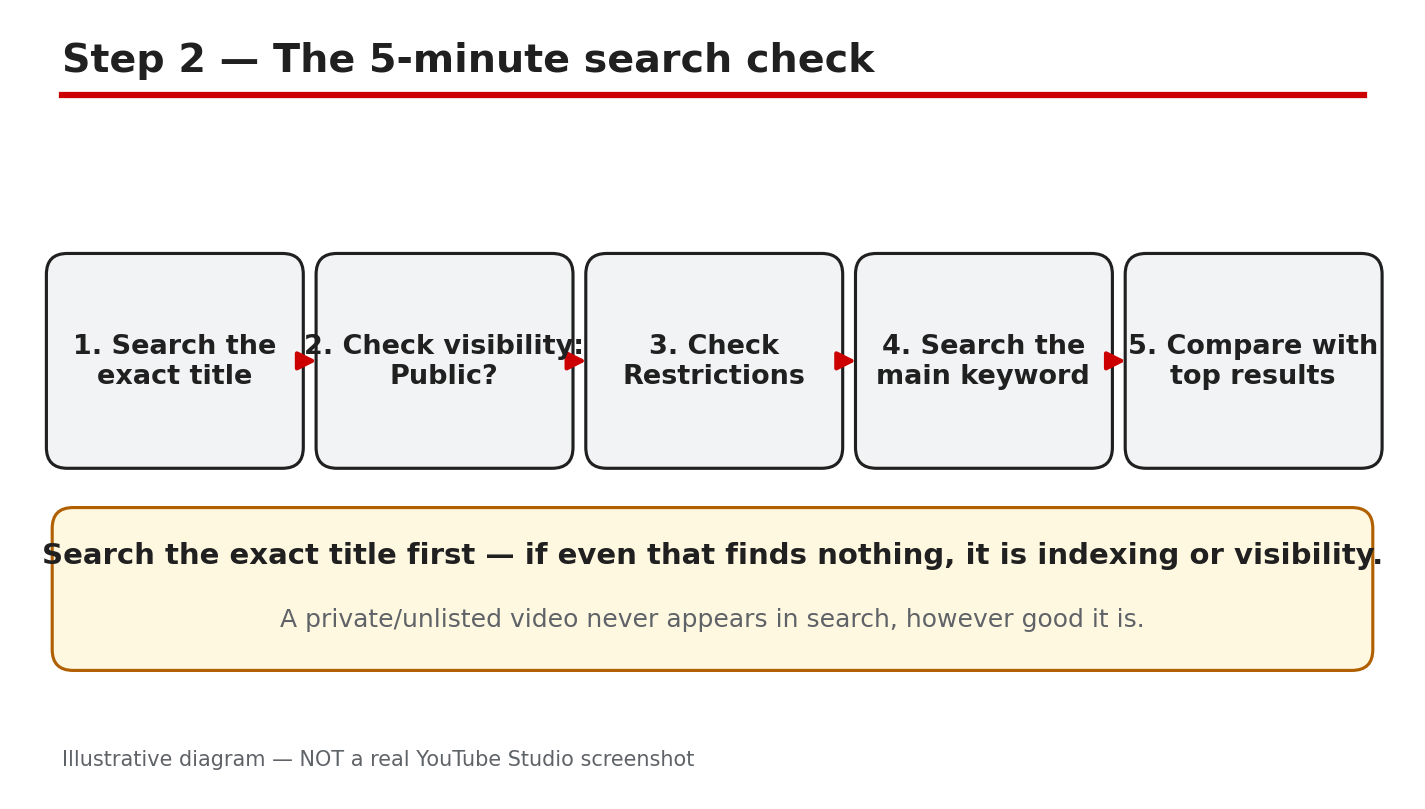
Diagram: the five-minute check — exact-title search, visibility, restrictions, keyword, and top results. Illustrative diagram, not a real Studio screenshot.
Step 3: Why Search Skips Your Video
Search shows videos it expects viewers to click and keep watching. Three gaps stop most small channels. First, no keyword in the title means no match for the query. Put the main phrase near the start of the title, not buried at the end. Second, weak retention in the first 30 seconds tells YouTube viewers leave early, so it stops showing the video. Say the promise of the video in the first sentence. Third, thin channel history slows trust. A channel with fewer than 10 to 20 uploads, or a long gap between videos, has little proof that viewers stay.
Path: YouTube Studio > Content > video > Analytics > Reach, then check impressions and click-through rate.
Example: a tutorial kept viewers for 12 seconds on average. Moving the answer to the opening line raised it to 45 seconds, and search traffic followed.
Common mistake: stuffing the title with five keywords, which reads badly and matches none of them well.
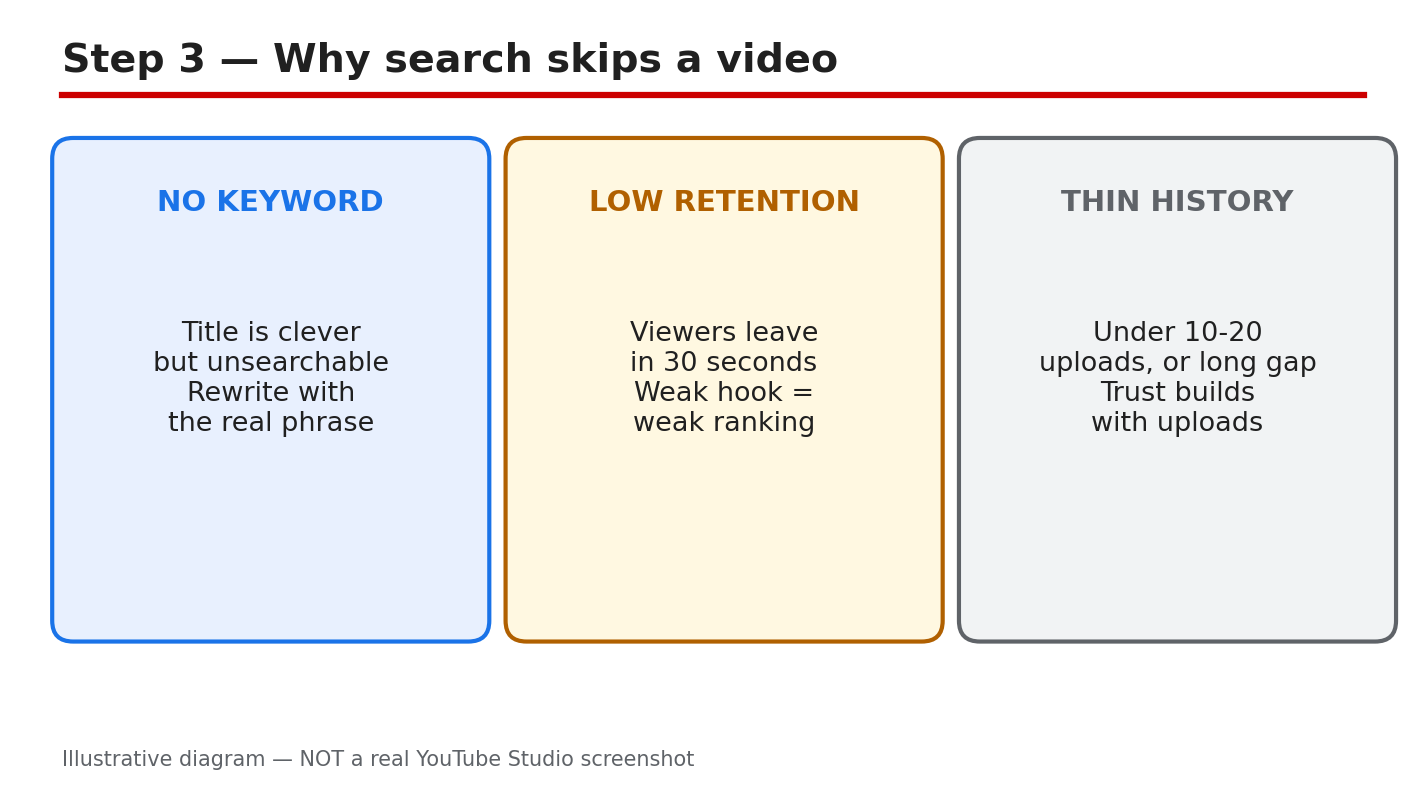
Diagram: three reasons search skips a video — no keyword, weak first-30-seconds retention, thin channel history. Illustrative diagram, not a real Studio screenshot.
Step 4: Run a Simple Ranking Audit
Open the four numbers that decide most search results. First, does the title hold the keyword people type? Second, are captions on and accurate, so YouTube can read what the video covers? Add or correct them in YouTube Studio > Content > video > Subtitles. Third, what is the click-through rate on search impressions? A low rate means the title or thumbnail is losing the click. Fourth, how long do viewers stay in the first minute? Fix the weakest of the four before you touch anything else.
Path: YouTube Studio > Analytics > Reach > Traffic source: YouTube search, then Impressions click-through rate.
Example: captions were auto-generated with the wrong key phrase. Fixing three captions lines made the video appear for its main keyword the next week.
Common mistake: judging a video after two days. Search data needs a full week before you call a title a failure.
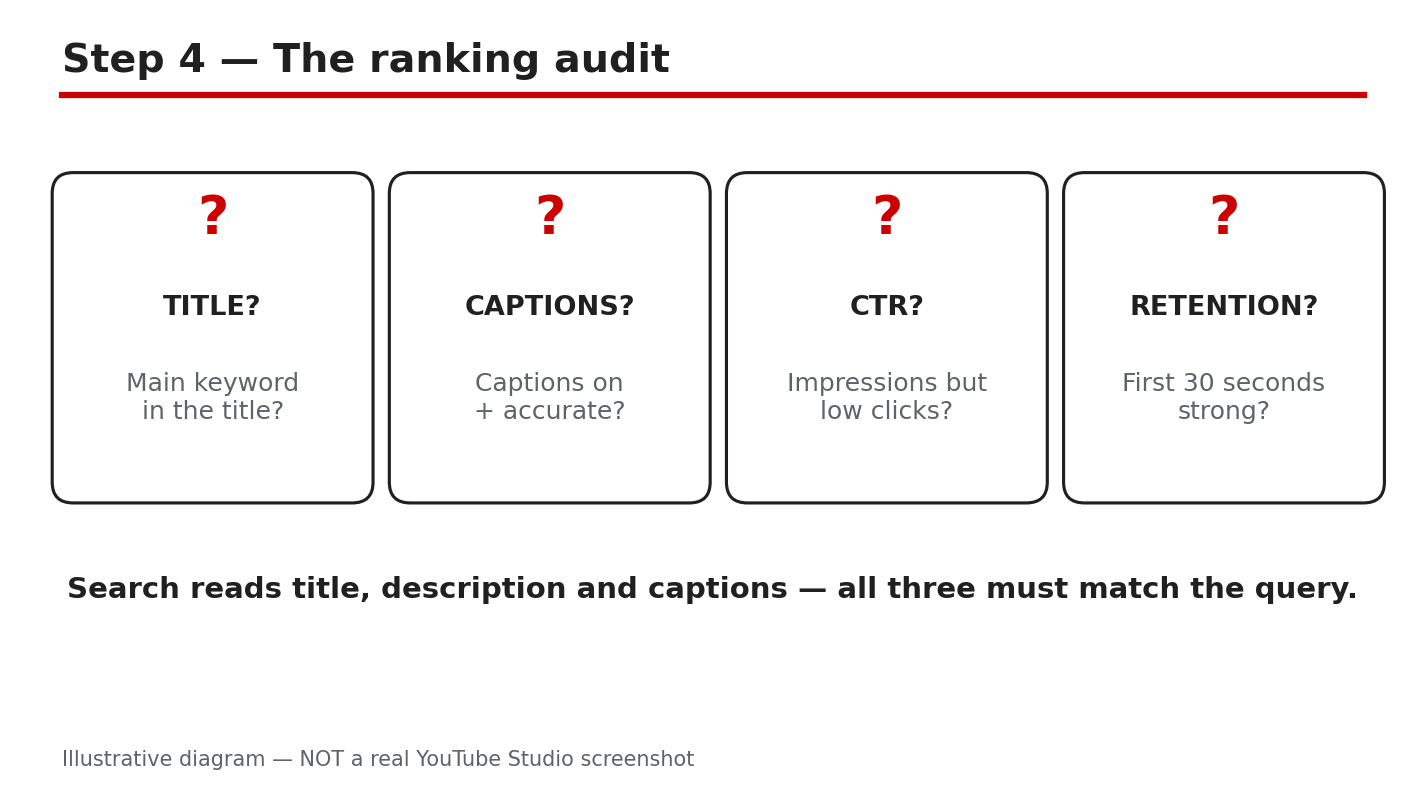
Diagram: the ranking audit — keyword, captions, click-through rate, and retention in one check. Illustrative diagram, not a real Studio screenshot.
Step 5: ‘Shadowban’ or Normal?
YouTube has said it does not run a shadowban system that hides channels from search. That claim is reported here as YouTube states it; this guide does not claim a shadowban exists. When a video vanishes from results, the cause is usually ordinary: a restriction, a copyright claim, a visibility mistake, or weak ranking signals. Check each one before you blame a hidden penalty. Open YouTube Studio > Content, look at the Restrictions column, and open any claim or restriction to read what it says. Fix the cause, then wait a few days before judging the result.
Path: YouTube Studio > Content > Restrictions column, then open the video to read the restriction or claim.
Example: a creator feared a shadowban, then found a music claim on the video. Replacing the track restored the video in search within a week.
Common mistake: re-uploading the same video three times, which splits views and restarts the ranking process from zero.
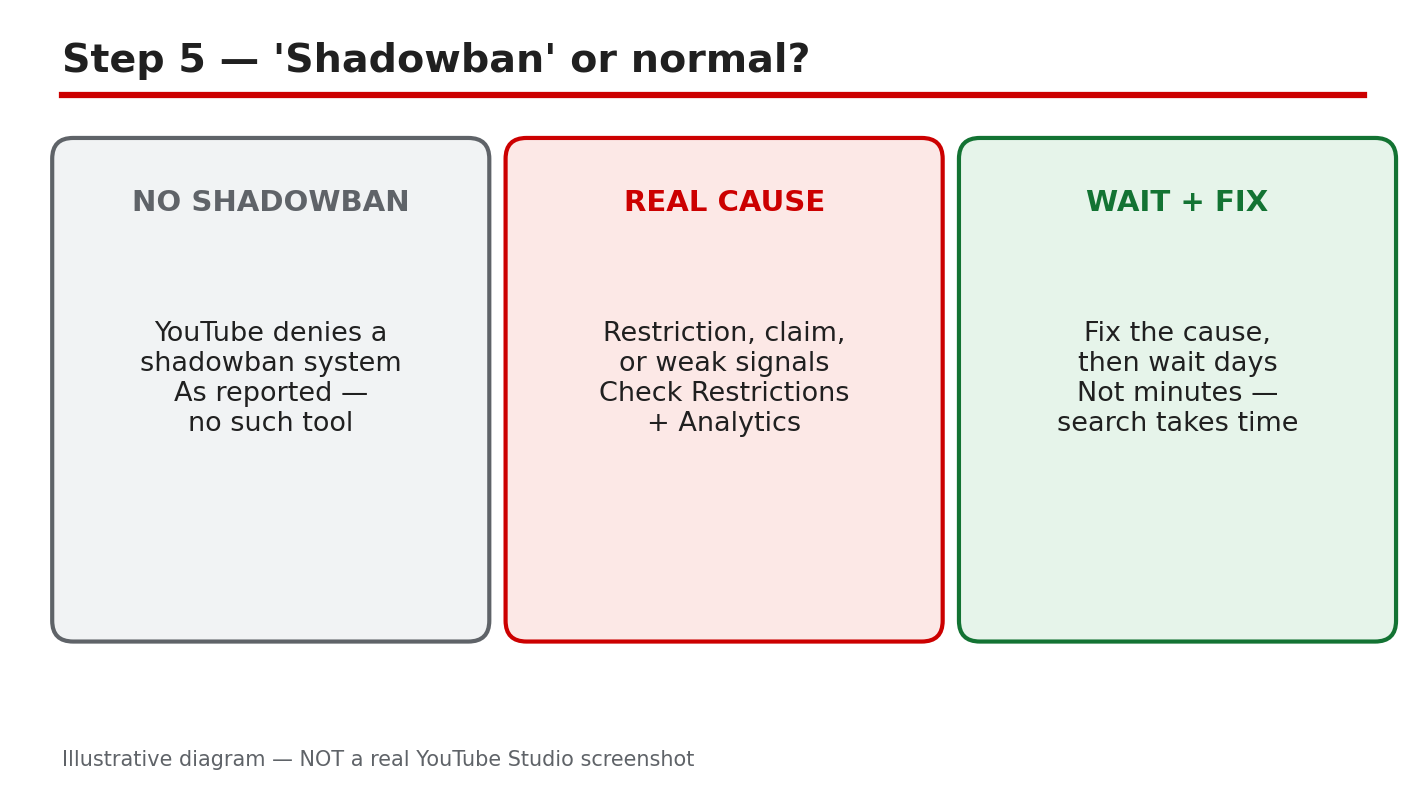
Diagram: shadowban or normal — check restrictions, claims, visibility, and signals first. Illustrative diagram, not a real Studio screenshot.
Step 6: Follow the 7-Day Search Plan
Day 1: run the five-minute check and fix visibility. Day 2: rewrite the title around one main keyword and fix captions. Day 3: improve the first 30 seconds with a clear promise. Day 4: publish a short that points viewers to the video. Day 5: answer every comment to lift engagement. Day 6: compare the video with the top five results and adjust the thumbnail. Day 7: read the search traffic in Analytics and keep the change that worked, then repeat the plan on your next video. If the video is Public, has no restriction, and still does not appear after 72 hours, contact YouTube support through YouTube Studio > Help > Contact us.
Path: YouTube Studio > Analytics > Reach > Traffic source: YouTube search, checked on Day 7.
Example: one channel followed this plan on three videos. Two of them reached page one for their main keyword by Day 7.
Common mistake: changing the plan every day, so no single fix gets enough time to show a result.
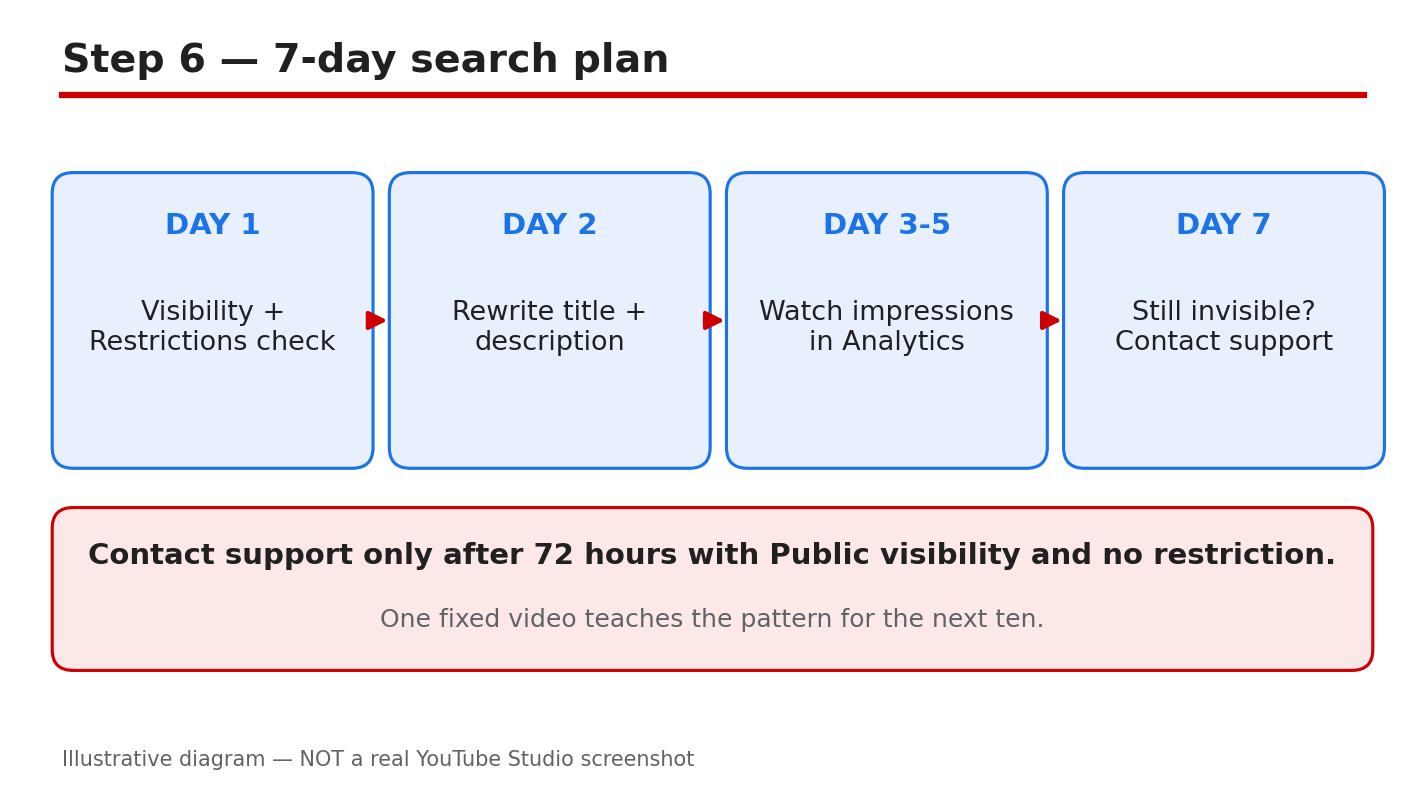
Diagram: the seven-day search plan — one clear action each day, measured on Day 7. Illustrative diagram, not a real Studio screenshot.
Quick Checklist
- Visibility is Public, and no restriction or claim shows.
- Exact-title search in a private window finds the video, or explains why not.
- Main keyword sits near the start of the title.
- Captions are on, accurate, and mention the keyword.
- First 30 seconds state the video’s promise clearly.
- Search traffic checked on Day 7 before the next change.
Frequently Asked Questions
How long should I wait before worrying about a new video?
Wait 24 to 48 hours first. If the video is Public with no restriction after that time, start the ranking audit in Step 4.
Can I pay YouTube to rank higher in search?
No. YouTube states it does not accept payment for better placement in organic search results.
Does changing my title hurt the video?
A small keyword fix helps, but changing the title daily resets what search has already learned about the video.
My video plays fine but never appears. Is my channel shadowbanned?
YouTube says it has no shadowban system, so check restrictions, claims, visibility, and ranking signals first.
When should I contact YouTube support?
After 72 hours with Public visibility and no restriction, contact support from YouTube Studio > Help > Contact us.
Sources — Check It Yourself
Check the facts in this guide against YouTube’s own help pages.