0 Views on YouTube? How to Diagnose No Impressions, Low CTR, or Low Retention in 6 Steps
 CreatorPlaybook Team
- 28 Oct, 2026
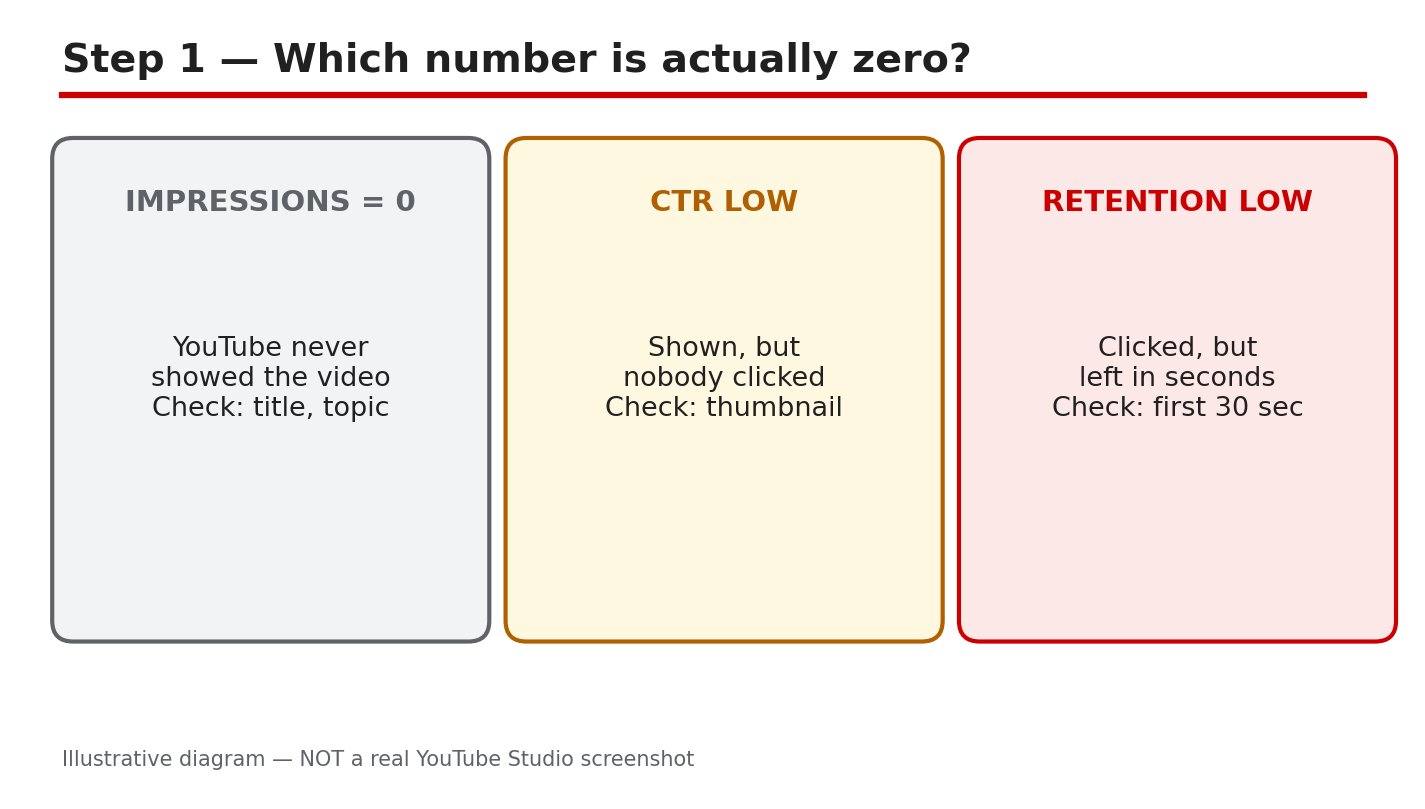
Zero views can feel like a dead end, but it is usually a clue. Views are the last number in a chain: YouTube shows your video (impressions), people click (click-through rate, or CTR), and people stay (audience retention). When the final number is zero, one of those earlier links is broken. This guide helps you find which one, fix the right thing, and test it once — instead of guessing, re-uploading the same file, or changing five things at once.
The diagram above sums up the three very different problems that all look like “0 views.” Keep it in mind as you work through the steps: the fix for “YouTube never showed it” is not the fix for “people saw it and did not click.”
What You Will Learn
- How to tell whether your problem is impressions, CTR, or retention.
- Where to find each number in YouTube Studio, and how to read the three together.
- How to rule out the simple causes first: privacy, restrictions, claims, and a brand-new channel.
- How to change one thing, wait long enough to judge it, and record what happened.
- How to run a clean 7-day retest without deleting and re-uploading blindly.
Step 1: Name Which Number Is Zero
What to do: Before you touch the title, the thumbnail, or the video, write down which of the three numbers is the problem. There are three different “zero” situations, and each points to a different fix. First, is the video actually getting shown at all? Second, if it is shown, are people clicking? Third, if people click, are they staying past the opening seconds?
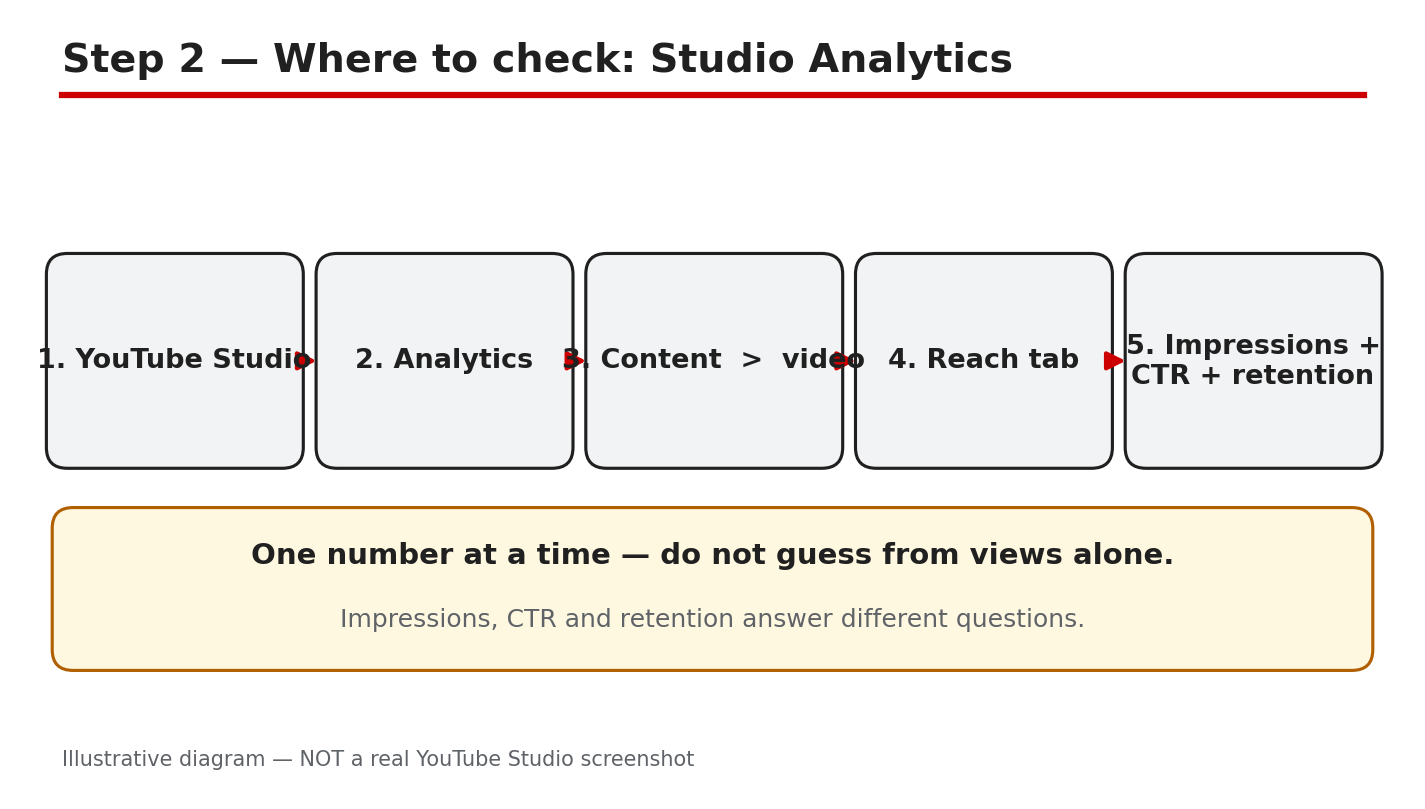
Studio menu path: YouTube Studio > Analytics > Content > click the video > Reach tab (impressions and CTR) and Engagement tab (retention). You do not need the full Analytics tour yet — Step 2 walks the path in detail. For this step, you only need to know which screen holds which number.
Example: A new creator uploads a how-to video. After two days it shows 0 impressions, 0 views, and no CTR. Nothing was clicked because nothing was shown. That is a discovery or settings problem, not a thumbnail problem. In contrast, a video with 2,000 impressions, a 1.5% CTR, and 30 views has a packaging problem: people saw it and mostly scrolled past. A third video has 3,000 impressions, a healthy 8% CTR, but viewers leave after 12 seconds. That is an opening-hook problem.
Common mistake: Treating every 0-view video the same way. Changing the thumbnail when impressions are 0 cannot help, because nobody has seen the thumbnail. Likewise, re-uploading the same video when retention is the problem only restarts the same opening that viewers already left.
Caption: Diagram 1 — The three different “0 views” problems: no impressions, low CTR, and low retention. Illustrative diagram and mock-up only; NOT a real YouTube Studio screenshot.
Step 2: Open the Right Screen in YouTube Studio
What to do: Open the video-level Analytics for the exact video, not the channel-level overview. The channel overview mixes all your videos together and hides the problem with one video. On the video’s own Reach tab you can see how many times YouTube showed that video, and what share of those showings turned into clicks. Then check the Engagement tab for how long people stayed.
Studio menu path: YouTube Studio > Analytics > Content > click the video title or thumbnail > Reach tab for impressions and impressions click-through rate, and Engagement tab for average view duration and audience retention. Give the numbers a few days to settle for a new upload before you judge them.
Example: A creator opens the Reach tab for a new tutorial and sees 40 impressions and 0 views. The video was shown 40 times and nobody clicked — a small sample, but the next question is whether impressions keep growing. Another creator sees 12,000 impressions, a 2% CTR, and 240 views: the video is being shown widely, but the packaging is not earning clicks. Both creators are looking at the same screen; only the numbers differ.
Common mistake: Judging a video from the channel dashboard, or from the video’s public view count alone. The public count tells you the result; the Reach and Engagement tabs tell you where the chain broke. Also, do not compare a 1-day-old video with a 1-year-old video — older videos have had far more time to collect impressions.
Caption: Diagram 2 — The Studio path to video-level Analytics: Studio, Analytics, Content, video, Reach tab. Illustrative diagram and mock-up only; NOT a real YouTube Studio screenshot.
Step 3: Read the Three Numbers Together
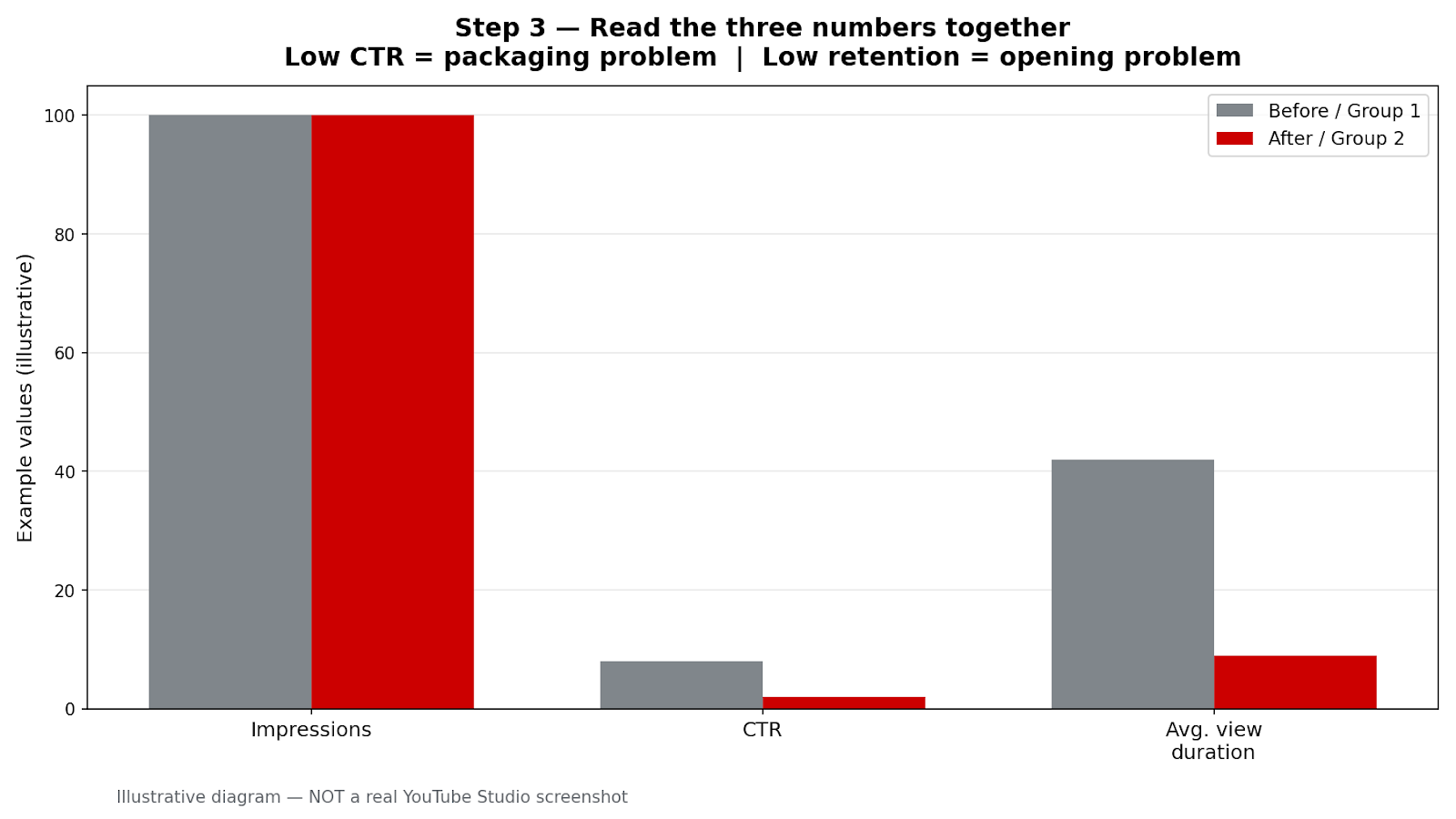
What to do: Put impressions, CTR, and retention side by side and match the pattern to a cause before you change anything. Each pattern has a different fix, and the diagram above shows the three most common ones. Write the three numbers down with the date, so you can compare like with like after your test in Step 5.
Studio menu path: YouTube Studio > Analytics > Content > click the video > Reach tab (impressions and CTR) and Engagement tab (retention). Read both tabs for the same date range, and use the same range again when you retest.
Example: Pattern one: 0 impressions. YouTube is barely showing the video at all, so the title and thumbnail cannot be the problem yet — check Step 4 first. Pattern two: 5,000 impressions, 1% CTR, 40 views. The video is shown, but almost nobody clicks: the packaging (thumbnail and title) is the likely problem. Pattern three: 4,000 impressions, 9% CTR, but average view duration of 20 seconds on a 10-minute video, with a sharp drop in the first 30 seconds. People clicked, then left: the opening hook is the likely problem.
Common mistake: Fixing the thumbnail when retention is the problem, or re-editing the opening when CTR is the problem. Each fix costs time and resets your test. Name the pattern first, then fix only what matches it. Also, do not judge CTR from a tiny sample: 2 clicks from 10 impressions is not a reliable 20% CTR.
Caption: Diagram 3 — Reading impressions, CTR, and retention together: low CTR points to packaging, low retention points to the opening hook, and 0 impressions points to discovery or a setting. Illustrative diagram and mock-up only; NOT a real YouTube Studio screenshot.
Step 4: Rule Out the Simple Causes First
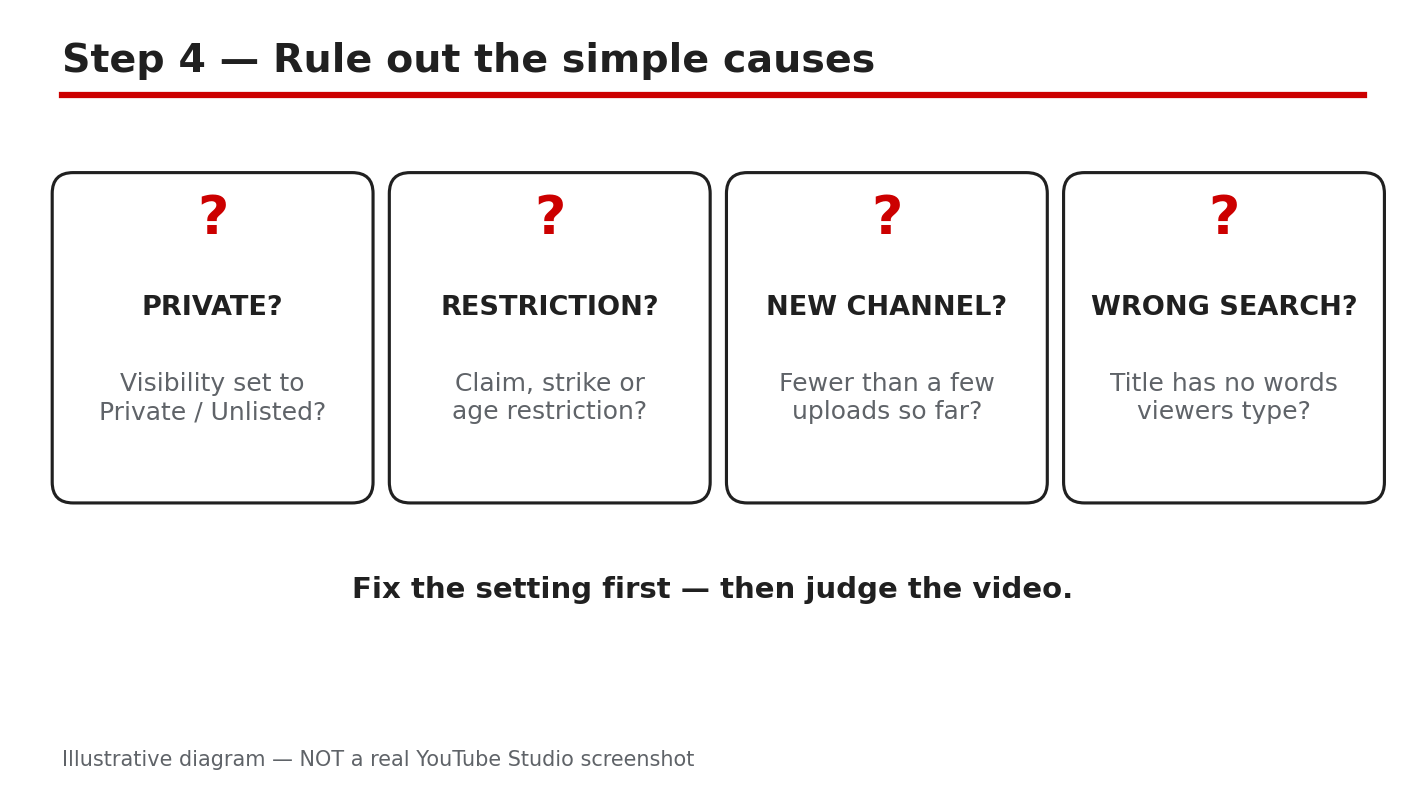
What to do: Before you blame the algorithm, check the four simple causes in the diagram above. Each one can produce 0 views on its own, and each has a plain fix. Work through them in order and fix any problem you find before you judge the video’s performance.
Studio menu path: YouTube Studio > Content > find the video > check the Visibility column (Public, Unlisted, or Private) and the Restrictions column. For claims and strikes, check YouTube Studio > Content > Restrictions, and read any notice or email YouTube sent about the video. For privacy, open the video’s details in Studio > Content > click the video > Visibility.
Example: A creator is sure a video is “suppressed” until they open Content and see Visibility: Unlisted — the video was never public. Another creator finds a Content ID claim on the audio that limits where the video can be shown. A third creator, three days into a brand-new channel with two uploads, has 0 impressions on both: the channel has almost no history yet, so slow early discovery is expected, not proof of a penalty. Fix the setting, then judge the video.
Common mistake: Changing the title and thumbnail five times while the video is still Private or Unlisted, or while a restriction is in place. No packaging change can fix a video that is not public or cannot be shown. Also, do not assume a brand-new channel is being punished: a new channel simply has little watch history for YouTube to learn from yet, so early numbers are often slow.
Caption: Diagram 4 — The four simple causes to rule out first: Private or Unlisted visibility, a claim or strike or age restriction, a brand-new channel, and a title or topic with no search demand. Illustrative diagram and mock-up only; NOT a real YouTube Studio screenshot.
Step 5: Change ONE Thing, Then Wait
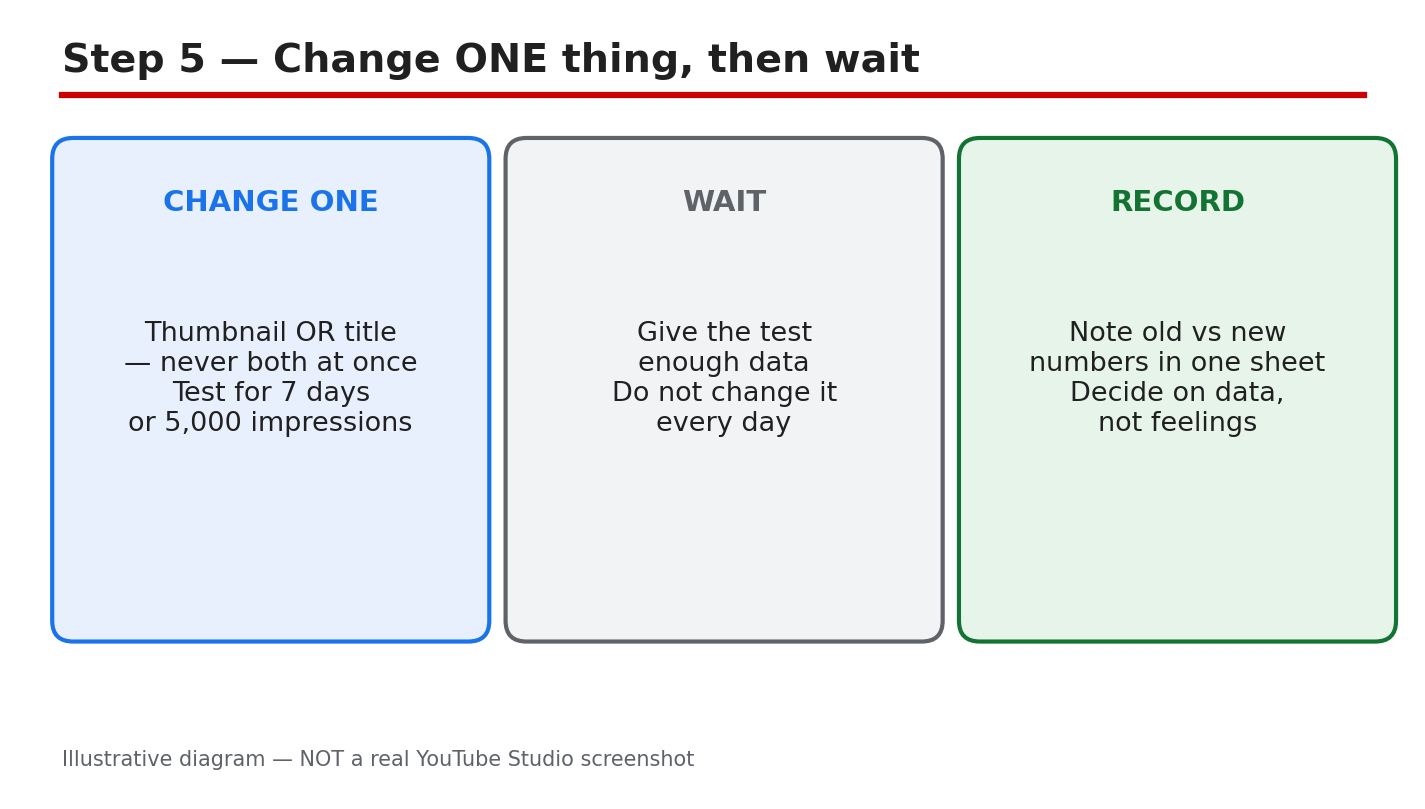
What to do: Change exactly one thing — the thumbnail OR the title, never both at once — then wait before you judge. Use the rule from the diagram above: wait 7 days or until the video reaches 5,000 impressions, whichever comes first, and record the numbers before and after. One change, one wait, one comparison: that is how you learn what worked.
Studio menu path: YouTube Studio > Content > click the video > Details to edit the title, and Thumbnail to replace the thumbnail image. After the change, return to YouTube Studio > Analytics > Content > click the video > Reach tab to compare impressions and CTR with the numbers you recorded in Step 3, using the same date-range length.
Example: A video has 6,000 impressions and a 1.8% CTR. The creator records those numbers, then replaces only the thumbnail with a clearer, larger-subject version and leaves the title alone. After 7 days the video has 5,400 new impressions and a 3.1% CTR. Because only the thumbnail changed, the improvement can fairly be credited to it. If the creator had changed the title, the thumbnail, and the opening all at once, nobody could say which change helped.
Common mistake: Changing something every day and reading the numbers hourly. Daily edits restart the test before it has a sample, and hourly checks show noise, not a trend. Pick one change, write down the starting numbers, wait the full period, and only then compare. If impressions are still very low after the wait, the problem may be the one from Step 4, not the packaging — go back and re-check.
Caption: Diagram 5 — Change ONE thing (thumbnail OR title), wait 7 days or 5,000 impressions, and record the before-and-after numbers. Illustrative diagram and mock-up only; NOT a real YouTube Studio screenshot.
Step 6: Run the 7-Day Retest Plan
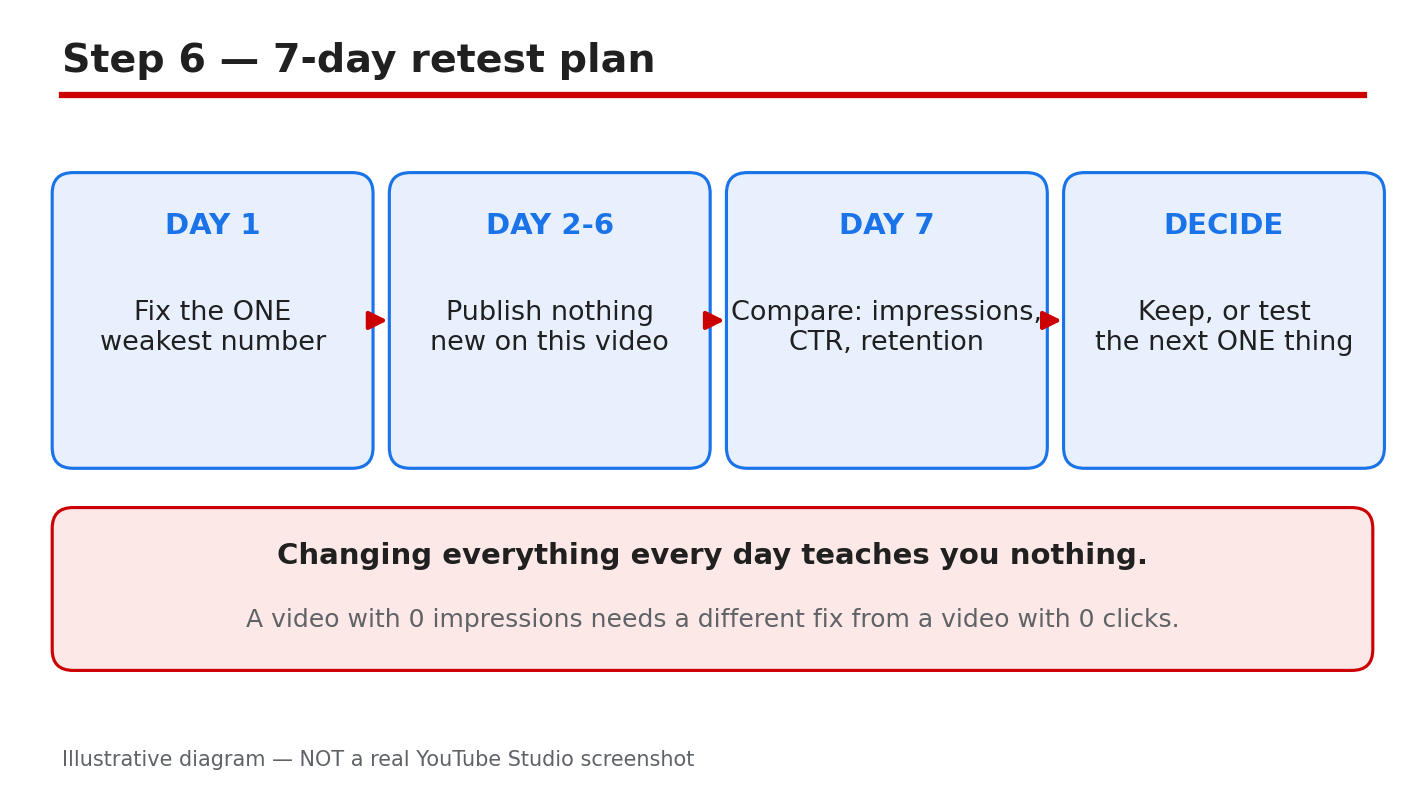
What to do: Follow the 7-day plan from the diagram above. Day 1: make the one fix from Step 5 and write down the starting numbers. Days 2–6: publish nothing new on this video and change nothing on it — no title edits, no thumbnail swaps, no re-uploads. Day 7: compare impressions, CTR, and retention with the starting numbers, using the same date-range length, and decide: keep the change, or test the next ONE thing. If the numbers moved in the right direction, keep the winning version and move on to improving the next weakest number. If nothing moved, go back to Step 4 and re-check the settings and restrictions before blaming the packaging.
Studio menu path: YouTube Studio > Analytics > Content > click the video > Reach tab (impressions and CTR) and Engagement tab (audience retention) for the Day 7 comparison. Keep the date range the same length as the starting measurement so the comparison is fair.
Example: Starting numbers: 800 impressions, 2.0% CTR, 32% retention at 30 seconds. The creator changes only the title, waits 7 days, and records 5,100 impressions, 3.4% CTR, and 33% retention. CTR improved while retention stayed nearly flat, so the title helped discovery but the opening still needs work — the next single test is the hook, not another title change.
Common mistake: Declaring a video dead after 48 hours and deleting it, or changing everything at once on Day 3 because the numbers have not moved yet. Small channels often need the full wait before a fair sample exists. Finish the plan, write the numbers down, and let one test teach you one lesson.
Caption: Diagram 6 — The 7-day retest plan: fix the ONE weakest number, wait, compare, then decide. Illustrative diagram and mock-up only; NOT a real YouTube Studio screenshot.
Quick Checklist
- Write down impressions, CTR, and retention for the same date range before you change anything.
- Name the weakest number: 0 impressions, low CTR, or low retention.
- Check Visibility, Restrictions, claims, strikes, age restriction, and Made for Kids before you edit.
- Change ONE thing only: thumbnail OR title.
- Wait 7 days or 5,000 impressions, then compare the same three numbers.
- Keep what worked; test the next ONE thing. Do not change everything at once.
Frequently Asked Questions
Is 0 views in the first few hours normal?
Yes, it can be. Brand-new channels and brand-new uploads often show little or no data at first, and Analytics can lag behind real activity. Work through Step 4 to rule out a settings or restriction problem, then give the video the full 7-day window from Step 6 before calling it a failure.
Does 0 impressions mean YouTube is not showing my video at all?
Zero impressions means the thumbnail was not shown to viewers in the measured period. It points to discovery or a setting, not to viewers rejecting the video — nobody could click what they never saw. Check Step 4 first, then the packaging fixes in Step 5.
What is a good CTR on YouTube?
YouTube does not publish one good CTR for all channels, because CTR depends on the topic, the audience, and where impressions come from. Use your own numbers as the baseline: compare the CTR before and after a single change, as in Step 5, instead of chasing a universal target.
Should I delete a video with 0 views and re-upload it?
Not as a first step. Deleting and re-uploading the identical file teaches you nothing and loses the history. Fix the real cause first — the setting, the restriction, the thumbnail, or the title — and only then test a fresh upload if you have a clear reason to. For Shorts, see the related reading below.
How long should I wait before changing the thumbnail or title?
Give one change a fair test: 7 days or 5,000 impressions, as in Steps 5 and 6. Changing things daily restarts the test before it has a sample, so the numbers you read are noise.
Sources — Check It Yourself
These are the official YouTube Help pages used for the menu paths and definitions in this guide. Open them to confirm each step for yourself:
- Get started with YouTube Analytics — Studio > Analytics, Content, video-level Analytics, Reach and Engagement tabs.
- Check your YouTube thumbnail impressions and watch time — impressions and click-through rate.
- Measure key moments for audience retention — audience retention.
- Change video privacy settings — Public, Unlisted, and Private visibility.
- Manage restrictions on your content — Studio > Content > Restrictions column, copyright, age restriction, and Made for Kids.
Related reading on this blog, for Shorts specifically: YouTube Shorts Views Dropped? How to Check What Changed.
No official YouTube video is embedded in this post. No official YouTube Creators or Creator Insider video matching this exact diagnosis topic was verified, so none is embedded rather than guessing at a link.