YouTube Comments Not Showing? Held for Review, Spam Filter, or Disabled — Fix It
 CreatorPlaybook Team
- 30 Oct, 2026
A viewer writes a thoughtful comment, and it never appears under your video. Another comment with a link vanishes too. Before you blame viewers, check your own settings: most missing comments are held for review, caught by a filter, or switched off by a setting you did not mean to change. This guide shows you how to tell the three cases apart, find the setting, fix the cause, and build a comments habit that keeps real discussion visible. Work in order, and test with a comment from a second account you control.
What You Will Learn
- Tell held, blocked, and disabled comments apart.
- Find comment settings for one video and the whole channel.
- Spot spam filters, blocked words, and a wrong Made for Kids label.
- Approve real comments and reply fast in the first hours.
- Build a daily and weekly comments habit.
Step 1: Missing, Held, or Off?
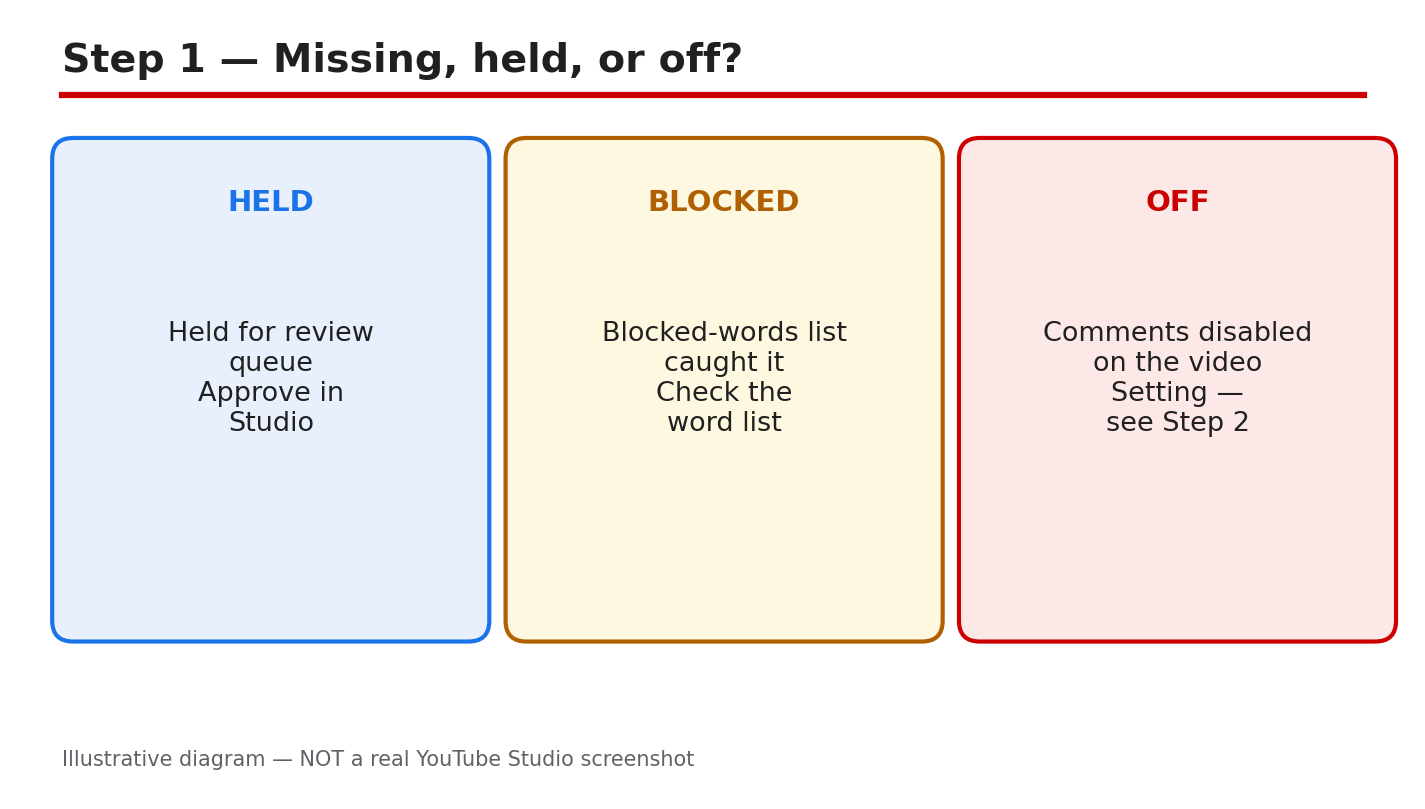
Three states look the same to a viewer but need different fixes. Held for review means the comment waits in a queue until you approve it. A blocked-words catch means your own word list stopped the comment. Comments disabled means the video or channel setting has comments off, so nobody can comment at all. Check the queue first, then the word list, then the switch itself. Guessing the cause and changing everything at once only hides the real one.
Path: YouTube Studio > Community > Held for review, then Likely spam.
Example: a creator found 40 kind comments held for review after switching on ‘Hold all comments’. Changing it to ‘Hold potentially inappropriate comments’ let real comments through.
Common mistake: turning comments off and on again, hoping old comments return, instead of checking the held queue first.
Diagram: missing, held, or off — three states, three different fixes. Illustrative diagram, not a real Studio screenshot.
Step 2: Find the Comment Setting
There are two places to check. For one video, open YouTube Studio, go to Content, click the video, open Details, and scroll to Comments visibility. There you can allow all comments, hold some for review, or turn comments off. For the whole channel, go to Settings, then Community, then Defaults, and set the same choice for new uploads. The held queue lives under Community in the left menu, with tabs for Published, Held for review, and Likely spam.
Path: YouTube Studio > Content > video > Details > Comments visibility, and Settings > Community > Defaults.
Example: comments were on for old videos but off for new ones, because the channel default was set to Off. Changing Defaults fixed every future upload.
Common mistake: fixing one video and forgetting the channel default, so the next upload has the same problem.

Diagram: find the setting — video Details, channel Defaults, and the held queue. Illustrative diagram, not a real Studio screenshot.
Step 3: Why Comments Vanish
Three filters hide most comments. First, the spam filter catches comments with links, repeated text, or patterns that look automated. Second, your blocked-words list stops any comment that holds one of your words, even when the rest of the comment is friendly. A single broad word, like ‘free’, can hide hundreds of good comments. Third, a wrong Made for Kids label turns comments off by design. Videos set as Made for Kids do not allow comments, so an adult video with the wrong label loses every comment. Check the audience label before you blame the filter.
Path: YouTube Studio > Content > video > Details > Audience, then check ‘Made for Kids’ is correct.
Example: a gaming channel blocked the word ‘link’, and every comment asking for a game link vanished. Removing that one word restored the discussion.
Common mistake: adding dozens of blocked words after one bad comment, which silences ordinary viewers too.
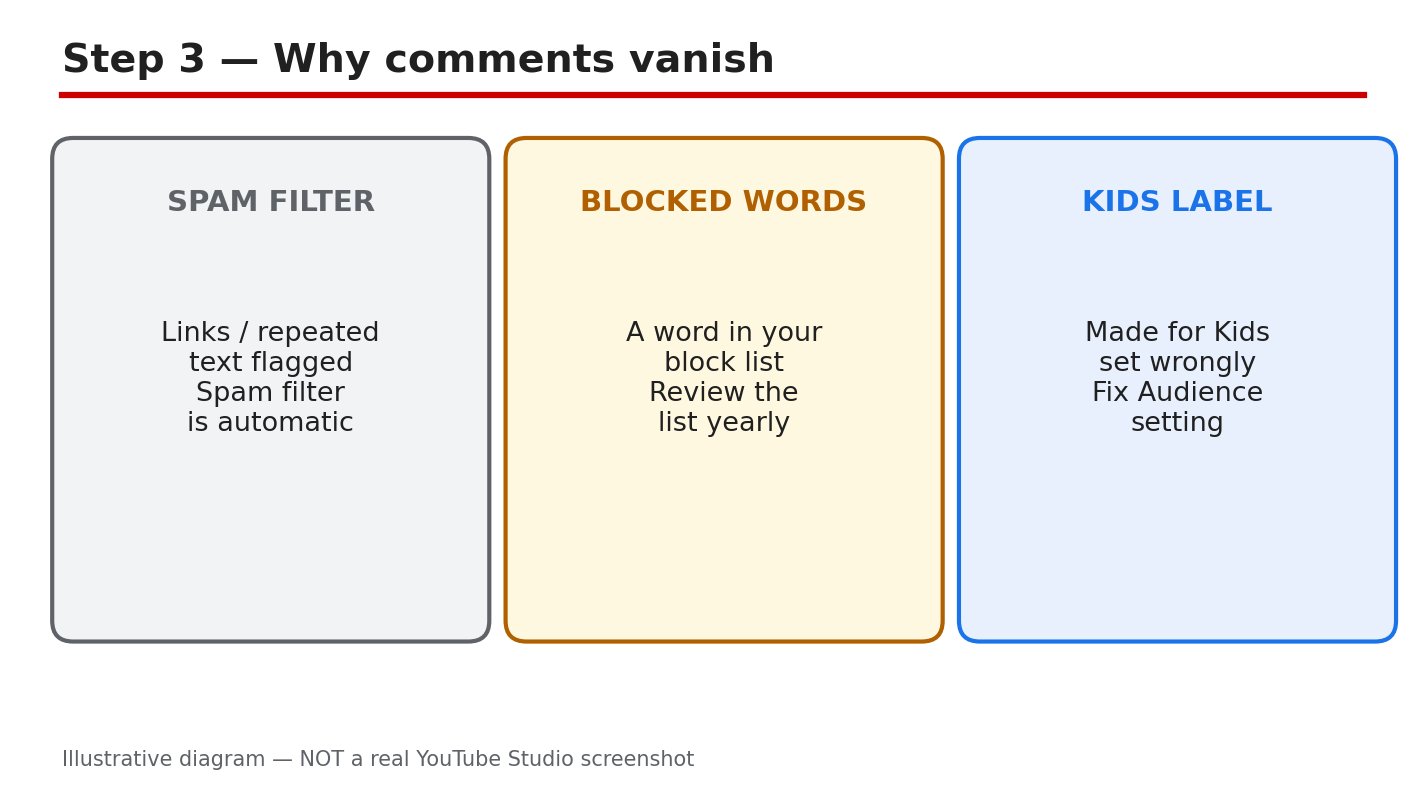
Diagram: why comments vanish — spam filter, blocked words, wrong Made for Kids label. Illustrative diagram, not a real Studio screenshot.
Step 4: Run the Comments Checks
Work through four checks in order. First, open the video’s Comments visibility and confirm it is set to allow comments. Second, open the held queue and count how many real comments wait there. Third, open Details, then Audience, and confirm the Made for Kids label matches the video. Fourth, open Settings, then Community, and read your blocked-words list line by line. Remove any word that is too broad. Finish by posting a test comment from a second account to confirm comments show.
Path: YouTube Studio > Community > Held for review, then Published, to compare the two lists.
Example: a check found 60 held comments, 12 blocked by one broad word, and a correct audience label. Approving the 60 fixed the video in ten minutes.
Common mistake: approving spam along with real comments, which teaches the filter nothing and fills the thread with junk.
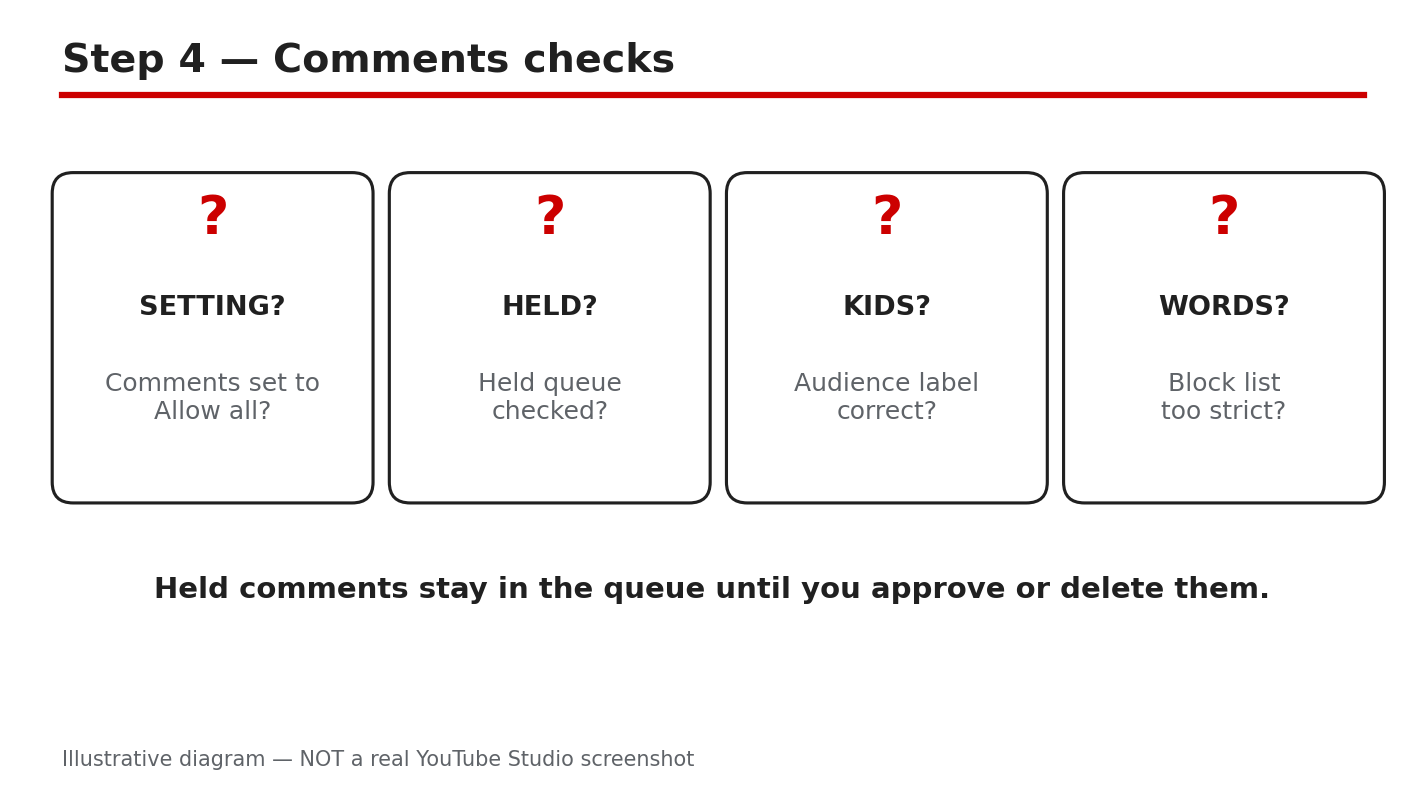
Diagram: the comments checks — setting, held queue, audience label, blocked words. Illustrative diagram, not a real Studio screenshot.
Step 5: Fix and Reply
Approve the real comments first, starting with the oldest, then remove or report the spam. If one blocked word caused the problem, delete that word from the list and save. Then reply fast. Comments answered in the first hours draw more replies, and a lively thread signals YouTube that viewers care about the video. Ask a simple question at the end of your reply so the viewer has a reason to come back. Pin the best question to the top of the comments so new viewers see it first.
Path: YouTube Studio > Community > Held for review > Approve, then reply from the Published tab.
Example: a creator approved 30 held comments and replied to each one. The video gained 12 new comments the same day.
Common mistake: replying only to praise and ignoring questions, which ends the conversation instead of growing it.
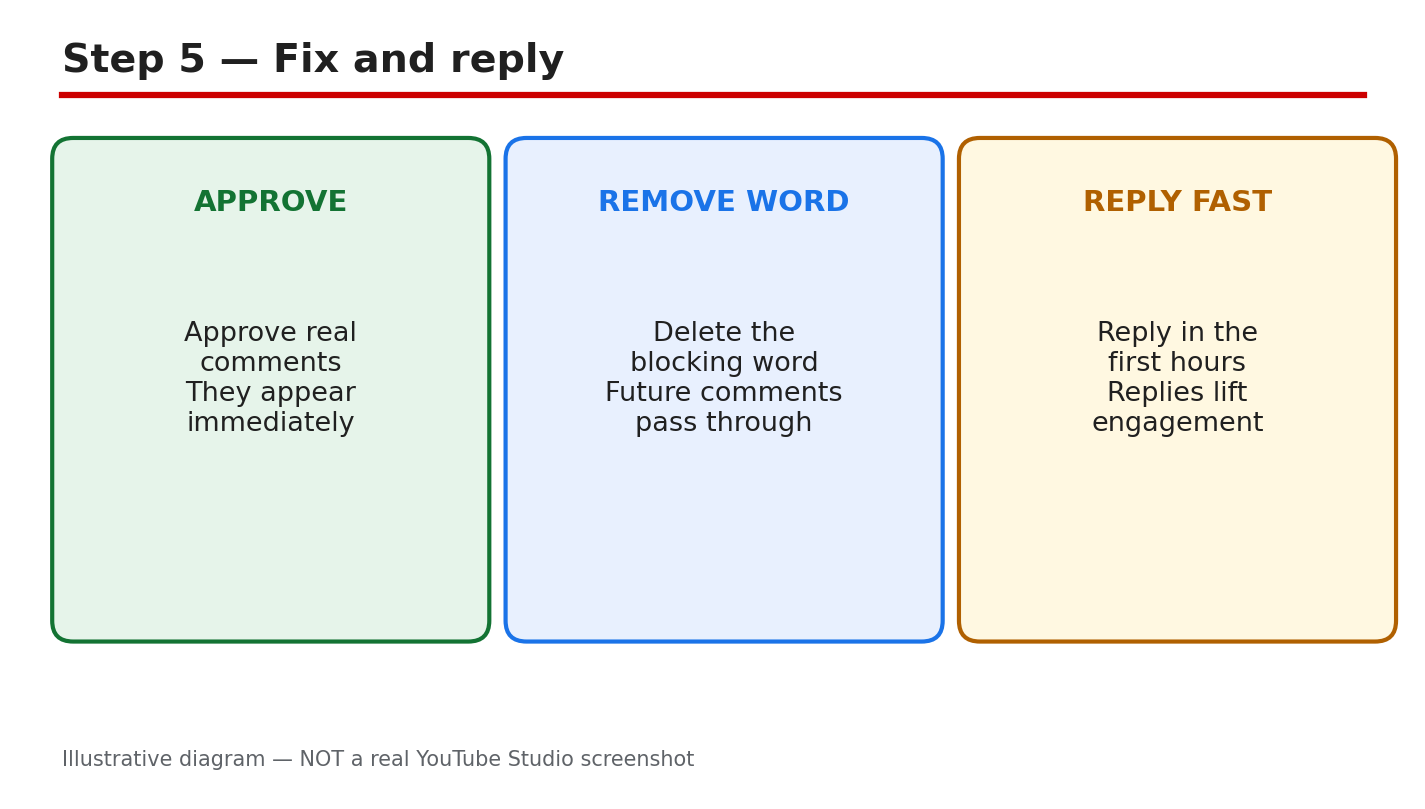
Diagram: fix and reply — approve real comments, remove the blocking word, reply fast. Illustrative diagram, not a real Studio screenshot.
Step 6: Build the Comments Habit
Daily, open the held queue each morning and approve or remove every comment the same day. Weekly, read your blocked-words list and remove words that are too broad. Before you publish, set comments to the choice you want while the video is still unlisted, and pin a question that invites the first comment. Reply to the first ten comments on every new video yourself. A channel that answers becomes a place people return to, and returning viewers are the ones who comment again.
Path: YouTube Studio > Settings > Community > Defaults, set before publishing, then Community > Held for review daily.
Example: a channel cleared its queue every morning for a month. Comments per video doubled, and the community began answering new viewers first.
Common mistake: clearing the queue once and never returning, so the same comments pile up again within a week.
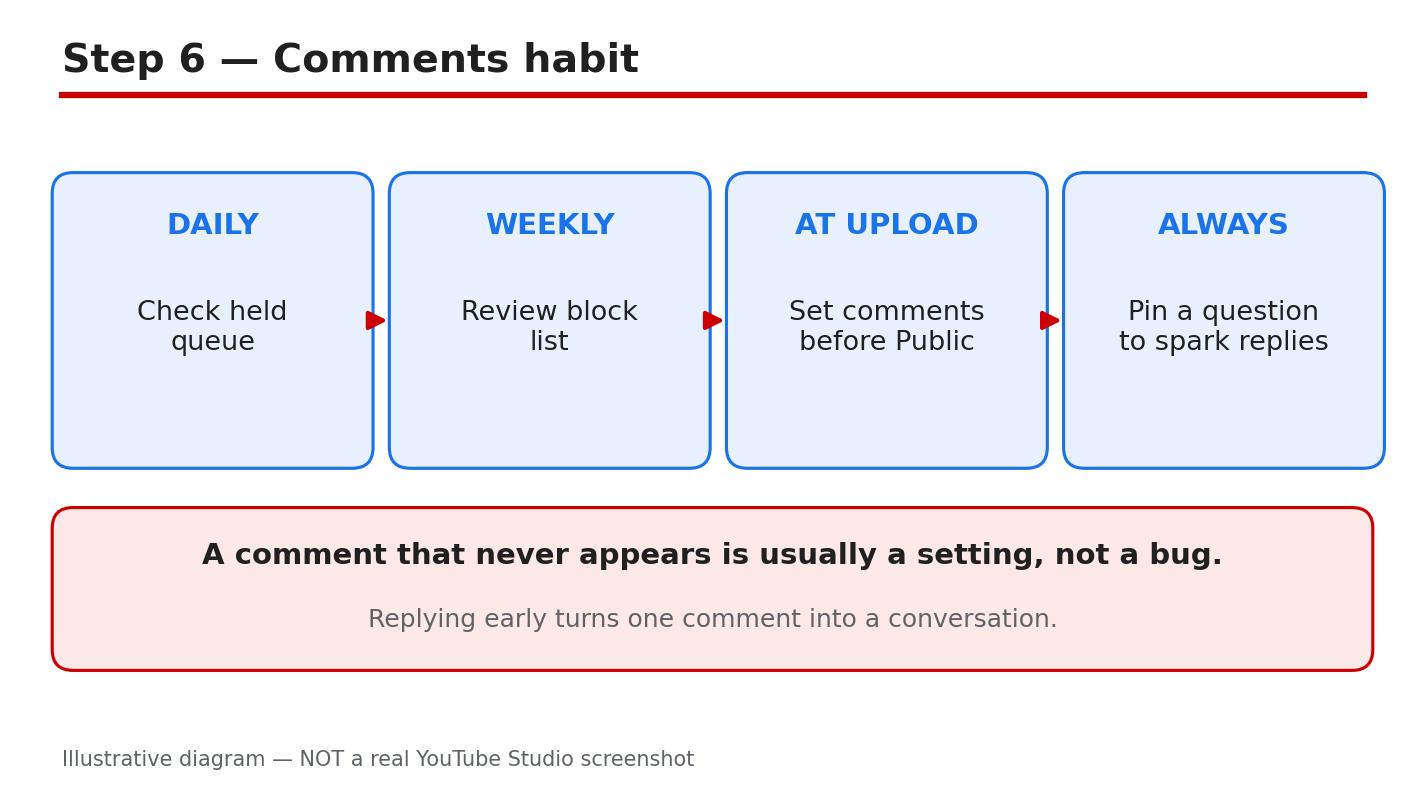
Diagram: the comments habit — daily queue, weekly block-list review, set before Public, pin a question. Illustrative diagram, not a real Studio screenshot.
Quick Checklist
- Comments visibility set to allow comments on the video.
- Held queue empty, with real comments approved.
- Audience label correct for the video.
- Blocked-words list free of broad words.
- Channel default set before the video goes Public.
- First ten comments answered, best question pinned.
Frequently Asked Questions
Why did my comment disappear right after I posted it?
It was likely held for review or caught by the spam filter. Check the Held for review tab in YouTube Studio > Community.
Can viewers comment on Made for Kids videos?
No. Comments are turned off on Made for Kids videos by design, so check the audience label if comments are missing.
I turned comments off and on. Will old comments return?
Check the held queue first — approvals there are the surest way to bring real comments back, and changing the on-off switch rarely helps.
Should I use ‘Hold all comments for review’?
Only for a short time, such as after a sensitive video. For daily use, ‘Hold potentially inappropriate comments’ keeps real discussion visible with less work.
How do I handle rude comments once they appear?
Approve the fair ones, hide or report the abusive ones, and reply calmly to honest criticism. Our guide to negative comments explains the reply step in detail.
Sources — Check It Yourself
Check the facts in this guide against YouTube’s own help pages.