YouTube Handle Taken or Channel Name Wrong? How to Change Your Name and Handle
 CreatorPlaybook Team
- 29 Oct, 2026
Your channel name is what viewers read, and your handle is the @name they use to mention and find you. When the name feels wrong or the handle you want is taken, changing both again and again causes confusion: old mentions stop matching and viewers cannot find you. Learn what each label does, change it in the right place in Studio, and tell your viewers once, clearly.
Work in order. First, tell the name, the handle, and any old custom URL apart. Next, check the rules and whether the handle is free. Then make one change, save it, and check the channel page. Do not copy a known creator.
Related reading: How to Choose a Good YouTube Channel Name, which helps you pick a name worth keeping.
What You Will Learn
- How the channel name, handle, and old custom URL differ.
- Where to change them in Studio, and how to save.
- The handle rules, including length, characters, and change limits.
- What to check before you rename a channel.
- What to do when the handle you want is taken.
- How to roll out a rename so viewers still find you.
Step 1: Tell the Channel Name, Handle, and Custom URL Apart
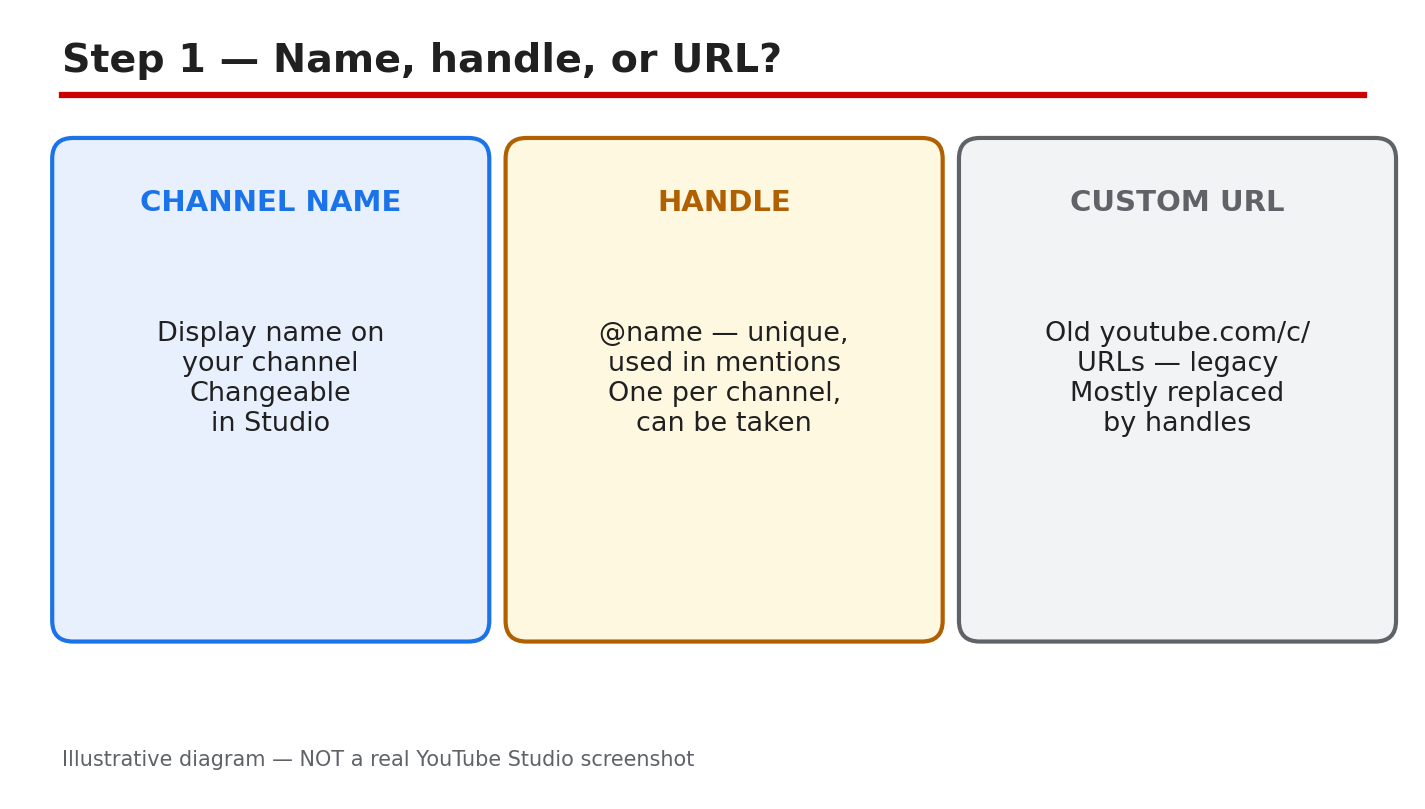
What to do: The channel name is the display name viewers see on your videos, channel page, and comments. The handle is the short @name that identifies your channel in mentions and tags, and it must be unique. A legacy custom URL is an older personalized address, such as youtube.com/c/YourName, that some channels received years ago. The three can match, but they do not have to, and changing the name does not give you the matching handle.
Studio path: YouTube Studio > Customization > Profile. Read the current name and handle shown there before you change anything.
Example: A creator called “Maya Cooks” uses @maya-cooks-27 because @mayacooks was taken. Viewers find her by the handle, while the name stays readable.
Common mistake: Telling viewers to use your old custom URL after a rename. Old links may still work, but viewers need the new name and handle.
Illustrative diagram/mock-up — NOT a real YouTube Studio screenshot: channel name, handle, and custom URL compared.
Step 2: Change the Name and Handle in the Right Place
What to do: Open YouTube Studio, go to Customization, then Profile, and edit the name and handle fields. Type the new name, check the handle, and click PUBLISH to save. Do not look for them under Basic info: the name and handle live under Customization, then Profile, and PUBLISH saves them. After publishing, open your channel page and check the new name and handle. A new name can take a few days to appear everywhere.
Studio path: YouTube Studio > Customization > Profile > enter new channel name and handle > PUBLISH. Check the channel page after saving.
Example: A creator shortens “Maya Cooks Daily” to “Maya Cooks” under Customization > Profile, clicks PUBLISH, and sees the new name on her channel page.
Common mistake: Editing the name under Basic info and clicking Save, then wondering why nothing changed. Use Customization > Profile, then PUBLISH.
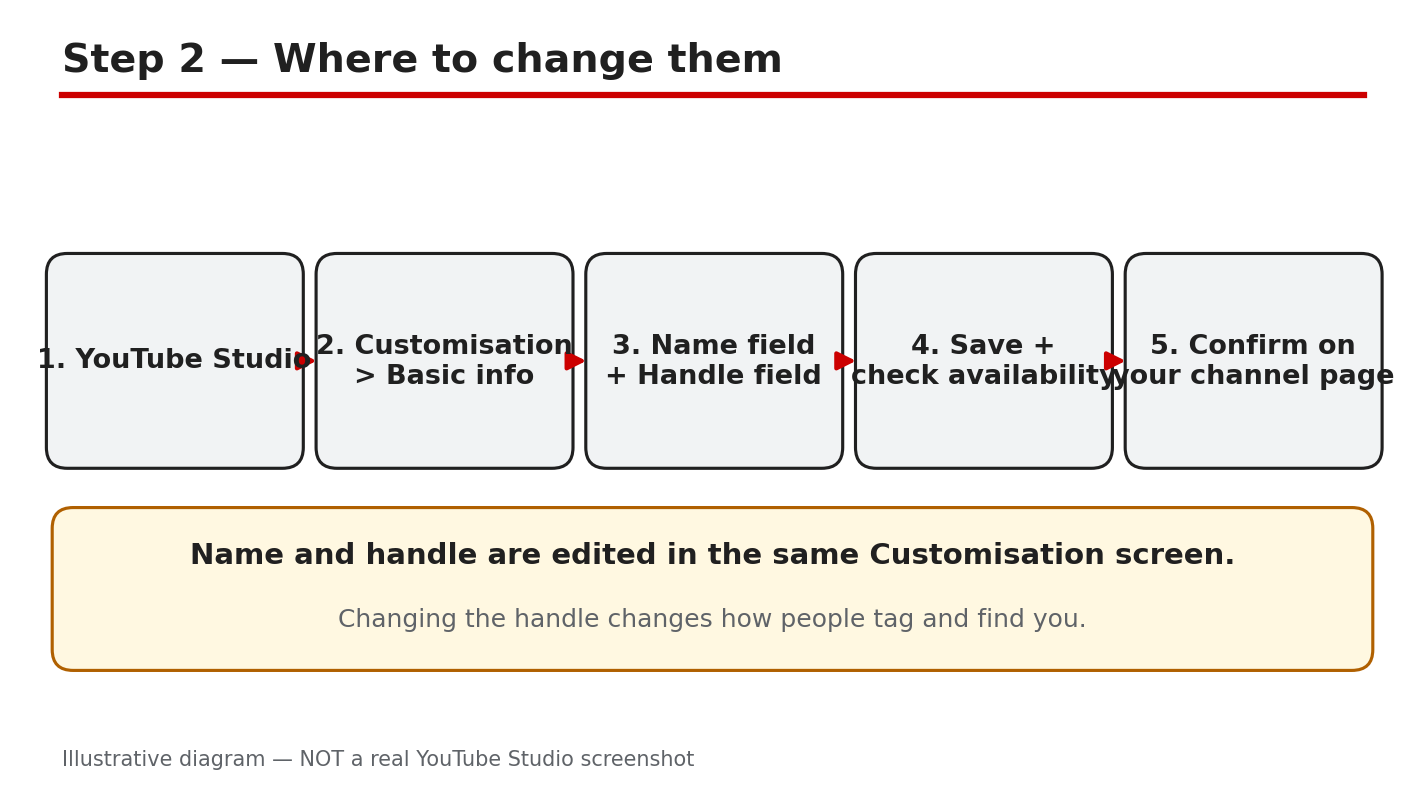
Illustrative diagram/mock-up — NOT a real YouTube Studio screenshot: Customization, Profile, and the PUBLISH button.
Step 3: Check the Handle Rules Before You Choose
What to do: A handle must be 3 to 30 characters long, and it can use letters, numbers, underscores, hyphens, periods, and Latin middle dots. Handles are not case-sensitive, so @MayaCooks and @mayacooks count as the same handle, and a handle cannot look like a web address or a phone number. It must not already be in use, and it must follow the Community Guidelines. YouTube can change, reclaim, or remove a handle that breaks the rules. You can change your handle twice within a 14-day period, and changing your channel name can remove a verification badge, so do not spend both changes on a guess.
Studio path: YouTube Studio > Customization > Profile > Handle. Studio shows whether the handle is available before you publish.
Example: A creator wants @mayacooks, finds it taken, and tries @maya.cooks, which Studio accepts. The periods keep the name readable.
Common mistake: Adding a long string of numbers to a taken handle, such as @mayacooks847291. Nobody can remember it or say it aloud.
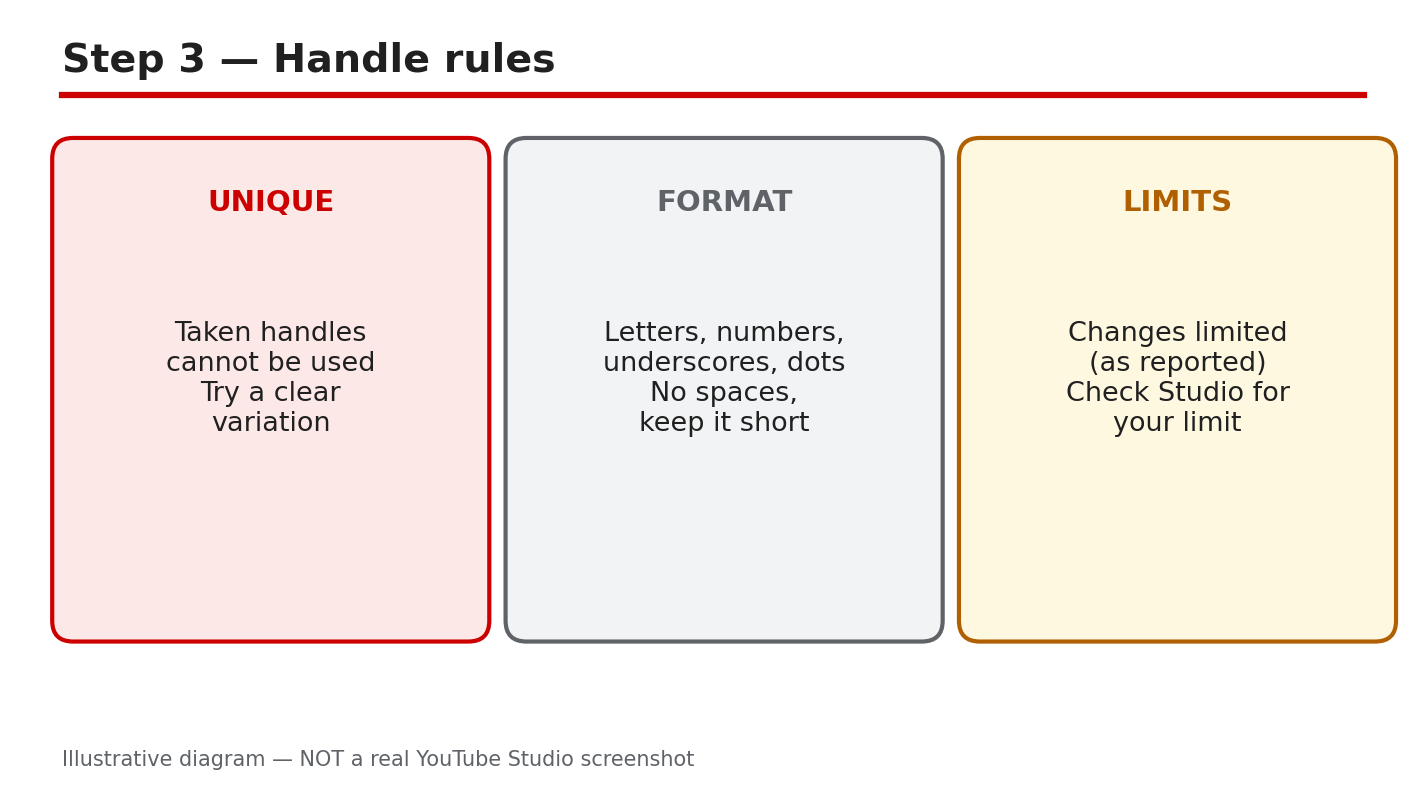
Illustrative diagram/mock-up — NOT a real YouTube Studio screenshot: handle length, allowed characters, and availability checks.
Step 4: Check Four Things Before You Rename
What to do: First, say the name aloud and spell it. If a viewer cannot spell it after hearing it once, it will be hard to search. Second, check the same name on the other platforms you use, so viewers find one identity everywhere. Third, check the handle is free in Studio before you promise it anywhere. Fourth, check old links and mentions, and plan what still points to the old name. Rename once, with a name you can keep.
Studio path: YouTube Studio > Customization > Profile. Type the new handle and watch for the availability message before you click PUBLISH.
Example: A creator picks “Maya Cooks,” checks @maya.cooks is free in Studio, and only then tells viewers. The rename takes one change, not three.
Common mistake: Announcing the new handle in a video before checking it in Studio. If it is taken, viewers reach someone else.
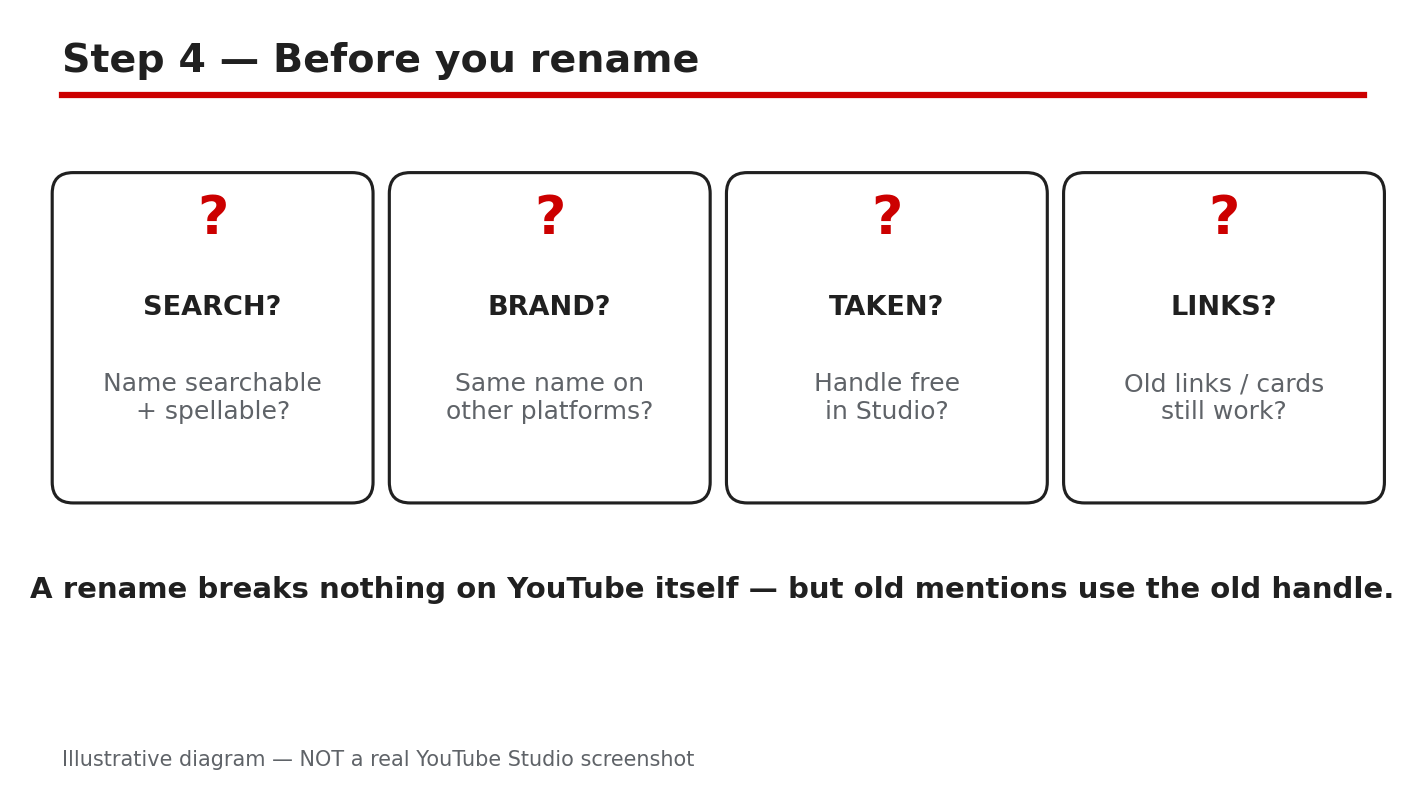
Illustrative diagram/mock-up — NOT a real YouTube Studio screenshot: the four checks before renaming a channel.
Step 5: If the Handle You Want Is Taken
What to do: Add a readable variation, not a random one. A topic word, a city, or the word “official” keeps the handle clear: @mayacooks becomes @maya.cooks, @mayacooksrecipes, or @mayacooks.official. YouTube also suggests trying periods, numbers, or underscores when the exact handle is taken. Never copy a known creator’s name or handle to ride on their audience: impersonation can lead to a strike, and viewers who arrive by mistake will leave. There is no waitlist for a taken handle, so keep creating and check again later.
Studio path: YouTube Studio > Customization > Profile > Handle. Try each variation in the Handle field and read the availability message before publishing.
Example: A creator finds @mayacooks taken and chooses @maya.cooks. The handle still reads as her name, and viewers can say it without spelling out numbers.
Common mistake: Using a famous creator’s name with one letter changed. Viewers feel tricked, and YouTube may treat it as impersonation.
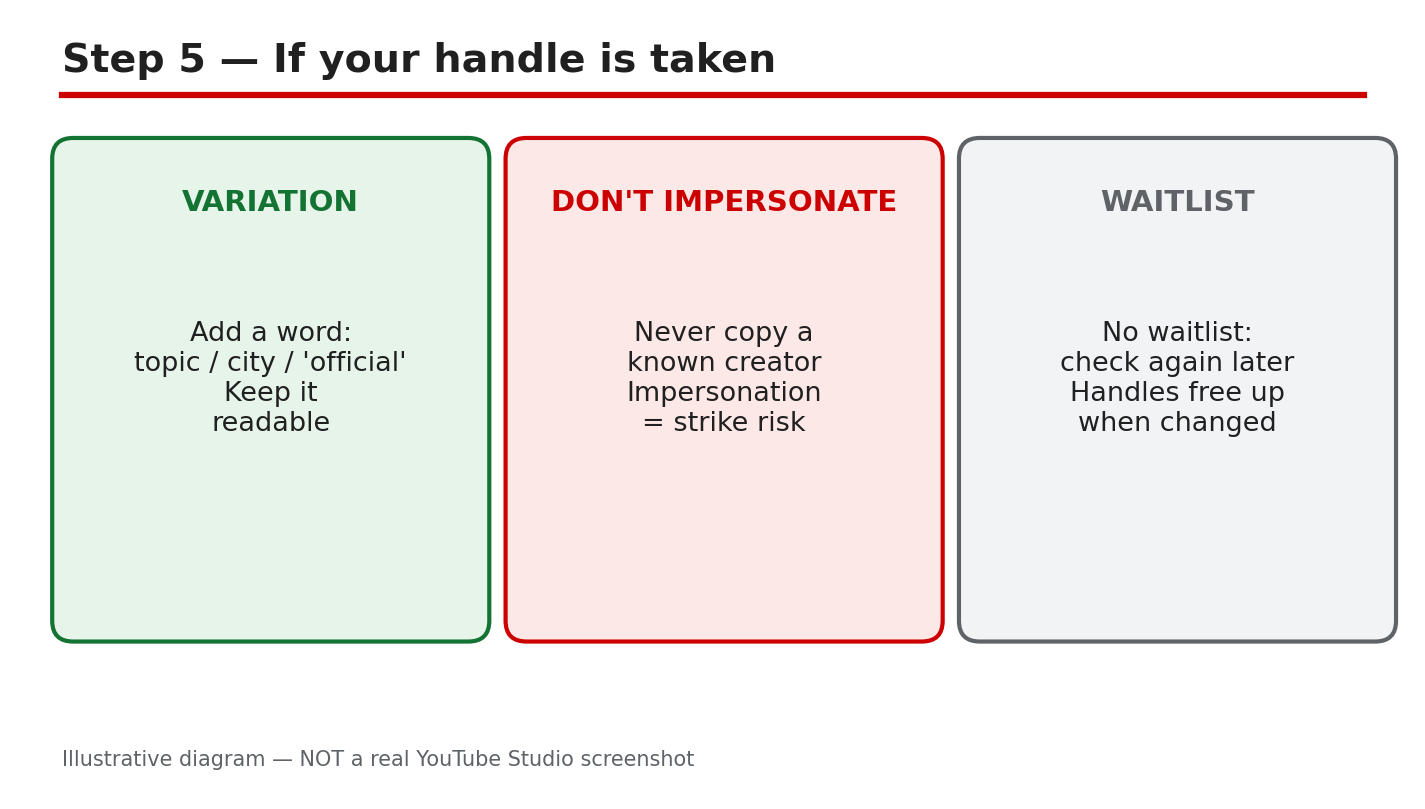
Illustrative diagram/mock-up — NOT a real YouTube Studio screenshot: readable handle variations when the first choice is taken.
Step 6: Roll Out the Rename So Viewers Still Find You
What to do: Change the name and handle in Studio first, then update the banner, the About text, and the links that point to the channel. Announce the change once: a short Community post and one mention in a video are enough. Say the old name, the new name, and the new handle, so viewers who search the old name still understand. Keep the old handle in the About text for a while, so old mentions still make sense. Give viewers time to learn the new name before you judge the change.
Studio path: YouTube Studio > Customization > Profile > PUBLISH. Update the banner, About text, and links afterwards, from the same Customization area.
Example: A creator posts: “Maya Cooks Daily is now Maya Cooks, @maya.cooks.” Viewers who search the old name still find her.
Common mistake: Renaming the channel and saying nothing. Viewers think the channel vanished, and old mentions lead nowhere.
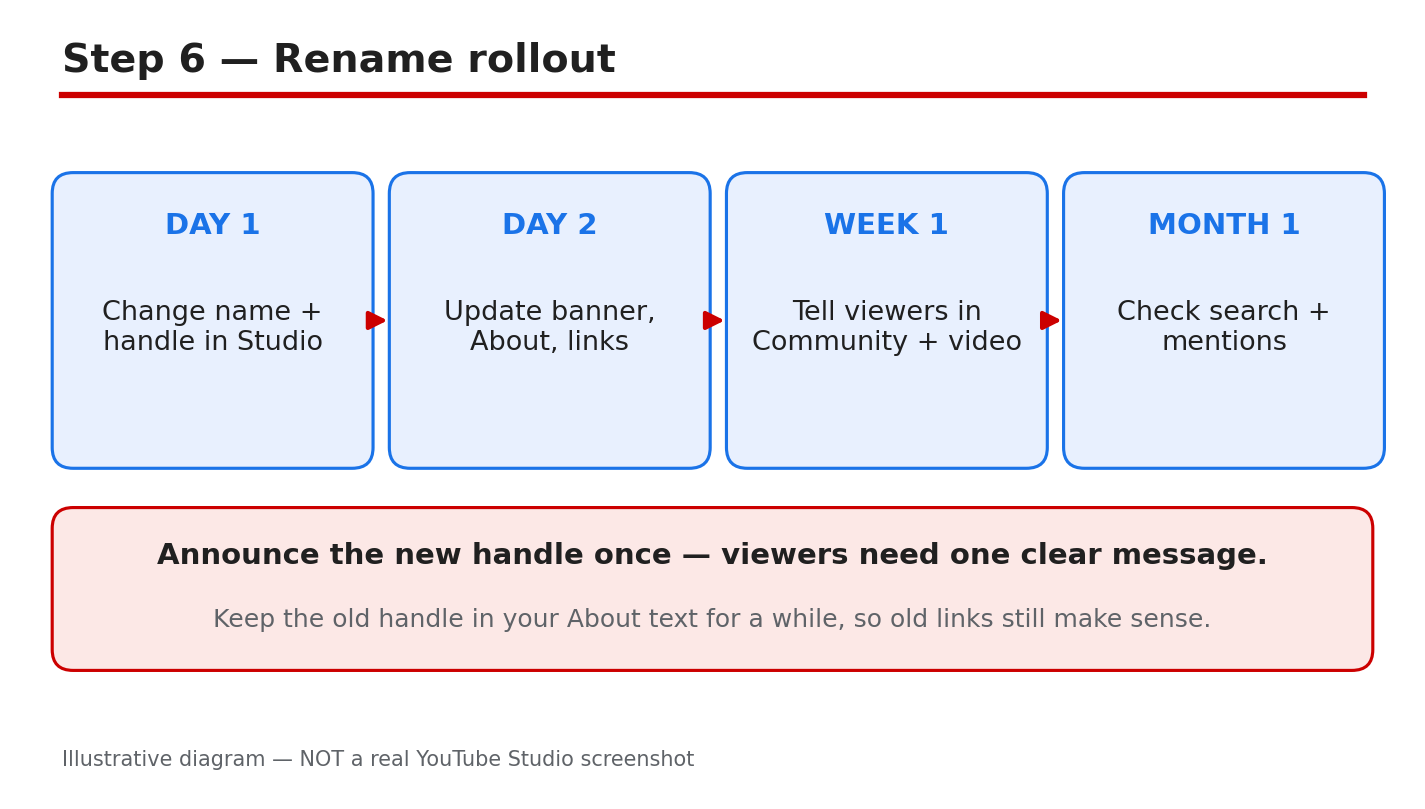
Illustrative diagram/mock-up — NOT a real YouTube Studio screenshot: the rename rollout checklist for banner, About, and links.
Checklist
- Name, handle, and old custom URL told apart.
- Change made under Customization > Profile, saved with PUBLISH.
- Handle checked: length, characters, and availability in Studio.
- Name easy to say, spell, and search.
- Same name checked on other platforms.
- Variation readable, not copied from a known creator.
- Banner, About, and links updated; change announced once.
Frequently Asked Questions
Can I change my handle more than once?
Yes, but only twice within a 14-day period. Use each change carefully, and check the handle in Studio before you publish it.
Why did my verification badge disappear after a rename?
Changing your channel name removes the verification badge. Check the current rules before you rename, and do not rename for a small reason.
What characters can a handle use?
Letters, numbers, underscores, hyphens, periods, and Latin middle dots, 3 to 30 characters. Handles are not case-sensitive, and cannot look like a web address or a phone number.
Is there a waitlist for a taken handle?
No. A taken handle cannot be reserved or requested. Use a readable variation, keep creating, and check again later.
Do old custom URLs still work after a rename?
Legacy personalized URLs can keep working, but viewers need the new name and handle to find you reliably. Update your banner, About text, and links, and announce the change once.
Change once, in the right place, and tell viewers where to find you.
Sources — Check It Yourself
Official pages opened and verified live on 29 October 2026. Check the current wording before acting.
No official YouTube video is embedded here. No exact official video URL was verified live in this run.