YouTube Live Stream Keeps Disconnecting? Stream Health Red? Fix It
 CreatorPlaybook Team
- 29 Oct, 2026
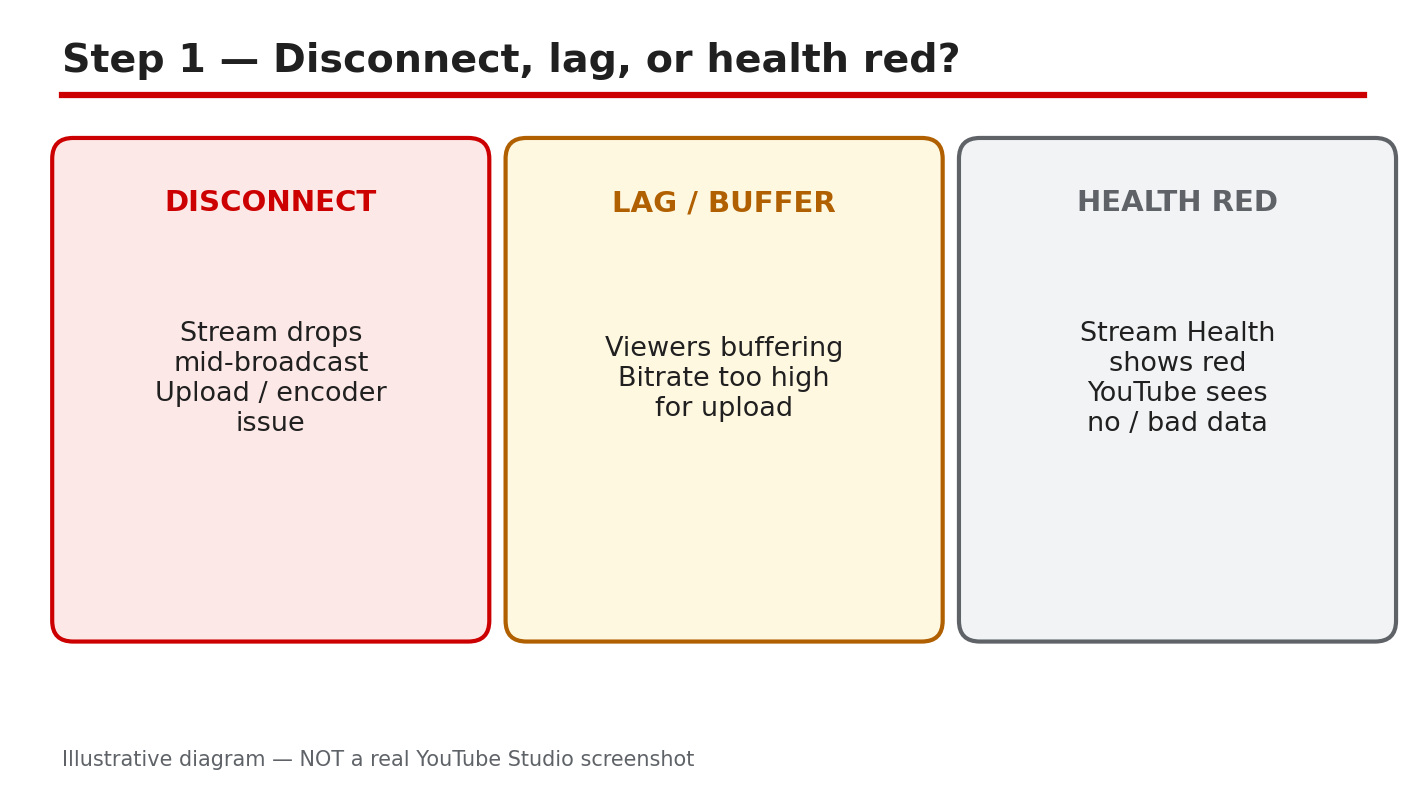
A disconnect can empty a live chat in seconds. The picture freezes, the sound drops, or the stream ends, and viewers leave before you can explain. The cause is often the connection between your encoder and YouTube, not your video idea. A bitrate too high for your upload speed, unstable Wi-Fi, or an overloaded device can each break the stream.
This guide helps you tell a disconnect, lag, and a red Stream Health panel apart, check the health panel and your upload speed, and set a bitrate your connection can carry. You will test before you go live, keep a safe copy of your stream key, and learn what to do when the stream drops without ending it early.
Bitrates in this guide are the Help page’s recommendations for the resolution and frame rate you choose, not fixed rules for every connection. If your upload speed cannot carry the recommended bitrate, use a lower resolution or frame rate first, and let stability beat sharpness.
What You Will Learn
By the end, you will be able to:
- Tell a disconnect, lag, and red Stream Health apart.
- Read the Stream Health panel and test your upload speed.
- Match your bitrate to the Help page recommendations and your upload.
- Run pre-stream checks, including a safe stream key.
- Act calmly during a disconnect without ending the stream early.
- Build a stable-stream plan and record locally too.
Step 1: Name the problem you see
What to do: Name what viewers see before you change any setting. A disconnect means the stream drops or ends. Lag or buffering means the picture stutters while the stream stays live, often because the bitrate is too high for the upload speed. A red Stream Health panel means YouTube is receiving no data or poor-quality data, even if your own screen looks fine.
Studio path: YouTube Studio > Create > Go Live > Stream. Watch the Stream Health panel and your encoder together, so you can match the sign to the panel.
Example: Nina’s viewers see buffering, but her stream stays live. She treats it as lag from a high bitrate, not a disconnect, and lowers the bitrate instead of ending the stream.
Common mistake: Ending the stream at the first freeze. A short freeze can be lag, and ending the stream loses the viewers who were still watching.
Illustrative diagram, not a real screenshot: disconnect, lag, and Stream Health red.
Step 2: Check Stream Health and your speed
What to do: Open the Stream Health panel and read the bitrate and frame drops it shows. Then run a connection speed test on the same device and network you will stream from, and write down the upload speed. Compare the two: if the panel shows drops while the upload speed is low, the connection, not the content, is the first suspect.
Studio path: YouTube Studio > Create > Go Live > Stream > Stream Health panel. Keep the panel open while you test, so you can see changes as you make them.
Example: Omar’s panel shows frame drops and his upload test reads 4 Mbps. He knows a high-resolution bitrate will not fit, so he plans a lower resolution before he goes live.
Common mistake: Checking speed on your phone while streaming from a PC. Test the device and network you will actually use.
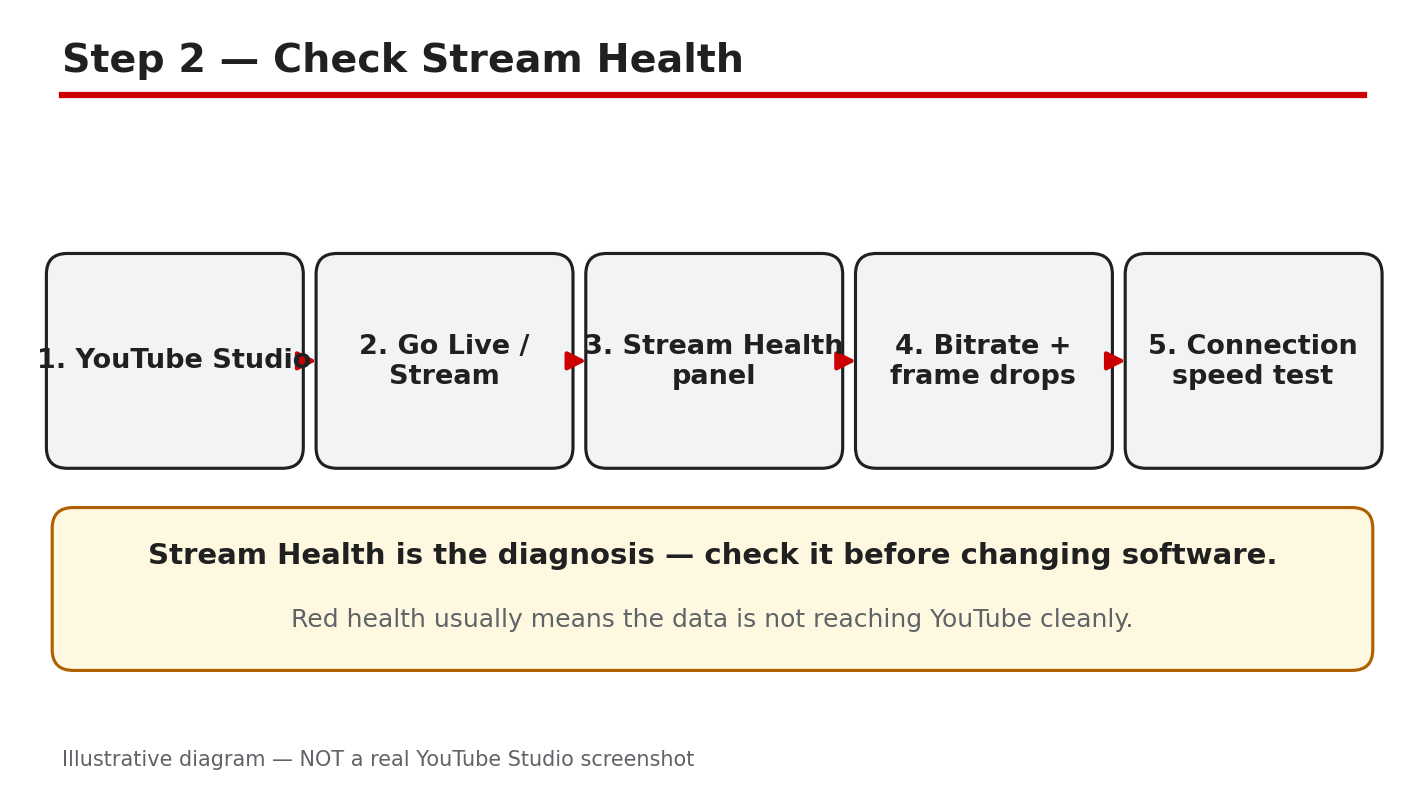
Illustrative diagram, not a real screenshot: Stream Health panel and speed test.
Step 3: Find the usual causes
What to do: Compare your settings with the Help page’s recommended bitrate ranges, and treat them as recommendations, not fixed rules. The page recommends, for H.264 video: 720p at 30 frames per second, minimum 3 Mbps and recommended 8 Mbps; 1080p at 30 frames per second, minimum 5 Mbps and recommended 14 Mbps; and 1080p at 60 frames per second, minimum 6 Mbps and recommended 17 Mbps. Higher resolutions need higher ranges. If your upload speed cannot carry the range for the resolution you chose, lower the resolution or frame rate. Also check for unstable Wi-Fi and an overloaded PC or phone.
Studio path: Your encoder settings for bitrate, resolution, and frame rate, checked against the Help page linked in Sources and the Stream Health panel.
Example: Lee streams at 1080p and 60 frames per second, but his upload speed is 8 Mbps. He drops to 720p at 30 frames per second and the drops stop.
Common mistake: Choosing 4K because the camera can shoot it. The stream needs upload speed to match, not only a camera that can record 4K.
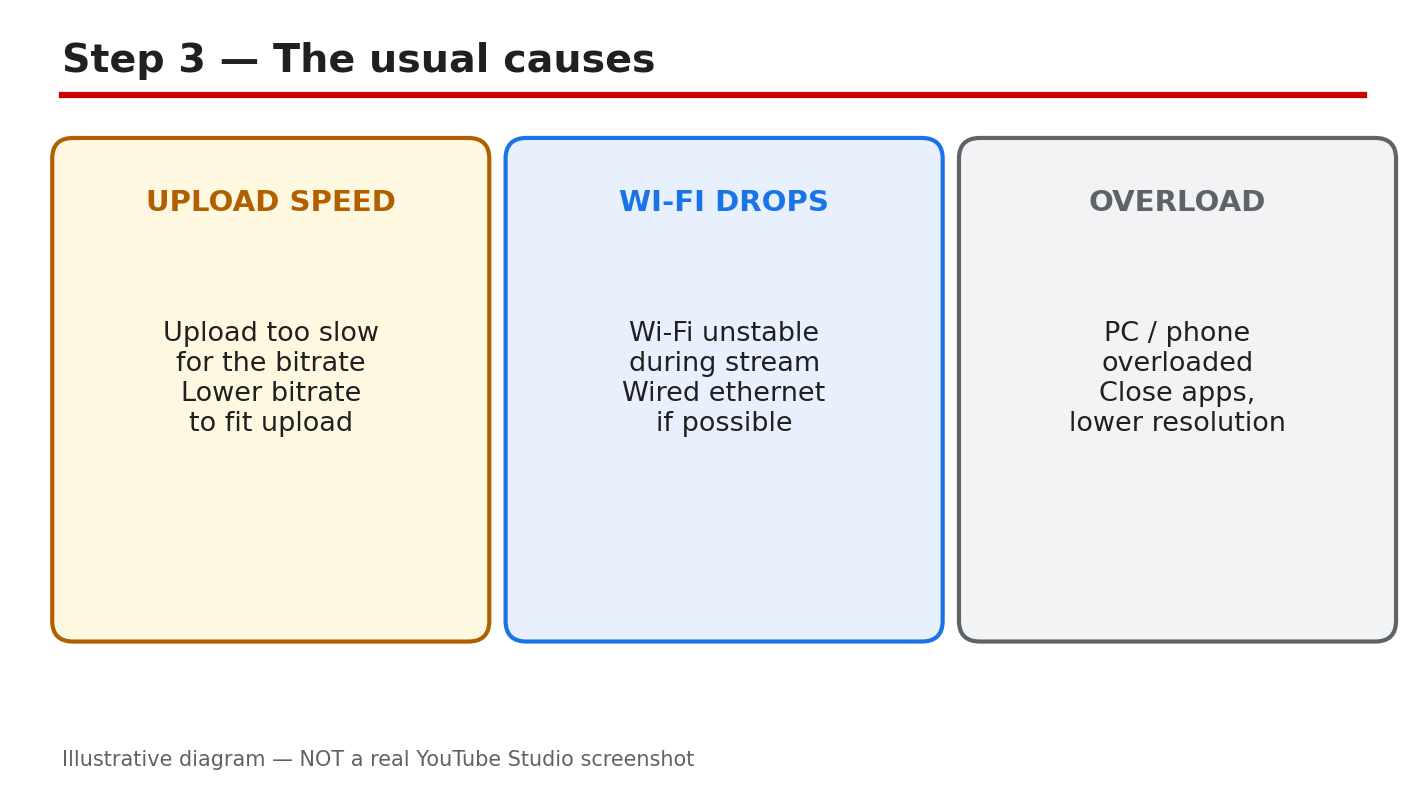
Illustrative diagram, not a real screenshot: bitrate, Wi-Fi, and overloaded device.
Step 4: Run the pre-stream checks
What to do: Test before you go live, including audio and movement, as the Help page advises. Check your upload speed, set the bitrate to fit it, use wired ethernet or strong Wi-Fi close to the router, and close apps that load the PC or phone. Copy the stream key from the Stream tab and save it safely. Never share it in chat, on screen, or in a screenshot.
Studio path: YouTube Studio > Create > Go Live > Stream. Copy the stream key, set the encoder to fit your upload speed, and run a short private test first.
Example: Ana tests for five minutes with music and walking around the room. Her panel stays green, so she knows the settings fit before viewers arrive.
Common mistake: Showing the stream key on screen while setting up. Cover the key, and never post a screenshot that shows it.
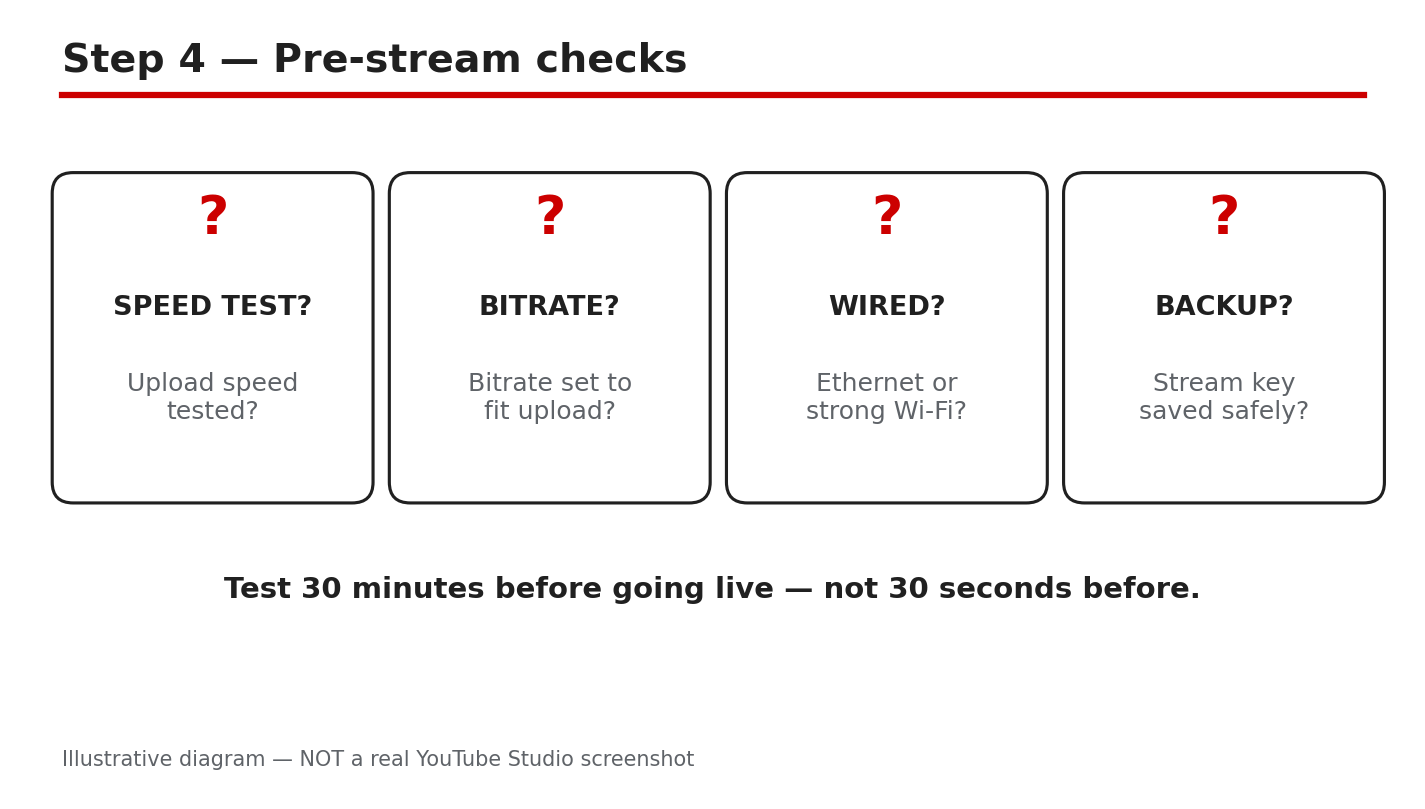
Illustrative diagram, not a real screenshot: pre-stream checks and stream key safety.
Step 5: What to do during a disconnect
What to do: Stay calm and keep talking if your audio is still live. Let the encoder try to reconnect on its own, and do not end the stream early for a short drop. If your encoder lets you change settings live, lower the bitrate or resolution to a level your upload can carry. Stability beats sharpness: a steady, softer picture keeps viewers longer than a sharp picture that keeps freezing.
Studio path: Your encoder and the Stream Health panel. Watch the panel while you lower the bitrate, and wait for it to turn green before you raise settings again.
Example: Sam’s picture freezes for ten seconds, but his audio stays live. He keeps talking, lowers his bitrate, and the picture returns without ending the stream.
Common mistake: Ending and restarting the stream again and again. Each restart splits the audience and the chat, and the same bitrate problem returns.
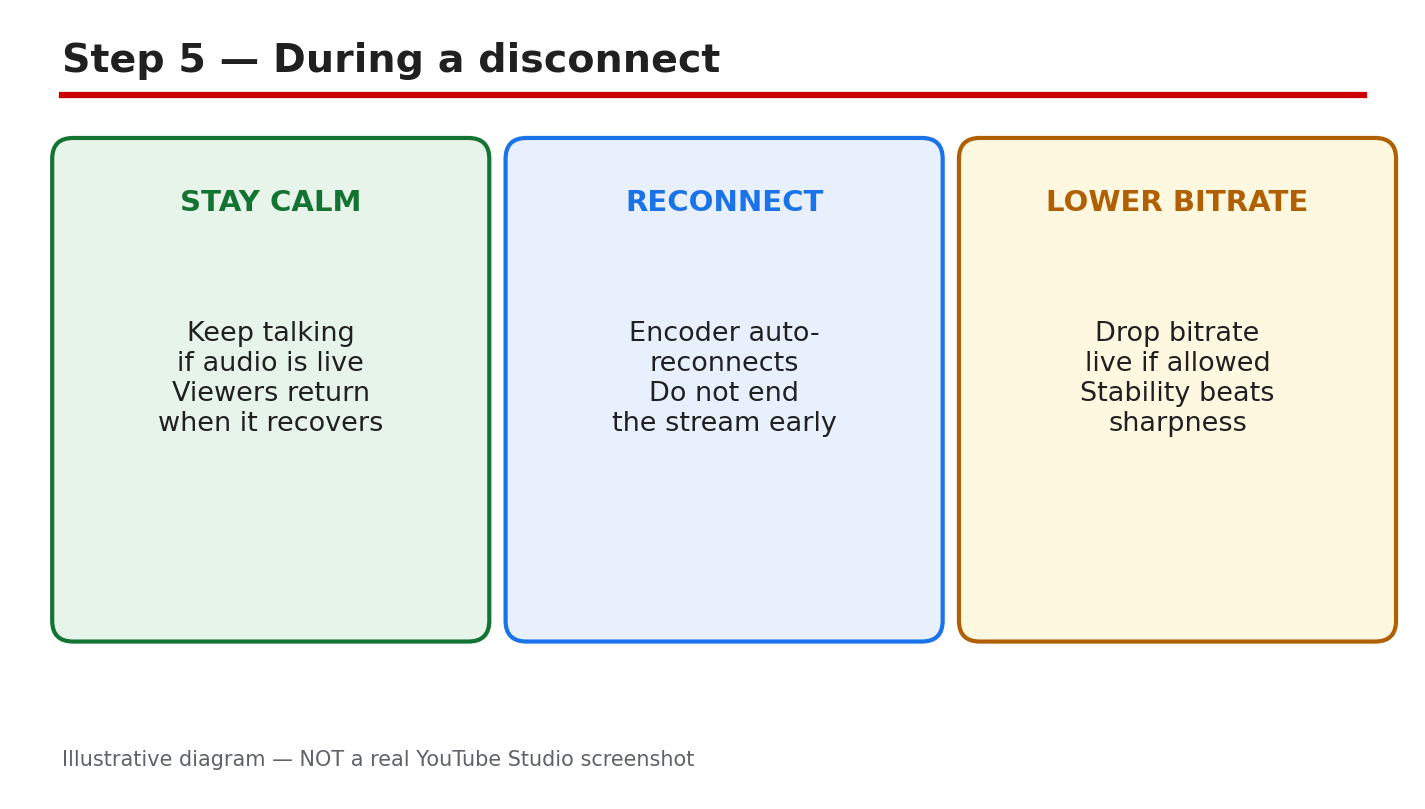
Illustrative diagram, not a real screenshot: keep talking, reconnect, lower bitrate.
Step 6: Build a stable-stream plan
What to do: Write down the settings that worked: resolution, frame rate, bitrate, connection type, and device. Use those settings as your starting point for the next stream, and change only one thing at a time when you test a higher quality. Record locally too, so a disconnect does not lose the whole show.
Studio path: YouTube Studio > Create > Go Live > Stream for the next stream, with your written settings and a local recording running.
Example: Mia writes down 720p, 30 frames per second, and wired ethernet. Her next stream uses the same settings, records locally, and stays stable.
Common mistake: Raising every setting for a big event. A special stream is the worst time to test a bitrate your connection has never carried.
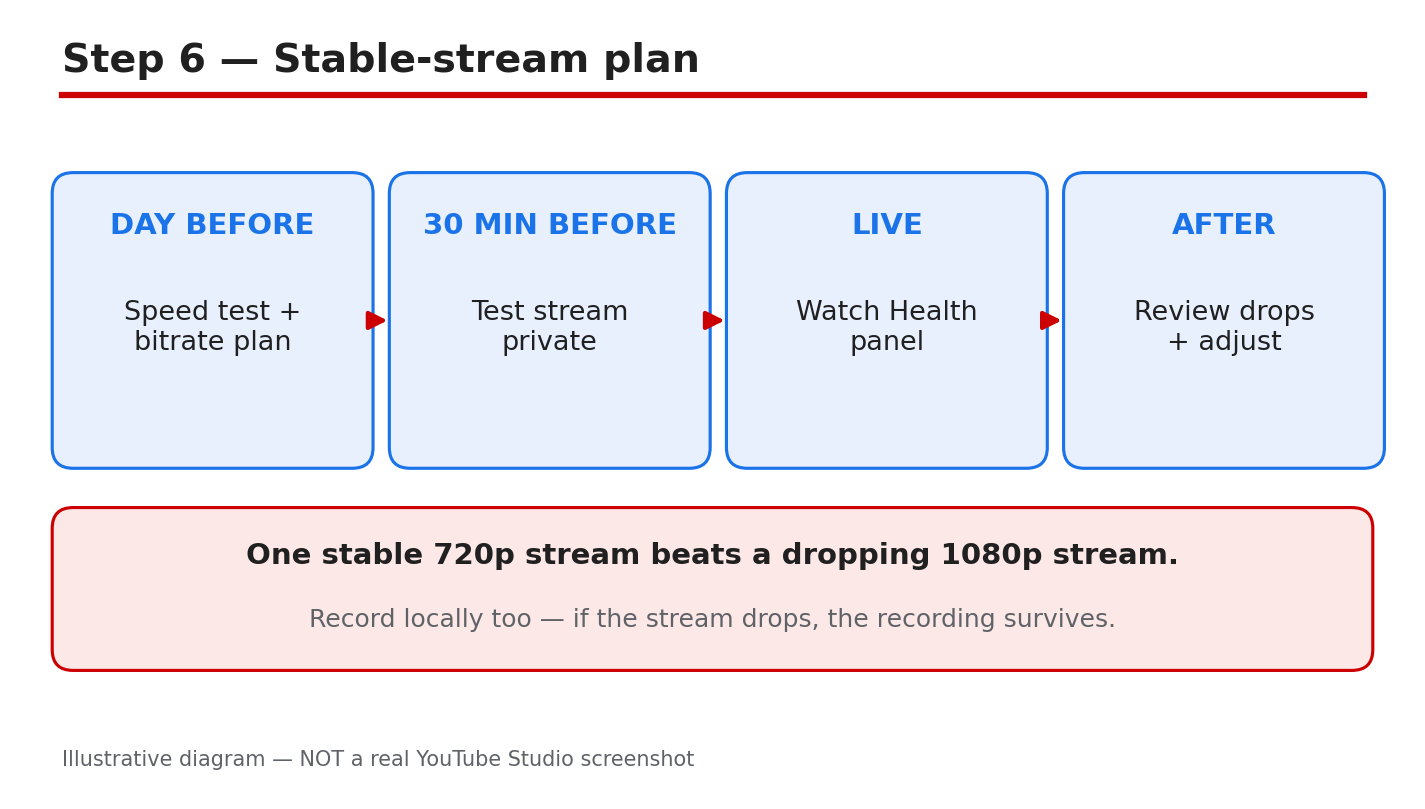
Illustrative diagram, not a real screenshot: written settings and local recording.
Checklist: Before you go live
Tick each item before you press Go Live.
- I have named the problem: disconnect, lag, or Stream Health red.
- I have checked the Stream Health panel and my upload speed.
- My bitrate fits my upload speed for the resolution I chose.
- I use wired ethernet or strong Wi-Fi.
- My stream key is saved safely and never shared.
- I record locally too, in case the stream drops.
Frequently Asked Questions
Why does my stream disconnect at the same time each day?
A pattern can point to a network cause, such as others using the same Wi-Fi at that time. Test at that time, check the panel, and try wired ethernet or a lower bitrate.
What bitrate should I use for 1080p?
The Help page recommends, for H.264 video, a minimum of 5 Mbps and a recommended 14 Mbps at 30 frames per second, and a minimum of 6 Mbps and a recommended 17 Mbps at 60 frames per second. If your upload cannot carry that range, use 720p instead.
Is red Stream Health always my fault?
Not always. A red panel means YouTube is receiving no data or poor-quality data, usually from the connection or encoder. Check your panel, speed, and encoder first.
Should I end the stream when it disconnects?
No, not for a short drop. Keep talking if audio is live, let the encoder reconnect, and lower the bitrate if you can. End the stream only if it will not reconnect and the panel stays red.
Do I need to be 16 to live stream?
The Help page says you must be at least 16 to live stream, with a verified channel and no live-streaming restrictions in the past 90 days.
Sources — Check It Yourself
Check the official pages below before your next stream. No official YouTube video is embedded in this post, because no exact official video was verified live in this run.