YouTube Monetization Paused vs Disabled vs Rejected: What Each Means and What to Do
 CreatorPlaybook Team
- 31 Oct, 2026
One morning you open YouTube Studio and the Earn tab says something changed. Your monetization is paused, disabled, or your application was rejected. Three different words, three different problems, and treating them as the same thing wastes weeks. As reported, the exact wording in the Earn tab governs what happens next: a pause can often be fixed quickly, a suspension has an appeal window, and a rejection has a waiting period before you can apply again. This guide explains each state, the timelines as reported, and the exact steps to fix the cause and get back to earning.
What You Will Learn
In this guide you will learn how to tell paused, disabled, and rejected apart, what each state means for your channel, the appeal and reapplication windows as reported, how to fix the most common causes, and how to keep your monetization from stopping again.
Step 1 - Read the Exact Wording in the Earn Tab
What to do: Open YouTube Studio, go to the Earn tab, and read the exact message before you do anything else.
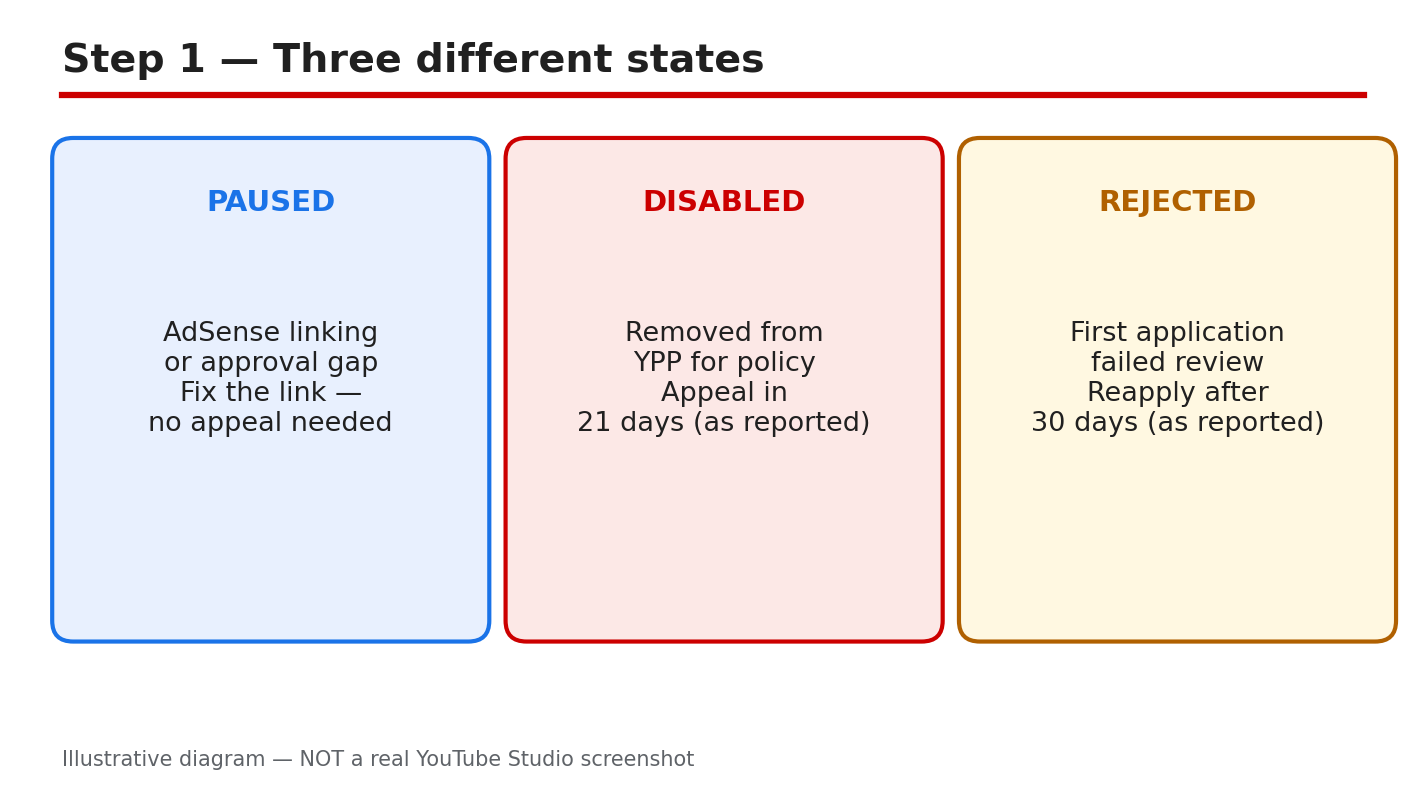
How: The Earn tab shows your current status in plain words: paused, suspended, or an application decision. Screenshot or copy the message, and check the email YouTube sent you, because it names the reason and the deadline. Do not rely on what a creator forum says your state means. As reported, the wording on your own account governs: the same word can mean different things on different channels, and the instructions in your email are the ones that apply to you.
Example: A creator saw ‘monetization paused’ and assumed she was suspended. The Earn tab said her payment details were incomplete, and updating them fixed it the same day.
Common mistake: Guessing your status from a thumbnail or a video title. Read the Earn tab and your email, not a stranger’s post.
Illustrative diagram (mock-up, not a real YouTube Studio screenshot): paused, disabled, and rejected are three different states.
Step 2 - Paused: What It Means and How to Fix It
What to do: If monetization is paused, look for the reason listed in the Earn tab and fix that one thing first.
How: A pause is usually temporary. As reported, common reasons include a pending identity or payment verification, a temporary hold while YouTube reviews your account, or a setting that needs your attention. The Earn tab usually tells you what is missing. Complete the verification, update the payment details, or confirm the setting, then check the tab again. If nothing is listed, check your email for a message from YouTube that names the next step.
Example: A creator’s monetization paused during a payment review. She updated her tax information, and monetization resumed within a few days.
Common mistake: Waiting for the pause to lift on its own. A pause usually needs an action from you, and it will not clear until you take it.
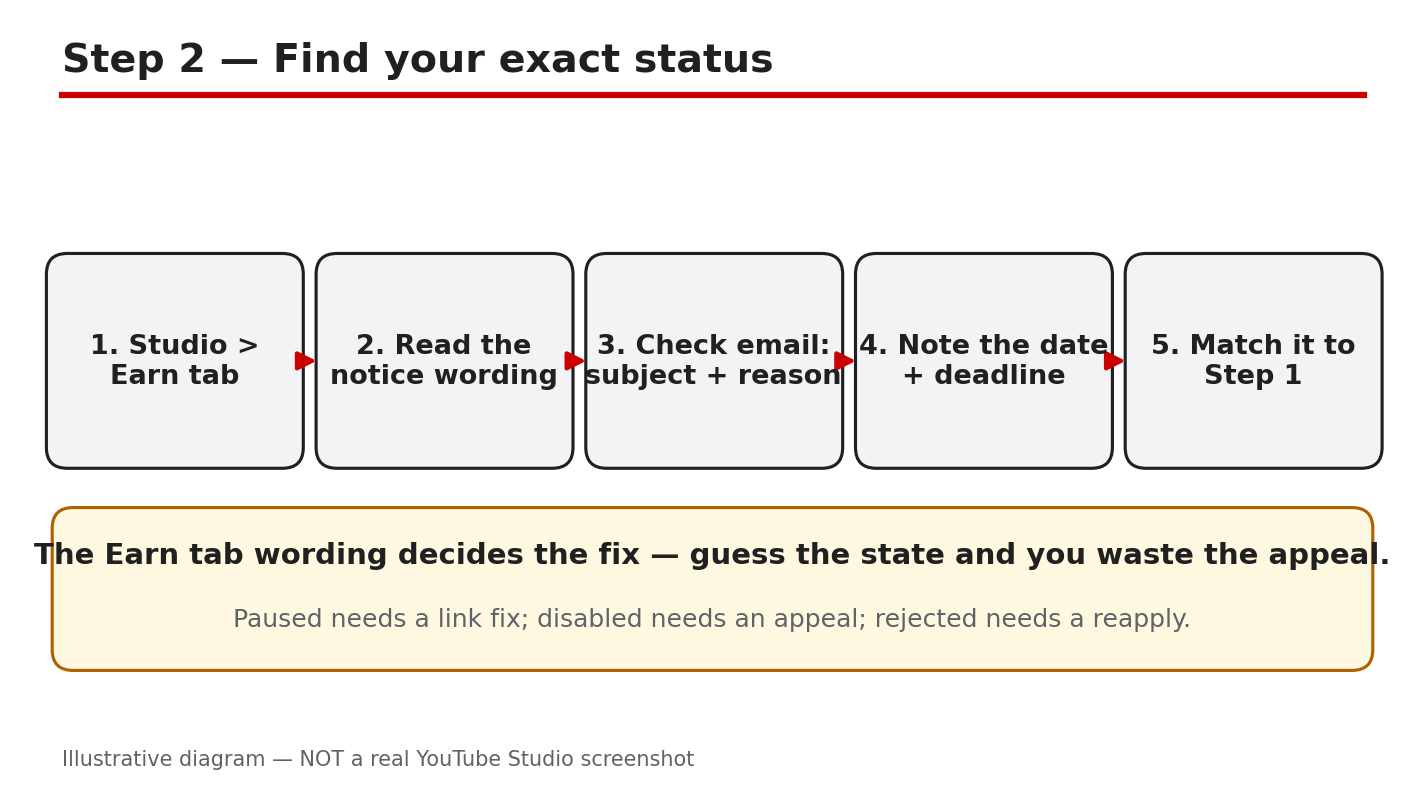
Illustrative diagram (mock-up, not a real YouTube Studio screenshot): a pause usually has a fix you can complete.
Step 3 - Disabled: Suspension and the 21-Day Appeal
What to do: If your channel is suspended from the Partner Program, appeal within 21 days of the suspension.
How: As reported, YouTube Help says you can appeal a suspension within 21 days, and you should receive a response within 14 days. Open the appeal form linked in the Earn tab or your email, explain what happened, and show what you changed. If the suspension was scheduled in advance, as reported, you can appeal within 7 days before the scheduled date. Do not wait: after the window closes, the appeal option is gone. If your appeal succeeds, as reported, you may be re-approved or re-admitted within 30 days.
Example: A channel was suspended for reused content. The creator appealed within a week, showed the new original videos, and the appeal was accepted.
Common mistake: Appealing with no changes. An appeal needs evidence that the cause is fixed, not just a request to be reinstated.
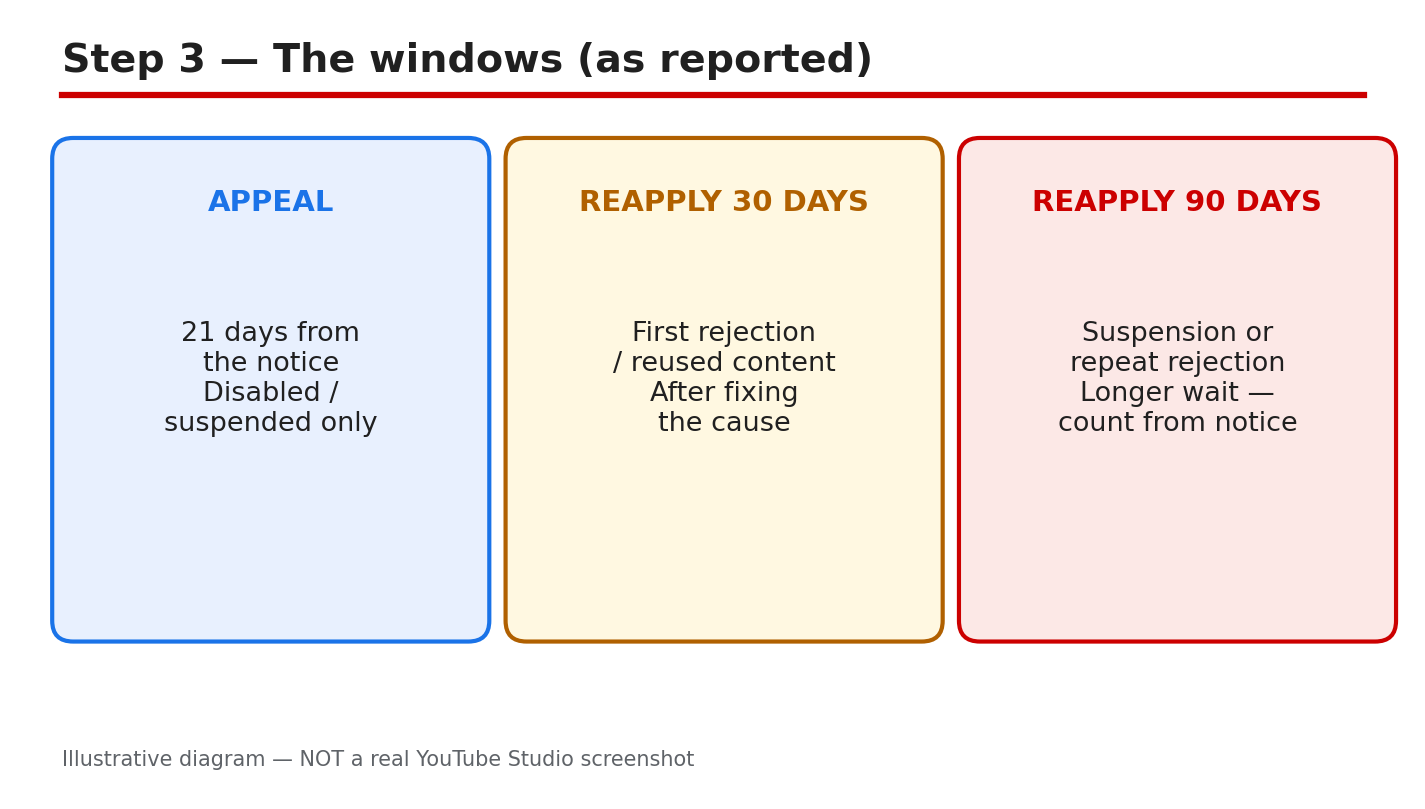
Illustrative diagram (mock-up, not a real YouTube Studio screenshot): appeal a suspension within 21 days, as reported.
Step 4 - Rejected: The Application Was Turned Down
What to do: If your first application is rejected, check whether to appeal within 21 days or reapply after 30 days, as reported.
How: As reported, a first unsuccessful application can be appealed within 21 days, or you can re-apply after a 30-day period. If the rejection is not your first, or you have already reapplied once, as reported, the waiting period is 90 days. Do not apply again before the period ends, because an early application can be rejected again. Use the wait to fix the reason named in the decision, usually reused or inauthentic content, and rebuild the channel with original videos.
Example: A creator was rejected for reused content on her first application. She replaced the reused clips with her own recorded segments, waited 30 days, and was accepted on her next application.
Common mistake: Reapplying the next day with nothing changed. The same videos will get the same result, and the wait starts over.
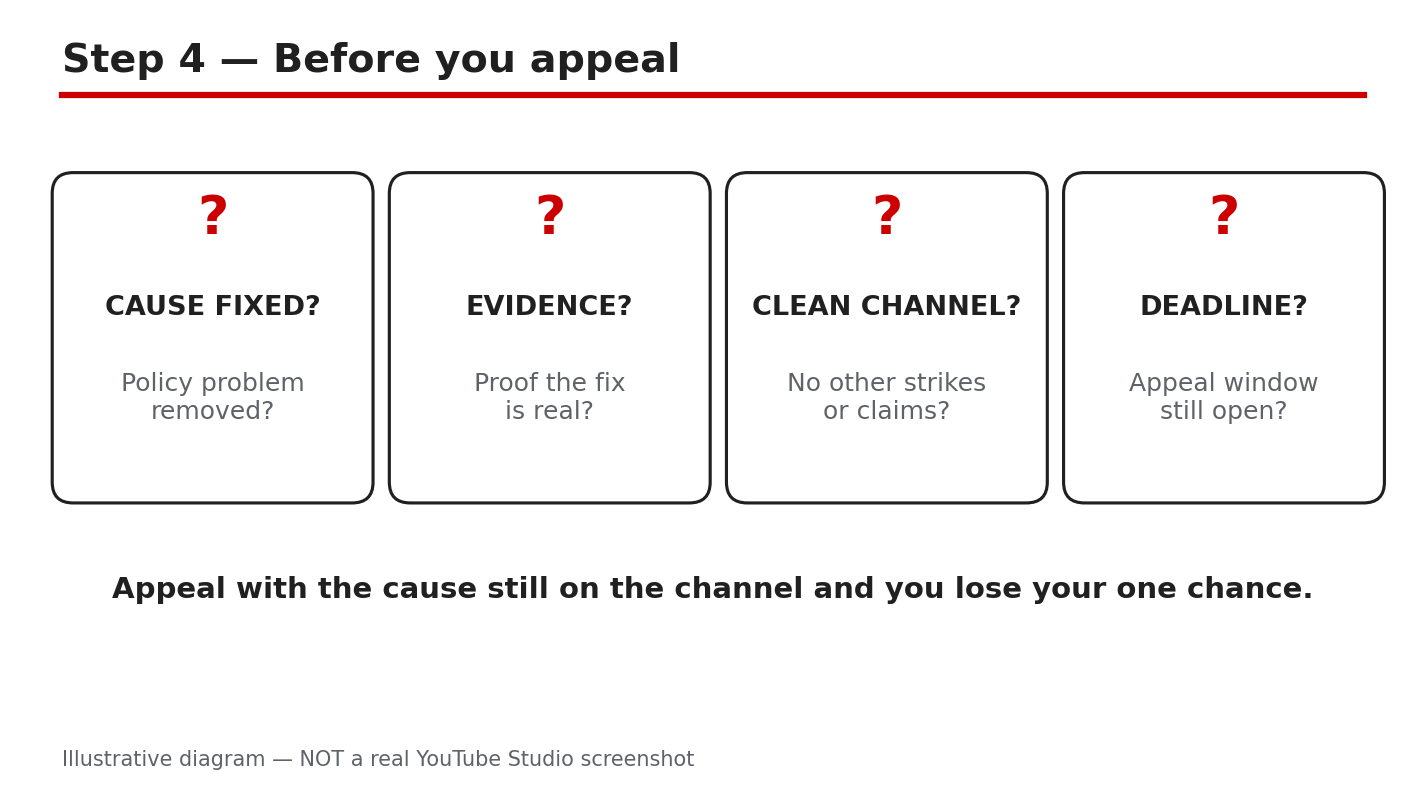
Illustrative diagram (mock-up, not a real YouTube Studio screenshot): first rejection means 30 days, a repeat means 90, as reported.
Step 5 - Fix the Cause Before You Appeal or Reapply
What to do: Find the reason named in your message, and fix it in the channel before you send an appeal or a new application.
How: The most common reasons are reused content, inauthentic or mass-produced content, and invalid traffic. Delete or re-record videos that reuse other creators’ work without your own value added, and stop using content that is copied or mass-produced. Check your traffic sources for bought views, revoke access for shady third-party apps, and secure your account. Our guide on how to fix a rejected monetization application walks through the reused-content fixes step by step.
Example: A creator’s channel was full of clips taken from other videos. He deleted the clips, recorded his own commentary, and published five original videos before reapplying.
Common mistake: Fixing one video and leaving ten others the same. Reviewers look at the whole channel, so every video that breaks the rules counts.
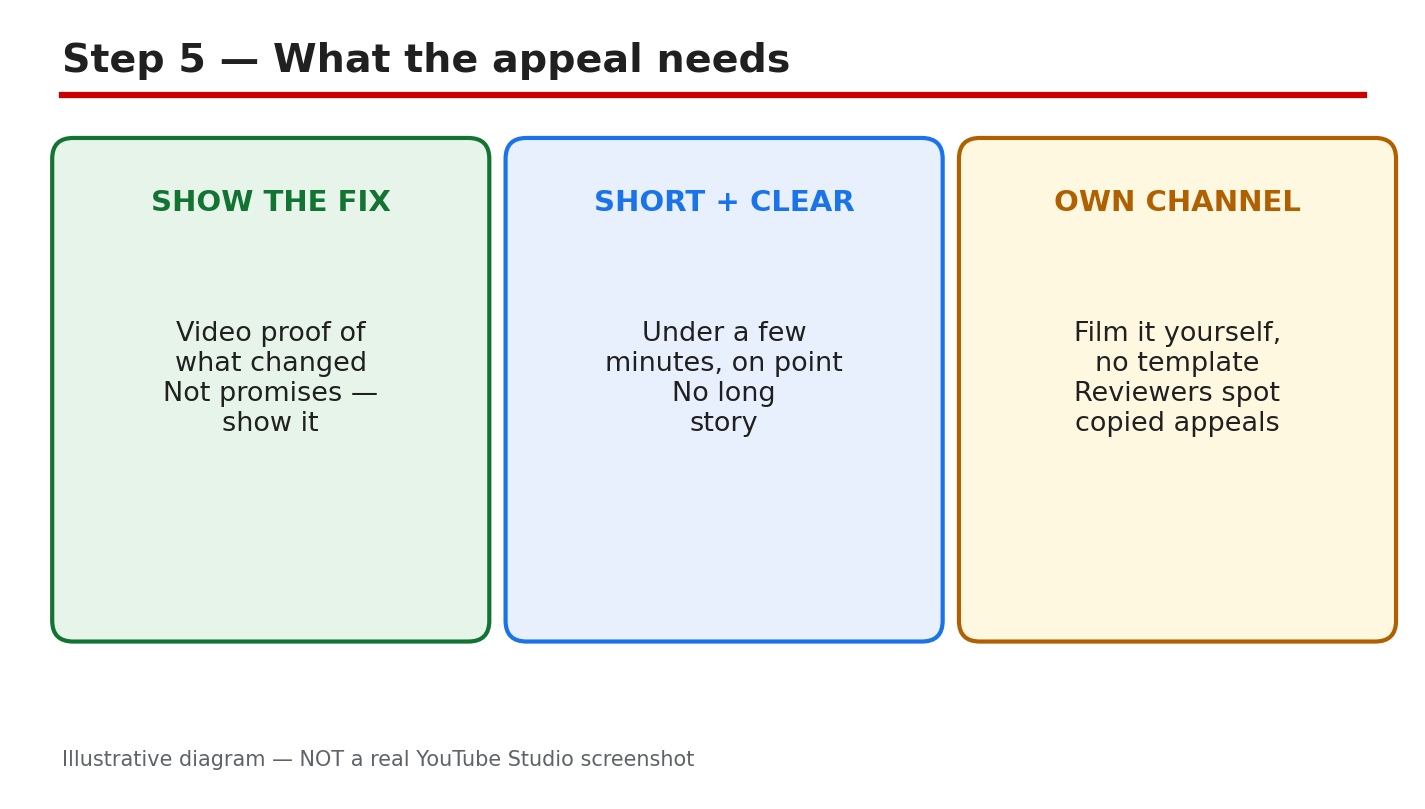
Illustrative diagram (mock-up, not a real YouTube Studio screenshot): fix the cause in every video, not just one.
Step 6 - Reapply and Keep Monetization Safe
What to do: When the waiting period ends, reapply with a clean channel, then keep it that way with a monthly check.
How: Apply only when the cause is fixed and you have published original videos that show it. After you are accepted, keep your channel safe: publish original work, do not buy views or subscribers, and check the Earn tab and your email every month. Our guide on how to get monetized on YouTube explains the eligibility steps and what reviewers look for.
Example: A creator reapplied after fixing her reused-content videos, was accepted, and now reviews her Earn tab on the first day of every month.
Common mistake: Going back to the same habits after acceptance. Monetization can be paused or disabled again, and a second suspension has a longer path back.
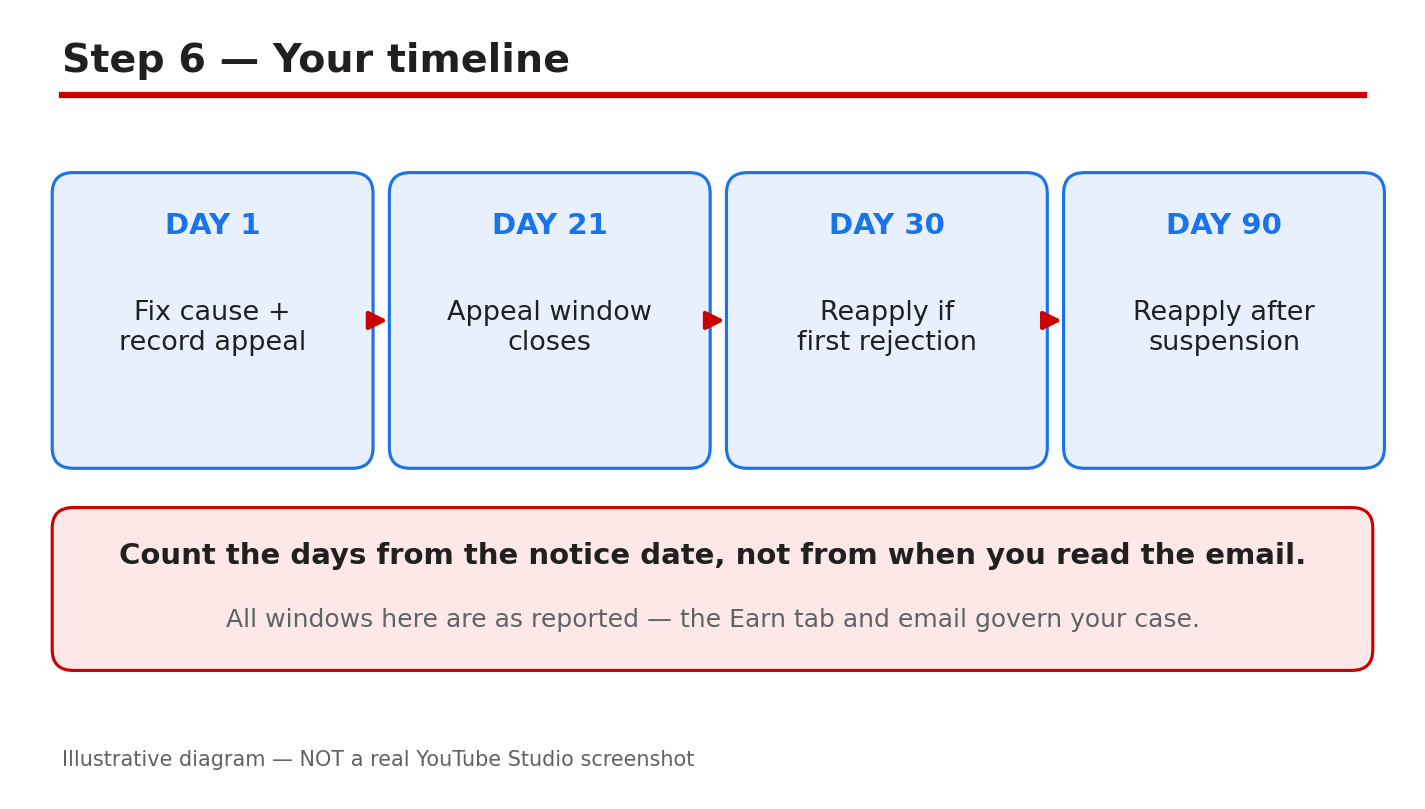
Illustrative diagram (mock-up, not a real YouTube Studio screenshot): reapply clean, then protect your monetization every month.
Your Monetization Status Checklist
- Earn tab message and email read before acting.
- State identified: paused, disabled, or rejected.
- Appeal sent within 21 days, if a suspension.
- Waiting period respected: 30 days first, 90 days repeat, as reported.
- Cause fixed across the whole channel.
Frequently Asked Questions
What does it mean when YouTube monetization is paused? It usually means YouTube needs something from you, such as a verification or updated payment details. Check the Earn tab for the exact reason.
How long do I have to appeal a suspension? As reported, you have 21 days from the suspension, and you should receive a response within 14 days.
How long must I wait after a rejected application? As reported, 30 days after a first rejection, and 90 days after a suspension or a repeat rejection. Check the exact window in the Earn tab or your email.
Can I appeal if my suspension was announced in advance? As reported, you can appeal within 7 days before the scheduled suspension date. Check the exact window in the Earn tab or your email.
Sources
- YouTube Help, Appeal a YouTube Partner Program suspension or rejection: support.google.com/youtube/answer/9564590 (verified live 31 October 2026).
- CreatorPlaybook, YouTube Monetization Rejected? How to Fix Reused Content and Appeal the Right Way: creatorplaybook.blogspot.com/2026/10/youtube-monetization-rejected-how-to.html
- CreatorPlaybook, How to Get Monetized on YouTube in India: Approval Steps That Actually Work: creatorplaybook.blogspot.com/2026/10/how-to-get-monetized-on-youtube-in.html