YouTube Partner Program 2027 Terms: What to Accept by 31 January 2027
 CreatorPlaybook Team
- 29 Oct, 2026
If you earn from YouTube, or plan to, a set of new Partner Program terms is coming, and the date to know is 31 January 2027. Reports say YouTube is asking creators to review and accept updated monetization terms, split into separate modules, and that earnings from any module you have not accepted could stop from 1 February 2027. This guide explains what to check in your own Earn tab, what the reported changes mean, and what to do before you tap accept. Do not rely on a screenshot or a summary alone: the deadline and the modules shown in YOUR Earn tab are the ones that apply to you.
The important caution first. The new entry figures in Step 3 are reported by secondary sources, not verified from YouTube’s official announcement during this guide’s preparation. The official YouTube Help pages checked while preparing this guide showed a notice that Partner Program updates start on 1 February 2027, while the eligibility wording then visible still listed the older thresholds. Treat every new figure here as reported, and confirm it in your Earn tab and in the official terms before you act on it.
Related reading: YouTube Monetization and the Partner Program Explained.
What You Will Learn
- The three monetization modules YouTube shows in Studio, and what each one covers.
- How to review and accept each module in the Earn tab, and where your deadline is shown.
- The reported new entry bar for new applicants, and why it is still unconfirmed here.
- What to check before you accept: terms, modules, country eligibility, and AdSense.
- What reports say happens if a module stays unsigned after 1 February 2027.
- A simple December-to-January plan for reading, accepting, and confirming.
Step 1: Know the Three Modules
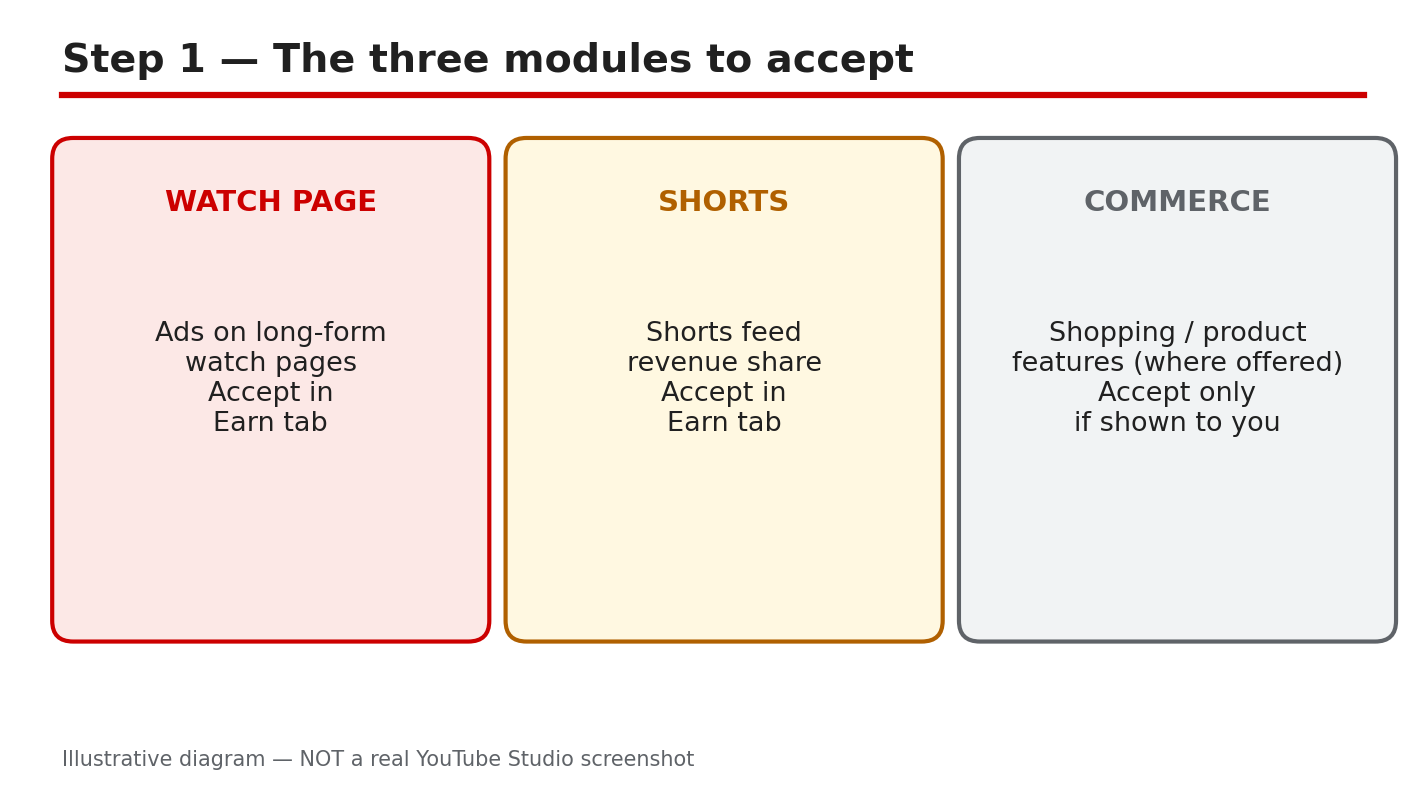
What to do: Open YouTube Studio and look at the Earn tab as a set of separate agreements, not one switch. The official Help pages and reports describe three modules: Watch Page Monetization, which covers ads on watch pages and related revenue; Shorts Monetization, which covers Shorts feed ads and the Creator Pool revenue share; and Commerce Product, where shown, which covers shopping and product features. Not every channel sees every module, and the list you see depends on your country and your current status. Your job in this step is only to list what YOUR Earn tab shows, module by module, before you accept anything.
Studio path: YouTube Studio > Earn. Read each module card or section shown. Note the module name, its status, and any date shown beside it.
Example: A channel in the Partner Program sees Watch Page Monetization and Shorts Monetization as accepted, and no Commerce Product module, because that feature is not available in its country. The creator notes all three facts instead of assuming the missing module is a problem.
Common mistake: Assuming one accept button covers everything. Each module is a separate agreement, so accepting one does not accept the others. Check each one.
Illustrative diagram/mock-up of the three modules: Watch Page Monetization, Shorts Monetization, and Commerce Product. This is NOT a real YouTube Studio screenshot.
Step 2: Review and Accept Each Module
What to do: For each module shown, open its terms, read them, and accept only when you understand what you are agreeing to. The Earn tab shows the deadline that applies to your account, and that is the date that matters, not a date in a video or a post. Accept each module separately, and after each acceptance, reload the Earn tab and check that the module’s status changed to accepted. Take a screenshot or write down the date and time of each acceptance, so you have your own record if a status ever looks wrong later.
Studio path: YouTube Studio > Earn > click a module > review the terms > Accept. Repeat for each module shown. Then reload YouTube Studio > Earn and confirm each status.
Example: A creator accepts Watch Page Monetization on 12 January, reloads the Earn tab, and sees its status change to accepted, while Shorts Monetization still shows as awaiting acceptance. The creator accepts that module too, rather than assuming the first acceptance covered both.
Common mistake: Accepting in a hurry on a phone without reading, then discovering later that a module’s terms changed how a revenue stream works. Read first, accept second, and confirm the status after.
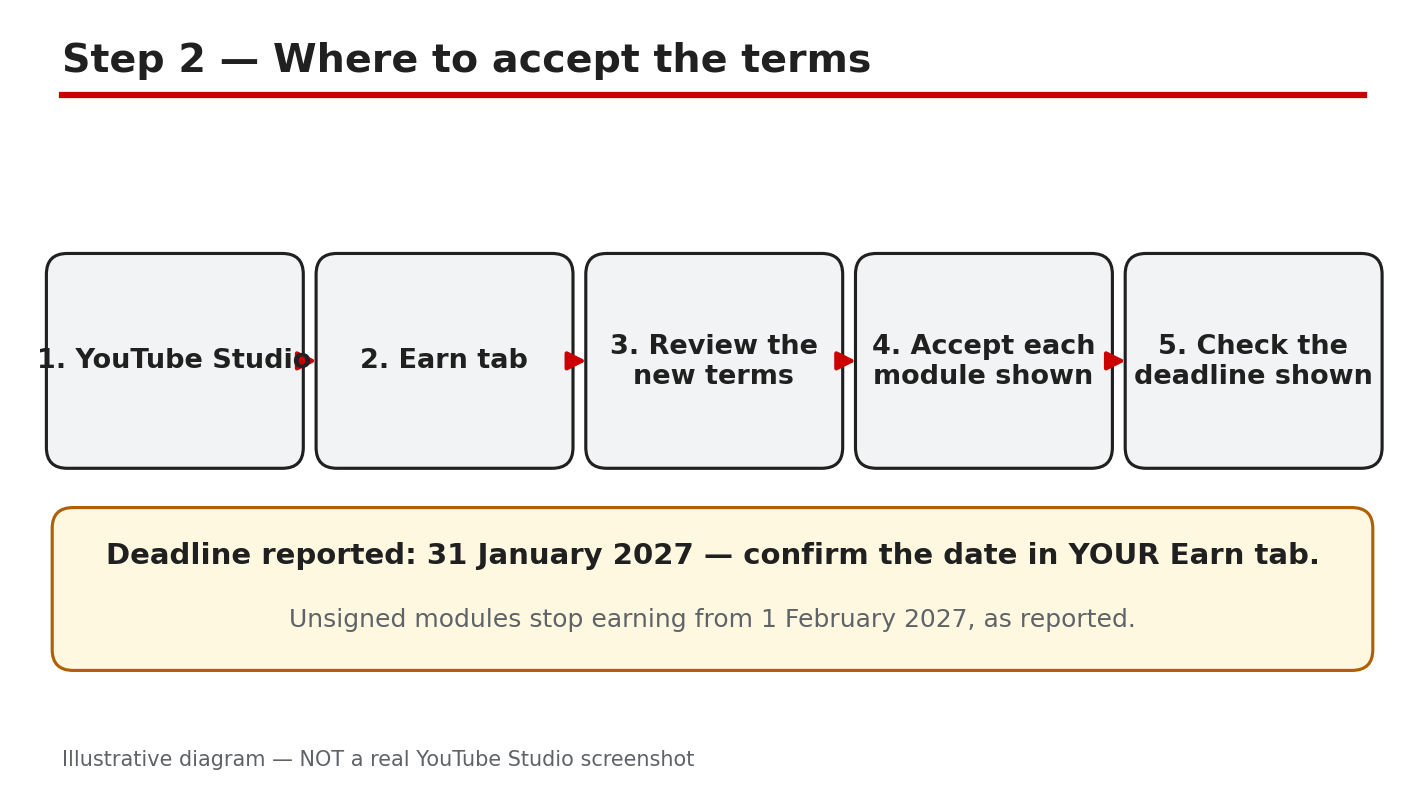
Illustrative diagram/mock-up of the five-step path to accept the terms in the Earn tab. This is NOT a real YouTube Studio screenshot.
Step 3: Understand the Reported New Entry Bar
What to do: This step is only about NEW applicants, and every figure in it is reported, not verified from the official announcement. According to secondary reports, new applicants would need 1,000 subscribers plus either 8,000 qualified watch hours in 365 days or 20 million qualified Shorts views in 90 days. That would double the older bar of 4,000 watch hours in 12 months or 10 million Shorts views in 90 days, which was the wording still visible on the official Help page checked during preparation. If you are already in the Partner Program, reports say you are grandfathered on entry, meaning you would not need to meet the new bar to stay in, but you must still accept the new terms. If you are applying for the first time, do not plan around these figures until you confirm them in your Earn tab and in the official terms.
Studio path: YouTube Studio > Earn. Read the eligibility wording shown for YOUR account. Compare it with the terms text itself, not with a summary.
Example: A channel with 1,000 subscribers and 5,000 watch hours reads a report saying the bar is now 8,000 hours. Instead of giving up, the creator opens the Earn tab, reads the eligibility wording shown there, and plans from that, because the reported figure is unconfirmed.
Common mistake: Quoting the reported 8,000 hours or 20 million views as official fact, or telling other creators the old bar is gone. Until the terms in your Earn tab say so, call these figures reported.
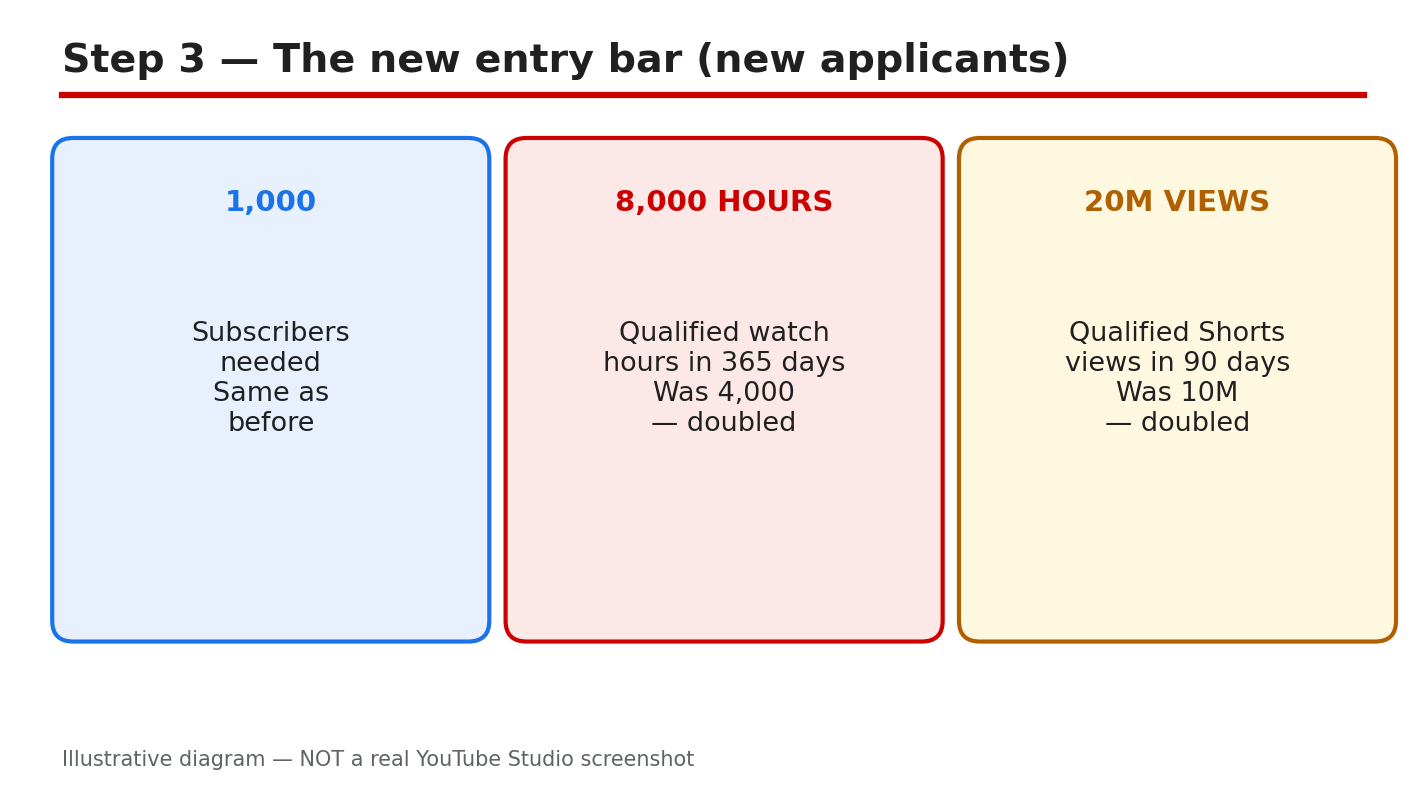
Illustrative diagram/mock-up of the reported new entry bar for new applicants, compared with the older bar. Figures are reported, not official. This is NOT a real YouTube Studio screenshot.
Step 4: Check Four Things Before You Accept
What to do: Before you accept any module, run four checks. First, read the terms themselves, including any section about revenue share, content rules, and how YouTube can change the terms. Second, check that every module shown in your Earn tab is listed, so you do not miss one. Third, confirm your country is eligible for each module you want, because availability varies by country. Fourth, confirm your AdSense account is linked and in good standing, because earnings cannot be paid without it. If any check fails, fix it before you accept, rather than accepting and hoping it sorts itself out.
Studio path: YouTube Studio > Earn for the modules, the deadline, and the AdSense and payment section shown there. Read each module and the payment information on the same tab.
Example: A creator reads the terms, finds the Shorts module shown but no Commerce Product module, confirms the channel’s country is eligible for the first two, and checks that AdSense shows as linked. Only then does the creator accept, one module at a time.
Common mistake: Accepting with an unlinked or troubled AdSense account, then wondering why earnings do not arrive. The terms and the payment link are both part of being ready.
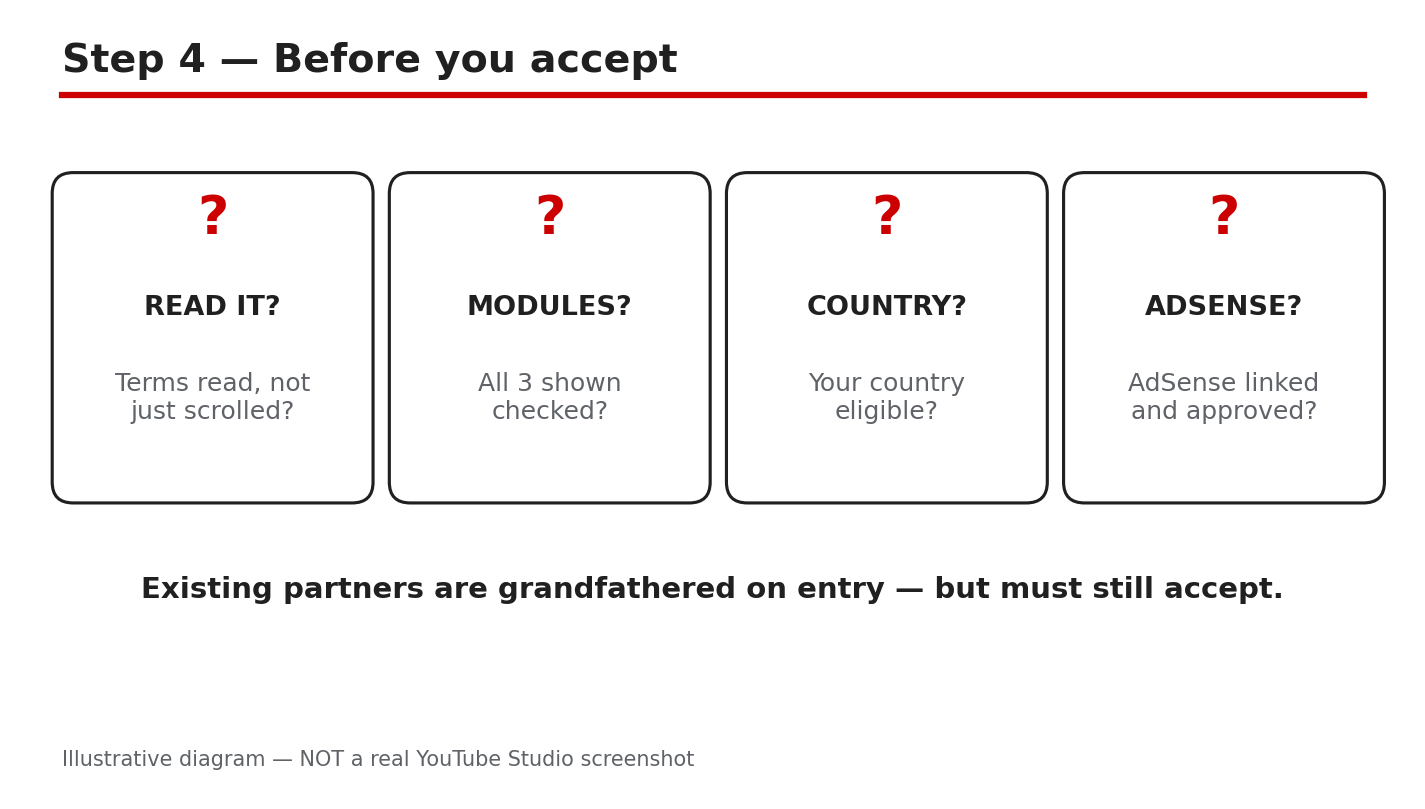
Illustrative diagram/mock-up of the four checks before you accept: read the terms, check all modules shown, confirm country eligibility, and confirm AdSense is linked. This is NOT a real YouTube Studio screenshot.
Step 5: Know What Happens If You Do Not Accept
What to do: Reports say the consequence of not accepting is simple and costly: from 1 February 2027, you would earn nothing from any module you have not signed. That means a channel that accepts Watch Page Monetization but not Shorts Monetization would, on the reported reading, keep watch-page earnings but earn nothing from Shorts. Reports also say Shorts Creator Pool revenue needs 10 million qualified Shorts views in the previous 90 days, which is a separate condition from accepting the module. Both points are reported, not verified from the official announcement, so confirm them in your Earn tab and in the official terms. Do not assume a grace period exists unless your own Earn tab says so.
Studio path: YouTube Studio > Earn. Read the deadline and the consequence wording shown for each unsigned module. To see where you stand on Shorts views, check YouTube Studio > Analytics.
Example: A creator accepts the Watch Page module in January but leaves the Shorts module unsigned, thinking it can wait. On the reported reading, Shorts earnings would stop from 1 February, even though watch-page earnings continue. The fix is to accept the Shorts module before the deadline shown in the Earn tab.
Common mistake: Assuming earnings pause only briefly, or that old terms keep paying you. On the reported reading, unsigned means unpaid for that module, so treat the deadline as real.
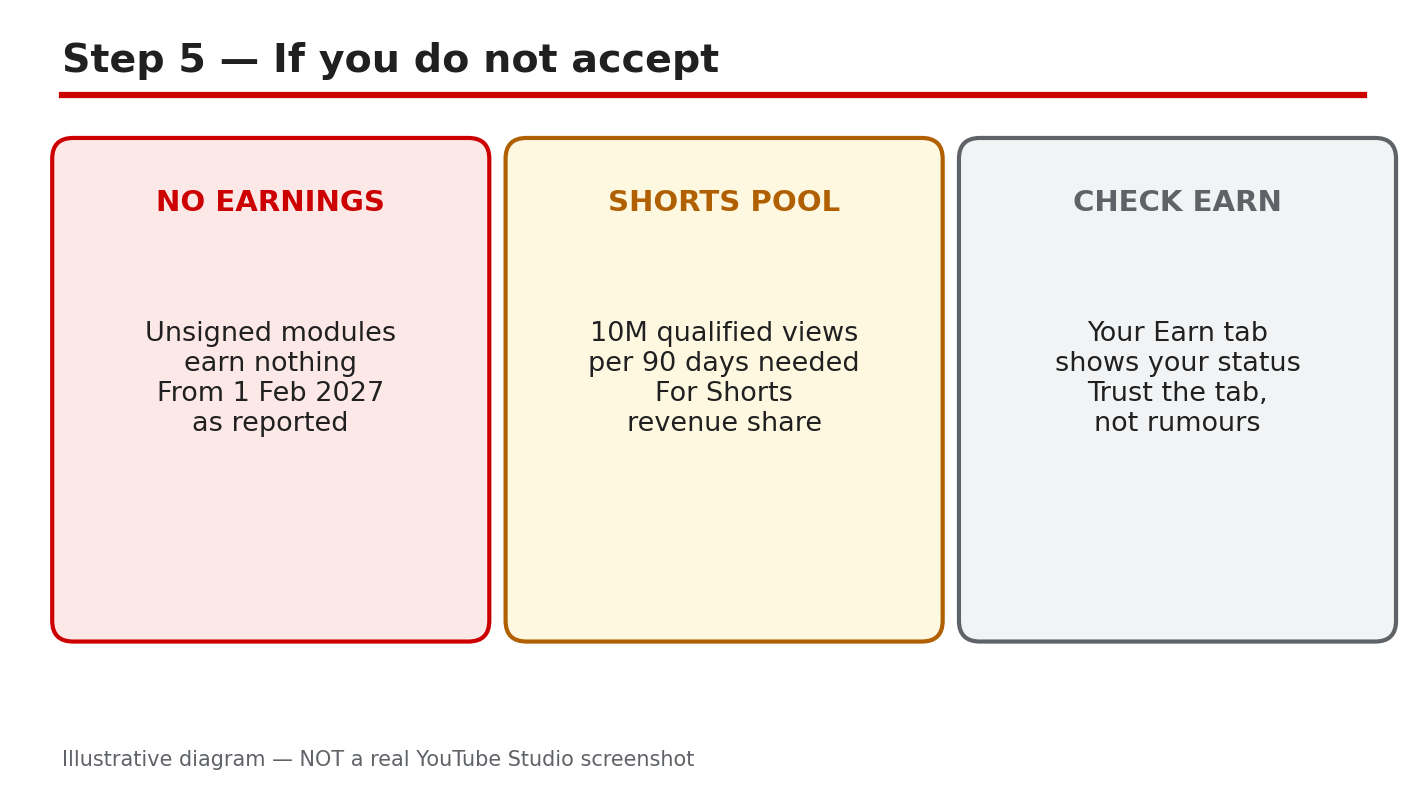
Illustrative diagram/mock-up of the reported consequences of not accepting: no earnings from unsigned modules, the Shorts Creator Pool condition, and checking the Earn tab. This is NOT a real YouTube Studio screenshot.
Step 6: Follow the December-to-January Plan
What to do: Use a short December-to-January plan. In December, read the terms for each module shown in your Earn tab, run the four checks from Step 4, and note the deadline shown in your Earn tab. In early January, accept each module, one at a time, and record the date of each acceptance. In late January, reload the Earn tab and confirm every module you need shows as accepted, and that your AdSense link still shows as active. If a module still shows as awaiting acceptance, do not leave it: re-open it, read any new message, and complete it before the deadline in your Earn tab.
Studio path: YouTube Studio > Earn in December to read; the same tab in January to accept; and again in late January to confirm. Keep your own notes beside each check.
Example: A creator reads the terms on 15 December, accepts both modules on 8 January, and checks the Earn tab on 28 January. Both show as accepted, so the creator starts February with nothing unsigned.
Common mistake: Leaving acceptance to 31 January and hitting a problem, such as an AdSense check that needs days to resolve. Start in December so January has room for fixes.
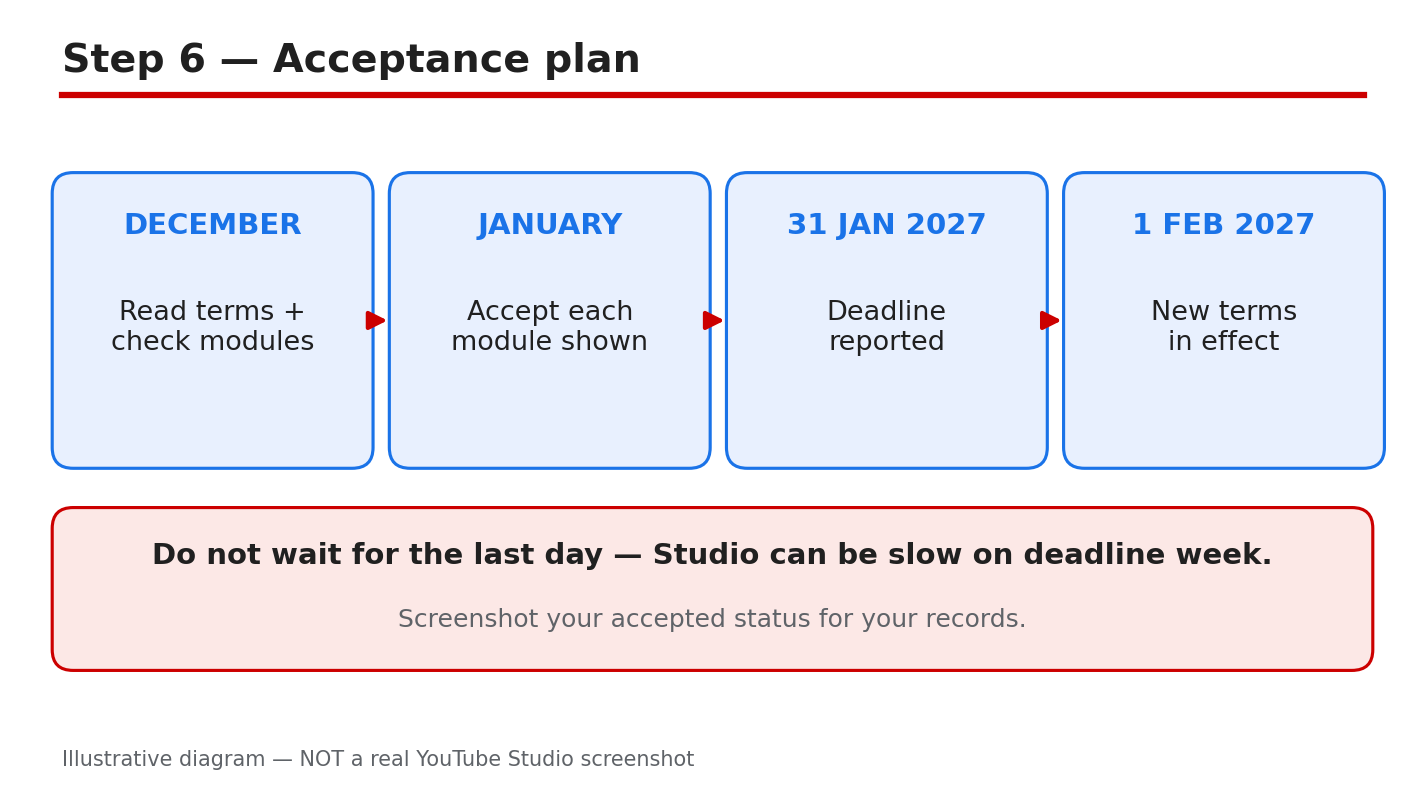
Illustrative diagram/mock-up of the December-to-January acceptance plan: read in December, accept in January, and confirm the accepted status. This is NOT a real YouTube Studio screenshot.
Checklist: Before You Accept
- Every module shown in my Earn tab is listed, with its status noted.
- The deadline shown in MY Earn tab is written down.
- Terms read for each module I plan to accept.
- Country eligibility checked for each module.
- AdSense linked and showing as active.
- Each acceptance confirmed in the Earn tab after accepting.
Frequently Asked Questions
Do I need to accept the new terms if I am already in the Partner Program? Reports say yes. Existing partners are reported to be grandfathered on the entry bar, but they must still accept the new modules. Confirm the wording in your Earn tab.
Is the new entry bar really 8,000 watch hours or 20 million Shorts views? That is the reported figure from secondary sources, not verified from YouTube’s official announcement during this guide’s preparation. The official Help page checked still showed the older 4,000-hour and 10-million-view wording. Confirm the current figures in your Earn tab and in the official terms.
What happens if I accept one module but not another? On the reported reading, you would earn from the modules you accepted and nothing from the ones you did not, from 1 February 2027. Check the consequence wording in your Earn tab.
I do not see the Commerce Product module. Is something wrong? Not necessarily. The modules shown depend on your country and status. If a module is not shown in your Earn tab, it may not be available to you. Do not try to accept a module you cannot see; work from what your Earn tab lists.
Where do I confirm the real deadline? In your own Earn tab in YouTube Studio. That deadline, and the terms text shown there, override any date in a video, a post, or a report, including this one.
Sources — Check It Yourself
These official YouTube Help pages were opened and verified live while this guide was prepared. The Partner Program page showed a notice that updates start on 1 February 2027, while its eligibility wording then visible still listed the older thresholds, which is why new figures in this guide are presented as reported. Check the current wording in your Earn tab and in these pages before you act.
- YouTube channel monetization policies — YouTube Help
- YouTube Partner Program overview and eligibility — YouTube Help
No official YouTube video is embedded in this post. No exact official video URL was verified live during preparation, so none was embedded rather than guessing one.