YouTube Premium Not Working? How to Fix It (Viewer Side)
 CreatorPlaybook Team
- 09 Nov, 2026
You paid for YouTube Premium, yet the ads are back, the badge is gone, or your downloads will not play. It feels like the subscription vanished overnight, and the first instinct is to pay again or cancel in anger. Do neither yet — in most cases the membership is fine.
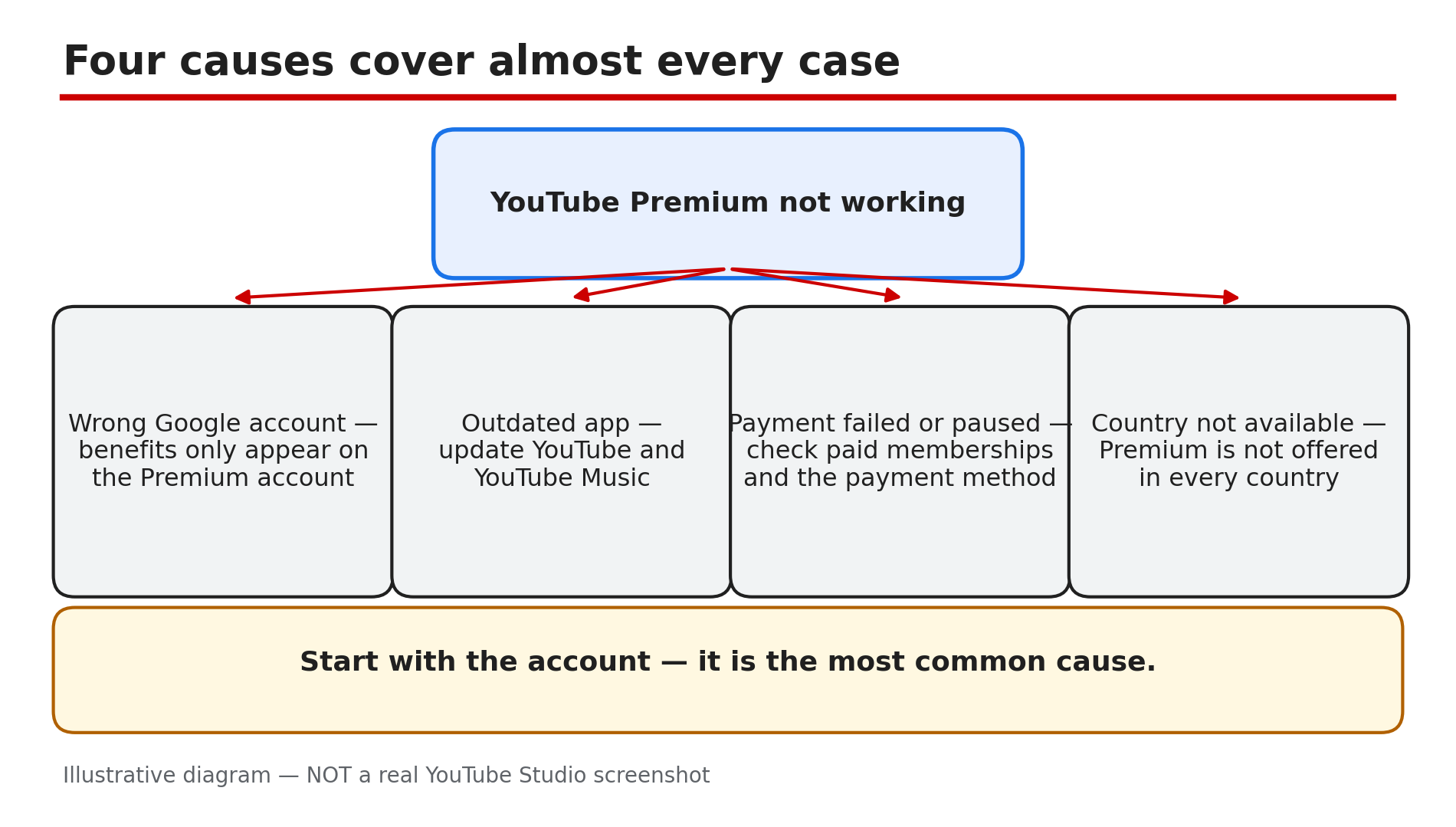
As reported, most cases come down to one of four things: the wrong Google account, an out-of-date app, a failed payment or paused membership, or a country where Premium is not available. Benefits only appear on the Premium account, on the latest app, with a payment that went through.
Work through the steps in order — most fixes take under a minute.
What You Will Learn
- Match your symptom to the right cause
- Check you are signed in to the Premium account
- Why an old app hides Premium benefits
- Check membership status, billing date, and pauses
- Fix a declined payment and add a backup method
- What Premium never removes — and why it is not a fault
Step 1 — Match the symptom to the cause before changing anything
What to do: Read what you see and match it to the likely cause. Ads point to the wrong account; a missing Premium badge points to a failed payment or a paused membership.
How: Ask three questions: did Premium work yesterday and stop today, or has it never worked here? Does it fail on every device or only one? What is missing — ads, downloads, background play, or everything? If everything is missing everywhere, start with Steps 2 and 4; if only background play fails, skip to Step 6.
Example: A viewer sees ads on her phone but not her laptop. The laptop uses her Premium account; the phone uses a second account from years ago. One switch fixes it.
Common mistake: Reinstalling the app or cancelling before checking the signed-in account — the most common cause of all.
Illustrative diagram: the four causes of Premium not working.
Step 2 — Confirm you are signed in to the right Google account
What to do: Check that the account signed in now is the one that pays for Premium. Benefits only appear on your Premium membership account, so a second account — even your own — sees ads.
How: Tap your profile picture at the top right and read the account name and email. If it is not the Premium account, tap Switch account and pick the right one. Check every device separately — phone, laptop, and TV can each use a different account. On a family plan, use the member account, not the family manager’s.
Example: A family of four shares one TV. One member signs in to his own account, which has no Premium, and reports Premium is broken. Switching the TV back to the member account restores ad-free viewing.
Common mistake: Assuming one sign-in covers all devices. Each device keeps its own account, so check them one by one.
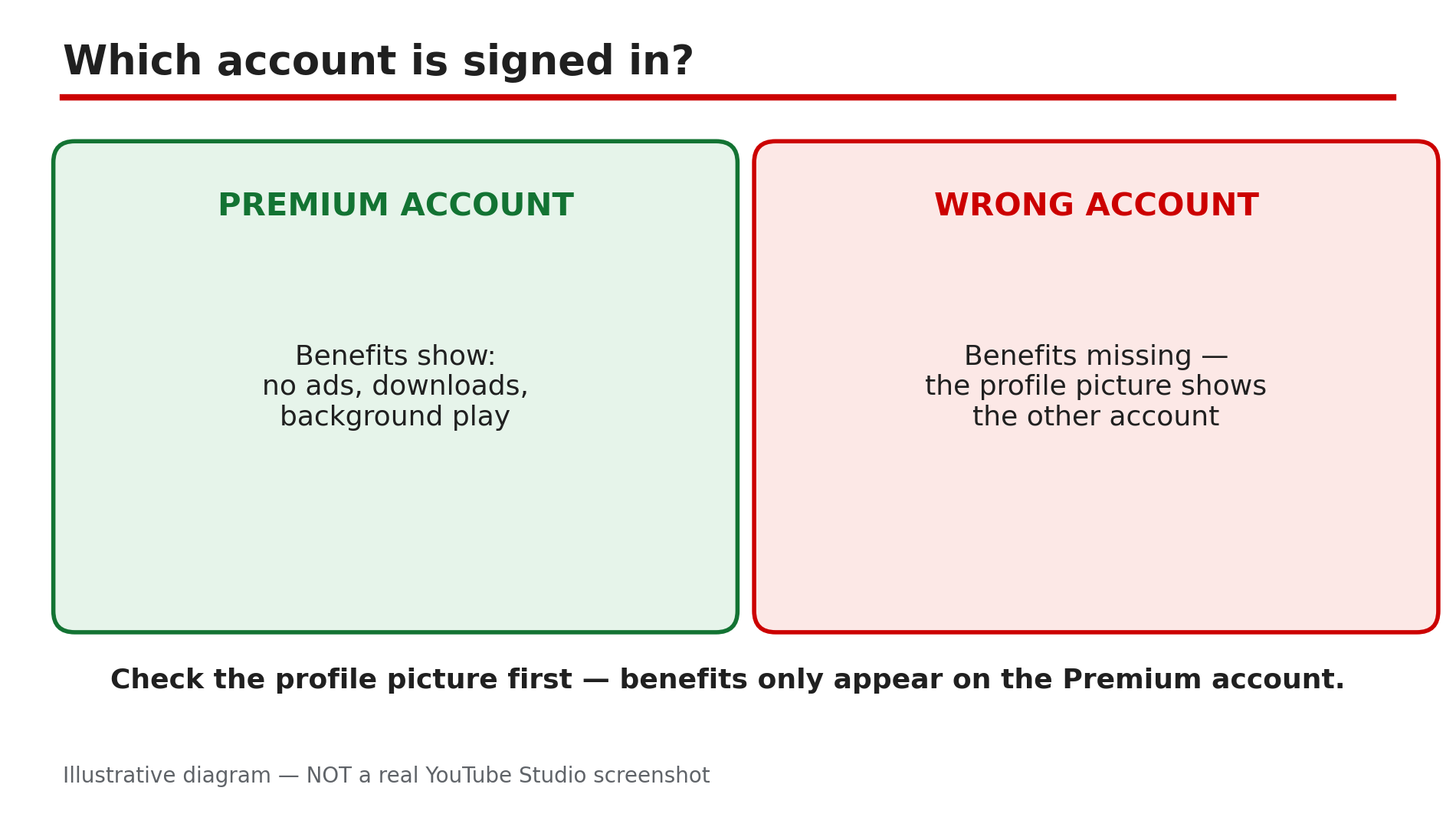
Illustrative diagram: which account is signed in — the Premium account or the wrong account.
Step 3 — Update the YouTube and YouTube Music apps
What to do: Update both apps before digging into payments. An old app can lose Premium features even when the membership is active — YouTube’s Help pages say to update to the latest version to make sure you have all member benefits.
How: Open the Play Store or App Store, search for YouTube, and tap Update if one is offered. Do the same for YouTube Music — offline listening and background play come from the same membership. Then close the app fully and reopen it. If there is no download button, or background play is missing, an old app or the wrong account is the usual reason.
Example: A viewer updates her phone and the download button disappears. She checks the Play Store: a YouTube update has waited three weeks. After updating, the button is back.
Common mistake: Updating only YouTube and forgetting YouTube Music, then wondering why music downloads fail.
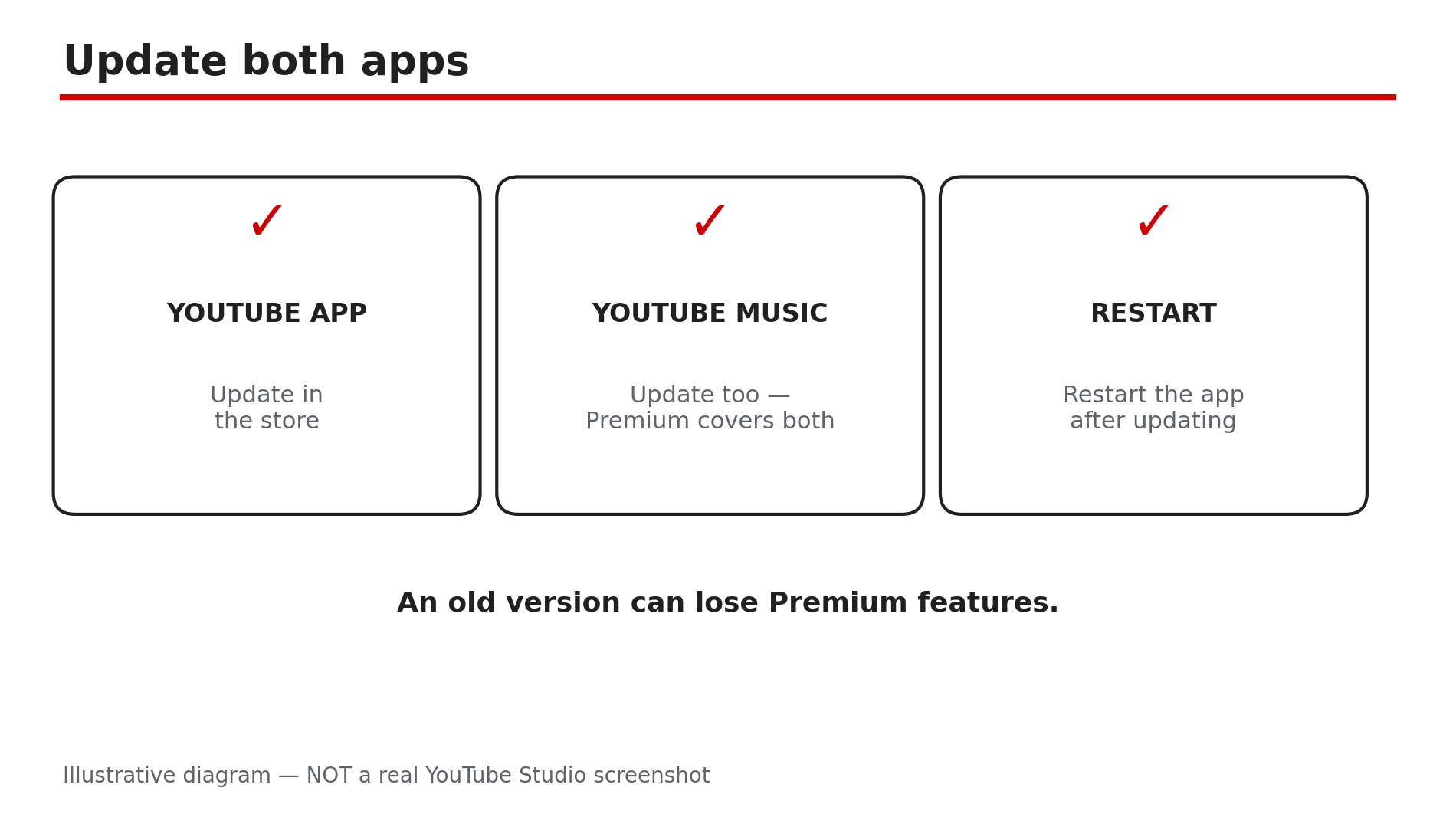
Illustrative diagram: updating the YouTube and YouTube Music apps, and restarting after updating.
Step 4 — Check your membership status, billing date, and pauses
What to do: Open your membership page and read its status: active, paused, or cancelled — and when the next payment is due.
How: On a computer, go to youtube.com/paid_memberships; in the app, tap your profile picture, then Purchases and memberships. YouTube’s Help page says you will see your next billing date, or an option to unpause if the membership is paused. A paused membership stops all benefits at the end of the billing cycle, so Premium can seem to switch off weeks after someone paused it. Tap to unpause — YouTube says you will be billed at the current price when you resume.
Example: A viewer paused Premium on holiday in September and forgot. In October the benefits stop at the end of the billing cycle, and she thinks Premium broke. The page shows Paused; one tap restores it.
Common mistake: Checking only the app and missing the membership page, or assuming a pause takes effect the same day — it ends at the billing cycle.
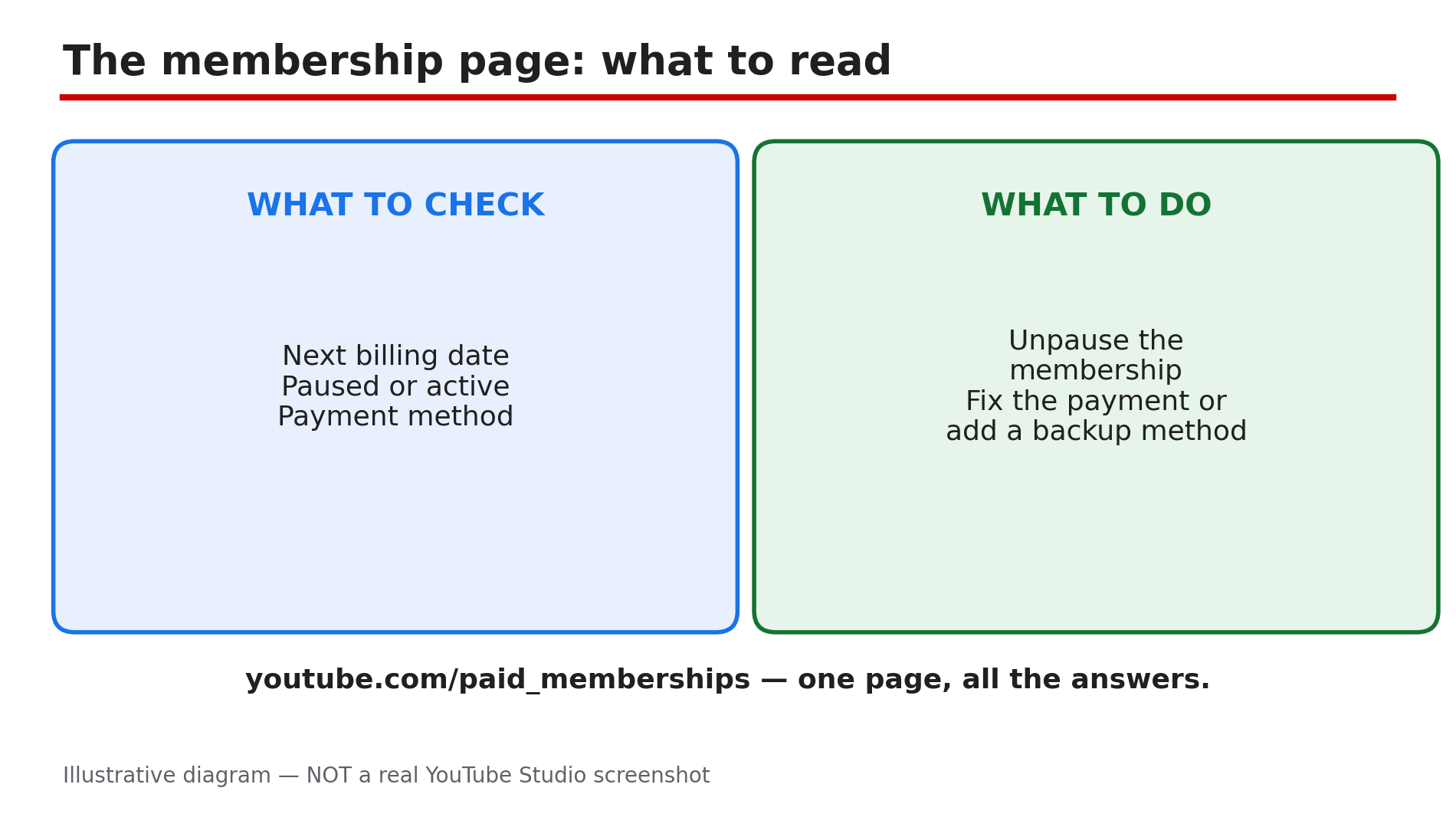
Illustrative diagram: the membership page — next billing date, paused or active, payment method — and what to do about each.
Step 5 — Fix a declined payment and add a backup payment method
What to do: If the membership page shows a payment problem, fix the payment method now. A declined card is a common reason Premium stops, and YouTube gives you a short window to put it right.
How: YouTube’s Help page says a declined membership brings an email, and you have 3 days to fix it before losing access, while YouTube re-attempts payment. On the membership page, expand the details and click Update payment method. Check the card number, expiry date, and billing address — an expired card or a wrong postcode is the usual cause. YouTube also suggests adding a backup payment method. If the card still fails after 3 days, the membership enters a Paused state for 30 days while YouTube keeps retrying; updating your payment info restores it.
Example: A viewer’s bank replaces her card after a fraud alert. The old card is declined, she gets the email, and she updates the payment method that evening. Premium never stops.
Common mistake: Ignoring YouTube’s email for a week, then discovering the membership paused — and paying for a new subscription instead of updating the card.
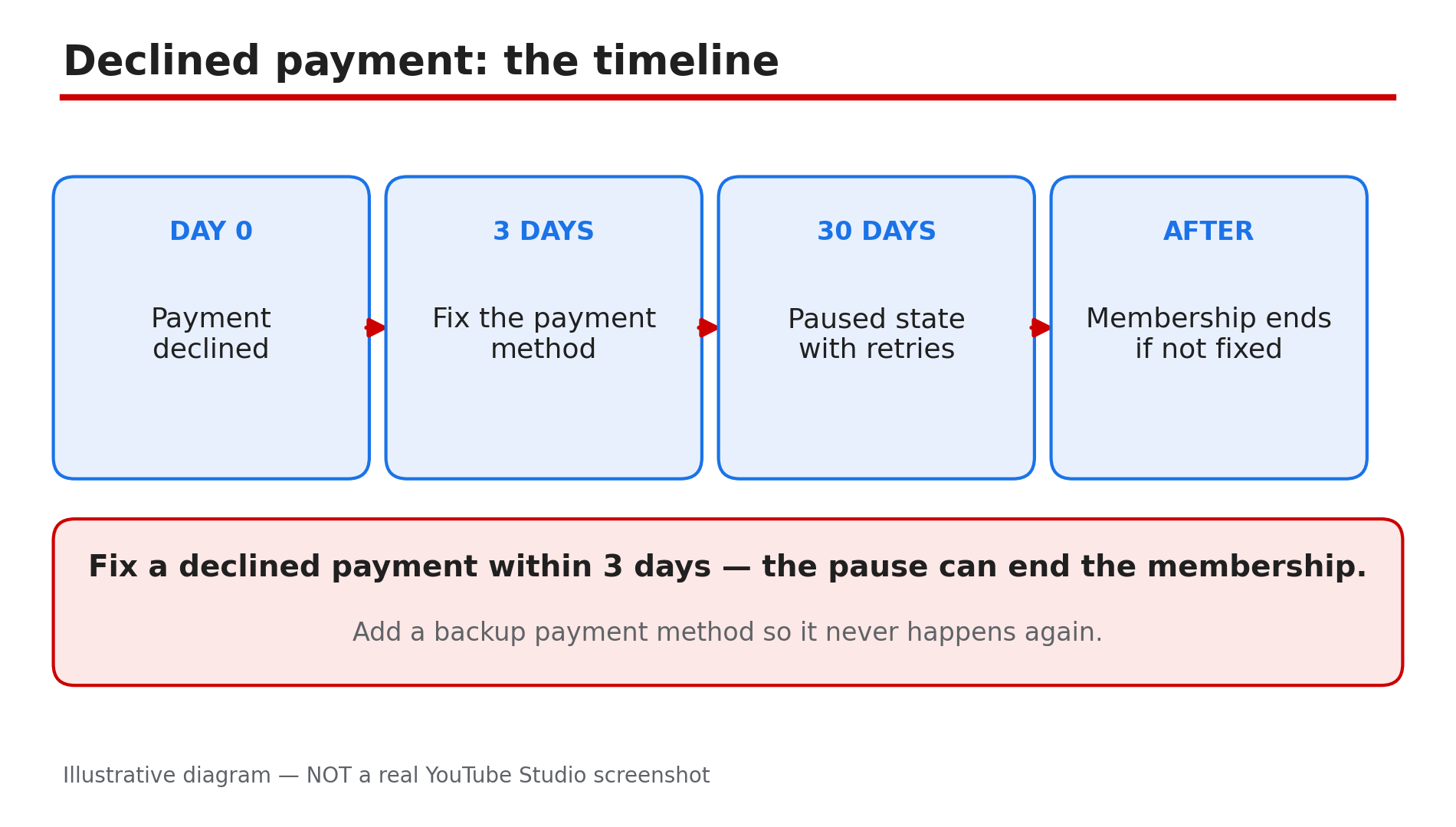
Illustrative diagram: the declined-payment timeline — 3 days to fix it, then a 30-day paused state.
Step 6 — Check background play, downloads, travel, and what Premium never removes
What to do: If the membership is active but one feature misbehaves, check that feature’s own setting — and learn which things Premium was never meant to remove.
How: For audio that stops when you lock the phone, open Settings, then Background and Downloads — YouTube lists three options: Always on, Off, or Headphones or external speakers. If it is set to Off, audio stops on lock — set it to Always on. Downloads made before travelling stay available offline for 30 days, as reported — reconnect before then. Travelling where Premium is not available also removes benefits — wait until you are home. A creator’s own promotion inside a video is expected: Premium removes ads before and during videos, plus third-party banner and search ads, but not branding built into the video.
Example: A viewer locks her phone mid-podcast and the audio stops — background play is set to Off. She switches it to Always on, and the audio keeps playing with the screen locked.
Common mistake: Reporting a creator’s in-video sponsorship as a Premium failure, or blaming Premium when a download expires after 30 days offline.
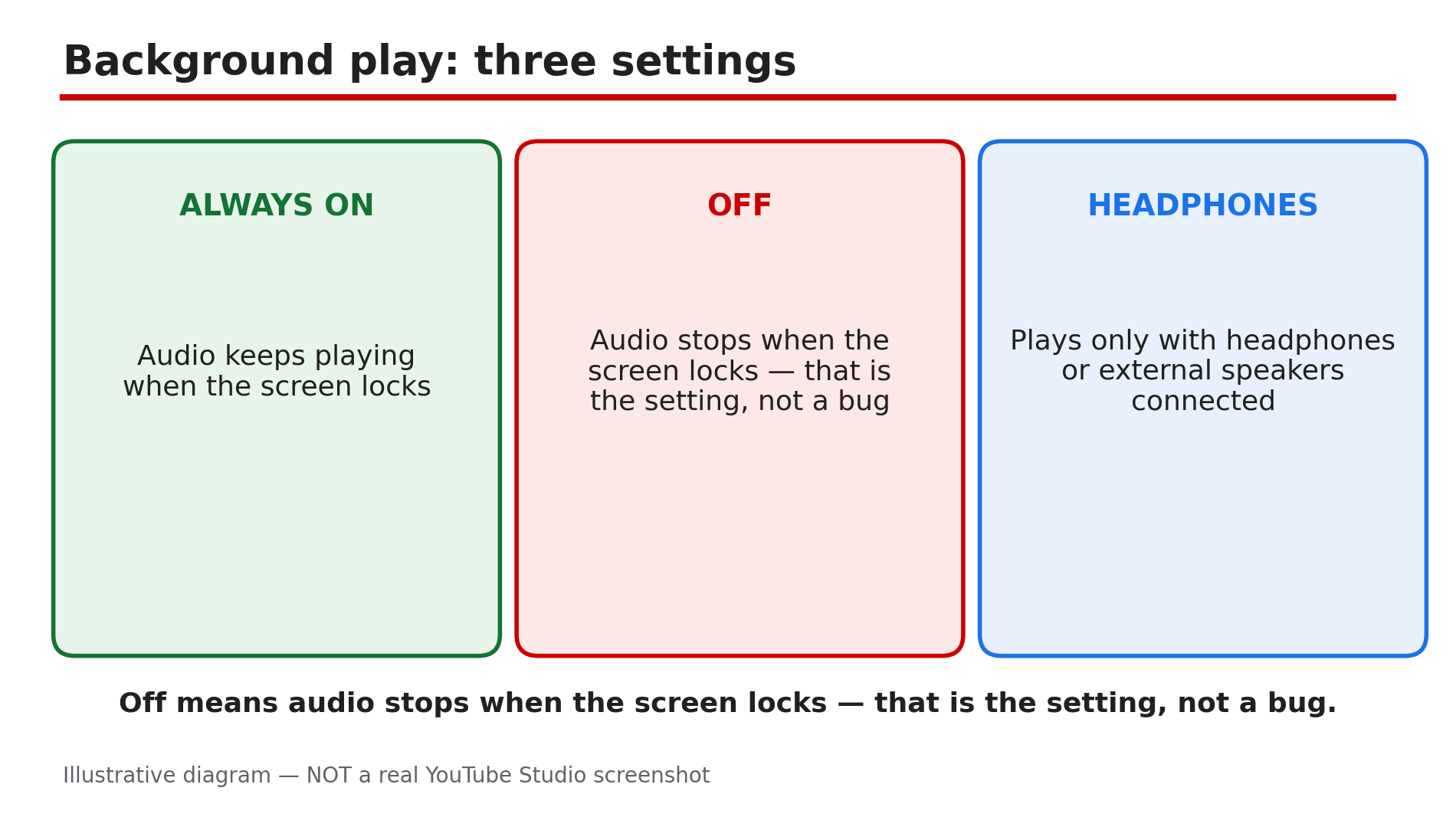
Illustrative diagram: the three background play settings — Always on, Off, and Headphones or external speakers.
Checklist — Fix YouTube Premium not working
- ☐ Symptom matched to a cause before changing anything
- ☐ Signed in to the Premium account on every device
- ☐ YouTube app updated to the latest version
- ☐ YouTube Music app updated too
- ☐ Membership page checked: active, paused, or cancelled
- ☐ Next billing date confirmed on youtube.com/paid_memberships
- ☐ Payment method current, with a backup method added
- ☐ Background play set to Always on for audio on lock
- ☐ Downloads reconnected to the internet within 30 days
- ☐ Creator promotions recognised as expected, not a fault
FAQs
1. I paid for Premium but I still see ads. Why?
Most often you are signed in to the wrong Google account — benefits only appear on the Premium account. Tap your profile picture, check the account, and switch. Also confirm the membership is active on youtube.com/paid_memberships.
2. I was charged but I have no Premium benefits. What do I do?
Check whether the charge is still being processed — YouTube’s Help page says a purchase may show as pending before benefits appear. Check Google Pay for the transaction status and confirm the right account; if the charge completed but benefits are missing, contact Support.
3. My Premium stopped weeks after I paused it. Is that normal?
Yes. A paused membership stops all benefits at the end of the billing cycle, not on the day you pause it. Open youtube.com/paid_memberships and tap to unpause — YouTube says you will be billed at the current price.
4. Does Premium work when I travel abroad?
Only in countries where Premium is available. YouTube says that if you travel where Premium is not available, you will not be able to access your benefits. Downloads made before travelling stay available offline for 30 days, as reported.
5. Why does a video still show a sponsorship if I have Premium?
Because Premium removes YouTube’s ads, not the creator’s own promotion. Branding built into the video itself stays for everyone, including Premium members.
Sources
- YouTube Help — “Fix YouTube Premium & YouTube Music Premium billing issues” (official page, opened live 9 Nov 2026): https://support.google.com/youtube/answer/9972274
- CreatorPlaybook — “YouTube Premium Revenue Explained: How You Earn From Premium Viewers” (internal link, opened live 9 Nov 2026): </blog/youtube-premium-revenue-explained-how>