Showing Posts From
Youtube premium
 CreatorPlaybook Team
- 13 Nov, 2026
YouTube Premium Family Plan Invite Not Working or Member Paused? Fix It
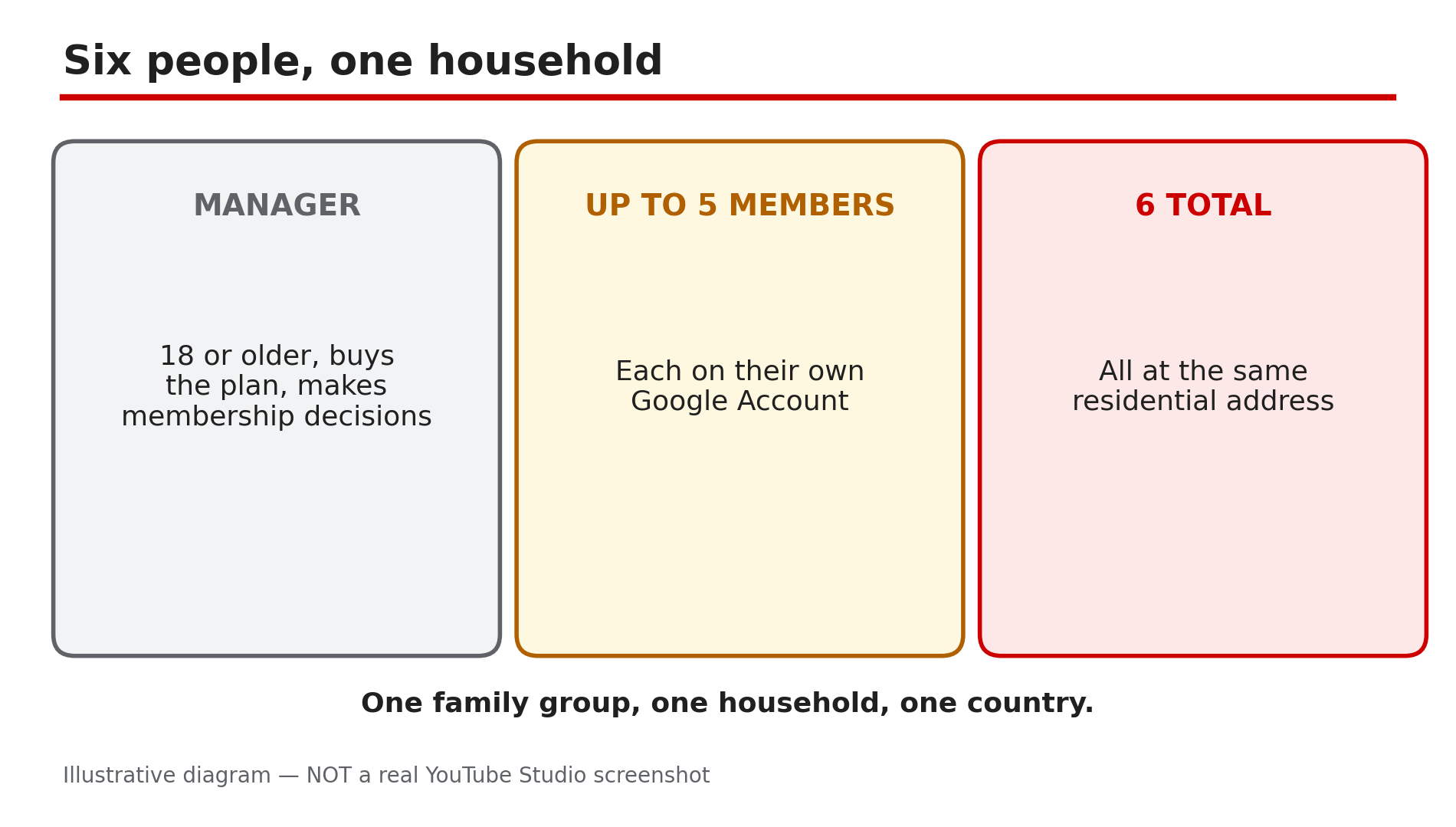
You send a YouTube Premium family plan invite and it fails, or a family member gets an email saying their Premium membership will be paused — even though you all pay for the same plan. There is no single "fix family plan" button: every member must live at the same residential address as the family manager, and YouTube checks that electronically every 30 days. Most failures trace back to that rule, the 12-month switch limit, or an account mix-up. What You Will LearnWho can join: manager plus up to five members, six people in total What the same-household rule requires, and how the 30-day check works What a paused membership means — and what it does not mean Why an invite fails: already in a group, 12-month limit, Workspace account, wrong account How a Google Pay country mismatch blocks setup, and how to fix it What the family plan costs in the US, and why prices vary by countryStep 1 — Check the basics first: six people, one household, one country What to do: Confirm your group fits the plan's shape before digging into errors — manager plus up to five members, all at one address, in one country. How: YouTube's Help page "Sign up for & manage a YouTube Premium or YouTube Music Premium family plan", opened live on 13 November 2026, says the family manager can share the membership with up to five other family members — six people in total, each on their own Google Account. The same page says family members must live in the same household as the manager, and that you can only change family groups once every 12 months. Only the manager, who must be 18 or older, can buy the plan or make membership decisions. If you already belong to a Google family group, you cannot buy a family plan yourself; only your group's manager can. Example: A father invites his wife, two children and his brother — five members, six people in total, all at the same address. Common mistake: Inviting a seventh person. The plan holds six, and each person belongs to one group only.Illustrative diagram: who can join a YouTube Premium family plan. / Step 2 — Understand the 30-day household check: YouTube verifies the address electronically, every month What to do: Learn how the household check works, because it explains most surprise pauses. How: YouTube's Help page states the rule plainly: "To be eligible to share a YouTube family membership, each family member must live at the same residential address as the family manager. Every 30 days, an electronic check-in will confirm this requirement." The check is automatic. YouTube does not publish which signals it uses; third-party reports describe location signals such as IP address and network. The rule has been in YouTube's terms since 2023, as reported, but enforcement tightened from September 2025. Example: A student goes home for the holidays and watches from the family Wi-Fi for a week. The next 30-day check sees the same household signals — short trips do not break the rule. Common mistake: Thinking the check happens once at signup. It repeats every 30 days, so a member who moves out later can be flagged long after the invite worked.Illustrative diagram: how the 30-day electronic household check works. Step 3 — Read the pause warning carefully: a paused member stays in the group but loses Premium benefits What to do: If a member gets a warning email, read exactly what it says — a pause is not a removal. How: When YouTube cannot confirm a member's household, the member sees an alert that Premium access will be paused and is told to check YouTube's email for instructions. Reports of the warning email, first covered by Android Police and Droid Life in September 2025, quote it as saying the membership "will be paused in 14 days" and that once paused, the member stays in the family group and watches YouTube with ads, but loses Premium benefits. The 14-day figure comes from reported emails, not YouTube's Help page, which publishes no standard deadline — go by the date in your own email. While paused, the member loses ad-free viewing, background play and downloads. The warning email and the in-app alert link a form to confirm eligibility, as reported. Example: A daughter moves to another city for a job and gets the warning email. She keeps watching YouTube with ads after the pause.Illustrative diagram: what a paused family member loses and what they keep. Step 4 — Fix the invite itself: the five reasons an invite fails before anyone is paused What to do: Match the invite failure to its cause, because each one has a different fix — and some have no quick fix at all. How: First, the member may already be in another family group — they must leave it before accepting your invite. Second, the 12-month rule: YouTube's Help page says you can only switch family groups once every 12 months, so a member who left or joined a group recently cannot join yours until that year is up. Third, a Google Workspace account cannot join a family group, as reported — use a personal Google Account instead. Fourth, the invite may have been opened under the wrong Google Account — the member must accept it signed in to the exact account it was sent to. Fifth, the manager's purchase can fail if they belong to a group they do not manage. Example: A son accepts an invite while signed in to his school Workspace account. He signs in to his personal account, accepts again, and joins. Common mistake: Re-sending the same invite five times. An invite fails for a reason — find it first.Illustrative diagram: three common reasons a family plan invite fails. Step 5 — Fix the country mismatch: the Google Pay profile must match where the member actually lives What to do: If setup fails with a "Family is not supported" or "Country is not supported" error, check the Google Pay country on each account. How: YouTube's Help page addresses this error directly: "If you're encountering an error message that: 'Family is not supported' or 'Country is not supported' — the country/region listed in your Google Pay account might not match your current location." Its fix is to update the Google Pay profile to match the current location; a member whose country does not match the manager's cannot join. Several Google Play payments profiles can also cause trouble at purchase time, the Help page notes. Update the profile to where the person actually lives — never invent an address or pick a cheaper country to game the price, because the 30-day check will flag the mismatch anyway. Example: A manager moved countries but never updated his Google Pay profile, so every invite fails with "Country is not supported" until he updates it. Common mistake: Creating a second Google Pay profile in another country to get a lower price. That mismatch is exactly what the setup error warns about.Illustrative diagram: how a Google Pay country mismatch blocks family plan setup. Step 6 — Check the price and the billing rules: US family plan is $26.99 a month, and prices vary by country What to do: Confirm the price for your own country before paying, and know the billing rules that catch people out. How: In the US, the family plan costs $26.99 a month, Individual is $15.99 a month or $159.99 a year, and Student and Premium Lite are $8.99 a month — confirmed by a price check reading youtube.com on 13 November 2026. That $26.99 is US-only: check the price in your own YouTube app before subscribing. The India figure of Rs 299 a month from September 2025 coverage is stale. Two billing rules: upgrading during a trial longer than one month shortens the trial to one month; and an annual Individual plan must expire before you can upgrade. Example: Six people share the US family plan at $26.99 a month — about $4.50 each. Common mistake: Budgeting from an old price in another country's currency. Prices differ by country — always read the price in your own app.Illustrative diagram: US YouTube Premium prices for Individual, Family, Student and Lite plans. Checklist — Fix a family plan invite or a paused member☐ Group is manager plus up to five members, six in total ☐ Every member lives at the same address as the manager ☐ Read the warning email and noted the pause date ☐ Member is not already in another family group ☐ Member has not switched groups in the last 12 months ☐ Invite opened under the right account, not a Workspace account ☐ Every Google Pay country matches where the person lives ☐ Checked the price in your own country before payingFAQs 1. How many people can join a YouTube Premium family plan? Six in total: the family manager plus up to five other family members, each on their own Google Account. The manager must be 18 or older. 2. My Premium was paused but I am still in the family group — what happened? YouTube could not confirm you live at the same address as the family manager during its 30-day electronic check. You stay in the group and keep watching YouTube with ads, but lose ad-free viewing, background play and downloads. 3. How long do I have after the warning email before Premium pauses? Reported warning emails have given 14 days. YouTube's Help page publishes no standard deadline, so go by the date in your own email. 4. I just left another family group — why can I not join a new one? You can only change family groups once every 12 months, per YouTube's Help page. If you switched within the last year, you must wait it out. 5. Why does setup say "Family is not supported" or "Country is not supported"? The country or region in a Google Pay profile does not match the person's actual location. YouTube's Help page says to update the Google Pay profile to match the current location. SourcesYouTube Help — "Sign up for & manage a YouTube Premium or YouTube Music Premium family plan" (official page, opened live 13 Nov 2026): https://support.google.com/youtube/answer/12156000 CreatorPlaybook — "YouTube Premium Not Working? How to Fix It" (internal link, URL copied from the plan file): </blog/youtube-premium-not-working-how-to-fix>
- CreatorPlaybook Team
- 10 Nov, 2026
YouTube Downloads Disappeared? Why Offline Videos Vanish
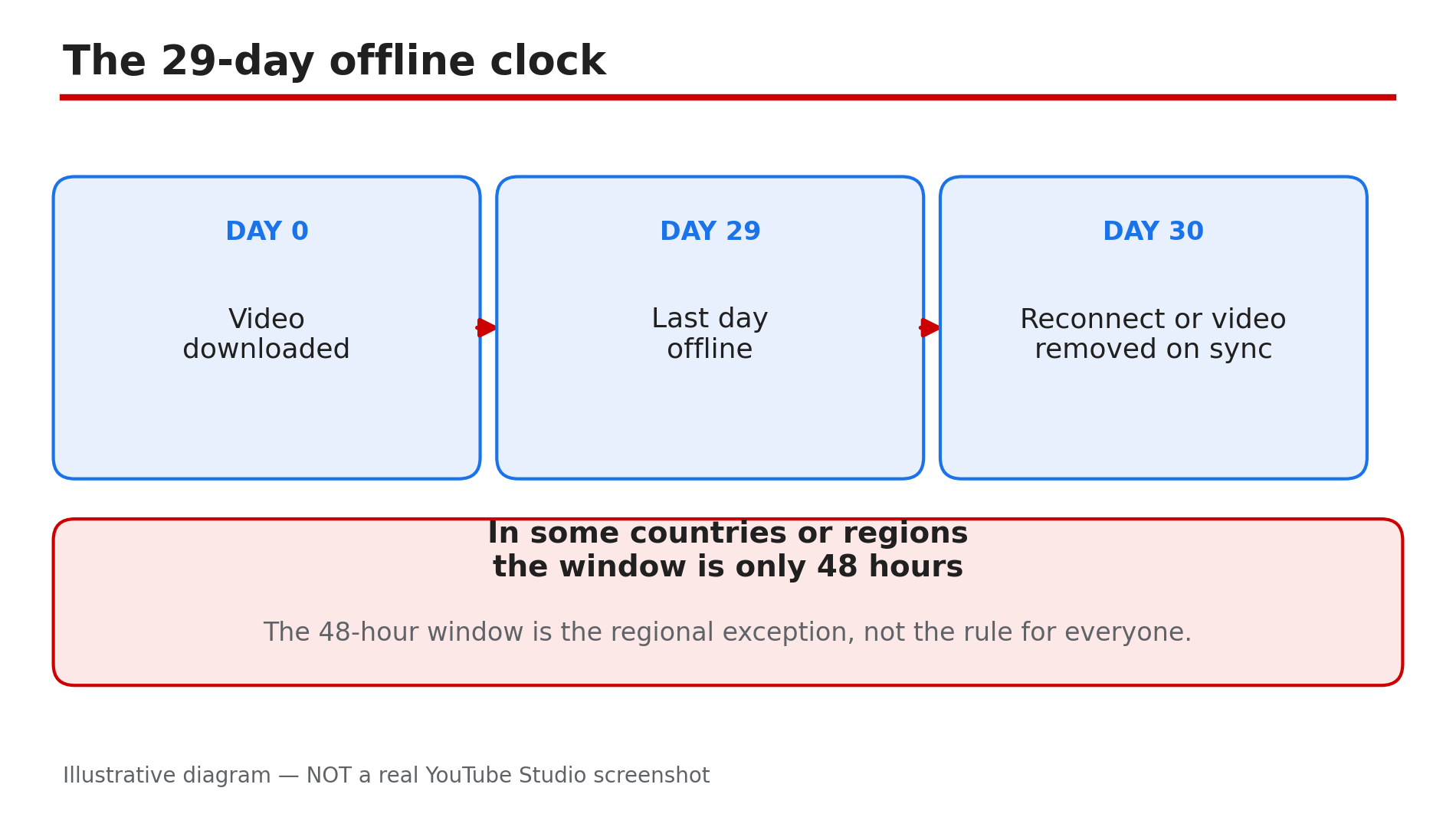
You downloaded a dozen videos for a flight, opened the YouTube app at the airport, and the Downloads list is empty. Nothing was deleted by hand, and the videos still exist on YouTube. What happened is almost always one of a small set of rules doing exactly what they were designed to do: YouTube's Help page says downloaded videos can be played offline for up to 29 days, after which you must reconnect so the app can check for changes — and any video no longer available for offline playback is removed on the next sync. Downloads also live only inside the YouTube app, only on the same Premium account, and only on the device that downloaded them. What You Will LearnWhy downloads expire after 29 days offline — and the 48-hour exception How to tell a wrong-account problem from a real disappearance Why a deleted or private video vanishes from Downloads on sync How downloads work per device, not per account How to rebuild your offline library and stop it vanishing againStep 1 — Check the 29-day offline rule first What to do: Work out whether your downloads simply expired, because that is the most common cause and it needs no fix — only a reconnect. How: YouTube's Help page states that downloaded videos can be played offline for up to 29 days, after which you must reconnect so the app can check for changes to the video or its availability — and any video no longer available is removed on the next sync. So connect to Wi-Fi, open the app, wait a few minutes for the sync, and check the Downloads list again. In some countries or regions the window is only 48 hours — the regional exception, not the universal rule — but the cure is the same: reconnect regularly. Example: A traveller downloads videos for a three-week trip, spends a month without opening YouTube on Wi-Fi, and finds the list empty. Reconnecting restores the downloads that are still available. Common mistake: Re-downloading everything one by one before reconnecting — the sync may restore most of your list on its own once the app checks in.Illustrative diagram: the 29-day offline window for YouTube Premium downloads and what happens when it runs out. Step 2 — Confirm you are on the right account with Premium still active What to do: Check that you are signed in to the same Google Account that downloaded the videos, and that Premium is still active on it. How: Tap your profile picture and check the account name and the Premium badge. YouTube's Help page says you must be signed in to your Premium account to download videos, and videos can be played while signed in with the same account. If Premium lapsed — a failed payment, a paused membership, or a plan that ended — the downloads go away, as reported. Check youtube.com/paid_memberships for the next billing date and whether the membership is paused. Example: A family shares one tablet, and a child signed in to a different Google Account. The parent's downloads are still there — attached to the other account. Common mistake: Checking Downloads on a second phone and concluding the videos are gone — downloads are per device, not per account, as Step 5 explains.Illustrative diagram: downloads only appear on the same account and the same device that made them. Step 3 — Check whether the video itself is gone What to do: Search for the missing video on YouTube, because a video the uploader deleted or made private disappears from Downloads on the next sync. How: Search for the video's title and open its watch page. If it plays normally, the video is fine and your problem is elsewhere. If it is gone, private, or shows "Video unavailable", that is why it vanished: YouTube removes it from your device on the next sync when it is no longer available for offline playback. No setting brings back a video YouTube no longer offers offline. Example: A student downloads a lecture series, and the lecturer later makes half of it private. On the next sync, exactly those videos disappear while the public ones stay. Common mistake: Assuming YouTube deleted your downloads by mistake — in most cases the uploader changed the video, and the sync is working as designed.Illustrative diagram: how a sync removes videos that are no longer available for offline playback. Step 4 — Check storage and download settings What to do: Rule out a full phone and a download setting that stopped new downloads from sticking. How: Check your phone's free storage first: if the device ran out of space, downloads can fail silently. Free up space and try one video again. Then check download quality: tap your profile picture, then Settings, then Background and downloads, then Download quality. YouTube's Help page notes higher-quality videos may take longer to show in the downloads section, so a large 1080p download on a slow connection may look missing when it is simply still finishing. Also check downloads are not set to Wi-Fi only while you are on mobile data. Example: A viewer downloads ten long videos at 1080p on hotel Wi-Fi and finds only three in the list the next morning — the rest were still downloading when he closed the app. Common mistake: Closing the app or switching it off mid-download — downloads pause when the app is killed, and a half-finished download does not appear in the list.Illustrative mock-up: three settings and storage checks that explain downloads that never appear. Step 5 — Re-download properly, on the same device What to do: Download the missing videos again the right way, on the device you will actually watch them on. How: Downloads live inside the YouTube app — encrypted files, not standalone videos in your gallery or Downloads folder, as reported — so you cannot copy them from one phone to another. On the device you will travel with, open the video's watch page, tap Download, and wait for the icon to turn black, which YouTube's Help page says means the download is complete. Then find it in your library under the Downloaded filter and tap it once to confirm it plays with Wi-Fi off. Example: A commuter downloads a podcast episode on her phone, then looks for it on her tablet. It is not there, because downloads are per device — she downloads it on the tablet too. Common mistake: Downloading on one device and expecting the video on another — that is not how YouTube downloads work, and no sync setting changes it.Illustrative diagram: the three steps to re-download a video properly on the device you will watch it on. Step 6 — Stop it happening again before your next trip What to do: Build a small pre-trip routine so your offline library survives the journey. How: Two days before travelling, open the app on Wi-Fi and check the Downloads list while you still have time to fix it. Re-download anything missing, and confirm each video plays with Wi-Fi off. Keep Premium active and your payment method up to date — a failed payment while you are away can end the downloads, as reported. And remember the 29-day rule: on a trip longer than a month, connect to Wi-Fi once so the app can refresh the offline window. Example: A frequent flyer now checks Downloads the night before every flight, and has not lost a single video since — every problem is caught while he still has Wi-Fi. Common mistake: Downloading videos a month before a trip and never opening the app again until the airport — the 29-day clock runs from the last sync, not from the download date.Illustrative diagram: a pre-trip routine that keeps your offline library intact. Checklist — Fix YouTube downloads that disappeared☐ Reconnected to Wi-Fi and let the app sync for a few minutes ☐ Confirmed the 29-day offline window had not expired ☐ Signed in to the same Google Account that made the downloads ☐ Checked Premium is still active and not paused ☐ Searched for the missing video to see if it was deleted or made private ☐ Checked phone storage and download quality settings ☐ Re-downloaded on the same device and waited for the icon to turn black ☐ Tested playback with Wi-Fi switched off ☐ Set a pre-trip Downloads check for the next journeyFAQs 1. How long can I watch a downloaded video without internet? YouTube's Help page says up to 29 days, after which you must reconnect so the app can check the video's availability. In some countries or regions the window is only 48 hours — that is the regional exception, not the rule for everyone. 2. Why did my downloads disappear when Premium expired? Because downloads are a Premium benefit tied to your Premium account, as reported. If the membership lapses or is paused, the downloads go away, and renewing Premium does not restore removed videos — download them again. 3. Can I move my YouTube downloads to another phone? No. Downloads are stored inside the YouTube app on the device that downloaded them, not as standalone files, as reported — download the video again on the second device. 4. A video I downloaded was deleted by its uploader. Can I keep my copy? No. When the app next syncs, a video that is no longer available for offline playback is removed from your device. Only the uploader can restore it. 5. My Downloads list is empty but Premium is active. What should I check first? Reconnect to Wi-Fi and wait for a sync, then check you are signed in to the right account — see our guide on YouTube Premium not working for the full account and payment checks. SourcesYouTube Help — "Watch videos offline with YouTube Premium" (official page, opened live 10 Nov 2026): https://support.google.com/youtube/answer/11977233?hl=en-GB&co=GENIE.Platform%3DiOS CreatorPlaybook — "YouTube Premium Not Working? How to Fix It" (internal link, live-verified published post): </blog/youtube-premium-not-working-how-to-fix> CreatorPlaybook — "YouTube Premium Revenue Explained: How Creators Get Paid" (internal link, live-verified published post): </blog/youtube-premium-revenue-explained-how>
- CreatorPlaybook Team
- 09 Nov, 2026
YouTube Premium Not Working? How to Fix It (Viewer Side)
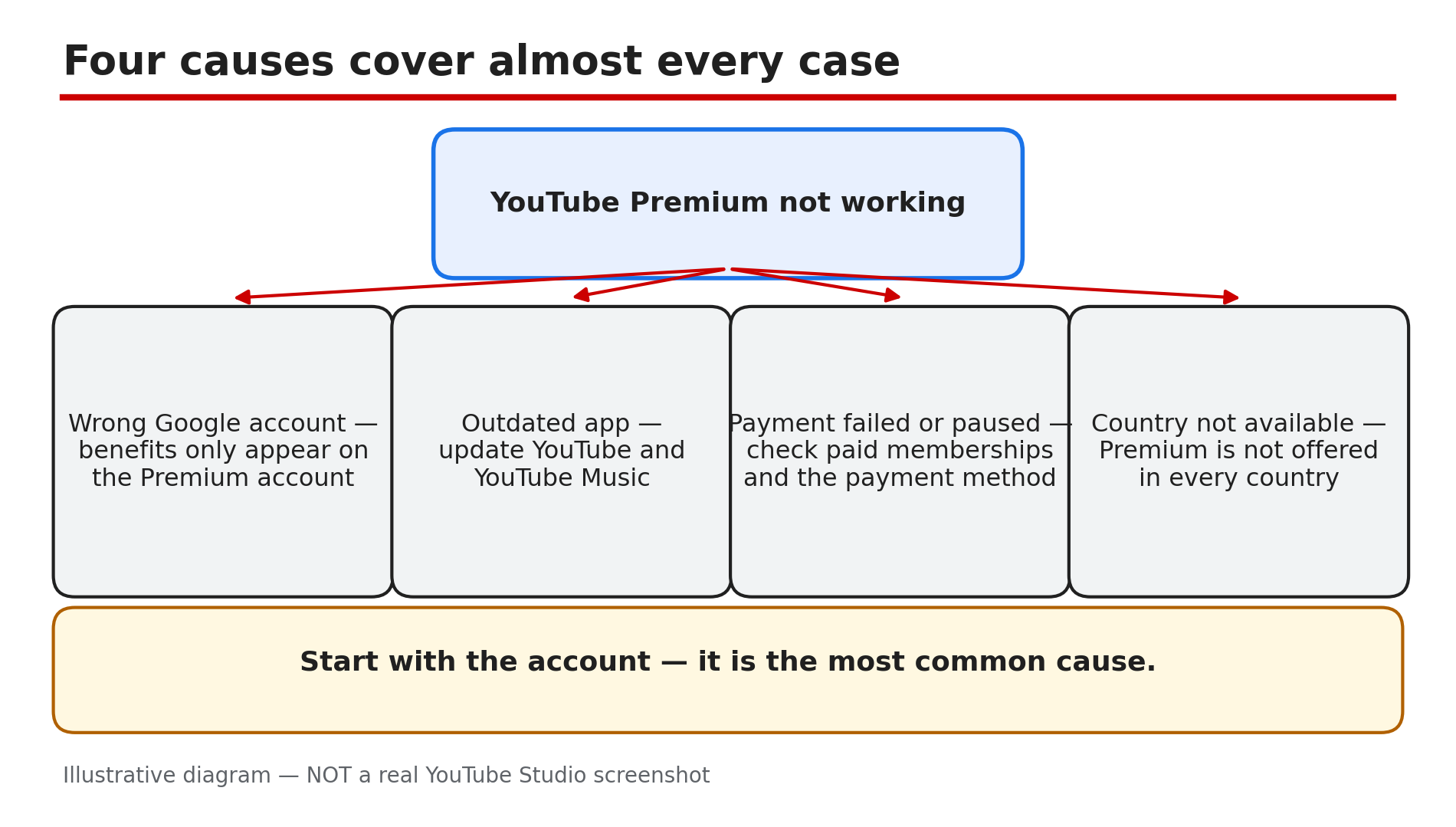
You paid for YouTube Premium, yet the ads are back, the badge is gone, or your downloads will not play. It feels like the subscription vanished overnight, and the first instinct is to pay again or cancel in anger. Do neither yet — in most cases the membership is fine. As reported, most cases come down to one of four things: the wrong Google account, an out-of-date app, a failed payment or paused membership, or a country where Premium is not available. Benefits only appear on the Premium account, on the latest app, with a payment that went through. Work through the steps in order — most fixes take under a minute. What You Will LearnMatch your symptom to the right cause Check you are signed in to the Premium account Why an old app hides Premium benefits Check membership status, billing date, and pauses Fix a declined payment and add a backup method What Premium never removes — and why it is not a faultStep 1 — Match the symptom to the cause before changing anything What to do: Read what you see and match it to the likely cause. Ads point to the wrong account; a missing Premium badge points to a failed payment or a paused membership. How: Ask three questions: did Premium work yesterday and stop today, or has it never worked here? Does it fail on every device or only one? What is missing — ads, downloads, background play, or everything? If everything is missing everywhere, start with Steps 2 and 4; if only background play fails, skip to Step 6. Example: A viewer sees ads on her phone but not her laptop. The laptop uses her Premium account; the phone uses a second account from years ago. One switch fixes it. Common mistake: Reinstalling the app or cancelling before checking the signed-in account — the most common cause of all.Illustrative diagram: the four causes of Premium not working. Step 2 — Confirm you are signed in to the right Google account What to do: Check that the account signed in now is the one that pays for Premium. Benefits only appear on your Premium membership account, so a second account — even your own — sees ads. How: Tap your profile picture at the top right and read the account name and email. If it is not the Premium account, tap Switch account and pick the right one. Check every device separately — phone, laptop, and TV can each use a different account. On a family plan, use the member account, not the family manager's. Example: A family of four shares one TV. One member signs in to his own account, which has no Premium, and reports Premium is broken. Switching the TV back to the member account restores ad-free viewing. Common mistake: Assuming one sign-in covers all devices. Each device keeps its own account, so check them one by one.Illustrative diagram: which account is signed in — the Premium account or the wrong account. Step 3 — Update the YouTube and YouTube Music apps What to do: Update both apps before digging into payments. An old app can lose Premium features even when the membership is active — YouTube's Help pages say to update to the latest version to make sure you have all member benefits. How: Open the Play Store or App Store, search for YouTube, and tap Update if one is offered. Do the same for YouTube Music — offline listening and background play come from the same membership. Then close the app fully and reopen it. If there is no download button, or background play is missing, an old app or the wrong account is the usual reason. Example: A viewer updates her phone and the download button disappears. She checks the Play Store: a YouTube update has waited three weeks. After updating, the button is back. Common mistake: Updating only YouTube and forgetting YouTube Music, then wondering why music downloads fail.Illustrative diagram: updating the YouTube and YouTube Music apps, and restarting after updating. Step 4 — Check your membership status, billing date, and pauses What to do: Open your membership page and read its status: active, paused, or cancelled — and when the next payment is due. How: On a computer, go to youtube.com/paid_memberships; in the app, tap your profile picture, then Purchases and memberships. YouTube's Help page says you will see your next billing date, or an option to unpause if the membership is paused. A paused membership stops all benefits at the end of the billing cycle, so Premium can seem to switch off weeks after someone paused it. Tap to unpause — YouTube says you will be billed at the current price when you resume. Example: A viewer paused Premium on holiday in September and forgot. In October the benefits stop at the end of the billing cycle, and she thinks Premium broke. The page shows Paused; one tap restores it. Common mistake: Checking only the app and missing the membership page, or assuming a pause takes effect the same day — it ends at the billing cycle.Illustrative diagram: the membership page — next billing date, paused or active, payment method — and what to do about each. Step 5 — Fix a declined payment and add a backup payment method What to do: If the membership page shows a payment problem, fix the payment method now. A declined card is a common reason Premium stops, and YouTube gives you a short window to put it right. How: YouTube's Help page says a declined membership brings an email, and you have 3 days to fix it before losing access, while YouTube re-attempts payment. On the membership page, expand the details and click Update payment method. Check the card number, expiry date, and billing address — an expired card or a wrong postcode is the usual cause. YouTube also suggests adding a backup payment method. If the card still fails after 3 days, the membership enters a Paused state for 30 days while YouTube keeps retrying; updating your payment info restores it. Example: A viewer's bank replaces her card after a fraud alert. The old card is declined, she gets the email, and she updates the payment method that evening. Premium never stops. Common mistake: Ignoring YouTube's email for a week, then discovering the membership paused — and paying for a new subscription instead of updating the card.Illustrative diagram: the declined-payment timeline — 3 days to fix it, then a 30-day paused state. Step 6 — Check background play, downloads, travel, and what Premium never removes What to do: If the membership is active but one feature misbehaves, check that feature's own setting — and learn which things Premium was never meant to remove. How: For audio that stops when you lock the phone, open Settings, then Background and Downloads — YouTube lists three options: Always on, Off, or Headphones or external speakers. If it is set to Off, audio stops on lock — set it to Always on. Downloads made before travelling stay available offline for 30 days, as reported — reconnect before then. Travelling where Premium is not available also removes benefits — wait until you are home. A creator's own promotion inside a video is expected: Premium removes ads before and during videos, plus third-party banner and search ads, but not branding built into the video. Example: A viewer locks her phone mid-podcast and the audio stops — background play is set to Off. She switches it to Always on, and the audio keeps playing with the screen locked. Common mistake: Reporting a creator's in-video sponsorship as a Premium failure, or blaming Premium when a download expires after 30 days offline.Illustrative diagram: the three background play settings — Always on, Off, and Headphones or external speakers. Checklist — Fix YouTube Premium not working☐ Symptom matched to a cause before changing anything ☐ Signed in to the Premium account on every device ☐ YouTube app updated to the latest version ☐ YouTube Music app updated too ☐ Membership page checked: active, paused, or cancelled ☐ Next billing date confirmed on youtube.com/paid_memberships ☐ Payment method current, with a backup method added ☐ Background play set to Always on for audio on lock ☐ Downloads reconnected to the internet within 30 days ☐ Creator promotions recognised as expected, not a faultFAQs 1. I paid for Premium but I still see ads. Why? Most often you are signed in to the wrong Google account — benefits only appear on the Premium account. Tap your profile picture, check the account, and switch. Also confirm the membership is active on youtube.com/paid_memberships. 2. I was charged but I have no Premium benefits. What do I do? Check whether the charge is still being processed — YouTube's Help page says a purchase may show as pending before benefits appear. Check Google Pay for the transaction status and confirm the right account; if the charge completed but benefits are missing, contact Support. 3. My Premium stopped weeks after I paused it. Is that normal? Yes. A paused membership stops all benefits at the end of the billing cycle, not on the day you pause it. Open youtube.com/paid_memberships and tap to unpause — YouTube says you will be billed at the current price. 4. Does Premium work when I travel abroad? Only in countries where Premium is available. YouTube says that if you travel where Premium is not available, you will not be able to access your benefits. Downloads made before travelling stay available offline for 30 days, as reported. 5. Why does a video still show a sponsorship if I have Premium? Because Premium removes YouTube's ads, not the creator's own promotion. Branding built into the video itself stays for everyone, including Premium members. SourcesYouTube Help — "Fix YouTube Premium & YouTube Music Premium billing issues" (official page, opened live 9 Nov 2026): https://support.google.com/youtube/answer/9972274 CreatorPlaybook — "YouTube Premium Revenue Explained: How You Earn From Premium Viewers" (internal link, opened live 9 Nov 2026): </blog/youtube-premium-revenue-explained-how>
- CreatorPlaybook Team
- 31 Oct, 2026
YouTube Premium Revenue Explained: How You Earn From Premium Viewers
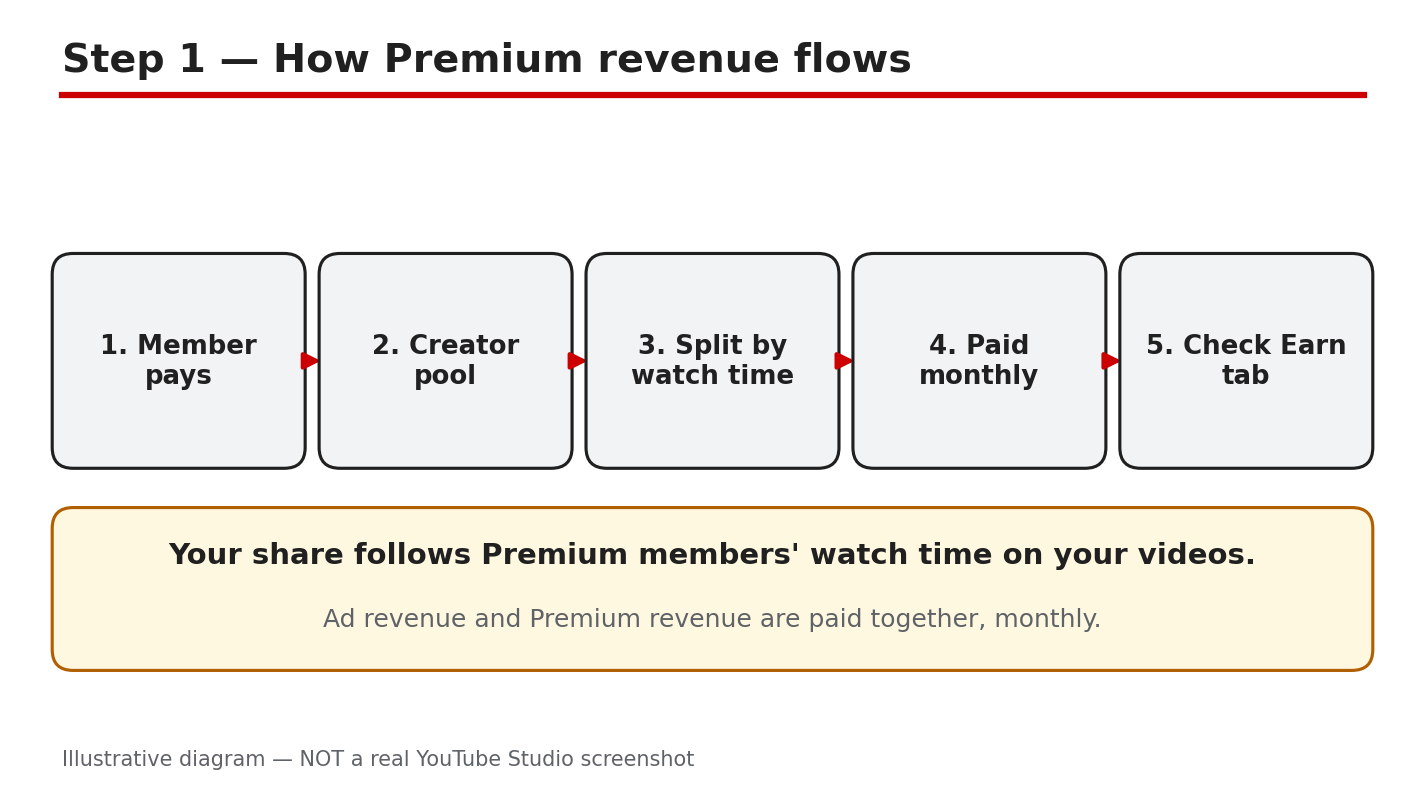
When a YouTube Premium member watches your video, you still earn money — even though no ad is shown. Many new creators assume ad-free viewing means free viewing — it does not. YouTube shares part of every Premium subscription with the creators those members watch, based on member watch time. For a Partner Program channel, this is a second income stream next to ad revenue. This guide explains how it works, where to see it in Studio, and how to grow it. What you will learnHow Premium revenue is calculated from member watch time Whether your channel is eligible to earn Premium revenue Where to find your Premium earnings in Studio and Analytics How Premium revenue differs from ad revenue and how to grow itStep 1: Understand how Premium revenue works What to do: Learn the basic mechanism first: Premium pays you for watch time, not for ads. How to do it: YouTube puts a share of subscription fees into a creator pool, split by how much Premium members watched each creator's content. Your share depends on your slice of total Premium watch time, not on views or subscribers. YouTube Help confirms fees are distributed by member watch time, with the majority going to partners. As reported, from 2027 the pools are 30% of net Premium and 60% of net Premium Lite revenue, paying 55% for long-form and 45% for Shorts. Example: Two channels each get 10,000 views. Channel A gets 8,000 minutes of Premium watch time; Channel B gets 2,000. A earns the bigger share. Common mistake: Treating Premium revenue like a fixed payment per Premium view. There is no fixed per-view rate.Illustrative diagram (mock-up) of how Premium revenue reaches creators — not a real Studio screenshot. Step 2: Check that your channel is eligible What to do: Confirm your channel can receive Premium revenue — not every monetized-looking channel can. How to do it: Premium revenue is a Partner Program benefit. YouTube Help states that for long-form videos you must accept the Watch Page Module and turn on Watch Page ads. For Shorts you must accept the Shorts Feed Module. In Studio, check the Earn tab for your accepted modules and whether Watch Page ads are on. If a module is not accepted, those Premium views earn you nothing. As reported, from 1 February 2027 new creators need 8,000 watch hours or 20 million Shorts views, plus 1,000 subscribers. Example: A creator accepted the Watch Page module but never turned on Watch Page ads, so her Premium earnings stayed at zero. Common mistake: Assuming that joining the Partner Program turns on every earning feature. Each module must be accepted separately.Illustrative diagram (mock-up) of the eligibility checks for Premium revenue — not a real Studio screenshot. Step 3: Find your Premium earnings in Studio What to do: Locate the exact numbers so you can see what Premium is worth to your channel. How to do it: In Studio, open the Earn tab for an overview of estimated revenue by source. Then open Analytics, go to Revenue, and check the breakdown by revenue type. YouTube Help reports that Watch Page and Shorts Feed ad revenue both include Premium, so Premium sits inside those rows, not as a separate headline number. As reported, revenue takes about two days to show, and Premium payments arrive at the start of each month, with ad revenue. Example: One 15-minute guide brings a creator more Premium revenue than her five most-viewed Shorts combined. Common mistake: Checking the Earn tab the day after a big video and concluding Premium pays nothing. Revenue data lags — check after a few days.Illustrative diagram (mock-up) showing where to find Premium earnings in Studio — not a real Studio screenshot. Step 4: Compare Premium earnings with ad earnings What to do: Understand why Premium money behaves differently from ad money. How to do it: Ad revenue depends on advertisers and CPMs, which change by topic, country, and season. Premium revenue depends only on how much members watch you, so it is steadier and unaffected by ad blockers or seasonal demand. As reported, YouTube says partners on average earn more from a Premium subscriber than from the same user watching ads. Check your Revenue breakdown over three months: if Premium grows while ads stay flat, your audience is shifting toward members. Example: A finance channel earns a high CPM but has few Premium viewers, so Premium is a small slice. A music-learning channel has many Premium members, so it is a large slice. Common mistake: Comparing your Premium earnings with another creator's. The split depends on your audience, not your effort alone.Illustrative diagram (mock-up) comparing Premium revenue with ad revenue — not a real Studio screenshot. Step 5: Grow your Premium watch time What to do: Increase the one thing Premium pays for — minutes watched by Premium members. How to do it: Focus on retention first. In Analytics, find your highest average view duration videos from members, and make more like them. Build series and playlists so one view becomes a session of three or four. Keep intros short and answer early — a member who leaves in 30 seconds adds almost nothing. YouTube Help confirms downloaded watch time and background play both count. So long videos that work as audio can keep earning while a member does something else. Example: A creator turns one 10-minute tutorial into a three-part series. Members who watched one video now watch all three, and her Premium watch time nearly doubles. Common mistake: Making videos longer just to chase watch time. Padding drives viewers away — YouTube Help says the key factor is enjoyable videos.Illustrative diagram (mock-up) of the ways to grow Premium watch time — not a real Studio screenshot. Step 6: Protect and plan your Premium income What to do: Treat Premium revenue as a real income line: review it monthly and never chase shortcuts. How to do it: Each month, check the Earn tab and Revenue report and note your Premium earnings, watch time, and top videos. Watch for Partner Program updates — as reported, the 2027 update changes entry thresholds and Shorts pool rules, so accept the updated modules in Studio to keep earning. Never buy views or watch time: fake watch time is invalid traffic, it can get monetization paused, and it cannot increase your share of the pool. Example: A creator notices one old tutorial earns more Premium revenue than her new uploads. She makes an updated version and links it in the old video's description. Common mistake: Ignoring Premium revenue because it looks small at first. For many channels it grows into a meaningful, stable part of monthly income.Illustrative diagram (mock-up) of the monthly Premium income routine — not a real Studio screenshot. Checklist☐ Premium pays for watch time, not per view ☐ Partner Program membership and modules confirmed ☐ Watch Page ads on for long-form videos ☐ Premium earnings found in Earn tab ☐ Premium vs ad earnings compared ☐ Videos planned to keep members watchingFrequently asked questions Do creators earn money when a Premium member watches their video? Yes. Premium members see no ads, but YouTube shares part of the subscription fee with creators based on member watch time. It is a second revenue stream alongside ads. How much do creators earn per Premium view? There is no fixed per-view rate. Earnings depend on your share of Premium member watch time, so a long video watched to the end earns far more than a short one viewers abandon. Do downloaded videos and background play count? Yes, as reported in YouTube Help. Downloaded watch time is recorded when the member next signs in online, and background play counts too. Do I need the YouTube Partner Program to earn Premium revenue? Yes. You also need the Watch Page Module with Watch Page ads on, or the Shorts Feed Module for Shorts. Confirm the requirements in Studio. Will Premium revenue replace my ad revenue? No. Premium is an extra stream for subscribers, paid in the same monthly payment as ad revenue. SourcesYouTube Help, Your content & YouTube Premium: https://support.google.com/youtube/answer/6306276 (verified live 31 Oct 2026) CreatorPlaybook, Monetization Paused vs Disabled vs Rejected: </blog/youtube-monetization-paused-vs-disabled> (verified live 31 Oct 2026) CreatorPlaybook, How to Earn Money on YouTube: </blog/how-to-earn-money-on-youtube> (verified live 31 Oct 2026)