YouTube Prompt-Built Home Feeds Explained: US Only for Now, Not in India Yet
 CreatorPlaybook Team
- 27 Oct, 2026
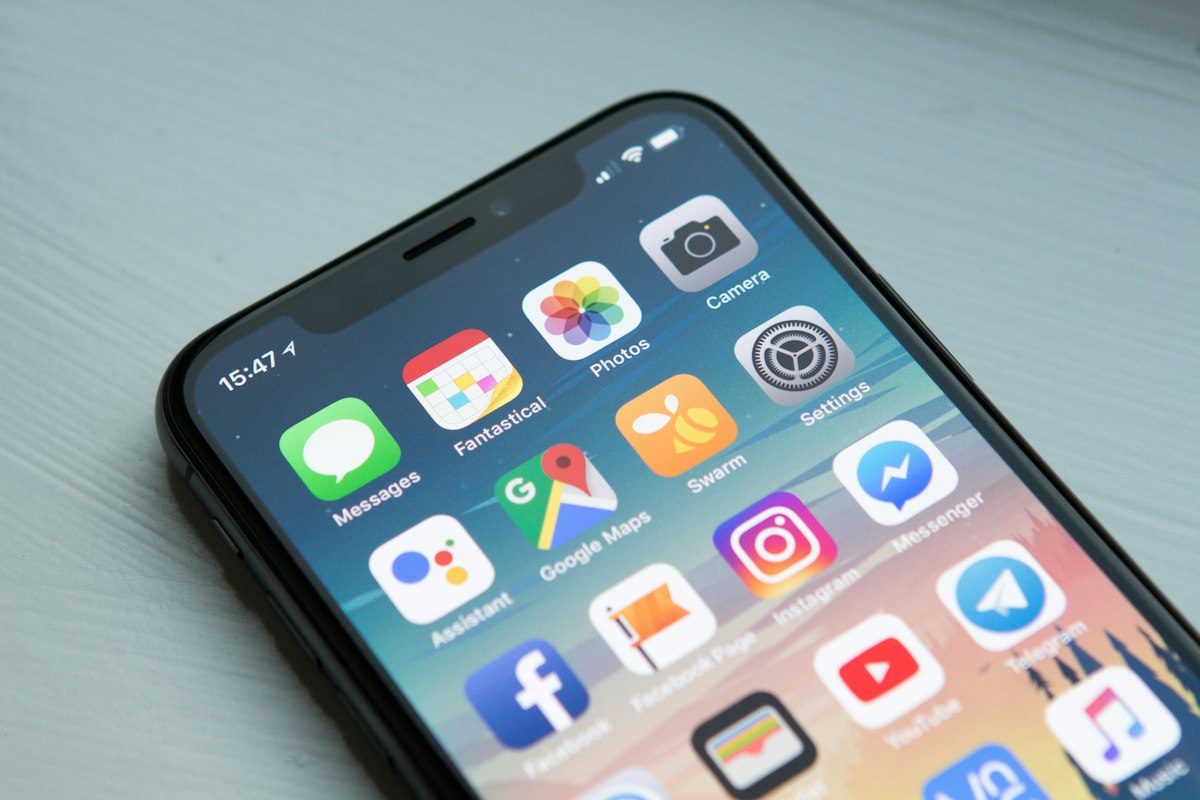
US me live, India me abhi nahi. That is the most important sentence in this guide. YouTube’s prompt-built Home feeds, rolled out on 22 October 2026, let a viewer type a prompt and get a custom Home feed built around that idea. But the rollout is limited: US only, signed-in viewers aged 13 and older, English only, and watch and search history must be on. This is not a how-to-use-it-now guide for India, because Indian viewers cannot use it yet. It is a preparation guide, so your videos are ready if and when prompt feeds arrive in India.
The limits are specific, and they should shape your expectations. Viewers get three custom feeds free, and eight with Premium. Subscriptions was renamed “Subs” and moved to the Home top bar. Custom feeds expire after 30 days of inactivity. And prompt feeds are not on tablets, according to the Help page. Do not promise Indian viewers a feature they cannot open, and do not waste time searching Studio for a prompt-feed button that is meant for viewers, not for creators.
Related guides: How to Make Educational Videos That Rank and How the YouTube Algorithm Works in 2026. For keyword thinking, see How to Earn Money on YouTube only for its planning habits, not for prompt feeds.
What You Will Learn
- Exactly who can use prompt-built Home feeds today, and who cannot
- What the 3-feed, 8-feed, Subs, and 30-day limits mean in plain language
- How to find the literal prompt words a viewer might type
- How to put those exact words into titles honestly
- How to put those exact words into descriptions and opening lines
- How to keep watch and search history signals clean and consistent
Step 1: Understand the Limits Before You Promise Anything
What to do: Learn the limits first, and repeat them to your audience in the same words. Prompt-built Home feeds are for signed-in US viewers aged 13 and older, in English, with watch and search history on. They are not available in India, and they are not on tablets. If you tell Indian viewers to “try it now,” they will search for a button that is not there, and they will lose trust in your next update.
How to do it in simple steps:
- Write the limits in one short note: US only, 13+, English, history on, not on tablets.
- Check your own audience location in Studio before you assume most viewers are in the US.
- Do not make a tutorial video that shows clicks or screens you cannot show from India.
- Use the words “US me live, India me abhi nahi” when you explain it to Hindi-speaking viewers.
Practical example: A Hindi creator with mostly Indian viewers records a video titled “YouTube’s New Prompt Feeds - Try It Now.” Viewers comment that they cannot find the feature, and the creator spends a week answering the same question. A better video is titled “Prompt Feeds Explained: US Only, Not in India Yet,” and it teaches preparation instead. The second video keeps trust, even though the feature is not available.
Common mistake to avoid: Presenting a US-only rollout as a worldwide launch, or guessing an India date. No India date was given in the limits in this guide. Do not invent one. Also avoid claiming the feature works on tablets; the Help page position in this guide is that it does not.
Illustrative image: Check who can actually use a new feature before you promise it to all viewers. This is an illustrative image, not a screenshot of a channel or another creator’s work.
Step 2: Find the Literal Prompt Words Viewers Might Type
What to do: Find the literal words a viewer might type as a prompt, in the viewer’s own language. A prompt feed is built from a prompt, so the exact topic phrase matters. Do not guess a clever phrase. Look at the words viewers already use in search, comments, and questions, and write down the simplest, most direct version of each idea.
How to do it in simple steps:
- List ten questions your viewers ask most, in their exact words where you can.
- Shorten each question to a topic phrase, such as “beginner lighting setup” or “how to start a Hindi channel.”
- Check YouTube search suggestions for each phrase, and note the wording that appears most often.
- Keep a short list of five to ten prompt phrases, and use the same wording across videos on that topic.
Practical example: A creator teaches phone editing. Viewers ask, “How do I edit videos on my phone for free?” The literal prompt phrase for planning is “edit videos on phone for free.” The creator uses that phrase in the title and description, instead of a vague title like “My Editing Secrets.” The video is still honest, but its topic is now written in the words a viewer might type.
Common mistake to avoid: Using only broad words like “motivation” or “viral” as your prompt phrase. Broad words can match almost anything, so they do not help a viewer who wants a specific answer. Another mistake is changing the phrase in every video, so no clear pattern forms around your best topics.

Illustrative image: Write down the literal topic phrases viewers use, in their own words. This is an illustrative image, not a screenshot of a channel or another creator’s work.
Step 3: Put the Exact Prompt Phrase in Your Title
What to do: Put the exact prompt phrase in your title, in a natural way, when the video truly answers it. The title is the clearest signal of what a video is about. If a viewer might type “how to make thumbnails that get clicks,” a title that contains those words is easier to match than a title that only hints at the idea. Keep the title honest and readable; do not stuff it with extra phrases.
How to do it in simple steps:
- Choose one prompt phrase per video, from your list in Step 2.
- Put that phrase near the start of the title, in the same words a viewer would type.
- Add one clear result or audience word, such as “for beginners” or “on a phone.”
- Read the title aloud, and remove any word that does not help the viewer decide to watch.
Practical example: A creator changes a title from “This Changed My Channel” to “How to Make Thumbnails That Get Clicks for Beginners.” The first title is mysterious, but it does not name the topic. The second title uses the literal phrase, names the audience, and still promises a clear result. If a prompt feed later looks for thumbnail videos, the second title is ready.
Common mistake to avoid: Putting a prompt phrase in a title for a video that does not deliver it. If the video is about something else, the mismatch will hurt watch time and trust. Also avoid repeating the same phrase three times in one title; one clear use is enough, and the rest of the title should add meaning.

Illustrative image: One exact topic phrase, near the start of the title, is clearer than a vague promise. This is an illustrative image, not a screenshot of a channel or another creator’s work.
Step 4: Put the Same Words in Your Description and Opening Lines
What to do: Repeat the same prompt words in your description and in your opening lines, so the video’s topic is consistent from start to finish. A title alone can be a hint, but a description that restates the topic in the first two lines, and a spoken opening that names the topic, leaves less room for confusion. Keep the wording natural, and make sure the video actually covers what you wrote.
How to do it in simple steps:
- Write the prompt phrase in the first two lines of the description, in a full sentence.
- List the steps or questions the video answers, using the same topic words.
- Say the topic aloud in the first ten seconds, in the same plain words.
- Check that the description, the title, and the spoken opening all name the same topic.
Practical example: A video titled “How to Start YouTube With Only a Mobile Phone” opens with, “In this video, you will learn how to start YouTube with only a mobile phone, from filming to uploading.” The description begins with the same sentence, then lists filming, editing, and uploading. A viewer who typed that phrase, and a system that reads the title and description, both get the same clear topic.
Common mistake to avoid: Writing a description full of unrelated keywords, or starting the video with a long story before naming the topic. Viewers and systems both need the topic early. Another mistake is using a different phrase in every place, so the title, description, and opening sound like three different videos.

Illustrative image: Keep the title, description, and opening lines naming the same topic. This is an illustrative image, not a screenshot of a channel or another creator’s work.
Step 5: Keep Watch and Search History Signals Clean and Consistent
What to do: Keep your channel’s topic signals clean and consistent. Prompt feeds depend on watch and search history being on for the viewer, which means a viewer’s past viewing helps shape what they are shown. As a creator, you cannot control a viewer’s history, and you should not try to manipulate it. What you can control is consistency: publish videos that clearly belong to a topic, use honest titles, and avoid mixing unrelated topics in one video.
How to do it in simple steps:
- Group your videos by topic, and keep each video focused on one clear topic.
- Use the same topic words for videos in the same group, instead of a new phrase every time.
- Avoid misleading titles that bring viewers who leave quickly, because that weakens the topic signal.
- Do not ask viewers to search or watch in a fake pattern; let real interest build the signal.
Practical example: A creator publishes six videos about beginner lighting, all with clear lighting titles and descriptions. A viewer who watches two of them builds a clear lighting history, and future lighting videos are easier to surface. If the same creator mixes lighting, gaming, cooking, and finance in one week with vague titles, no clear topic pattern forms, and no prompt phrase can fix that confusion.
Common mistake to avoid: Trying to game history signals with click exchanges, fake traffic, or misleading titles. That is not preparation; it is spam, and it harms trust. Also avoid changing your niche every week. Clean signals come from steady, honest topic focus, not from tricks.

Illustrative image: A steady topic focus gives viewers and systems a clear pattern to follow. This is an illustrative image, not a screenshot of a channel or another creator’s work.
Step 6: Plan for Subs, Expiry, and the Day Prompt Feeds Arrive
What to do: Plan for the other changes that came with the rollout, and for the day prompt feeds might arrive in India. Subscriptions was renamed “Subs” and moved to the Home top bar, so viewers may look for subscriptions in a new place. Custom feeds expire after 30 days of inactivity, so a feed is not permanent. Keep a simple plan: remind viewers to subscribe, keep publishing on a steady schedule, and re-check official help pages before you announce any India launch.
How to do it in simple steps:
- Tell viewers where to find “Subs” in the Home top bar, using the new name.
- Keep a steady publishing schedule, so your topic stays active and visible.
- Revisit your prompt-phrase list every month, and update titles only when a video truly needs it.
- Before you announce an India rollout, open YouTube’s official help or announcement pages and confirm it yourself.
Practical example: A creator ends videos with, “If this helped, tap Subs at the top of Home to see more.” That short line uses the new name and the new place. The creator also keeps a monthly note: “Prompt feeds: still US only, checked on 27 October 2026.” When the status changes, the creator can update viewers with evidence, instead of guessing.
Common mistake to avoid: Telling viewers that a custom feed will stay forever, or that three feeds are enough for every interest. Remember the limits: three custom feeds free, eight for Premium, and expiry after 30 days of inactivity. Also avoid renaming subscriptions in your own words in a confusing way; use the name viewers will see, “Subs.”
Illustrative image: Keep a steady schedule and re-check official pages before announcing a new rollout. This is an illustrative image, not a screenshot of a channel or another creator’s work.
Checklist for Prompt-Ready Videos in India
- I explain the limits honestly: US me live, India me abhi nahi
- I know the rules: US only, 13+, English, history on, not on tablets
- I have a short list of literal prompt phrases in viewers’ own words
- Each title uses one exact prompt phrase, honestly, near the start
- Descriptions and opening lines repeat the same topic in plain words
- My videos stay focused on one topic, with clean and consistent signals
- I use the name “Subs” and the Home top bar when I talk about subscriptions
Frequently Asked Questions
Can I use prompt-built Home feeds in India today?
No, based on the rollout limits in this guide. Prompt-built Home feeds are US only, for signed-in viewers aged 13 and older, in English, with watch and search history on. US me live, India me abhi nahi. Do not present this guide as a how-to-use-it-now guide for India.
How many custom feeds can a viewer make?
Three custom feeds free, and eight for Premium, according to the rollout limits in this guide. Custom feeds expire after 30 days of inactivity, so they need to be used to stay active.
Do prompt feeds work on tablets?
No, according to the Help page position in this guide, prompt feeds are not on tablets. Check the official Help page if you need to confirm the current device list before you tell viewers where to look.
What changed about Subscriptions?
Subscriptions was renamed “Subs” and moved to the Home top bar. Use the name “Subs” when you guide viewers, so they can find the same label they see on screen.
What should I do now if I am in India?
Prepare, do not pretend. Build a list of literal prompt phrases, put the exact words in honest titles and descriptions, keep your topic focus steady, and keep checking official pages for any India rollout. When prompt feeds arrive, videos that already name their topic clearly will be ready.
Prompt feeds reward clarity. A viewer who can type a plain topic phrase should be able to find a video that plainly answers it. That is work you can do today, even while the feature itself is still US only.