YouTube Scheduled Video or Premiere Not Publishing? Why It Misses the Start Time
 CreatorPlaybook Team
- 30 Oct, 2026
You set the time, told your viewers, and counted down, but when the hour came, nothing happened. A scheduled video or a Premiere can miss its start for a few simple reasons, and most of them are easy to prevent once you know where to look. Most misses come from three causes, and all three are easy to check. This guide explains the difference between a scheduled video, a Premiere, and an instant Premiere, shows you the checks to run the day before, and gives you a plan for the day itself. Work through the six steps, and your next video will start on time.
What You Will Learn
- How a scheduled video, a Premiere, and an instant Premiere differ.
- The checks to run the day before, not five minutes before.
- Why processing, time zones, and format limits delay a start.
- What to do when a Premiere is stuck at start time.
- A Premiere-day plan you can reuse for every launch.
Step 1: Tell the Three Release Types Apart
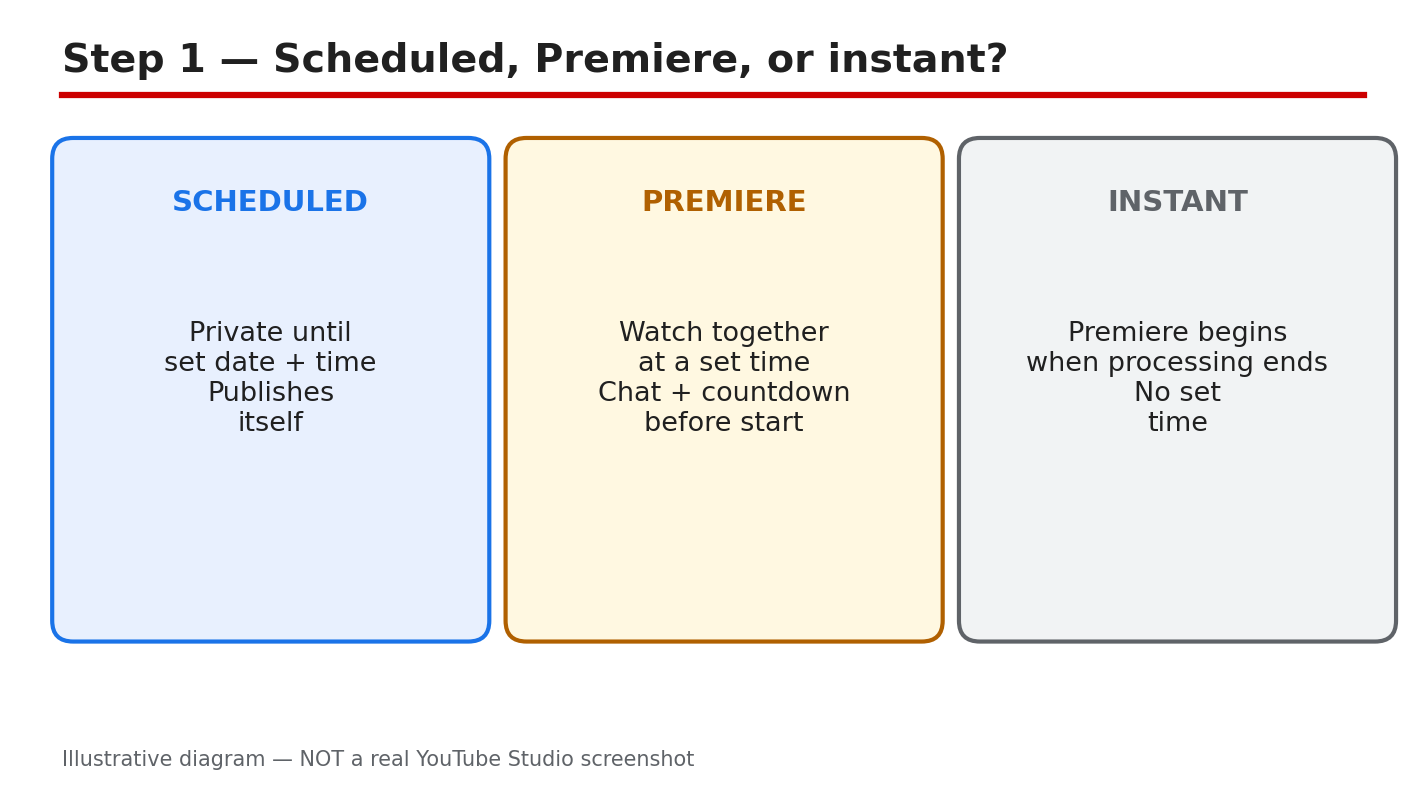
A scheduled video is a normal upload with a date and time attached. You upload it, set it to go Public at the chosen time, and it stays Private until then. A Premiere is different: your viewers watch together at a set time, with a countdown, a live chat, and a shared watch page. An instant Premiere is the third type: it begins as soon as processing finishes, instead of at a set date and time. If you only want the video to go live at a set time, a scheduled upload is enough, and there is no countdown for viewers to join.
Example: you schedule a tutorial for Friday 6 p.m. and it goes Public on its own. For a countdown and live chat, set it as a Premiere instead. Common mistake: calling every scheduled upload a Premiere.
Figure 1: Illustrative diagram comparing a scheduled video, a Premiere, and an instant Premiere. This is a mock-up, not a real YouTube Studio screenshot.
Step 2: Check Everything Before Start Time
Run these checks the day before, not five minutes before the start. In YouTube Studio, go to Content, open the video row, and check the upload and processing status. On the watch page, open Settings, then Quality, to confirm HD is ready. Then re-read the scheduled date, time, and time zone. Finally, confirm the video is eligible for a Premiere: Shorts are not supported, neither are 360 or VR180 videos, and neither is output over 1080p. Also check that the video is not still uploading, because a schedule cannot start a file that has not finished uploading.
Example: on Thursday, confirm HD is ready and the time reads Friday 6 p.m. in your own time zone. Common mistake: checking the schedule while travelling and reading the time in the wrong zone.
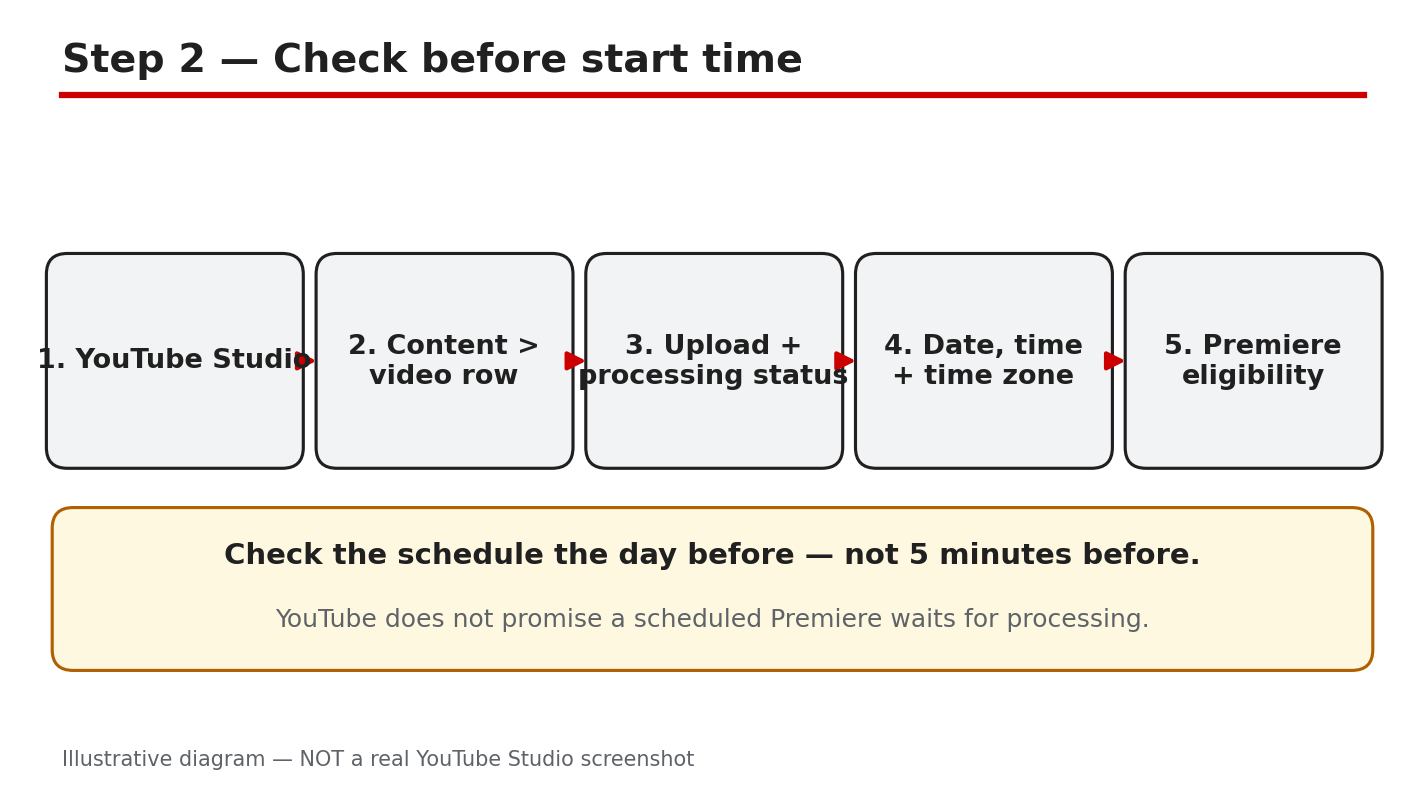
Figure 2: Illustrative diagram of the pre-start checks: processing status, date, time, time zone, and eligibility. This is a mock-up, not a real YouTube Studio screenshot.
Step 3: Learn Why It Misses the Time
The most common cause is unfinished processing. YouTube publishes the low-quality version first and adds HD later, so a video can be live but not finished. A 60-minute 4K video at 30 frames per second can take up to 4 hours to finish high-resolution processing, and 60 frames per second takes longer. A longer video, a higher resolution, and a higher frame rate all add processing time, and busy traffic on YouTube can slow it further. The second cause is the wrong time zone: the video is fine, but the clock was set for another zone. The third cause is format: Shorts, 360 and VR180 videos, and output over 1080p are not supported for Premieres, as YouTube Help states.
Example: you upload a 4K video at 5 p.m. and schedule the Premiere for 7 p.m., but the video is still processing at 7 p.m. Common mistake: uploading an hour before a Premiere and assuming the schedule guarantees a start. Upload hours early instead.
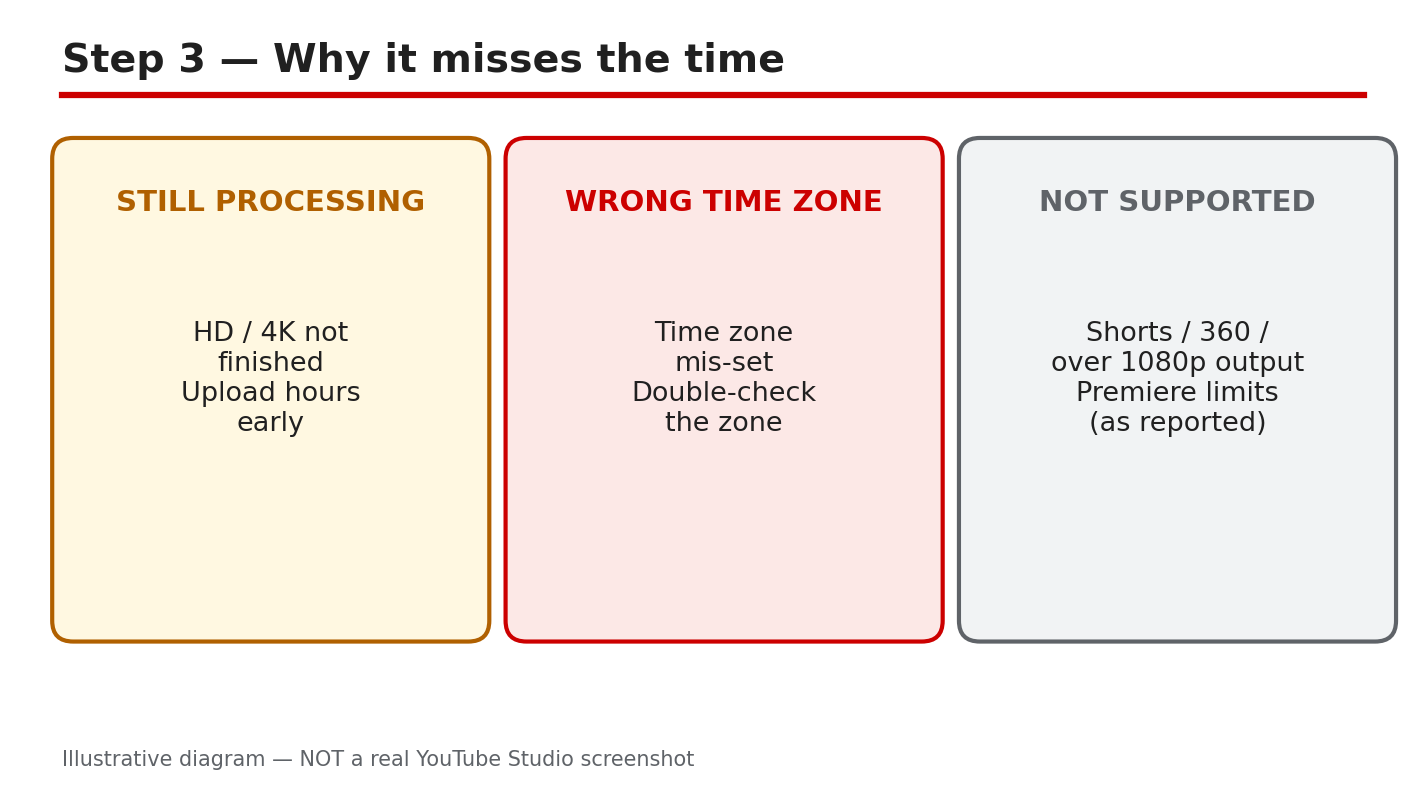
Figure 3: Illustrative diagram of the three delay causes: processing, time zone, and unsupported format. This is a mock-up, not a real YouTube Studio screenshot.
Step 4: Run the Pre-Premiere Checks
Run this list the day before, and again three hours before the start. First, confirm processing has finished and HD is available in the Quality menu. Second, re-read the date, time, and time zone, and compare them with the time you announced to your viewers. Third, confirm the format is supported: a regular video at 1080p or lower, not a Short, and not a 360 or VR180 video. Fourth, check for anything that can block publishing, such as a Community Guidelines strike. YouTube Help says a strike can stop a Premiere from publishing during the penalty period. If anything on the list fails, move the start time and tell your viewers before the countdown begins.
Example: three hours before the start, the quality menu tops out at 360p, so you move the Premiere later and tell viewers in a Community post. Common mistake: skipping the three-hour check because the video looked fine yesterday.
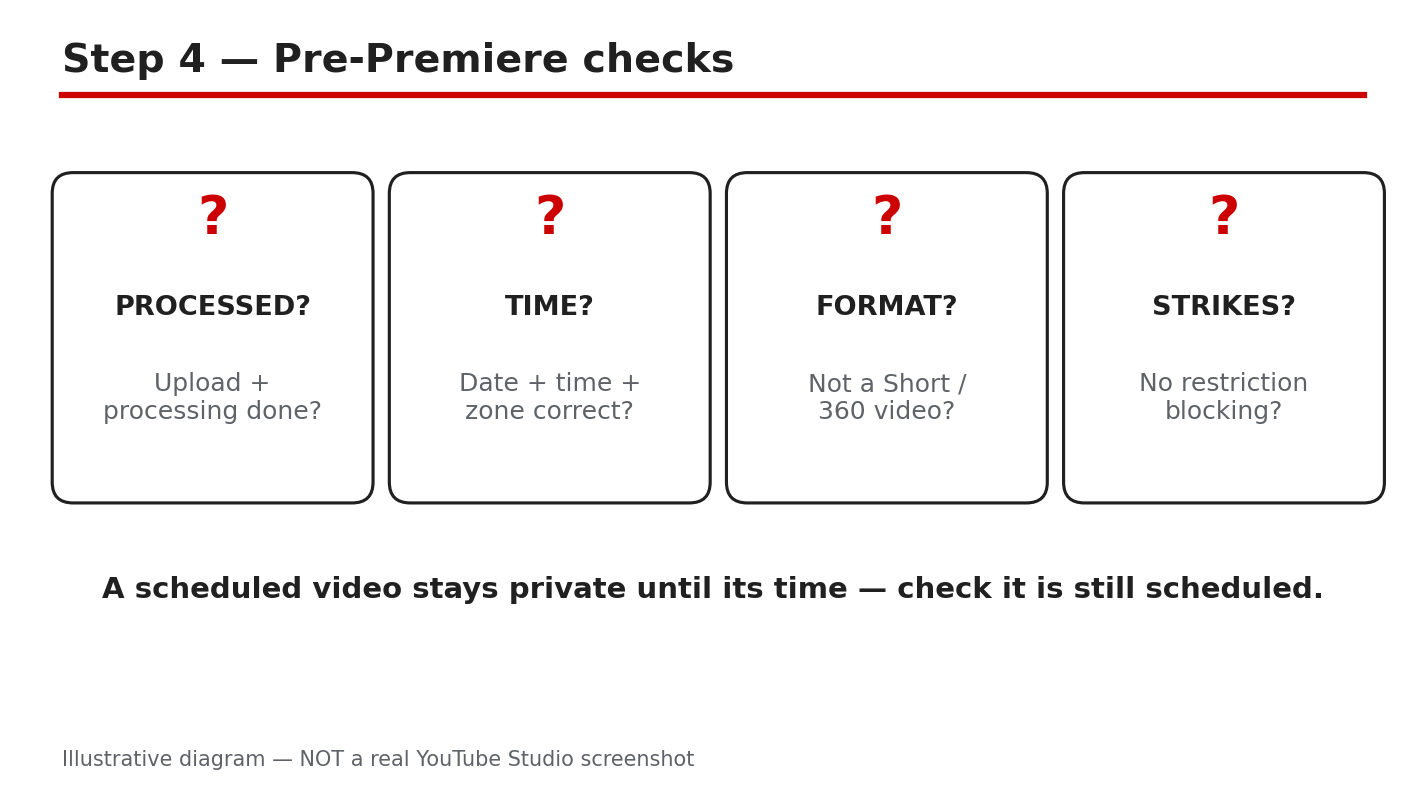
Figure 4: Illustrative diagram of the pre-Premiere checklist: processed, time correct, format supported, no block. This is a mock-up, not a real YouTube Studio screenshot.
Step 5: What to Do If It Is Stuck
Check the processing status before you panic. Processing may finish late, and a Premiere can begin once the video is ready. Do not delete the video, and do not upload a second copy in a rush. If the delay is long, re-schedule the Premiere and tell your viewers in a Community post and on the watch page. If the audience is waiting and the wait is urgent, start a normal live stream instead and play the video there. Tell viewers what happened and when the new start time is, so they come back instead of leaving.
Example: the countdown ends but the video does not play, so you post an update, move the Premiere by one hour, and your viewers return. Common mistake: re-uploading the same video while the first copy is still processing, which splits the audience.
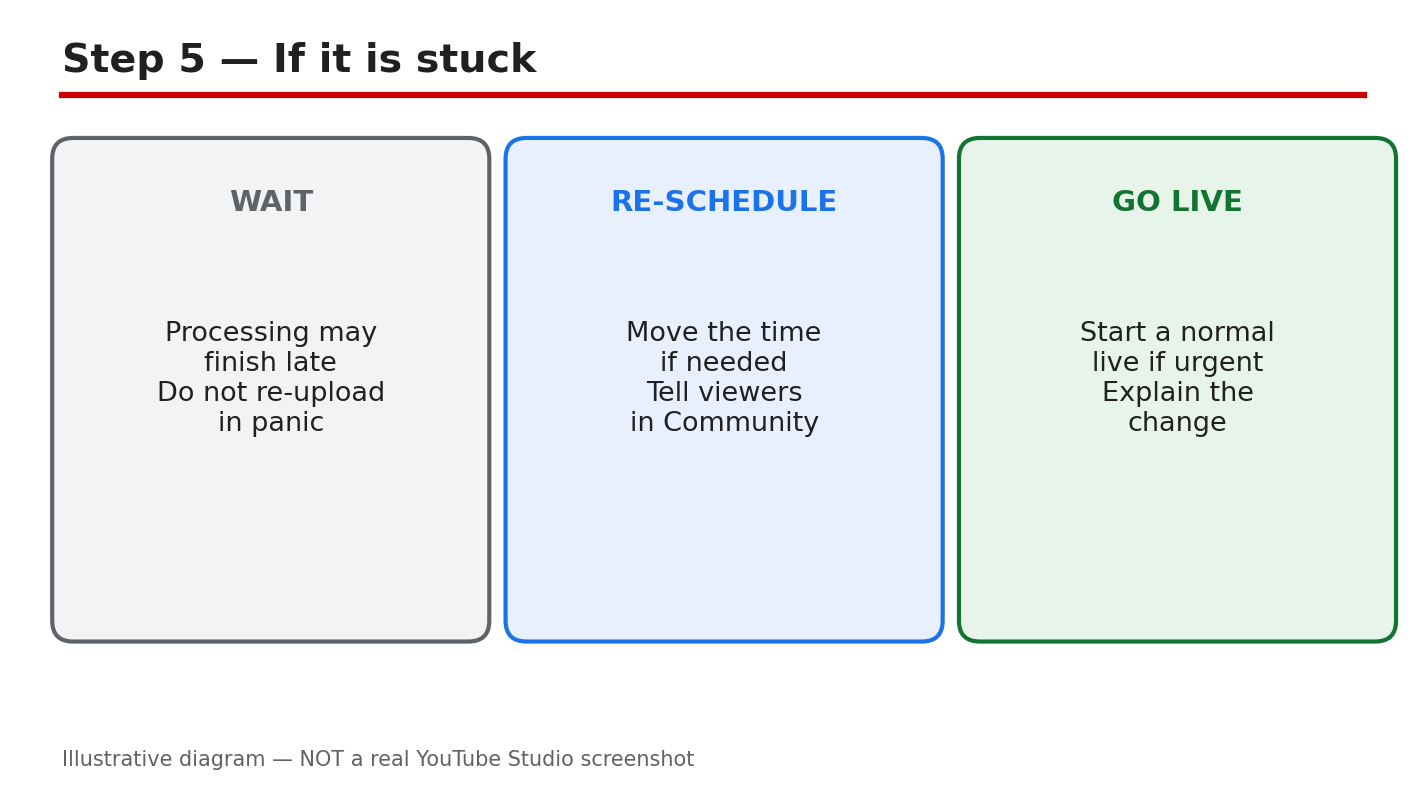
Figure 5: Illustrative diagram of the stuck-Premiere options: wait, re-schedule and tell viewers, or go live instead. This is a mock-up, not a real YouTube Studio screenshot.
Step 6: Follow a Premiere-Day Plan
Upload the video the day before and keep it Private until the start. Confirm HD has finished three hours before the start. Open the watch page and check the date, time, and time zone one last time. Be in the chat five minutes early, pin a comment with your key links, and stay after the Premiere to reply to the first comments. After the Premiere ends, the video stays as a regular upload, and the chat replay is available. Keep the schedule unchanged on the day itself, unless a check fails.
Example: your Premiere is Saturday 6 p.m., so you upload on Friday, confirm HD on Saturday at 3 p.m., and join the chat at 5:55 p.m. Common mistake: leaving the chat empty until the video starts. The countdown is part of the event.
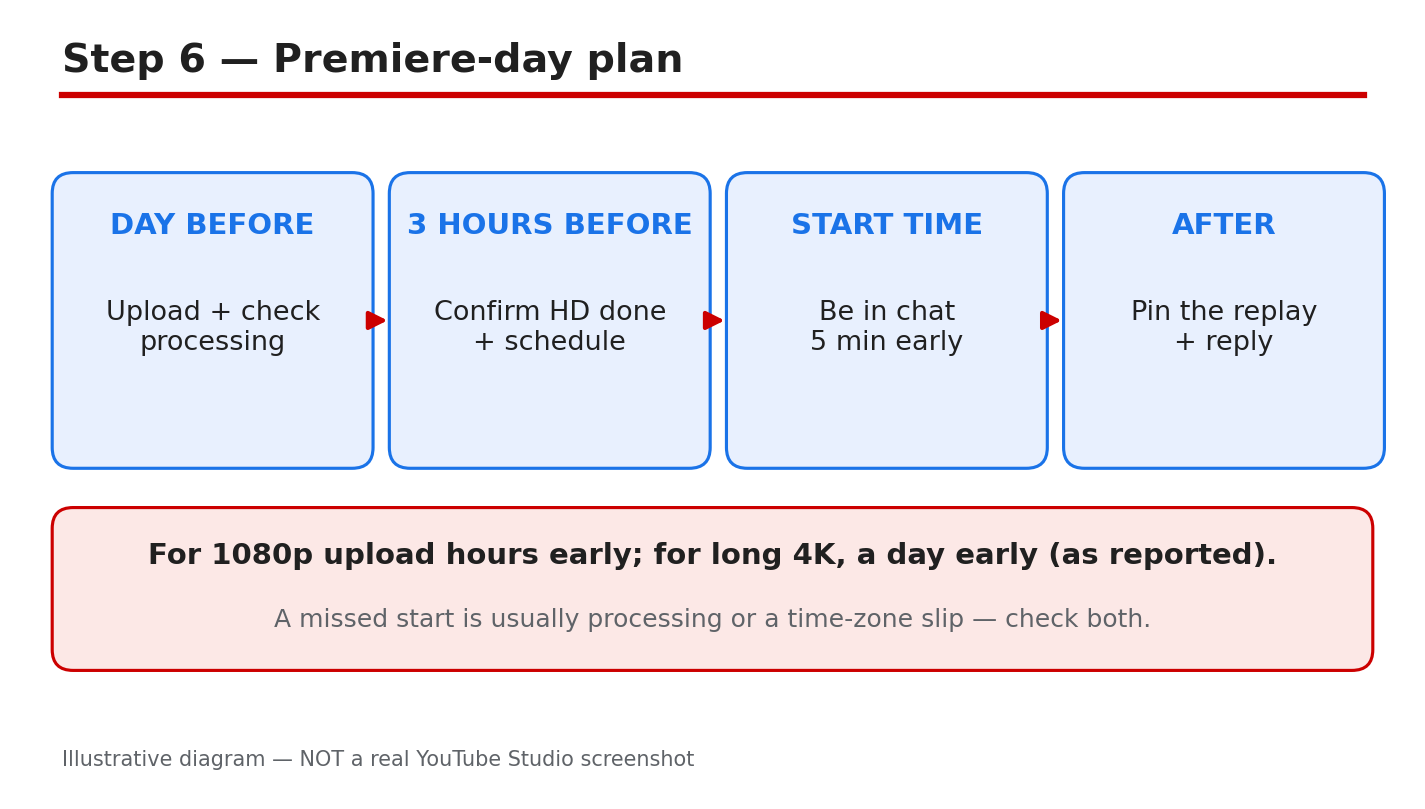
Figure 6: Illustrative diagram of the Premiere-day plan: upload early, confirm HD, join chat early, pin the replay. This is a mock-up, not a real YouTube Studio screenshot.
Quick Checklist
- Uploaded the video the day before, as Private.
- Confirmed HD is finished three hours before the start.
- Checked the date, time, and time zone twice.
- Confirmed the format is supported for Premieres.
- Checked for strikes or restrictions that can block publishing.
- Joined the chat five minutes early and pinned the replay.
Frequently Asked Questions
Why did my Premiere not start at the scheduled time?
Unfinished processing is the most common reason. YouTube publishes the low-quality version first and adds HD later, and a 60-minute 4K video at 30 frames per second can take up to 4 hours to finish high-resolution processing. Upload hours early and confirm HD is ready before the start. Check the Quality menu on the watch page to see whether HD is ready.
Can I Premiere a Short?
No. Shorts are not supported for Premieres, and neither are 360 or VR180 videos, or output over 1080p.
What is an instant Premiere?
An instant Premiere begins as soon as processing finishes, instead of at a set date and time.
My Premiere is stuck. Should I re-upload the video?
No, not in a panic. Check the processing status first, then re-schedule and tell your viewers, or start a normal live stream if the wait is urgent.
Can a strike stop my Premiere?
Yes. YouTube Help says a Community Guidelines strike means the Premiere will not publish during the penalty period.
Sources — Check It Yourself
- YouTube Help: Premiere a new video
- YouTube Help: Low video quality after upload
- Related on CreatorPlaybook: YouTube Live Streaming for Beginners