YouTube Studio Analytics Missing or Delayed? What the Lag Really Means
 CreatorPlaybook Team
- 10 Nov, 2026
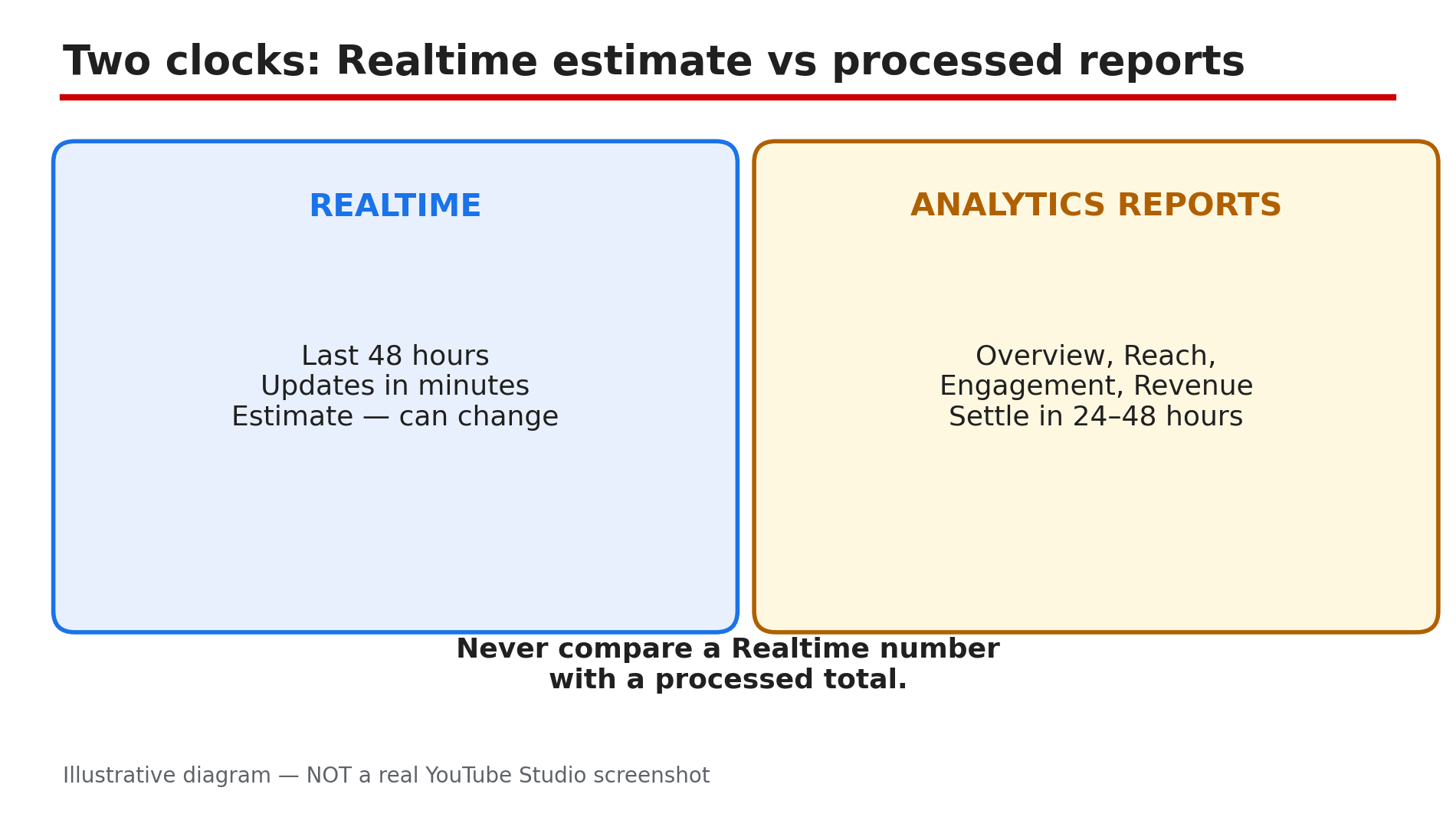
You uploaded a video two days ago, the views are clearly coming in, and Studio Analytics still shows nothing — or a number that has not moved since yesterday. In most cases nothing is broken: YouTube Studio runs on two different clocks, and confusing them is the most common reason creators think their data is missing. The Realtime report is a live estimate of roughly the last 48 hours, while the full Analytics reports take time to process — most metrics settle within 24 to 48 hours, as reported, and YouTube’s Help pages confirm a delay of about two days for estimated earnings data.
What You Will Learn
- Why Realtime and Analytics reports show different numbers — and both can be right
- How long each report normally takes to fill in
- Why revenue and membership figures look missing when they are only unfinished
- The two-minute checks: date range, channel, and report type
- When to wait, and when a gap means something is actually wrong
Step 1 — Learn the two clocks: Realtime estimate vs Analytics reports
What to do: Before judging any number, find out which clock you are looking at — Realtime or a processed report.
How: Open YouTube Studio and go to Analytics. The Realtime card shows activity from roughly the last 48 hours and updates within minutes — but it is an estimate, not a final count. The Overview, Reach, Engagement, Audience, and Revenue tabs are processed reports that take time to settle: most metrics land within 24 to 48 hours, some stretching to 72 hours. So a video with 500 views in Realtime and zero in Reach is not broken — the processed report has not caught up yet. Compare numbers only within the same report.
Example: A creator sees 1,200 views in Realtime on day one and nothing in Reach. On day three Reach shows 1,180 — the 20-view difference is invalid playbacks removed during validation.
Common mistake: Refreshing Analytics every hour and concluding the data is stuck — the reports update on YouTube’s timetable, not yours.
Illustrative diagram: YouTube Studio’s two clocks — the fast Realtime estimate and the slower processed reports.
Step 2 — Check the date range and the right channel first
What to do: Rule out the two most embarrassing causes — the wrong date range and the wrong channel — before assuming data is missing.
How: In Analytics, look at the date range at the top of the page. If it ends yesterday, today’s views are not in it — extend the range, or switch to Realtime. Then check the channel: tap your profile picture in Studio and confirm you are on the right channel, especially if you manage a Brand Account with several channels. Analytics is per channel, so data for one channel never appears on another.
Example: A creator with two channels panics that a new video has zero views, then realises he is looking at his second channel’s Analytics.
Common mistake: Comparing Realtime views with a channel-level report for a different date range — the numbers will never match.
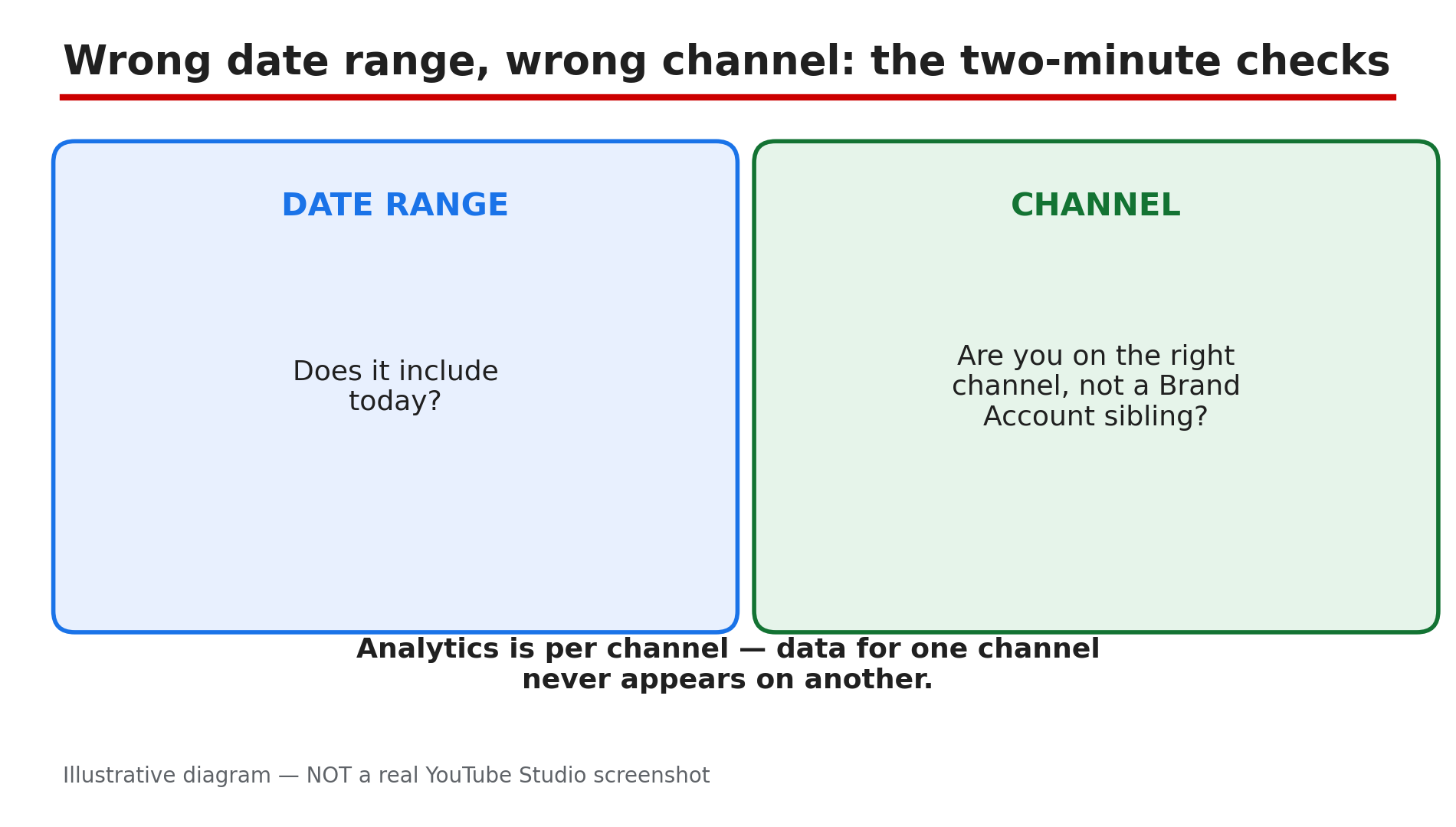
Illustrative mock-up: the two checks that take two minutes and explain most ‘missing’ Analytics.
Step 3 — Understand the revenue clock: estimated vs finalised
What to do: If the Revenue tab looks empty or wrong, check whether you are looking at an estimate or a finalised figure — they arrive weeks apart.
How: YouTube’s Help pages state Analytics has a data delay of about two days for estimated earnings, and estimates do not reflect invalid-activity adjustments in real time — so revenue for the last two days is often blank or low. Finalised earnings are different again: they appear once your payments are added to AdSense for YouTube, typically between the 7th and 12th of the following month. A January figure that looks small on 3 February is not missing — it is not finalised yet.
Example: A creator checks her January revenue on 5 February and finds it far below her estimate. By 12 February the finalised figure appears — the gap was invalid traffic removed during finalisation.
Common mistake: Treating an estimated revenue figure as money owed — only the finalised number pays out.
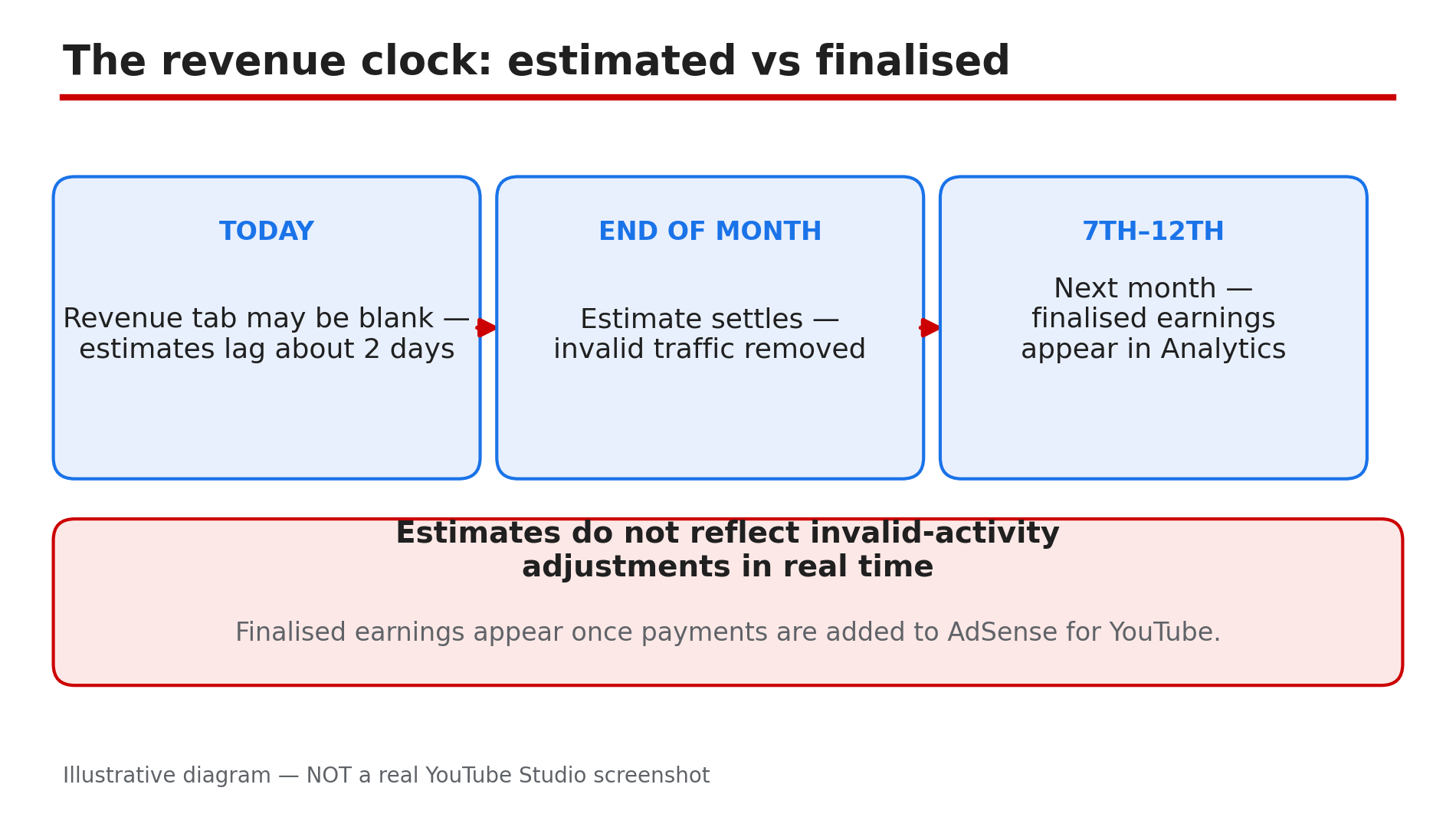
Illustrative diagram: the revenue timeline from estimated earnings to finalised earnings.
Step 4 — Give retention and key moments time to process
What to do: If the retention graph is blank or the key moments are missing, check the video’s age, length, and view count before calling it a fault.
How: Retention data typically takes one to two days to process, as reported, so a graph for a video uploaded this morning is often empty. Key moments — the Intro, Top moments, Spikes, and Dips labels — need a video at least 60 seconds long with at least 100 views, as reported. A 40-second Short or a video with 30 views will never show key moments, and that is by design. Check the Engagement tab after 48 hours.
Example: A creator uploads a 90-second video, gets 80 views on day one, and finds no key moments. On day three, past 100 views, the labels appear.
Common mistake: Re-editing a video to “fix” a retention graph that only needed another day — the re-upload resets the clock.
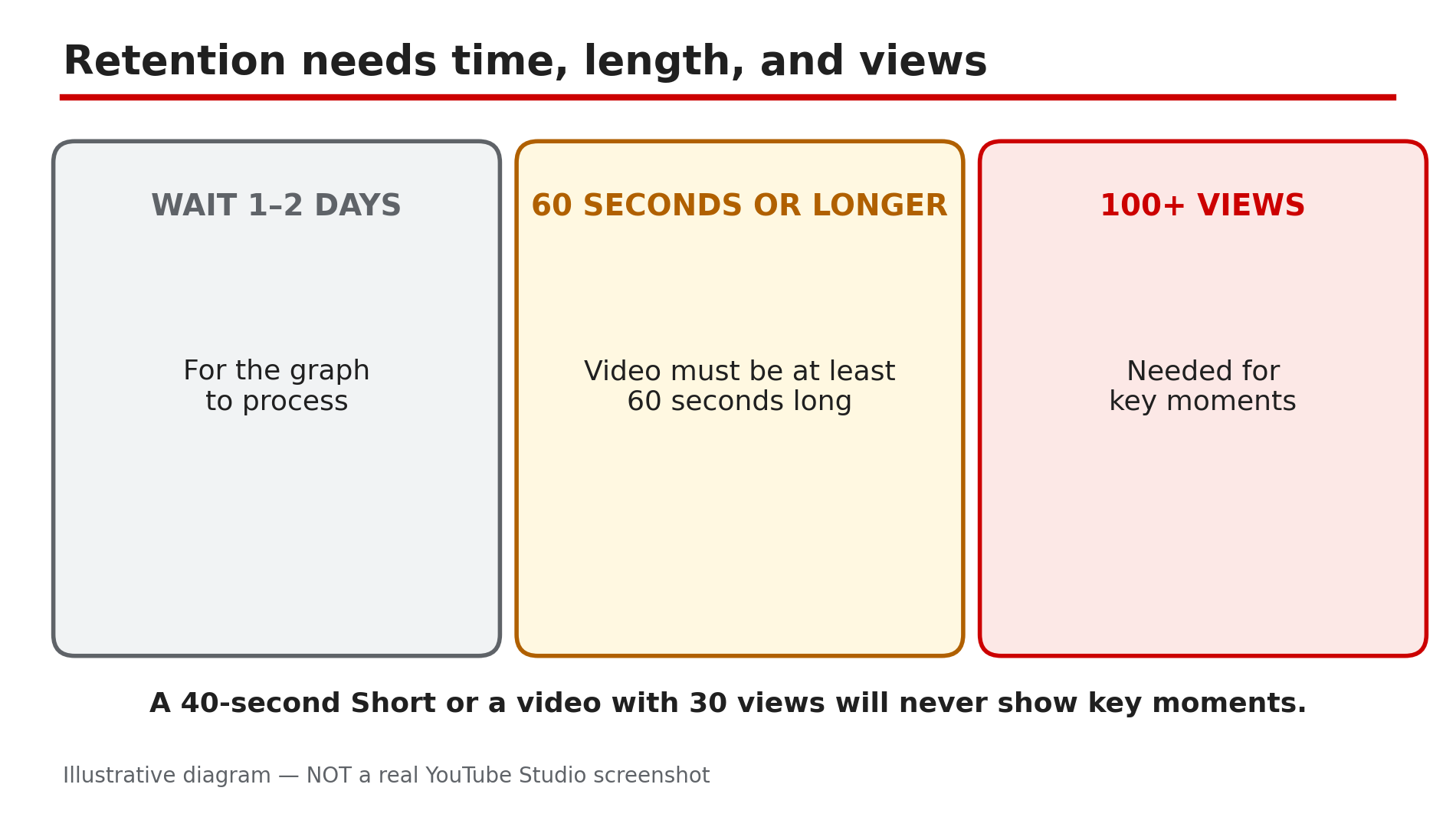
Illustrative diagram: the three conditions a video must meet before its retention graph and key moments appear.
Step 5 — Check membership earnings the right way
What to do: If membership earnings look missing from the Revenue tab, check the date range and whether you are comparing an estimate with a finalised figure.
How: Membership earnings are reported to go missing most often for two boring reasons. First, the date range is wrong: revenue is counted in the month the member was charged, not the month they joined. Second, creators compare the Revenue tab’s estimate with finalised AdSense earnings — two different numbers for different dates. Open the Revenue tab, set the date range to the full month, and look at the memberships row. If members are still being charged and the row is empty after a full month, check that memberships is still switched on in Studio under Earn — a paused feature stops new charges, as reported.
Example: A creator sees zero membership earnings for January, then realises her members were charged on 1 February — the figure belonged to February.
Common mistake: Assuming a memberships outage because the Revenue tab is empty for the current month — the month is never complete until it ends.
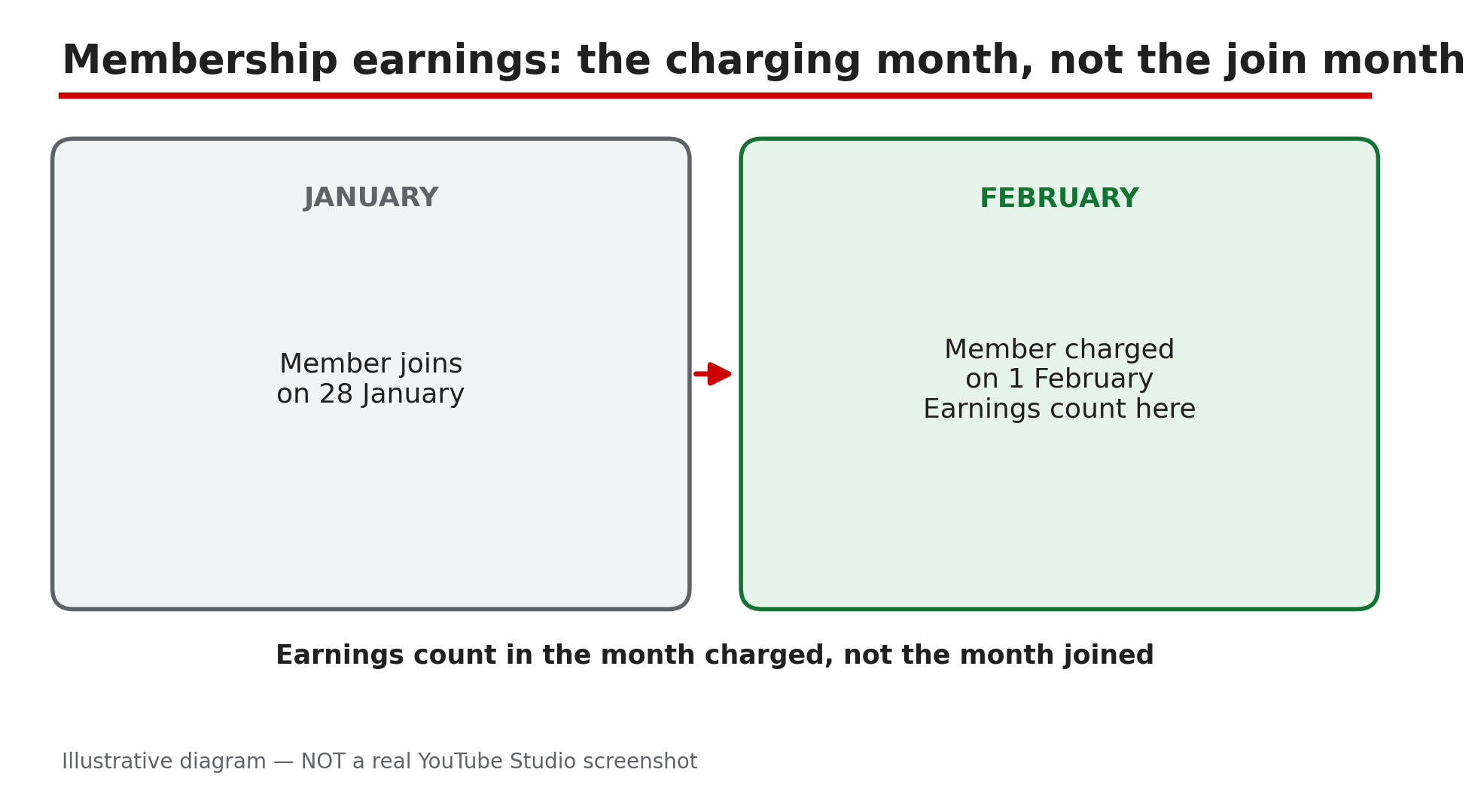
Illustrative diagram: membership earnings count in the month the member is charged, not the month they joined.
Step 6 — Know when to wait and when to act
What to do: Apply a simple rule: under 48 hours, wait; over a week with no movement, act.
How: If a number has not moved in under 48 hours, that is normal processing lag, as reported — wait two full days. If nothing has moved for more than a week while your videos are clearly getting views, check YouTube’s Known Issues page and try Analytics on a desktop browser, since some reports are not available on mobile. If the gap persists past a week on desktop, with the right channel and date range, use Studio’s Send feedback to report it.
Example: A channel’s views freeze for three days across every video. On day four the numbers jump back — a platform-wide delay, not a channel problem.
Common mistake: Deleting and re-uploading a video because its Analytics look empty on day one — you lose the original’s history and restart the clock.
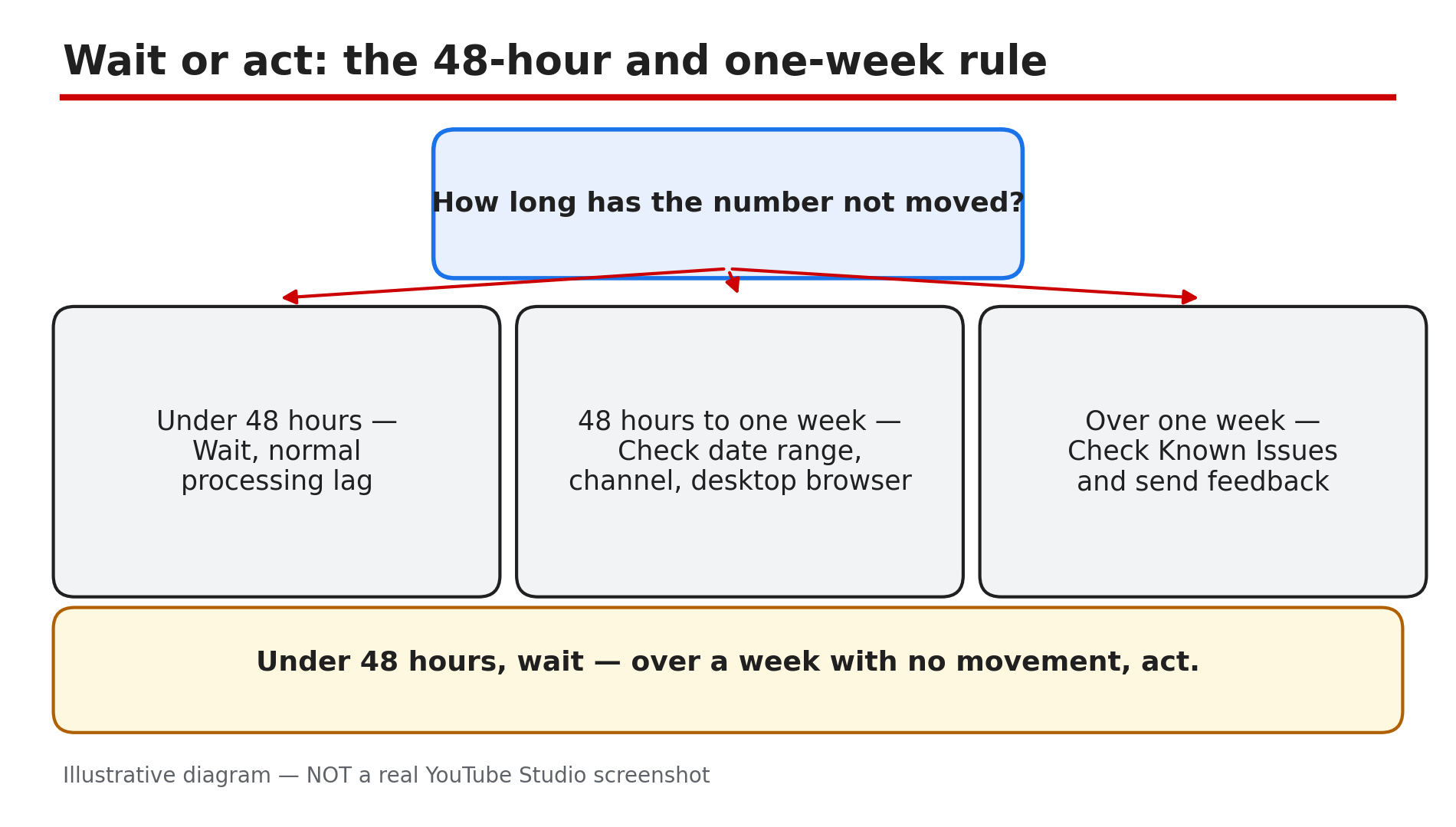
Illustrative diagram: a decision tree for deciding whether missing Analytics data needs waiting or action.
Checklist — Fix YouTube Studio Analytics missing or delayed data
- ☐ Identified whether the number is Realtime or a processed report
- ☐ Waited 48 hours before judging a new video’s reports
- ☐ Checked the date range includes the days in question
- ☐ Confirmed the right channel and the right report level
- ☐ Understood estimated revenue lags about two days
- ☐ Waited until the 7th to 12th of the next month for finalised earnings
- ☐ Gave retention one to two days, and key moments 60 seconds plus 100 views
- ☐ Checked membership earnings against the charging month, not the join month
- ☐ Tried Analytics on a desktop browser if mobile shows nothing
- ☐ Checked YouTube’s Known Issues page if nothing moves for a week
FAQs
1. How long does YouTube Analytics normally take to update?
Realtime updates within minutes as an estimate of the last 48 hours. Most processed metrics settle within 24 to 48 hours, as reported, with some stretching to 72 hours. Estimated earnings carry a delay of about two days, according to YouTube’s Help pages.
2. Why does Realtime show views but my Reach tab shows zero?
Because they are different clocks. Realtime is a fast estimate; the Reach tab is a processed report that has not caught up yet. Compare numbers only within the same report, and wait 48 hours before worrying.
3. Why did my view count go down in Analytics?
Because YouTube validates playbacks while counting and removes invalid ones, as reported. A count that drops slightly is the system working correctly — see our guide on Realtime views stuck.
4. My revenue for this month is blank. Is monetisation off?
Probably not. Estimated earnings lag about two days, and finalised earnings appear only between the 7th and 12th of the following month, according to YouTube’s Help page.
5. My retention graph is empty two days after uploading. What should I do?
First check the video is at least 60 seconds long with 100 or more views, as reported — key moments need both. If it is longer and well past 100 views after 48 hours, try a desktop browser.
Sources
- YouTube Help — “Get started with YouTube Analytics” (official page, opened live 10 Nov 2026): https://support.google.com/youtubecreatorstudio/answer/9002587?hl=en&co=GENIE.Platform%3DiOS
- CreatorPlaybook — “YouTube Realtime Views Stuck? Why the Count Freezes and When to Wait” (internal link, live-verified published post): </blog/youtube-realtime-views-stuck-why>
- CreatorPlaybook — “How to Read Your YouTube Retention Graph and Fix Drop-Offs” (internal link, live-verified published post): </blog/how-to-read-your-youtube-retention>