YouTube Studio Not Loading, Blank, or "Something Went Wrong"? How to Fix It
 CreatorPlaybook Team
- 07 Nov, 2026
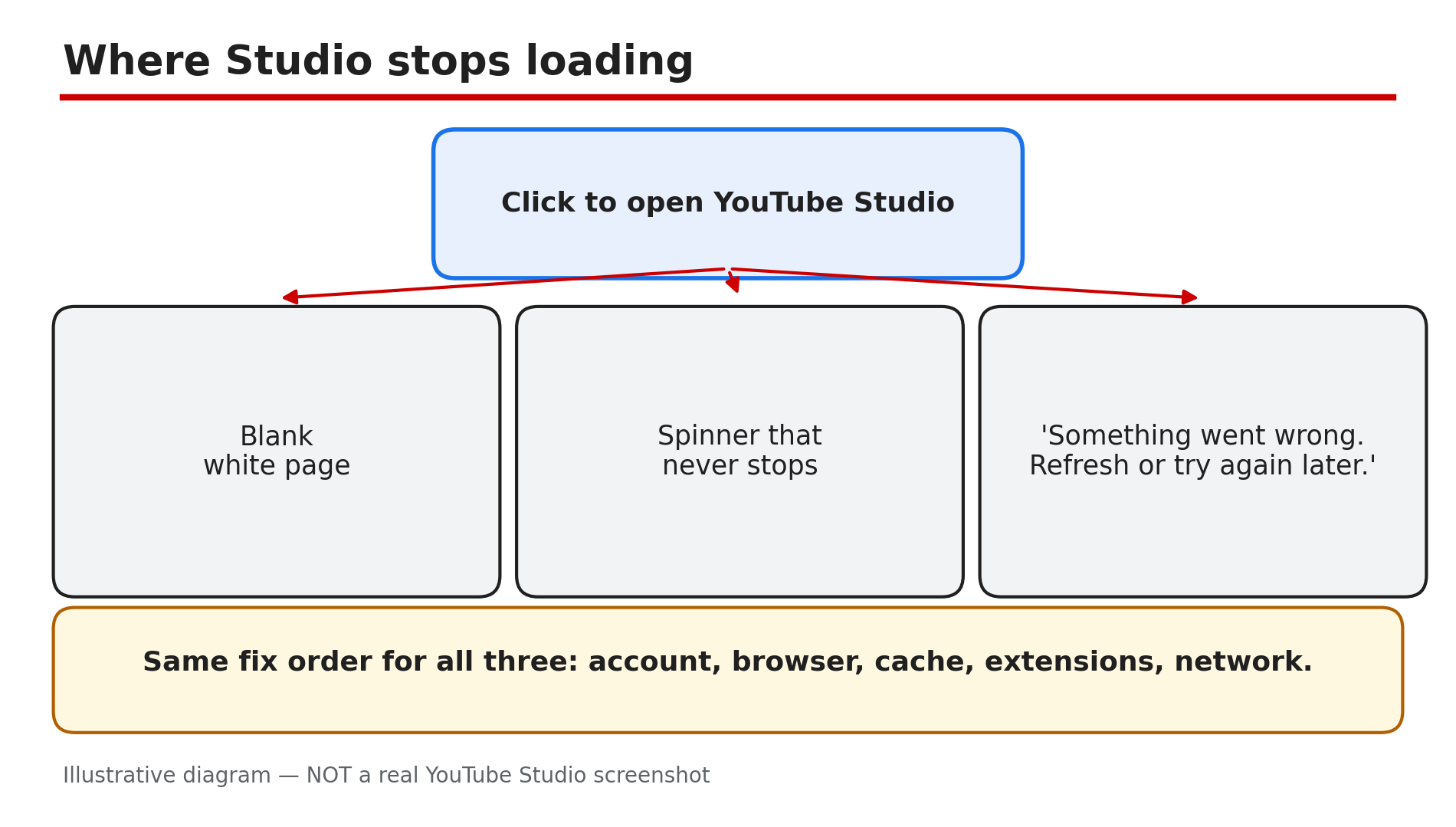
You click to open YouTube Studio and nothing happens. The page stays blank, the spinner turns forever, or a message says “Something went wrong. Refresh or try again later.” Your videos are due, and your channel’s control room is locked shut.
In most cases this is not a strike or a deleted account. It is usually a browser or sign-in problem: the wrong account, an outdated browser, a corrupted cache, a blocking extension, or a changed DNS setting. There is no dedicated Help page called “Studio not loading”, so this guide uses YouTube’s video-errors causes, which apply to Studio in the same browser.
Work through the steps in order, testing Studio after each change.
What You Will Learn
- How to read the symptom: blank page, spinner, or error
- How to check your account and channel
- How to restart, update, and clean your browser
- How to find a blocking extension
- Which Studio features are desktop-only, not a bug
Step 1 — Refresh and read the exact symptom
What to do: Refresh and note exactly what you see — a blank page, a spinner, or “Something went wrong” — before changing anything.
How: Press refresh once and wait a minute. If the error message appears, click the Reload option in it, as YouTube’s Help page suggests. Then open youtube.com in a new tab: if ordinary videos play but Studio does not, the fault is with Studio, not your connection. If nothing loads, check your connection and whether other creators report an outage.
Example: A creator’s Studio shows a blank screen every morning, but the watch page plays normally — so the fault is specific to Studio, pointing her to Steps 3 to 5, not her router.
Common mistake: Assuming the channel was deleted or hacked — a blank page almost never means that.
Illustrative diagram: the three ways Studio fails to load, and the shared fix order.
Step 2 — Confirm the right account and channel
What to do: Check you are signed in to the Google account that owns the channel, and the switcher shows the right channel.
How: Click your profile picture at the top right and read the account name. If you have more than one channel or a brand account, open the channel switcher and pick the right channel — Studio shows the selected channel’s data, so the wrong one can look like missing videos or an empty dashboard. If you are signed out, sign in again with the account that owns the channel.
Example: A creator with two channels opens Studio and sees no videos. She is signed in to her personal account, not the brand account that owns the channel. One switch brings all her videos back.
Common mistake: Creating a new channel by accident while signing in — check the switcher first.
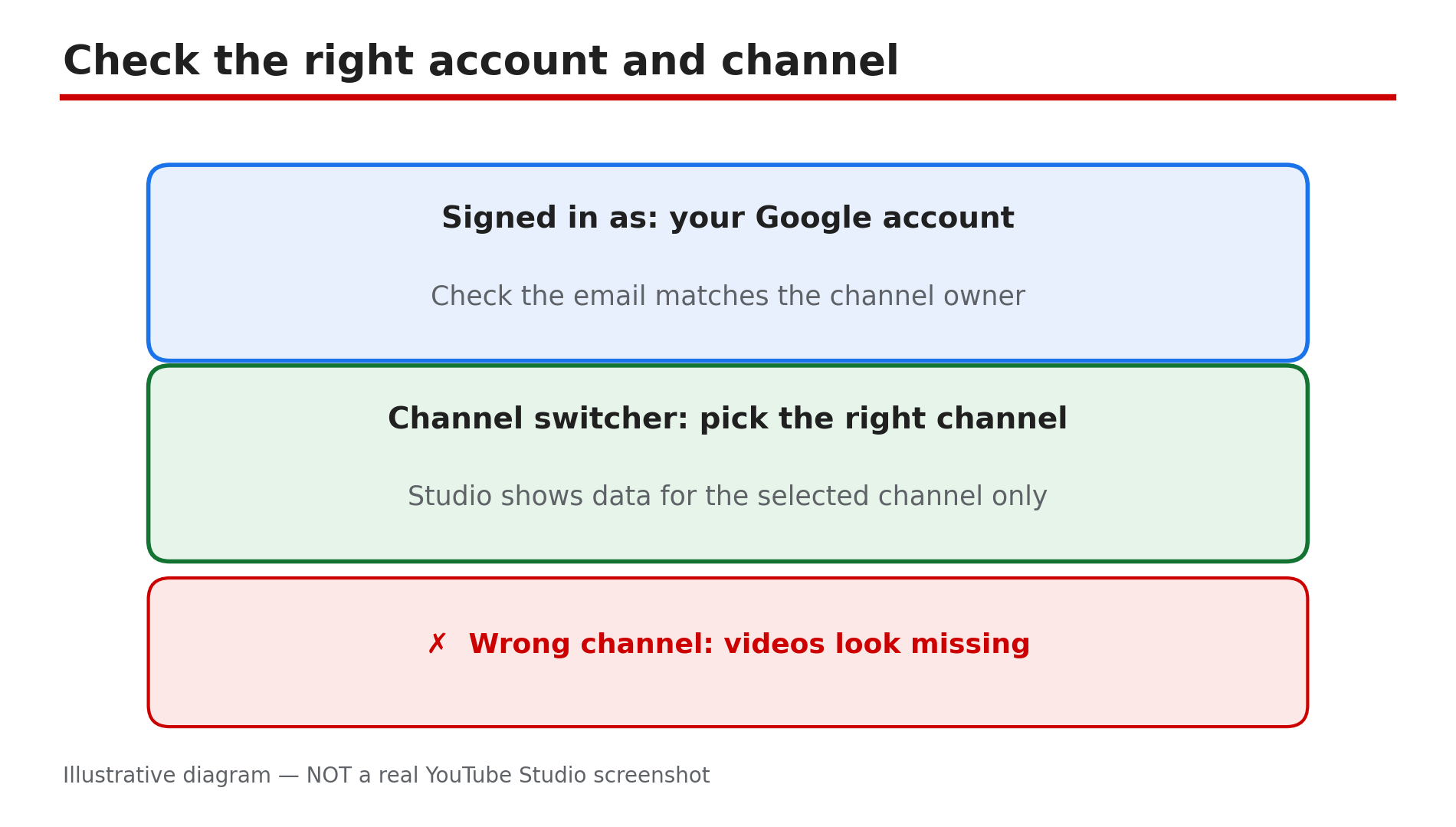
Illustrative mock-up: checking the signed-in account and the channel switcher before any browser fix.
Step 3 — Restart your browser and device, then update the browser
What to do: Close the browser completely, restart your device, and update to the latest version of a compatible browser.
How: Close every browser window, then reopen it and try Studio again. If that fails, restart your computer or phone; YouTube’s Help page lists restarting the device as a fix. Then check for a browser update: YouTube recommends the latest version of Chrome, Firefox, or Safari. If you use the Studio app, update the app and your device’s software too.
Example: A creator’s Studio stops loading after a browser update is left half-installed. He restarts his laptop, the update finishes, and Studio opens normally.
Common mistake: Updating the YouTube app while the real problem is the outdated desktop browser you use for Studio.
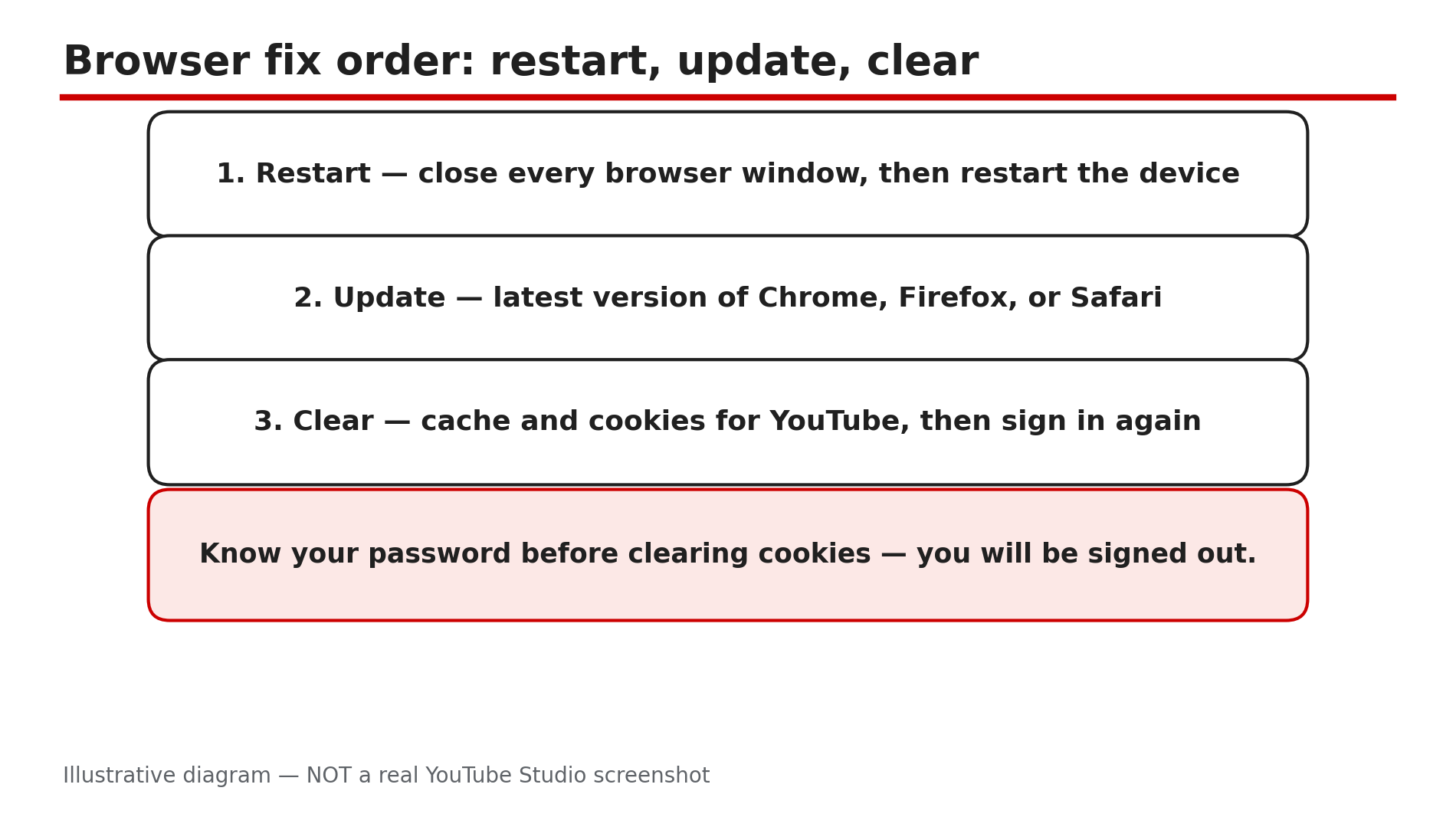
Illustrative diagram: the order for browser fixes — restart first, update second, clear cache and cookies third.
Step 4 — Clear the cache and cookies, then sign in again
What to do: Clear your browser’s cache and cookies for YouTube, then sign in to Studio again.
How: YouTube’s Help page lists clearing the cache and cookies as a fix for “Something went wrong”, because corrupted cache or cookies can stop pages loading. In your browser settings, clear cached images and files and cookies for youtube.com and studio.youtube.com only. Then reopen the browser and sign in again. Before clearing cookies, make sure you know your Google password: clearing cookies signs you out of many sites.
Example: A creator sees “Something went wrong” on Studio every day for a week. She clears the cache and cookies, signs in again, and Studio loads in seconds.
Common mistake: Clearing only the cache, or clearing everything without knowing your password first.
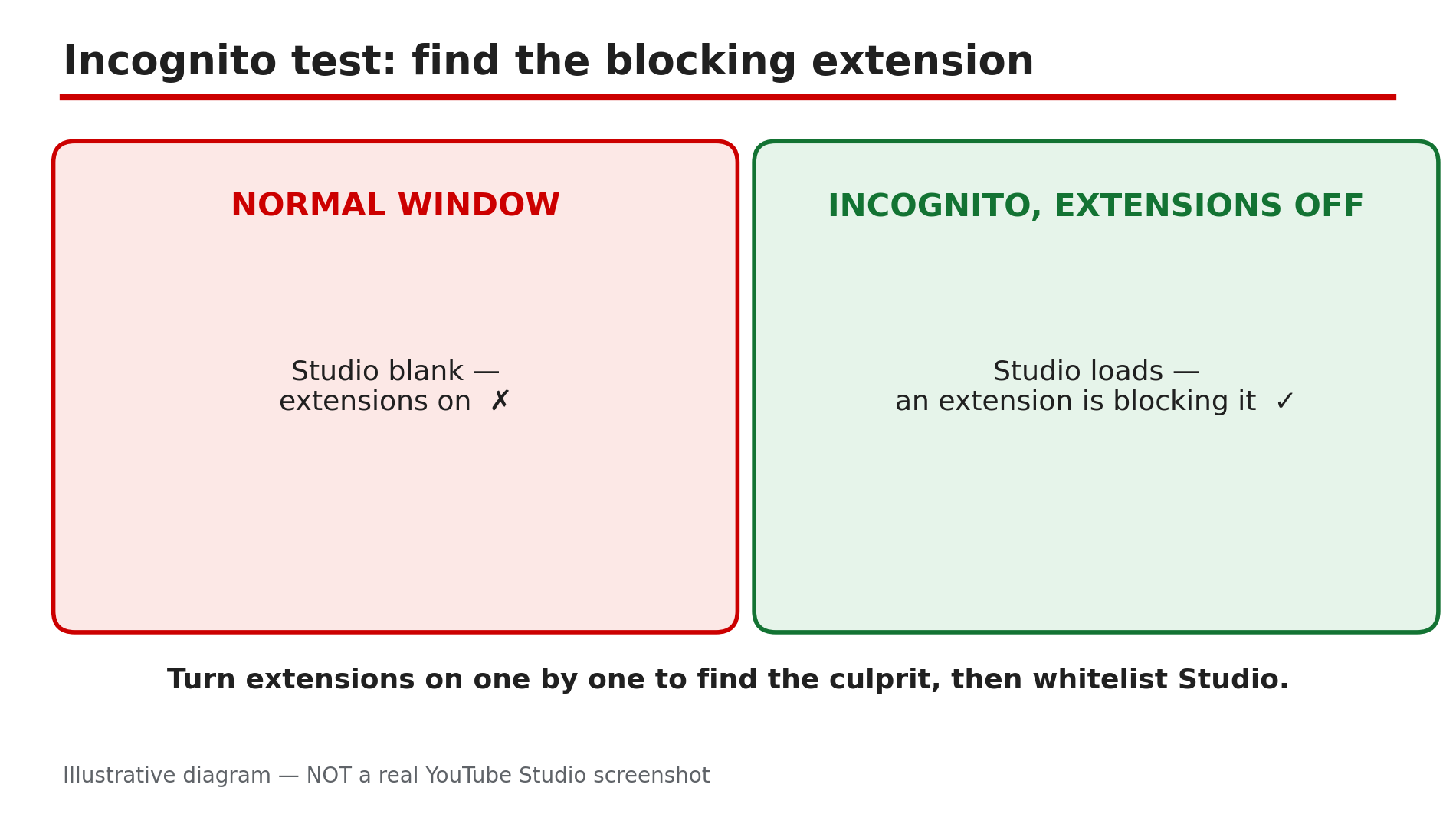
Illustrative diagram: comparing Studio in a normal window and an incognito window to find a blocking extension.
Step 5 — Test in incognito with extensions off, and check ad blockers and DNS
What to do: Open Studio in an incognito window with all extensions disabled. If it works there, an extension — often an ad blocker — is the problem.
How: Open an incognito window with extensions switched off, sign in, and open Studio — the exact test YouTube’s Help page suggests for ad-blocking extensions. If Studio loads, turn extensions on one at a time in your normal window until Studio breaks again — that is the culprit. Add Studio to that extension’s allowed list, or turn off ad blocking for youtube.com. Also check your DNS settings: YouTube says to confirm you are using your preferred DNS servers and no third-party app has changed them. If you installed a VPN or privacy app recently, turn it off briefly and refresh Studio.
Example: A creator installs a new ad blocker and Studio goes blank the same evening. In an incognito window with extensions off, Studio works. She whitelists studio.youtube.com, and Studio works in her normal window again.
Common mistake: Turning the ad blocker off everywhere instead of allowing just YouTube.
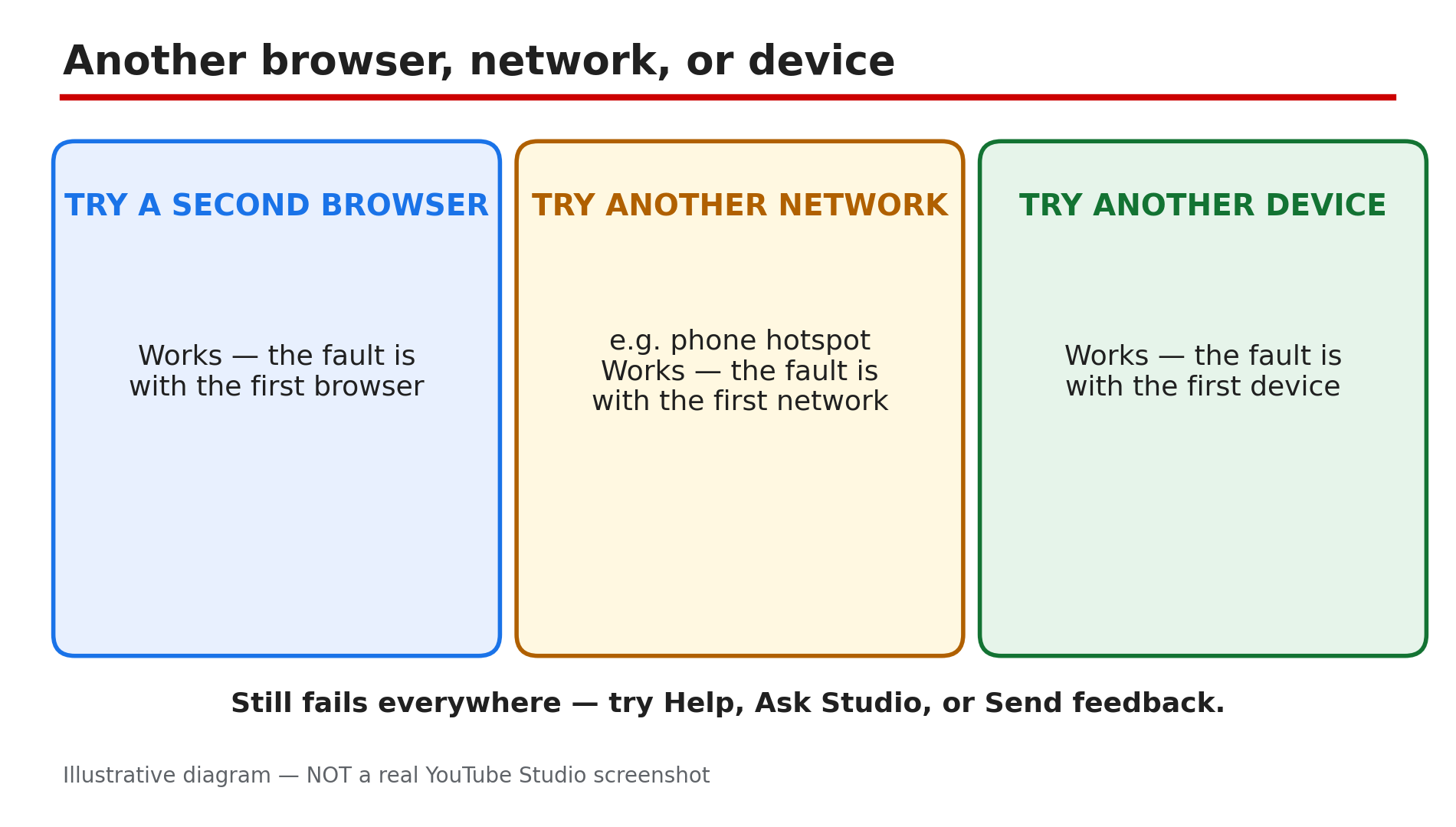
Illustrative diagram: three tests that show whether the fault is local or with your channel.
Step 6 — Try another browser or network — and know what is NOT a bug
What to do: Try Studio in a different browser, network, or device. If it works elsewhere, the fault is with the first one — not your channel.
How: Open Studio in a second browser, such as Firefox if you normally use Chrome, or try your phone’s hotspot instead of home Wi-Fi. If Studio still fails everywhere, use the Help icon on any YouTube page to search the Help Center.
One thing is not a bug at all: some Studio features only work on a computer. As reported in YouTube’s Help pages, custom Shorts thumbnails can only be added in YouTube Studio on a computer, and your account must be verified. End screens, cards, and bulk editing are desktop-only too. If an option is missing on the mobile app, switch to a computer first.
Example: A creator cannot find the custom thumbnail option for a Short on her phone. On her laptop the same afternoon, the option is there — the phone app does not offer it, by design.
Common mistake: Reinstalling browsers before trying a second browser — a two-minute test that would have shown the fault was local. And reporting a missing mobile feature as a bug, when it is desktop-only.
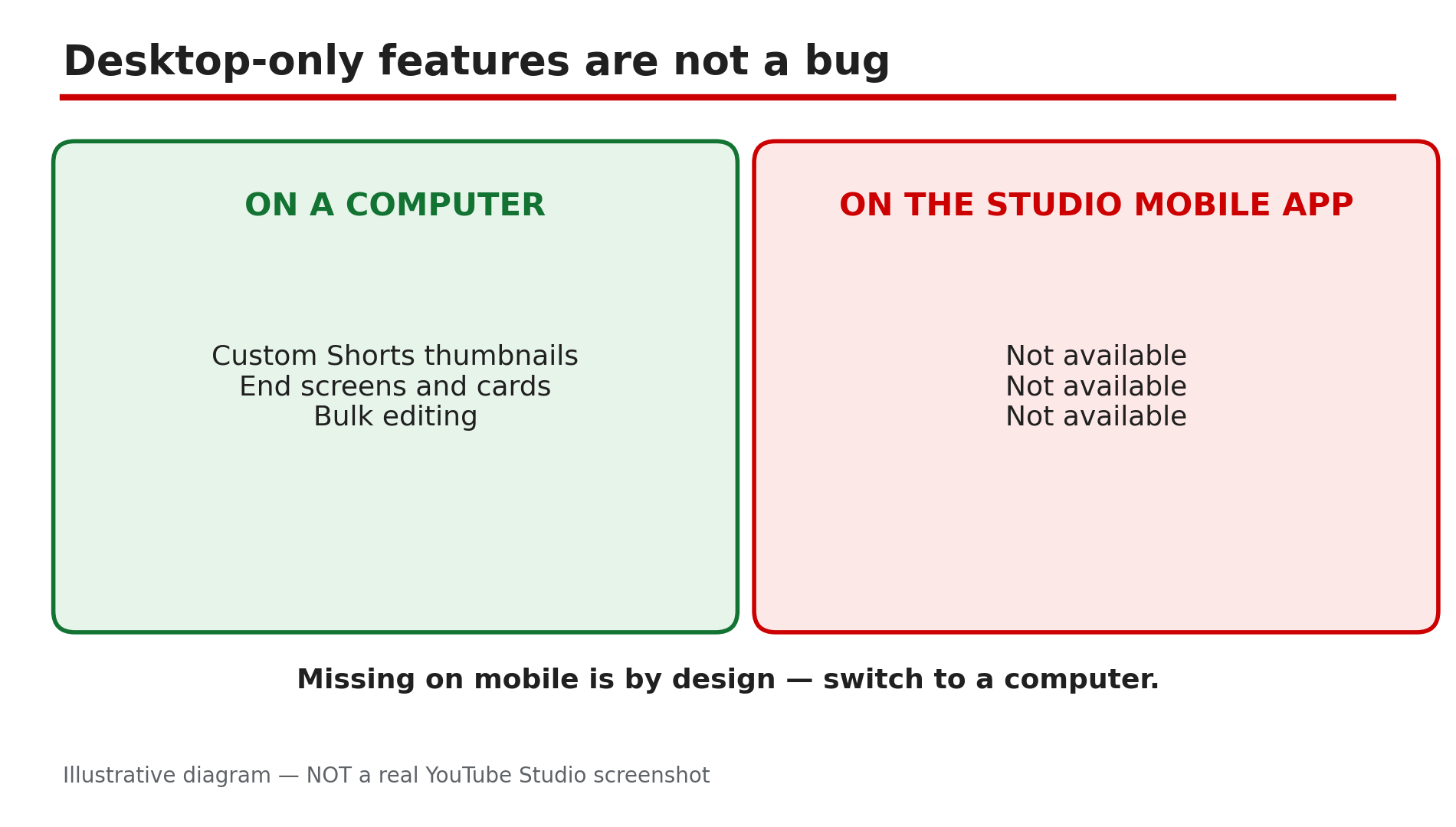
Illustrative diagram: Studio features that only work on a computer, so a missing option on mobile is not a fault.
Checklist — Fix YouTube Studio not loading
- ☐ Refreshed; symptom noted (blank, spinner, error)
- ☐ Ordinary videos play, or connection fault noted
- ☐ Right account and channel
- ☐ Browser closed, device restarted, updated
- ☐ Cache and cookies cleared; signed in again
- ☐ Incognito test done; Studio whitelisted
- ☐ DNS checked; VPN tested off
- ☐ Second browser, network, or device tried
- ☐ Desktop-only features checked on computer
FAQs
1. Is Studio not loading a strike or a problem with my channel?
No, not usually. A blank page or “Something went wrong” is most often a browser or sign-in problem — the wrong account, an outdated browser, corrupted cache, or a blocking extension. Check the steps above, and confirm in Studio once it opens.
2. Studio works on my phone but not on my computer. Why?
Because the fault is in the computer’s browser, not your channel. Work through Steps 3 to 5 on the computer: restart, update, clear cache and cookies, and test in incognito.
3. I cleared my cookies and now I am signed out of everything. Is that normal?
Yes. Clearing cookies signs you out of many sites — which is why this guide says to know your password first. Sign back in, then open Studio again.
4. Why can’t I add a custom Shorts thumbnail on my phone?
Because it is desktop-only by design, as reported in YouTube’s Help pages: custom Shorts thumbnails can only be added in YouTube Studio on a computer, and your account must be verified.
5. How is this different from a video stuck on uploading or processing?
A stuck upload means Studio opens fine but a video will not finish uploading or converting. Here Studio itself will not open, so you cannot reach the upload page. Fix Studio first.
Sources
- YouTube Help — “Troubleshoot YouTube video errors” (official page, opened live 7 Nov 2026): https://support.google.com/youtube/answer/3037019?hl=en
- CreatorPlaybook — “YouTube Video Stuck on Uploading or Processing? How to Fix It” (internal link, opened live 7 Nov 2026): </blog/youtube-video-stuck-uploading-or>
- CreatorPlaybook — “YouTube ‘Processing Abandoned’? Why the Video Could Not Be Processed and How to Fix It” (internal link, opened live 7 Nov 2026): </blog/youtube-processing-abandoned-why-video>