YouTube Upload Stuck, Comments Disabled, or Wrong Made for Kids Label? Fix All Three
 CreatorPlaybook Team
- 29 Oct, 2026
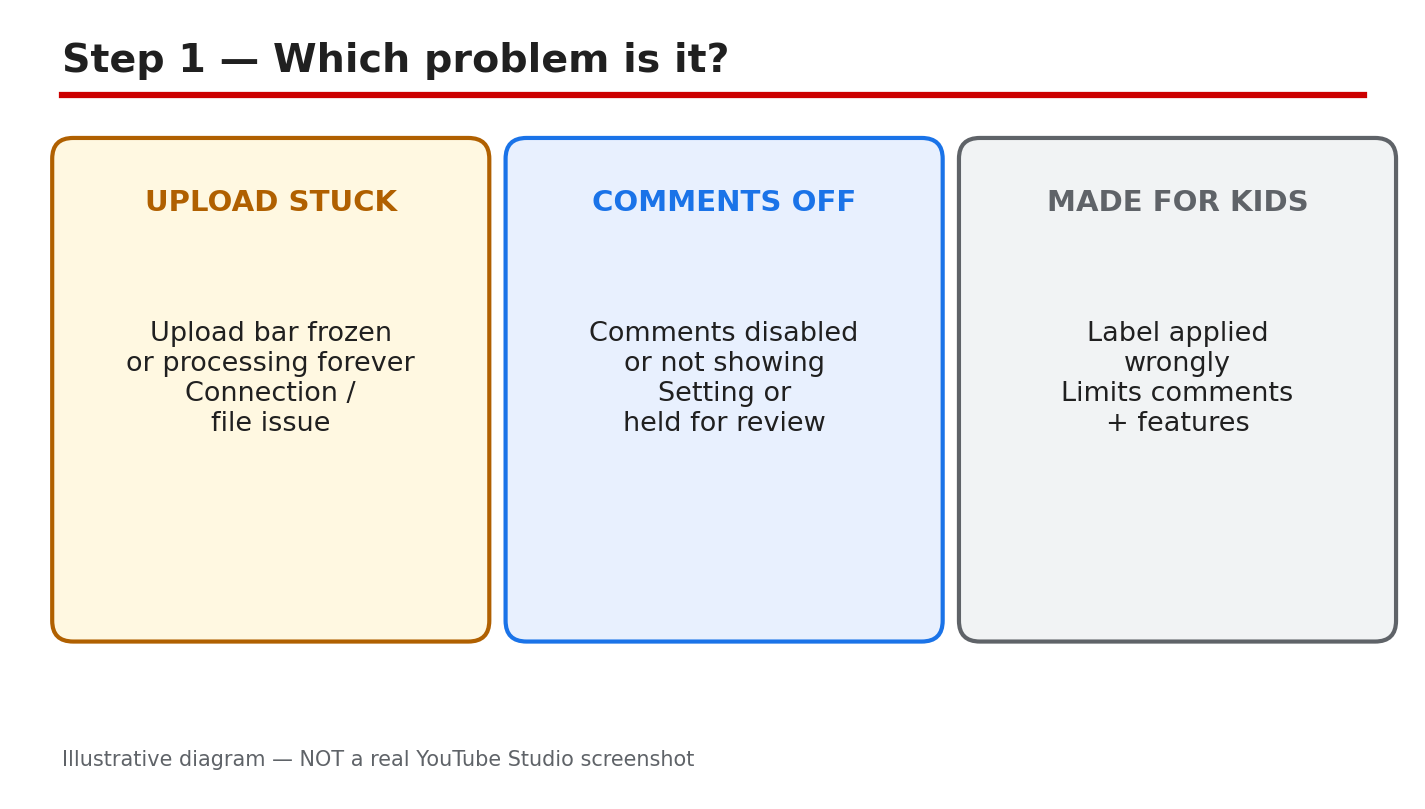
Three YouTube problems look alike at first: a video that never finishes uploading, comments that vanish, and a Made for Kids label that seems wrong. Each has a different cause and a different fix. Most are settings, not bugs, and most can be fixed in one sitting. This guide helps you name the problem, find the setting, and fix it without deleting work you need.
Related reading: How to Read and Use the YouTube Studio App. That guide explains the Studio layout used below, so open it if a menu name looks unfamiliar. Below, each step gives what to do, the exact Studio path, a short example, and a common mistake. Work in order, and check only the section that matches your problem if you are short on time.
What You Will Learn
- Which of the three problems you have.
- Where each setting lives in Studio.
- How to unstick an upload safely.
- How to restore missing comments.
- How to fix a wrong Made for Kids label.
- A 24-hour plan to check everything.
Step 1: Name the Exact Problem First
What to do: Name the problem in one sentence first. An upload problem shows as processing that never finishes. A comments problem shows as comments missing or held where you cannot see them. A Made for Kids problem shows as a label on a video that is not made for children, with comments turned off.
Studio path: YouTube Studio > Content. Look at the video row first: check its visibility, its restrictions, and whether comments are shown. The row tells you which of the three problems you are dealing with.
Example: A creator sees an upload stuck at 95 percent and assumes comments are broken too. The row shows the upload is still processing, so comments are not the problem yet.
Common mistake: Fixing all three problems at once. Changing the label, the comments setting, and the file in the same hour makes it impossible to know which change helped.
Illustrative diagram/mock-up — NOT a real YouTube Studio screenshot: which problem is it.
Step 2: Find the Setting in Studio
What to do: Open the video and go to its Details page. Two controls cause most of these problems: the Audience setting and the comments visibility setting. Both live on the same Details page. Check them in a computer browser, because every option is visible there.
Studio path: YouTube Studio > Content > click the video > Details. Scroll to Audience for the Made for Kids label, and find Show more, then Comments, for comment visibility. Note what each setting says before you change it.
Example: A creator opens Details and finds Audience set to Yes, it is made for kids, on a video about fixing a bike. That one setting explains why comments are off.
Common mistake: Hunting for one fix-all switch in Studio. There is none. Audience, comments, and upload state are separate controls, so check each in turn.
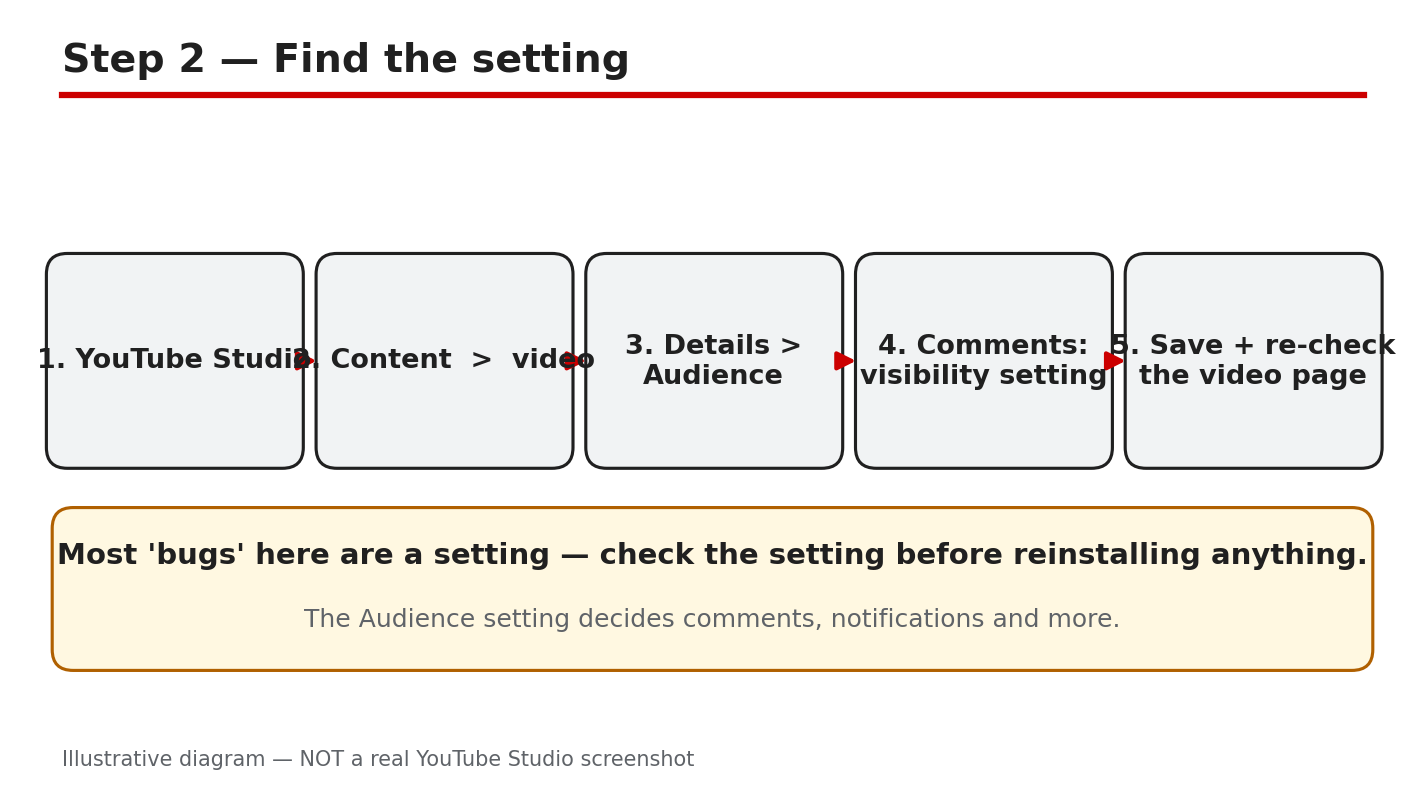
Illustrative diagram/mock-up — NOT a real YouTube Studio screenshot: find the setting.
Step 3: Fix a Stuck Upload
What to do: Check the connection and the file, not the video page. A weak or dropping connection is the most common cause of a stuck upload. Use an H.264 MP4 file, within the size limits on the official upload page. Keep the upload tab open and the computer awake while it processes. Do not delete the stuck upload until you have checked the file and the connection.
Studio path: YouTube Studio > Content > Create > Upload videos. During upload, watch the progress bar and the processing notice. After upload, check Content for the video row and its processing state before you edit titles or settings.
Example: A creator uploads a video over hotel Wi-Fi, and it stalls at 60 percent. At home, on a stable connection, the same file uploads in twenty minutes. The file was fine; the connection was the problem.
Common mistake: Uploading the same file again while the first copy is still processing. Duplicates compete for the same connection and can leave two half-finished copies. Retry once from a stable network instead.
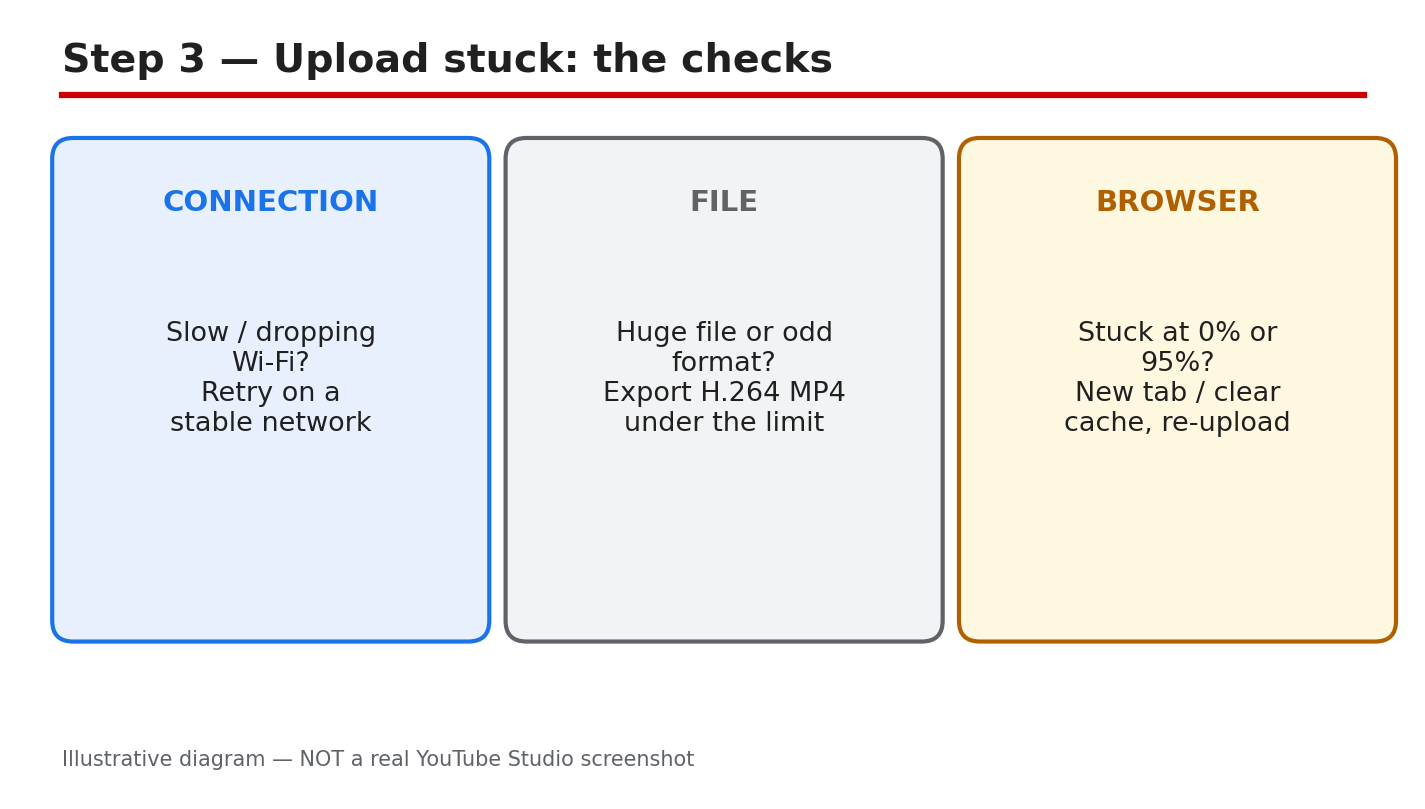
Illustrative diagram/mock-up — NOT a real YouTube Studio screenshot: upload stuck checks.
Step 4: Fix Comments That Are Disabled or Missing
What to do: Check the comments setting first, then the held queue. Set comments to Allow all comments if you want every comment to show. Held comments are not deleted; they wait in Held for review until you approve or remove them. Also check the blocked-words list, because one blocked word can hold a comment.
Studio path: YouTube Studio > Content > video > Details > Show more > Comments. For held comments, go to Studio > Content > Comments > Held for review. Approve, hide, or delete from there, and keep a note of what you changed.
Example: A creator sees no comments on a new video and assumes viewers stayed silent. The Details page shows comments set to Disable comments from an earlier edit. Switching it back brings the missing comments into view at once.
Common mistake: Assuming held comments are lost forever. They sit in the Held for review queue until you act. Deleting the video destroys its watch time for a problem that one approval would have solved.
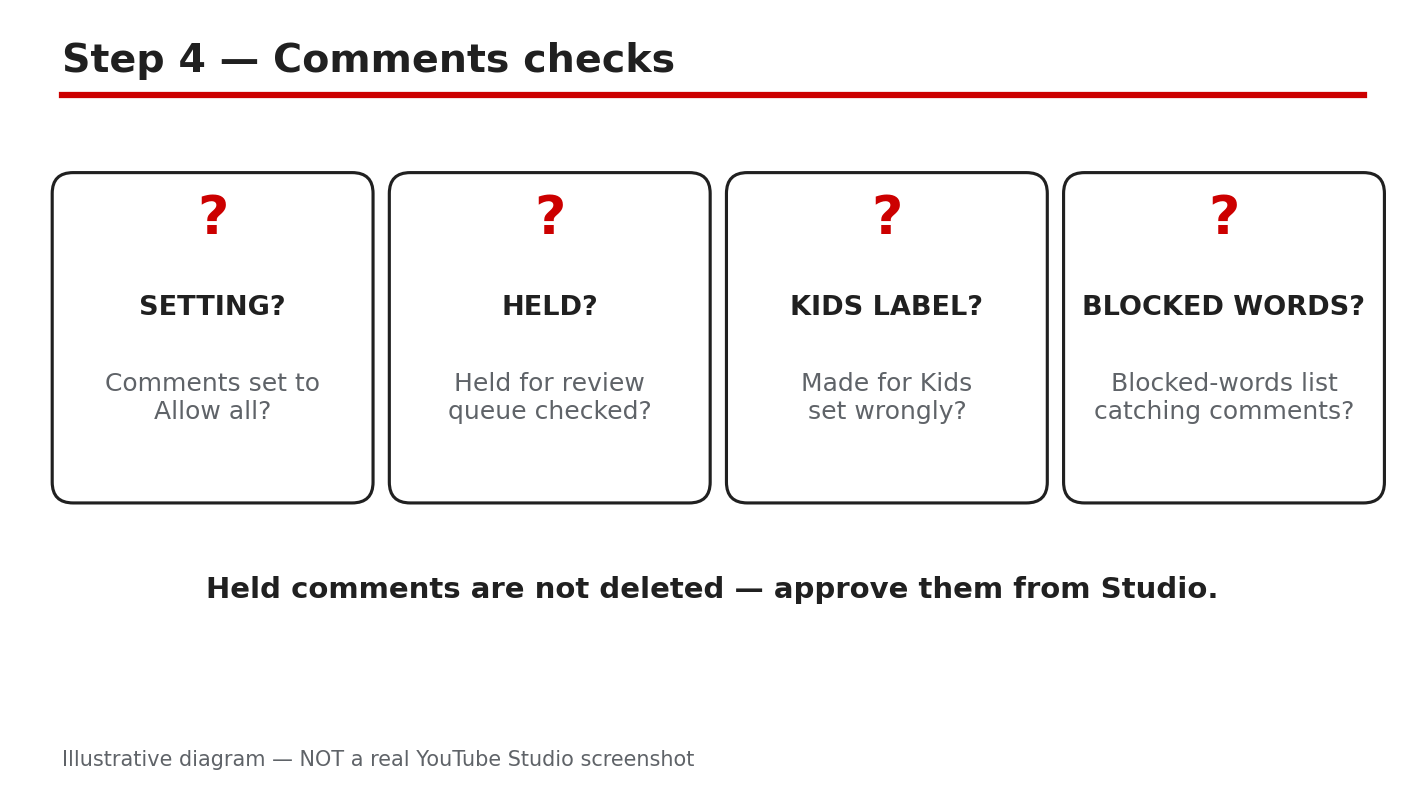
Illustrative diagram/mock-up — NOT a real YouTube Studio screenshot: comments checks.
Step 5: Fix a Wrong Made for Kids Label
What to do: Change the Audience setting only if the label is wrong. If the video is made for children, keep the label, because comments stay off by design. If the video is for a general audience, set Audience to No, it is not made for kids. If Studio applied the label automatically and it is wrong, use the appeal route in Studio.
Studio path: YouTube Studio > Content > video > Details > Audience. Choose Yes or No for made for kids, save, and check that comments follow the label. For an automatic label you disagree with, follow the appeal steps shown in Studio.
Example: A creator posts a woodworking tutorial, and Studio labels it made for kids because the thumbnail shows bright colours. Setting Audience to No restores comments, and the video keeps its views.
Common mistake: Setting every video to Not made for kids to keep comments on. A video truly made for children must carry the label, and mislabelling it can bring a policy problem. Label by the real audience.
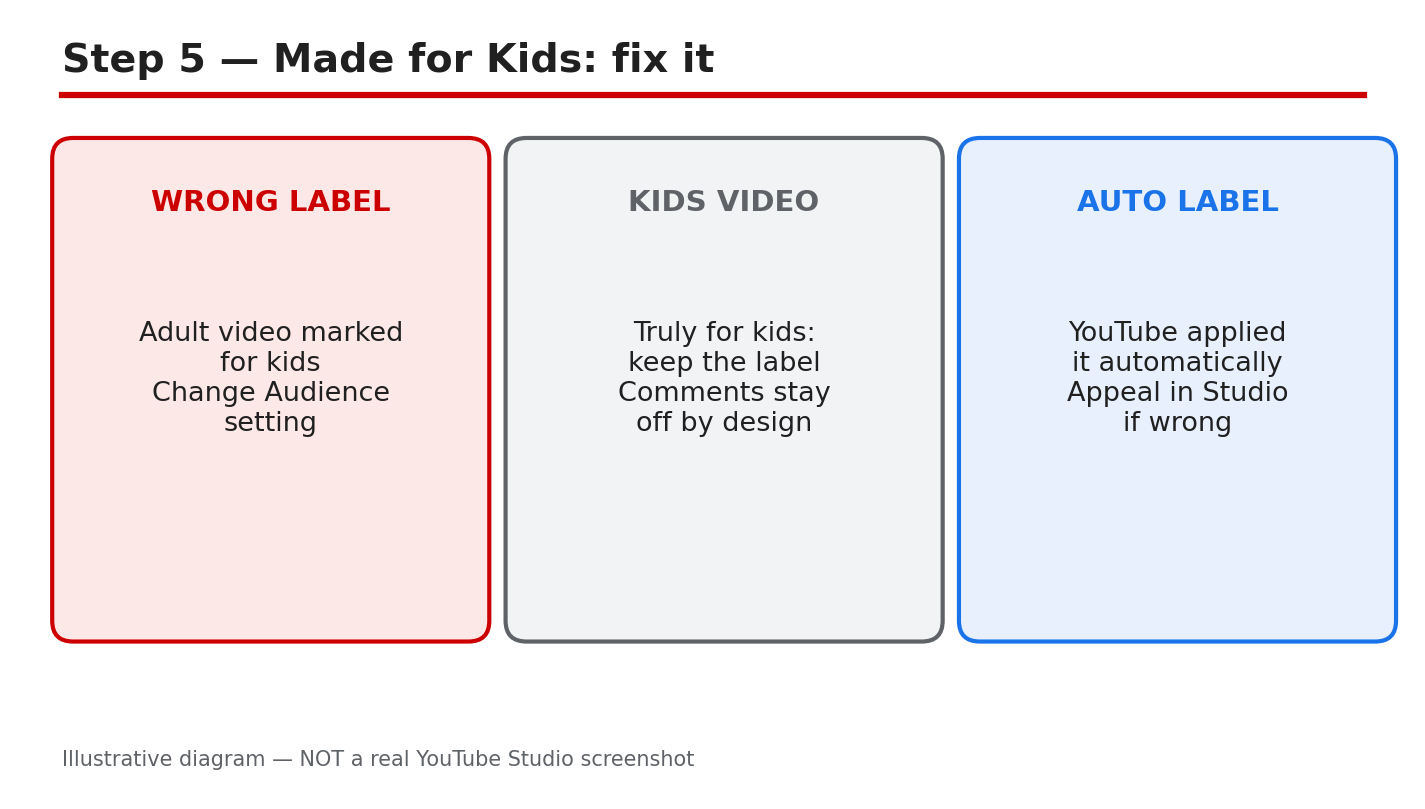
Illustrative diagram/mock-up — NOT a real YouTube Studio screenshot: Made for Kids fix.
Step 6: Follow the 24-Hour Fix Plan
What to do: Work the plan in order, and give each fix time to take effect. Hour one: name the problem and check the Details page. Hours two to six: fix the upload, comments, or label, and note the change. By the next day: re-check the video row, the comments, and the label.
Studio path: YouTube Studio > Content for the daily re-check, Details for the Audience and comments settings, and Comments > Held for review for approvals. Use the same three places each time, so the check takes minutes, not hours.
Example: A creator fixes the Audience label at noon, but comments are still off at 1 p.m. By the next morning, after a check in Studio, comments are back. The fix had worked; the display needed time.
Common mistake: Repeating the same fix every hour. Changing the setting, saving, changing it back, and saving again can leave the video worse off than one careful change. Make the change once, note it, and check again the next day.
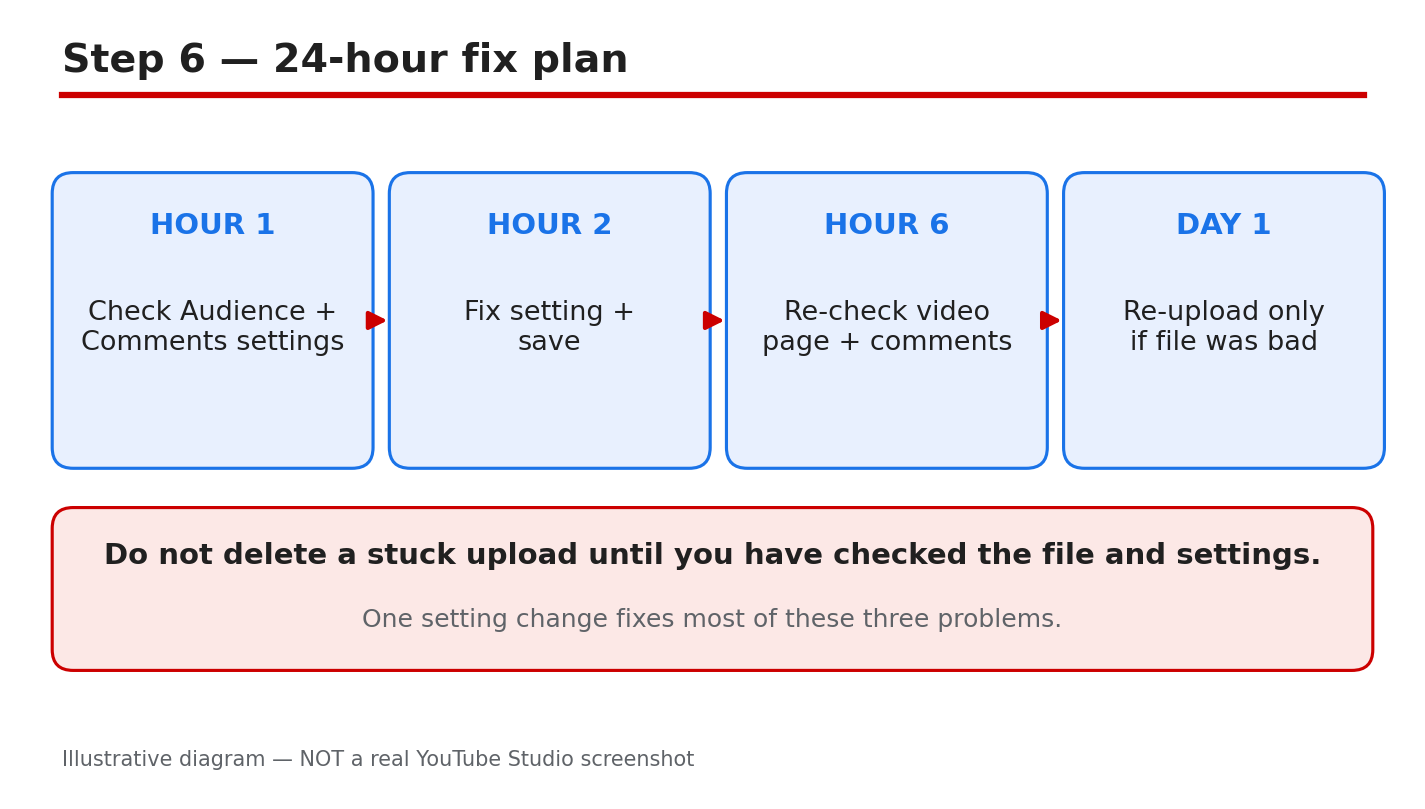
Illustrative diagram/mock-up — NOT a real YouTube Studio screenshot: 24-hour fix plan.
Checklist
- Problem named in one sentence.
- Details page checked: Audience and comments.
- Connection and file checked before retrying.
- Held comments reviewed, not assumed lost.
- Audience label matches the real audience.
- One change made and noted.
- Re-checked the next day in Studio.
Frequently Asked Questions
Why is my upload stuck at a percentage?
Usually the connection dropped, or the file is still processing. Check the connection, keep the tab open, and give processing time before retrying. Do not delete the upload.
Why did my comments disappear?
Check the comments setting in Details, the Held for review queue, and the Made for Kids label. One of the three usually explains it, and held comments are not deleted.
Can I keep comments on a video made for kids?
No. Comments stay off by design on videos labelled made for kids. Do not mislabel the video to turn comments on; label it by its real audience.
Should I delete and re-upload a stuck video?
No. Check the connection and the file format, and retry once from a stable network. Deleting loses the processing already done and can leave duplicates.
How do I appeal a wrong Made for Kids label?
Use the appeal steps shown in Studio for that video, and give the reason the label is wrong. Keep the label while the appeal is pending, and check Studio for the outcome.
Sources — Check It Yourself
Official pages opened and verified live on 29 October 2026. Check current wording before acting.
- Upload YouTube videos — YouTube Help
- Set your channel or video’s audience — YouTube Help
- Learn about comment settings — YouTube Help (verified live, not linked).
- Determining if your content is ‘made for kids’ — YouTube Help (verified live, not linked).
No official YouTube video is embedded here. No exact official video URL was verified live.