YouTube Video Not Showing in Search Results: How to Fix It
 CreatorPlaybook Team
- 30 Oct, 2026
You uploaded a video. It plays fine on your channel page, but searching for its exact title finds nothing. In most cases the video is not banned or removed. Usually it is a small issue: the video is still processing, its metadata is too weak, or a setting is holding it back.
This guide is for any creator whose video does not appear in YouTube search. Work through the six steps in order. Each one rules out a cause.
What you will learn
- Whether your video is indexed or just too new
- If a setting or restriction is hiding it
- How to rewrite your title, description, and tags
- How to read your search data in YouTube Studio
- When to ask YouTube for a re-check
Step 1: Check whether your video is still processing
What to do: Confirm the video has fully finished processing before judging its search visibility.
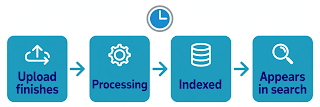
How to do it: In YouTube Studio, open Content and check the processing status next to your video. A video showing “Processing” is not finished yet.
Example: You publish at 6 p.m. and search at 6:10 p.m. Nothing appears, because Studio still shows “Processing HD version.” By the next morning, the same search shows it on the first page.
Common mistake: Deleting the video and re-uploading it. That resets its history, and the new copy faces the same wait again.
Illustrative diagram of the stages before a video appears in search. This is a mock-up, not a real YouTube Studio screenshot.
Step 2: Confirm the visibility and audience settings
What to do: Check that the video is Public with the right audience setting. A Private or Unlisted video will never appear in search.
How to do it: In YouTube Studio, open the video’s details page and check the Visibility field. It must say Public. Then check the Audience setting: a video marked “Made for Kids” cannot appear in some search surfaces.
Example: A creator sets a video to Unlisted to share it with a friend, then forgets to change it to Public. It plays from the link but never shows up in search.
Common mistake: Forgetting a scheduled publish time. The video looks ready in Studio, but it stays invisible in search until that time passes.
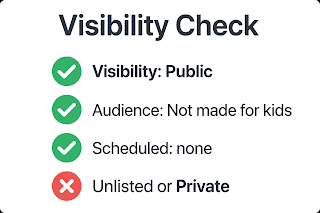
Illustrative diagram of the visibility and audience settings to check. This is a mock-up, not a real YouTube Studio screenshot.
Step 3: Search the right way and check for a restriction
What to do: Test your video’s search presence properly, and rule out a restriction that could reduce where it appears.
How to do it: Search in an incognito window, because your watch history personalises results and can make a video look missing when it is ranked low. Search the exact title in quotation marks, then try a unique phrase from your description.
Example: A creator searches while logged in and finds nothing, then tries an incognito window and finds it on page three. It was never missing; it was ranked low, and personalised results had pushed it out of view.
Common mistake: Searching once, from your own account, and concluding the video is invisible. Ranking is personalised, so one search from one account is not a reliable test.
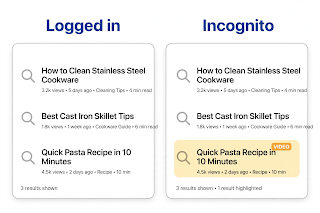
Illustrative diagram comparing a personalised search with a logged-out search. This is a mock-up, not a real YouTube Studio screenshot.
Step 4: Strengthen the title, description, and tags
What to do: Rewrite your metadata so YouTube understands what your video is about and which searches it should match.
How to do it: Put the main search phrase your viewers would type near the start of your title, in natural language. In the first two lines of the description, repeat that phrase once. Add tags for the main topic, a close variation, and the broader category.
Example: A video titled “My Morning” gets almost no search traffic. Retitled “Morning Routine for Students: 5 Habits That Actually Work,” it begins appearing in searches for “morning routine for students” within a few days.
Common mistake: Stuffing the title and description with repeated keywords, or using tags for topics the video does not cover. YouTube can treat that as spam, which hurts ranking.
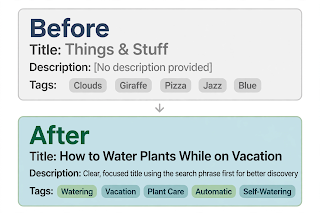
Illustrative diagram comparing weak metadata with clear, search-friendly metadata. This is a mock-up, not a real YouTube Studio screenshot.
Step 5: Check your search data in YouTube Studio
What to do: Use YouTube Studio analytics to see whether your video is getting search impressions, and which search terms bring viewers.
How to do it: Open Analytics for the video, go to the Reach tab, and look at “Traffic source: YouTube search.” Zero impressions means it is not being shown in search yet. Scroll to “YouTube search terms” to see the exact phrases viewers typed before clicking.
Example: A video about “budget tripod for beginners” shows zero search impressions. After retitling it and waiting four days, the Reach tab shows impressions for “best budget tripod.”
Common mistake: Changing the title every few hours because the video has not appeared yet. YouTube needs time to re-read and re-rank the video after each edit.
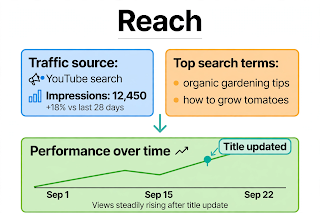
Illustrative diagram of the search traffic data to check in YouTube Studio Analytics. This is a mock-up, not a real YouTube Studio screenshot.
Step 6: Ask for a re-check and build search authority
What to do: If the video is Public, fully processed, correctly set up, and still missing after several days, report it and strengthen your channel overall.
How to do it: Use “Send feedback” in YouTube Studio to report that a specific Public video does not appear in search. Include the video link and the search phrase you tested. Meanwhile, keep publishing videos on the same topic area, so search can understand your channel.
Example: A new channel publishes ten videos about beginner photography over two months. The first few barely appear in search, but by the eighth video, impressions grow steadily, because the channel has built a clear topic signal.
Common mistake: Sending the same feedback report every day, or paying a service that promises to “force index” your video. Neither speeds anything up.
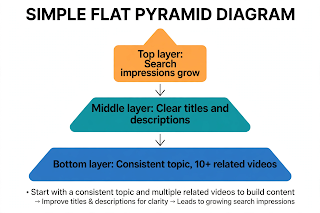
Illustrative diagram showing how consistent publishing builds a channel’s search visibility. This is a mock-up, not a real YouTube Studio screenshot.
Checklist
- Video fully processed, including the HD version
- Visibility set to Public, not Unlisted, Private, or scheduled
- Audience setting correct for the video
- Searched in an incognito window with the exact title
- Title and description open with the search phrase
- No restrictions or strikes shown in Studio
Frequently asked questions
How long does it take for a new video to appear in YouTube search? Most videos appear within a few hours of processing finishing. Give a Public video at least 48 hours before treating it as a problem.
Can I search for my video using its video ID? Yes. Searching for the unique code from your video’s URL is the most direct test. If that finds nothing after several days, work through the steps in this guide.
Does changing my title help a video show up in search? Yes, when the change makes the topic clearer. A title that matches the words viewers type gives search a strong signal. Change it once, then wait several days.
Why does my video appear for me but not for my friends? Search results are personalised by watch history, location, and device. Your video may simply rank lower for them. Ask them to search in an incognito window.
Will deleting and re-uploading fix a video that is not in search? Almost never. Re-uploading resets the video’s history and starts the processing and indexing wait again. Fix the settings and metadata on the original video first.