Showing Posts From
Youtube seo
 CreatorPlaybook Team
- 01 Nov, 2026
Small-Channel Keyword Strategy: Keywords You Can Actually Rank For at Your Size
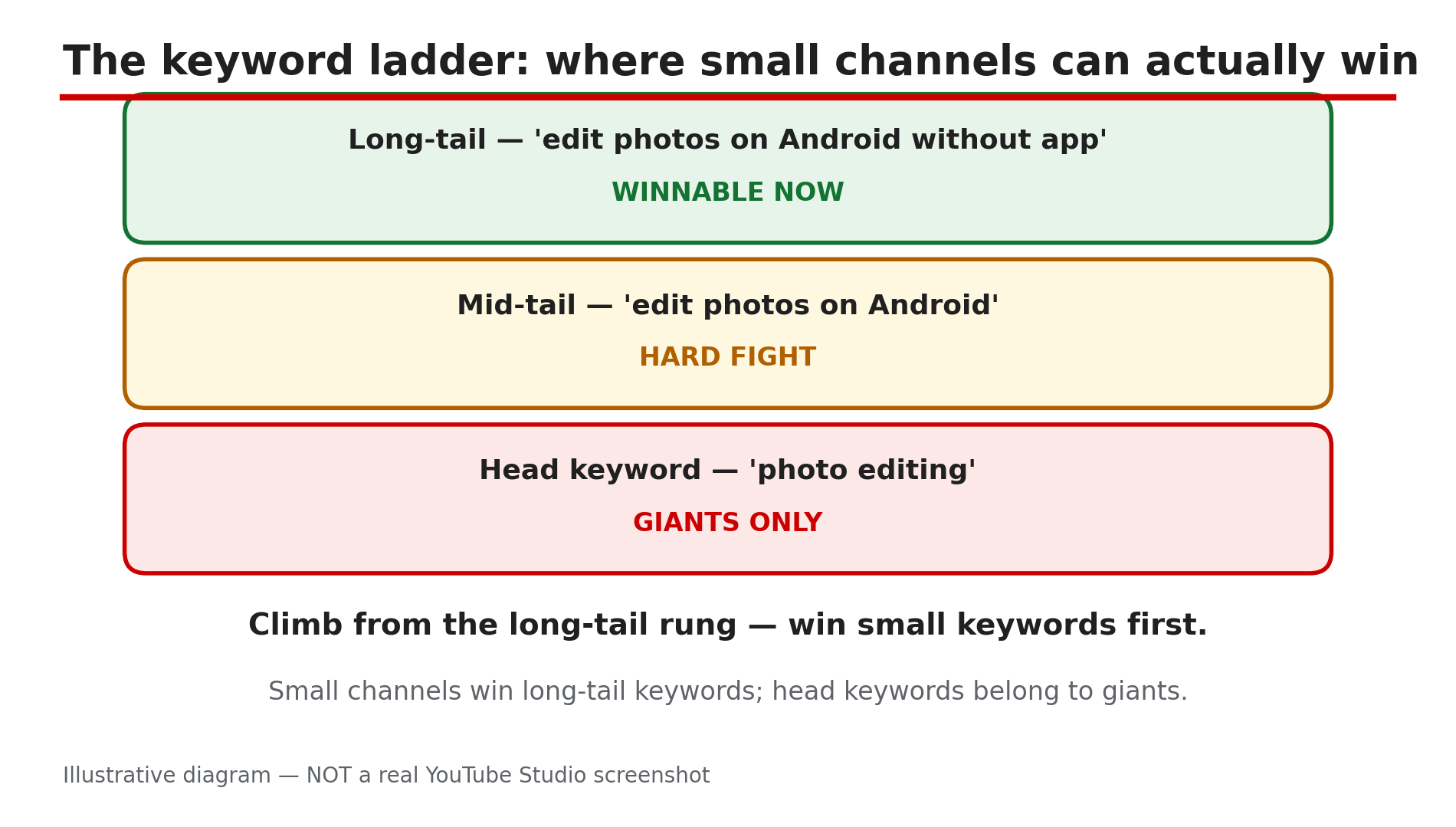
Every small creator has typed a big keyword into YouTube search and felt the same sinking feeling: the first page is full of huge channels, and your video is nowhere to be seen. The mistake is not your video. The mistake is the keyword. YouTube search does not rank the most-viewed videos first: results are ordered by relevance — how well the title, description and video content match the query — and by engagement, meaning which videos drive the most watch time for that search. So the ranking is winnable — if you pick a fight you can actually win. A small channel's strategy is simple: find the most specific phrase a real viewer would type, where competition is thin enough to win. No paid tool is needed, and no search-volume figures are quoted here — YouTube does not publish official search-volume data, so exact numbers online are third-party estimates, not facts. What You Will LearnWhy broad "head" keywords belong to big channels How to find long-tail keywords real viewers type, free A simple test for whether a keyword is winnable at your size How to match title, description and spoken words to one keyword How to build topic clusters so small wins add up to authority, and when to move upStep 1: Pick One Narrow Topic You Can Own What to do: Choose one narrow topic your channel can cover better than anyone on the first page — one slice of your niche, not the whole thing. How: Cut your niche into slices: "cooking" becomes "budget meals for students", then "5-ingredient student dinners". Each cut removes competitors. Pick the slice where you have real experience: relevance gets you in, engagement keeps you there. Example: A 40-subscriber photo-editing channel should not target "photo editing tutorial". Target "edit photos on Android without an app" instead — a slice big channels rarely cover. Common mistake: Picking a topic because it is popular, not because you can win it. Popularity without winnability just puts your video at position 47.Illustrative diagram — NOT a real YouTube Studio screenshot. Step 2: Find Long-Tail Phrases With Free Tools What to do: Turn your narrow topic into long-tail keywords — phrases of three to six words that spell out what the viewer wants. How: Use YouTube's own search bar: type your topic slowly and write down every autocomplete suggestion — real queries from real viewers. Add a question word — how, why, best, without, for beginners — and collect the new suggestions, then do the same on Google. Aim for 15 to 20 candidates and delete the vague ones. Phrases of four or more words are where small channels should focus first — lower competition, clearer intent. Example: Typing "edit photos on android" gives "edit photos on android without app" and "edit photos on android for beginners" — each a video idea with a built-in audience. Common mistake: Trusting one paid tool's volume estimate and ignoring autocomplete. A tool only estimates; the search bar shows what people actually type.Illustrative diagram — NOT a real YouTube Studio screenshot. Real queries from real viewers — free. Step 3: Judge Whether You Can Actually Win It What to do: Before you record anything, test each candidate against the real search results and keep only the ones where a small channel has a genuine opening. How: Search the exact phrase and study the top five results. Ask four questions: are the top videos from channels your size or much bigger? Are they recent or years old? Do their titles answer the exact phrase? Does any video fully solve the problem? It is winnable when at least two are true: small channels appear on page one, the top videos are old, or they do not answer the question properly. If every result is a huge channel with a recent, excellent video, cross it off and try a longer version. Example: "Edit photos on Android without app" shows two channels under 10,000 subscribers on page one — a green light. "Photo editing" shows only million-subscriber channels — a red light. Common mistake: Judging a keyword by how many results it has. Judge the channels on page one, not the result count.Illustrative diagram — NOT a real YouTube Studio screenshot. Step 4: Match Title, Description and Spoken Words to One Keyword What to do: Build the whole video package — title, description, spoken intro and chapters — around one keyword, written the way a viewer would type it. How: Put the keyword near the front of the title, so it survives being cut off on a phone screen. Open the description with a sentence that repeats it and states what the video delivers — the first two lines are all that shows before "…more". Say the keyword out loud in the first 30 seconds, because YouTube reads transcripts and spoken words too. Label chapters with the keyword or close variants. Use it naturally two or three times in the description, never in a block. Tags play only a minimal role in discovery, per YouTube's own documentation — spend your time on the title, not on fifty tags. Example: Title: "Edit Photos on Android Without an App — Free, 2 Minutes". Description opens: "Edit photos on Android without an app, using only the built-in editor — free, no downloads." Common mistake: Targeting three keywords in one video. A title that tries to cover three searches gives YouTube no clear match for any of them.Illustrative diagram — NOT a real YouTube Studio screenshot. Step 5: Build Clusters, Not One-Off Videos What to do: Turn one winnable keyword into a cluster of five to ten related videos, so each small win strengthens the next. How: List every question a viewer might ask next. If your first video is "edit photos on Android without an app", the cluster is "edit photos on Android for Instagram" and "remove background on Android without app". Publish them steadily, link each video to the others in descriptions and end screens, and reuse the same core phrases. As reported, stacking long-tail wins around one theme builds topical authority: after thirty videos on one topic's variations, ranking for the broader head term becomes realistic. One video is a lottery ticket; a cluster is a strategy. Example: Eight videos around "free Android photo editing" can start ranking for "Android photo editing" itself — the cluster tells YouTube it owns that slice. Common mistake: Jumping to a new topic every week because the last video got few views. Search traffic compounds slowly; a cluster abandoned after two videos never gets the chance.Illustrative diagram — NOT a real YouTube Studio screenshot. Step 6: Track, Refresh and Move Up Gradually What to do: Check what is working in YouTube Studio, double down on the winners, and only then reach for bigger keywords. How: Once a month, open Studio > Analytics > Content and check which videos bring search traffic, and which search terms led viewers there. Keep the videos that rank and get clicks, and refresh outdated videos. Retire keywords that never ranked after 60 to 90 days. When a cluster ranks well, test one slightly broader keyword and judge it by the same four questions from Step 3. If big channels still own it, stay small for another cluster first. Example: After three months, your "without app" video ranks first and brings 200 views a month from search — the signal to try the broader term. Common mistake: Changing titles every week based on one day of data. Rankings move slowly — give a title at least a month. If your channel is not growing at all despite good keywords, the problem may be elsewhere: YouTube Channel Not Growing? Diagnose the 4 Real Reasons.Illustrative diagram — NOT a real YouTube Studio screenshot. Checklist: Before You Publish Your Next Video☐ One primary keyword — a phrase of 3–6 words, not a broad head term ☐ Keyword found in autocomplete, not guessed ☐ Top five results checked — a small channel can win ☐ Keyword at the front of the title and in the first two description lines ☐ Keyword spoken naturally in the first 30 seconds of the video ☐ Chapters labelled with the keyword or close variants ☐ Video belongs to a cluster of related videos on the same topic ☐ Search traffic checked in Studio after 30 daysFrequently Asked Questions 1. How many keywords should I target in one video? One primary keyword, plus a few natural variations. One video, one query. 2. Do tags still matter for ranking? Barely. YouTube's own documentation says tags play a minimal role in discovery and exist mainly to catch misspellings. 3. How long does it take a small channel to rank for a keyword? As reported, a winnable long-tail keyword can rank within days to a few weeks; a competitive term can take months, or never happen at your size. 4. Should I copy the keywords of a big channel in my niche? Copy their topics, not their keywords. A big channel can rank for "photo editing" on authority; you cannot, yet. Target the long-tail versions of their topics. 5. My video ranks but gets few clicks — is the keyword wrong? Not necessarily. Ranking gets you the impression; the thumbnail and title earn the click. If click-through rate is low, test a clearer thumbnail and title before abandoning the keyword. A sudden CTR drop has other causes too: YouTube CTR Suddenly Dropped After the 24 August 2026 Change — What Really Happened. SourcesSearch ranking works on relevance and engagement — as reported by SEO guides citing YouTube's own help pages. Long-tail guidance (4+ word phrases, lower competition, clearer intent) — as reported by Backlinko-cited research and 2026 YouTube SEO guides; YouTube publishes no official search-volume data. Internal: YouTube Channel Not Growing? Diagnose the 4 Real Reasons Internal: YouTube CTR Suddenly Dropped After the 24 August 2026 Change — What Really Happened
- CreatorPlaybook Team
- 01 Nov, 2026
Hashtags Hurting Your YouTube Reach? Tags to Avoid and How to Use Hashtags Correctly
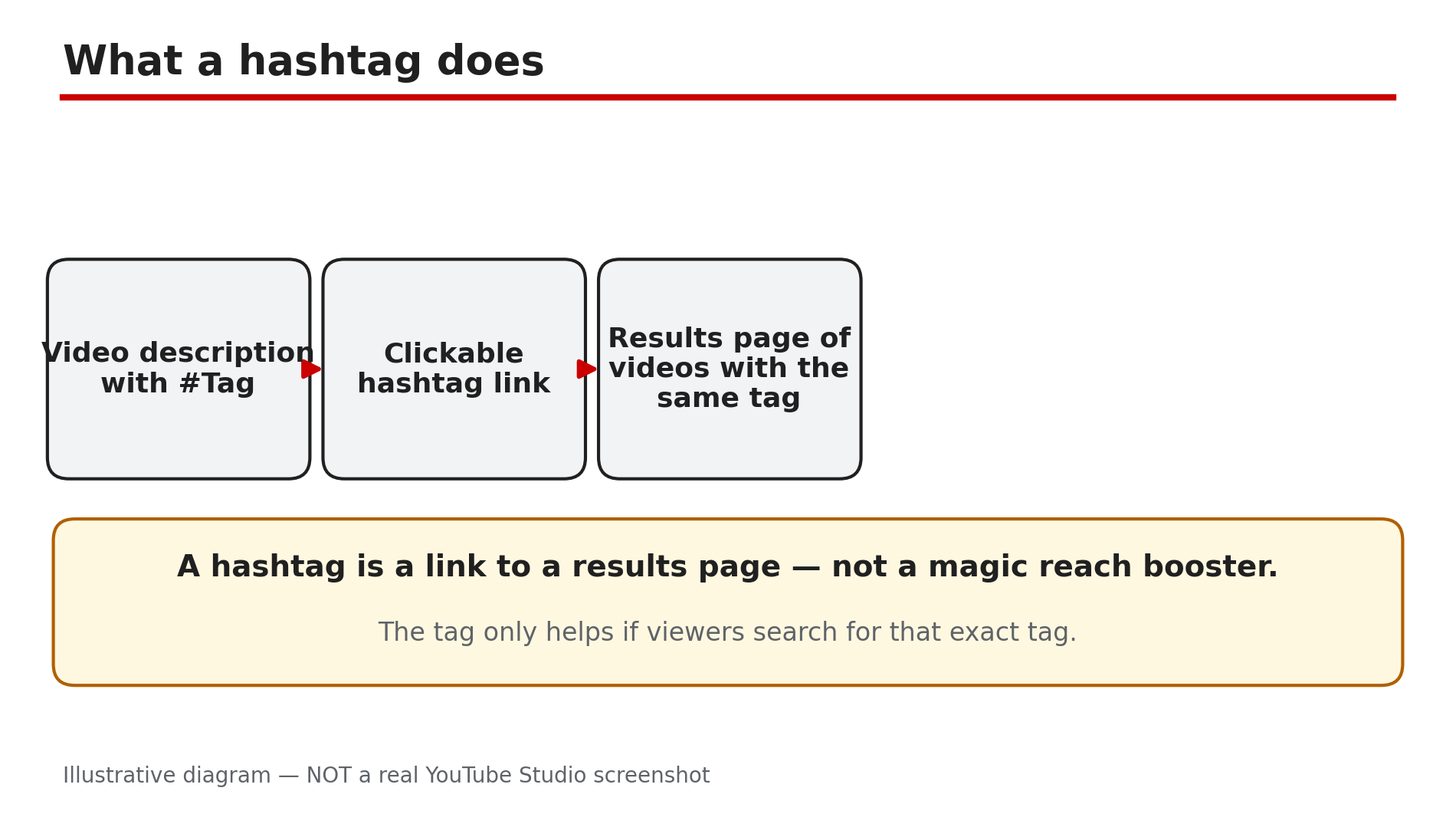
You finish a video, add twenty hashtags to the description — #viral #fyp #trending #youtube #shorts #subscribe and more — and then wonder why the views never come. Many creators blame the algorithm, but the hashtags themselves can be part of the problem. Used badly, they add nothing to your reach and can get your video removed from search or from your uploads. The good news is that hashtags are simple once you know the rules. YouTube's own Help page explains them in a few short paragraphs: keep them relevant, keep the count low, and never use a tag that does not match the video. This guide shows which tags to avoid, why #viral rarely helps, and a routine for choosing 3–5 hashtags that support your video. What You Will LearnWhy hashtags can hurt your reach — and when they are harmless YouTube's real hashtag limit, as stated on the official Help page Why #viral, #fyp and #trending are low-value, not banned How to pick 3–5 relevant hashtags for any video Which three hashtags show above your title A pre-publish checklistStep 1 — Understand what hashtags actually do What to do: Learn the job a hashtag does on YouTube, so you stop expecting it to do work it was never meant to do. How: A hashtag is a clickable keyword, written with a # symbol, that links your video to a results page of other videos with the same tag. YouTube's Help page says hashtags help viewers find related content through search. Up to three description hashtags — the ones YouTube considers most engaging — appear above your video title. Example: A cooking video tagged #EasyPastaRecipe links to a page of other videos using that tag. A viewer who clicks it wants pasta recipes, so the tag matches their intent. Common mistake: Treating hashtags as a ranking trick. A hashtag does not push your video to the top of search or the home page. Your title, thumbnail and watch time do the heavy lifting; hashtags are a small aid, not a growth engine.Illustrative diagram showing how a hashtag links a video to a results page. Step 2 — Learn the real limit: more than 60 hashtags are ignored What to do: Know the official ceiling, and stay far below it. How: YouTube's Help page states it plainly: "If a video or playlist has more than 60 hashtags, we'll ignore each hashtag on that content." Over-tagging may also result in the removal of your video from your uploads or from search. The old figure of 15, still repeated by many guides, comes from an older version of the page — the current page says 60, confirmed live for this post. Example: A creator who pastes 70 tags gets zero benefit — YouTube ignores every one — and risks the video disappearing from search. Common mistake: Copy-pasting a giant block of tags from another creator's description. Even 30 or 40 tags dilute relevance: YouTube says the more tags you add, the less relevant they become. Three to five relevant tags beat forty random ones.Illustrative diagram of YouTube's 60-hashtag limit. Step 3 — Stop using #viral, #fyp and #trending on unrelated videos What to do: Remove generic "reach" tags from your videos unless they genuinely describe the content. How: Tags like #viral, #fyp and #trending are not banned — YouTube does not list them as prohibited. The problem is that they are low-value and, on most videos, misleading. Millions of videos use #viral, so its results page is a crowded feed. Worse, YouTube's policy says misleading or unrelated hashtags may result in the removal of your video or playlist. Example: A tutorial on fixing a leaking tap tagged #viral #fyp #trending tells YouTube nothing about plumbing. A viewer clicking #viral is not looking for a tap repair. Common mistake: Adding #viral to every upload "just in case". It costs you nothing to remove it. Replace it with a tag a real viewer would search for, such as #FixLeakingTap.Illustrative mock-up comparing misleading and relevant hashtags on the same video. Step 4 — Pick 3–5 relevant hashtags for every video What to do: Choose a small set of tags that describe the video's topic, format and audience. How: Use this simple mix. First, one broad topic tag, such as #YouTubeTips. Second, one or two specific tags that match the exact subject, such as #ThumbnailDesign. Third, one format tag if it fits, such as #Shorts or #Tutorial. Type # in the description and YouTube will suggest popular hashtags to pick from when they fit. Keep the total at 3–5 tags. Example: A video titled "How to Design a Thumbnail That Gets Clicks" could use #ThumbnailDesign #YouTubeTips #CTR. Each tag matches the video, and anyone searching them is the right viewer. Common mistake: Using tags for a different audience than the video serves. A Hindi tutorial tagged only in English, or a beginner guide tagged #AdvancedEditing, sends the video to the wrong people, who click away. Poor watch time hurts reach far more than any hashtag helps it.Illustrative diagram of a simple 3–5 hashtag mix for any video. Step 5 — Put hashtags in the right place and format them correctly What to do: Add hashtags to the description, not scattered through the title, and format them so YouTube can read them. How: Type hashtags in the video description when you upload, or edit them in later through YouTube Studio. Tags in the title look spammy and waste space your hook needs. Only the first three description hashtags appear above the title, so put your most important tags first. Hashtags cannot contain spaces: write #TwoWords, never "#two words". Tags are not case-sensitive. Example: A description ending with "#ThumbnailDesign #YouTubeTips #CTR" shows those three tags above the title. A description starting with twenty tags buries its first lines, which viewers and search both read. Common mistake: Stuffing hashtags into the title to "save" the description. The title is your click magnet; every character spent on a tag is one not spent on the reason to watch. Keep tags in the description, where they belong.Illustrative mock-up showing where hashtags appear on a video page. Step 6 — Check your hashtags against the policy before you publish What to do: Run a quick policy check on every tag, every time. How: YouTube's hashtag policies require tags to follow the Community Guidelines. Do not use hashtags that harass or threaten a person or group, promote hatred, contain slurs, or are sexual or explicit — violating tags can get the video removed. Do not add ordinary descriptive tags or repetitive sentences pretending they are hashtags; YouTube's Help page says that is still prohibited and may lead to removal. Profanity in hashtags may lead to an age restriction or removal. When in doubt, confirm in Studio before publishing. Example: A gaming video tagged with a rival creator's name plus an insult is not clever marketing — it is a harassment risk that can cost the video. A clean, relevant tag set carries no such risk. Common mistake: Assuming a tag is safe because other creators use it. Other channels may not have been caught yet. Your channel is the one that pays the price, so check your own tags.Illustrative diagram of a quick hashtag policy check before publishing. Checklist — Before You Publish☐ I have 3–5 hashtags, not a wall of tags ☐ Every hashtag describes what the video is actually about ☐ No #viral, #fyp or #trending on videos they don't fit ☐ Total hashtags well under 60 ☐ Most important tags first, so they can appear above the title ☐ No spaces inside any hashtag ☐ No harassing, hateful, sexual or profane hashtags ☐ Tags are in the description, not cluttering the titleFAQs 1. Do hashtags increase YouTube views? Not directly. Hashtags link your video to a results page for that tag, so they can help the right viewers find it. But as reported, views mainly come from search, suggested videos and browse — driven by title, thumbnail and watch time. Treat hashtags as a small discovery aid, not a growth strategy. 2. Is #viral banned on YouTube? No. #viral, #fyp and #trending are not banned tags. They are low-value because millions of videos use them, and they can hurt you if they do not match your video, since YouTube may treat unrelated hashtags as misleading. Use tags that describe your actual content instead. 3. How many hashtags should I use on a YouTube video? Three to five relevant hashtags is the safe, practical range. YouTube ignores every hashtag if a video has more than 60, and warns that over-tagging may remove the video from uploads or search. Staying at 3–5 keeps you far from that limit. 4. Why don't my hashtags show above my video title? Only up to three description hashtags appear above the title, and YouTube chooses the ones it considers most engaging. If a tag violates policy it will not show at all. Put your best tags first. 5. Can hashtags get my video removed? Yes, in specific cases. YouTube's Help page says misleading or unrelated hashtags, harassing or hateful tags, sexual tags and over-tagging may result in removal of the video from uploads or search. A small set of honest, relevant tags carries no such risk. SourcesYouTube Help — "Find playlists and videos using hashtags" (official page, opened live for this post): https://support.google.com/youtube/answer/6390658 — states the 60-hashtag limit and the policies quoted here. CreatorPlaybook — "YouTube Channel Not Growing? Diagnose These 4 Problems First": /blog/youtube-channel-not-growing-diagnose-4 CreatorPlaybook — "YouTube CTR Suddenly Dropped After 24 August 2026? Here's Why": /blog/youtube-ctr-suddenly-dropped-after-24
- CreatorPlaybook Team
- 31 Oct, 2026
YouTube Video Chapters Not Showing? How to Fix Timestamps That Don't Work
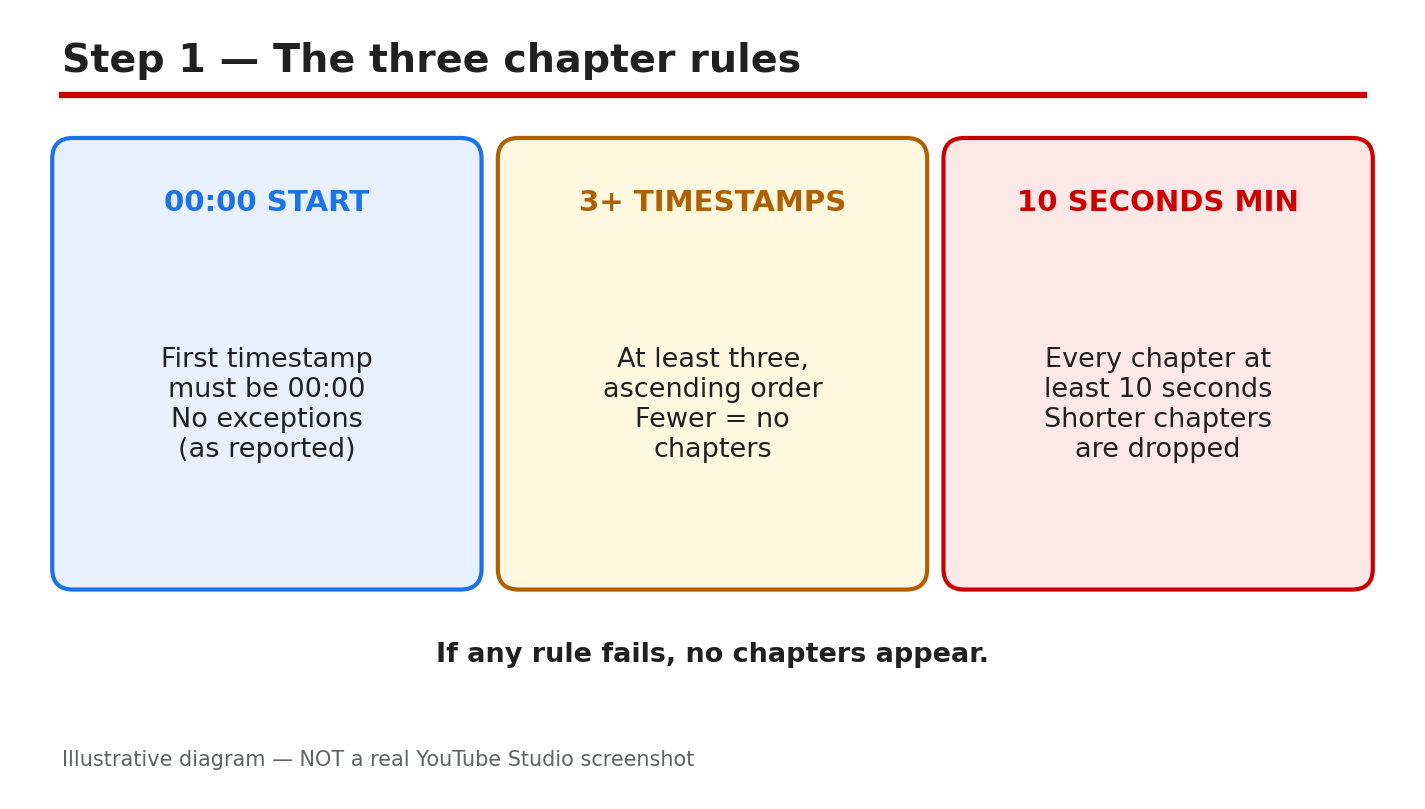
You added timestamps to your video description, saved the changes, and waited — but the progress bar is still one solid line with no chapter segments. Chapters help viewers find the part they need, and when they do not appear, the cause is usually a small formatting mistake or a missed setting. This guide covers the rules YouTube reports for chapters, how to add them correctly, and how to fix the most common problems. What you will learnThe timestamp rules YouTube reports for video chapters How to add chapters correctly in your video description How to check automatic chapters and channel settings How to fix the most common chapter mistakes without re-uploadingStep 1: Check the three timestamp rules first What to do: Check your list against YouTube's three reported rules: first timestamp 00:00, at least three timestamps in ascending order, and every chapter at least 10 seconds long. How to do it: Open the video in YouTube Studio and read its saved description. If the first line starts at 00:15, YouTube will not treat it as chapters. Count the timestamps: two sections are not enough. Check every gap — a chapter under 10 seconds breaks the rule. Example: A tutorial lists "00:00 Intro, 00:08 Tools, 03:00 Main steps". The 00:08 chapter lasts only eight seconds, so no chapters appear. Changing it to "00:45 Tools" fixes it. Common mistake: Assuming a clickable timestamp is also a valid chapter. A link can work even when the list fails the chapter rules.Illustrative diagram (mock-up) — not a real YouTube Studio screenshot. Step 2: Write the chapter list in the right format What to do: Rewrite your chapter list as one clean line per chapter: a timestamp, then a short title for that section. How to do it: In the video description in YouTube Studio, put each chapter on its own line, such as "00:00 Introduction" and "02:30 Setting up". Use minutes and seconds separated by a colon, or hours, minutes, and seconds for videos over an hour. Give every chapter a real title, not just "Part 1". Keep the list in one block, and save, then reopen the description to confirm it saved as typed. Example: A cooking video uses "00:00 Introduction, 01:20 Ingredients, 03:40 Cooking, 07:10 Plating, 09:00 Final tips" — one timestamp and one clear title per line, in order, every section over 10 seconds. Common mistake: Putting the title before the time, such as "Introduction — 00:00", or mixing timestamps into sentences.Illustrative diagram (mock-up) — not a real YouTube Studio screenshot. Step 3: Check the last chapter and the video length What to do: Check the final chapter, which most creators forget: it runs to the end of the video and also needs at least 10 seconds. How to do it: Subtract the last timestamp from the total video length. If your video is 5 minutes 30 seconds long and the last chapter starts at 05:25, that final chapter is only five seconds long, so the whole list fails. Move that last timestamp earlier or merge the final two sections. Example: A 6-minute video ends with "05:50 Outro" — 10 seconds exactly. One second of trimming would break it, so moving it to "05:40 Outro" gives a safer margin. Common mistake: Checking only the gaps between timestamps, and never the final chapter against the end of the video.Illustrative diagram (mock-up) — not a real YouTube Studio screenshot. Step 4: Check automatic chapters and your channel's feature access What to do: If your manual list is correct but chapters still do not appear, check the automatic chapters setting and your channel's feature access. How to do it: In YouTube Studio, open the video, click Show More, and find the Automatic Chapters setting. As reported, this box is checked by default, and allowing automatic chapters lets YouTube generate chapters for eligible videos — but not every eligible video gets them. A manual list overrides automatic chapters. Then check feature access in Studio under Settings, then Channel, then Feature eligibility. Example: A creator fixes the timestamp list three times with no result, then finds the channel's advanced features were never verified. After verification, the same list starts working. Common mistake: Rewriting a correct list over and over while the real problem is feature access or an active strike.Illustrative diagram (mock-up) — not a real YouTube Studio screenshot. Step 5: Check the video itself — audience setting and content What to do: Check the video-level settings that can block chapters, especially the audience setting. How to do it: In YouTube Studio, open the video details and check the audience. As reported, videos set to "Made for Kids" do not get chapters, so if your video is marked for kids, chapters will not appear no matter how perfect the list is. Change the setting only if it is genuinely wrong — never mislabel a kids' video to unlock a feature. YouTube also reports that videos with active strikes, or content that may be inappropriate to some viewers, may not be eligible. Example: A creator adds chapters to a video marked "Made for Kids" and sees nothing. The timestamps are correct, but the audience setting is the blocker. Common mistake: Assuming the problem is the timestamp format when the audience setting is the real reason.Illustrative diagram (mock-up) — not a real YouTube Studio screenshot. Step 6: Save, wait, and verify on the public watch page What to do: Save your fixed list, then verify chapters on the public watch page — not just in the Studio editor. How to do it: After editing the description, click Save, then reopen it to confirm the text saved. Open the public video page: chapters appear as segments along the progress bar, and the chapter title shows as you hover over it. If chapters still do not appear, work through Steps 1 to 5 again instead of deleting and re-uploading — re-uploading would lose all views, comments, and ranking history. Example: A creator fixes a seven-second chapter, saves, and checks the watch page. The progress bar now shows clear segments, and clicking a chapter title jumps to the right moment. Common mistake: Checking only the Studio editor and concluding the fix failed, when the public watch page already shows them.Illustrative diagram (mock-up) — not a real YouTube Studio screenshot. Checklist☐ First timestamp starts at 00:00 ☐ At least three timestamps, in ascending order, each chapter 10 seconds or longer ☐ One clean line per chapter: timestamp first, then a clear title ☐ Last chapter checked against the end of the video ☐ Automatic chapters setting and feature eligibility checked in Studio ☐ Audience setting checked, then verified on the public watch pageFrequently asked questions Why are my YouTube chapters not showing even though the timestamps are clickable? They are not the same thing. A timestamp can work as a link even when the list breaks a chapter rule — starting after 00:00, fewer than three entries, or a chapter under 10 seconds. Can I add chapters to a Short or a very short video? Chapters suit longer videos with clear sections. A video needs room for three chapters of 10 seconds each, so very short videos are a poor fit. Eligibility and feature access also matter, as reported. Do manual chapters or automatic chapters win? Your manual list wins. YouTube's Help page states that your own chapters override automatic video chapters, so viewers should see your list — if it passes the rules. How long do chapters take to appear after I save? YouTube does not publish a guaranteed time, as reported by independent guides. Save the description, then check the public watch page — a correct list usually appears after the page updates. Why do chapters show on one video but not another? Eligibility differs per video. Check the second video's timestamp list, its audience setting, and any strikes on the channel. One rule, such as a short final chapter, can make the same list fail. SourcesVideo Chapters — YouTube Help YouTube SEO Basics for Beginners How to Write Titles That Get Clicks Without ClickbaitChapter rules follow YouTube's Help page on Video Chapters, verified live during this run. Other details are reported by independent guides.
- CreatorPlaybook Team
- 30 Oct, 2026
YouTube Video Not Showing in Search Results: How to Fix It
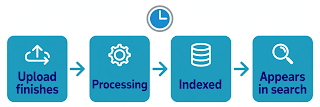
You uploaded a video. It plays fine on your channel page, but searching for its exact title finds nothing. In most cases the video is not banned or removed. Usually it is a small issue: the video is still processing, its metadata is too weak, or a setting is holding it back. This guide is for any creator whose video does not appear in YouTube search. Work through the six steps in order. Each one rules out a cause. What you will learnWhether your video is indexed or just too new If a setting or restriction is hiding it How to rewrite your title, description, and tags How to read your search data in YouTube Studio When to ask YouTube for a re-checkStep 1: Check whether your video is still processing What to do: Confirm the video has fully finished processing before judging its search visibility. How to do it: In YouTube Studio, open Content and check the processing status next to your video. A video showing "Processing" is not finished yet. Example: You publish at 6 p.m. and search at 6:10 p.m. Nothing appears, because Studio still shows "Processing HD version." By the next morning, the same search shows it on the first page. Common mistake: Deleting the video and re-uploading it. That resets its history, and the new copy faces the same wait again. Illustrative diagram of the stages before a video appears in search. This is a mock-up, not a real YouTube Studio screenshot. Step 2: Confirm the visibility and audience settings What to do: Check that the video is Public with the right audience setting. A Private or Unlisted video will never appear in search. How to do it: In YouTube Studio, open the video's details page and check the Visibility field. It must say Public. Then check the Audience setting: a video marked "Made for Kids" cannot appear in some search surfaces. Example: A creator sets a video to Unlisted to share it with a friend, then forgets to change it to Public. It plays from the link but never shows up in search. Common mistake: Forgetting a scheduled publish time. The video looks ready in Studio, but it stays invisible in search until that time passes. Illustrative diagram of the visibility and audience settings to check. This is a mock-up, not a real YouTube Studio screenshot. Step 3: Search the right way and check for a restriction What to do: Test your video's search presence properly, and rule out a restriction that could reduce where it appears. How to do it: Search in an incognito window, because your watch history personalises results and can make a video look missing when it is ranked low. Search the exact title in quotation marks, then try a unique phrase from your description. Example: A creator searches while logged in and finds nothing, then tries an incognito window and finds it on page three. It was never missing; it was ranked low, and personalised results had pushed it out of view. Common mistake: Searching once, from your own account, and concluding the video is invisible. Ranking is personalised, so one search from one account is not a reliable test. Illustrative diagram comparing a personalised search with a logged-out search. This is a mock-up, not a real YouTube Studio screenshot. Step 4: Strengthen the title, description, and tags What to do: Rewrite your metadata so YouTube understands what your video is about and which searches it should match. How to do it: Put the main search phrase your viewers would type near the start of your title, in natural language. In the first two lines of the description, repeat that phrase once. Add tags for the main topic, a close variation, and the broader category. Example: A video titled "My Morning" gets almost no search traffic. Retitled "Morning Routine for Students: 5 Habits That Actually Work," it begins appearing in searches for "morning routine for students" within a few days. Common mistake: Stuffing the title and description with repeated keywords, or using tags for topics the video does not cover. YouTube can treat that as spam, which hurts ranking. Illustrative diagram comparing weak metadata with clear, search-friendly metadata. This is a mock-up, not a real YouTube Studio screenshot. Step 5: Check your search data in YouTube Studio What to do: Use YouTube Studio analytics to see whether your video is getting search impressions, and which search terms bring viewers. How to do it: Open Analytics for the video, go to the Reach tab, and look at "Traffic source: YouTube search." Zero impressions means it is not being shown in search yet. Scroll to "YouTube search terms" to see the exact phrases viewers typed before clicking. Example: A video about "budget tripod for beginners" shows zero search impressions. After retitling it and waiting four days, the Reach tab shows impressions for "best budget tripod." Common mistake: Changing the title every few hours because the video has not appeared yet. YouTube needs time to re-read and re-rank the video after each edit. Illustrative diagram of the search traffic data to check in YouTube Studio Analytics. This is a mock-up, not a real YouTube Studio screenshot. Step 6: Ask for a re-check and build search authority What to do: If the video is Public, fully processed, correctly set up, and still missing after several days, report it and strengthen your channel overall. How to do it: Use "Send feedback" in YouTube Studio to report that a specific Public video does not appear in search. Include the video link and the search phrase you tested. Meanwhile, keep publishing videos on the same topic area, so search can understand your channel. Example: A new channel publishes ten videos about beginner photography over two months. The first few barely appear in search, but by the eighth video, impressions grow steadily, because the channel has built a clear topic signal. Common mistake: Sending the same feedback report every day, or paying a service that promises to "force index" your video. Neither speeds anything up. Illustrative diagram showing how consistent publishing builds a channel's search visibility. This is a mock-up, not a real YouTube Studio screenshot. ChecklistVideo fully processed, including the HD version Visibility set to Public, not Unlisted, Private, or scheduled Audience setting correct for the video Searched in an incognito window with the exact title Title and description open with the search phrase No restrictions or strikes shown in StudioFrequently asked questions How long does it take for a new video to appear in YouTube search? Most videos appear within a few hours of processing finishing. Give a Public video at least 48 hours before treating it as a problem. Can I search for my video using its video ID? Yes. Searching for the unique code from your video's URL is the most direct test. If that finds nothing after several days, work through the steps in this guide. Does changing my title help a video show up in search? Yes, when the change makes the topic clearer. A title that matches the words viewers type gives search a strong signal. Change it once, then wait several days. Why does my video appear for me but not for my friends? Search results are personalised by watch history, location, and device. Your video may simply rank lower for them. Ask them to search in an incognito window. Will deleting and re-uploading fix a video that is not in search? Almost never. Re-uploading resets the video's history and starts the processing and indexing wait again. Fix the settings and metadata on the original video first. Related reading0 Views on YouTube: How to Diagnose No Views YouTube SEO Basics for Beginners How to Write Titles That Get Clicks