YouTube Yellow Dollar Icon? How to Fix Limited Ads and Request a Review
 CreatorPlaybook Team
- 29 Oct, 2026
A yellow dollar icon can feel like a punishment, but it is a rating, not a penalty on the whole channel. It means YouTube found the video suitable only for limited advertising, or for no ads at all. The video stays public, and the rest of the channel is not automatically affected. The fix is specific: find the reason, change only what caused it, and request a human review if the rating looks wrong.
Related reading: YouTube Shorts Not Monetized? 7 Reasons and How to Fix Each One. A yellow icon and a Short with no monetization often share a cause, so check both guides before changing a video. Below, each step gives what to do, the exact Studio path, a short example, and a common mistake. Check the official Help pages at the end, because wording and review options can change.
What You Will Learn
- Green, yellow, and red icons, explained.
- Where to find the reason for a rating.
- Common triggers in the advertiser-friendly guidelines.
- Fixes to make before requesting a review.
- How to request a human review in Studio.
- A prevention plan for future uploads.
Step 1: Read the Dollar Icon Correctly
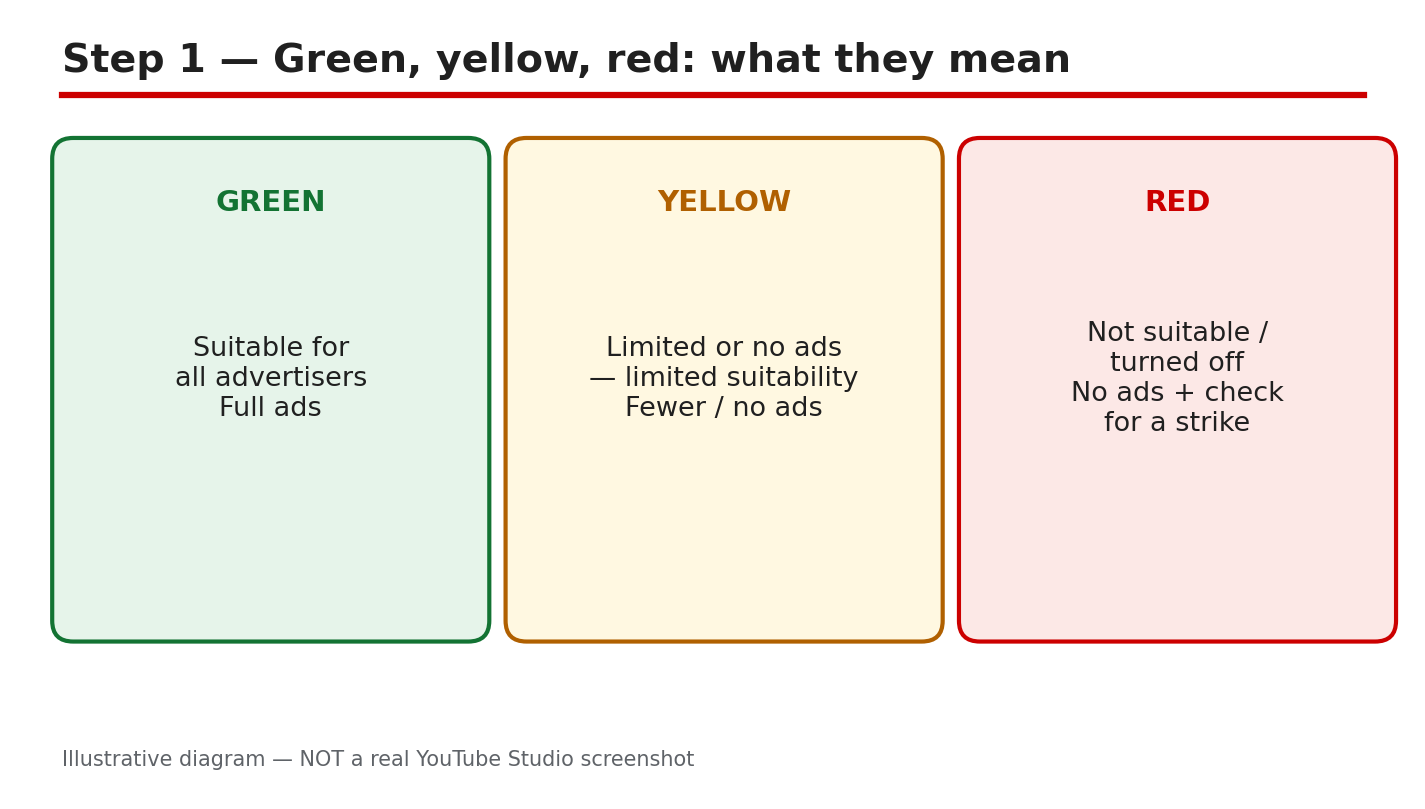
What to do: Check the icon before changing anything. Green means the video is suitable for full ads. Yellow means limited or no ads, because part of the content may not suit all advertisers. Red means the video is not suitable for ads. The icon is a rating for one video, not a strike and not a channel penalty.
Studio path: YouTube Studio > Content > Monetisation column. The icon sits beside the video title, with the reason shown when you click it. Also check Studio > Content > Notices for appeal steps.
Example: A creator sees yellow on one cooking video, while ten others stay green. Only that video needs a fix, so the creator leaves the rest alone.
Common mistake: Deleting the video, or changing the title on every video. A rating affects one video, so a channel-wide change wastes work.
Illustrative diagram/mock-up — NOT a real YouTube Studio screenshot: green, yellow, and red icon meanings.
Step 2: Find Where the Rating Lives
What to do: Open the video in Studio and read the exact reason category. Do not guess from the thumbnail or title alone. The reason tells you whether the problem is language, imagery, or topic, and that decides the fix. Note the category word for word before editing.
Studio path: YouTube Studio > Content > Monetisation column > click the dollar icon. For appeals, follow the official appeal page: Studio > Content > Notices column, hover over the notice, and use the Action button.
Example: A creator clicks the yellow icon and reads a category about strong language. The fix is the audio, not the thumbnail, so editing starts there.
Common mistake: Requesting a review before reading the reason. Reviewers see the same content, so an unchanged video gets the same rating.
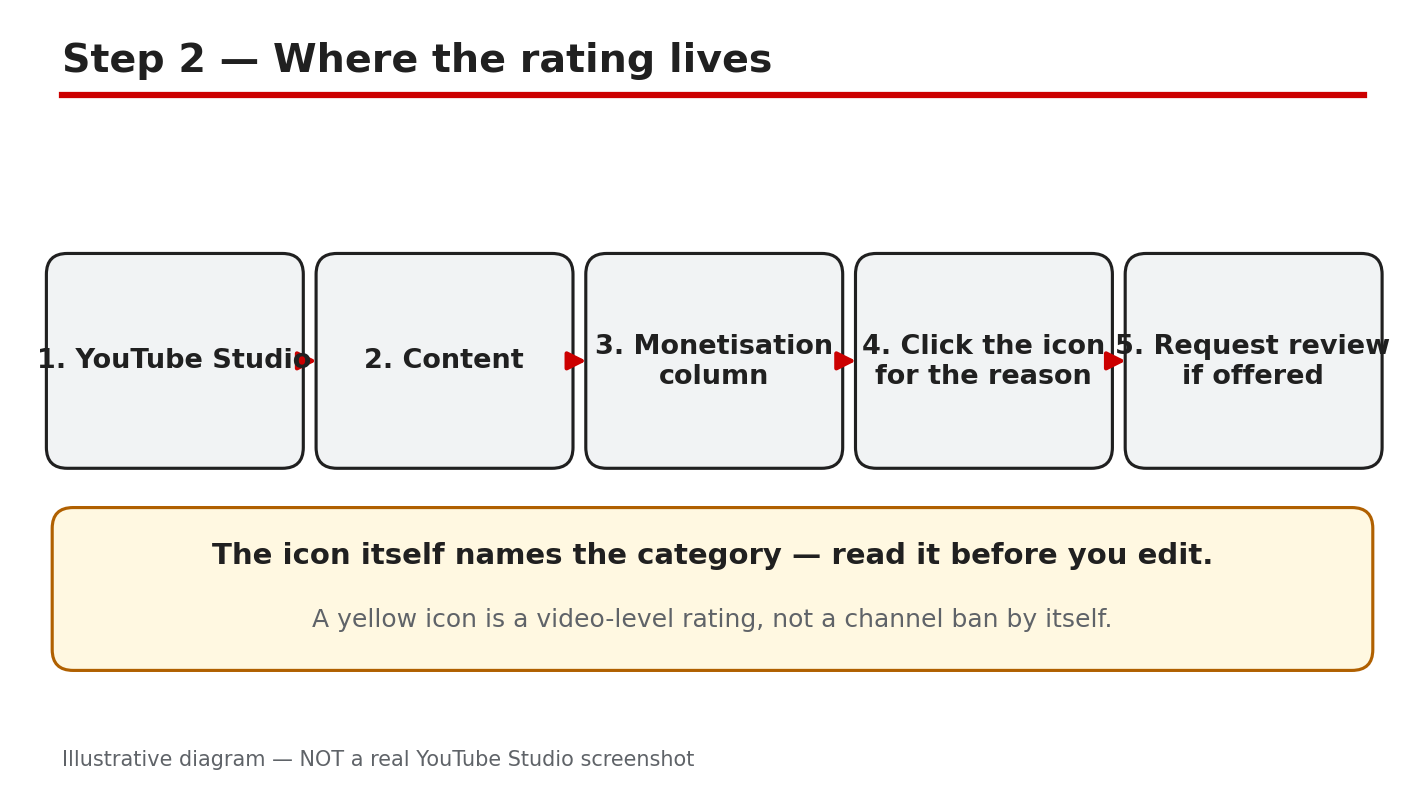
Illustrative diagram/mock-up — NOT a real YouTube Studio screenshot: where the rating lives in Studio.
Step 3: Check the Common Triggers
What to do: Compare the video with the Advertiser-Friendly Guidelines categories. Strong profanity, especially in the first 30 seconds, is a common trigger. Graphic or shocking imagery, violent or distressing scenes, and sensitive topics such as tragedy or conflict can also limit ads. A single strong moment can affect the rating, even in a long video.
Studio path: YouTube Studio > Content > click the icon for the reason category, then compare that category with the official Advertiser-Friendly Guidelines page.
Example: A creator finds strong language in the opening 20 seconds. The rest of the video is calm, but the early language alone explains the yellow icon.
Common mistake: Assuming the whole topic is banned. Many topics are allowed with care; the trigger is usually one moment, word, or image.
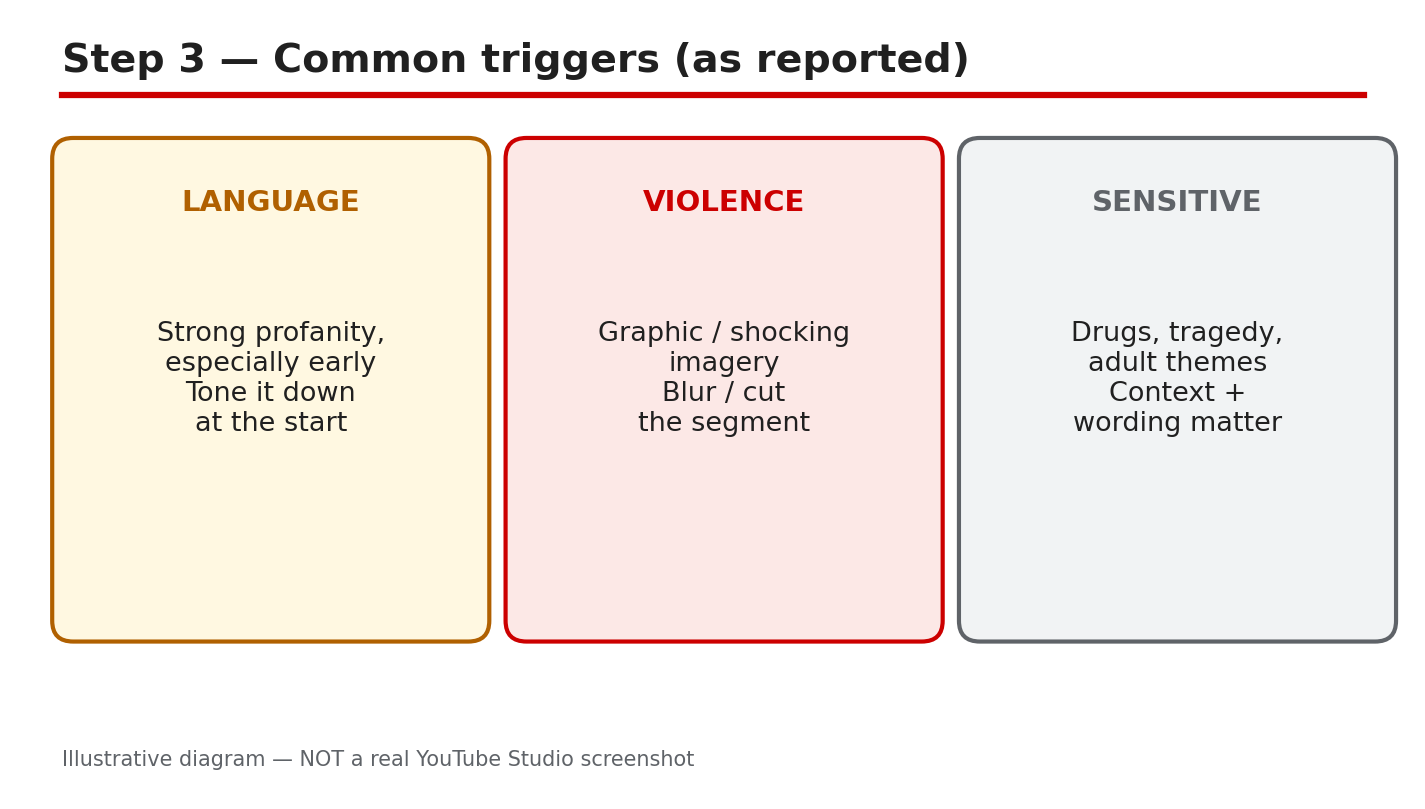
Illustrative diagram/mock-up — NOT a real YouTube Studio screenshot: common triggers.
Step 4: Fix the Video Before a Review
What to do: Edit or blur the offending part, and clean the first 30 seconds first, because early content weighs heavily. Fix any mismatch between the title, thumbnail, and actual video, so the video delivers what it promises. Confirm that only this video is affected, and keep a note of each change made.
Studio path: YouTube Studio > Content > video > Details > Editor for cuts and blurs; then Details > Title and description, and the thumbnail picker, for the title and thumbnail.
Example: A creator blurs a graphic image, trims one strong phrase, and changes a misleading thumbnail. The video now matches its title and opening.
Common mistake: Changing only the title. If the audio or imagery still triggers the rating, the icon will not change.
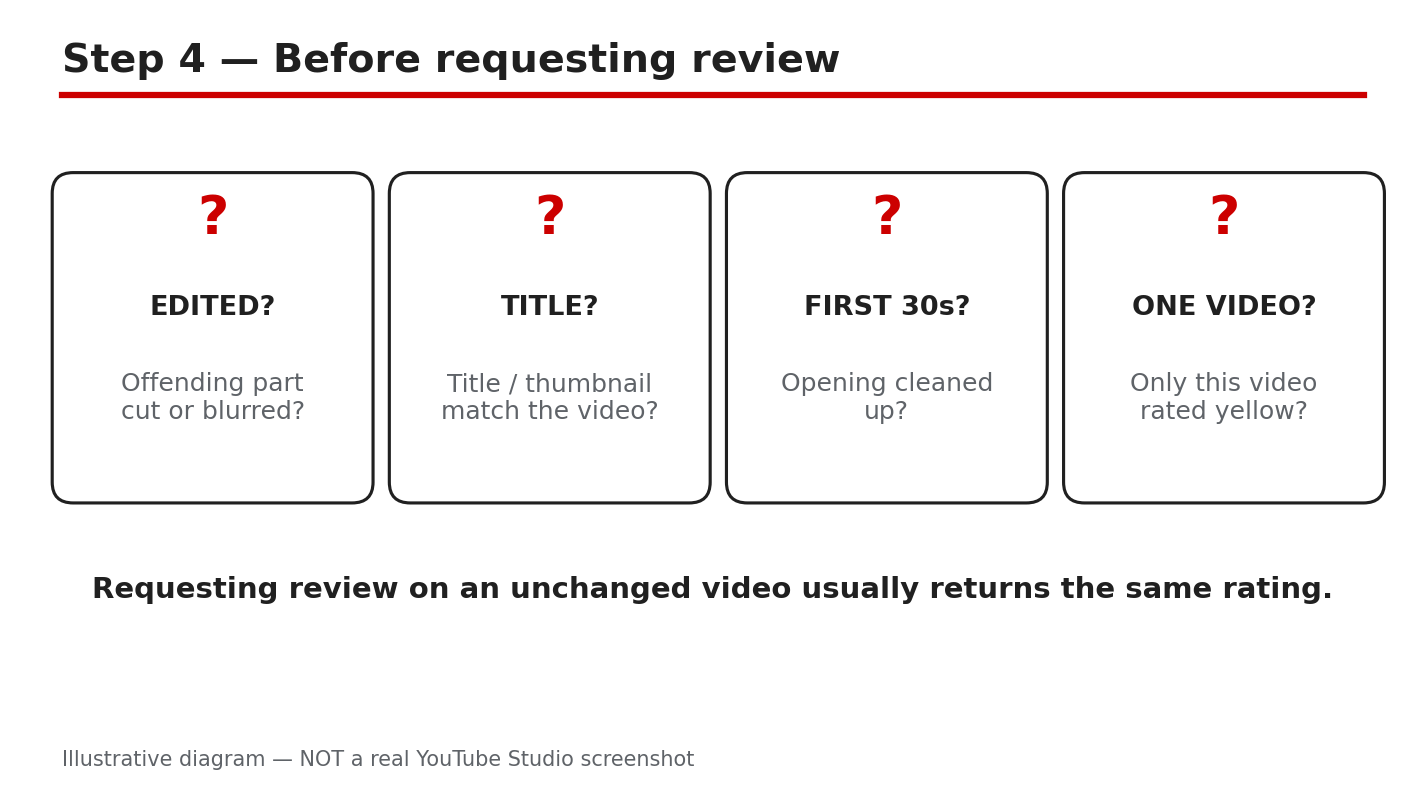
Illustrative diagram/mock-up — NOT a real YouTube Studio screenshot: before requesting a review.
Step 5: Request a Human Review
What to do: Request a human review only after the fix, using one request for the video. Follow the appeal steps on the official page, and give the exact reason category if asked. As reported, a decision can take up to 7 days, and the specialist decision is reported to be final, so check the current Help page for the latest wording. Creators in the EU are reported to have extra options, so check the page for any local route.
Studio path: YouTube Studio > Content > Notices column > hover over the notice > Action > request review, as described on the official appeal page. Also check the Monetisation column for the icon and reason.
Example: A creator fixes the opening, requests one review, and waits. The icon stays yellow while the review is pending, so no second request is sent.
Common mistake: Sending several requests for the same video. Repeated requests do not speed a review, and they can confuse the record.
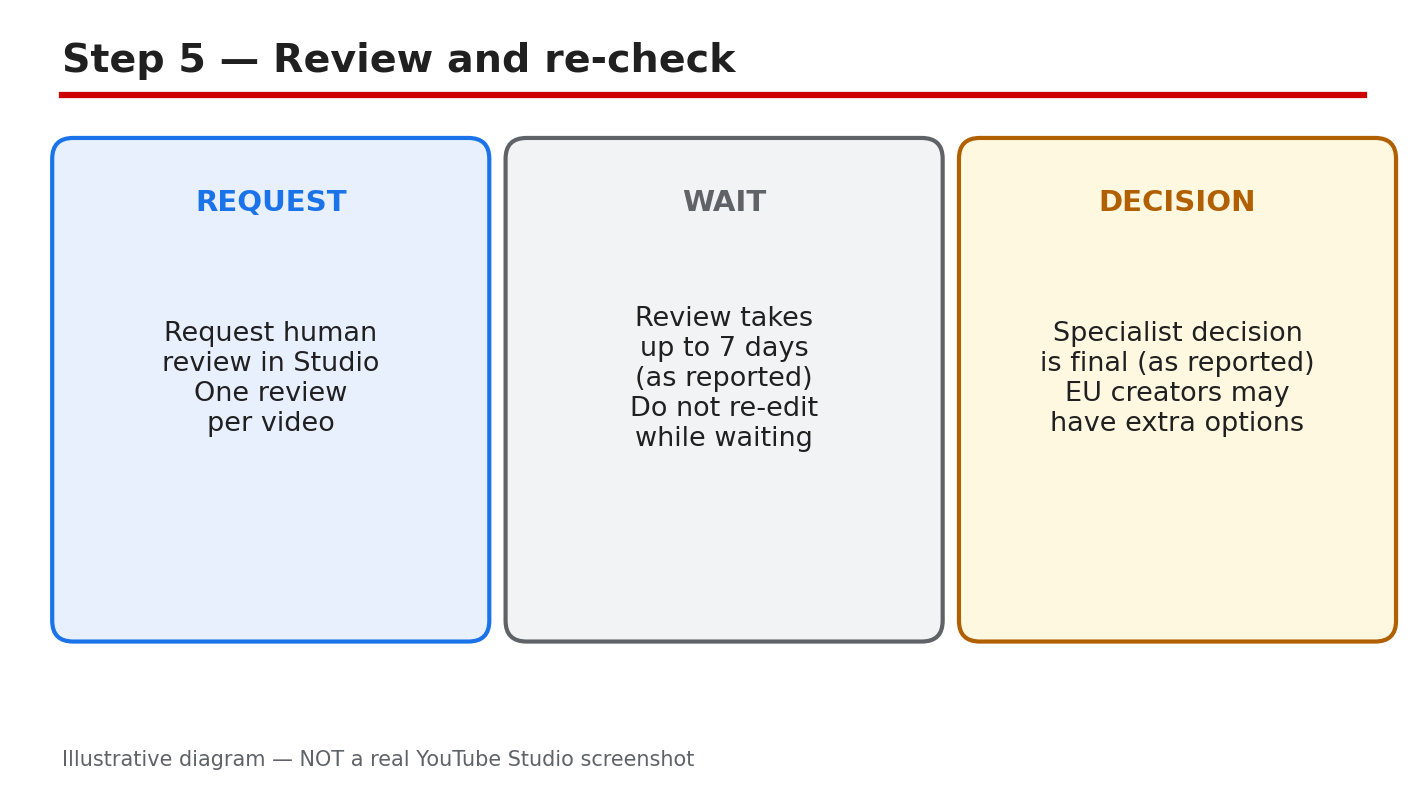
Illustrative diagram/mock-up — NOT a real YouTube Studio screenshot: review and re-check.
Step 6: Prevent the Next Yellow Icon
What to do: Build a short pre-upload check. Review the first 30 seconds for strong language and shocking imagery, and check that the title and thumbnail match the video. Keep a list of past reason categories, so the same trigger is not repeated. Review new videos a day after upload, when ratings can settle.
Studio path: YouTube Studio > Content > Monetisation column after upload, and Content > video > Details before upload, for title, thumbnail, and audience checks.
Example: A creator checks the opening before upload, removes one strong word, and the next three videos stay green. The check takes five minutes.
Common mistake: Copying a viral title that overpromises. A mismatch can draw a closer look, even when the video itself is calm.
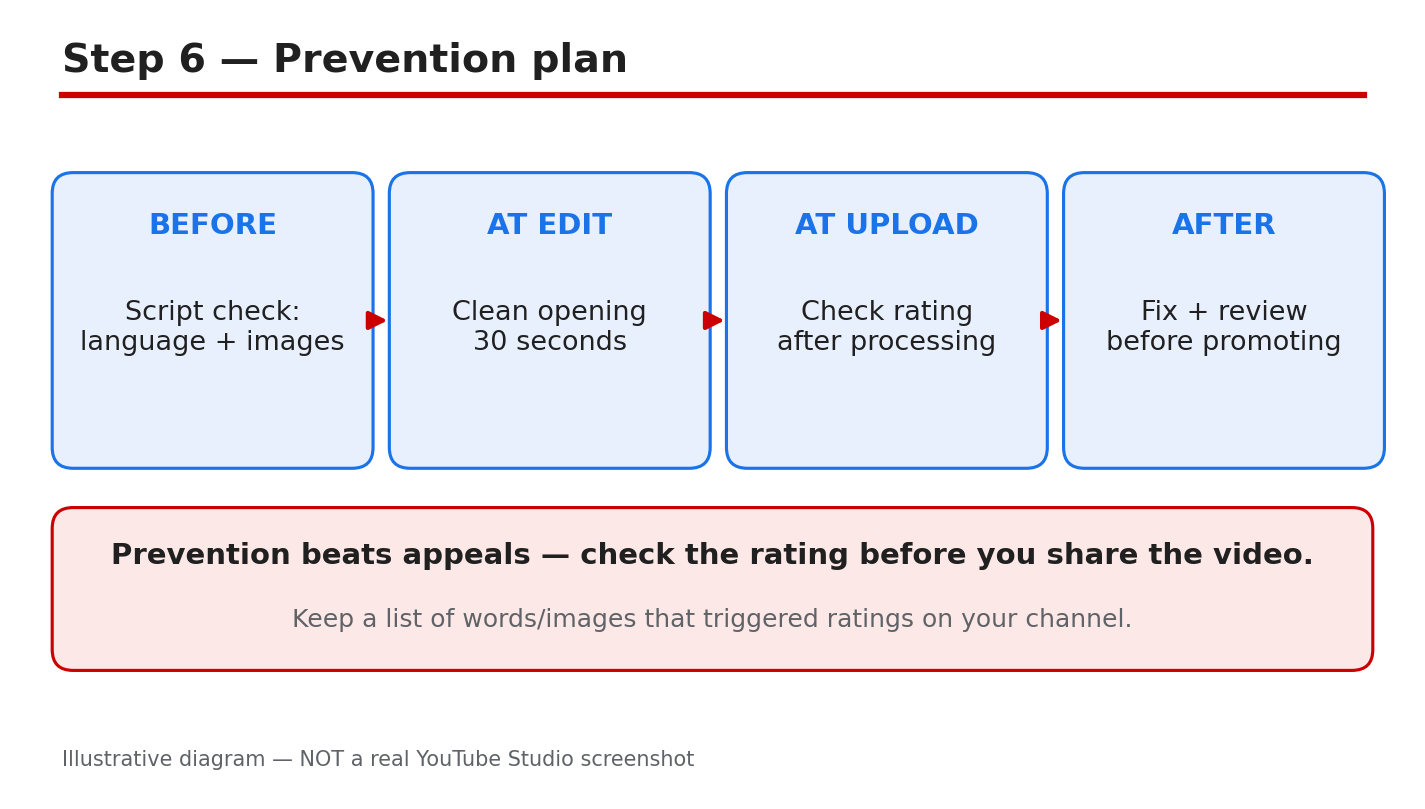
Illustrative diagram/mock-up — NOT a real YouTube Studio screenshot: prevention plan.
Checklist: Fix the Icon, in Order
- Icon and reason category noted.
- Trigger found: language, imagery, or topic.
- First 30 seconds cleaned.
- Title and thumbnail match the video.
- Only the affected video changed.
- One human review requested, after the fix.
- Pre-upload check added for next time.
Frequently Asked Questions
Does a yellow icon affect my whole channel?
No, as a rule. The rating applies to one video. Other videos keep their own ratings, and the channel is not penalised by one yellow icon alone. Fix the single video, and leave green videos unchanged.
Can I request a review more than once?
Request one review per video, after fixing the cause. As reported, the specialist decision is final, so a second request for the same unchanged video is unlikely to help. Check the official appeal page for current options before trying again.
How long does a human review take?
As reported, allow up to 7 days, and check Studio for the outcome. Times can vary, and no exact time can be promised here. Do not send duplicates while waiting; check the Help page for the latest wording.
Should I delete a yellow-icon video?
Usually no. First read the reason, fix the trigger, and request a review if the rating looks wrong. Deleting loses views, comments, and watch time, and the same mistake can return in the next upload.
What if every new video gets a yellow icon?
Look for a repeated trigger across videos, such as strong language in every opening, or thumbnails that overpromise. Fix the pattern, not one video at a time. If the pattern is unclear, compare each reason category with the official guidelines page.
Sources — Check It Yourself
Official pages opened and verified live on 29 October 2026. Check current wording before acting.
- Advertiser-friendly content guidelines — YouTube Help
- Submit an appeal for videos with ‘Limited ad earnings’ or ‘No ad earnings’ — YouTube Help
No official YouTube video is embedded here. No exact official video URL was verified live.