End Screens and Cards: Complete Guide
 CreatorPlaybook Team
- 25 Oct, 2026
Related guides: How to Use Playlists to Increase Watch Time, How to Improve Click-Through Rate, and Audience Retention: How to Keep Viewers Watching.
End screens and cards are two small features that can quietly change how long viewers stay on your channel. An end screen appears in the last 5 to 20 seconds of a video and points viewers to another video, a playlist, or a subscribe button. A card appears during a video, as a small notice in the corner, and can point to a related video, playlist, or channel.
Used well, these tools guide viewers to the next useful video instead of leaving them to YouTube’s recommendations alone. Used badly, they distract viewers, interrupt the video, or point to content that has nothing to do with what was just watched. This guide explains both tools step by step, so you can use them deliberately in every video.
What You Will Learn
- What end screens and cards are, and when each one works best
- How to plan an end screen that matches the video’s topic
- How to add and time cards so they help, not interrupt
- How to choose the right next video, playlist, or subscribe prompt
- How to record a simple closing that makes end screens feel natural
- How to check end screen and card clicks and improve weak ones
Step 1: Understand the Difference Between End Screens and Cards
What to do: End screens appear only at the end of a video and can include several elements at once, such as a video, a playlist, and a subscribe button. Cards appear during a video, one at a time, as a small teaser that viewers can tap to expand. Think of end screens as a closing menu, and cards as helpful signposts during the journey.
How to do it in simple steps:
- Use an end screen to suggest the single most relevant next step after the video ends.
- Use a card when a viewer might want more detail on a point you mention mid-video.
- Keep end screens for the final seconds, after the main content is finished.
- Limit cards to moments when they add value, not every minute of the video.
Practical example: In a video about making soup, a card at the moment you mention stock could link to a video on homemade stock. At the end, an end screen could link to the full “Healthy Dinners” playlist and a subscribe button. The card helps during the video; the end screen guides the next session.
Common mistake to avoid: Treating cards and end screens as the same thing, or adding both everywhere. Too many cards annoy viewers and pull them away mid-video, while an end screen that appears before the content ends can feel like the video stopped early.
Illustrative image: End screens guide the next step; cards help during the video. This is an illustrative image, not a screenshot of your channel or another creator’s work.
Step 2: Plan the End Screen Before You Record
What to do: Decide what the end screen will promote before you film, so you can leave 20 seconds of clean, uncluttered video at the end for it. If the ending is busy, fast-moving, or full of text, end screen elements will be hard to see and tap.
How to do it in simple steps:
- Choose one next video and one playlist that match the video’s topic.
- Plan a simple closing shot, such as you speaking to the camera with a plain background.
- Leave the last 20 seconds free of important text, faces, or fast movement where elements will sit.
- Write one closing sentence that names the next video, such as “Next, watch part two.”
Practical example: A creator ends a guitar lesson standing with the guitar, saying, “Next, try the chord changes video linked here.” The screen stays calm for 20 seconds, so viewers can see and click the video element without the picture changing underneath it.
Common mistake to avoid: Adding an end screen to a video that ends abruptly, with credits rolling or a fast montage. Elements placed over busy footage are hard to read, and viewers leave before they notice the next video.
 Illustrative image: A calm, planned ending gives end screens room to work. This is an illustrative image, not a screenshot of your channel or another creator’s work.
Step 3: Add End Screen Elements in YouTube Studio
What to do: In YouTube Studio, open the video editor, choose End screen, and add elements for a video, a playlist, and a subscribe button. Place them where they do not cover faces or important visuals, and check them on both desktop and mobile previews.
How to do it in simple steps:
- Open YouTube Studio, select the video, and open the editor’s End screen section.
- Add a video element for the most relevant next video, or a playlist element for a series.
- Add a subscribe element in a corner where it is visible but not in the way.
- Set the timing so elements appear in the last 20 seconds, not earlier.
- Save, then watch the ending on a phone and a computer to check placement.
Practical example: A beginner photography video might use a video element on the left for “Composition Basics,” a playlist element on the right for “Phone Photography Basics,” and a small subscribe circle in the corner. A viewer has two clear next steps, not five competing choices.
Common mistake to avoid: Filling the end screen with four or five elements that all compete for attention. When everything is promoted, nothing stands out. Two or three well-chosen elements outperform a crowded screen.

Step 4: Time Cards to Moments When Viewers Want More
What to do: Add cards at moments when a viewer is likely to want more detail, such as when you mention a related technique, a product, or a previous video. Say the card out loud, briefly, so viewers know to look for it.
How to do it in simple steps:
- Watch your edited video and note two or three moments where a related video would help.
- In YouTube Studio, add a card at each moment, linking to the most relevant video or playlist.
- Mention the card in your voiceover, such as “I have a full video on this linked in the corner.”
- Avoid cards in the first 30 seconds, when viewers are still deciding whether to stay.
Practical example: A travel video mentions packing light. At that moment, a card links to a full packing video. Viewers who care can click; viewers who do not can ignore the small notice and keep watching. The card helps without forcing anyone away.
Common mistake to avoid: Adding a card every minute, or linking cards to unrelated videos just to get clicks. Frequent, irrelevant cards feel like interruptions, and viewers learn to ignore them, or leave the video entirely.
 Illustrative image: A well-timed card appears when viewers want more detail. This is an illustrative image, not a screenshot of your channel or another creator’s work.
Step 5: Choose the Right Next Video, Not Just Your Latest Video
What to do: The next video you promote should be the one most likely to keep this viewer watching. That is usually the next video in a series, or a video on the same problem, not simply your most recent upload.
How to do it in simple steps:
- Ask: after watching this video, what question is the viewer most likely to ask next?
- Promote the video that answers that question, even if it is older.
- If the video is part of a series, promote the next part, not a random video.
- Use a playlist element when several videos together answer the next question.
Practical example: A viewer finishes a video on sourdough starter. The best next video is “Your First Sourdough Loaf,” not the creator’s latest video about a different bread. Relevance keeps the session going; novelty alone does not.
Common mistake to avoid: Always promoting your latest video in every end screen. Viewers who just watched a beginner tutorial may not care about your latest advanced video, and will leave instead of clicking.
 Illustrative image: The right next video answers the viewer’s next question. This is an illustrative image, not a screenshot of your channel or another creator’s work.
Step 6: Check Clicks and Improve Weak End Screens
What to do: In YouTube Analytics, check end screen element clicks and card clicks. If few viewers click, the problem may be the choice of video, the placement, or a closing that does not invite a click.
How to do it in simple steps:
- Open Analytics for a video and look at end screen and card click rates.
- Compare videos: which end screens earn clicks, and which earn almost none?
- For weak ones, change one thing: the promoted video, the placement, or the closing sentence.
- Re-check after a few weeks, and keep the changes that improve clicks.
Practical example: A creator finds that an end screen promoting a playlist earns more clicks than one promoting a single unrelated video. They switch future end screens to playlists for series videos, and single videos only when one video is the obvious next step.
Common mistake to avoid: Adding end screens once and never checking them. A broken link, an outdated video, or a poorly placed element can sit for months, quietly losing viewers who would have kept watching.
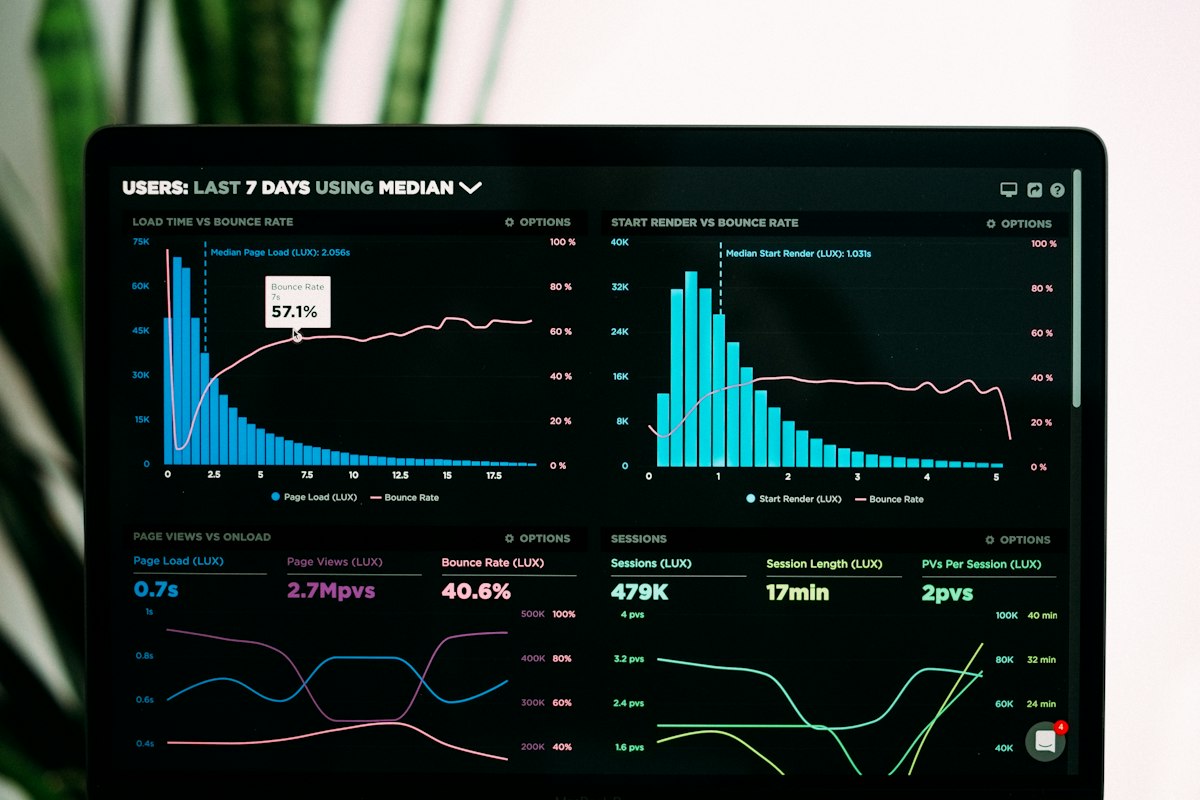 Illustrative image: Click data shows which end screens actually guide viewers onward. This is an illustrative image, not a screenshot of your channel or another creator’s work.
Checklist for End Screens and Cards
- End screen planned before recording, with 20 seconds of calm footage at the end
- Two or three elements only: a relevant video or playlist, plus subscribe
- Elements placed where they do not cover faces or key visuals, checked on mobile
- Cards timed to moments when viewers want more detail, not in the first 30 seconds
- Next video chosen by relevance and viewer need, not by recency
- Click rates checked, with one improvement per video where clicks are low
Frequently Asked Questions
How long should an end screen last? End screens can last up to 20 seconds, and most creators use the full final 20 seconds. Shorter end screens give viewers less time to notice and click, so use the full window when you can.
Can I add end screens to Shorts? End screens are a feature for long-form videos. Shorts use a different system, with related video links and channel links, so plan Shorts endings separately and do not expect the same elements to appear.
How many cards should I use in one video? Two or three well-timed cards are usually enough for a 10-minute video. More than that risks distracting viewers, especially if the cards are not closely related to the moment they appear.
Do cards and end screens work on mobile? Yes, both work on mobile, but placement matters more on a small screen. Always preview on a phone, because an element that looks fine on desktop may cover a face or text on mobile.
What if my video is too short for an end screen? Videos need to be long enough to include an end screen in the final seconds. If a video is very short, focus on a strong description and a clear verbal suggestion of the next video, and save end screens for longer videos.
End screens and cards are not tricks. They are signposts. When they point to the right next video, at the right moment, and in a clear, uncluttered way, viewers stay longer, learn more, and come back for the next video in the series.