YouTube Verification Explained: Phone Verification, Advanced Features, and the Grey Badge
 CreatorPlaybook Team
- 30 Oct, 2026
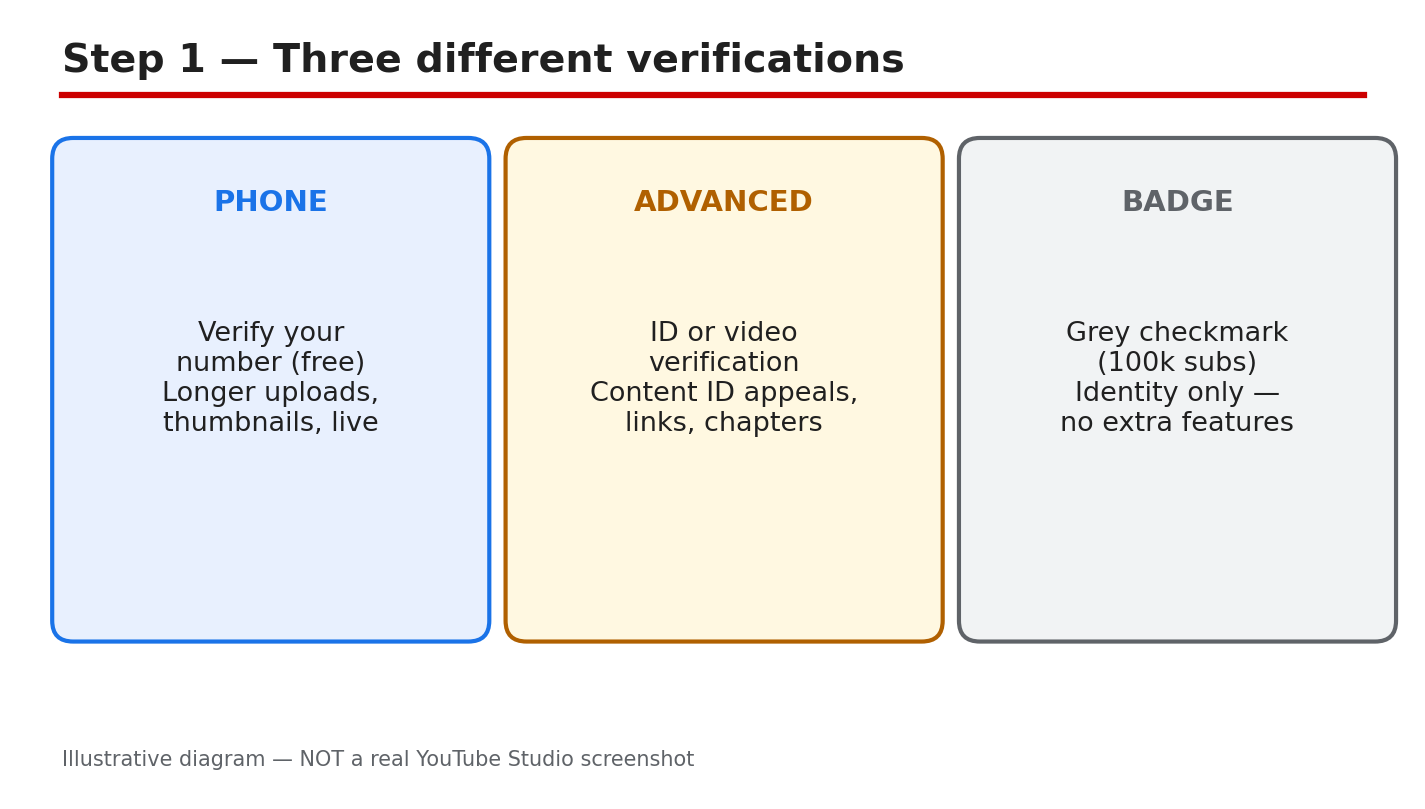
Three different things on YouTube all use the word verification, and mixing them up wastes hours. Phone verification unlocks longer uploads, custom thumbnails, and live streaming. Advanced features unlock Content ID appeals, links in descriptions, and chapters. The grey badge only proves a channel is the real one, and it needs 100,000 subscribers. This guide separates the three, shows you exactly where to check each one in YouTube Studio, and walks you through the steps to apply, recover lost access, and avoid the scams that charge for a free badge.
What You Will Learn
- How phone verification, advanced features, and the grey badge differ.
- Where to check your status in Studio in under a minute.
- The exact rules for the grey badge, as YouTube Help states them.
- What to fix before you apply, so you are not rejected.
- How to recover advanced features if you lose them.
- Why no one can sell you a badge, and what to do instead.
Step 1: Learn the Three Different Verifications
Phone verification is free and proves you are a real person. You enter a phone number, YouTube sends a code by text or voice call, and you enter it back. Once verified, you can upload videos longer than 15 minutes, add custom thumbnails, live stream, and appeal copyright claims. Advanced features are the next level: after phone verification, you unlock them by verifying with an ID or a video, or by building up channel history. They add Content ID appeals, links in video descriptions, and chapters. The grey badge is different again: it is a check mark next to your channel name that proves you are the real creator, and it gives you no extra features at all.
Example: a new creator phone-verifies on day one and can live stream the same week, but the grey badge stays out of reach until 100,000 subscribers. Common mistake: paying a stranger who promises a grey badge. Applications are free inside YouTube Studio, and no one outside YouTube can grant one.
Figure 1: Illustrative diagram comparing the three verifications: phone, advanced features, and the grey badge. This is a mock-up, not a real YouTube Studio screenshot.
Step 2: Check Your Status in YouTube Studio
Sign in to YouTube Studio on your computer, then go to Settings, then Channel, then Feature eligibility. That page shows three groups: standard features, intermediate features, and advanced features, with your current status for each. For the grey badge, the path is different: go to Settings, then Channel, then Verified badge, and you will see Apply only if you are eligible. If the Verified badge tab does not appear, YouTube says you are not yet eligible to apply.
Example: you open Feature eligibility and see advanced features marked as not available, with a button to verify with an ID or a video. Common mistake: asking a manager or editor to complete phone verification for you. YouTube Help says that for a channel without a brand account, only the channel owner can phone-verify it, so the owner must do this step personally.
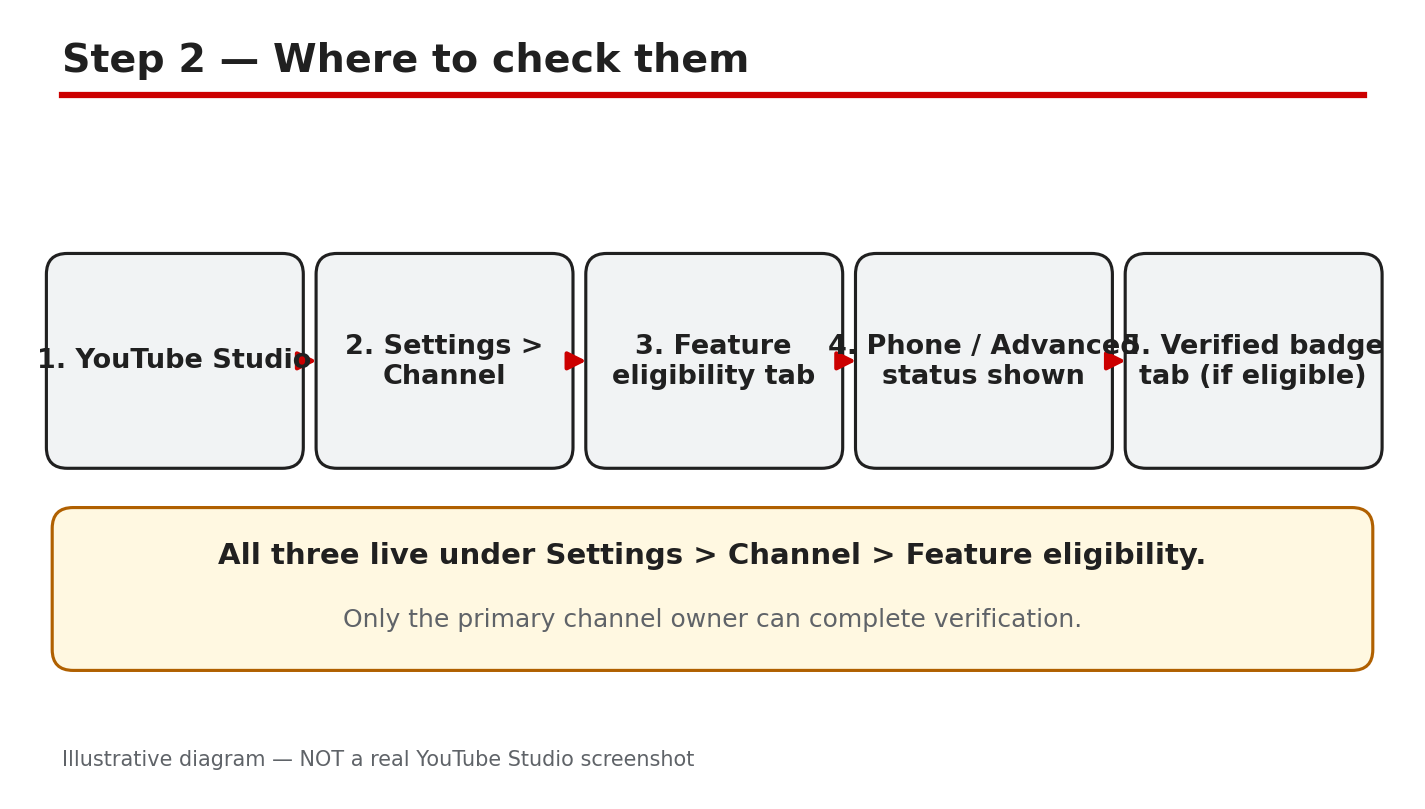
Figure 2: Illustrative diagram of the Studio path: Settings, Channel, Feature eligibility, and the Verified badge tab. This is a mock-up, not a real YouTube Studio screenshot.
Step 3: Know the Grey Badge Rules
YouTube Help lists three requirements to submit a request for channel verification. You must have 100,000 subscribers. Your Google account must have 2-step verification turned on. And you must have a complete profile, including a banner image, profile picture, description, and at least one public video. Only the channel owners or the managers of a channel can submit the application. There is no workaround at the standard tier: a smaller channel cannot buy, request, or unlock the badge early, although YouTube says it sometimes proactively verifies well-known channels with fewer than 100,000 subscribers.
Example: a channel with 120,000 subscribers but no 2-step verification will see a prompt to turn it on instead of an Apply button. Common mistake: changing your channel name after getting verified. YouTube says a verified channel stays verified unless you change your channel name, which removes the badge. Changing your handle, on the other hand, does not remove it.
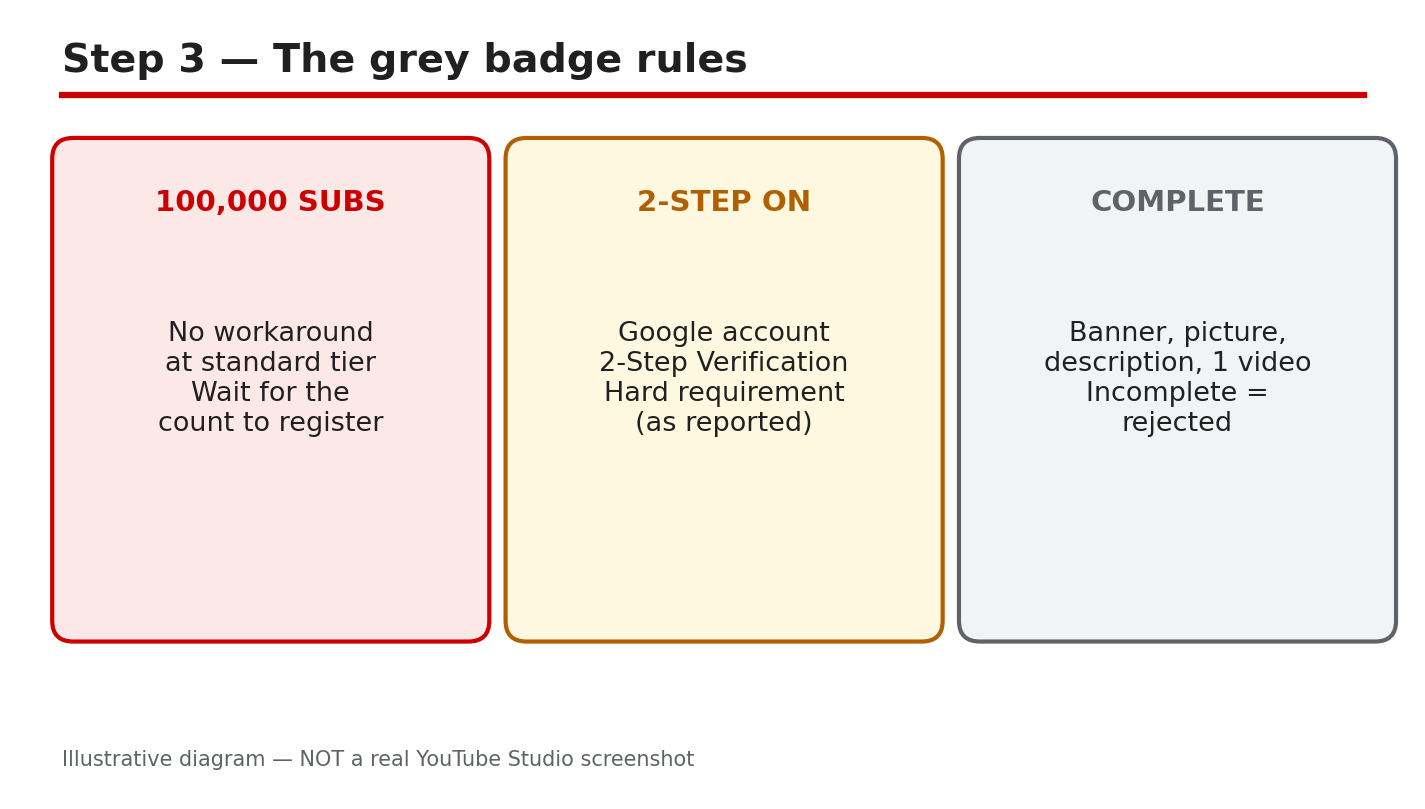
Figure 3: Illustrative diagram of the grey badge rules: 100,000 subscribers, 2-step verification, and a complete profile. This is a mock-up, not a real YouTube Studio screenshot.
Step 4: Get Ready Before You Apply
Work through four checks before you open the application. First, confirm your subscriber count is at or above 100,000, and remember that YouTube’s systems can take a few days to update after you pass the mark. Second, turn on 2-step verification on the Google account that owns the channel. Third, complete your profile: banner image, profile picture, description, and at least one public video. Fourth, check for active strikes, because YouTube reserves the right to revoke verification from channels that violate its Community Guidelines or Terms of Service.
Example: you reach 100,000 subscribers on Monday, turn on 2-step verification on Tuesday, and the Apply button appears later that week. Common mistake: applying with an incomplete profile and getting stuck, then assuming the system is broken. Fix the missing piece first, then apply, and keep your record clean while you wait.
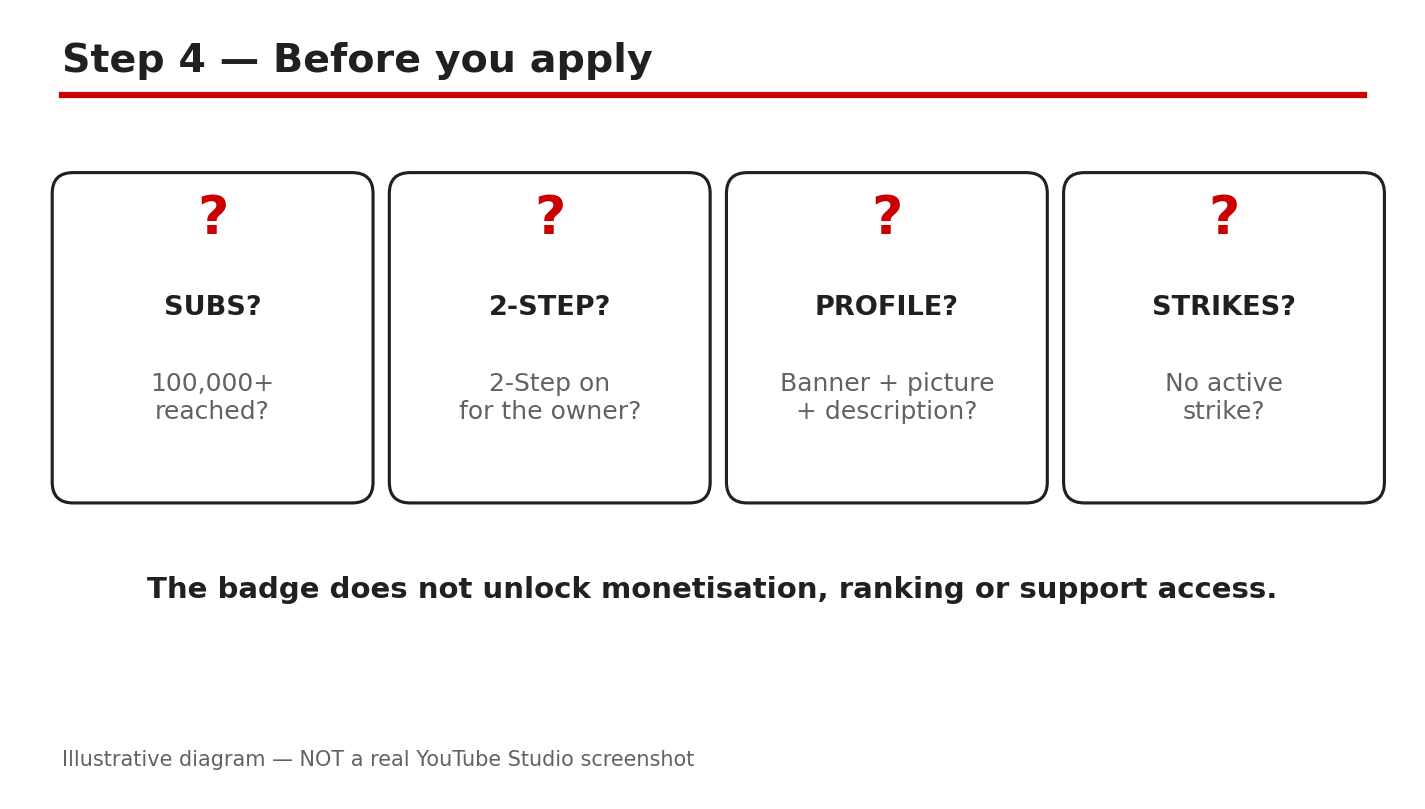
Figure 4: Illustrative diagram of the pre-application checks: subscribers, 2-step verification, profile, and strikes. This is a mock-up, not a real YouTube Studio screenshot.
Step 5: Recover Advanced Features You Lost
If advanced features stop working, start with the simplest fix: verify your phone number again in Studio under Settings, then Channel, then Feature eligibility. If that does not restore access, YouTube offers two routes to advanced features: verification using an ID or a video, or building up sufficient channel history. Reported guidance puts ID or video verification review at about 24 hours, and channel history at about two months of clean activity. Treat both figures as reported estimates, not promises, and keep uploading normally while you wait.
Example: a channel loses advanced features after a long break, re-verifies its phone number, and the features return the same day. Common mistake: paying a service that claims it can restore advanced access overnight. No service can do that for you, and sharing your account details with one can put the whole channel at risk.
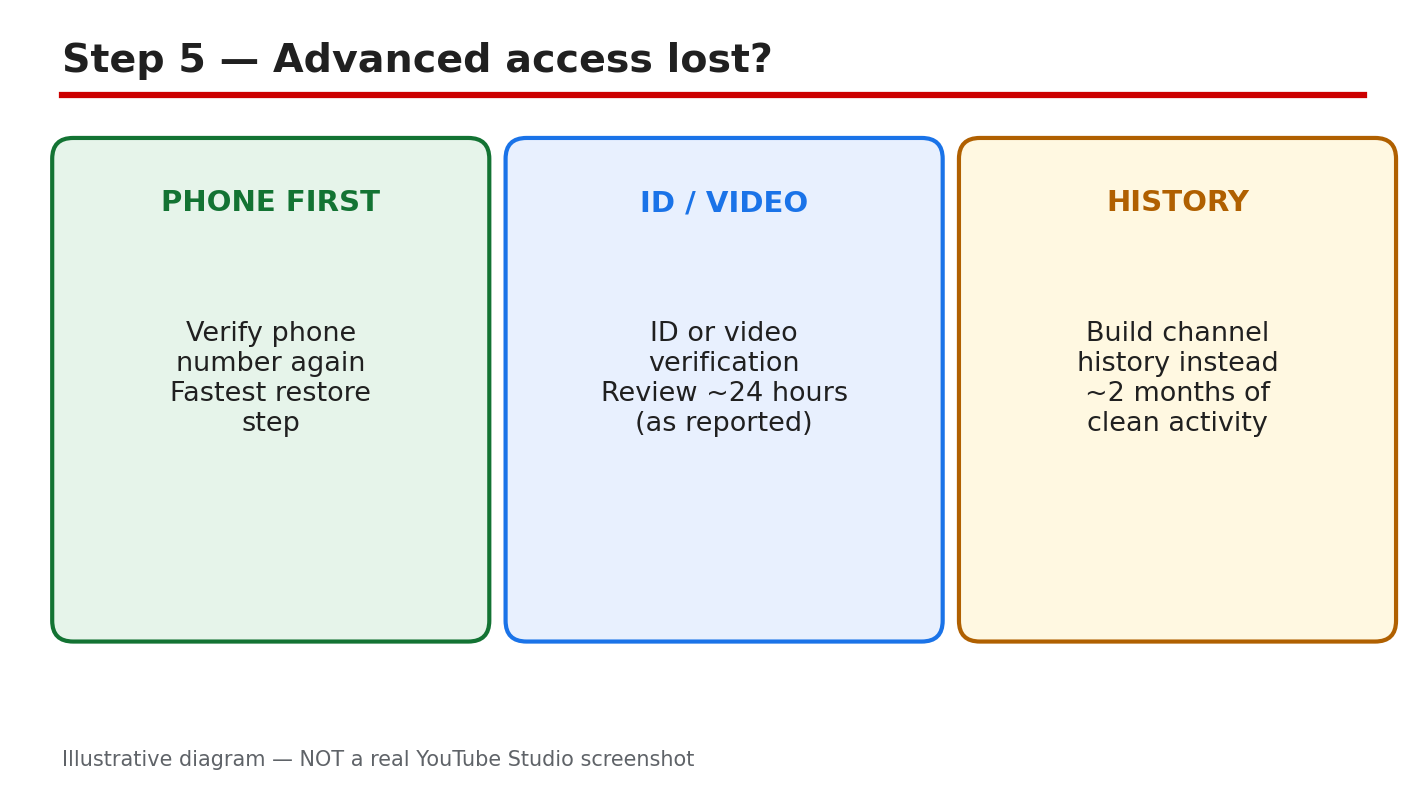
Figure 5: Illustrative diagram of the recovery routes: re-verify by phone, ID or video check, or channel history. This is a mock-up, not a real YouTube Studio screenshot.
Step 6: Follow a Simple Verification Plan
Do the steps in this order. Phone-verify your channel first, because every other step needs it. Then unlock advanced features with an ID or video check, or by building channel history. Grow your channel with regular uploads until you pass 100,000 subscribers, keep 2-step verification on, and keep your profile complete. When the Apply button appears under Settings, then Channel, then Verified badge, apply from inside Studio. The application is free, and anyone asking you to pay for a badge is running a scam.
Example: a creator phone-verifies in week one, unlocks advanced features in month two, and applies for the badge the week the channel passes 100,000 subscribers. Common mistake: treating the grey badge as a goal that unlocks features. It does not. Phone verification and advanced features are what change what your channel can do.
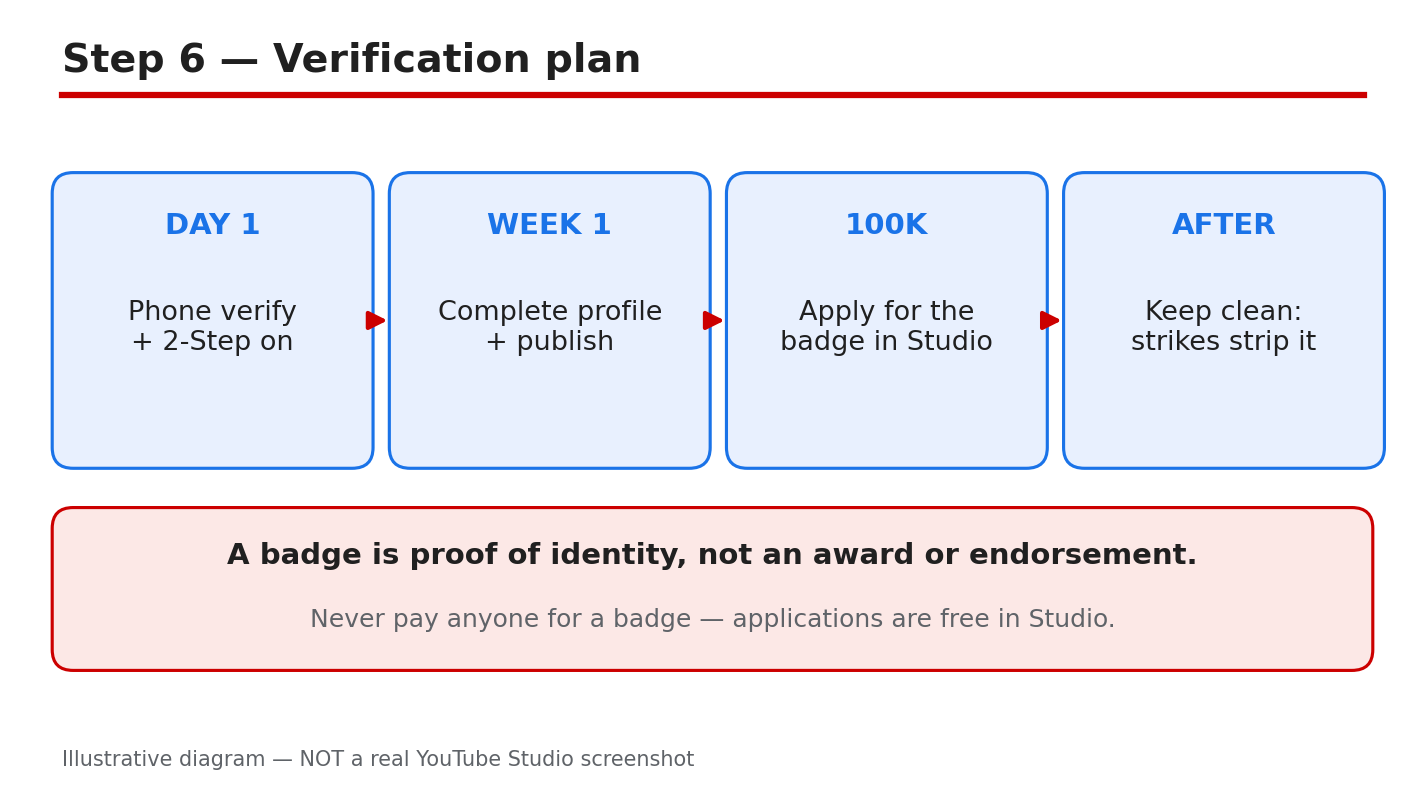
Figure 6: Illustrative diagram of the verification plan: phone first, advanced next, badge last. This is a mock-up, not a real YouTube Studio screenshot.
Quick Checklist
- Phone-verified the channel with the owner’s phone number.
- Checked Feature eligibility in Studio for all three feature levels.
- Know which of the three verifications you still need.
- Turned on 2-step verification on the channel owner’s Google account.
- Completed the profile: banner, picture, description, and one public video.
- Never paid anyone for a badge or for advanced access.
Frequently Asked Questions
Is phone verification the same as the grey badge?
No. Phone verification is a free code check that unlocks longer uploads, thumbnails, live streaming, and copyright appeals. The grey badge only proves a channel is the real one, and it needs 100,000 subscribers.
Who can phone-verify a channel?
YouTube Help says that for a channel without a brand account, only the channel owner can phone-verify it. For a brand account channel, the owner and managers can do it.
Does the grey badge give me extra features?
No. YouTube Help states that verified channels do not get extra features on YouTube. The badge is about identity, not about unlocking tools.
How long does advanced verification take?
Reported guidance puts ID or video verification review at about 24 hours. Building channel history instead takes about two months of clean activity, as reported. Treat both as estimates, not guarantees.
Can I buy a verification badge?
No. Applications are free inside YouTube Studio, and no seller can grant a badge. Anyone asking for payment is running a scam, so report them and never share your password.
Sources — Check It Yourself
- YouTube Help: Verify your YouTube account
- YouTube Help: Verification badges on channels
- Related on CreatorPlaybook: YouTube Handle Taken or Channel Name Wrong? How to Change Your Name and Handle