YouTube Video Age-Restricted or Removed? How to Appeal and Fix It
 CreatorPlaybook Team
- 29 Oct, 2026
A notice on one video can change how the whole channel feels. The video is still there for some viewers, or it is gone, and the message in Studio is short. This guide slows that moment down. You will learn how to tell an age restriction, a removal, and a limited-ads rating apart, read the exact notice YouTube sent, and choose the right next step: edit, appeal, or accept the rating and plan better videos.
For a different money problem, read YouTube Yellow Dollar Icon? How to Fix Limited Ads and Request a Review first. It explains the yellow dollar icon and how to request a review. This post covers only age restrictions and removals, and it never advises re-uploading the same video as a new upload to get around a decision.
What You Will Learn
- Age-restricted, removed, and limited ads: what each label means.
- Where to read the reason and the policy named in Studio.
- The guideline categories that commonly trigger an age gate.
- What to check and fix before you appeal.
- When to edit, when to appeal, and when to accept a rating.
- A seven-day plan to fix the video and the next ones.
Step 1: Tell Age-Restricted, Removed, and Limited Ads Apart
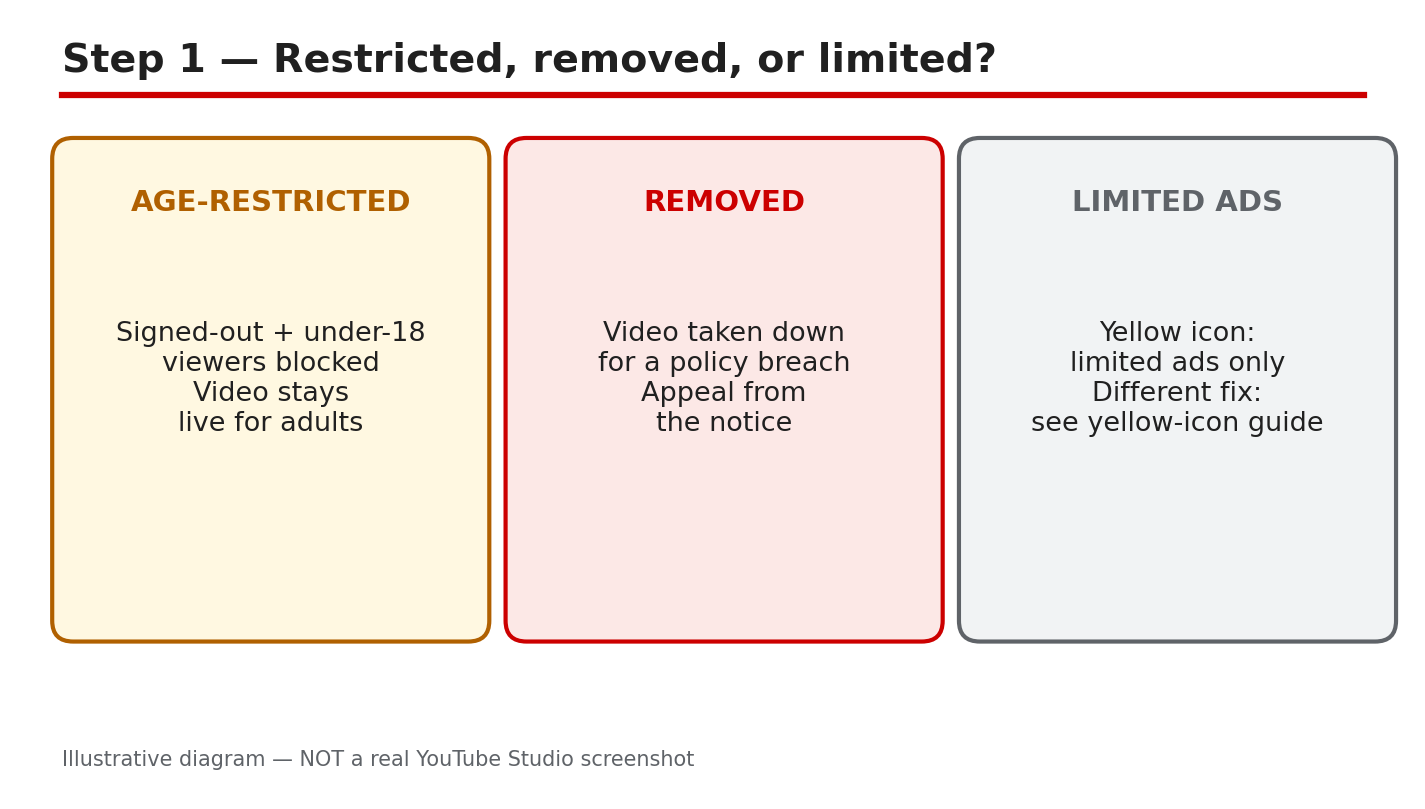
What to do: Do not act on the first feeling the notice gives you. An age-restricted video is still live, but signed-out viewers and viewers under 18 cannot watch it. A removed video is taken down and cannot be watched at all. Limited ads is different: the video stays up, but ads are limited.
Studio path: YouTube Studio > Content > Restrictions. Read the label on the video before you guess the reason.
Example: A travel video is age-restricted, so adults can watch it but signed-out viewers cannot. A second video is removed for a policy breach, so nobody can watch it. The fix for each one is different.
Common mistake: Treating a limited-ads rating as a removal, or appealing an age restriction as if the video had been removed. Match the response to the label.
Illustrative diagram/mock-up, NOT a real YouTube Studio screenshot: age-restricted, removed, and limited-ads compared.
Step 2: Read the Notice First, Before You Guess
What to do: Open the notice and read it slowly. Note the video, the reason given, and the policy named. Look for the option Studio shows: appeal, edit, or accept. Do not guess the reason from comments or from what happened to another channel. Your notice is the only record that matters for this video.
Studio path: YouTube Studio > Content > Restrictions > click the restriction. Read the reason, the policy named, and the appeal or edit option shown.
Example: Studio says a video is age-restricted for violent or graphic content. The creator watches the flagged section, sees a close injury shot, and knows exactly what to blur before deciding anything else.
Common mistake: Skipping the notice and rewriting the title instead. A new title does not change the flagged content, and it wastes the one appeal you may get.
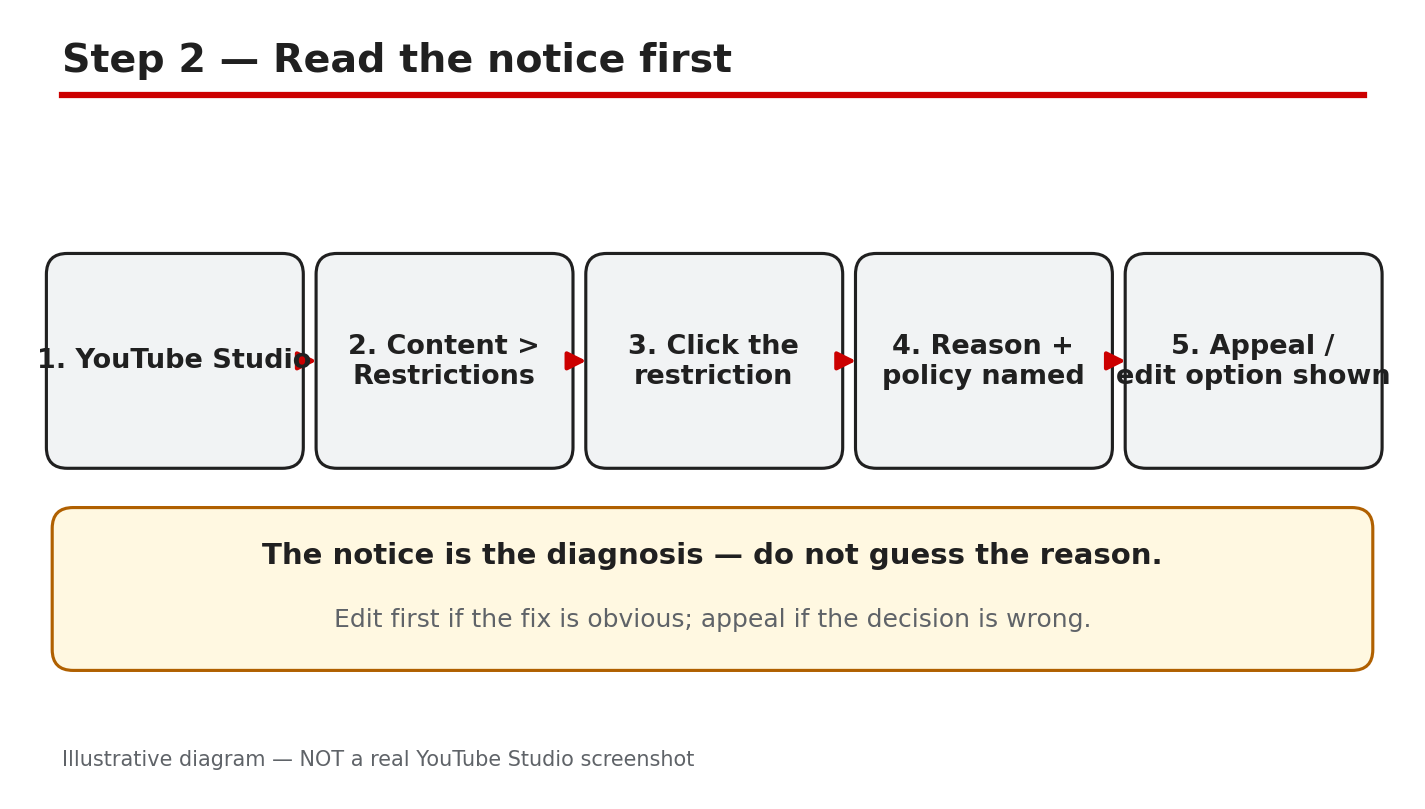
Illustrative diagram/mock-up, NOT a real YouTube Studio screenshot: reading the restriction notice first.
Step 3: Know the Common Age-Gate Triggers
What to do: Check your video against the guideline categories YouTube Help lists for age-restricted content. They include child safety, harmful or dangerous activities including drug use, nudity and sexually suggestive content, violent or graphic content, and vulgar language. These are categories, not a checklist that guarantees a rating: context, purpose, and how closely the content is shown all matter. Use them to find the likely trigger in your video, then confirm it in your own notice.
Studio path: YouTube Studio > Content > Restrictions > click the restriction. Compare the policy named there with the category you found.
Example: A documentary shows a close injury during a rescue. The context is news and education, but the close shot still triggers a restriction. Blurring the closest seconds keeps the story and lowers the risk.
Common mistake: Saying the content is educational and stopping there. Purpose helps, but it does not remove a close graphic shot. Fix the shot, or explain the context clearly in an appeal.
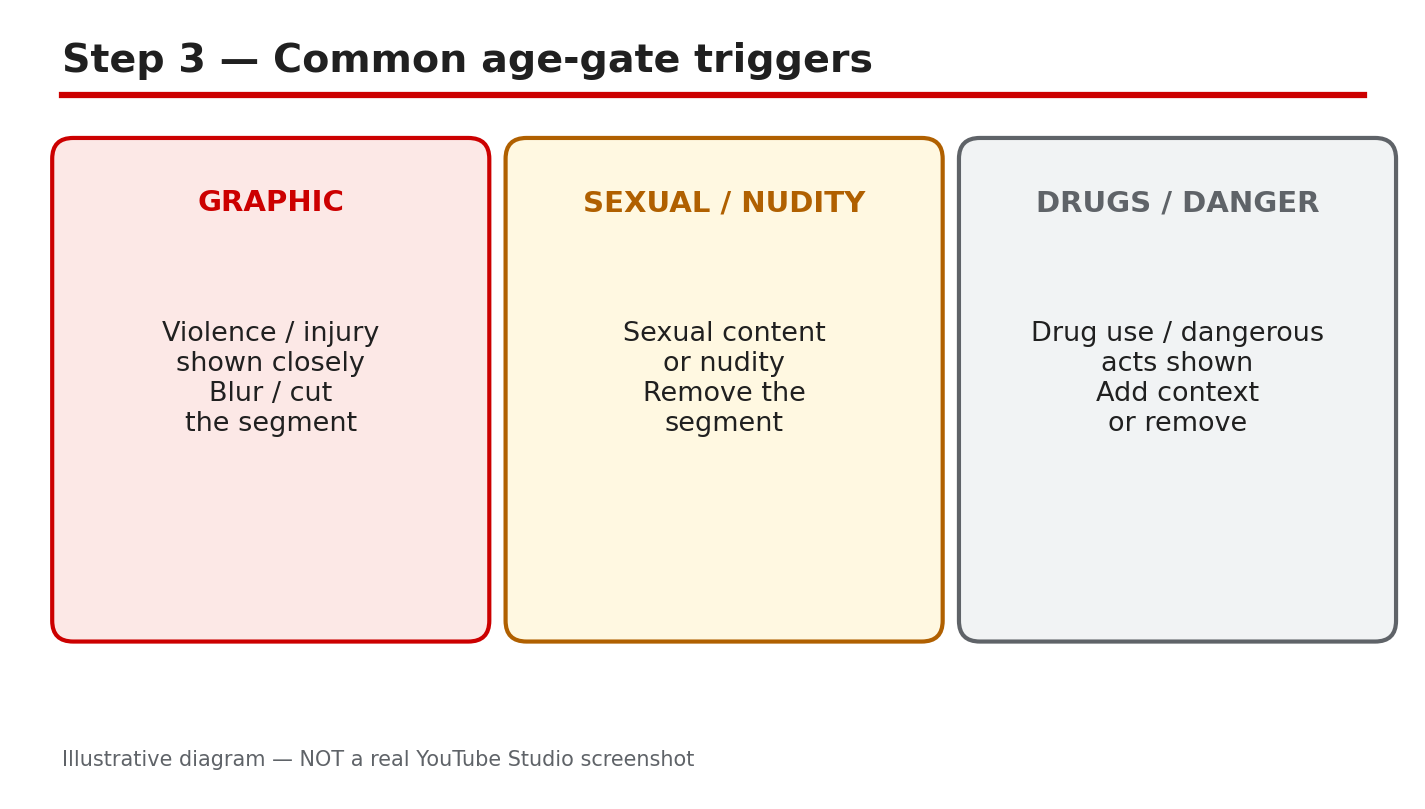
Illustrative diagram/mock-up, NOT a real YouTube Studio screenshot: common age-gate triggers.
Step 4: Before You Appeal, Watch and Fix
What to do: Watch the exact flagged part, not the whole video from memory. Pause at the seconds Studio names, if it names them, and decide whether the fix is obvious: blur, cut, or mute. Check the title and thumbnail too: they must describe the video honestly and must not promise something the video does not show. Note what you changed, and keep the evidence ready.
Studio path: YouTube Studio > Content > click the video > Editor. Trim or blur the flagged part on the same video, and save before you appeal.
Example: A creator blurs a three-second injury shot, keeps the rescue story, and checks that the thumbnail no longer shows the injury. The appeal, if needed, can then point to the exact edit.
Common mistake: Appealing first and editing later. If the content is clearly the problem, an appeal without a fix asks a reviewer to approve the same flagged content.
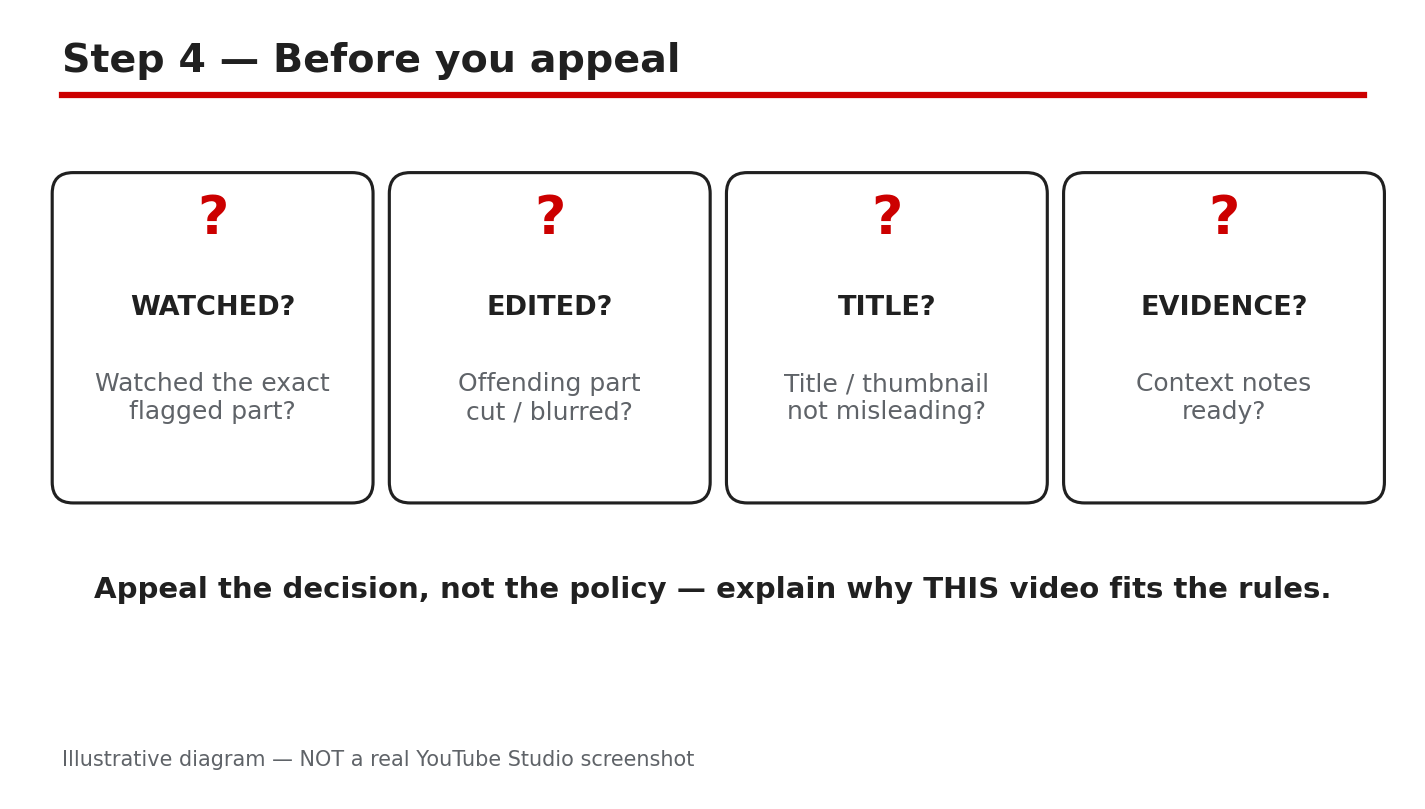
Illustrative diagram/mock-up, NOT a real YouTube Studio screenshot: checks before you appeal.
Step 5: Decide: Edit, Appeal, or Accept
What to do: Choose one path and follow it cleanly. Edit in the Studio Editor on the same video when the fix is clear. Appeal only when you believe the decision is wrong for this video, with one clear, factual appeal. Accept a fair rating when the flagged content is really there: plan the next videos differently. Never re-upload the same video as a new upload to avoid a restriction or removal.
Studio path: YouTube Studio > Content > Restrictions > click the restriction > appeal or edit, as shown. Use the option Studio shows for your case.
Example: A creator edits a graphic shot, then appeals with the edit noted, because the restriction named a policy the edited video no longer breaks. Another creator accepts a fair rating and changes how the next video is filmed.
Common mistake: Sending several appeals, or re-uploading the video with a new title. Repeated appeals do not add evidence, and a re-upload can create a second problem for the same content.
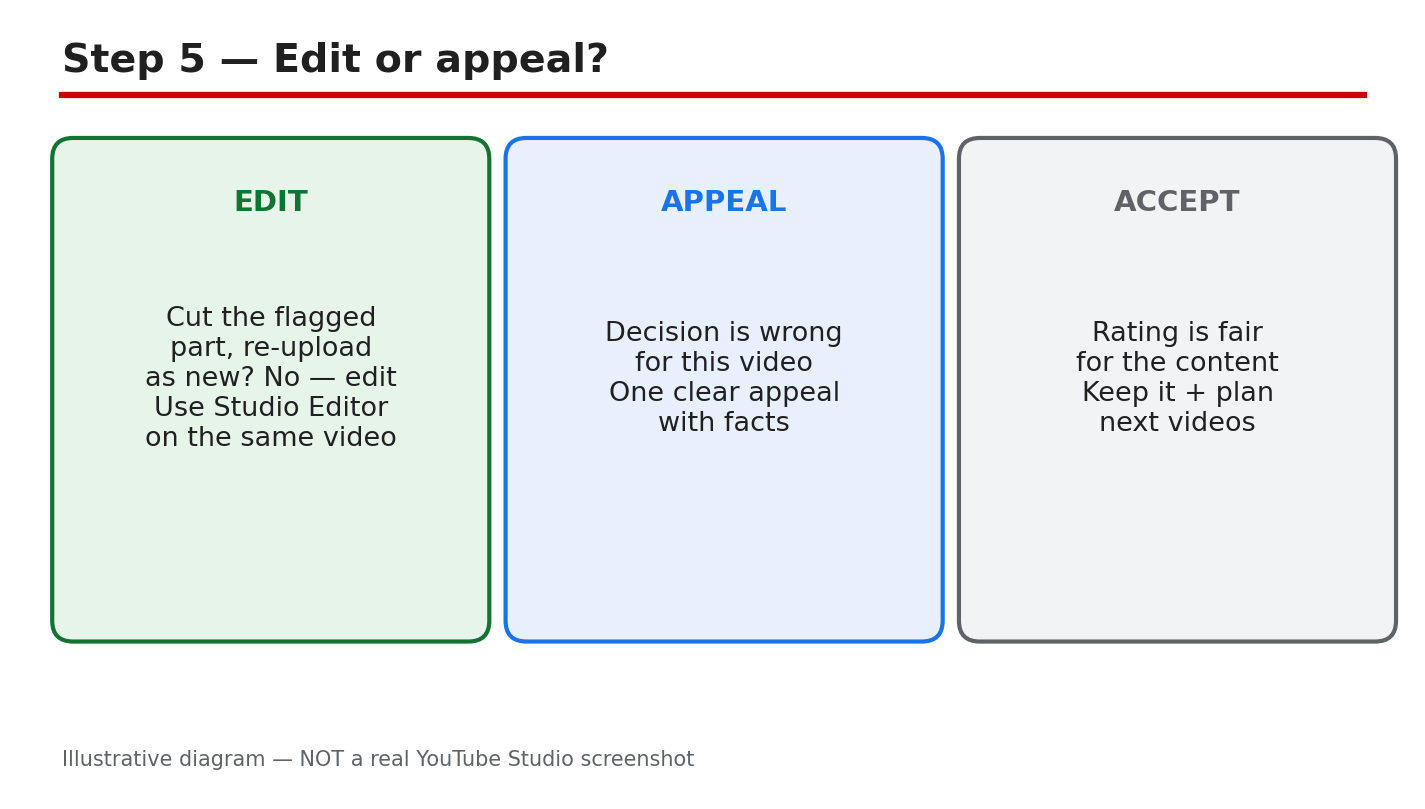
Illustrative diagram/mock-up, NOT a real YouTube Studio screenshot: edit or appeal decision.
Step 6: A Seven-Day Fix Plan
What to do: Day one: read the notice and watch the flagged part. Day two: edit or blur the same video, and fix the title and thumbnail. Day three: send one clear appeal, only if the decision is wrong for this video. Days four and five: check email and Studio for the result. Days six and seven: review your other videos for the same trigger, and write a short rule for future videos.
Studio path: YouTube Studio > Content > Restrictions to track the result, and Content to review similar videos one by one.
Example: A creator fixes one video on day two, checks Studio on day four, and spends day six removing the same close shot from two older videos.
Common mistake: Fixing one video and filming the next one the same way. The plan only works if the rule changes how you film, edit, and title videos.
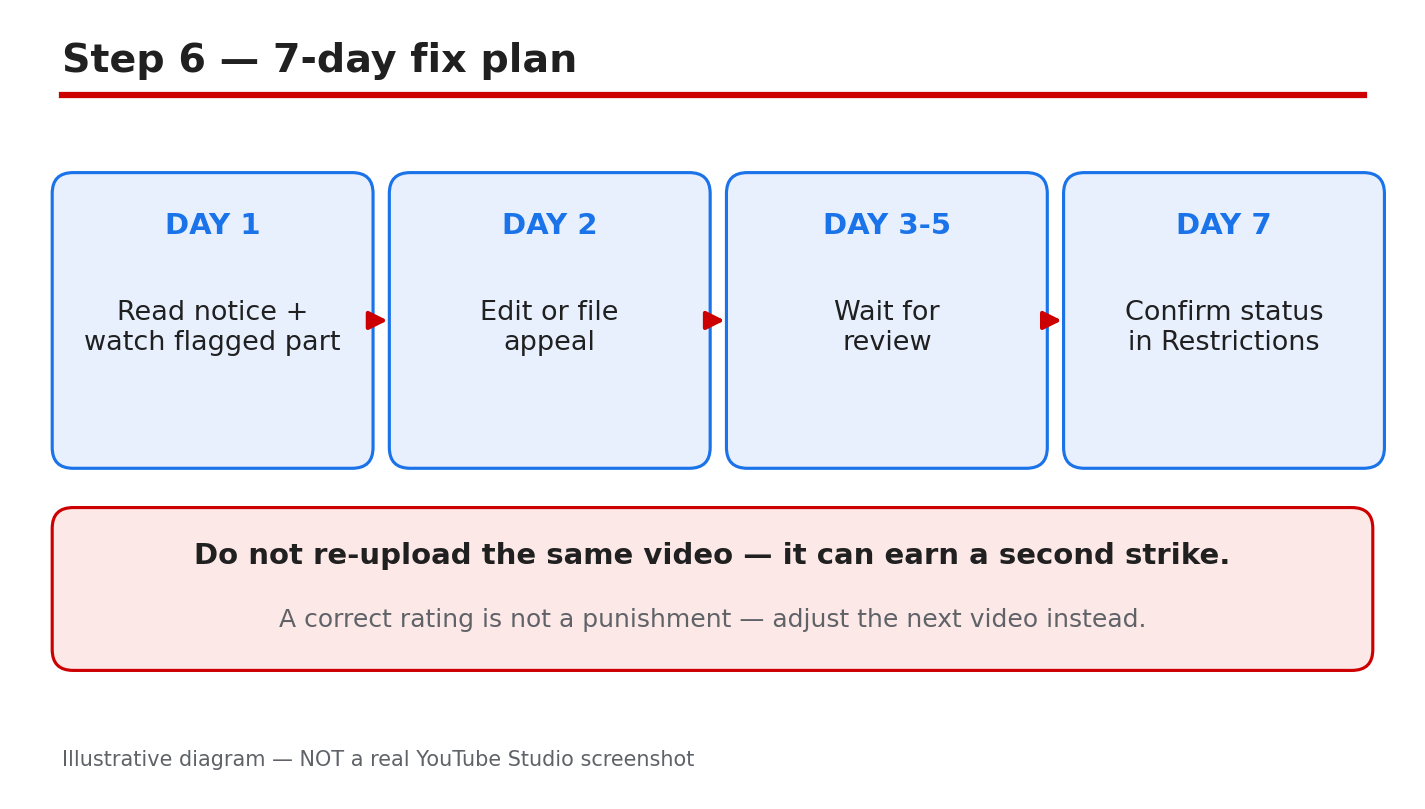
Illustrative diagram/mock-up, NOT a real YouTube Studio screenshot: seven-day fix plan.
Checklist: Fix It in Order
- Label named: age-restricted, removed, or limited ads.
- Reason and policy copied from the Studio notice.
- Flagged part watched, and the exact seconds noted.
- Edit made on the same video, where the fix was clear.
- Title and thumbnail checked for honest description.
- One clear appeal sent, only if the decision was wrong.
- Same video not re-uploaded as a new upload.
Frequently Asked Questions
Can I appeal an age restriction more than once?
YouTube Help says you can only appeal the age restriction on a video one time, so make the first appeal complete and factual.
How long does an age-restriction appeal take?
YouTube does not promise a fixed time in the pages checked for this post. Check email and Studio, and do not send repeated appeals while you wait.
Should I delete the video and upload it again?
No. Do not re-upload the same video as a new upload to avoid a restriction or removal. Edit the same video, appeal if the decision is wrong, or accept a fair rating.
What if the video is educational or news?
Context and purpose matter, but they do not always remove a restriction for close graphic or sexual content. Fix the closest shots, or explain the context clearly in one appeal.
Will an age restriction hurt my whole channel?
An age restriction limits who can watch that video. It is not the same as a removal or a strike, but repeated restrictions are a sign to change how you film and edit.
Sources: Check It Yourself
Official pages opened and verified live on 29 October 2026. Check the current wording before acting, because Studio options and Help wording can change.
No official YouTube video is embedded here. No exact official video URL was verified live in this run.