YouTube Video Blocked in Some Countries or Worldwide? How to Fix It
 CreatorPlaybook Team
- 29 Oct, 2026
A block can feel sudden and unfair. Your video plays for you, but viewers in some countries see that it is blocked, or the video is blocked everywhere and earns nothing. The fix depends on where it is blocked, who claimed it, and whether the block is a claim, a restriction, or a removal. Acting on the wrong reason, such as disputing a licence you do not have, can waste time and make the problem worse.
This guide helps you find the exact block list in YouTube Studio, read which content and owner are named, and choose the fix that matches the evidence. You will check how many territories are affected, whether the video still earns elsewhere, and whether a licence truly covers the blocked countries before you dispute, replace, or erase anything. Work slowly, and keep the claim details in front of you.
What You Will Learn
By the end, you will be able to:
- Tell a country block, a worldwide block, and a restriction apart.
- Find the Blocked in list and the named owner.
- Explain why music and footage rights differ by country.
- Check territories, earnings, and licence cover before acting.
- Replace or erase claimed audio the right way.
- Build a block-proof plan for your next upload.
Step 1: Name the block you have
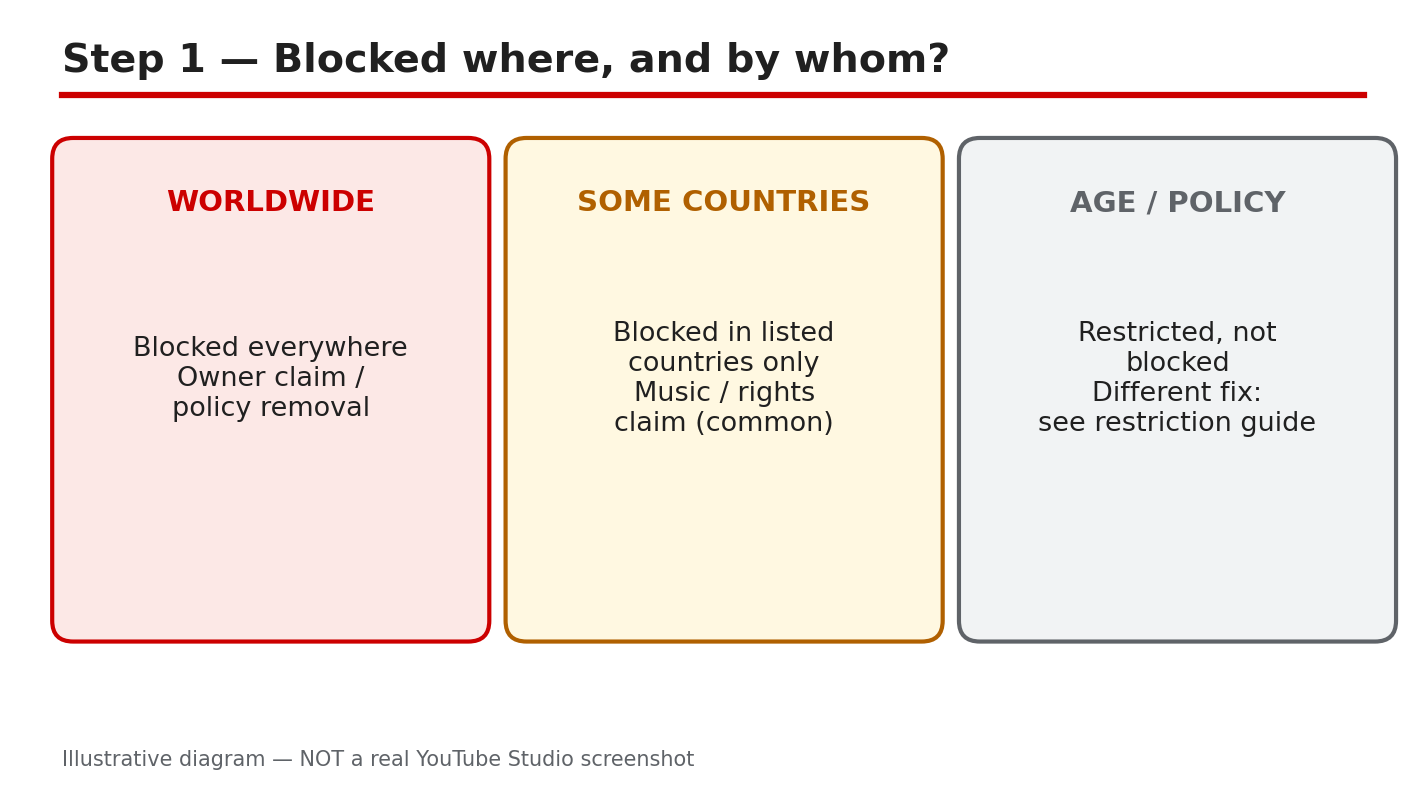
What to do: Name the block before you act. A worldwide block stops the video everywhere. A block in some countries stops it only in the listed territories, while it can still play and earn elsewhere. An age or policy restriction is different: the video may play only for signed-in adults. Each type has a different fix, so write down which one your video has.
Studio path: YouTube Studio > Content > Restrictions. Read the restriction type shown for the video before you open the claim.
Example: Ravi’s video plays in India but is blocked in Germany and France. He treats it as a country block, not a worldwide block, and checks only those two territories.
Common mistake: Calling every block a strike. A claim that blocks a video is not the same as a strike, and the fixes are different.
Illustrative diagram, not a real screenshot: worldwide, some countries, and restriction compared.
Step 2: See the block list and the owner
What to do: Open Restrictions for the video and open the claim. Read the Blocked in list, the content that was matched, and the copyright owner named on the claim. Note every territory listed, and whether different owners are named for different countries. The Help page says different claimants in different countries or regions can mean multiple claims, so do not assume one owner controls the whole video.
Studio path: YouTube Studio > Content > Restrictions > click the claim > Blocked in list. Read the matched content and the owner before you choose a fix.
Example: Meera opens her claim and sees one song, one owner, and 12 blocked territories. She writes down the song and the owner before she acts.
Common mistake: Reading only the first territory. A list with many territories needs a different decision from a list with one.
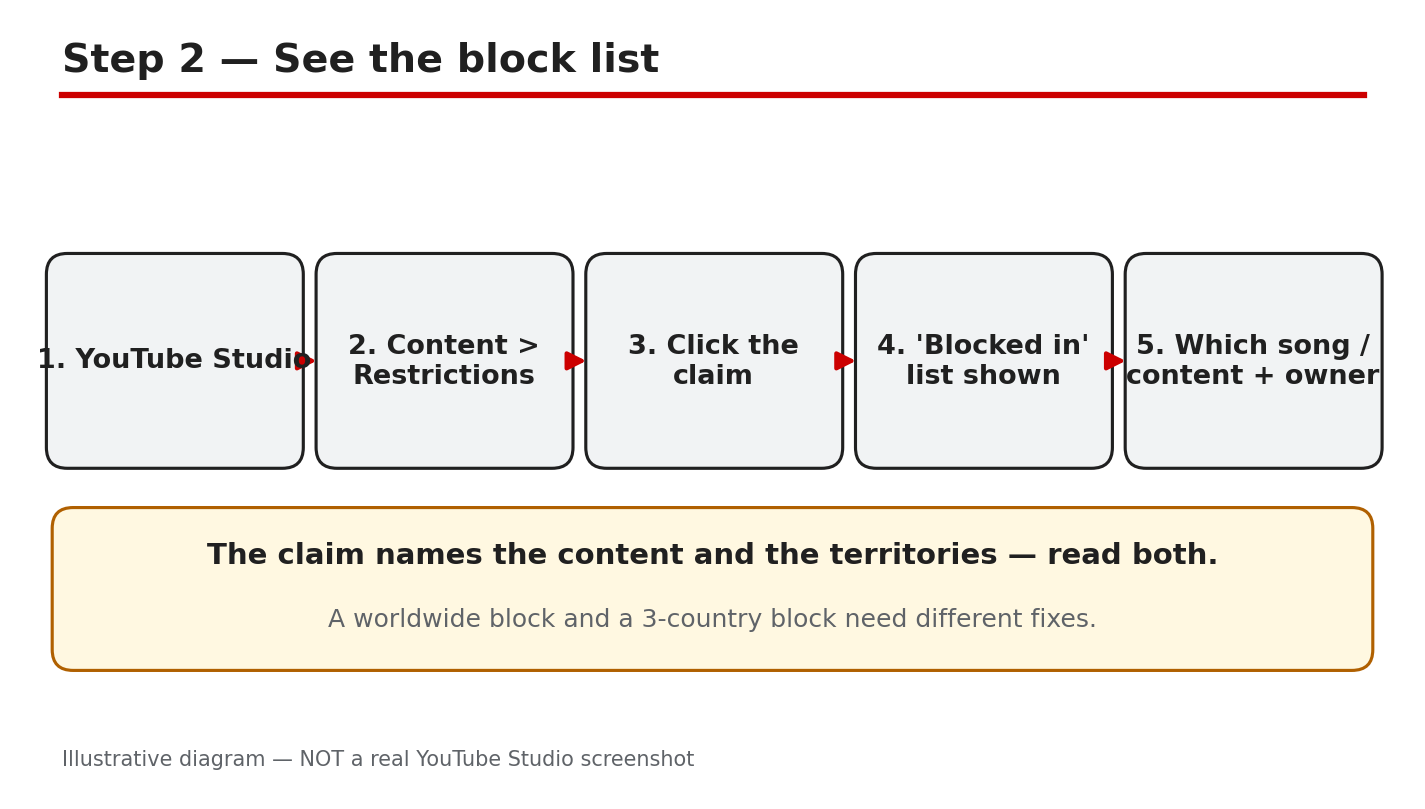
Illustrative diagram, not a real screenshot: Blocked in list, content, and owner.
Step 3: Why blocks happen
What to do: Match the block to its likely rights cause. Music rights are often licensed in some countries only, so a song that is cleared in one country can still be blocked in another. Sports and film footage can have separate rights by region, with a different owner in each place. A local law or policy removal is different from a rights claim.
Studio path: YouTube Studio > Content > Restrictions > the claim. Use the named content and owner to judge whether the cause is music, footage, or a policy notice.
Example: Tom used a song cleared for the United States, but his video is blocked in Japan. His licence did not cover Japan.
Common mistake: Assuming a licence covers the whole world. Many licences cover only named countries, and the Blocked in list shows where cover ends.
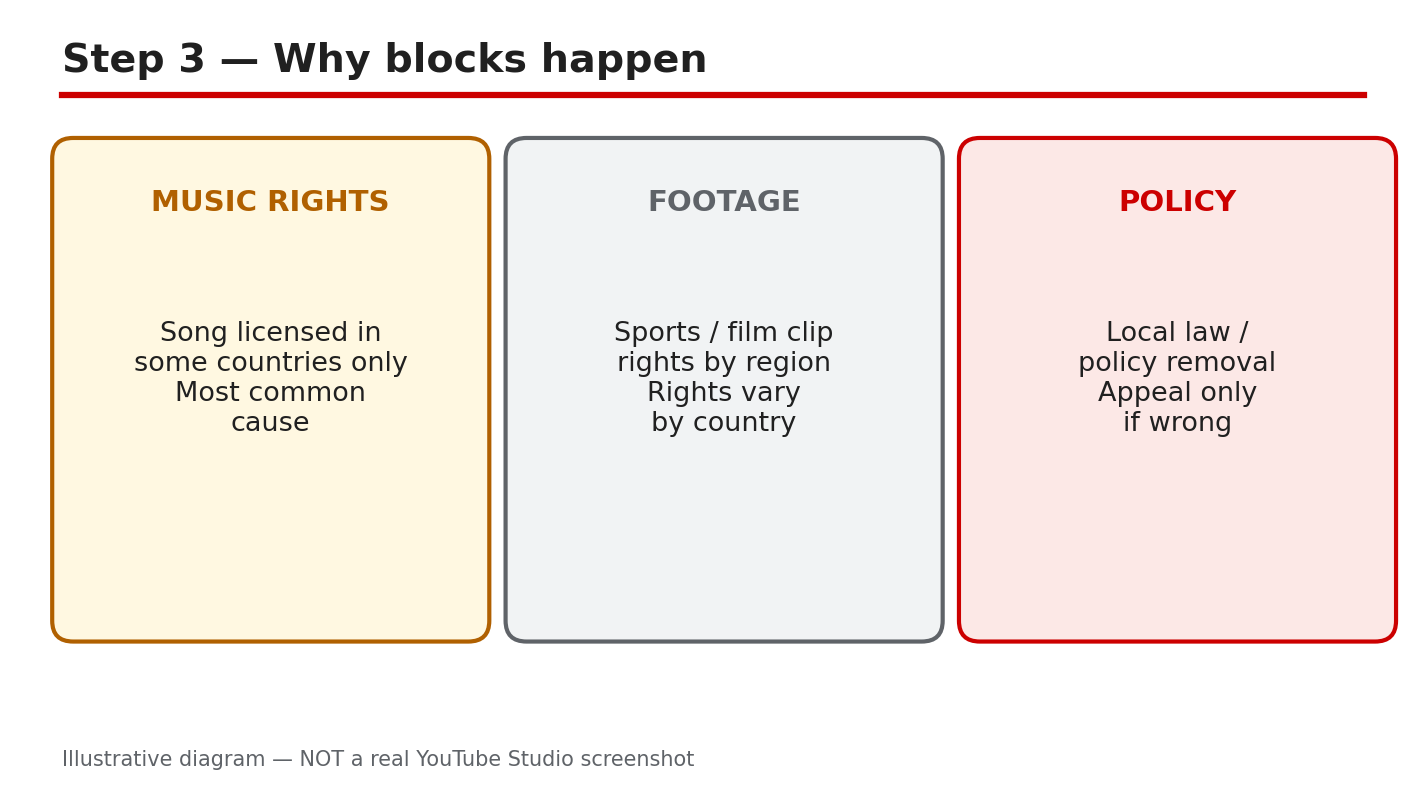
Illustrative diagram, not a real screenshot: music, footage, and policy causes.
Step 4: Check before you act
What to do: Answer four questions before you choose a fix. How many territories are blocked? Is the video still earning in the countries where it plays? Is this a claim, with a Blocked in list, or a strike or removal? Does your licence, in writing, cover the blocked countries? If you cannot answer the licence question with evidence, do not dispute. A dispute without evidence can fail and leave the block in place.
Studio path: YouTube Studio > Content > Restrictions for the block list, and your licence or purchase record for the cover question.
Example: Sara’s video is blocked in 3 territories but earns in 40 others. She checks her licence first, before she risks the 40.
Common mistake: Disputing first and checking the licence later. A failed dispute does not prove the licence, and the block stays.
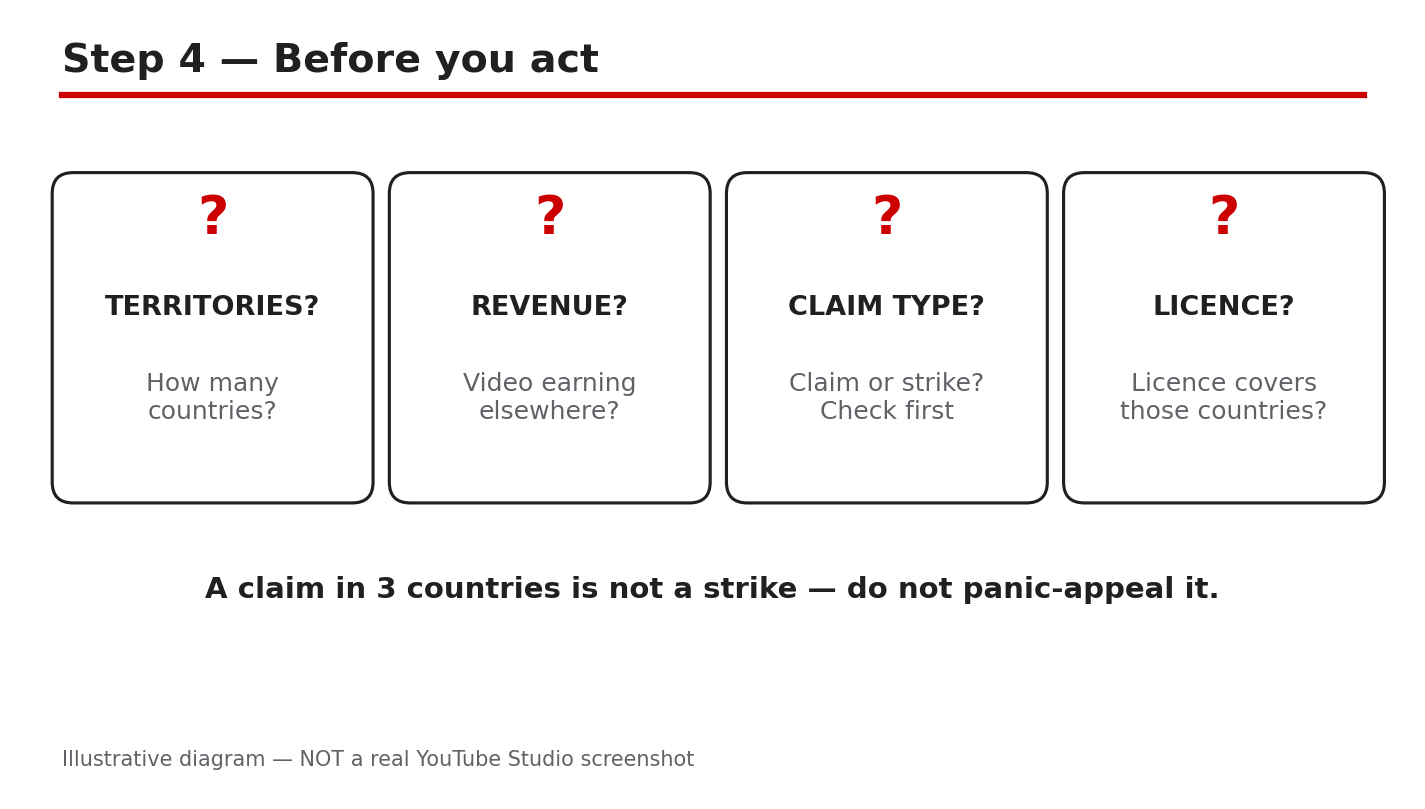
Illustrative diagram, not a real screenshot: territories, earnings, claim, and licence.
Step 5: Fix the block with the right tool
What to do: Choose the fix that matches the evidence. If the audio is the problem, use Replace song or Erase song in Studio to remove or swap the claimed audio. If you hold a licence that truly covers the blocked countries, dispute the claim and give the evidence the dispute form asks for. The Help page says credit, owning a copy, and not monetizing are not legitimate dispute reasons, so do not use them. The claimant has 30 days to respond to a dispute.
Studio path: YouTube Studio > Content > Restrictions > See details > Take action. Choose Replace song, Erase song, or Dispute, and follow only the option that matches your evidence.
Example: Ben’s claim names one song and no licence covers it. He uses Replace song with a track from the Audio Library, and removes the claimed audio.
Common mistake: Disputing because you paid for the song once. A purchase can cover only named uses or countries, so read the licence terms first.
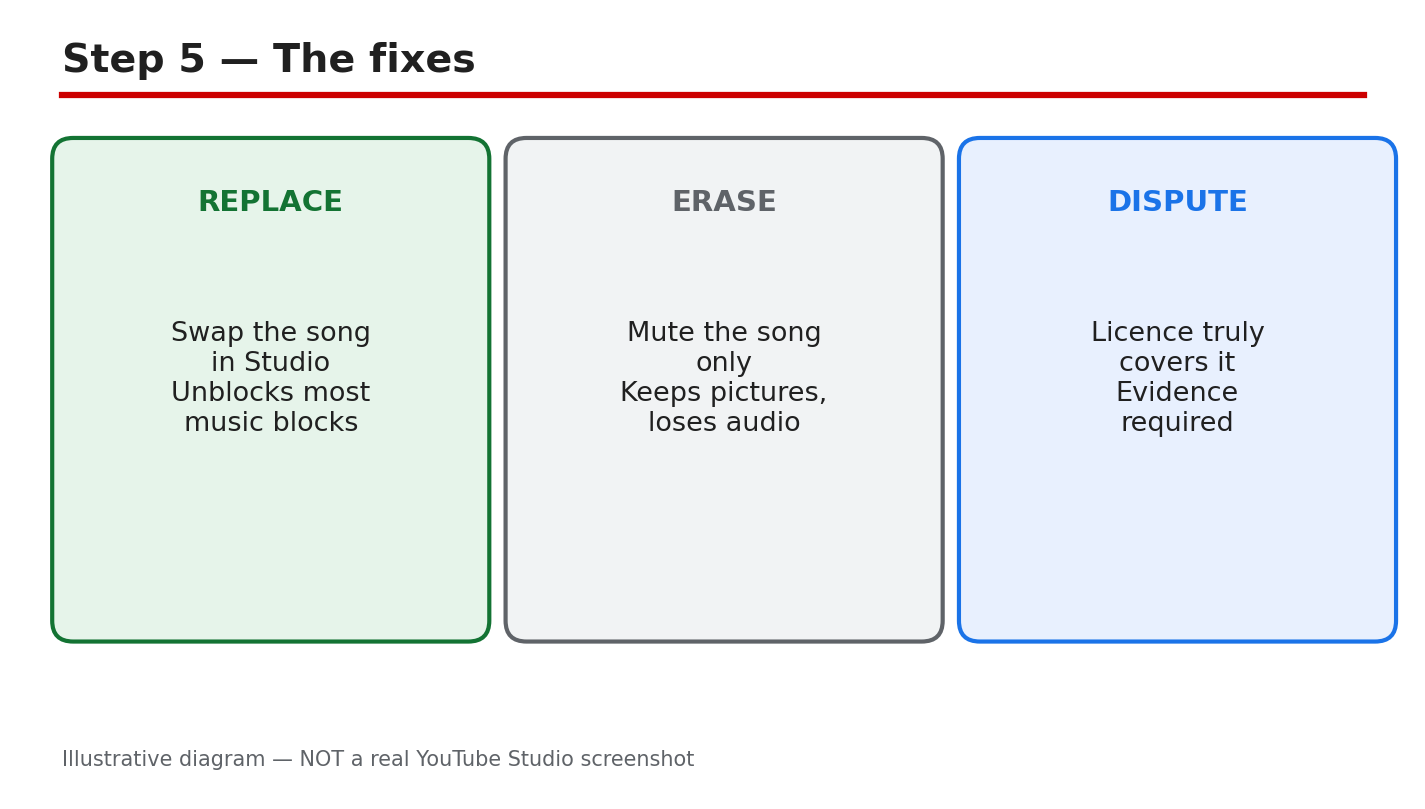
Illustrative diagram, not a real screenshot: replace song, erase song, or dispute.
Step 6: Make the next upload block-proof
What to do: Build the check into every upload. Use music from the YouTube Audio Library or a licence that names the countries you need, and save the licence with the project file. Before you set a video to Public, open Content > Restrictions and check for claims. After publishing, re-check Restrictions in 24 hours. If a new claim appears, fix the audio before you promote the video.
Studio path: YouTube Studio > Content > Restrictions, checked before Public and again 24 hours after publishing.
Example: Priya saves her Audio Library licence, checks Restrictions before Public, and re-checks the next day. Her video stays live in the countries her licence covers.
Common mistake: Promoting a video before the 24-hour re-check. A late claim can block the video just as viewers start to find it.
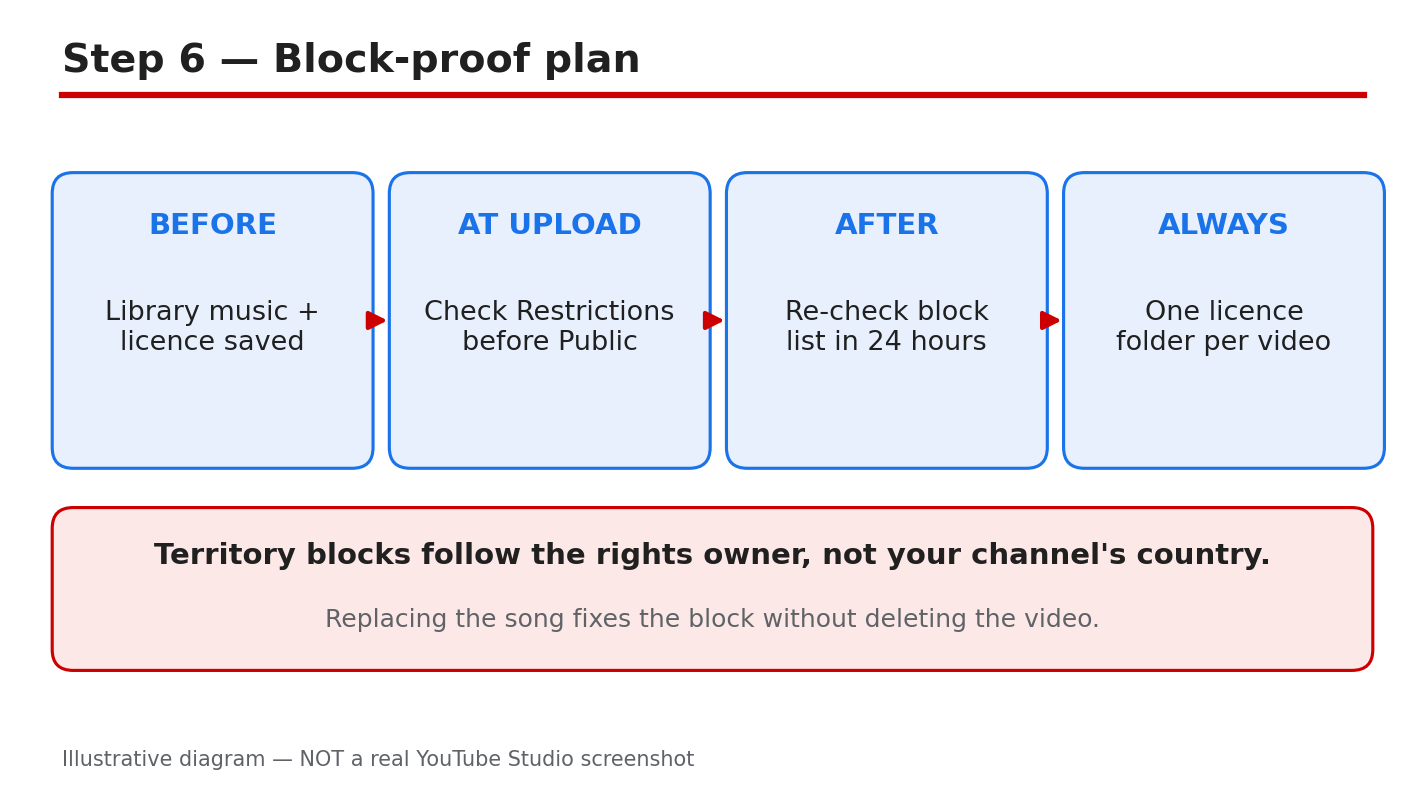
Illustrative diagram, not a real screenshot: library music, licence saved, re-check.
Checklist: Before you dispute or edit
Tick each item before you change the video or file a dispute.
- I know the block type: worldwide, some countries, or restriction.
- I have read the Blocked in list, the content, and the owner.
- I know the blocked territories and whether the video earns elsewhere.
- I know whether this is a claim, a strike, or a removal.
- My licence, in writing, covers the blocked countries, or I will fix the audio.
- I have not disputed with credit, a copy, or no monetization as my reason.
Frequently Asked Questions
Can a video be blocked in one country and earn in another?
Yes. A Content ID action can apply to some countries or regions only, so a video can be blocked in the listed territories and still play and earn elsewhere. Check the Blocked in list for the exact territories.
Is a blocked video the same as a strike?
No. A claim can block, monetize, or track a video, while a strike comes from a removal request and carries channel penalties. Check which one your video has.
Should I dispute if I gave the owner credit?
No. The Help page says giving credit is not a legitimate reason to dispute. Dispute only if you have a valid reason, such as holding all the necessary rights or a licence that covers the blocked countries.
How long does a dispute take?
The claimant has 30 days to respond to a dispute. Note the date you filed it, do not file the same dispute again while you wait, and check Restrictions for the result.
Can I keep the video and only fix the song?
Yes, when the claim is about audio. Use Replace song or Erase song in Studio to remove or swap the claimed audio, instead of deleting the whole video and losing its views and comments.
Sources — Check It Yourself
Check the official pages below, and re-read your own claim before you act. No official YouTube video is embedded in this post, because no exact official video was verified live in this run.