YouTube Video Stuck Uploading or Processing? How to Fix It Without Losing the Video
 CreatorPlaybook Team
- 29 Oct, 2026
A stuck upload feels urgent. The bar stops moving, the video will not play, and the work you edited seems lost. Most stuck uploads are not lost. They are paused, converting, or waiting for a check. This guide helps you tell those states apart, check the right place in Studio, and fix the problem without deleting the file you need. If the bar moves slowly, that is still progress. If nothing changes for a long time, the status row, not the bar alone, tells you what to do next.
You will work in order. First, name the state. Next, check the status in Studio. Then fix the connection or the file. After that, check processing limits and claims. Only re-upload when the guide says it is safe. Keep the original file and the draft until the replacement is live and playing.
Related reading: YouTube Upload Stuck, Comments Disabled, or Wrong Made for Kids Label? Fix All Three, which explains the Studio layout used below.
What You Will Learn
- How uploading, processing, and a failed upload differ.
- Where to check the true status in Studio.
- How to fix a stalled upload safely.
- Which file and processing checks matter most.
- When re-uploading helps, and when it harms.
- A calm upload-day plan you can repeat.
Step 1: Tell Uploading, Processing, and Failed Apart
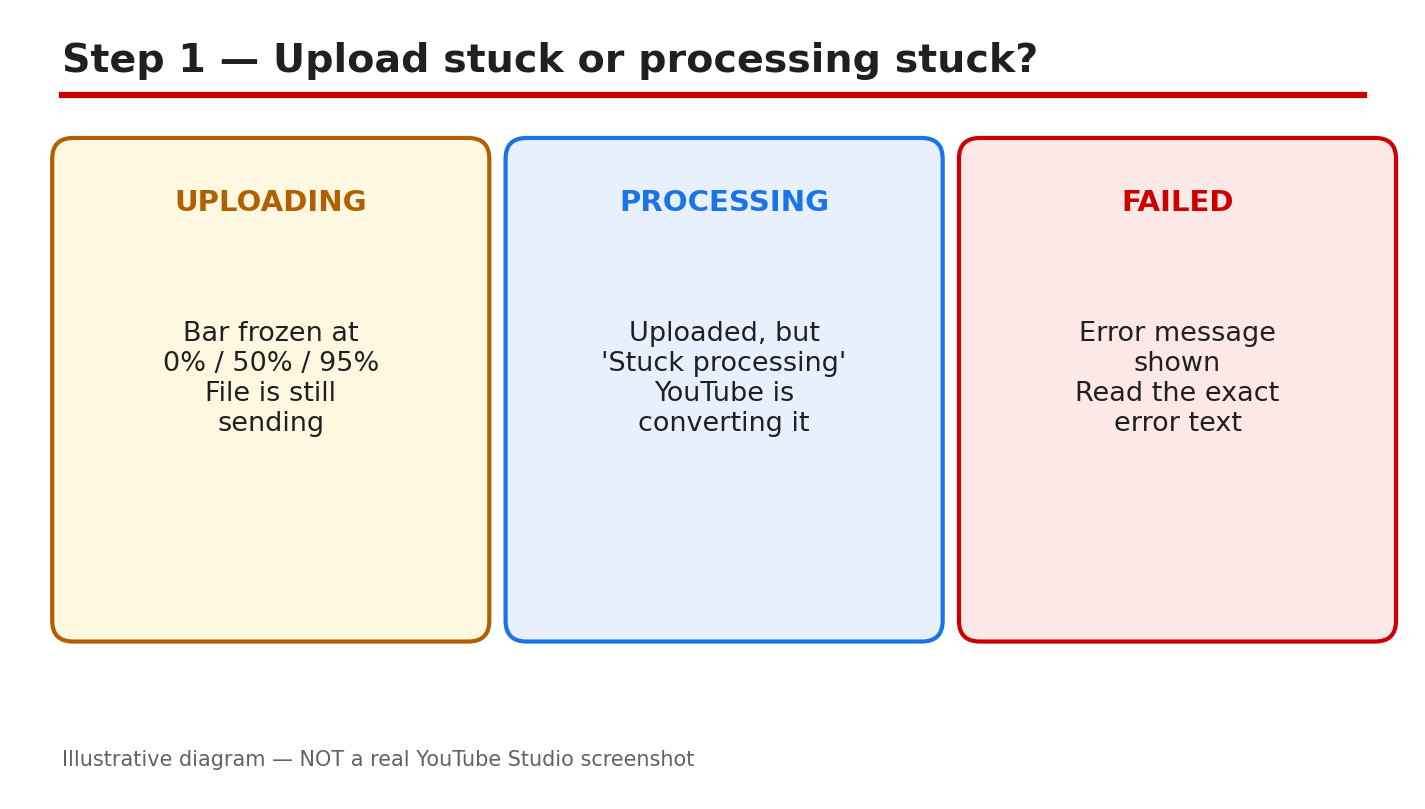
What to do: Uploading means the file is still moving from your computer to YouTube. The progress bar may stop, but the transfer has not finished. Processing means the upload finished and YouTube is converting the file into versions viewers can play. Failed means YouTube stopped and showed an error. Each state needs a different fix, so do not treat every stuck video the same way.
Studio path: YouTube Studio > Content. Read the video row first. Do not open the upload window again until you know the state.
Example: A creator sees 95 percent for an hour and fears the video is lost. The row says Processing, so the file arrived safely and is converting.
Common mistake: Deleting the draft because the bar looks frozen. Deleting removes your place in the queue and can lose details you already entered.
Illustrative diagram/mock-up — NOT a real YouTube Studio screenshot: uploading, processing, and failed states compared.
Step 2: Check the Status First in Studio
What to do: Check status before you change anything. In Studio, the Content page shows each video with a status. Uploading and processing look similar on a phone, but they are different problems. An uploading video still needs your connection and browser. A processing video needs time, not another upload. Write down what the row says, including any restriction or error words, before you act.
Studio path: YouTube Studio > Content > video row. Look at Status, Visibility, and Restrictions together.
Example: A creator opens Content and sees Processing, not Uploading. They leave the tab open, wait, and the HD version appears later.
Common mistake: Starting a second upload while the first is processing. Duplicates compete, confuse viewers, and waste your connection.
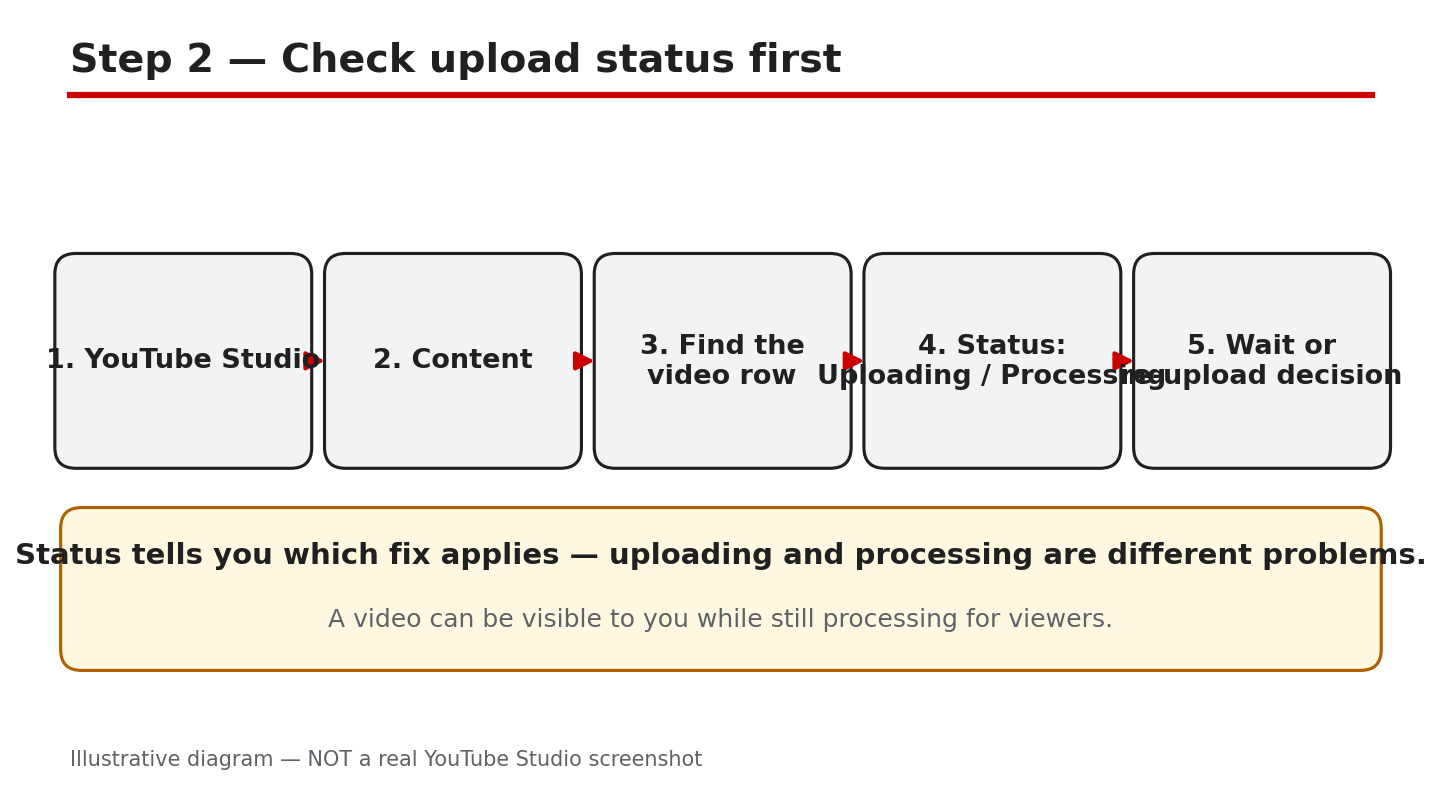
Illustrative diagram/mock-up — NOT a real YouTube Studio screenshot: checking the video status row.
Step 3: Fix a Stalled Upload Safely
What to do: Fix the connection and the browser first. Use a stable connection, preferably wired or strong Wi-Fi, and avoid large downloads during the upload. Keep the browser tab open and the computer awake. For a retry, export at 1080p, which is smaller and easier to send than 4K. Do not close the tab, sleep the computer, or switch networks mid-upload.
Studio path: YouTube Studio > Create > Upload videos. Watch the progress bar and the processing estimate in the upload window.
Example: A creator uploads over weak hotel Wi-Fi and stalls at 60 percent. At home, on a stable connection, the same 1080p file finishes.
Common mistake: Closing the tab to check the channel page. Closing can interrupt the transfer, so wait until the upload window confirms completion.
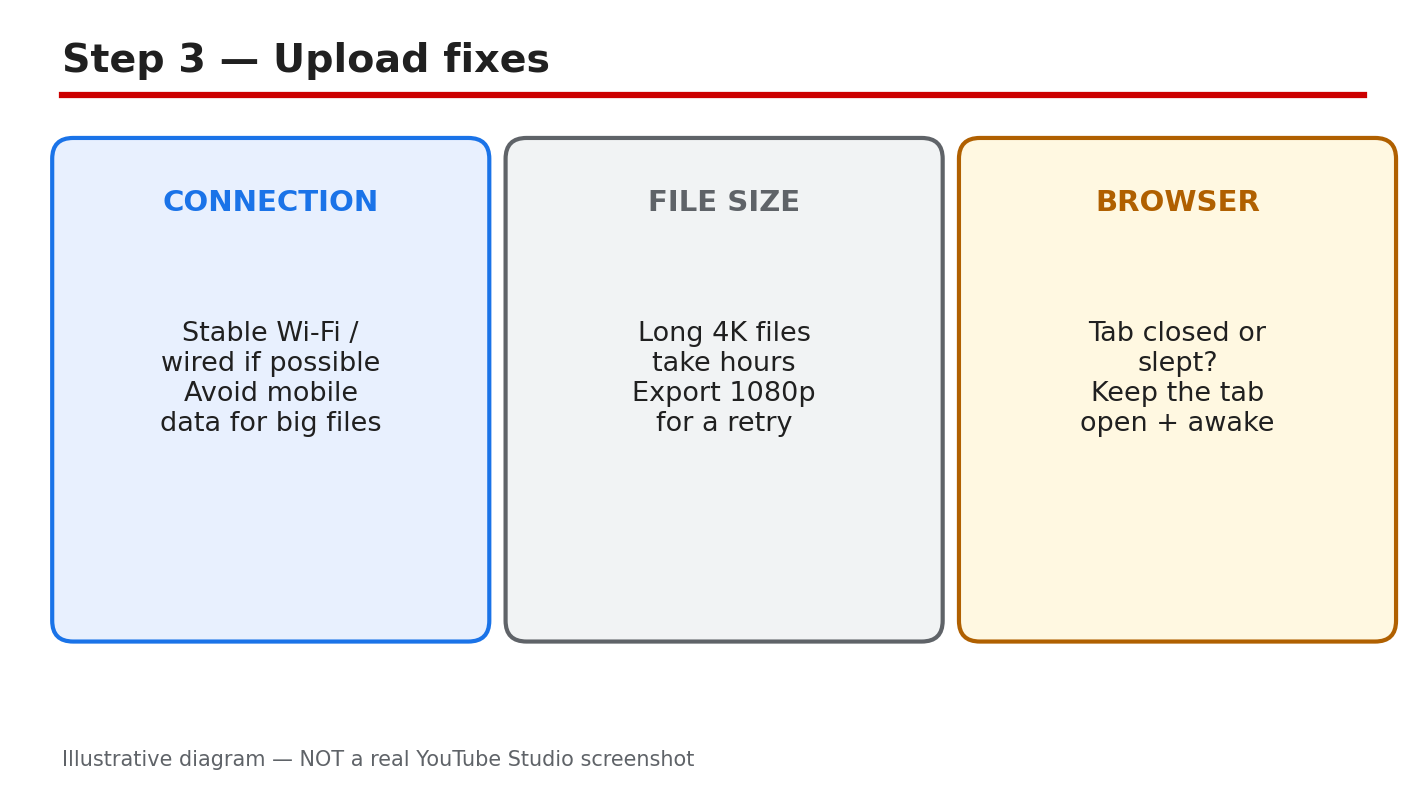
Illustrative diagram/mock-up — NOT a real YouTube Studio screenshot: stable connection, 1080p retry, and awake tab.
Step 4: Check Processing, File Format, and Limits
What to do: Check the file before you blame the connection. YouTube recommends MP4 with H.264 video and AAC audio. Check the length and size against the reported limits: under 12 hours and 256 GB, whichever is less, as reported on the official Help page. HD and 4K versions take extra time, even after the standard version plays. A claim can also hold processing, so check Restrictions in Studio and read the claim before re-uploading. Check the file name and the export settings too. A damaged export can fail the same way twice, so export again from the original project if the file will not play.
Studio path: YouTube Studio > Content > video > Details > Checks. Read the claim and restriction notes there.
Example: A creator uploads a 4K file and sees only standard quality at first. The HD version appears later, without a second upload.
Common mistake: Re-exporting at a higher resolution to speed processing. A larger file usually takes longer, not shorter.
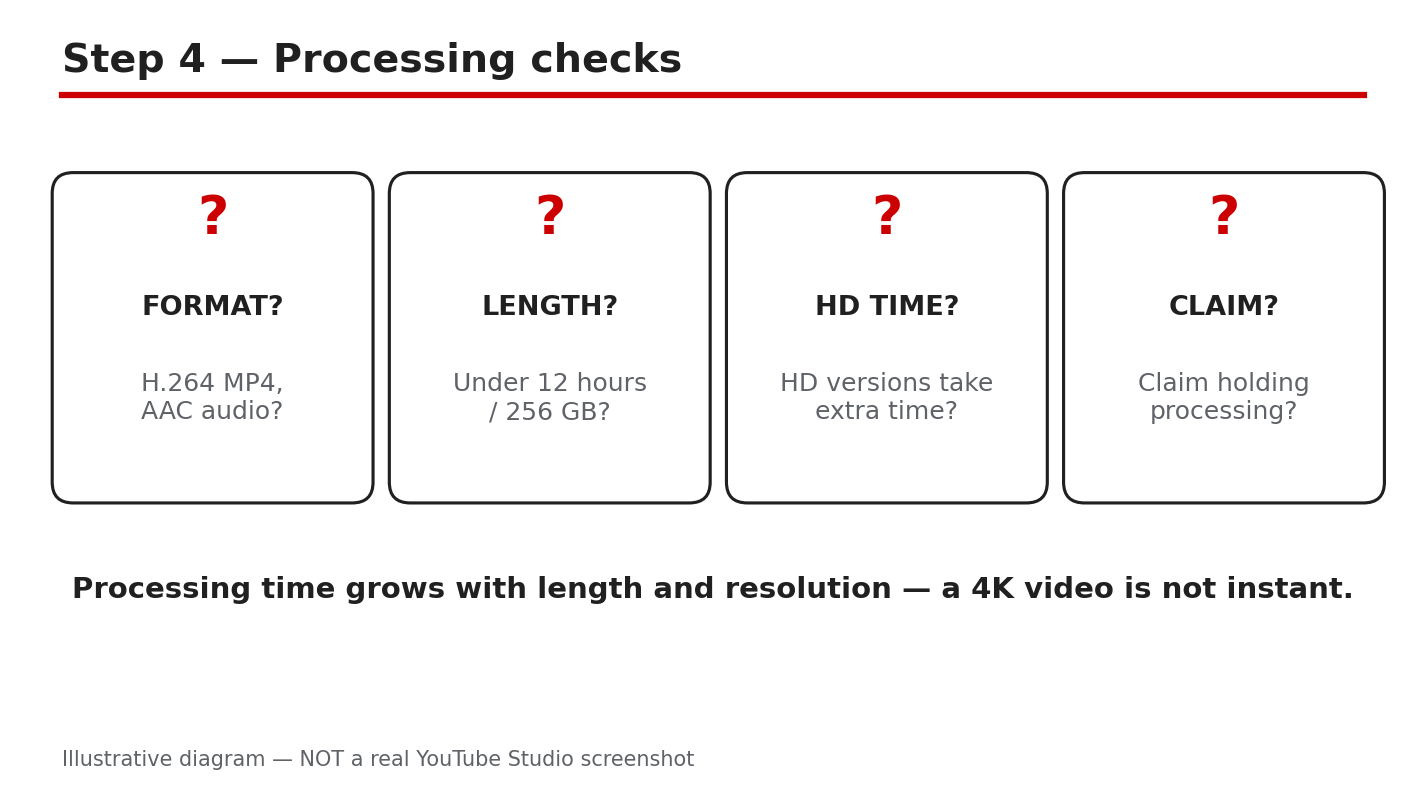
Illustrative diagram/mock-up — NOT a real YouTube Studio screenshot: MP4, H.264, AAC, size, and HD checks.
Step 5: When to Re-Upload, and When to Wait
What to do: Wait before you re-upload. For processing, wait up to 24 hours as reported, and check the status again in Studio. Re-upload only if the upload failed, Studio showed an error, or the file is corrupt and will not play. Keep the original file and the draft until the new version is live. Do not delete the first version until you have watched the replacement play.
Studio path: YouTube Studio > Content. Confirm the failed or corrupt status, then use Create > Upload videos for the retry.
Example: A creator waits overnight for processing, then finds the video live. No duplicate was needed, and the original details stayed intact.
Common mistake: Deleting the draft and the original file after a failed upload. Without the original, a clean retry is much harder.
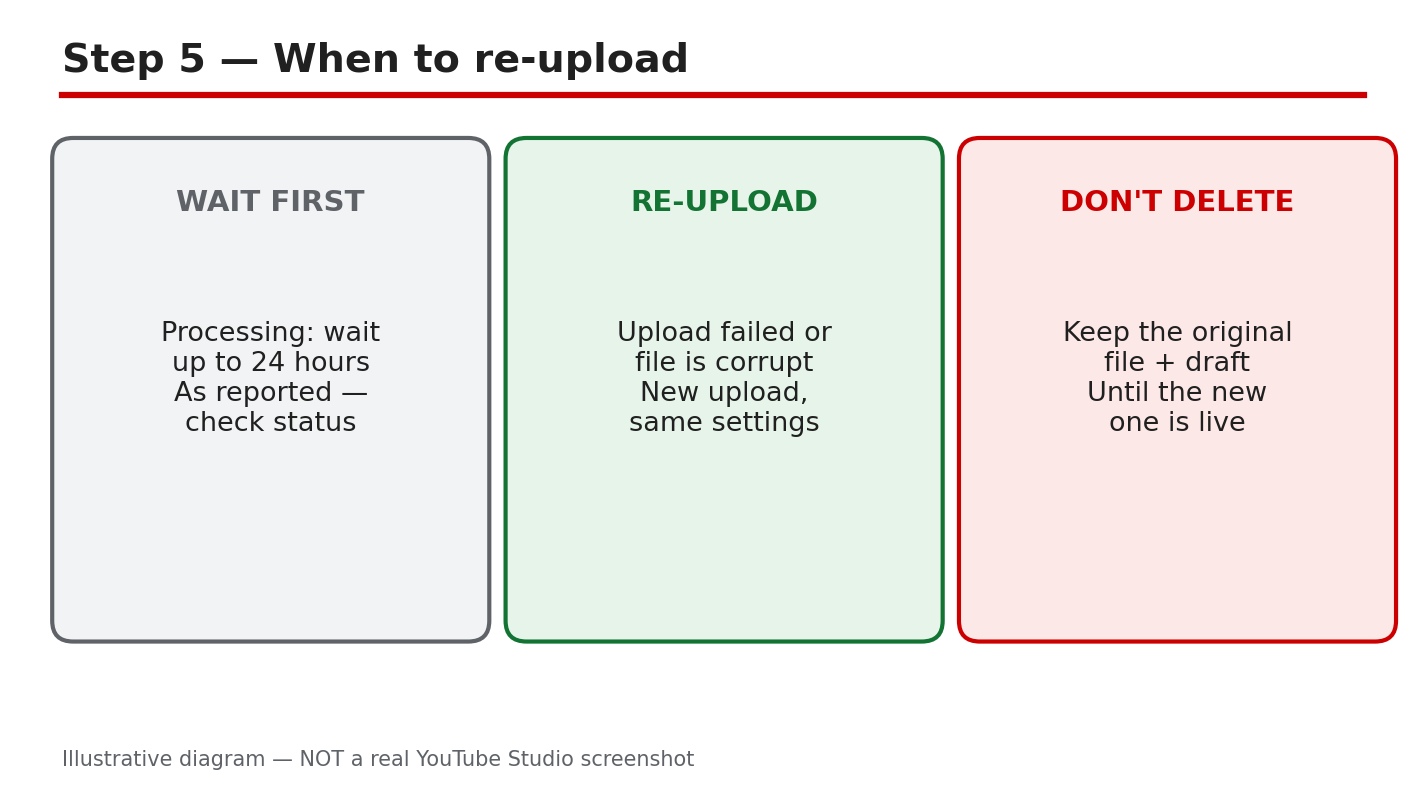
Illustrative diagram/mock-up — NOT a real YouTube Studio screenshot: wait, check, then re-upload only if failed.
Step 6: Follow a Simple Upload-Day Plan
What to do: Use one plan on upload day. Export the file, check the format, and test the connection before you start. Upload early, keep the tab open, and note the time you started. Check status once after upload, once after processing, and once before you share the link. If a step fails, fix one thing, note it, and try again calmly.
Studio path: YouTube Studio > Content for checks, and Create > Upload videos for the upload itself.
Example: A creator uploads at 9 a.m., checks at noon, and shares at 6 p.m. after the HD version appears. The calm plan avoids duplicates.
Common mistake: Sharing the link before checking playback. A shared link to a processing video frustrates viewers and earns no watch time.
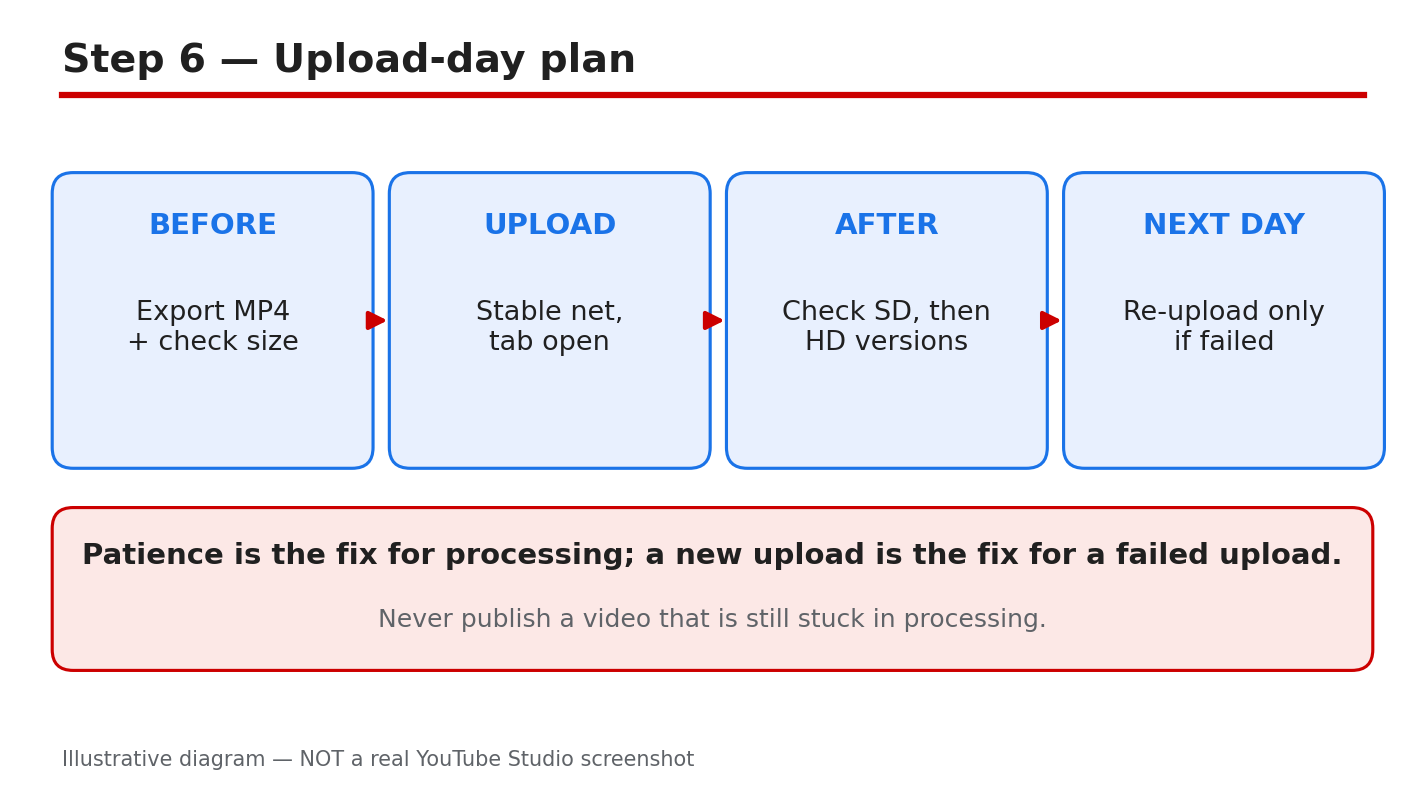
Illustrative diagram/mock-up — NOT a real YouTube Studio screenshot: export, upload, check, then share.
Checklist
- State named: uploading, processing, or failed.
- Status checked in Studio Content.
- Connection stable, tab open, computer awake.
- File checked: MP4, H.264, AAC, size, length.
- Claims and restrictions checked in Studio.
- Re-upload only after failure or corruption.
- Original file and draft kept until live.
Frequently Asked Questions
Why is my upload stuck at a percentage?
Usually the connection dropped, or the file is still moving. Check the connection, keep the tab open, and check the status in Studio Content before retrying.
How long should processing take?
It varies by length, resolution, and format. Standard quality often appears first, while HD takes longer. Wait up to 24 hours as reported, then check Studio again.
Should I delete and re-upload a stuck video?
Not yet. Check the status first. Re-upload only if the upload failed or the file is corrupt, and keep the original file and draft until the new version plays.
What file format works best for uploads?
Use MP4 with H.264 video and AAC audio, as recommended in Help. Export at 1080p for a retry, and check the official Help page for current limits before uploading.
Can a claim hold up processing?
A claim can affect a video, so check Restrictions and Checks in Studio. Read the claim, follow the steps shown there, and do not re-upload the same file to avoid it.
Fix one state at a time, and let processing finish before you judge the result.
Sources — Check It Yourself
Official pages opened and verified live on 29 October 2026. Check the current wording before acting, because limits and wording can change.
No official YouTube video is embedded here. No exact official video URL was verified live in this run.