Delete and Re-Upload a YouTube Video? Why It Hurts and What to Do Instead
 CreatorPlaybook Team
- 31 Oct, 2026
Your video has a mistake. A wrong date in the first ten seconds, a clip you no longer have the rights to, or a typo in the title. Deleting the video and uploading it again feels like the obvious fix. It is not. As reported, a re-upload is treated as a brand-new video, and the original’s watch time, comments, ranking, and links do not move with it. YouTube Help is clear on one point: you cannot replace a video, because any new upload gets a new URL. Worse, as reported, deleting and re-uploading the same file can trigger spam signals, because the system may recognize the file it already saw. This guide explains what deleting really costs, what to do instead, and the rare cases where a fresh upload is the right call.
What You Will Learn
In this guide you will learn what you lose when you delete a video, why re-uploading the same file can look like spam as reported, how to unlist a video instead, how to trim and fix a video in the YouTube Studio Editor, when a new version is worth making, and how to re-upload correctly with real changes.
Step 1 - Learn What Deleting a Video Actually Costs
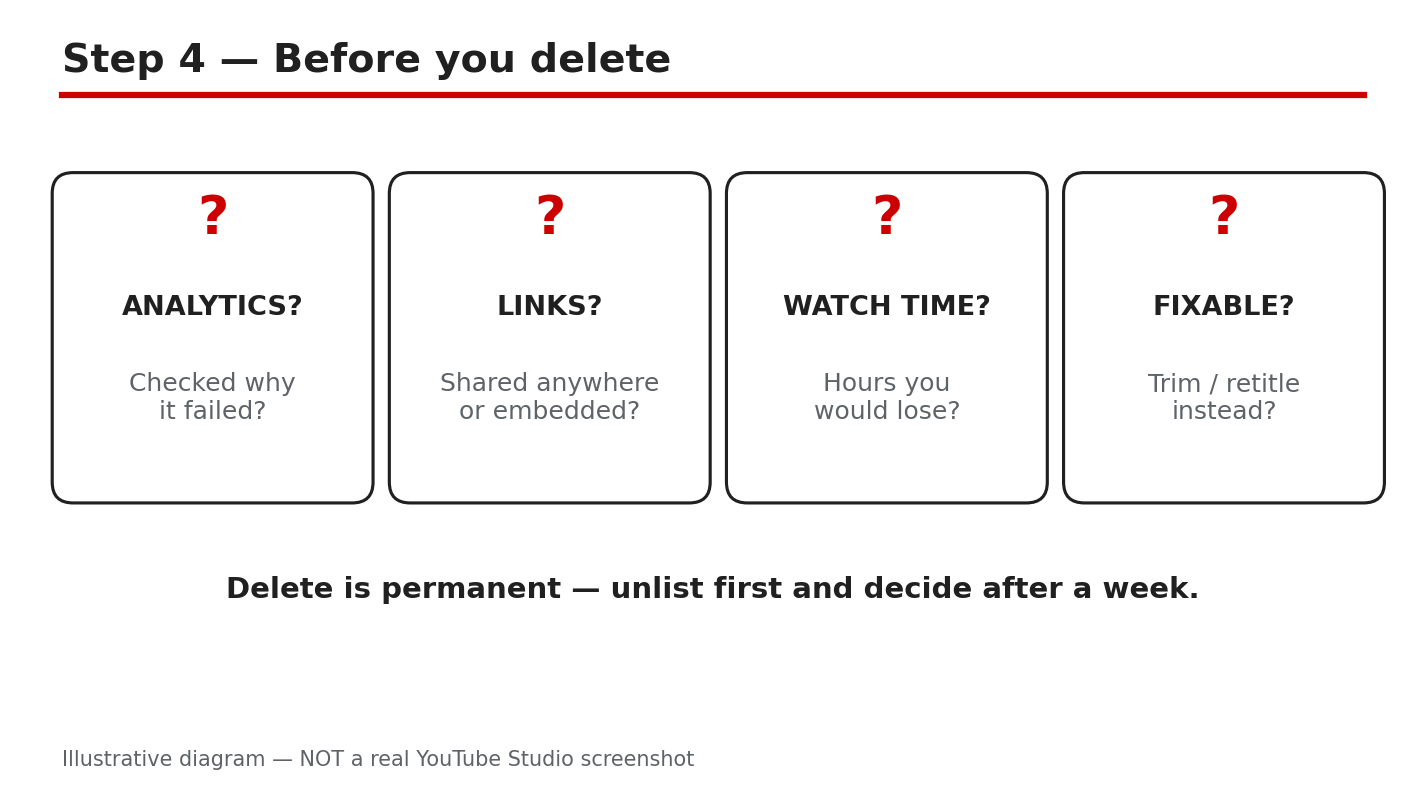
What to do: Before you delete anything, write down what the video has earned: watch time, comments, search ranking, and every link pointing to it.
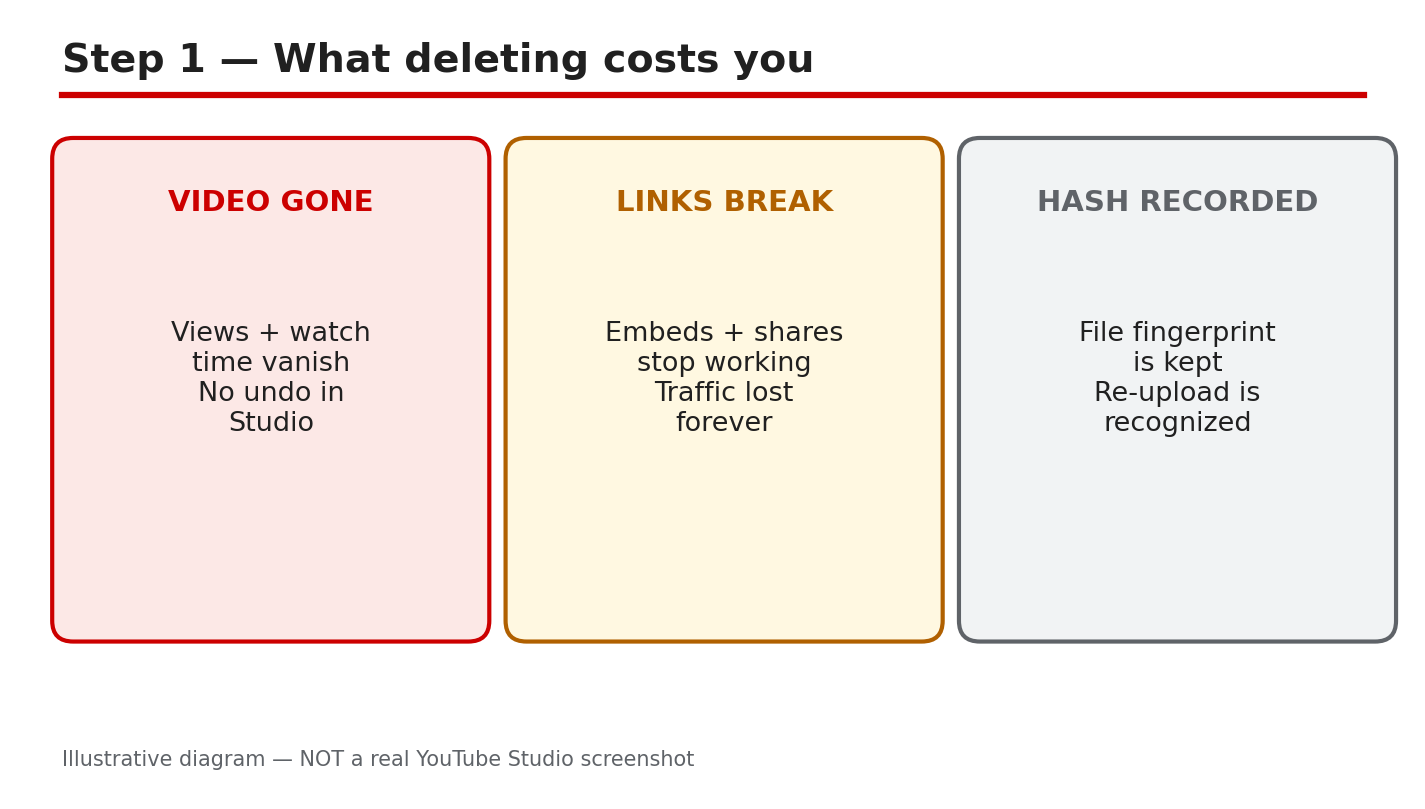
How: Open YouTube Studio, check the video’s Analytics, and note its watch time, traffic sources, and search terms. Then check where the video is linked: your blog, your other videos’ cards and end screens, playlists, and social posts. Deleting the video removes it from all of those places at once. YouTube Help says that after a video is deleted, its URL and title are no longer visible or searchable in YouTube Analytics. The watch time it earned is gone from your channel’s totals, and the comments disappear too.
Example: A creator deleted a tutorial with 40,000 views over one wrong date. The replacement started from zero, and the blog post linking to it broke.
Common mistake: Deleting first and checking the cost later. Once a video is deleted, there is no undo. Check the numbers before you touch the delete button, not after.
Illustrative diagram (mock-up, not a real YouTube Studio screenshot): deleting a video removes its watch time, comments, ranking, and links.
Step 2 - Understand Why the Same File Can Look Like Spam
What to do: Assume YouTube can recognize a file it has seen before, and treat a re-upload of the same file as a risk, not a fresh start.
How: As reported, YouTube checks uploaded files against content it has already processed, using file hashes and fingerprints that identify a video even when its title or description changes. A creator who deletes a video and uploads the identical file again is, as reported, sending the system a file it may already know, which can read as an attempt to dodge a removal or reset a bad metric. The safe rule is simple: if the file is unchanged, do not delete and re-upload it.
Example: A channel deleted a video with a copyright claim on its audio, then re-uploaded the same file with only the title changed. The claim returned within hours.
Common mistake: Changing the title and description and expecting a different result. As reported, the system matches the file, not the words around it.
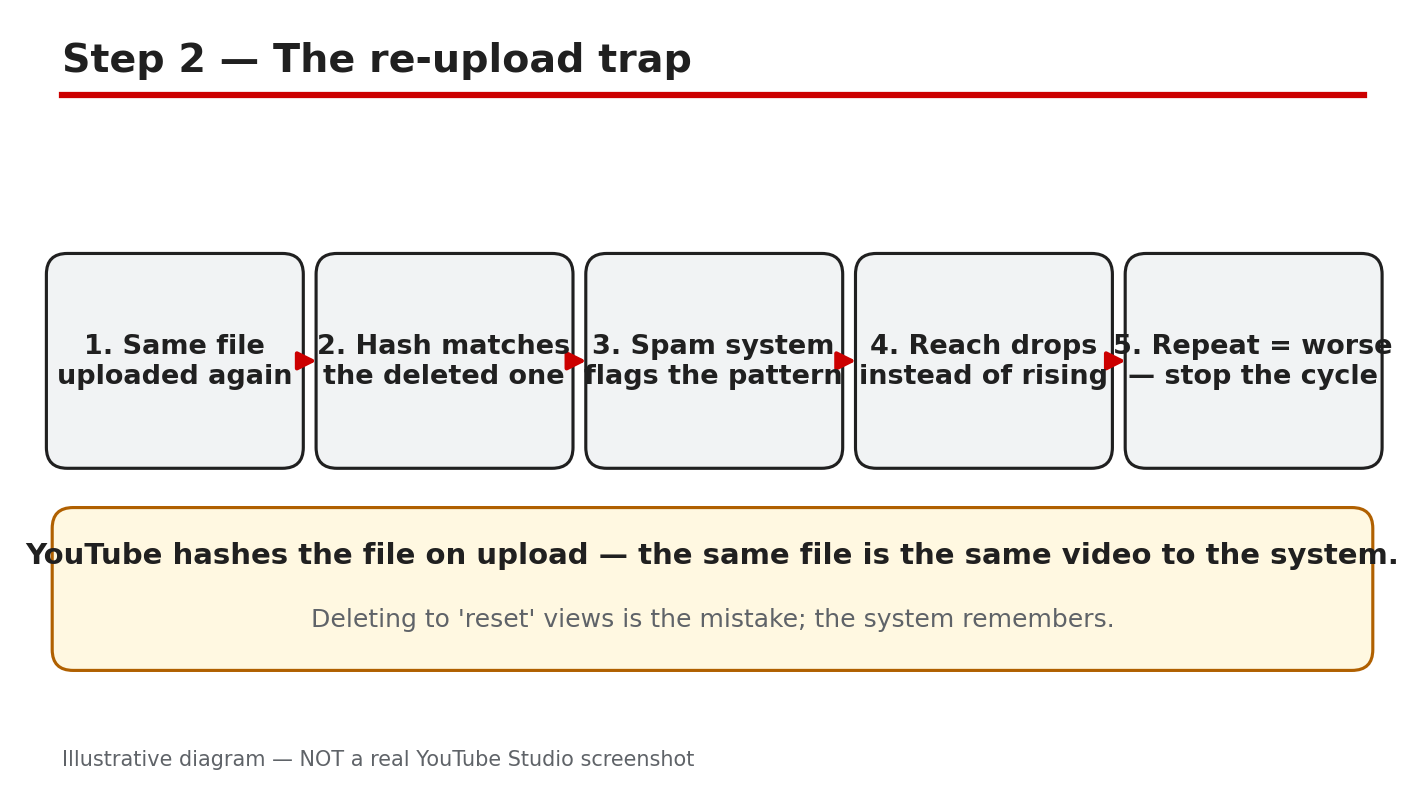
Illustrative diagram (mock-up, not a real YouTube Studio screenshot): a re-uploaded file can be matched to the original by its hash.
Step 3 - Unlist the Video Instead of Deleting It
What to do: If a video has a problem but is not harmful, change its visibility to Unlisted. It stops appearing in search and recommendations, but keeps its watch time, comments, and links.
How: In YouTube Studio, open the video, click Visibility, and choose Unlisted. The video leaves public search and your channel page, but anyone with the link can still watch it, and its record in Analytics stays intact. If the video contains something that violates YouTube’s policies or could harm viewers, deleting is the right choice, because an unlisted video still exists on your channel.
Example: A creator found an outdated price in a tutorial. She unlisted the video, recorded a corrected version, and later set the old one back to public with a pinned comment pointing to the update.
Common mistake: Deleting a video that only needed to be hidden for a week. Unlisted is reversible. Deletion is not.
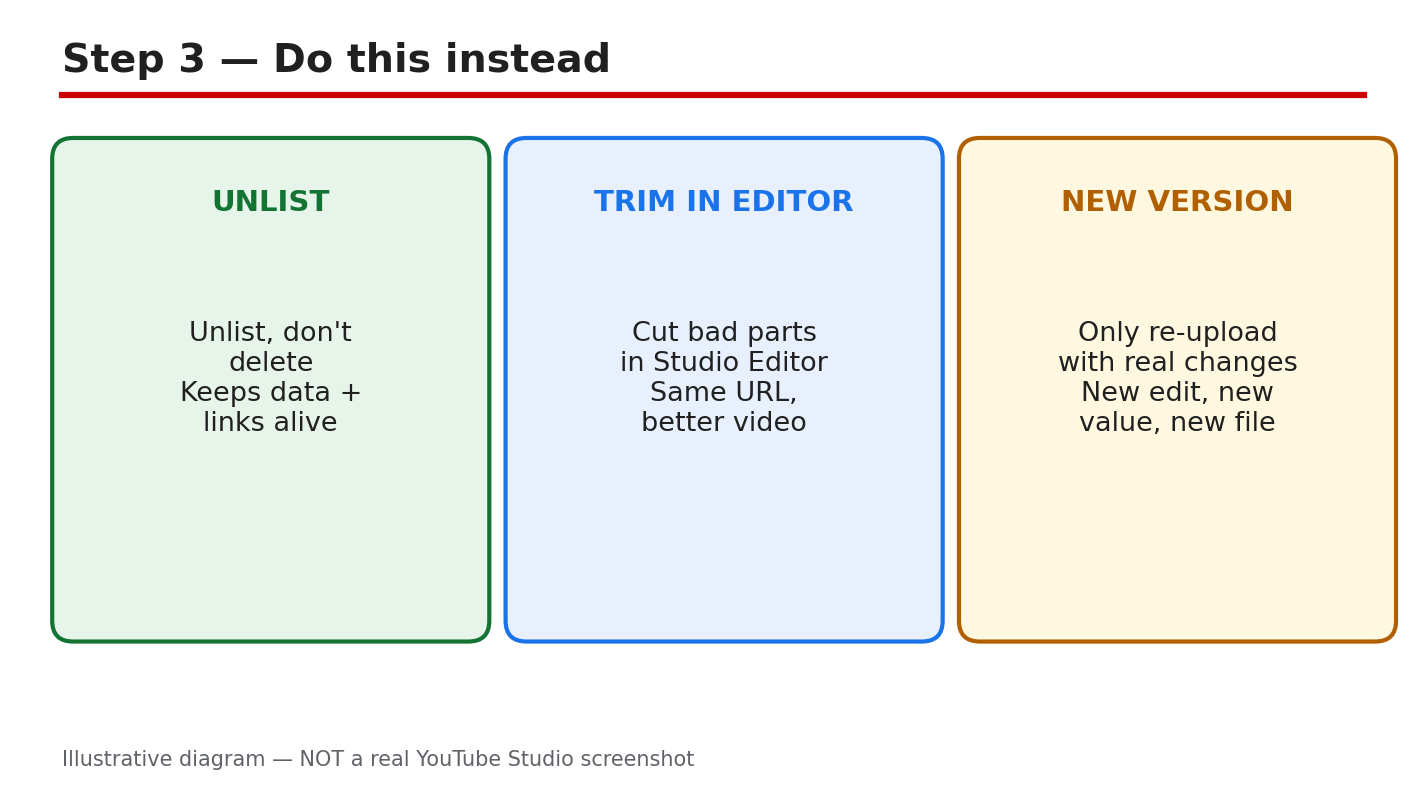
Illustrative diagram (mock-up, not a real YouTube Studio screenshot): unlisting hides a video while keeping its watch time and links.
Step 4 - Trim and Fix the Video in the Studio Editor
What to do: Fix small mistakes with YouTube Studio’s Editor instead of re-uploading. You can trim the start, end, and middle, and blur or replace audio.
How: Open the video in YouTube Studio, click Editor, and use Trim to cut out the mistake. You can also blur faces or objects, and, if the problem is music, replace or erase the song. YouTube Help says you can edit a video’s title and description, make enhancements, and add a card, and the video keeps its URL, its watch time, and its comments. Keep the edit small: trimming a few seconds is safe. Our guide on how to trim a video after a copyright claim walks through the exact steps.
Example: A creator’s video opened with a wrong logo for three seconds. She trimmed those three seconds in the Editor, kept the video’s 12,000 views,
Common mistake: Trimming after the video has a warning or strike and assuming the problem is gone. Trimming removes the segment, but any notice you received still stands. Check the email and the Earn tab.
Illustrative diagram (mock-up, not a real YouTube Studio screenshot): trimming a mistake in the Studio Editor keeps the video’s URL.
Step 5 - Decide When a New Version Is Actually Worth Making
What to do: Re-upload only when the video genuinely needs to be a different video: a major re-edit, a new structure, or new information throughout.
How: Ask whether an unlisted fix or an Editor trim can solve it. If the answer is no, plan the new version as a new video: rewrite the script, re-record the core sections, and give it a title and description that fit the new content. Then unlist the old video rather than deleting it, and link the new one from the old video’s description and a pinned comment.
Example: A creator’s 2024 guide was fully outdated. She recorded a fresh 2026 version, unlisted the old one, and added a card pointing to the new upload.
Common mistake: Re-uploading a slightly different version and keeping the old one public too. Two near-identical videos split the audience and can confuse search. Unlist the old one.
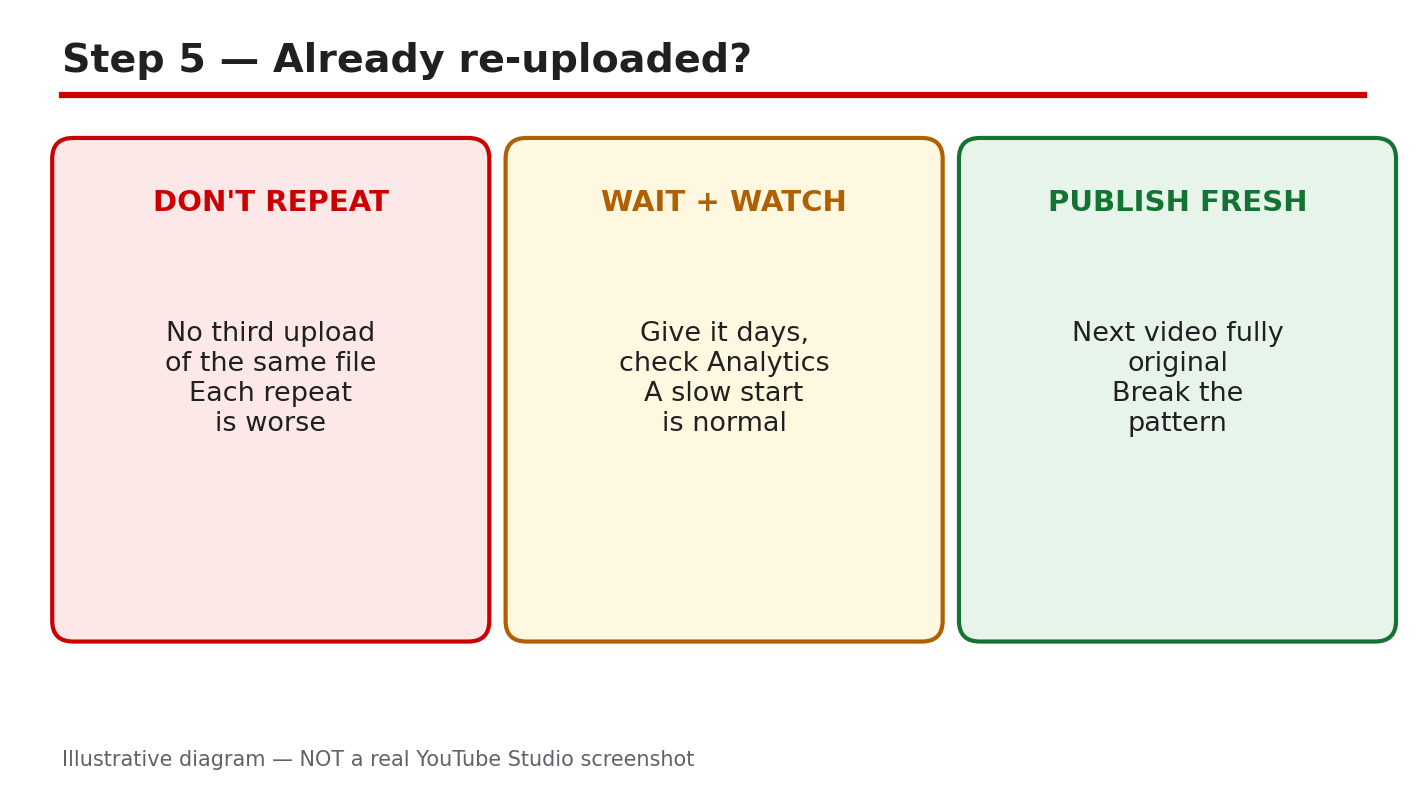
Illustrative diagram (mock-up, not a real YouTube Studio screenshot): a new version is worth it only when the video truly changes.
Step 6 - Re-Upload Properly and Keep the Old Links Working
What to do: If you re-upload, treat it as a new video: new title, new description, new thumbnail, and a plan for the old links.
How: Upload the new file with a title and description that describe the new version, and add a thumbnail that shows the change. In the old video’s description and pinned comment, link to the new video. Update the links on your blog and in your cards and end screens. Remember that a new upload gets a new URL, so every old link needs updating, or it will break. Our guide on why a video is not showing in search explains why a fresh upload takes time to rank again.
Example: A creator re-uploaded a course video with a new structure and updated every link in the course page the same day. Nobody complained about a broken link.
Common mistake: Re-uploading and forgetting the old links. A new URL means every card, end screen, playlist, blog post, and social post that pointed to the old video now points nowhere.
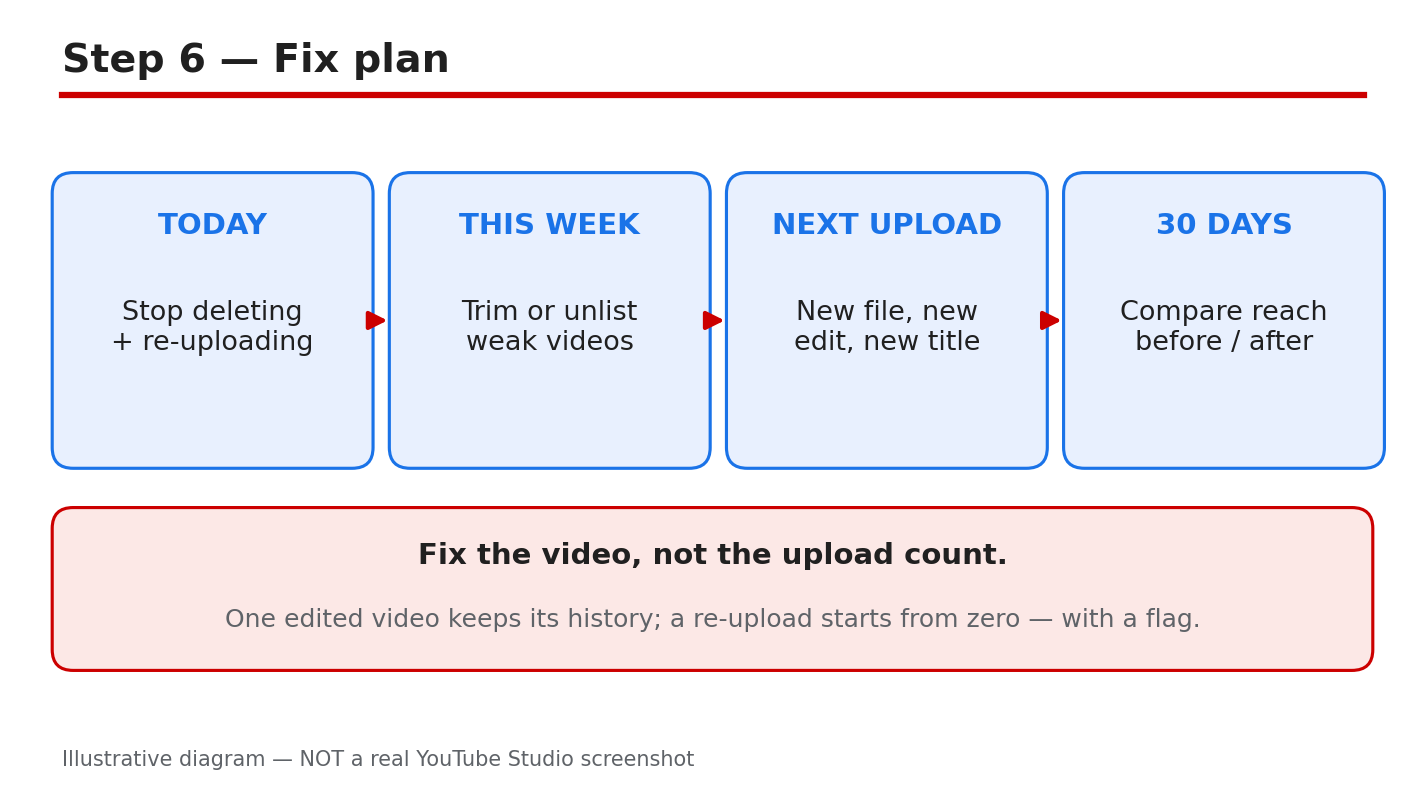
Illustrative diagram (mock-up, not a real YouTube Studio screenshot): a re-upload gets a new URL, so old links must be updated.
Your Delete and Re-Upload Checklist
- Watch time, ranking, and links checked before any delete.
- Harmful content deleted; fixable videos unlisted instead.
- Small mistakes fixed in the Studio Editor.
- Old video unlisted, not deleted, when a new version is made.
- New video linked from the old video’s description and comments.
Frequently Asked Questions
Can I delete a video and re-upload it? You can, but you lose the original’s watch time, ranking, comments, and links, and the same file may be flagged again as reported.
Does unlisting a video keep its watch time? Yes. An unlisted video keeps its watch time and comments, and it stops appearing in search and recommendations.
Can I replace a video without changing its URL? No. YouTube Help says you cannot replace a video, because any new upload gets a new URL.
What should I do about a copyright claim on my audio? Try trimming the claimed audio or replacing the song in the Studio Editor before you consider deleting the video.
Sources
- YouTube Help, Replace or delete your video: support.google.com/youtube/answer/55770 (verified live 31 October 2026).
- CreatorPlaybook, YouTube Copyright Claim? How to Trim, Replace or Erase the Song: creatorplaybook.blogspot.com/2026/10/youtube-copyright-claim-how-to-trim.html
- CreatorPlaybook, YouTube Video Not Showing in Search Results: How to Fix It: creatorplaybook.blogspot.com/2026/10/youtube-video-not-showing-in-search.html