Showing Posts From
Monetization
 CreatorPlaybook Team
- 02 Nov, 2026
Made for Kids on YouTube: Revenue Limits, Disabled Features and How to Fix a Wrong Audience Setting
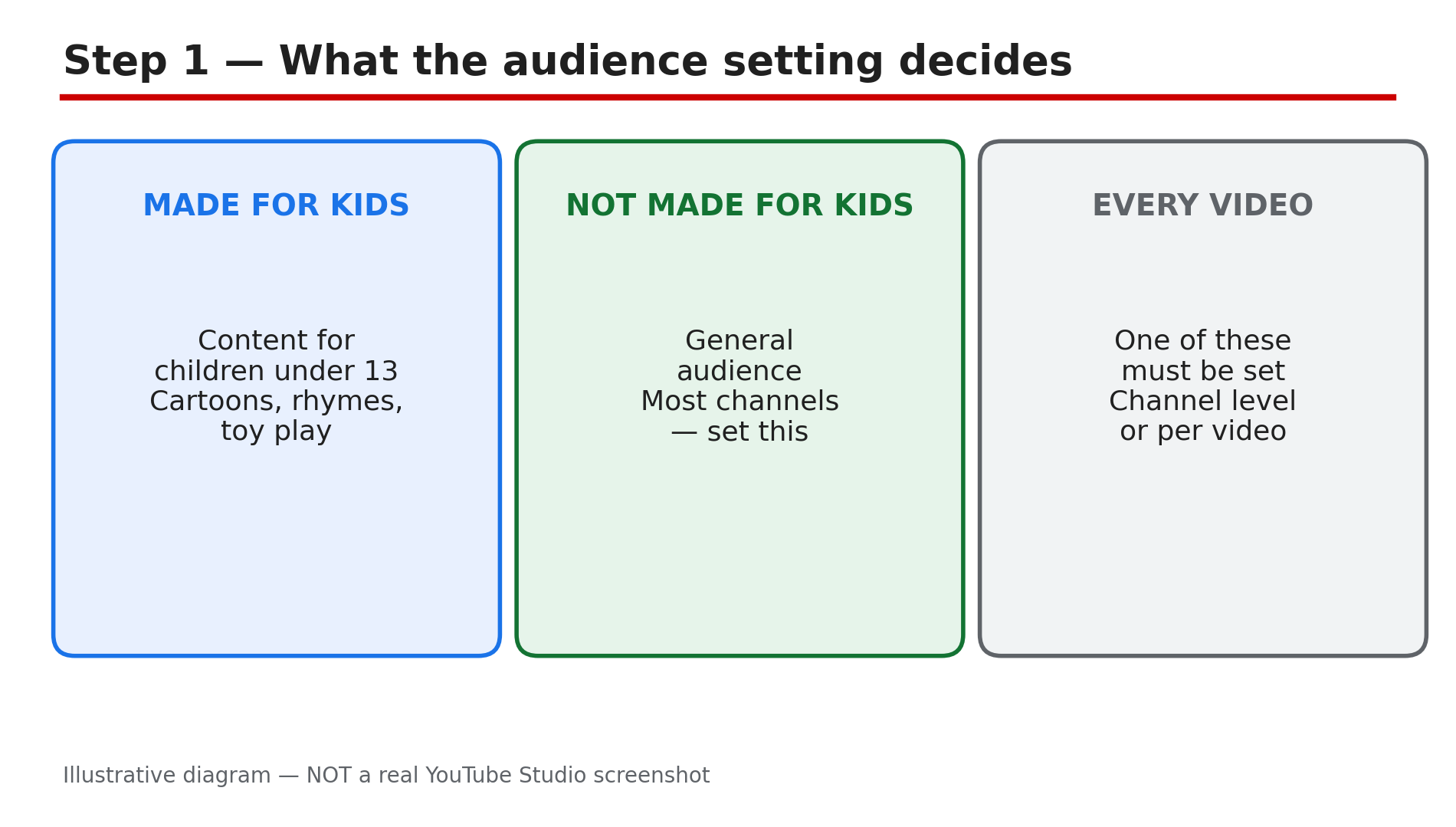
A creator uploads a cartoon-style video, and the next morning the comments are gone, the notification bell is off, and the earnings look far lower than a similar video. Nothing was deleted and no strike arrived. The cause is usually one setting: the video was marked "Made for Kids", either by the creator or by YouTube itself. The audience setting is a legal requirement, not a preference. YouTube must limit data collection on content for children, so it switches off a long list of features and serves only non-personalised ads. This guide explains what changes, what it does to revenue, and how to fix a setting that is wrong — without breaking the rules. What You Will LearnWhat "Made for Kids" means and why every creator must set it Which features switch off on a Made for Kids video or channel Why revenue is usually lower on Made for Kids content How to tell whether you or YouTube set the audience How to fix a wrong setting, and when YouTube locks it The 2026 COPPA update and the penalty for getting it wrongStep 1 — Understand what the audience setting is What to do: Learn why the setting exists before you touch it. How: YouTube's Help page "Set your channel or video's audience" says every creator must tell YouTube whether their videos are Made for Kids or not — even creators who never make content for children. The rule comes from a settlement with the US Federal Trade Commission, and it exists to help creators comply with the US Children's Online Privacy Protection Act (COPPA). You can set the audience at channel level or per video. The FTC's amended COPPA Rule took effect on 23 June 2025, and civil penalties can reach $53,088 per violation, as reported by legal guides. Example: A gaming channel that never targets children still has to set its audience to "not Made for Kids". Leaving it unset does not avoid the rule — YouTube will keep asking. Common mistake: Thinking the setting is only for kids' channels. It applies to every channel, and failing to set it accurately can bring FTC compliance problems.Illustrative diagram of the two audience choices every creator must make. Step 2 — Learn which features switch off What to do: Know the full list, so a missing feature stops looking like a bug. How: YouTube's Help page lists what disappears when a video is set as Made for Kids: autoplay on home, cards and end screens, video watermarks, channel memberships, comments, the donate button, likes and dislikes on YouTube Music, live chat and live chat donations, merchandise and ticketing, the notification bell, personalised advertising, playback in the miniplayer, Super Chat and Super Stickers, and saving to a playlist or Watch Later. If the whole channel is set as Made for Kids, the channel also loses memberships, the notification bell, Posts and Ask Studio. Example: A creator wonders why Super Thanks is missing on a cartoon video. The answer is the audience setting: fan funding is disabled on Made for Kids content. Common mistake: Trying to fix the missing features one by one. None of those settings are the cause — the audience setting is the only thing that changes the list.Illustrative diagram of the features that switch off on Made for Kids videos. Step 3 — Understand why revenue is lower What to do: Accept the revenue trade-off honestly, so you can plan around it instead of fighting it. How: The biggest revenue change is advertising. YouTube's Help page says it will not serve personalised ads on Made for Kids content, as COPPA requires. Only non-personalised, contextual ads run, and those usually pay less per view. A study of 300 channels by MilX and AIR (May 2025–May 2026) reported a kids' median of about $0.33 per 1,000 views against about $2.30 across all niches, and only 32% of kids' views carried an ad — as reported, not YouTube's own numbers. Example: Two videos each get 100,000 views. The general-audience video earns from personalised ads plus Super Thanks; the Made for Kids video earns from contextual ads only. Common mistake: Marking a general-audience video as Made for Kids "to be safe" and then wondering why the earnings fell. The safe choice is the accurate choice.Illustrative diagram of the three reasons Made for Kids revenue is lower. Step 4 — Check who set the audience: you or YouTube What to do: Find out whether the setting came from you or from YouTube's classifier, because the fix is different. How: In Studio, go to Content and use the filter to sort by Made for Kids. YouTube shows three states: "Made for Kids (set by you)", "Set to Made for Kids (by YouTube)" and "Not made for kids". If you set it yourself, you can change it. If YouTube set it, its machine learning judged the video to be clearly directed at a young audience. When YouTube has locked a video as "Set to Made for Kids", you cannot change the setting directly; you can only appeal it. Example: A creator finds five old videos marked "Set to Made for Kids (by YouTube)". Each one needs an appeal rather than a simple edit. Common mistake: Flipping the setting back on every video at once after YouTube locked it. That does not work — appeal the locked videos one at a time.Illustrative diagram for checking who set a video's audience. Step 5 — Fix a wrong setting the right way What to do: Correct your own mistakes in bulk, and appeal YouTube's mistakes properly. How: If you set the audience yourself and it is wrong, fix it in Studio. Select the videos in Content, click Edit, then Audience, and choose the correct option. For a channel-level mistake, go to Studio, then Settings, then Channel, then the Advanced settings tab, and change the Audience option. If YouTube locked the video as "Set to Made for Kids" and you disagree, appeal it: on a computer, go to Studio, then Content, hover over "Set to Made for Kids" and click Appeal, then enter your reason. Example: A creator who makes toy reviews for adult collectors appeals a locked video by explaining the audience: the review is for adult collectors, not children. Common mistake: Changing the setting and expecting the features back instantly. Give it time to propagate, and check in an incognito window. And never falsely mark real kids' content as not for kids.Illustrative diagram of the three ways to fix a wrong audience setting. Step 6 — Set the audience correctly from now on What to do: Build a routine so the setting is right at upload time, every time. How: Decide the audience before you record, not after you upload. If your content is primarily for children under 13 — cartoons, nursery rhymes, toy play aimed at young children — it is Made for Kids. If children are not the primary audience, it is not, even if some children watch it. YouTube's Help page says it cannot advise you on whether your content is accurately set, and suggests reading the FTC's guidance or seeking legal counsel if you are unsure. Set the channel-level default to match what you mostly upload. Example: A family channel sets the channel default to Made for Kids, but sets its behind-the-scenes video for parents to "not Made for Kids" at upload time. Common mistake: Leaving the audience unset on new uploads. YouTube will keep prompting you, and an unset video can be classified by the system instead of by you.Illustrative diagram of a routine for setting the audience correctly every time. Checklist — Before You Publish☐ I set the audience on every video ☐ The channel default matches what I mostly upload ☐ I checked the Content list with the Made for Kids filter ☐ I know which videos YouTube set, and which I set myself ☐ I appealed locked videos instead of flipping them back ☐ I did not falsely mark real kids' content as not for kids ☐ I expect lower revenue and no fan funding on Made for Kids videos ☐ I set the audience at upload time, not weeks laterFAQs 1. Why are comments and notifications off on my video? Because the video is set as Made for Kids. YouTube switches off comments, the notification bell, live chat, cards and end screens on Made for Kids content. The features return only if the audience setting changes. 2. Can I change a video YouTube set as Made for Kids? If YouTube locked it as "Set to Made for Kids", you cannot change the setting directly — you can only appeal it from Studio, on a computer or in the Studio app. If you set it yourself, you can change it in Content by selecting the video and editing its Audience setting. 3. Does Made for Kids affect my earnings? Yes. Only non-personalised ads run on Made for Kids content, and fan funding — Super Chat, Super Stickers and memberships — is disabled. A study of 300 channels reported a kids' median of about $0.33 per 1,000 views, against about $2.30 across all niches. 4. What happens if I set the audience wrong? Failing to set the audience accurately may bring compliance issues with the FTC, and YouTube may take action on your account. Marking real children's content as not for kids is the serious mistake. 5. Is my whole channel Made for Kids if one video is? No. The audience is set per video unless you choose a channel-level setting. A single Made for Kids video only affects that video. But if you set the channel itself to Made for Kids, it applies to all existing and future videos on the channel. SourcesYouTube Help — "Set your channel or video's audience" (official page, opened live 2 Nov 2026): https://support.google.com/youtube/answer/9527654?hl=en-GB&co=GENIE.Platform%3DDesktop CreatorPlaybook — "YouTube Upload Stuck, Comments Disabled or Made for Kids? How to Fix It": </blog/youtube-upload-stuck-comments-disabled> CreatorPlaybook — "Earn Tab Features Missing? Super Thanks, Memberships and Shopping Not Showing": </blog/earn-tab-features-missing-super-thanks>
- CreatorPlaybook Team
- 31 Oct, 2026
AI Mass-Produced YouTube Videos: The 2026 Demonetization Risk and How to Use AI Safely
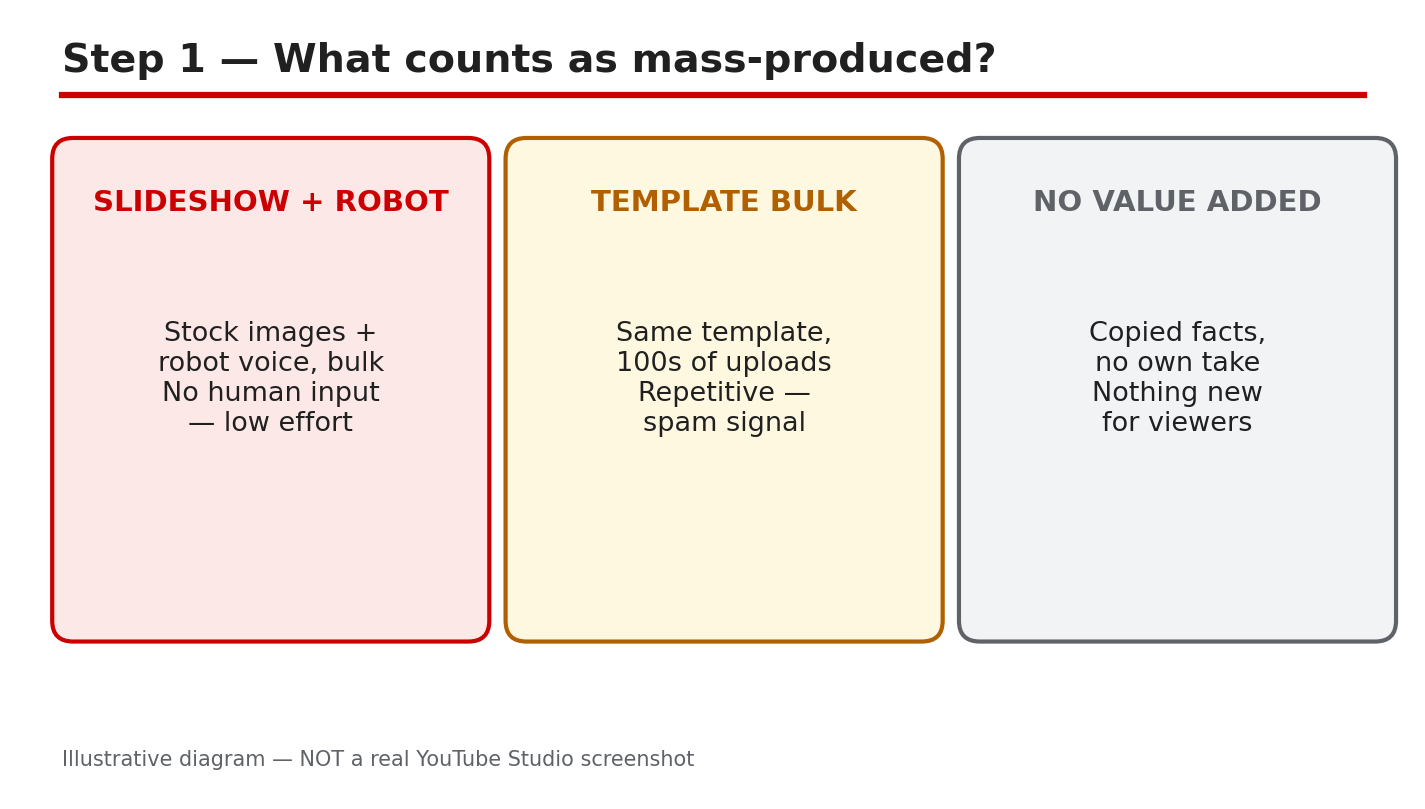
AI tools can now write a script and generate a voice in minutes. It is tempting to publish twenty videos a week. But creators who did exactly that have been reporting lost monetization in 2026, and YouTube's own rules explain why. In a 15 July 2025 update, YouTube's monetization policies clarified that 'repetitious content' means 'inauthentic content', including mass-produced content. Monetized content must be original and authentic, not mass-produced, generic, repetitive, or manipulative. AI itself is not banned. The problem is volume without value. This guide shows you where the line is, how to check your own uploads, and how to keep using AI without risking your earnings. What You Will Learn In this guide you will learn what YouTube counts as mass-produced content, how to audit your own channel, how to add genuine human value to AI-assisted videos, when to disclose AI use, how to fix risky uploads, and how to set a pace you can sustain. Step 1 - Learn What Counts as Mass-Produced Content What to do: Read YouTube's monetization policies definition of inauthentic content before you change anything, so you judge your videos against YouTube's words rather than rumors. How: YouTube Help says monetized content must be original and authentic, not mass-produced, generic, repetitive, or manipulative. The July 2025 update replaced the older label 'repetitious content' with 'inauthentic content'. A video counts as mass-produced when it is made at volume from a template: the same script structure, the same AI voice, the same stock clips, only the topic swapped. The tool is not the test. A single AI-assisted video with a real script and real information can be fine. A hundred near-identical videos are not. Example: A channel publishes 30 videos in a week, all with the same formula, the same AI voice, and the same slideshow. A reviewer can watch any two and guess the third. Common mistake: Assuming the rule only applies to videos made entirely by AI. A channel that uses AI for everything but adds one human sentence at the end is still mass-producing.Illustrative diagram (mock-up, not a real YouTube Studio screenshot): mass-produced videos follow one repeated template, while authentic videos each add something new. Step 2 - Audit Your Channel for the Warning Signs What to do: Review your last 20 uploads and score each one honestly. If you cannot tell two videos apart without reading the title, your channel has a problem. How: Open your channel's Videos page and list what repeats: the same intro, the same voice, the same background clips, and the same upload schedule of several videos a day. Then check the results. As reported, mass-produced channels often see low average view duration, few comments, and few returning viewers, because viewers have no reason to come back for another copy of the same video. Compare those numbers with a video you made with real effort. Example: A creator checked 20 uploads and found 18 used the same AI voice, the same three background clips, and the same structure. The two with a scripted personal story had three times the watch time. Common mistake: Judging a video only by its view count. A mass-produced video can spike from search traffic and still damage the channel, because low retention tells YouTube it is not worth recommending.Illustrative diagram (mock-up, not a real YouTube Studio screenshot): an audit checklist for spotting repeated templates and low retention. Step 3 - Add Real Human Value to Every AI-Assisted Video What to do: Make AI the assistant, not the author. For every video, add something only you can add: your own script, your own experience, or your own opinion. How: Write the script yourself, or rewrite the AI draft in your own words and add a real example from your own channel or work. Record your own voice, or edit the AI voiceover so the pacing matches how you actually speak. Add footage or screenshots you captured yourself. If the video could have been made by anyone with the same prompt, it is not ready. If a viewer can learn something only from your experience, it is. See our guide on how to use AI for YouTube videos. Example: A creator who reviewed budgeting apps stopped using AI scripts word for word. She recorded her own voice and showed her own spreadsheet. Common mistake: Believing a better AI voice or a better thumbnail fixes the policy issue. The policy is about the content, not the polish.Illustrative diagram (mock-up, not a real YouTube Studio screenshot): human script, voice, and editing turn an AI draft into original content. Step 4 - Disclose AI Use Where YouTube Asks You To What to do: Turn on the AI disclosure setting for videos where YouTube asks for it, and do it before you publish. How: YouTube Help says creators must disclose AI-generated or altered content that seems realistic. That includes a real person appearing to say or do something they did not, altered footage of a real event or place, a realistic scene that did not occur, and music where the audio is the main focus. You disclose it in YouTube Studio through the 'AI use' setting under Details, then Attributes. Disclosing alone will not limit your audience or affect your eligibility to earn money, according to YouTube Help. Check the labelling rules in your region too, because, as reported, EU rules add their own requirements, and our guide to AI content and EU labelling explains what to check. Example: A creator used an AI voice to narrate a realistic scene that never happened. Turning on the AI disclosure before publishing took ten seconds, and the video kept its audience and monetization. Common mistake: Disclosing everything, including obvious animation, or disclosing nothing at all. Disclosure is for content that seems realistic.Illustrative diagram (mock-up, not a real YouTube Studio screenshot): turning on the AI use disclosure before publishing. Step 5 - Fix or Remove the Riskiest Uploads What to do: Work through your riskiest uploads and decide, for each one, whether to rework it, unlist it, or leave it alone. How: Start with the videos that look most like a template: same voice, same structure, no original material. Rework the ones worth saving with a new script, your own voice, and real examples; then update the title and description to match. Unlist the ones you cannot rework yet, so they stop shaping how YouTube judges your channel. Leave alone only videos that already carry real human value. Do not delete your whole library in a panic: as reported, deleting videos removes their watch time and links. Fix the worst first. Example: A creator had 40 template videos. She reworked the 10 with the most views, unlisted the rest, and added two new human-scripted videos a week. Common mistake: Re-uploading the same video with a new title and hoping the problem disappears. As reported, a re-upload carries the same content, so the same questions apply.Illustrative diagram (mock-up, not a real YouTube Studio screenshot): rework, unlist, or keep each risky upload. Step 6 - Set a Production Standard You Can Keep What to do: Decide a weekly upload limit and a quality checklist, and do not publish anything that fails it. How: Pick a number you can sustain with real effort. For most beginners that is one or two videos a week. Write the standard down: original script, your own voice or edit, at least one real example, disclosure checked, and a title that matches the video. Review it before every upload. If a video takes less than an hour from idea to publish, ask yourself what value you added. Example: A channel set a limit of two videos a week and a five-point checklist. Within six weeks, subscriber growth returned, and the creator spent less time publishing. Common mistake: Treating the checklist as a one-time cleanup. Mass production creeps back when you are busy, so review your last ten uploads every month.Illustrative diagram (mock-up, not a real YouTube Studio screenshot): a weekly checklist keeps AI-assisted production sustainable. Your AI Mass-Production Safety ChecklistEvery video has an original script or a rewritten AI draft. Your own voice, edit, or footage appears in each video. No two uploads share the same template and structure. Realistic AI content has the AI use disclosure turned on. Riskiest uploads have been reworked or unlisted. A weekly upload limit and quality checklist are written down. Your last ten uploads are reviewed every month.Frequently Asked Questions Is using AI for YouTube videos against the rules? No. YouTube does not ban AI tools. Its monetization policies object to content that is mass-produced, generic, repetitive, or manipulative, not to AI use itself. How many AI videos are too many? There is no published number. The test is whether each video adds original value. As reported, a flood of near-identical uploads is the pattern that draws attention. Do I need to disclose AI voiceovers? Disclose AI-generated or altered content that seems realistic, using the AI use setting in YouTube Studio. Disclosing alone does not limit your audience or affect earnings. Can I fix a channel that already publishes mass-produced videos? Yes. Rework or unlist the riskiest uploads, add real human value to new videos, and set a sustainable pace. Earnings recover only after the content changes. SourcesYouTube Help, Monetization policies: support.google.com/youtube/answer/1311392 (verified live 31 October 2026). CreatorPlaybook, How to Use AI for YouTube Videos: creatorplaybook.blogspot.com/2026/10/how-to-use-ai-for-youtube-videos.html CreatorPlaybook, AI Content on YouTube: EU Labelling: creatorplaybook.blogspot.com/2026/10/ai-content-on-youtube-eu-labelling.html

- CreatorPlaybook Team
- 31 Oct, 2026
Bought YouTube Views or Subscribers? How Invalid Traffic Triggers Demonetization and How to Fix It
Your views jumped overnight. A video that usually gets 200 views suddenly has 12,000, your subscriber count climbed by 500 in a day, and for a moment it feels like the channel finally broke through. Then the numbers start falling back on their own, your estimated revenue drops, and an email arrives saying your monetization is limited or your AdSense for YouTube account is under review. If you ever bought views, subscribers, watch time, or likes, or paid a growth service that promised fast results, this is very likely what happened: YouTube's systems flagged the activity as invalid traffic. Invalid traffic is any activity that does not come from a real user with genuine interest, and YouTube says it can include fraudulent, artificial, or even unintentional ways of boosting ad revenue. The good news is that the situation is usually fixable if you stop the cause, clean up your account, and follow the proper appeal path. This guide walks you through exactly that, step by step. What You Will Learn In this guide you will learn what invalid traffic is and why bought views and subscribers trigger it, how to spot the warning signs in YouTube Analytics traffic sources, how to stop the damage by cutting off the source and securing your account, what YouTube says happens to your earnings, and how to appeal if you believe the decision was wrong. You will also get a cleanup checklist you can finish today. Step 1 - Learn What Counts as Invalid Traffic What to do: Read YouTube's own definition of invalid traffic before changing anything, so you fix the real cause instead of guessing. How: YouTube Help says invalid traffic is any activity on your channel that does not come from a real user or a user with genuine interest, and it can include fraudulent, artificial, or even unintentional ways to boost ad revenue. Named examples include automated or incentivized traffic from third parties, including so-called traffic boosting services, and telling viewers to watch or click ads on certain videos to inflate revenue. Example: A creator pays a seller for 5,000 views. The views arrive from bots and click farms in a few hours. YouTube's systems detect the pattern, filter the views out, and may temporarily limit ads on the channel. Common mistake: Assuming the problem is the video or the thumbnail. If the spike came from a paid service, no amount of editing will fix it until the paid traffic stops.Illustrative diagram (mock-up, not a real YouTube Studio screenshot): paid traffic being flagged as invalid traffic. Step 2 - Spot the Warning Signs in Analytics Traffic Sources What to do: Open YouTube Studio, go to Analytics, and check where the suspicious views came from. How: Open Analytics, then the Reach tab, then the traffic source types report. Compare the last 28 days with the previous period. Look for a sudden spike from External or unknown sources, a single video jumping far above your normal range, or views rising while watch time, likes, and comments stay flat. As reported by creators, a views spike with almost no average view duration is a classic sign of artificial traffic, so confirm what you see in Studio before acting. Our guide on how YouTube counts views in 2026 explains which views YouTube treats as real. Example: A cooking channel normally gets 80 percent of traffic from Browse and Search. One week a new video gets 70 percent from an unknown external site and average view duration drops to nine seconds. That is the pattern to investigate. Common mistake: Only watching the headline view count. The traffic source breakdown tells you what happened; the total only tells you that something happened.Illustrative diagram (mock-up, not a real YouTube Studio screenshot): a traffic sources report with an unusual spike. Step 3 - Stop Buying Views and Cut Off the Source Immediately What to do: Cancel every paid promotion that sends artificial views, subscribers, or engagement, and stop asking viewers to click ads. How: Log in to every panel, seller, or freelancer you used, cancel the order, and remove any auto-renew. Stop all view boosting and subscriber services, Never tell viewers to click ads or to watch a video on repeat to boost revenue. YouTube's invalid-traffic page lists both practices as examples of invalid traffic. Example: A creator had two active orders from a growth site. Cancelling both stopped new artificial views within a day, and the channel's daily views returned to their normal range. Common mistake: Pausing the service instead of cancelling it. An order that restarts by itself can undo a whole week of cleanup.Illustrative diagram (mock-up, not a real YouTube Studio screenshot): cancelling paid view and subscriber services. Step 4 - Revoke Shady Third-Party Apps and Secure the Account What to do: Remove any third-party app or service that has access to your Google account or YouTube channel, then lock the account down. How: Open your Google Account security settings, review third-party access, and revoke anything you do not recognize or no longer trust, especially tools that promised views or subscribers. Change your password, turn on two-step verification, and check that no unknown recovery email or phone number was added. Then open YouTube Studio and check the channel's permissions for extra managers you did not add. Example: A creator found an old free subscriber tool still connected to the channel a year after using it once. Revoking it stopped background activity the creator did not know was happening. Common mistake: Changing the password but leaving the app connected. A connected app can keep acting on the channel even after a password change.Illustrative diagram (mock-up, not a real YouTube Studio screenshot): securing the account and revoking app access. Step 5 - Understand What Happens to Earnings and Keep Every Notice What to do: Expect adjustments, not instant recovery, and keep every message YouTube sends about the issue. How: YouTube Help says that when invalid traffic is detected, advertisers are not charged, and earnings tied to invalid activity can be adjusted out. Ad serving may be limited for a while until the systems see the risk has reduced, and significant violations can lead to suspension of the linked AdSense for YouTube account or demonetization under the channel monetization policies. Payments may also be delayed while traffic is investigated. Save every email and Earn-tab notice, including dates, because the appeal window is tied to them. Example: A channel's estimated revenue dropped for two weeks after the invalid views were removed, even though public views looked normal again. Common mistake: Spending the estimated revenue before it is finalized. Estimated earnings are not a promise, and invalid-traffic adjustments can reduce them.Illustrative diagram (mock-up, not a real YouTube Studio screenshot): earnings adjustments after invalid traffic. Step 6 - Appeal If the Decision Was Wrong, Then Rebuild With Real Traffic What to do: If your account was disabled for invalid traffic and you believe that was an error, submit an invalid activity appeal through the official route, and keep the channel clean while you wait. How: YouTube Help says that if your account was disabled for invalid traffic but you feel the decision was made in error, you can submit an invalid activity appeal. Follow the link in the notice or email, explain briefly what you stopped and what you changed, and include the cancellation dates if you have them. Rebuild with real sources such as search and suggested videos, and confirm in Studio that traffic sources look normal again. If your subscriber count also fell, read our guide on why subscribers drop or get stuck before assuming the worst. Example: A creator appealed after cancelling a growth service and revoking app access, and included the cancellation dates. The appeal was reviewed, and the channel was later able to apply for monetization again once eligible in YouTube Studio. Common mistake: Appealing before cleaning up. If the service is still running, the same signal that caused the problem is still present when the appeal is reviewed.Illustrative diagram (mock-up, not a real YouTube Studio screenshot): appealing and rebuilding with real traffic. Your Invalid Traffic Cleanup ChecklistAll paid view, subscriber, and engagement orders cancelled, not just paused. Nobody has been asked to click ads or loop videos for revenue. Third-party access reviewed, and unknown or shady apps revoked. Password changed and two-step verification turned on. Suspicious traffic sources checked in the Analytics Reach tab. Every YouTube email and Earn-tab notice saved with its date. Appeal submitted only through the official link, once, with the cleanup dates included.Frequently Asked Questions Will YouTube remove the bought views? As reported, YouTube's systems filter out invalid views, so the views may drop in Analytics and earnings tied to them can be adjusted out. The channel itself can also face limits on ads. Can I get monetization back after invalid traffic? YouTube Help says significant violations may lead to demonetization, and if a violation is overturned you can apply for monetization once eligible in Studio. Confirm your exact status in the Earn tab. Does embedding a video or using the Promotions tab cause invalid traffic? YouTube's FAQ says embedding and legitimate promotion do not by themselves cause invalid traffic. Check the official FAQ for the full list of cases. Will my videos still be recommended? YouTube's FAQ addresses recommendations after invalid traffic, so check the article for the current wording. Real watch time and audience signals still matter, so keep publishing normally and read the Reach tab. How long do invalid-traffic reviews take? YouTube Help says payments may be delayed up to 90 days while traffic is investigated. Keep the channel clean and watch the Earn tab for updates. SourcesYouTube Help, Invalid traffic on your videos: support.google.com/youtube/answer/10285842 (verified live 31 October 2026). CreatorPlaybook, How YouTube Counts Views in 2026: creatorplaybook.blogspot.com/2026/10/how-youtube-counts-views-in-2026-public.html CreatorPlaybook, YouTube Subscribers Dropping or Stuck?: creatorplaybook.blogspot.com/2026/10/youtube-subscribers-dropping-or-stuck.html
- CreatorPlaybook Team
- 29 Oct, 2026
AdSense for YouTube Linking Errors: Disapproved or Suspended Account? How to Fix It
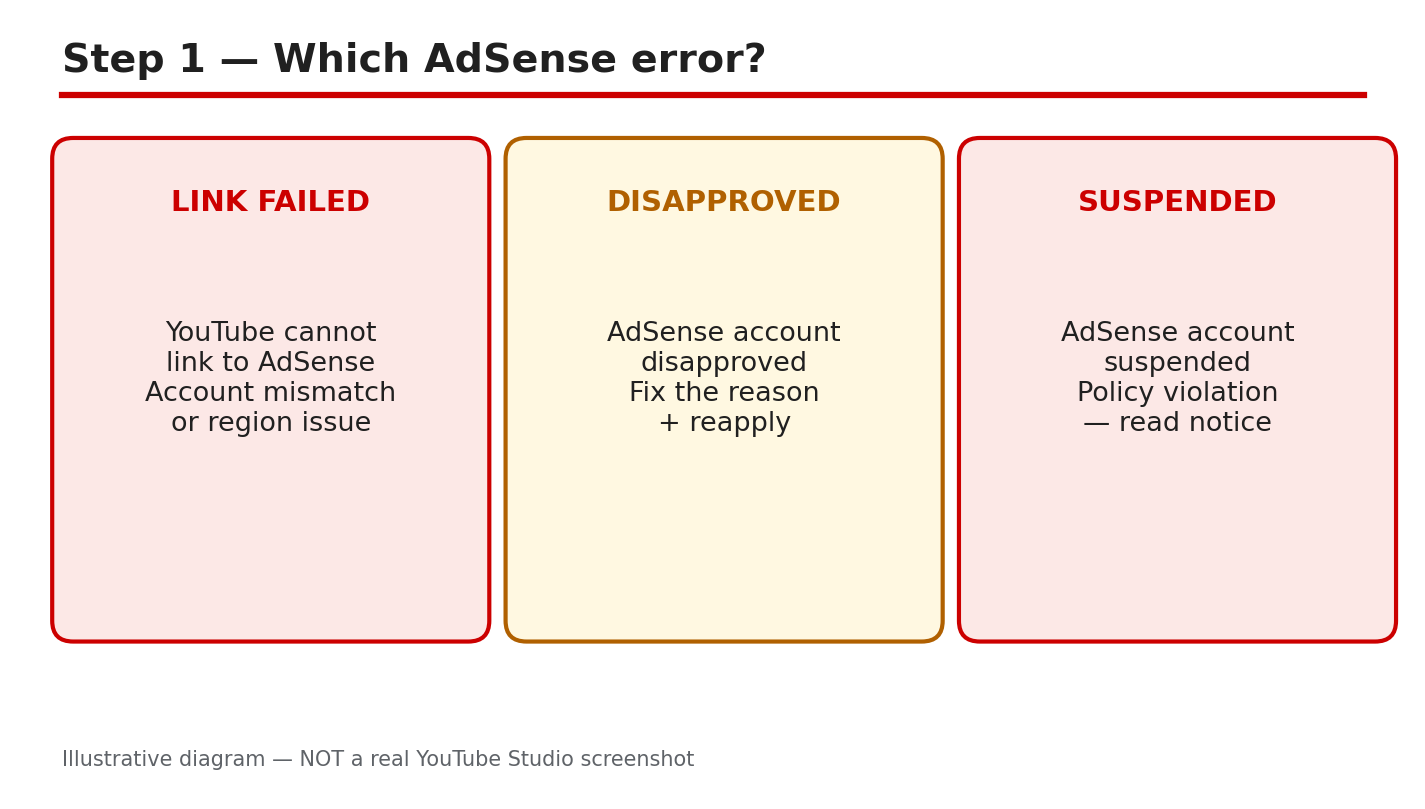
A linking error can stop your YouTube earnings before they start. You open the Earn tab, try to link AdSense, and YouTube shows a failure, a disapproval, or a suspension notice instead of a linked account. Each message needs a different fix, and guessing can waste days or make the problem worse. This guide helps you read the exact message, check the account and details behind it, and retry in the right order. You will not need any account number, PIN, or payment detail, and you should never share those details in a comment, message, or form outside the official account pages. Work slowly, keep the exact error text in front of you, and stop if a message asks for a second account. One careful pass through the steps below is faster than repeated retries with the same mistake. What You Will Learn By the end, you will be able to:Tell a link failure, a disapproval, and a suspension apart. Find the linking card in YouTube Studio and check the account used. Spot the common causes of a failed link before you retry. Check that names, addresses, and logins match before retrying. Choose the right fix for disapproved and suspended accounts. Follow a calm fix plan and know when to wait.Step 1: Tell link failed, disapproved, and suspended apart What to do: Read the full message first and name the problem before you act. A link failure means the connection did not complete. A disapproval means the new account was not approved, often because another account already exists under the same payee name. A suspension or closure is a policy action, and it needs the policy notice, not a new link attempt. Studio path: No Studio path is needed yet. Start from the message itself, then open YouTube Studio only to confirm what the Earn tab shows. Example: Maya sees “already have an existing AdSense account.” She treats it as a duplicate-account disapproval, not a password problem. Common mistake: Creating a second account to get around the first message. That can lead to duplicate-account disapproval and loss of monetization.Illustrative diagram, not a real screenshot: link failed, disapproved, and suspended compared. Step 2: Where linking happens in YouTube Studio What to do: Use only the Studio route to create or link an AdSense for YouTube account. Google’s Help page says to create the account through YouTube Studio, not through the AdSense homepage, and warns that creating it elsewhere can lead to disapproval. Studio path: YouTube Studio > Earn > Sign-up for AdSense for YouTube card > START. Check the email shown at the top, and use “Use a different account” only if that email is wrong. Example: Arjun opens the Earn tab, clicks START, and checks that the email at the top is the one he wants for AdSense before he continues. Common mistake: Starting the sign-up on the AdSense homepage and entering a website address. Use the Studio card instead, and do not add a website for a YouTube link.Illustrative diagram, not a real screenshot: Studio Earn tab, AdSense card. Step 3: Common link failures and what they mean What to do: Match the failure to its likely cause before you change anything. The Help page lists a duplicate account, a wrong Google account, and an unrecognised email as common problems. The page also notes that you can change the linked account only once every 32 days, so a rushed change can lock in the wrong choice. Studio path: YouTube Studio > Earn. Read the card message, then check which Google account is signed in, using the account menu at the top right. Example: Priya is signed in with a family account in one tab and her channel account in another. The link fails because the wrong account is being used for AdSense. Common mistake: Retrying in a normal browser window with several Google accounts signed in. Close other tabs, or use a private window with only the right account signed in.Illustrative diagram, not a real screenshot: wrong account, duplicate account, unrecognised email. Step 4: Before retrying, check these details What to do: Confirm four things in one pass: the same login is used for Studio and the AdSense step, only one AdSense account exists under the payee name, the name and address match exactly, and you have read the full error text. Studio path: YouTube Studio > Earn. Verify the email, then open the AdSense step and verify the same email again before you submit any detail. Example: Sam’s address has a flat number in Studio but not in his form. He fixes the address to match exactly, then retries, instead of submitting the same mismatch again. Common mistake: Changing the linked account again immediately after a failed attempt. Remember the 32-day limit, and check the Help page before you change the association.Illustrative diagram, not a real screenshot: matching login, account, name, and address. Step 5: Disapproved or suspended — choose the right fix What to do: For a disapproval, find the stated reason, fix the underlying issue, and use the existing older account if the problem is a duplicate. For a closed or suspended account, read the policy notice, fix the policy problem if you can, and appeal only with real changes and full detail. Studio path: YouTube Studio > Earn for the account status, then the official Help and appeal pages linked in Sources. Do not start a new account from the AdSense homepage. Example: Noor’s new account is disapproved as a duplicate. She searches her email for the existing-account message, then uses Change Association to link the older account instead. Common mistake: Opening a new account after a policy closure or a denied appeal. Google’s Help page says publishers closed for policy reasons may not rejoin by opening a new account.Illustrative diagram, not a real screenshot: disapproved duplicate, suspended policy closure. Step 6: A calm linking fix plan What to do: Work the plan once, in order, and wait for the result. Day one is for reading and checking. Day two is for one clean retry with the right account and matching details. After that, wait for approval, and check the Earn tab and your email instead of retrying daily. Studio path: YouTube Studio > Earn each time you check. Note the date, the message, and the account used, so you do not repeat a step or change the link too soon. Example: Leo writes down the error, the date, and the email used. When the older-account message appears, he knows the next step is Change Association, not another new sign-up. Common mistake: Retrying every hour and changing accounts in between. Each change can add confusion, and the 32-day rule can keep the wrong link in place.Illustrative diagram, not a real screenshot: read, check, retry once, then wait. Checklist: Before you retry Tick each item before your next attempt.I have read the full error message. I know whether it is a failure, disapproval, or suspension. I am using the right Google account in Studio. Only one AdSense account exists under my payee name. Name and address match exactly on both sides. I have not created a second account to dodge the message.Frequently Asked Questions Can I have two AdSense accounts for one channel? No. Google’s Help page says you can have only one AdSense or AdSense for YouTube account under the same payee name. Duplicate accounts will not be approved, and monetization can be turned off. Why was my new account disapproved as a duplicate? An older account already exists under the same payee name. Search your email for the existing-account message, then use the older account through Change Association, or close the older account first if you plan to use the new one. Can I change the linked AdSense account again right away? No, not freely. The Help page says you can change the linked AdSense for YouTube account only once every 32 days, so check the account and the message carefully before you change it. What should I do if my account was closed for policy reasons? Read the closure notice, fix the policy issue if you can, and appeal through the official appeal form with full detail. Do not open a new account to rejoin after a denied appeal. Do I need to share my PIN or account number here? No. Never share a PIN, account number, or payment detail in a comment or message. Use only the official Studio and AdSense account pages, and keep the exact error text for your own check. Sources — Check It Yourself Check the official pages below, and re-read your own message before you act. No official YouTube video is embedded in this guide, because no exact official video was verified live in this run.AdSense PIN guide: AdSense PIN Not Arrived? How to Verify Your Address and Release Held Payments Set up an AdSense for YouTube account to get paid on YouTube AdSense account closed by Google for policy reasons
- CreatorPlaybook Team
- 29 Oct, 2026
YouTube Watch Hours Dropping? Why Your 4,000 Hours Keep Falling
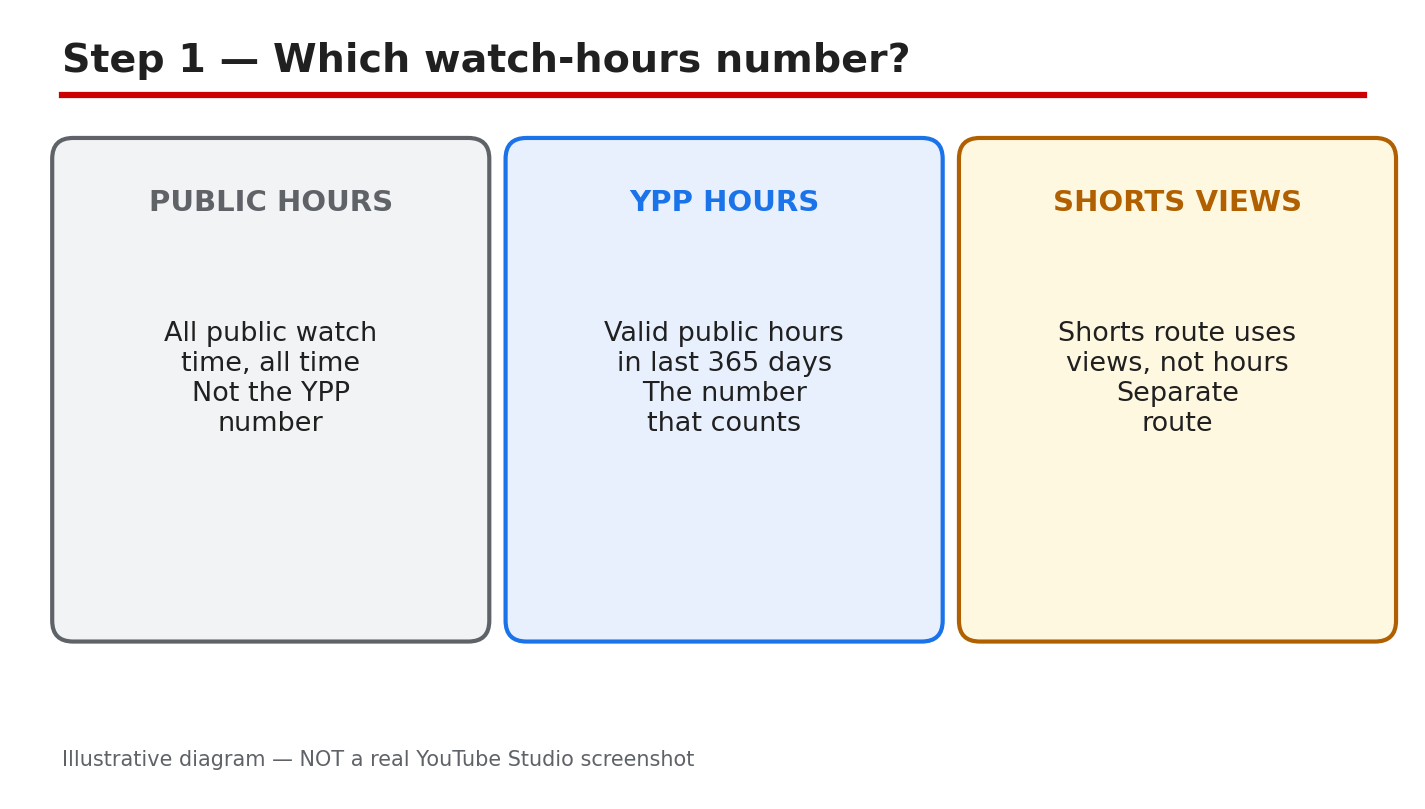
Watch hours can fall even when you keep uploading. The number in Studio moves down, the goal feels further away, and it is easy to blame the algorithm. This guide slows that moment down. You will learn which watch-hours number matters for the YouTube Partner Program, where to check it, why it falls, and how to grow hours that actually count. No figure in this post is taken from any individual channel. For the wider picture, read Understanding YouTube Analytics first. It explains views, watch time, and audience retention in Studio. This post focuses only on one number: valid public watch hours in the last 365 days, and why that number keeps moving. What You Will LearnWhich watch-hours number counts for the Partner Program. Where to find it in Studio, in the same 365-day window. Why hours fall, even without a penalty. A simple hours audit you can run in one sitting. How to grow hours that count, without buying them. A 30-day plan to rebuild the number steadily.Step 1: Which Number Are You Looking At? What to do: Do not compare different numbers. Public watch time counts all time, for all time, and it rarely falls. Valid public watch hours in the last 365 days are the Partner Program number, and they move every day. The Shorts route is different again: it uses views, not hours, so Shorts watch time does not add to this number. Know which number you are reading before you judge it. Studio path: YouTube Studio > Earn. Read the eligibility numbers there before you open Analytics. Example: A channel shows a large all-time watch time, but only part of it falls in the last 365 days. The Partner Program number is the smaller, rolling figure, not the all-time total. Common mistake: Panicking over the all-time number, or adding Shorts watch time to it. Use only the 365-day valid public hours for the Partner Program check.Illustrative diagram/mock-up, NOT a real YouTube Studio screenshot: which watch-hours number counts. Step 2: See It in Studio, in the Same Window What to do: Check the same window in two places. In the Earn tab, read the eligibility numbers for subscribers and watch hours or Shorts views. In Analytics, open Watch time and set the same last-365-days period. If the two views use different dates, they will not match, and the gap will look like a sudden fall. Compare like with like, on the same day. Studio path: YouTube Studio > Earn, then YouTube Studio > Analytics > Watch time. Set both to the last 365 days. Example: A creator checks Earn on Monday and Analytics on Friday, with different date ranges, and sees two different numbers. Checking both on the same day, in the same window, removes the false gap. Common mistake: Comparing a 28-day Analytics view with the 365-day eligibility number. The short view will almost always look smaller, and it is not the Partner Program number.Illustrative diagram/mock-up, NOT a real YouTube Studio screenshot: where to see the number. Step 3: Why the Number Falls What to do: Three normal causes explain most falls. First, hours age out: the window rolls forward every day, so strong days from a year ago leave the count. Second, hours leave with the video: making a video private or deleting it removes its hours from the valid total. Third, the mix changes: more Shorts views and fewer long-form views mean fewer hours, even when views rise. None of these needs a penalty to happen. Studio path: YouTube Studio > Analytics > Watch time. Look for the shape of the fall: steady, sudden, or tied to one video. Example: A video that earned many hours last spring passes its 365th day, and the total drops overnight. Nothing broke: the hours simply aged out of the rolling window. Common mistake: Assuming a fall means a strike, a restriction, or a shadowban. Check ageing, privacy, and mix first, before you look for a penalty.Illustrative diagram/mock-up, NOT a real YouTube Studio screenshot: why the number falls. Step 4: Run a Simple Hours Audit What to do: Work through four checks in one sitting. First, confirm the window: last 365 days, in both Earn and Analytics. Second, list videos made private or deleted recently, and note their hours. Third, check that your top videos are still public and still earning watch time. Fourth, check retention past 30 seconds: viewers who leave in the first seconds add almost no hours, however many clicks the video gets. Studio path: YouTube Studio > Content to check privacy, and Analytics > Watch time to check top videos and retention. Example: A creator finds two older videos made private last month. Their hours left the total on the day they were hidden, which explains most of the fall. Common mistake: Auditing views instead of hours. A video can gain views and still add few hours if viewers leave within seconds.Illustrative diagram/mock-up, NOT a real YouTube Studio screenshot: hours audit checks. Step 5: Grow Hours That Count What to do: Make hours easy to earn. Publish 8- to 12-minute videos with a strong hook in the first 30 seconds. Build series and playlists, and add end screens that lead to the next video. Edit for retention first: cut dead air in the first minute. Never buy watch hours: bought hours do not build a real audience, and they put the channel at risk. Studio path: YouTube Studio > Analytics > Audience retention. Find where viewers leave, and fix that moment first. Example: A creator cuts a slow 40-second introduction to 10 seconds. Viewers stay longer, average view duration rises, and the same number of views earns more hours. Common mistake: Making videos longer without making them stronger. Extra minutes only add hours if viewers watch them; dead minutes add nothing.Illustrative diagram/mock-up, NOT a real YouTube Studio screenshot: growing hours that count. Step 6: A 30-Day Hours Plan What to do: Week one: run the audit, restore any video hidden by mistake, and note the starting 365-day number. Week two: publish two 8- to 12-minute videos with strong hooks, and link them in a playlist. Week three: check retention, cut the weakest opening, and add end screens to the top videos. Week four: compare the same 365-day window again, and keep the habits that raised retention. Expect steady rebuilding, not an overnight jump. Studio path: YouTube Studio > Earn each Monday, and Analytics > Watch time each Monday, in the same 365-day window. Example: A creator publishes two longer videos in week two and fixes one weak opening in week three. By week four, retention is higher, and hours stop falling as fast. Common mistake: Checking the number daily and changing the plan each time. The rolling window moves slowly, so judge the plan after four weeks, not four days.Illustrative diagram/mock-up, NOT a real YouTube Studio screenshot: 30-day hours plan. Checklist: Audit in OrderWindow checked: last 365 days, in Earn and Analytics. No top video hidden or deleted by mistake. Top videos still public and earning watch time. Retention past 30 seconds checked for top videos. Next videos planned at 8 to 12 minutes, with hooks. Series, playlists, and end screens in place. No watch hours bought, and no shortcuts used.Frequently Asked Questions Why do my watch hours fall every day? The window rolls forward daily, so hours from 365 days ago leave the count. A small daily fall is normal when no new hours replace the old ones. Do Shorts views count toward 4,000 hours? No. Shorts Feed watch hours do not count toward the watch-hours route. Shorts can qualify through the separate views route: 10 million qualified Shorts views in the last 90 days, with 1,000 subscribers. Do private or deleted videos lose their hours? Yes, for the valid total. Hours from a video that is private or deleted do not count in the last 365 days. Restoring a video to public can return its hours to the count. Can I buy watch hours to reach 4,000? No. Never buy watch hours. Bought hours do not build a real audience, and they put the channel at risk. Grow hours with longer videos, strong hooks, and playlists instead. How long until my hours recover? There is no fixed time. Hours rebuild as new viewing enters the 365-day window and old hours age out. Judge a plan over four weeks, in the same window, before changing it. Sources: Check It Yourself Official pages opened and verified live on 29 October 2026. Check the current wording before acting, because Studio options and Help wording can change.YouTube Partner Program overview and eligibility (YouTube Help) YouTube channel monetization policies (YouTube Help)No official YouTube video is embedded here. No exact official video URL was verified live in this run.
- CreatorPlaybook Team
- 29 Oct, 2026
AdSense PIN Not Arrived? How to Verify Your Address and Release Held Payments
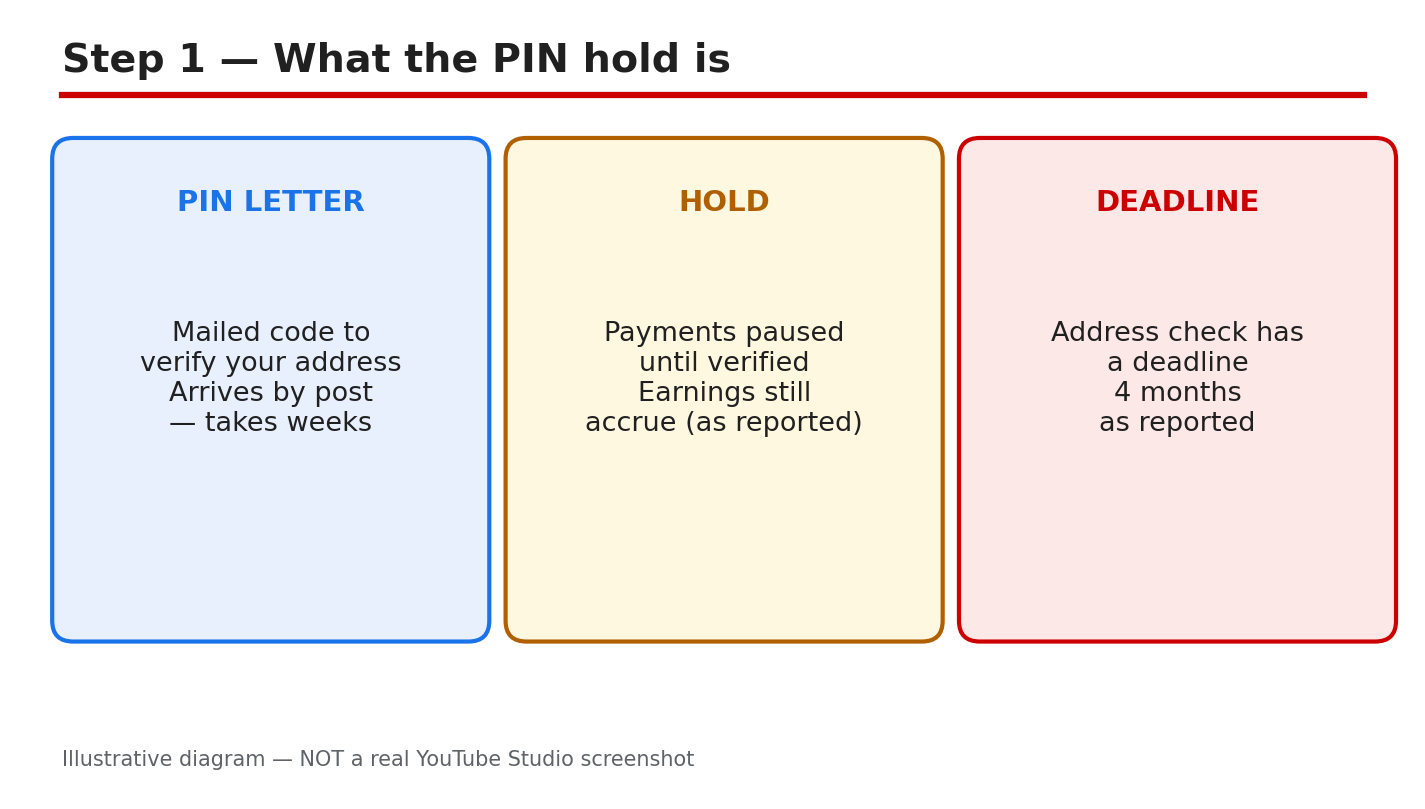
A letter that never arrives can hold up your YouTube earnings. AdSense mails a six-digit Personal Identification Number, called a PIN, to the payment address on your account. Until you enter that PIN, AdSense holds your payments. The money is not lost, but it will not reach your bank until the address is verified. This guide explains what the hold means, where the PIN goes, and what to do when the letter is late or the code does not work. Related reading: How to Earn Money on YouTube. That guide explains how YouTube earnings reach AdSense, so open it if the payment flow is new to you. Below, each step gives what to do, the exact AdSense path, a short example, and a common mistake. Work in order, and never share your PIN. It belongs only in your own AdSense account. What You Will LearnWhat the PIN hold means. Where to enter the PIN. What to do when the letter is late. How to enter the PIN carefully. What to do if the PIN fails. A plan to release held payments.Step 1: What the PIN Hold Is What to do: Understand the hold before you chase the letter. AdSense mails a six-digit PIN to the payment address on your account to prove that the address is real. Until the PIN is entered, AdSense pauses payments. Earnings are reported to keep accruing while payments are held. The verification deadline is reported as four months, so check your own AdSense account for the exact deadline and wording. AdSense path: AdSense home > Payments > Verification. Look for the address verification task and its deadline. The task shows whether a PIN has been mailed, whether it has been entered, and how much time remains. Read that page first. Example: A creator sees a payment hold notice and assumes the channel is demonetized. The AdSense verification page shows only an address check is pending, and earnings are still being recorded. The hold is about the address, not the channel. Common mistake: Asking for a replacement PIN before checking the verification page. A PIN may already be on its way, and a replacement can add confusion. Check the task and the deadline first.Illustrative diagram/mock-up — NOT a real AdSense screenshot: what the PIN hold is. Step 2: Where to Enter the PIN What to do: Enter the PIN only in your own AdSense account, on the verification page. Never type it into an email reply, a chat message, or a site that claims to speed up verification. AdSense will never ask you to share the PIN by email or message. If someone asks for it, stop: it is a scam warning sign. AdSense path: AdSense > Payments > Verification > enter the six-digit PIN from the letter. Type the code exactly as printed, then submit once. Stay on the page until you see the result, and do not press submit twice. Example: A creator finds the letter and enters the code from a phone photo. Two digits are unclear, so the creator checks the paper letter under good light before typing anything. The paper letter is the source of truth. Common mistake: Entering the PIN on a lookalike site reached from a search ad or a message link. Always open AdSense yourself and navigate to Payments, rather than following a link someone sent you.Illustrative diagram/mock-up — NOT a real AdSense screenshot: where to enter the PIN. Step 3: The PIN Never Arrived What to do: Wait out the reported mail period before requesting a replacement. Mail is reported to take two to four weeks, and the official overview says it usually takes three weeks, so one week late is not yet lost. Fix the payment address first, so a replacement goes to the right place. Then request a replacement only after the waiting period has passed. AdSense path: AdSense > Payments > Verification > check the address on file, then use the replacement option shown there. If the address is wrong, update it in the payment settings and confirm the change before requesting the new letter. Example: A creator moved house and the PIN went to the old address. The creator updates the payment address, waits for the confirmation, and then requests a replacement. The second letter arrives at the new address. Common mistake: Requesting replacement after replacement while the address is still wrong. Each new letter goes to the same wrong address. Fix the address once, then request one replacement and wait.Illustrative diagram/mock-up — NOT a real AdSense screenshot: PIN never arrived. Step 4: Before You Enter the PIN What to do: Run four checks before you type anything. First, the address on the letter must match the address in your AdSense account. Second, be signed in to the right AdSense account, the one linked to the channel. Third, read all six digits correctly, and check lookalike digits twice. Fourth, know how many tries remain. Three wrong entries are reported to risk demonetizing the channel; the official overview says they stop the account showing ads. Treat every try as valuable, and check your own account wording. AdSense path: AdSense > Payments > Verification. Read the letter, the account name, and the tries remaining before you enter anything. If any detail does not match, stop and fix it first. Example: A creator is about to type the code when the account name looks unfamiliar. The creator stops, signs in to the correct account, and the verification task appears. The letter belonged to the other account. Common mistake: Guessing a digit you cannot read. A guess uses up a try, and repeated guesses can lock the process. Re-read the letter under good light, or request a fresh PIN instead of guessing.Illustrative diagram/mock-up — NOT a real AdSense screenshot: before entering the PIN. Step 5: If the PIN Fails What to do: Re-read the letter once, slowly, and try one more careful entry. If it fails again, do not keep guessing. Request a fresh PIN from the verification page, and wait for the new letter. If the fresh PIN also fails, contact AdSense support with the letter and your account details ready, and describe what the verification page shows. AdSense path: AdSense > Payments > Verification > request a replacement PIN, then Help or Contact for support. Note the exact message on the verification page before contacting support. Example: A creator enters the code twice and sees the same error. Instead of a third guess, the creator requests a fresh PIN, and the new letter works first time. The old letter had a misprinted digit. Common mistake: Trying the same code again and again in frustration. Repeated failures can use up your tries and delay the fix. One careful retry, then a fresh PIN, is the safer order.Illustrative diagram/mock-up — NOT a real AdSense screenshot: if the PIN fails. Step 6: Follow the Payment-Hold Plan What to do: Work the plan in order. Week one: check the verification page, confirm the address, and wait for the mail. Week two: enter the PIN carefully, or request a replacement if the letter never arrived. After verification: confirm the hold is lifted in Payments, and keep the letter for your records. AdSense path: AdSense > Payments for the hold status, and Verification for the PIN task. Check both pages after entering the PIN; the hold lifts when verification is confirmed. Example: A creator enters the PIN on a Monday and checks Payments on Tuesday. The hold is gone, and the next payment cycle includes the held earnings. The creator keeps the letter filed. Common mistake: Throwing the letter away once the PIN is entered. If verification is questioned later, the letter is your proof. Keep it until the hold has cleared and a payment has gone through.Illustrative diagram/mock-up — NOT a real AdSense screenshot: payment-hold plan. ChecklistVerification page checked: task, address, deadline. Payment address matches the letter. Waiting period respected before a replacement. Right AdSense account signed in. All six digits read and checked twice. PIN entered only in your own AdSense account. Hold confirmed lifted in Payments.Frequently Asked Questions Why are my payments held? AdSense is waiting for address verification. Until the PIN is entered, payments pause, while earnings are reported to keep accruing. Check your own AdSense account for the exact deadline. How long does the PIN letter take? Mail is reported to take two to four weeks, and the official overview says three weeks is usual. Wait out that period, with the right address on file, before requesting a replacement. Can I share my PIN with support? No. Never share the PIN with anyone claiming to be support. Enter it only in your own AdSense account, on the verification page. What if I enter the wrong PIN? Stop guessing. Re-read the letter once, try one careful entry, then request a fresh PIN if it fails. Three wrong entries are reported to risk demonetization; the official wording says ads stop showing. Check your own account. Do I lose earnings while payments are held? Earnings are reported to keep accruing during the hold; check your own AdSense account for the exact position. Once the hold lifts, held earnings join the normal payment cycle. Sources — Check It Yourself Official pages opened and verified live on 29 October 2026. Check current wording before acting.Address verification (PIN) overview — Google AdSense Help Enter your PIN to verify your payments address — Google AdSense HelpNo official YouTube video is embedded here. No exact official video URL was verified live.
- CreatorPlaybook Team
- 29 Oct, 2026
How to Get Monetized on YouTube in India: Approval Steps That Actually Work
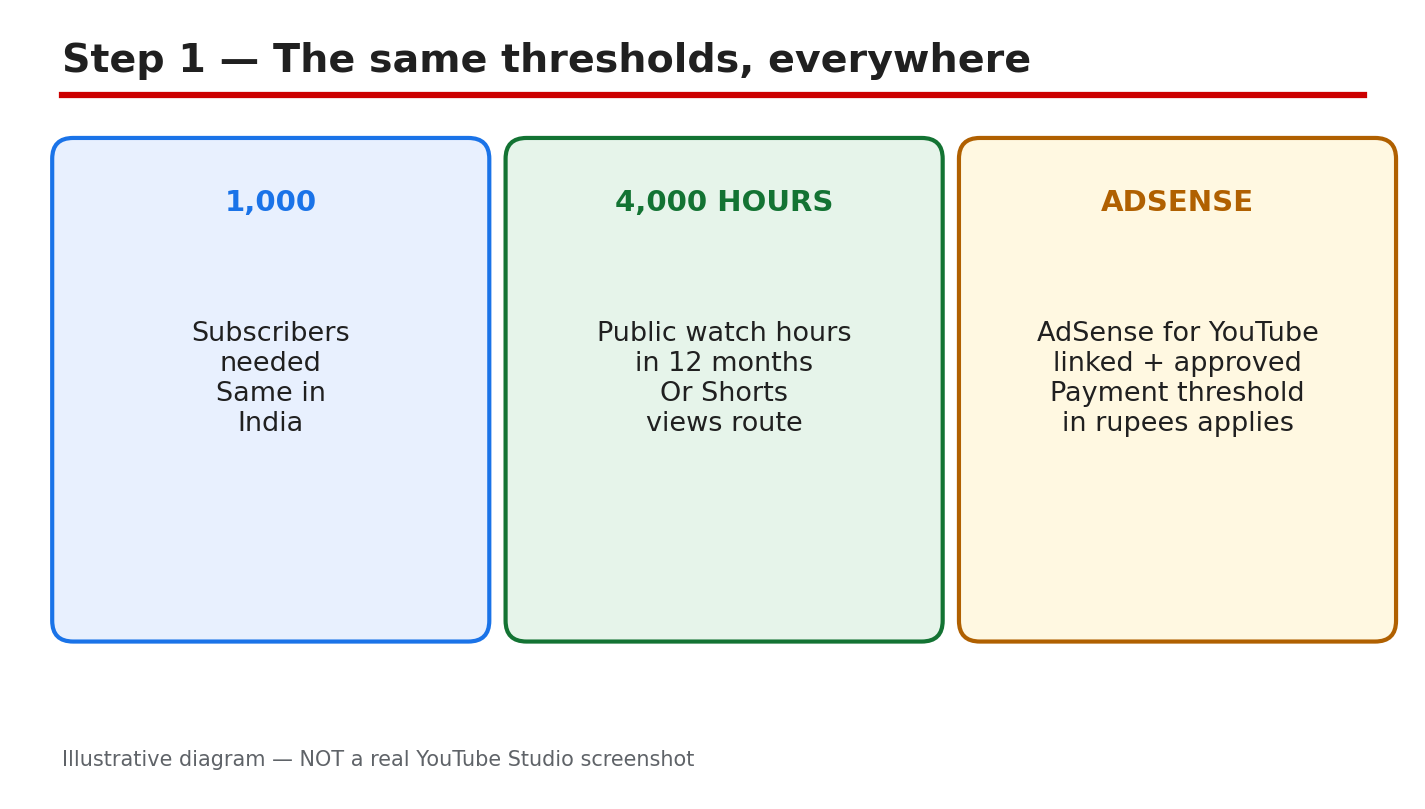
Getting monetized in India follows the same YouTube Partner Program rules as everywhere else. There is no separate India shortcut, no local office to call, and no paid route that makes YouTube approve a channel faster. What is different is the work around the application: the kinds of reused clips that commonly cause rejections, the clean-up that helps a reviewer see original work clearly, and the patience to apply only when the numbers are truly met. This guide gives you a plain, step-by-step plan. You will check the thresholds, apply through the Earn tab in Studio, fix the reused-content problem that is commonly reported in India, clean up your channel before you apply, and understand the money facts without invented figures. Check the official Help pages linked in Sources before you rely on a number, because eligibility wording can change. What You Will LearnThe exact thresholds, and the Shorts views route. How to apply in Studio, step by step. The reused-content trap commonly reported in India, and the fix. A pre-apply clean-up for your channel and recent videos. Money facts: AdSense, RPM, and what approval really means.Step 1: Check the Thresholds First What to do: Before you do anything else, confirm that you meet every requirement. You need 1,000 subscribers, plus either 4,000 valid public watch hours in the last 12 months or 10 million valid public Shorts views in the last 90 days. You also need an AdSense for YouTube account linked and approved, and no active Community Guidelines strike. If any part is missing, keep publishing and re-check. Studio path: YouTube Studio > Earn > check the subscriber, watch-hour, and Shorts-view figures shown, then check your AdSense link status. Example: Your channel shows 1,240 subscribers and 4,350 watch hours, with AdSense linked. You meet the long-form route, so you can move to Step 2. Common mistake: Counting private, deleted, or Shorts views as watch hours, or counting subscribers bought from a seller. Only valid public watch hours count, and bought growth can harm your channel.Illustrative diagram/mock-up, NOT a real Studio screenshot: the monetization thresholds. Step 2: Apply Through the Earn Tab What to do: Apply only when the figures in Step 1 are met. Open the Earn tab, accept the YouTube Partner Program terms, link your AdSense for YouTube account if it is not linked yet, and submit the application. Then wait. Review typically takes about a month, so wait for the status to change. Studio path: YouTube Studio > Earn > Apply Now > accept the terms > link AdSense for YouTube > submit, then check Earn for the review status. Example: You accept the terms on a Monday, link AdSense, and submit. You keep uploading as normal while the review runs, instead of changing your channel name or deleting videos mid-review. Common mistake: Applying at 900 subscribers in the hope that YouTube will wait. An early application is not a place in a queue; meet the numbers first, then apply once.Illustrative diagram/mock-up, NOT a real Studio screenshot: the Earn tab application path. Step 3: Fix the Reused-Content Problem What to do: Look honestly at your recent videos. The commonly reported India rejection cause is reused content: Bollywood film clips, cricket broadcast clips, and template videos with little original input, presented as if they were your own work. This is reported by creators, not stated as an official YouTube India statistic. The fix is a run of original videos: your own voice, your own commentary or teaching, and your own editing choices. Studio path: YouTube Studio > Content > open each recent video > check the footage, audio, and credits, then plan replacements or new original videos before you apply. Example: A channel posts cricket highlights with a copied commentary track. The fix is not a new thumbnail; it is several new videos where you film, explain, and edit the content yourself. Common mistake: Keeping the reused clips, adding a short intro, and calling the result original. A brief intro does not turn someone else's film or broadcast footage into your original work.Illustrative diagram/mock-up, NOT a real Studio screenshot: the common rejection cause. Step 4: Run the Pre-Apply Clean-Up What to do: Before you apply, make the channel easy to review. Set a clear channel theme and About section that match what you actually upload. Check your newest 10 videos one by one: each should be original, with honest titles, descriptions, and tags that describe the video itself. Resolve any active strike and any unresolved copyright claim before you apply, or wait until the issue is settled. Studio path: YouTube Studio > Customization > Basic info for the theme and About text; YouTube Studio > Content > Restrictions to check strikes and claims. Example: Your newest 10 videos include two old clip compilations. You unlist or replace them, publish two new original videos, and only then check the Earn tab. Common mistake: Cleaning up only the channel banner and leaving misleading titles on the videos. Reviewers look at the videos, so fix the videos first.Illustrative diagram/mock-up, NOT a real Studio screenshot: the pre-apply clean-up. Step 5: Understand the Money Facts What to do: Get the money facts right before you expect payment. Check the AdSense payment threshold amount in your own AdSense account; do not use a figure copied from a social post. RPM varies by topic, audience, advertiser demand, and season, so do not trust a single India RPM figure. Approval is YouTube's decision alone: never pay anyone for approval, and never buy subscribers or watch hours. Studio path: YouTube Studio > Analytics > Revenue to see your own RPM range; AdSense > Payments to check the payment threshold in your account. Example: Two channels in India show very different RPMs because one covers finance and the other covers comedy. The difference is the topic and audience, not a fixed national rate. Common mistake: Paying an agent who promises approval in a week. No agent can approve a channel, and bought subscribers or watch hours can lead to removal from the program.Illustrative diagram/mock-up, NOT a real Studio screenshot: money facts for India. Step 6: Follow the Apply-and-Recheck Plan What to do: Make a simple plan and stick to it. Week one: check the numbers and finish the clean-up in Step 4. Week two: publish original videos and re-check Earn. When the numbers are met, apply, then keep publishing original videos during the review. If the application is rejected, read the reason, fix that exact problem with new original work, and re-apply only when the fix is visible on the channel. Studio path: YouTube Studio > Earn > re-check eligibility weekly; YouTube Studio > Content > confirm the newest videos are original before each re-check. Example: You are rejected for reused content. You publish six original videos over the next month, remove the reused clips, and re-apply with a channel that now shows the fix. Common mistake: Re-applying the next day with nothing changed, or deleting the rejection email without reading it. A repeat application with the same problem wastes the review and your time.Illustrative diagram/mock-up, NOT a real Studio screenshot: the apply-and-recheck plan. Checklist: Before You Apply1,000 subscribers reached, with valid public watch hours or Shorts views. AdSense for YouTube linked and approved. Newest 10 videos original, with honest titles and descriptions. No active strike and no unresolved copyright claim. No bought subscribers, watch hours, or paid approval promised.Frequently Asked Questions Can I apply before I reach 1,000 subscribers? No. Apply only when the subscriber and watch-hour or Shorts-view figures are met, with AdSense linked. An early application does not hold your place. Is the threshold different in India? No. The subscriber, watch-hour, and Shorts-view thresholds are the same everywhere. What differs is your audience, topic, and RPM, not the entry numbers. How long does the review take? Review typically takes about a month. Keep publishing original videos while you wait, and check the Earn tab for the status instead of re-applying. What if I am rejected for reused content? Read the reason, remove or replace the reused videos, and publish a run of original videos with your own voice and editing. Can someone approve my channel for a fee? No. Never pay anyone for approval. Approval is YouTube's decision, based on your channel and the Partner Program policies, and paid approval claims are scams. A Simple Plan to Remember Meet the numbers, clean the channel, apply once, and keep publishing original work while you wait. If you are rejected, treat the reason as a task list, not as a verdict on your channel. Fix the exact problem, show the fix in your newest videos, and apply again. Do not buy growth, do not pay for approval, and do not copy clips and hope the review misses them. Build the channel you would be proud to show a reviewer, one original video at a time. Sources — Check It Yourself Check these sources yourself before you apply. Eligibility wording can change, so use the official Help pages for the current numbers.YouTube Help: YouTube Partner Program overview & eligibility YouTube Help: YouTube channel monetization policies CreatorPlaybook: How to Earn Money on YouTube